

The TBILLPRICE function in Excel gives you the price of a US Treasury bill for every $100 of its face value. You give it the date you buy the bill, the date it matures, and its discount rate.
T-bills don’t pay interest along the way. You buy them for less than their face value and get the full amount back at maturity, so the price tells you what you pay today and how much you’ll earn by the end.
In this tutorial, I’ll show you five examples, from pricing a single bill to working out the total cost of a T-bill ladder.
Follow along with the example file
TBILLPRICE Function Examples.xlsx
TBILLPRICE Function Syntax
Here is the syntax of the TBILLPRICE function:
=TBILLPRICE(settlement,maturity,discount)
- settlement – Required. The date you buy the bill, when it’s transferred to you. This can be later than the issue date if you buy the bill from someone else.
- maturity – Required. The date the bill matures and pays you its face value.
- discount – Required. The bill’s annual discount rate, entered as a percentage such as 3.86% or as its decimal, 0.0386.
There’s no argument for the day-count method. TBILLPRICE always counts the actual days between the two dates and treats a year as 360 days, which is the convention Treasury bills use.
Both dates are treated as whole days, so if a cell holds a date with a time (like 11/5/2026 3:00 PM), the time part is simply ignored.
TBILLPRICE works in Excel 365, 2024, 2021, 2019, 2016, and Excel for Mac. The spilling examples below need Excel 365 or Excel 2021 and later, and each one also has a formula for older versions.
When to Use the TBILLPRICE Function
Use this function when you need to:
- Turn a T-bill’s quoted discount rate into the price you pay per $100.
- Work out how much a T-bill purchase will cost for a given face value.
- Compare prices across different T-bill terms, like 4-week and 26-week bills.
- See what a bill you already hold is worth if you sell it before maturity.
- Find the total cash you need to build a T-bill ladder.
Let me show you a few practical examples of how to use this function.
Example 1: Calculate the Price of a Treasury Bill
Let’s start with a simple example.
Below are the settlement date, maturity date, and discount rate for a 13-week Treasury bill, and I want its price per $100 in cell B6.
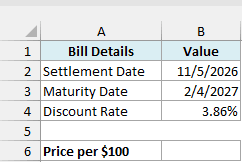
Here is the formula:
=TBILLPRICE(B2,B3,B4)
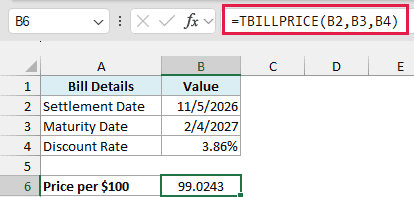
The formula returns 99.0243. So you’d pay about $99.02 for every $100 of face value, and get the full $100 back when the bill matures on February 4, 2027.
In the back end, TBILLPRICE counts the 91 days between the two dates and calculates 100 × (1 – 3.86% × 91 ÷ 360). That takes about $0.98 (0.9757) off each $100 of face value, and subtracting it from 100 gives the price.
Important: Enter the discount rate as 3.86% or 0.0386, not 3.86. Excel reads 3.86 as 386%, so this formula would return a price of about 2.43 instead of 99.02, and on longer bills the same mistake gives the #NUM! error.
You’ll also get #NUM! when the settlement date is the same as or later than the maturity date, or when the discount rate is zero or negative.
If a date in your sheet is text that Excel can’t read as a date (for example, something imported from another system), TBILLPRICE returns #VALUE!. You can rebuild a proper date from its year, month, and day with the DATE function.
Example 2: Find the Total Cost of a T-Bill Purchase
A price per $100 is useful, but you’ll usually want to know what the whole purchase costs.
Below are the details of a 26-week Treasury bill with a face value of $25,000, and I want the total purchase cost in cell B7.
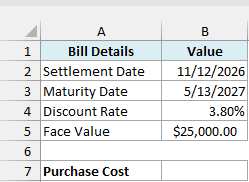
Here is the formula:
=TBILLPRICE(B2,B3,B4)*B5/100
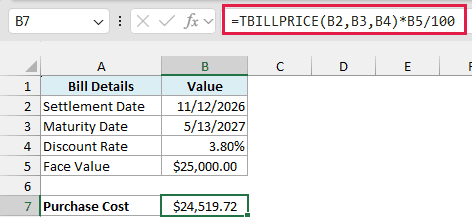
The result is $24,519.72. TBILLPRICE first returns the price per $100, which is about 98.0789 for this bill.
Dividing the face value in B5 by 100 tells you how many $100 units you’re buying (250 here). Multiplying that by the price per $100 gives the total cost.
Since the bill pays back $25,000 at maturity, the difference of $480.28 is what you earn over the 182 days. This cost doesn’t include any fees your broker may charge.
Example 3: Compare Prices Across T-Bill Terms
Now let’s look at something more interesting.
Treasury bills come in standard terms, from 4 weeks to 52 weeks. Below is a list of terms with a discount rate for each, and I want the price per $100 for every term in column C.
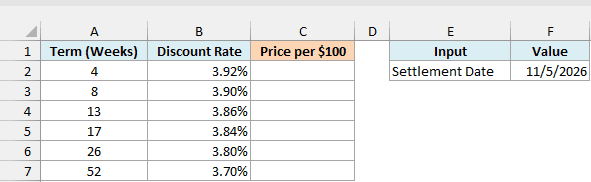
Here is the formula:
=TBILLPRICE(F2,F2+A2:A7*7,+B2:B7)
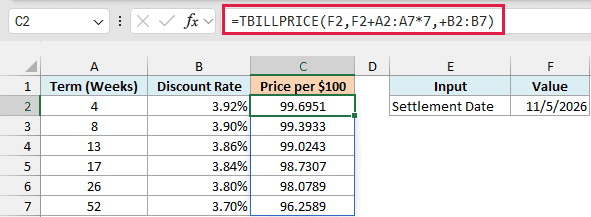
This one formula spills the six prices into C2:C7. The 4-week bill costs 99.6951 per $100, while the 52-week bill costs 96.2589, because the discount applies over a much longer period.
How this formula works:
- F2 is the settlement date, which is the same for every bill.
- F2+A2:A7*7 turns each term into a maturity date. It multiplies the number of weeks by 7 and adds those days to the settlement date, so you don’t need a separate column of maturity dates.
- +B2:B7 passes the six discount rates. The plus sign in front of the range is important, and the box below explains why.
Important: TBILLPRICE returns #VALUE! when you give it a plain range like B2:B7. Adding a plus sign in front (+B2:B7) turns the range into a list of values that the function can work with, so the formula spills correctly.
The maturity argument doesn’t need the plus sign, because F2+A2:A7*7 is already a calculation, and a calculation hands TBILLPRICE a list of values rather than a range.
You can use the same plus-sign trick with other Excel functions that won’t spill when you give them a range, such as the EDATE and EOMONTH functions.
TBILLPRICE only works for bills that mature within one year of the settlement date, and returns #NUM! for anything longer. The 52-week bill matures 364 days after settlement, so it stays inside that limit.
Treasury notes and bonds have longer terms and pay regular interest, so TBILLPRICE isn’t meant for them. For those, use the PRICE function instead.
If you are using Excel 2019 or earlier, enter the below formula in cell C2 and then copy it down to C7:
=TBILLPRICE($F$2,$F$2+A2*7,B2)
The dollar signs keep the settlement date fixed, while the term and rate references move down one row at a time.
Example 4: Track a T-Bill’s Price as It Nears Maturity
You don’t always have to hold a T-bill until it matures. You can sell it earlier, and its price depends on how many days are left.
Below are seven possible settlement dates for the 26-week bill from Example 2, with its maturity date in E2 and its discount rate in E3, and I want its price on each date in column B.
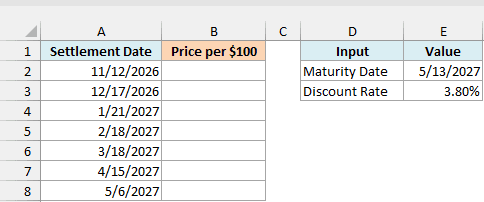
Here is the formula:
=TBILLPRICE(+A2:A8,E2,E3)
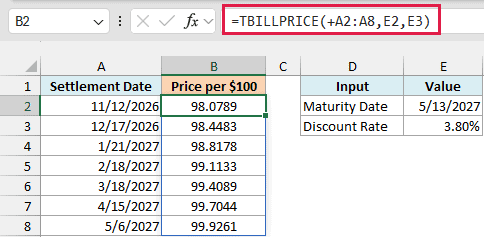
The formula spills seven prices into B2:B8. The plus sign in +A2:A8 lets TBILLPRICE take the seven settlement dates as a list, just like the rates in the previous example.
On November 12, 2026, with 182 days to go, the bill is worth 98.0789 per $100. By May 6, 2027, a week before maturity, it’s worth 99.9261.
This happens because the amount taken off the $100 gets smaller as fewer days are left, so the price keeps climbing toward $100.
The example keeps the discount rate fixed at 3.80% so you can see the effect of time alone. In real life, the rate also moves with the market, so a sale price would reflect both changes.
If you are using Excel 2019 or earlier, enter the below formula in cell B2 and then copy it down to B8:
=TBILLPRICE(A2,$E$2,$E$3)
Example 5: Calculate the Total Cost of a T-Bill Ladder
Let’s step it up with a more advanced use case.
A T-bill ladder is a set of bills that mature at different times, so some of your money comes back every few months.
Below is a four-bill ladder bought on November 5, 2026, and I want the total cost of all four bills in cell B7.
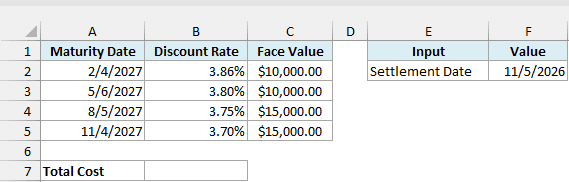
Here is the formula:
=SUM(TBILLPRICE(F2,+A2:A5,+B2:B5)*C2:C5/100)
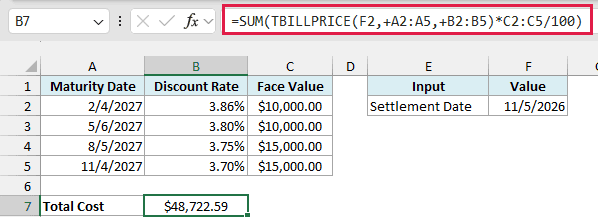
The total cost is $48,722.59. The four bills pay back $50,000 in total, so the ladder earns $1,277.41 by the time the last bill matures.
How this formula works:
- TBILLPRICE(F2,+A2:A5,+B2:B5) calculates the price per $100 for all four bills at once, using each bill’s own maturity date and discount rate.
- *C2:C5/100 turns each price into that bill’s cost, the same way as in Example 2.
- SUM adds the four costs into one total.
Since this calculates everything in one cell, you don’t need a helper column that holds the cost of each bill.
Important: In Excel 2019 or earlier, enter this formula with Control + Shift + Enter instead of Enter. If you press only Enter, Excel can’t work with the four bills together, so the formula returns #VALUE!.
So these are five ways to use the TBILLPRICE function, from pricing one bill to costing out a whole ladder. I hope you found this tutorial useful.
If you start from the price and need the yield instead, the TBILLYIELD function does that, and the TBILLEQ function converts a T-bill’s discount rate into a bond-equivalent yield.
Other Excel Articles You May Also Like:
