

The ODDFPRICE function in Excel gives you the price of a bond whose first interest period is shorter or longer than the rest. Like the other bond price functions, it returns the price per $100 of face value.
You’ll usually run into this with newly issued bonds. Say a bond pays interest (called a coupon) every six months.
If it’s issued partway through one of those six-month periods, its first coupon comes sooner or later than a normal coupon would. Every period after that is a regular one.
The examples below cover short and long first periods, the total cost of buying such a bond, how ODDFPRICE compares with the PRICE function, and how to price a whole list of bonds with one formula.
Note that ODDFPRICE doesn’t spill when you give it a plain range of cells. Example 5 shows the small fix for that.
Follow along with the example file
ODDFPRICE Function Examples.xlsx
ODDFPRICE Function Syntax
Here is the syntax of the ODDFPRICE function:
=ODDFPRICE(settlement,maturity,issue,first_coupon,rate,yld,redemption,frequency,[basis])
- settlement – the date you buy the bond.
- maturity – the date the bond matures and pays back its face value.
- issue – the date the bond was first issued.
- first_coupon – the date of the bond’s first coupon (interest) payment.
- rate – the bond’s annual coupon rate, such as 5%.
- yld – the annual yield you want to earn on the bond, such as 5.6%.
- redemption – the amount the bond pays back at maturity per $100 of face value. For most bonds, this is 100.
- frequency – the number of coupon payments per year. Use 1 for annual, 2 for semiannual, and 4 for quarterly.
- [basis] – optional. The day count method: 0 (US 30/360), 1 (actual/actual), 2 (actual/360), 3 (actual/365), or 4 (European 30/360). If you leave it out, Excel uses 0.
The result is a price per $100 of face value. So a result of 97.54 means you pay $97.54 for every $100 the bond pays back at maturity.
The four dates go into the formula in a different order than they happen. In real life, the bond is issued first, then you buy it, then the first coupon is paid, and the bond matures last.
If your dates don’t follow that order, ODDFPRICE returns the #NUM! error.
The first coupon date also has to sit on the bond’s regular coupon schedule. For example, a semiannual bond maturing on July 15 pays coupons on January 15 and July 15, so its first coupon must fall on one of those dates.
If it doesn’t, you get the #NUM! error. The same happens if the frequency doesn’t match that schedule, like entering 1 (annual) for the January 15 and July 15 bond, or any value other than 1, 2, or 4.
The day count method barely moves the result (on the bond in Example 1, basis 1 changes the price by less than a cent per $100). So you can leave basis out unless the bond’s terms call for a specific day count.
The ODDFPRICE function works in Excel 365, 2024, 2021, 2019, 2016, and Excel for Mac.
When to Use the ODDFPRICE Function
Use this function when you need to:
- Price a new bond whose first coupon comes sooner than a normal coupon period
- Price a bond whose first coupon period is longer than normal
- Work out the total cost of buying a new bond, including accrued interest
- Price a list of newly issued bonds with one formula
- Check how much a regular bond price formula is off for a bond with an odd first period
Let me show you a few practical examples of how to use the ODDFPRICE function.
Example 1: Price a Bond With a Short First Coupon in Excel
Let’s start with a bond whose first coupon period is shorter than the rest.
Below are the details of a bond that was issued on September 15 and pays its first coupon on January 15, and I want its price in cell B11.
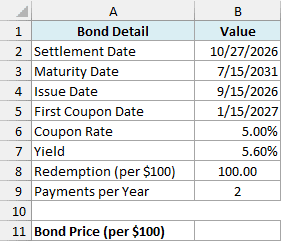
Here is the formula:
=ODDFPRICE(B2,B3,B4,B5,B6,B7,B8,B9)
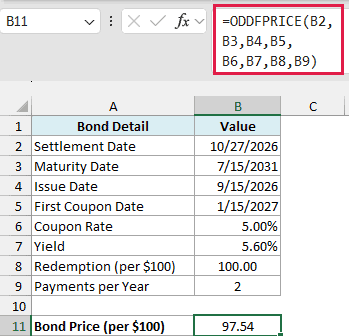
The formula returns 97.54, so you’d pay $97.54 for every $100 of face value. The price is below 100 because the bond’s 5% coupon is lower than the 5.60% yield you want.
This bond pays coupons every six months, but its first period runs from September 15 to January 15, which is only four months. So the first coupon is smaller than a normal one, and ODDFPRICE takes that into account.
Important: Enter the coupon rate and yield as percentages (5% and 5.60%) or decimals (0.05 and 0.056). If you type 5 and 5.6 instead, ODDFPRICE doesn’t show an error, but it returns a wrong price (85.19 for this bond).
ODDFPRICE only works when the first period really is odd. If this bond had been issued on July 15, exactly one regular period before its first coupon, ODDFPRICE would return the #NUM! error, and you’d use the PRICE function instead.
Example 2: Price a Bond With a Long First Coupon
Now let’s look at the opposite case, where the first period is longer than normal.
Below are the details of a bond that was issued on August 3 and pays its first coupon on May 15 of the next year, and I want its price in cell B11.
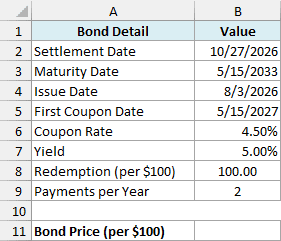
Here is the formula:
=ODDFPRICE(B2,B3,B4,B5,B6,B7,B8,B9)
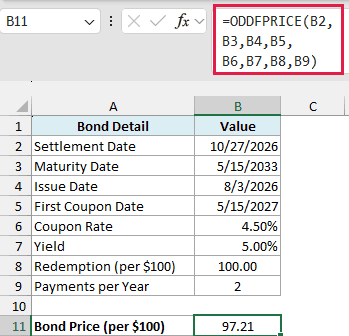
The formula returns 97.21 per $100 of face value.
This bond’s regular coupon dates are May 15 and November 15. But since it was issued in August, it skips the November 15, 2026 payment, and the first coupon on May 15, 2027 covers about nine and a half months instead of six.
You don’t have to do anything special for a long first period. It’s the same formula as Example 1, and ODDFPRICE works out whether the first period is short or long from the issue date and the first coupon date.
Example 3: Calculate the Total Cost of Buying the Bond
The price ODDFPRICE gives you isn’t the full amount you pay when you buy a bond.
When you buy a bond after its issue date, you also pay the seller the interest the bond has earned so far. This is called accrued interest, and ODDFPRICE leaves it out (its result is what’s called the clean price).
Below are the details of a bond where I’m buying $50,000 of face value, and I want the clean price in B11, the accrued interest in B12, and the total cost in B13.
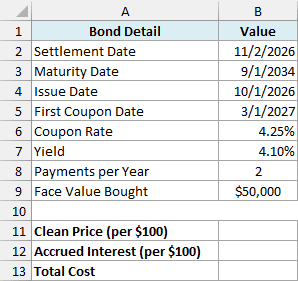
Here is the formula for the clean price:
=ODDFPRICE(B2,B3,B4,B5,B6,B7,100,B8)
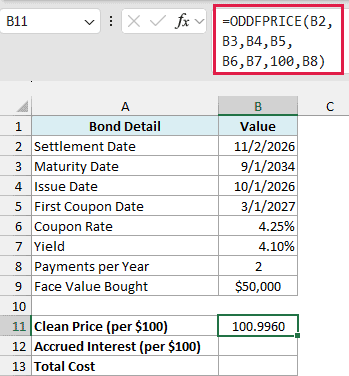
This returns 100.9960 per $100 of face value. The redemption argument stays at 100 even though you’re buying $50,000 of bonds, because the conversion to dollars happens in the last step.
Here is the formula for the accrued interest:
=ACCRINT(B4,B5,B2,B6,100,B8)
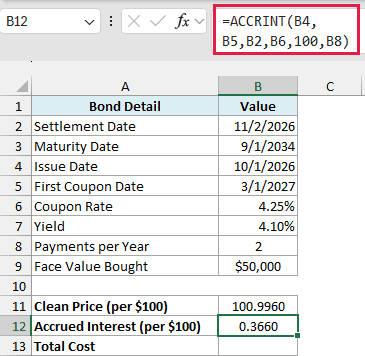
The ACCRINT function returns 0.3660, the interest per $100 of face value the bond has built up so far.
Its inputs are the issue date (B4), the first coupon date (B5), the settlement date (B2), the coupon rate (B6), a par value of 100, and the payments per year (B8).
It counts the interest from the issue date to the settlement date. Since this bond hasn’t paid any coupon yet, that’s exactly the interest you owe the seller.
And here is the formula for the total cost:
=(B11+B12)*B9/100
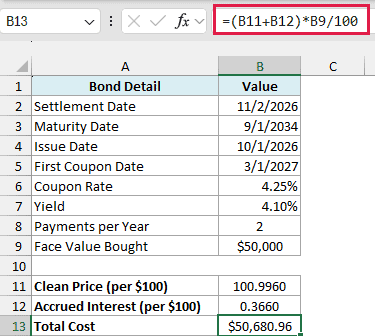
Adding the clean price and the accrued interest gives the price per $100 that you actually pay. Multiplying it by B9/100 (500 here) scales it up to the $50,000 you’re buying, so the total cost comes to $50,680.96.
Example 4: ODDFPRICE vs PRICE for an Odd First Coupon
You might wonder why you can’t just use the PRICE function for these bonds. So let’s compare the two on the same bond.
Below are the details of a bond issued on October 20 that pays its first coupon almost a year later, and I want to compare the ODDFPRICE result in B10 with the PRICE result in B11.
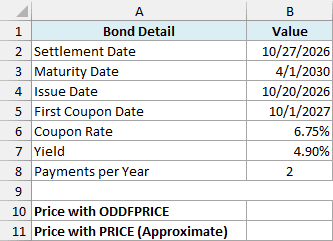
Here is the ODDFPRICE formula:
=ODDFPRICE(B2,B3,B4,B5,B6,B7,100,B8)
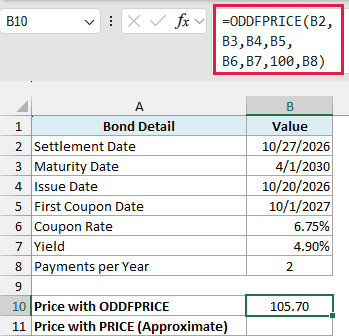
This returns 105.70 per $100 of face value, using the bond’s real issue date and first coupon date.
And here is the PRICE formula:
=PRICE(B2,B3,B6,B7,100,B8)
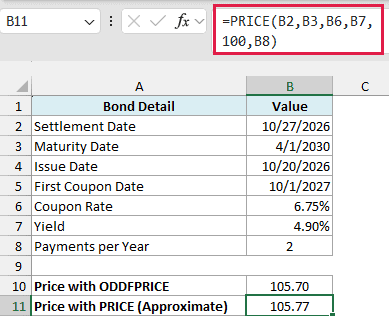
The PRICE function returns 105.77, which is about 0.06 higher (0.0634 before the cells round both prices to two decimals). On a $100,000 purchase, that’s a difference of about $63.
The gap is there because the PRICE function doesn’t know the issue date or the first coupon date. It builds a regular six-month schedule backward from the April 1, 2030 maturity date in B3, so it expects a coupon on April 1, 2027.
But this bond’s real first coupon is on October 1, 2027, so that April 2027 payment never happens.
The two results are close here, and the gap is even smaller for some bonds (on the bond in Example 1, it’s 0.01). But the PRICE function is still an approximation for these bonds, while ODDFPRICE uses the bond’s real payment dates.
Example 5: Price a List of New Bonds With One Formula
Here’s another practical scenario, where you have several new bonds to price at once.
Below is a list of eight new bonds, each with its own dates, coupon rate, and yield, and I want each bond’s price in column G, using the settlement date in J2 and the payments per year in J3.

Here is the formula:
=ODDFPRICE(J2,+D2:D9,+B2:B9,+C2:C9,+E2:E9,+F2:F9,100,J3)
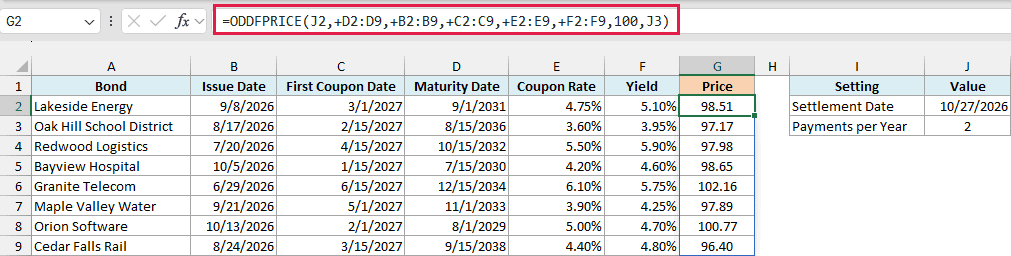
This formula spills all eight prices into G2:G9. Each bond uses its own dates, coupon rate, and yield, while the settlement date in J2, the redemption of 100, and the 2 payments per year in J3 apply to every bond.
The plus sign (+) in front of each range is what makes this work. It turns each range into a plain list of values, and ODDFPRICE then returns one price for each row.
Important: If you give ODDFPRICE plain ranges like D2:D9 without the plus sign, it returns a single #VALUE! error instead of spilling. Every range needs its own plus sign, or most rows still return an error.
This is the same trick that fixes other Excel functions that won’t spill, like the EOMONTH and EDATE functions.
The list mixes short and long first periods, and the same formula handles both.
A bond with a coupon above its yield, like Granite Telecom, is priced above 100 (102.16), and one with a coupon below its yield, like Cedar Falls Rail, is priced below 100 (96.40).
If you are using Excel 2019 or earlier, enter the below formula in cell G2 and then copy it down the range:
=ODDFPRICE($J$2,D2,B2,C2,E2,F2,100,$J$3)
Example 6: Switch to PRICE After the First Coupon Is Paid
Let’s step it up with something that trips people up once a bond gets a little older.
ODDFPRICE only works while the odd first period is still running. Once the first coupon has been paid, every period left is a regular one, and ODDFPRICE returns the #NUM! error for any settlement date on or after the first coupon date.
Below is a list of possible settlement dates for one bond, some before and some after its February 15, 2027 first coupon, and I want the bond’s price for each date in column B.
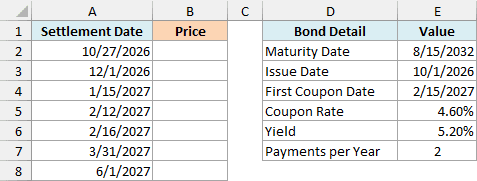
Here is the formula:
=IF(A2:A8<E4,ODDFPRICE(+A2:A8,E2,E3,E4,E5,E6,100,E7),PRICE(+A2:A8,E2,E5,E6,100,E7))
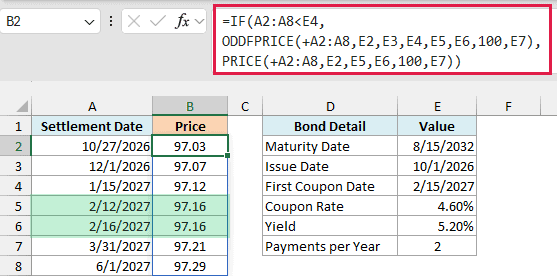
How this formula works:
- A2:A8<E4 checks each settlement date against the first coupon date in E4.
- For dates before the first coupon, the IF function uses ODDFPRICE, which handles the odd first period.
- For dates on or after the first coupon, it uses the PRICE function, because the bond now pays regular coupons until maturity.
- The plus sign in front of A2:A8 lets both functions spill one price for each date, just like in Example 5.
The prices move smoothly from one function to the other. The last date before the first coupon (2/12/2027) and the first date after it (2/16/2027) both give a price of 97.16.
You might be tempted to use the IFERROR function to fall back to the PRICE function whenever ODDFPRICE fails. It’s better to avoid that, because a typo in the issue date (like one that falls after the settlement date) would also make ODDFPRICE fail.
The PRICE function ignores the issue date, so IFERROR would quietly give you its price instead of showing you the mistake.
If you are using Excel 2019 or earlier, enter the below formula in cell B2 and then copy it down the range:
=IF(A2<$E$4,ODDFPRICE(A2,$E$2,$E$3,$E$4,$E$5,$E$6,100,$E$7),PRICE(A2,$E$2,$E$5,$E$6,100,$E$7))
So these are six practical ways to use the ODDFPRICE function in Excel. It prices bonds with short or long first periods, works out the total cost when you add the ACCRINT function, and handles a whole list of bonds with one formula.
And if you already know the price of such a bond and need its yield instead, the ODDFYIELD function does the reverse calculation.
I hope you found this Excel tutorial useful.
Other Excel Articles You May Also Like:
