

The IMLN function in Excel returns the natural logarithm of a complex number, such as 1+i or 0.8-0.4j. You’ll mostly need it in math and engineering work, where numbers have a real part and an imaginary part.
It also does something the regular LN function can’t. It can take the natural log of a negative number, because it treats that number as a complex number.
In this article, I’ll show you how to use IMLN with five practical examples, including how to run it on a whole column, round its long results, and raise a complex number to a complex power.
Follow along with the example file
IMLN Function Examples.xlsx
IMLN Function Syntax
Here is the syntax of the IMLN function:
=IMLN(inumber)
- inumber – The complex number you want the natural logarithm of.
The complex number is text, like “1+i” or “0.8-0.4j”, or a cell that holds one. When you type it straight into the formula, put it in double quotes, so =IMLN("1+i") returns 0.346573590279973+0.785398163397448i.
The letter at the end marks the imaginary part. Excel accepts either i or j for it (j is the letter engineers use), and both mean the same thing.
You can also give IMLN a regular number. =IMLN(7) returns 1.94591014905531, the same value the LN function gives, except that IMLN returns it as text.
IMLN returns the #NUM! error when the i or j is uppercase, like “2+3I”, because Excel doesn’t recognize that as a complex number. It also returns #NUM! for 0 (and an empty cell, which counts as 0), because the natural log of zero doesn’t exist.
The IMLN function works in Excel for Microsoft 365, Excel 2024, 2021, 2019, 2016, and Excel for Mac.
When to Use the IMLN Function
Use this function when you need to:
- Find the natural log of a complex number in a math or engineering worksheet
- Take the natural log of a negative number, which the LN function can’t do
- Get the natural log of a filter or circuit gain’s size, along with its phase angle
- Raise a complex number to a complex power, together with the IMEXP function
Let me show you a few practical examples of how to use the IMLN function.
Example 1: Find the Natural Log of a Complex Number
Let’s start with a simple example.
Below is a math practice sheet with a complex number in each problem, and I want to find the natural log of each one in column C.
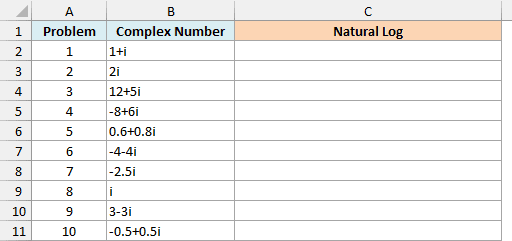
Here is the formula to enter in cell C2 and copy down:
=IMLN(B2)
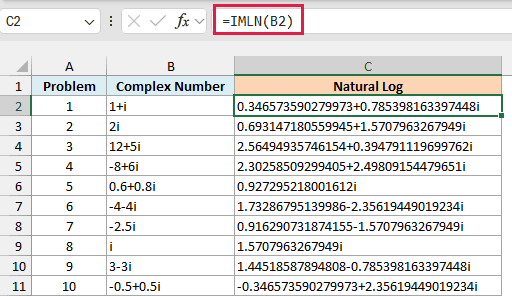
IMLN takes the complex number in B2 and returns its natural log, which is also a complex number. So for 1+i in problem 1, you get 0.346573590279973+0.785398163397448i.
Each result has two parts, and both tell you something about the original number. The real part is the natural log of the number’s size (its distance from zero), and the imaginary part is the number’s angle in radians.
To picture this, plot the number as a point, with the real part going across and the imaginary part going up. The angle is measured from the right-hand side of the horizontal axis, turning counterclockwise for positive angles.
You can see this in problem 5. The size of 0.6+0.8i is exactly 1, and the natural log of 1 is 0, so the result has only an imaginary part, 0.927295218001612i.
Problem 8 works the same way. The number i has a size of 1 and points straight up, at an angle of π/2 radians (about 1.5708), so its natural log is 1.5707963267949i.
The angle in the result always falls between -π and π. That’s why numbers below the horizontal axis, like -4-4i in problem 6, get a negative imaginary part.
I’ve kept this first example as a per-row formula so you can see how IMLN works on one number at a time. The next example handles a whole column with one formula.
Example 2: Get the Natural Log of a Whole Column with One Formula
In Excel 365 (and Excel 2021 or later), one IMLN formula can handle a whole column, but you need a small trick to make it work.
Below is the gain of a simple audio filter at different frequencies, written in j notation, and I want the natural log of each gain in column C.
The gain is a ratio with no units. It’s a complex number because the filter changes both how loud the sound is and its timing (the phase).
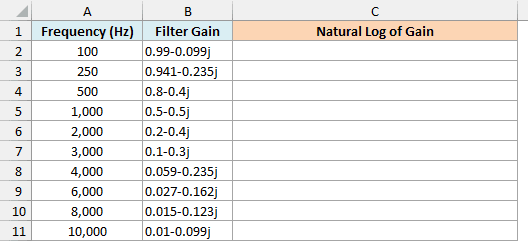
If you give IMLN the range directly, like =IMLN(B2:B11), you get a single #VALUE! error. IMLN can’t take a multi-cell range reference, only single values or a list of values held in memory (called an array).
Putting a plus sign (+) in front of the range fixes this, because Excel then hands IMLN the values as an array. Here is the formula to enter in cell C2:
=IMLN(+B2:B11)
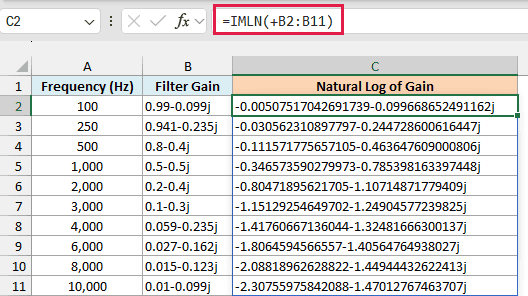
This spills the results down to C11. Since the gains use j, the results use j too.
The real part shows how much the filter shrinks the sound, on a log scale. It’s close to 0 at 100 Hz, where the sound passes almost untouched, and drops to about -2.31 at 10,000 Hz.
The imaginary part is the phase shift in radians. At 1,000 Hz it’s -0.785, which is -45 degrees.
1,000 Hz is this filter’s cutoff frequency, the point engineers use to mark the edge of the sounds it lets through. There, the real part of -0.347 means the gain’s size has dropped to about 0.707, which is a 3 dB drop.
Important: Use just the plus sign here. A double minus (–) also creates an array, but it tries to turn the text into numbers first, so every gain returns #VALUE!.
The same plus-sign trick works for other functions that won’t spill when you give them a range.
If you are using Excel 2019 or earlier, enter the below formula in cell C2 and then copy it down the range:
=IMLN(B2)
Example 3: Find the Natural Log of a Negative Number in Excel
If you try to take the natural log of a negative number with the LN function, you get an error. IMLN can handle it, because it treats the number as a complex number with no imaginary part.
Below is a list of positive and negative numbers, and I want to compare the LN result in column B with the IMLN result in column C.
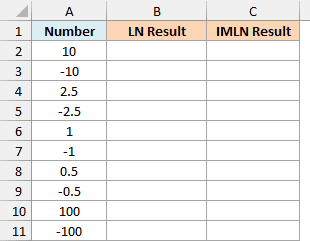
Here is the LN formula to enter in cell B2:
=LN(A2:A11)
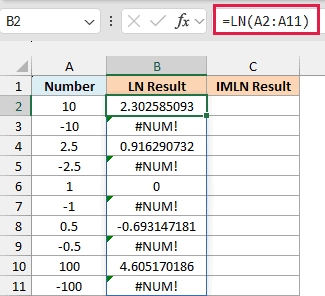
The LN function spills a result for every number, but each negative number returns #NUM!. A negative number has no natural log among regular numbers, so LN can’t give an answer.
Here is the IMLN formula to enter in cell C2:
=IMLN(+A2:A11)
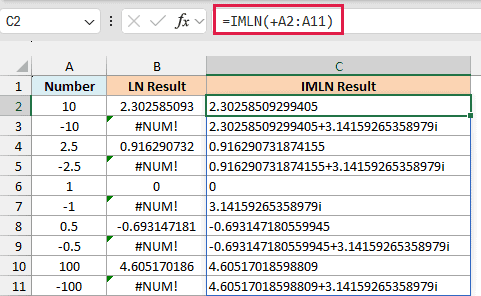
Like in Example 2, IMLN needs the plus sign in front of the range, while the LN function can take the range A2:A11 directly.
Now every negative number has a result. For -10 you get 2.30258509299405+3.14159265358979i, where the real part is the natural log of 10 and the imaginary part is π.
Every negative number follows that pattern: the natural log of its positive version, plus π as the imaginary part. -1 has a size of 1, so its result is just 3.14159265358979i.
For the positive numbers, IMLN returns the same value as LN, but as text, which is why those results sit on the left side of the cells.
So when all your numbers are positive, use the LN function instead, because it returns real numbers you can use in other calculations.
If you are using Excel 2019 or earlier, enter the below formula in cell B2 and then copy it down the range:
=LN(A2)
And for IMLN, enter the below formula in cell C2 and then copy it down the range:
=IMLN(A2)
Example 4: Round IMLN Results to Fewer Decimals
IMLN writes out each part of its result with up to 15 significant digits, which is a lot when you just need a clean answer.
Below is a quiz answer key with a complex number in each question, and I want the natural log of each one rounded to 3 decimal places in column C.
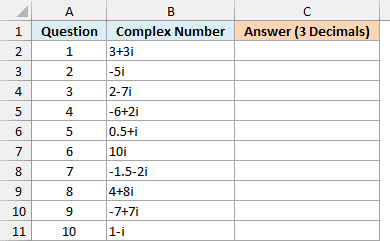
You can’t use the ROUND function on an IMLN result directly. The result is text, so =ROUND(IMLN(B2),3) returns a #VALUE! error.
Instead, round the real and imaginary parts separately and join them back. Here is the formula to enter in cell C2:
=LET(r,IMLN(+B2:B11),COMPLEX(ROUND(IMREAL(r),3),ROUND(IMAGINARY(r),3)))
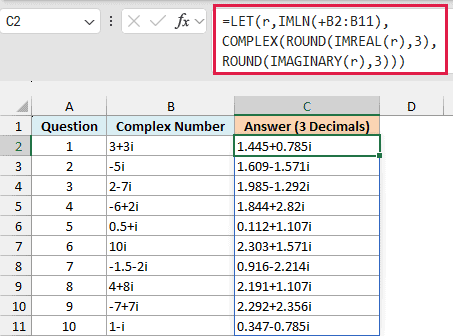
How this formula works:
- IMLN(+B2:B11) finds the natural log of every number, and the LET function stores the results as r, so IMLN runs only once.
- IMREAL(r) and IMAGINARY(r) pull out the real and imaginary parts as regular numbers.
- ROUND(…,3) rounds each part to three decimal places.
- COMPLEX(…) joins the two rounded parts back into a complex number.
So question 1 now shows 1.445+0.785i instead of 1.44518587894808+0.785398163397448i.
The COMPLEX function drops zeros at the end of a decimal, so question 4 shows 1.844+2.82i rather than 1.844+2.820i. If your numbers use j, add “j” as the third argument of COMPLEX to keep the j in the answers.
This formula spills, and the LET function needs Excel 2021 or later. If you are using Excel 2019 or earlier, enter the below formula in cell C2 and then copy it down the range:
=COMPLEX(ROUND(IMREAL(IMLN(B2)),3),ROUND(IMAGINARY(IMLN(B2)),3))
Example 5: Raise a Complex Number to a Complex Power
Excel has the IMPOWER function for powers of complex numbers, but the power has to be a regular number. If the power is a complex number, like i, IMPOWER returns a #VALUE! error.
This is where IMLN helps. Raising a base to an exponent is the same as multiplying the exponent by the natural log of the base, and then raising e to that result.
So you can build it from IMLN and two other functions: the IMPRODUCT function, which multiplies complex numbers, and the IMEXP function, which raises e to a complex power.
Below is a list of complex bases and exponents, and I want to raise each base to its exponent in column C.
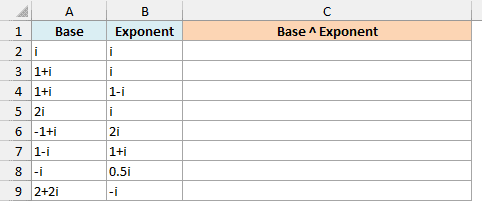
Here is the formula to enter in cell C2 and copy down:
=IMEXP(IMPRODUCT(B2,IMLN(A2)))
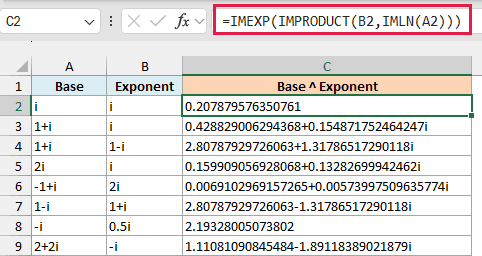
How this formula works:
- IMLN(A2) finds the natural log of the base.
- IMPRODUCT(B2,…) multiplies that log by the exponent.
- IMEXP(…) raises e to that result (it’s the complex version of the EXP function), which undoes the log and gives you the base raised to the exponent.
The first row is a famous one. i raised to the power i is a regular number, 0.207879576350761 (it’s e to the power -π/2).
I’ve kept this as a per-row formula because the IMPRODUCT function multiplies everything you give it into a single result. If you feed it whole columns, it multiplies all the exponents and logs together and returns one wrong number.
When the exponent is a regular number, like 2 or 0.5, use the IMPOWER function instead, since it does the job in one step.
So these are some practical ways to use the IMLN function in Excel to find the natural log of complex numbers, and even negative numbers.
Excel also has the IMLOG10 and IMLOG2 functions for base-10 and base-2 logs of complex numbers.
I hope you found this article helpful.
Other Excel Articles You May Also Like:
