

The POISSON.DIST function in Excel tells you how likely a count is when all you know is the average. If a help desk gets about 10 emails an hour, it can tell you the chance of getting exactly 12 next hour, or 15 or fewer.
That’s what makes it handy for things you count over a stretch of time, like orders per day, cars per hour, or goals per game. You don’t need to know how many “tries” there are, only how many events usually happen.
In this article, I’ll show you how the POISSON.DIST function works with seven practical examples, from a simple exact count to working out how much stock to keep.
Follow along with the example file
POISSON.DIST Function Examples.xlsx
POISSON.DIST Function Syntax
Here is the syntax of the POISSON.DIST function:
=POISSON.DIST(x, mean, cumulative)
All three arguments are required.
- x – The number of events you want the probability for.
- mean – The average number of events you expect in the same period (it can be a decimal, like 1.6).
- cumulative – FALSE gives the probability of exactly x events. TRUE gives the probability of x events or fewer.
The x argument is a whole number. If you give it a decimal, Excel cuts off the decimal part (it doesn’t round), so 2.9 is treated as 2.
If x or mean is negative, you get a #NUM! error. If either one is text that isn’t a number, you get a #VALUE! error.
The POISSON.DIST function works in Excel 2010 and later versions, including 365, 2024, 2021, 2019, 2016, and Mac. In Excel 2007 or earlier, use the older POISSON function, which takes the same three arguments.
When to Use the POISSON.DIST Function
Use this function when you need to:
- Find the chance of an exact number of events, like orders, calls, or visitors
- See the full spread of likely counts for a period
- Check how likely you are to stay within a limit you can handle
- Work out the odds of hitting at least a target number
- Get the chance that a count lands between two values
- Figure out how much to stock or staff so you run short only rarely
Let me show you a few practical examples of how to use the POISSON.DIST function in Excel.
Example 1: Poisson Probability of an Exact Number
Let’s start with a simple example.
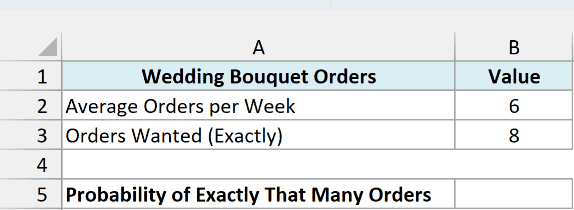
Below I have a florist that gets an average of 6 wedding bouquet orders a week, and I want the chance of getting exactly 8 orders next week in cell B5.
Here is the formula:
=POISSON.DIST(B3,B2,FALSE)
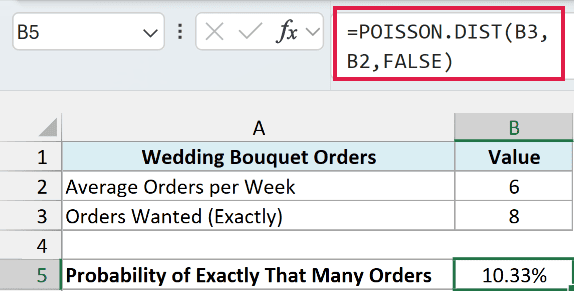
The formula returns 10.33%, so there’s roughly a 1 in 10 chance of getting exactly 8 orders next week.
Here, B3 is the number of orders I’m checking (8), and B2 is the weekly average (6). The FALSE at the end tells POISSON.DIST to give the probability of exactly 8, not 8 or fewer.
The result is a decimal (0.1033), and the cell is formatted as a percentage so it’s easier to read.
Example 2: Build a Poisson Distribution Table in Excel
Now let’s get the probability of every likely count in one go.
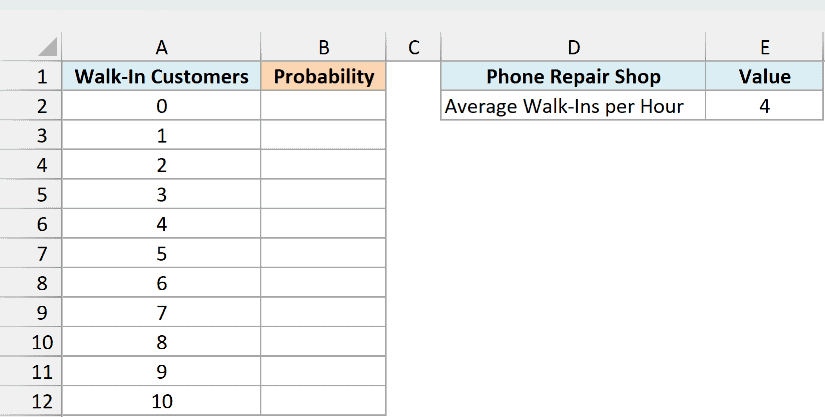
Below I have a phone repair shop that gets an average of 4 walk-in customers an hour, and I want the chance of each number of walk-ins (from 0 to 10) in column B.
Here is the formula:
=POISSON.DIST(A2:A12,E2,FALSE)
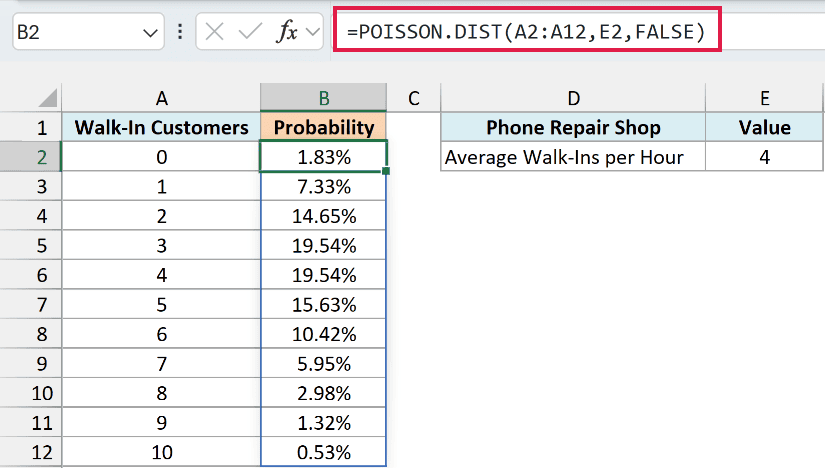
Since I gave POISSON.DIST the whole range A2:A12 as x, it returns 11 results that spill down into B2:B12. E2 holds the hourly average (4).
You can see that 3 and 4 walk-ins are the most likely counts, both at 19.54%. When the average is a whole number, the average and the number just below it always tie for the top spot.
If you add up all 11 values, you get 99.72%, not 100%. That’s because 11 or more walk-ins in an hour is still possible, just unlikely, and the table stops at 10.
If you are using Excel 2019 or earlier, enter the below formula in cell B2 and then copy it down to B12:
=POISSON.DIST(A2,$E$2,FALSE)
Example 3: Probability of Staying Within a Limit
Here’s another practical scenario.
Below I have a coffee drive-through that gets an average of 18 cars in the lunch hour, and I want the chance that the crew sees 22 cars or fewer (the most they can handle) in cell B5.
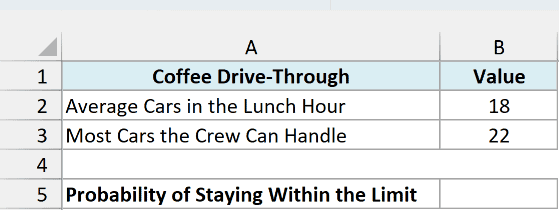
Here is the formula:
=POISSON.DIST(B3,B2,TRUE)
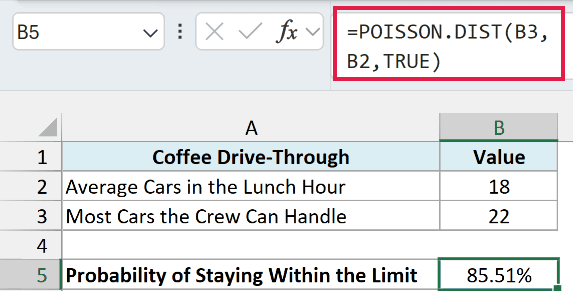
The formula returns 85.51%, so on most days the lunch rush stays at 22 cars or fewer.
The only change from Example 1 is the last argument. TRUE makes POISSON.DIST add up the chances of 0, 1, 2, and so on up to 22 cars, which gives the chance of 22 or fewer.
Flip it around and there’s about a 14% chance (100% minus 85.51%) of more than 22 cars, which is roughly one lunch hour in seven.
Example 4: Probability of At Least a Certain Number
Now let’s look at something a bit trickier.
Below I have a soccer team that scores an average of 1.6 goals per game, and I want the chance that they score at least 3 goals in the next game in cell B5.
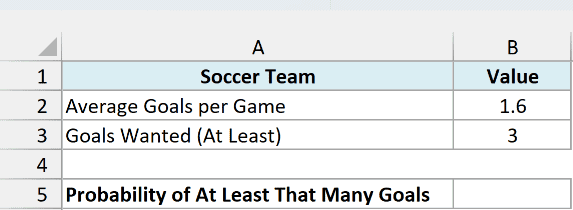
Here is the formula:
=1-POISSON.DIST(B3-1,B2,TRUE)
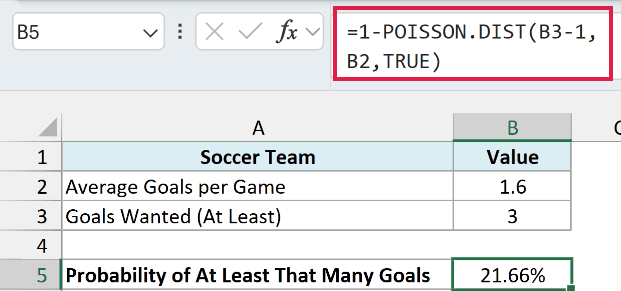
The formula returns 21.66%, so the team scores 3 or more goals in about one game out of five.
POISSON.DIST with TRUE only gives you “this many or fewer”. So I first get the chance of 2 or fewer goals (that’s B3-1), and then subtract it from 1 to get everything else, which is 3 or more.
Also notice that the mean here is 1.6. Unlike x, the mean doesn’t have to be a whole number, since it’s an average.
Important: For “at least 3”, subtract 1 from the number first. If you use =1-POISSON.DIST(B3,B2,TRUE), you get the chance of more than 3 goals (7.88%), which leaves out exactly 3.
Example 5: Probability Between Two Numbers
Let’s step it up with a range of outcomes.
Below I have a restaurant that gets an average of 30 reservations on a Friday night, and I want the chance of getting between 25 and 35 reservations in cell B6.
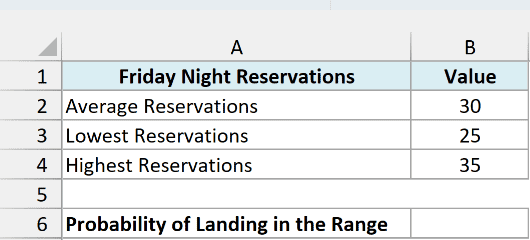
Here is the formula:
=POISSON.DIST(B4,B2,TRUE)-POISSON.DIST(B3-1,B2,TRUE)
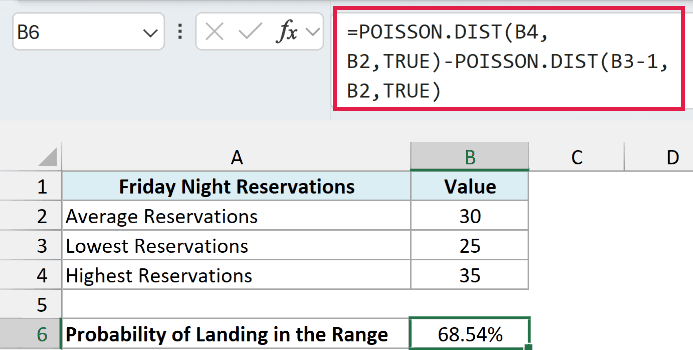
The formula returns 68.54%, so about two Fridays out of three land somewhere from 25 to 35 reservations.
The first POISSON.DIST gives the chance of 35 or fewer reservations. The second one gives the chance of 24 or fewer (B3-1), and subtracting it leaves only 25 through 35.
Using B3 instead of B3-1 in the second part would drop the 25 itself and give 63.43%, which is the same minus 1 trap from Example 4.
Example 6: Scale the Mean for a Different Time Period
This next one fixes a mistake that’s really easy to make.
Below I have a bookstore that gets an average of 9 customers an hour, and I want the chance that no customer walks in during breaks of different lengths in column B.
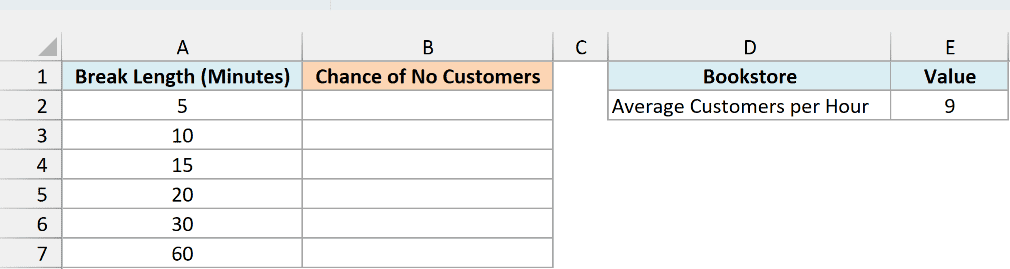
Here is the formula:
=POISSON.DIST(0,E2*A2:A7/60,FALSE)
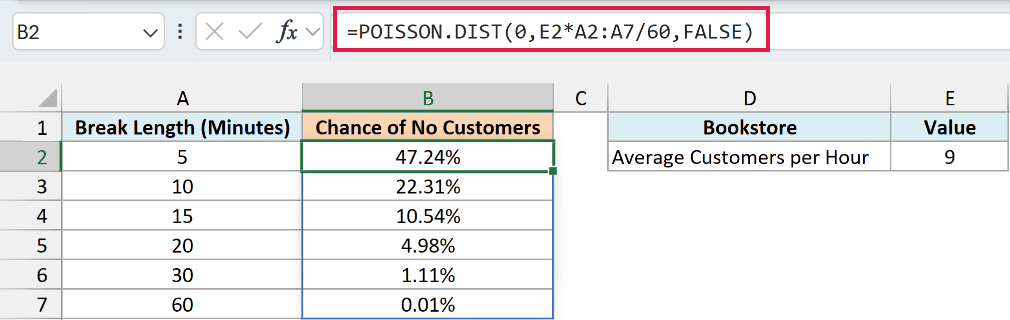
The formula returns 47.24% for a 5-minute break, 10.54% for 15 minutes, and just 1.11% for 30 minutes. So a quick 5-minute break has about even odds of staying quiet, but a half-hour one almost never will.
The average in E2 is per hour, but the breaks are in minutes. So E2*A2:A7/60 turns it into the average for each break first, like 2.25 customers for 15 minutes (9 times 15, divided by 60).
This time the range goes in the mean argument, so the formula spills one result for each break length in A2:A7. The x argument is 0, because I want the chance of no customers at all.
Important: The mean must be for the same period as the count you’re asking about. Using the hourly 9 for a 15-minute break would give 0.01% instead of 10.54%.
If you are using Excel 2019 or earlier, enter the below formula in cell B2 and then copy it down to B7:
=POISSON.DIST(0,$E$2*A2/60,FALSE)
Example 7: Find How Many to Stock Using POISSON.DIST
Let’s finish with a real decision you can make with POISSON.DIST.
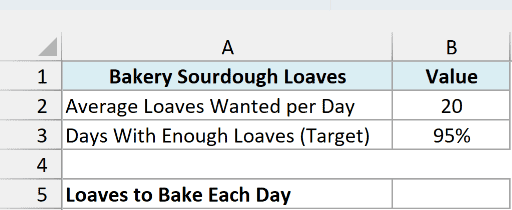
Below I have a bakery where customers want an average of 20 sourdough loaves a day, and I want the number of loaves to bake so there’s enough for everyone on at least 95% of days in cell B5.
Here is the formula:
=XMATCH(B3,POISSON.DIST(SEQUENCE(101,,0),B2,TRUE),1)-1
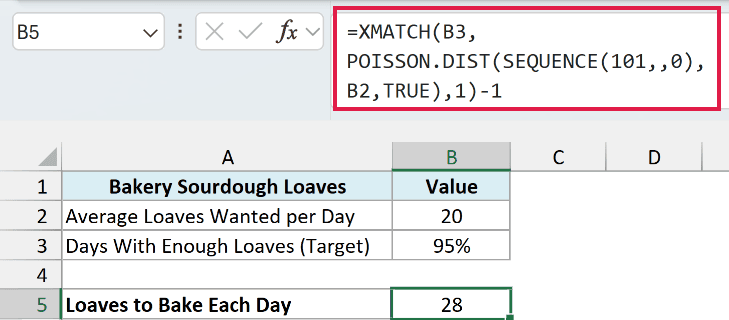
The formula returns 28, so baking 28 loaves a day means every customer gets a loaf on at least 95% of days.
How this formula works:
- SEQUENCE(101,,0) creates the numbers 0 to 100, one for each possible number of loaves customers could want.
- POISSON.DIST(…,B2,TRUE) gets the chance that customers want that many loaves or fewer, for each of those 101 numbers.
- XMATCH with 1 as its match mode finds the smallest chance that’s 95% (B3) or higher. That’s 96.57% for 28 loaves, since 27 loaves only covers 94.75% of days.
- The -1 at the end is needed because XMATCH returns a position, and position 1 is 0 loaves.
Excel doesn’t have a POISSON.INV function to do this in one step, which is why the formula builds the list and looks up the answer.
Important: SEQUENCE(101,,0) only checks 0 to 100 loaves. If even 100 loaves can’t reach the B3 target (like an average of 90 with a 95% target), you get a #N/A error, so raise 101 to a number well above your average.
The XMATCH function is available in Excel 365 and Excel 2021 or later. The same goes for the SEQUENCE function.
So these are seven practical ways to use the POISSON.DIST function in Excel, from the chance of an exact count to “at most”, “at least”, and “between” probabilities.
You also saw how to adjust the average for a different time period, and how to turn the cumulative chances into a stock level.
I hope you found this Excel tutorial useful.
Other Excel Articles You May Also Like:
