

The OCT2BIN function in Excel converts an octal number (one that uses only the digits 0 to 7) into a binary number made of 0s and 1s. For example, it turns the octal number 144 into 1100100.
Each octal digit stands for exactly three binary digits, so the conversion is quick to check by hand. You’re most likely to need it with Linux and Mac file permissions, where a code like 755 is really a set of nine on/off switches.
In this tutorial, I’ll show you how to convert a whole list at once, add leading zeros, turn permission codes into rwx text, handle negative numbers, and convert octal numbers that are too big for OCT2BIN.
Follow along with the example file
OCT2BIN Function Examples.xlsx
OCT2BIN Function Syntax
Here is the syntax of the OCT2BIN function:
=OCT2BIN(number, [places])
- number – the octal number you want to convert. It can be a number, text in double quotes, or a cell reference. For positive numbers, the largest value OCT2BIN accepts is 777, and a 10-digit number starting with 7777777 is read as a negative number (Example 4 shows how this works).
- places – (optional) the number of characters you want in the result. OCT2BIN adds leading zeros to reach this length.
When you leave out places, OCT2BIN uses as few characters as it needs. So =OCT2BIN(3) returns 11, while =OCT2BIN(3,3) returns 011.
If places is smaller than the result needs, you get a #NUM! error. For example, =OCT2BIN(17,2) returns #NUM! because 17 converts to 1111, which needs four characters.
A places value of 0 or less also returns #NUM!, and a places value written as text, like “six”, returns #VALUE!.
If places has a decimal, OCT2BIN cuts it down to a whole number. So =OCT2BIN(17,2.9) works like =OCT2BIN(17,2) and also returns #NUM!.
The OCT2BIN function works in Excel for Microsoft 365, Excel 2024, 2021, 2019, 2016, and Excel for Mac.
When to Use the OCT2BIN Function
Use this function when you need to:
- Convert octal numbers into binary to see the individual bits.
- Get binary results of a fixed length, with leading zeros.
- Turn Linux or Mac permission codes like 755 into text like rwxr-xr-x.
- Convert negative octal numbers stored in 10-digit form.
Let me show you a few practical examples of how to use the OCT2BIN function.
Example 1: Convert a List of Octal Numbers to Binary
Let’s start with a simple example.
Below is a list of octal numbers, and I want to convert each one to binary in column B.
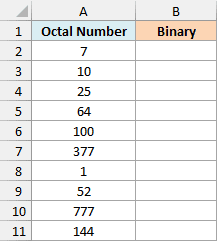
Here is the formula:
=OCT2BIN(+A2:A11)
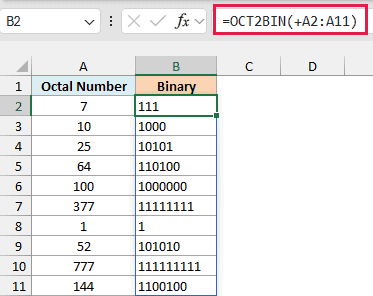
You enter this formula once in cell B2, and the results spill down to B11. OCT2BIN converts every octal number in A2:A11 to binary.
Important: Don’t skip the plus sign (+) before A2:A11. OCT2BIN can’t take a range reference directly, so =OCT2BIN(A2:A11) returns a single #VALUE! error instead of ten results.
The plus sign makes Excel read the values out of the range first and pass them to OCT2BIN as a list (an array), which it can work with. The same plus sign shows up in most examples below.
OCT2BIN isn’t the only function that behaves like this. Here’s a look at other Excel functions that won’t spill on a range, and how to fix them.
To see how the conversion works, replace each octal digit with its three-digit binary version. In 25, the 2 is 010 and the 5 is 101, so you get 010101, and OCT2BIN drops the leading zero to return 10101.
The same idea works for every row. 777 is three 7s, and each 7 is 111, so the result is 111111111.
Also notice that the results sit on the left of the cells. That’s because OCT2BIN returns text, not a number, even when the result looks like one.
If you are using Excel 2019 or earlier, enter the below formula in cell B2 and then copy it down the range:
=OCT2BIN(A2)
This version doesn’t need the plus sign, because each formula points to just one cell. The same copy-down approach works for the other spilling formulas in this article.
Example 2: Add Leading Zeros to OCT2BIN Results
Now let’s use the places argument.
Below is another list of octal numbers, and I want each binary result in column B to be exactly nine characters long.
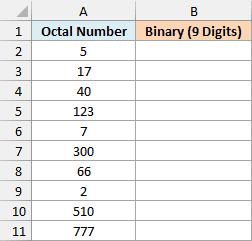
Here is the formula:
=OCT2BIN(+A2:A11,9)
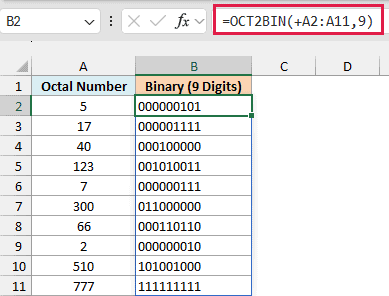
The 9 tells OCT2BIN to make every result nine characters long, so it adds leading zeros where needed. For example, 5 converts to 101 and comes back as 000000101, while 777 converts to 111111111 and stays as it is.
Since OCT2BIN returns text, these leading zeros stay in the cell. A number like 000000101 would lose them, because Excel would show it as 101.
Nine is the natural choice for positive numbers. The largest positive number OCT2BIN accepts is 777, and that converts to nine 1s, so every positive result fits in nine characters.
Example 3: Convert Octal Permission Codes to rwx Text
Here’s a practical use of OCT2BIN that you might run into.
On Linux and Mac, every file has permissions for three groups of people: the owner, the owner’s group, and everyone else. Each group gets three letters, r (read), w (write), and x (execute), with a dash where a permission is missing.
Tools like chmod write these permissions as a three-digit octal code. Each digit covers one group, so 755 means 7 for the owner, 5 for the group, and 5 for everyone else.
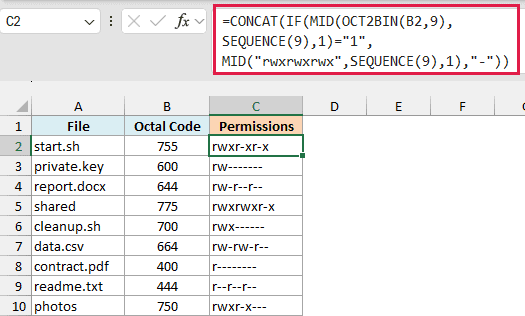
In binary, 7 is 111 and 5 is 101. Each 1 turns a permission on, so 755 becomes rwxr-xr-x.
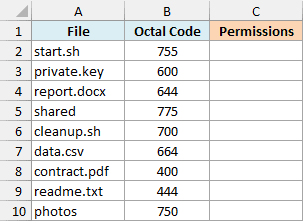
Below is a list of files with their octal permission codes, and I want the rwx text for each one in column C.
Here is the formula:
=CONCAT(IF(MID(OCT2BIN(B2,9),SEQUENCE(9),1)="1",MID("rwxrwxrwx",SEQUENCE(9),1),"-"))
How this formula works:
- OCT2BIN(B2,9) converts the code to a nine-digit binary number, so 755 becomes 111101101. The 9 keeps the leading zeros, so 400 becomes 100000000 and every code lines up with the nine permission spots.
- SEQUENCE(9) gives the numbers 1 to 9, so MID(…,SEQUENCE(9),1) pulls out one character from each of those nine positions. That splits the binary number into its nine separate digits.
- MID(“rwxrwxrwx”,SEQUENCE(9),1) does the same with the letters, so each binary digit is paired with r, w, or x in the same position.
- The IF function keeps the letter where the digit is 1 and puts a dash where it’s 0. The CONCAT function then joins the nine characters back into one text string.
Enter this formula in cell C2 and then copy it down to C10. Unlike the earlier examples, it doesn’t spill.
That’s because the CONCAT function joins everything it gets into one text string. If you point the formula at B2:B10 instead of B2, you get a single wrong result in one cell, not one result per file.
This formula uses the SEQUENCE function, which is available in Excel 2021, Excel 2024, and Microsoft 365.
Example 4: Convert Negative Octal Numbers With OCT2BIN
Now let’s look at negative numbers, which work a bit differently.
OCT2BIN reads a 10-digit octal number that starts with 7777777 as a negative number. This is called two’s complement notation, and it’s the same way the OCT2DEC function reads negative octal numbers.
The smallest negative number OCT2BIN accepts is 7777777000, which is -512, and 7777777777 is -1. Anything in between is a negative number from -512 to -1.
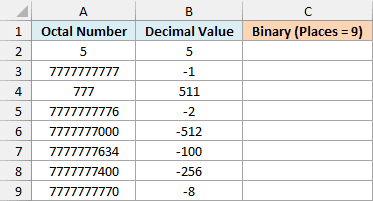
Below is a list of octal numbers along with the decimal value each one stands for, and I want their binary versions in column C, nine characters long.
Here is the formula:
=OCT2BIN(+A2:A9,9)
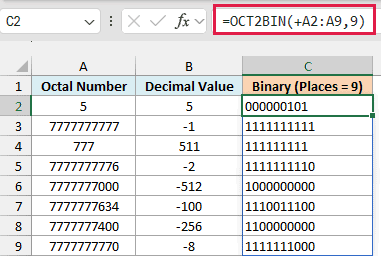
The positive numbers work the same way as in Example 2. 5 returns 000000101, and 777 returns 111111111.
The negative ones come back as 10-character binary numbers that start with 1, even though I asked for nine characters. For example, 7777777777 (which is -1) returns 1111111111.
That leading 1 is what marks the binary number as negative, so dropping it would change the value. That’s why OCT2BIN ignores places for negative numbers and always returns 10 characters.
For example, 7777777634 (which column B shows as -100) returns 1110011100. If you convert that back with the BIN2DEC function, =BIN2DEC("1110011100") returns -100 again.
Important: A 10-digit octal number below 7777777000, such as 7777776777, returns #NUM!. Its binary version would need more than 10 digits, which is the most OCT2BIN can return.
Example 5: Convert Octal Numbers Bigger Than 777
Let’s step it up with a case OCT2BIN can’t handle on its own.
Below is a list of octal numbers that are all bigger than 777, and I want to try OCT2BIN in column B and then get the binary values with a method that works in column C.
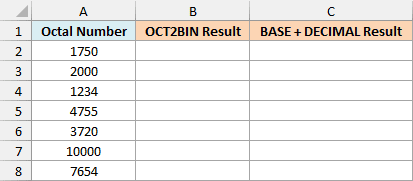
Here is the OCT2BIN formula:
=OCT2BIN(+A2:A8)
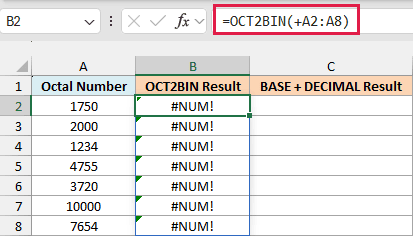
Every result is #NUM!, because OCT2BIN only returns up to 10 binary digits, and the 10th digit is kept for the negative sign you saw in Example 4.
So a positive result can use at most nine digits, which is 111111111 (777 in octal). 1750 would need all 10 digits, and its leading 1 would read as a negative number.
Now here is the formula that works:
=BASE(DECIMAL(A2:A8,8),2)
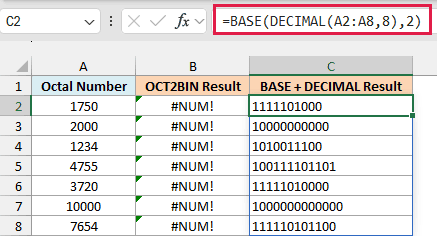
How this formula works:
- DECIMAL(A2:A8,8) converts each octal number to a regular decimal number. The 8 tells it the input is in base 8 (octal), so 1750 becomes 1000.
- The BASE function then converts that decimal number to base 2, which is binary. So 1000 becomes 1111101000.
The DECIMAL function accepts a range directly, so this formula doesn’t need the plus sign. If you want leading zeros, the BASE function has its own third argument for the length, for example =BASE(DECIMAL(A2:A8,8),2,16).
The BASE and DECIMAL functions treat every octal number as positive. So 7777777777 returns thirty 1s with this method, while OCT2BIN reads it as -1 and returns 1111111111.
The BASE and DECIMAL functions are available in Excel 2013 and later versions.
Example 6: Why OCT2BIN Returns the #NUM! Error
Lastly, let’s look at what OCT2BIN does with inputs it can’t use.
Below are some inputs that commonly cause trouble, with a note on what’s in each cell, and I want to see what OCT2BIN returns for each one in column C.
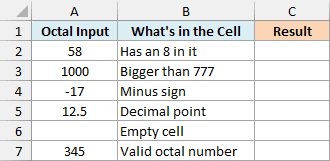
Here is the formula:
=OCT2BIN(+A2:A7)
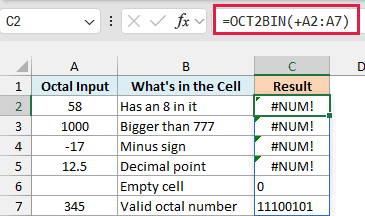
58 returns the #NUM! error because octal numbers only use the digits 0 to 7, so an 8 or a 9 makes the number invalid. 1000 returns #NUM! because it’s bigger than 777, which is the largest positive number OCT2BIN can convert.
-17 and 12.5 return #NUM! too, because OCT2BIN doesn’t accept a minus sign or a decimal point. Negative numbers have to be in the 10-digit form shown in Example 4.
Important: An empty cell doesn’t return an error. OCT2BIN treats it as 0 and returns 0, which looks like a valid result, so make sure every input cell has a value.
The last row, 345, is a valid octal number and returns 11100101.
So these are a few examples of how to use the OCT2BIN function in Excel. Just keep the 777 limit in mind, and remember the plus sign when you convert a whole range at once.
If you need to go the other way, the BIN2OCT function converts binary back to octal. And for other number systems, Excel has the OCT2DEC and OCT2HEX functions.
Other Excel Articles You May Also Like:
