

The CHISQ.DIST.RT function in Excel gives you the right-tailed probability of the chi-square distribution. In plain terms, it turns a chi-square test statistic into a p-value.
That p-value is the number you compare with 0.05 to decide whether a pattern in your counts is real or could just be chance. You’ll need CHISQ.DIST.RT when you already have the statistic, or when you build a chi-square test yourself.
In this article, I’ll show you five examples of the CHISQ.DIST.RT function, including a test that Excel has no ready-made function for.
Follow along with the example file
CHISQ.DIST.RT Function Examples.xlsx
CHISQ.DIST.RT Function Syntax
Here is the syntax of the CHISQ.DIST.RT function (both arguments are required):
=CHISQ.DIST.RT(x, deg_freedom)
- x – The chi-square statistic you want the p-value for. It can’t be negative.
- deg_freedom – The degrees of freedom of your test, which is a whole number of 1 or more.
The function returns the area under the chi-square curve to the right of x. The larger x is, the smaller that area gets, so a bigger statistic always gives a smaller p-value.
If x is 0, you get exactly 1, because the whole curve sits to the right of 0. A negative x returns the #NUM! error.
If deg_freedom has decimals, Excel drops them before calculating. So 4.7 degrees of freedom gives the same result as 4, and anything that drops below 1 (like 0.5) returns the #NUM! error.
If either argument is text that can’t be read as a number (like “Ten”), you get the #VALUE! error.
The CHISQ.DIST.RT function works in Excel 2010 and later versions, including Excel 365, 2024, 2021, 2019, 2016, and Excel for Mac.
When to Use the CHISQ.DIST.RT Function
Use this function when you need to:
- Turn a chi-square statistic from a report or survey tool into a p-value
- Decide which test results are significant at a level you choose
- Finish a chi-square test you’ve worked out step by step
- Run tests that Excel has no built-in function for, like checking whether a machine’s variation is too high
- Get accurate p-values for very large chi-square statistics
Let me show you a few practical examples of how to use the CHISQ.DIST.RT function in Excel.
Example 1: Get P-Values from Chi-Square Statistics
Let’s start with a simple example.
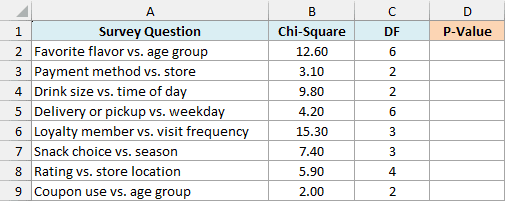
Below I have the chi-square results from eight store survey questions, along with their degrees of freedom (DF), and I want the p-value for each one in column D.
Here is the formula:
=CHISQ.DIST.RT(B2:B9,C2:C9)
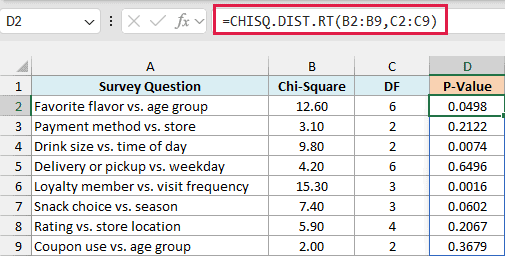
I’ve given the function the whole range of statistics (B2:B9) and the whole range of degrees of freedom (C2:C9). So it returns one p-value per row, and the results spill down into D2:D9 from this one formula.
Take “Loyalty member vs. visit frequency”. Its statistic of 15.30 with 3 degrees of freedom gives a p-value of 0.0016, which is far below 0.05, so loyalty membership and visit frequency really do seem to be linked.
“Delivery or pickup vs. weekday” gives 0.6496. A result like that means the differences in the survey could easily be random.
The degrees of freedom change the answer a lot. “Favorite flavor vs. age group” has a bigger statistic (12.60) than “Drink size vs. time of day” (9.80), yet its p-value is higher (0.0498 vs 0.0074) because it has 6 degrees of freedom instead of 2.
Important: If a cell in the chi-square column is blank, CHISQ.DIST.RT treats it as 0 and returns 1 instead of an error. So a missing statistic looks like a perfectly “not significant” result.
If you are using Excel 2019 or earlier, enter the below formula in cell D2 and then copy it down the range:
=CHISQ.DIST.RT(B2,C2)
In workbooks made before Excel 2010, you may see the CHIDIST function instead. It’s the older version of CHISQ.DIST.RT and returns the same values.
Example 2: Flag Significant Results Against a Significance Level
Now let’s turn p-values into a clear yes or no label.
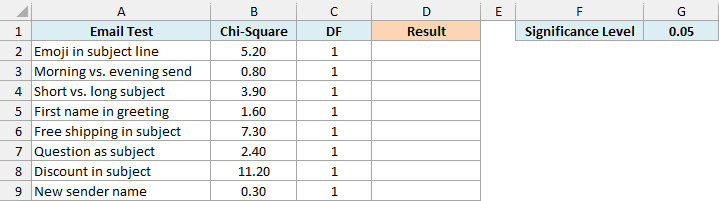
Below I have the chi-square results from eight email A/B tests, each with 1 degree of freedom, and I want to label each test as significant or not in column D, based on the significance level in G1.
Here is the formula:
=IF(CHISQ.DIST.RT(B2:B9,C2:C9)<G1,"Significant","Not significant")
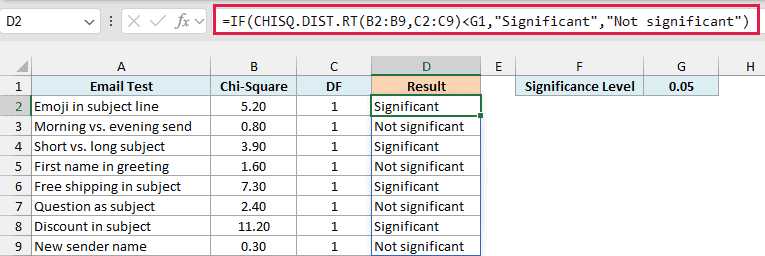
CHISQ.DIST.RT calculates the p-value for every test, and the IF function compares each one with the 0.05 in G1. Anything below it is labeled “Significant”, and the rest are labeled “Not significant”.
“Short vs. long subject” only just makes it. Its statistic of 3.90 gives a p-value of about 0.048, which is a hair under 0.05.
Since the level lives in G1, you can test a stricter cutoff without touching the formula. Change G1 to 0.01, and only “Free shipping in subject” (p of about 0.0069) and “Discount in subject” (p of about 0.0008) stay significant.
If you are using Excel 2019 or earlier, enter the below formula in cell D2 and then copy it down the range (the $ signs keep it pointing at G1):
=IF(CHISQ.DIST.RT(B2,C2)<$G$1,"Significant","Not significant")
Example 3: Run a Chi-Square Goodness of Fit Test
Here’s a scenario where you calculate the chi-square statistic yourself.
Below I have the results of rolling a die 120 times, with how often each face came up and how often it should come up on a fair die, and I want the chi-square statistic in E2 and the p-value in F2.
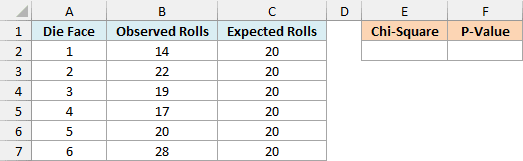
First, here is the formula for the chi-square statistic:
=SUM((B2:B7-C2:C7)^2/C2:C7)
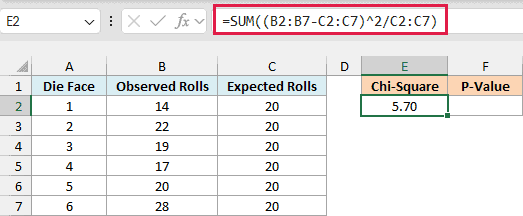
For each face, the formula takes the gap between the observed and expected rolls, squares it, and divides it by the expected rolls. SUM then adds up all six values, which gives 5.70.
The six shows up most here. It came up 28 times instead of 20, so it adds (28-20)^2/20 = 3.2, which is more than half of the total.
If you are using Excel 2019 or earlier, enter the below SUMPRODUCT formula in cell E2 instead, because it works without Ctrl+Shift+Enter:
=SUMPRODUCT((B2:B7-C2:C7)^2/C2:C7)
Now here is the formula that turns the statistic into a p-value:
=CHISQ.DIST.RT(E2,ROWS(B2:B7)-1)
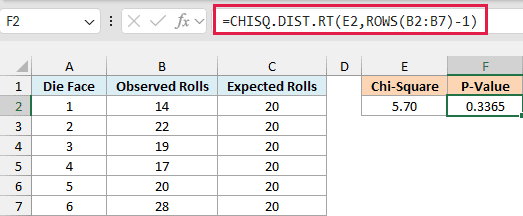
In a goodness of fit test, the degrees of freedom are the number of categories minus 1. ROWS(B2:B7) counts the six faces, so the formula uses 5 degrees of freedom.
The p-value of 0.3365 is well above 0.05. So those extra sixes are within what a fair die can throw by chance, and there’s no evidence it’s loaded.
The CHISQ.TEST function can give you the same 0.3365 in one step with =CHISQ.TEST(B2:B7,C2:C7). But it doesn’t show you the 5.70 statistic, which you usually need when you report a test result.
Example 4: Test Whether a Machine’s Variation Is Too High
Let’s step it up with a test Excel has no built-in function for.
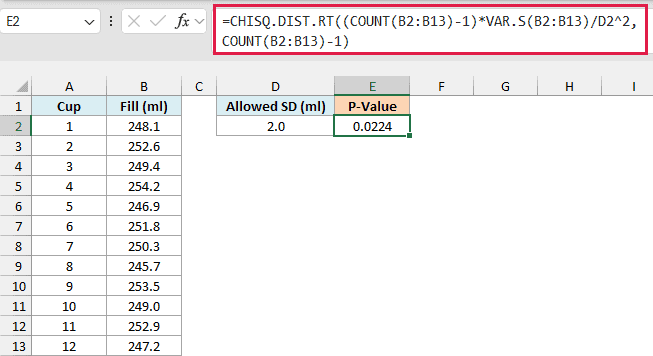
Below I have the fill amounts of 12 cups from a coffee machine that’s supposed to keep its standard deviation at 2 ml or less (in D2), and I want the p-value in E2.
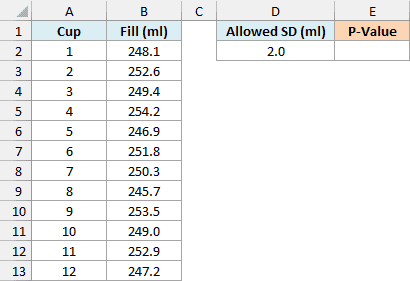
Here is the formula:
=CHISQ.DIST.RT((COUNT(B2:B13)-1)*VAR.S(B2:B13)/D2^2,COUNT(B2:B13)-1)
How this formula works:
- VAR.S(B2:B13) gives the variance of the 12 fill amounts, which is the standard deviation squared.
- VAR.S(B2:B13)/D2^2 divides that variance (about 8.10) by the allowed variance (2 squared, which is 4). The result is about 2, so the spread is roughly double what’s allowed.
- Multiplying that ratio by COUNT(B2:B13)-1 (11 for 12 cups) puts it on the chi-square scale. This is the chi-square statistic for a variance test, and here it works out to 22.27.
- The same COUNT(B2:B13)-1 is also the degrees of freedom, which is the second argument.
- CHISQ.DIST.RT then gives the chance of seeing this much spread if the machine really were at 2 ml.
The result is 0.0224, which is below 0.05. The cups in this sample have a standard deviation of about 2.85 ml, and that is too far above 2 ml to blame on chance, so the machine needs a look.
We use the right tail here because the question is whether the variation is too high. This test also assumes the fill amounts follow a roughly bell-shaped (normal) pattern, which is usually fair for machine measurements like these.
Example 5: Get Accurate P-Values for Very Large Statistics
This last one shows why CHISQ.DIST.RT is better than calculating the right tail from the CHISQ.DIST function.
With TRUE as its last argument, the CHISQ.DIST function gives the area to the left of the statistic. The whole curve adds up to 1, so in theory, 1 minus that left area is the right-tail p-value.
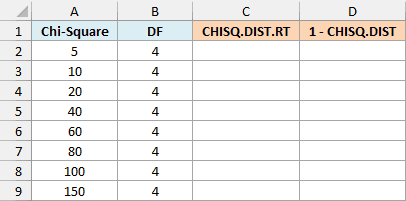
Below I have chi-square statistics from 5 to 150, all with 4 degrees of freedom, and I want to compare CHISQ.DIST.RT in column C with the 1 – CHISQ.DIST approach in column D.
Here is the CHISQ.DIST.RT formula:
=CHISQ.DIST.RT(A2:A9,B2:B9)
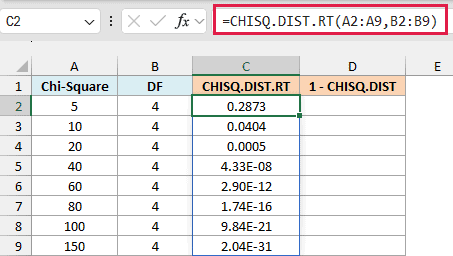
It calculates the right tail directly, so even a statistic of 150 gets a real p-value of 2.04E-31. That’s scientific notation for 2.04 × 10^-31, a number with 30 zeros after the decimal point before the 2.
If you are using Excel 2019 or earlier, enter the below formula in cell C2 and then copy it down the range:
=CHISQ.DIST.RT(A2,B2)
And here is the 1 – CHISQ.DIST formula for comparison:
=1-CHISQ.DIST(A2:A9,B2:B9,TRUE)
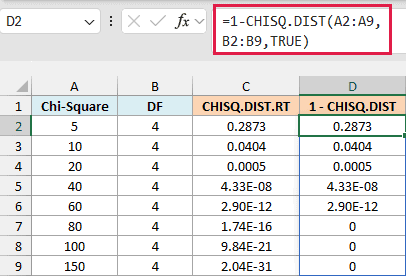
Up to a statistic of 40, both columns agree. From 80 onward, column D shows 0, while CHISQ.DIST.RT still returns tiny values like 1.74E-16.
This happens because the CHISQ.DIST function returns a number so close to 1 that Excel’s 15 digits of precision can’t hold the difference. Subtract it from 1 and you’re left with 0, even though a p-value can never be exactly 0.
The two columns already drift apart a bit at 60 (2.900863E-12 vs 2.900791E-12), even though both display as 2.90E-12.
Important: Don’t calculate a chi-square p-value as 1 minus the CHISQ.DIST function. For large statistics it rounds to 0, so always use CHISQ.DIST.RT for the right tail.
So that’s how you can use the CHISQ.DIST.RT function in Excel to get p-values from chi-square statistics, flag significant results, and finish tests you build yourself.
If you need the opposite, the chi-square value for a given p-value (the critical value), the CHISQ.INV.RT function does that. For example, =CHISQ.INV.RT(0.05,5) returns 11.0705.
I hope you found this article helpful.
Other Excel Articles You May Also Like:
