

The REPLACEB function replaces part of a text string with new text, counting positions in bytes instead of characters. It’s the byte-based version of the REPLACE function.
That difference only matters when Excel’s default editing language is Japanese, Chinese, or Korean. Everywhere else, REPLACEB returns exactly what REPLACE does.
In this article, I’ll show you how REPLACEB works, the one setup where it behaves differently, and how to check which setup you have.
Follow along with the example file
REPLACEB Function Examples.xlsx
REPLACEB Function Syntax
Here is the syntax of the REPLACEB function:
=REPLACEB(old_text, start_num, num_bytes, new_text)
- old_text – The text you want to change. It can be a cell reference, a whole range, or text typed in double quotes.
- start_num – The byte position in old_text where the replacement starts. 1 is the first byte.
- num_bytes – How many bytes of old_text to replace.
- new_text – The text that goes in its place.
All four arguments are required. The start_num and num_bytes arguments count bytes, not characters, and on most installs every character is one byte, so REPLACEB works exactly like the REPLACE function.
The counting changes only when Excel’s default editing language is Japanese, Chinese, or Korean. Then each double-byte character counts as 2 bytes, and each single-byte character, like a letter or a digit, still counts as 1.
If you get start_num from another formula, use a byte-based function such as FINDB or SEARCHB for it. The plain FIND function counts characters, so the two would disagree on a double-byte setup.
The REPLACEB function still works in Excel for Microsoft 365, although Microsoft’s documentation now lists it as deprecated.
When to Use the REPLACEB Function
Use this function when you need to:
- Replace, insert, or delete a fixed part of a text string by its byte position.
- Edit text in a workbook whose default editing language is Japanese, Chinese, or Korean.
- Keep an older workbook working that already uses REPLACEB.
Let me show you a few practical examples of how this works.
Example 1: Replace Part of a Text String
Let’s start with a simple example.
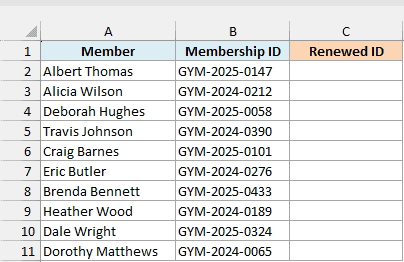
Below is a gym membership list, and I want to renew every ID by changing the year to 2026 in column C.
Here is the formula:
=REPLACEB(B2:B11,5,4,"2026")
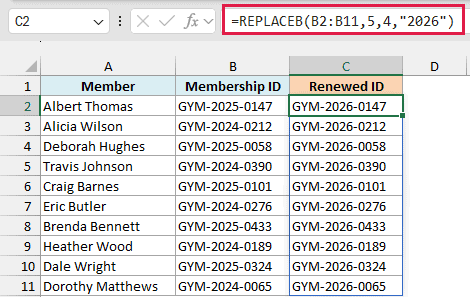
In the above formula, Excel starts at the 5th byte of each ID, which is the first digit of the year, and replaces the next 4 bytes with 2026.
I’m using positions here instead of the SUBSTITUTE function because the old year isn’t the same in every row, some IDs say 2024 and others say 2025.
The IDs hold only English letters, digits, and dashes, so every character is one byte and you get the same result on any Excel. Because the formula points at the whole range B2:B11, the results spill down on their own in Excel 365.
If you are using Excel 2019 or earlier, enter the below formula in cell C2 and then copy it down the range:
=REPLACEB(B2,5,4,"2026")
The same goes for every other formula in this article. In Excel 2019 or earlier, point it at the first cell only and copy it down.
Example 2: Insert Text Without Removing Anything
Here’s another practical scenario.
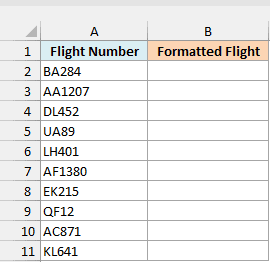
Below is a list of flight numbers typed without a space, and I want to show each one in a format like BA 284 in column B.
Here is the formula:
=REPLACEB(A2:A11,3,0," ")
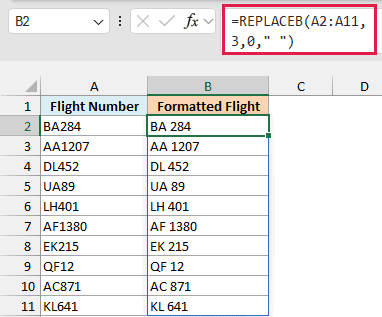
Setting num_bytes to 0 means nothing gets replaced, so new_text is simply inserted at the start_num position. Here that is just before the 3rd byte, right after the two-letter airline code.
The space in the formula is a single space typed between the double quotes. Every code in the list starts with two letters, which is why one position works for all of them.
Example 3: Remove Characters From the Start of a Text
Now let’s look at deleting text instead of adding it.
Below is a guest list with a title in front of every name, and I want just the names in column B.
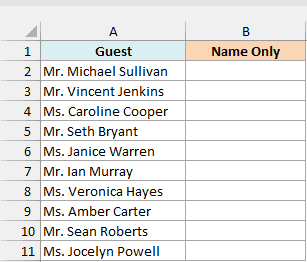
Here is the formula:
=REPLACEB(A2:A11,1,4,"")
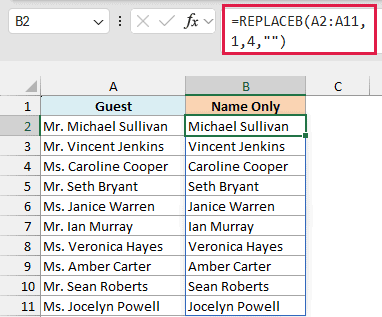
Two double quotes with nothing between them is empty text. So Excel replaces the first 4 bytes of each guest with nothing, which removes “Mr. ” or “Ms. “, space included.
Both titles are exactly 4 bytes long, which is why the same formula works for every row. A longer title like “Mrs. ” would need a different count.
Example 4: REPLACEB vs REPLACE With Japanese Text
Let’s step it up to the one place where REPLACEB can behave differently.
Below is a list of ramen names in Japanese, and I want to swap the ラーメン part of each name for うどん in column B.
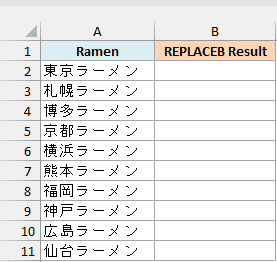
Here is the formula:
=REPLACEB(A2:A11,3,4,"うどん")
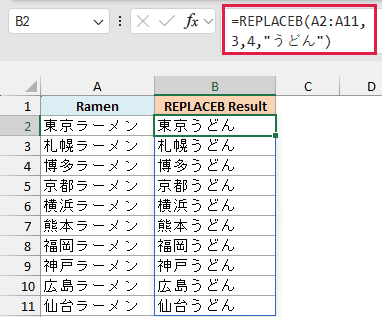
Every name is a two-character city followed by ラーメン. When Excel counts one byte per character, start_num 3 and num_bytes 4 cover exactly the four characters of ラーメン, so each name ends up as the city plus うどん.
For comparison, here is the same job with the REPLACE function in column C:
=REPLACE(A2:A11,3,4,"うどん")
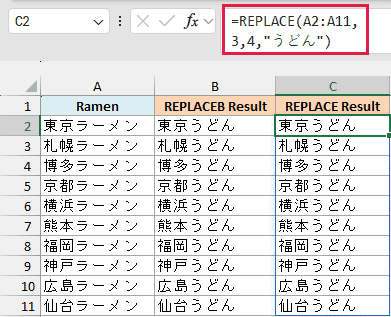
Both columns match, because the default editing language in these screenshots is English, so REPLACEB counts every character as one byte.
Important: With a Japanese, Chinese, or Korean default editing language, each of these characters counts as 2 bytes, so 3 and 4 point at 京 and ラ. REPLACEB would give 東うどんーメン, and the byte-correct version is =REPLACEB(A2,5,8,”うどん”).
The 5 and 8 follow from Microsoft’s rule that a double-byte character counts as 2 bytes (東京 is 4 bytes, ラーメン is 8). REPLACE ignores that setting and keeps using 3 and 4.
That also makes this sheet a quick test for your own Excel. Open the example file, press Ctrl+Alt+F9 to recalculate it, and if column B and column C differ, your Excel is counting bytes.
For this particular job, the SUBSTITUTE function is simpler, since you can give it the word to swap and it doesn’t need any counting at all.
So these are four ways you can use the REPLACEB function in Excel. If your Excel counts characters, REPLACE gives you the same results, so use that one instead.
I hope you found this article helpful.
Other Excel Articles You May Also Like:
