
When Excel stops responding, you can usually get it working again by finding out what’s holding it up. It could be a heavy file, an add-in, or a problem with the Excel installation itself.
But before you fix anything, you’ll want to get out of the freeze without losing your work. So I’ll show you how to do that first, and then go through the fixes that stop it from happening again.
All the steps in this article are for Excel on Windows.
What to Do When Excel Is Not Responding
When Excel is too busy to react to your clicks, Windows adds (Not Responding) to the title bar. That doesn’t always mean Excel has crashed, because a big recalculation or a slow file can keep it busy for a while.

So before you close anything, look at the status bar at the bottom of the Excel window. If it shows a task in progress, such as a calculation percentage, Excel is still working and it’s best to let it finish.
If Windows asks whether you want to close Excel or wait, choose to wait. Closing it at this point throws away anything you haven’t saved.
How to Force Close Excel and Get Your Work Back
If Excel is still stuck after a few minutes and nothing is moving, you’ll have to close it from Task Manager.
Important: Ending the task closes Excel without saving. You’ll only get back what Excel had already saved or autorecovered, so give it time first if the work matters.
Here are the steps to force close Excel:
- Press
Ctrl + Shift + Escto open Task Manager.
- On the Processes tab, select Microsoft Excel and click End task.
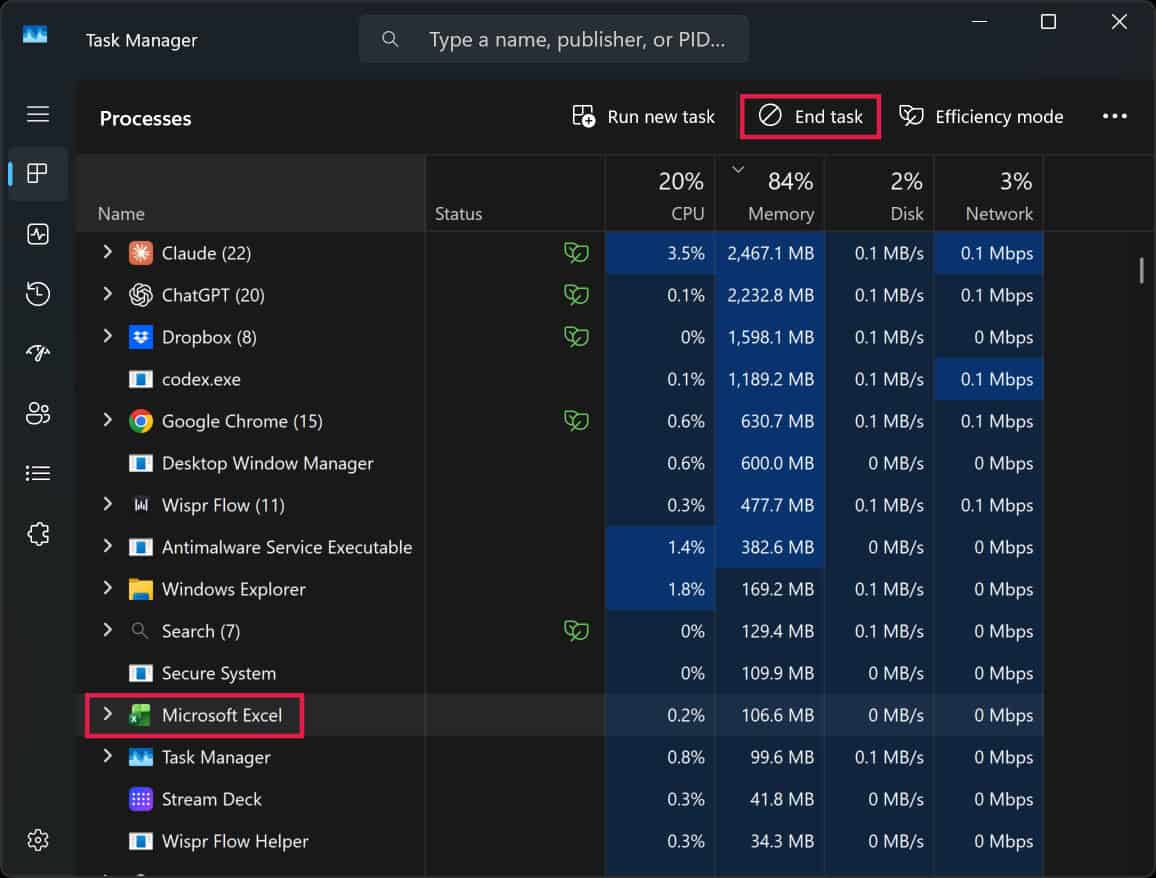
Now open Excel again. It will usually open on the start screen, so open a different workbook from there (leave the one that froze closed for now).
If Excel has a recovered copy of your file, that’s when the Document Recovery pane should show up on the left. A file marked [Original] is the copy you last saved yourself, and one with a version number in its name is the newer AutoRecover copy.
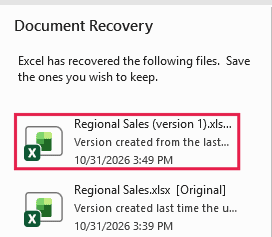
Click the AutoRecover copy to open it and check that it has what you expect. Then save it right away with File > Save As, because the recovered copy is only temporary until you do.
If the pane doesn’t show up, Excel may still have the copy on disk. Go to File > Options > Save and copy the path in the AutoRecover file location box.
Paste that path into the File Explorer address bar and open the file named after your workbook, such as Regional Sales (version 2).xlsb. Then save it with File > Save As.
If your file had never been saved, it works a little differently. With a blank workbook open, go to File > Info > Manage Workbook > Recover Unsaved Workbooks, open the file you want from the list, and save it.
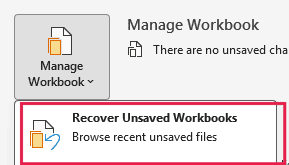
A recovered copy only has the work up to the last AutoRecover save, which happens every 10 minutes by default. So you may lose the last few minutes of changes, and I cover more options in this guide on how to recover unsaved Excel files.
If your file is on OneDrive or SharePoint with AutoSave turned on, Excel was saving your changes as you worked. So you should lose very little in that case.
Pro Tip: To lose less next time, go to File > Options > Save and change Save AutoRecover information every from 10 minutes to 5.
Which Fix Should You Try First?
With Excel open again, create a new blank workbook and work in it for a minute. Then open a couple of your other files, but leave the file that froze closed for now.
If those all work fine, the file that froze is the likely problem, so start with Fix 1. If you had several files open and aren’t sure which one froze, open them one at a time until you find it.
If Excel freezes even with the blank workbook, or with every file you open, the problem is Excel itself, an add-in, or something else on your computer. Start with Fix 4.
Fix 1: Switch to Manual Calculation (Recommended for One Problem File)
When you change a cell, Excel recalculates the formulas that depend on it. In a workbook with a lot of formulas, that can keep Excel busy long enough to show Not Responding.
Manual calculation stops that, so it’s a quick way to test whether formulas are the problem. You can also set it before you open the file, which helps when a file freezes as soon as it opens.
Here are the steps to open a file in manual calculation mode:
- In a blank workbook, go to Formulas > Calculation Options > Manual.
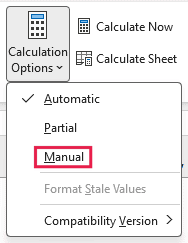
- Keep that workbook open, then open your problem file with File > Open.
Excel keeps the Manual setting for any file you open next, so your file doesn’t recalculate when it opens. Now work in it for a while, and press F9 whenever you want to update the results.
Even in Manual mode, Excel recalculates when you save, because Recalculate workbook before saving is on by default. If saving is what freezes it, you can uncheck that option under File > Options > Formulas.
If the file still freezes in Manual mode, formulas probably aren’t the main cause. So switch back to Automatic and go to Fix 2.
If the freezing stops, formulas are what’s slowing the file down. The next two fixes can make the file lighter, and these tricks to fix slow Excel spreadsheets go further.
To lighten the formulas themselves, start with your volatile formulas, such as ones that use the NOW or OFFSET function. These recalculate every time anything in the workbook changes, so replace them with regular formulas or plain values wherever you can.
Important: In Manual mode, results don’t update until you press F9, so your numbers can be out of date with no warning. When you’re done testing, go back to Formulas > Calculation Options > Automatic.
Switching back also matters for your other files. If you save a workbook in Manual mode, it can put other files you open after it into Manual too.
Fix 2: Clear Heavy Conditional Formatting
Excel has to keep checking your conditional formatting rules against the cells they cover. A lot of rules over large ranges can slow a sheet down until it freezes.
Save a copy of your file before you try this, since clearing the rules removes them from the sheet.
Here are the steps to check the rules and clear them:
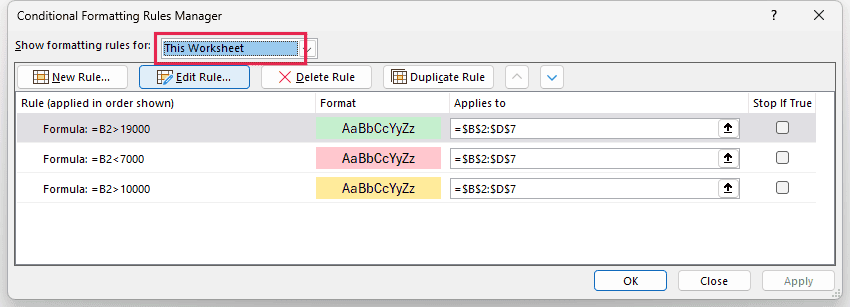
- Go to Home > Conditional Formatting > Manage Rules. In the Show formatting rules for drop-down, choose This Worksheet, look through the list, and click Close.
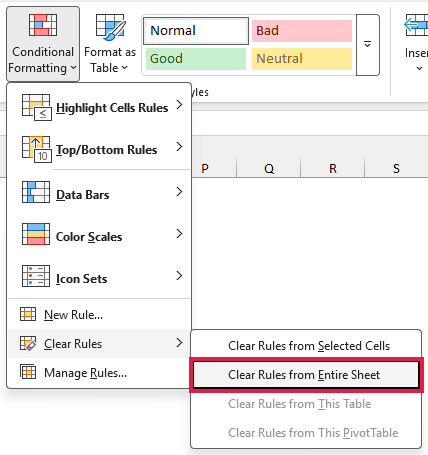
- If the list is long or the rules cover huge ranges, go to Home > Conditional Formatting > Clear Rules > Clear Rules from Entire Sheet.
Repeat this on each sheet that has a lot of rules. If the file stops freezing, add back only the rules you need, on only the cells that need them.
Fix 3: Clean Up What Has Piled Up in the File
Microsoft lists a few things that often cause hangs in a workbook, and most of them build up slowly as a file gets used. So it’s worth going through them one at a time.
Empty cells that still carry formatting
If you’re on Microsoft 365, the Check Performance tool can find cells that hold no data but still take up space because of their formatting.
Here are the steps to use it:
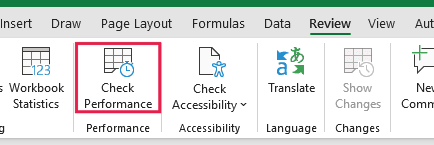
- Go to Review > Check Performance.
- In the Workbook Performance pane, click Optimize all.
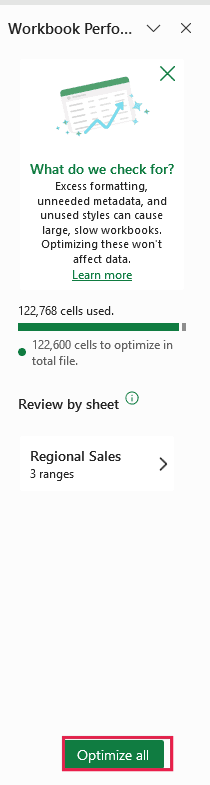
This clears formatting from empty cells, so a sheet that uses colored blank cells on purpose can change. If that happens, press Ctrl + Z to get them back.
Formulas that reference entire columns
A formula like =SUMPRODUCT(--(A:A="USA"),B:B) makes Excel check all 1,048,576 rows in both columns, even if your data stops at row 500. Point these formulas at just the rows that have data, such as =SUMPRODUCT(--(A2:A500="USA"),B2:B500).
Hidden objects
Hundreds of hidden or zero-size shapes can also make a file hang, and you won’t see them on the sheet. To check, go to Home > Find & Select > Selection Pane, which lists every object on the active sheet.

If the list is full of things you don’t need, select them and press Delete. Be careful not to pick the charts or images you want to keep.
Broken defined names
A defined name is a label you give to a cell or range, such as Tax_Rate. When the range it refers to gets deleted, the name is left broken, and a workbook can collect a lot of these.
To find them, go to Formulas > Name Manager, click Filter, and choose Names with Errors.
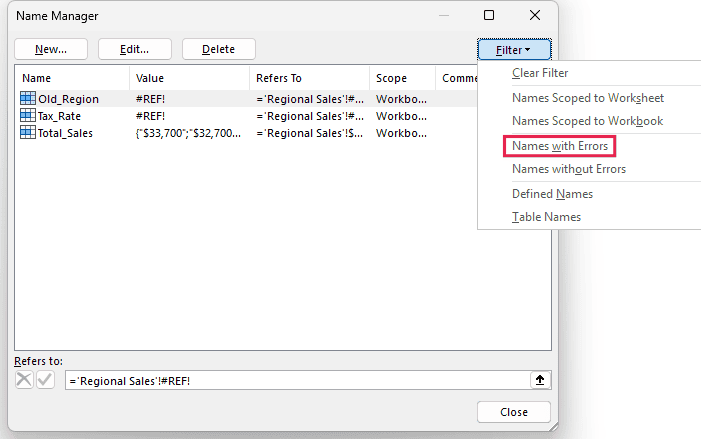
Select the names in the filtered list and click Delete. Any formula that still uses a deleted name will show a #NAME? error, so check for those afterward.
Too many cell styles
Copying and pasting between workbooks can bring in lots of extra cell styles. If the Home > Cell Styles list looks far longer than it should, this macro deletes every custom style in the active workbook:
Sub DeleteCustomStyles()
    Dim i As Long
    For i = ActiveWorkbook.Styles.Count To 1 Step -1
        If Not ActiveWorkbook.Styles(i).BuiltIn Then ActiveWorkbook.Styles(i).Delete
    Next i
End SubAny cell that uses a deleted style goes back to the Normal style, so it can lose its formatting. So run this on a copy of your file.
Here are the steps to use this macro:
- Press Alt + F11 to open the VBA Editor.
- Go to Insert > Module and paste the code above.
- Press F5 to run the macro.
If the file still freezes after all this, go to Fix 8, which covers where the file is saved and what it links to.
Fix 4: Open Excel in Safe Mode (Recommended When Every File Freezes)
If Excel freezes no matter which file you open, try starting it in safe mode. Safe mode skips your add-ins and startup files, which tells you whether one of them is causing the problem.
Close Excel first, then press Windows + R, type excel /safe, and press Enter. Make sure there’s a space before the slash, and you can find other ways to do this in this guide on how to open Excel in safe mode.
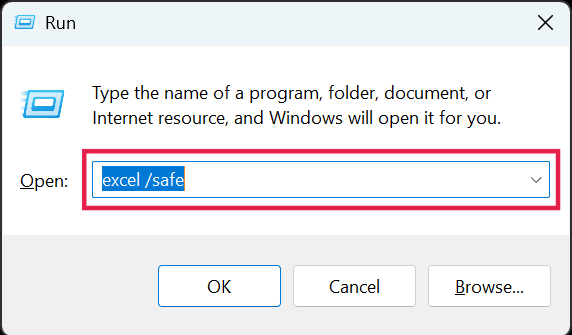
Now do whatever was freezing Excel earlier. If it works fine here, something Excel loads at startup is the likely cause, so go to Fix 5 and Fix 6 next.
If it still freezes in safe mode, skip to Fix 7.
And if Excel won’t start at all, these fixes for when Microsoft Excel won’t open are the better place to go.
Fix 5: Turn Off Excel Add-ins
Add-ins run inside Excel, so one bad add-in can freeze the whole program. The way to find out is to turn them all off and test again.
Here are the steps to turn off your add-ins:
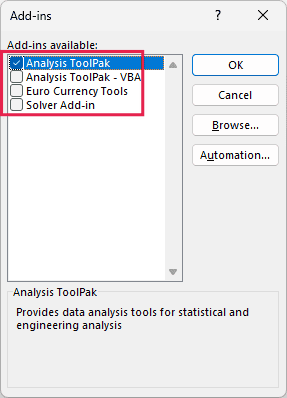
- Go to File > Options > Add-ins. In the Manage drop-down at the bottom, choose Excel Add-ins and click Go.
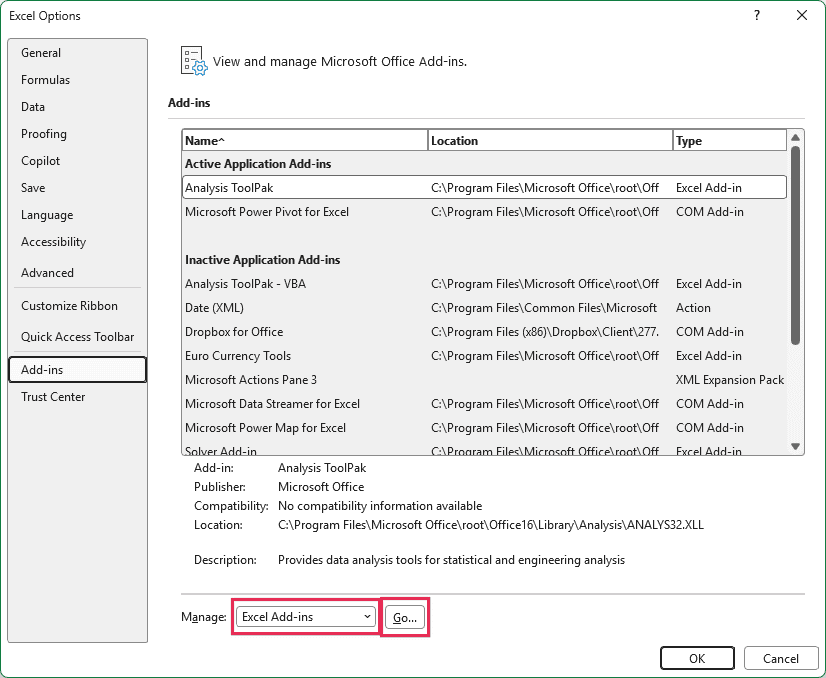
- Uncheck all the add-ins and click OK.
- Repeat with COM Add-ins in the Manage drop-down: click Go, uncheck all the add-ins, and click OK.
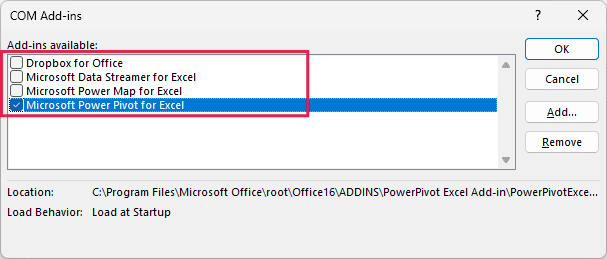
Close Excel and open it normally. If the freezing has stopped, turn the add-ins back on one at a time, restarting Excel after each one.
When the freezing comes back, the add-in you just turned on is the cause. Check its maker’s website for an update, or see how to remove an add-in completely if you don’t need it.
Fix 6: Clear the Excel Startup Folders
Excel opens whatever is in its startup folders every time it starts. So a heavy or damaged file in there can freeze Excel before you’ve touched anything.
If Excel freezes before you can reach File > Options, open it in safe mode first, as shown in Fix 4.
Here are the steps to find those folders and clear them:
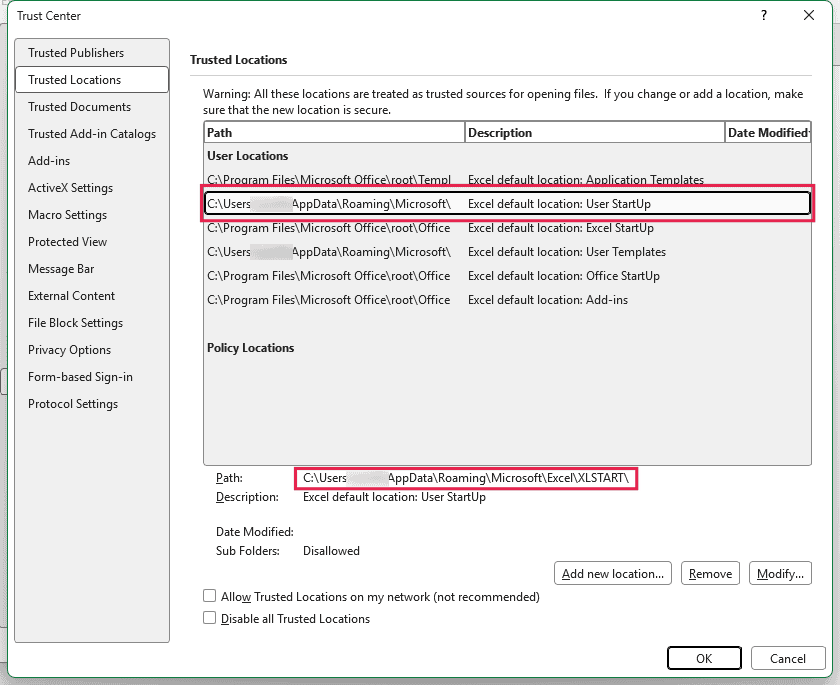
- Go to File > Options > Trust Center > Trust Center Settings > Trusted Locations. Click the User StartUp and Excel StartUp rows, and note the path shown below the list for each one (both end in XLSTART).
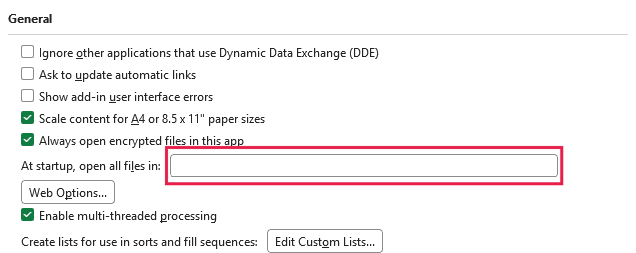
- Go to File > Options > Advanced. Under General, note any path in the At startup, open all files in box.
- Close Excel, open those folders in File Explorer, and move the files to another folder.
Move the files rather than deleting them, because your Personal Macro Workbook lives in the XLSTART folder in your user profile. Your saved macros go missing until you put it back.
Now open Excel normally. If the freezing has stopped, move the files back one at a time, restarting Excel after each one, until you find the one causing it.
Fix 7: Update Excel
Microsoft regularly ships fixes for freezing issues. For example, Microsoft says version 2503 and later includes fixes for PivotTable refresh, freeze panes, and loading shapes.
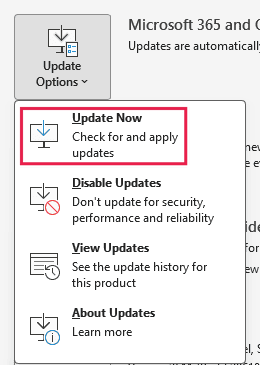
To check for updates, go to File > Account > Update Options > Update Now. If Excel keeps freezing before you can get there, open it in safe mode first.
Fix 8: Move the File to a Local Drive and Check Workbook Links
This fix is for a file that’s stored on a network drive or SharePoint, or one that links to other workbooks.
A file stored on a network drive or SharePoint has to travel over a connection every time Excel reads or saves it. If that connection is slow, Excel can hang while it waits.
To test this, copy the file that froze to your Desktop and open that copy. If the freezing stops, the file’s location was the problem, so you can do your work in that local copy.
Your changes stay in that copy and AutoSave doesn’t work on a local drive, so press Ctrl + S as you go.
If other people use the original file, check that nobody has changed it since you made your copy, because copying yours back replaces whatever is there. Then copy it back to the network drive or SharePoint when you’re done.
Formulas that link to other workbooks can cause the same kind of wait, especially when the other file is missing or on a slow network. To see those links, go to Data > Workbook Links.
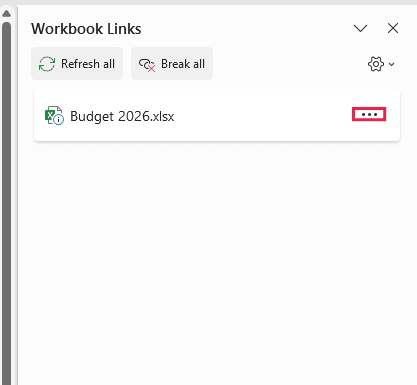
If you no longer need a link, click the three dots next to the file in the Workbook Links pane and choose Break links. This turns the linked formulas into their current values and can’t be undone, so save a copy first.
In older versions of Excel, you’ll find the links under Data > Edit Links instead. Select the file there and click Break Link.
Fix 9: Repair Office and Rule Out Other Programs
If nothing has worked so far, the Office installation itself may be damaged. Repairing it doesn’t touch your files, and Quick Repair is the place to start because it’s faster and doesn’t need an internet connection.
Close all Office apps first. Here are the steps in Windows 11:
- Go to Settings > Apps > Installed apps. Find Microsoft 365 or Microsoft Office, click the three dots next to it, and choose Modify.
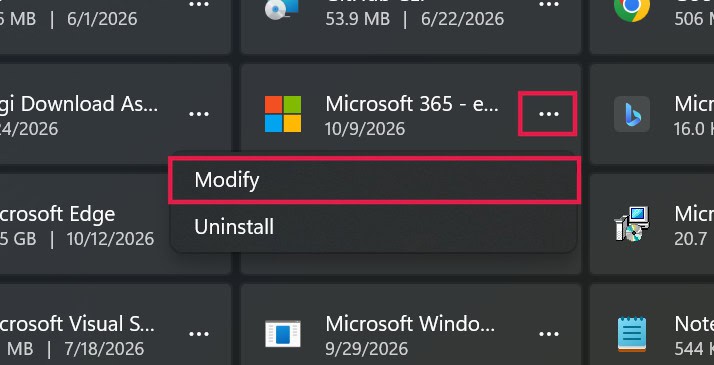
- Select Quick Repair and click Repair.
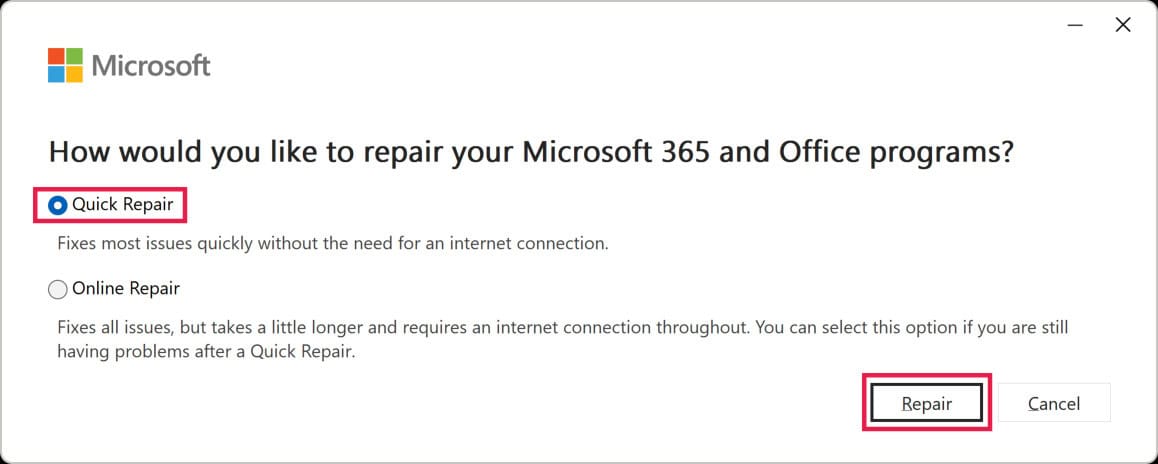
If Excel still freezes, repeat these steps and choose Online Repair. It takes longer and needs an internet connection because it downloads a fresh copy of Office.
Another program could also be getting in the way. If your antivirus software plugs into Excel, make sure it’s up to date, and ask its vendor how to exclude Excel from scanning rather than turning your protection off.
To check for any other program, you can do a clean boot, which starts Windows with only the essentials. So if Excel works fine after one, one of the programs it left out is the cause.
Microsoft has a guide on how to perform a clean boot in Windows, which also shows how to go back to normal startup when you’re done.
If Excel still hangs after all this, it’s time to contact Microsoft Support or ask in the Excel Tech Community.
So these are the things you can try when Excel is not responding.
I hope you found this article helpful.
Other Excel Articles You May Also Like: