

The Text.Trim function removes the extra spaces at the start and end of a text value. It’s the function Power Query uses when you clean imported names, product lists, or codes that came in with stray spaces you can’t even see.
You can also tell it to trim other characters, like zeros or brackets. In this article, I’ll cover how Text.Trim works, where it falls short, and how to use it on a whole column or a whole table.
Follow along with the example file
Text.Trim Function Examples.xlsx
Text.Trim Function Syntax
Text.Trim(text as nullable text, optional trim as any) as nullable text
- text – the text value you want to clean up.
- trim (optional) – the character to remove from both ends instead of whitespace. This can be a single character (like “0”) or a list of characters (like {“[“, “]”}). Trimming at each end stops at the first character that isn’t in this list.
What it returns – the same text with the leading and trailing characters removed. If you don’t use the second argument, it removes whitespace from both ends.
If the input is null, Text.Trim returns null instead of an error, so empty cells in a column don’t break the step.
Text.Trim only works on the two ends of the text. A space between two words is never touched, which is different from the TRIM function in Excel (more on this in Example 3).
When to Use the Text.Trim Function
Use this function when you need to:
- Clean up leading and trailing spaces in data imported from another system, a CSV file, or a web page
- Fix lookups and merges that fail because “Denver ” and “Denver” don’t match
- Remove duplicates that only look different because of extra spaces
- Strip wrapper characters such as brackets, asterisks, or padding zeros from the ends of a code
- Trim every text column in a table in one step
Example 1: Remove Spaces From Both Ends of a Text
Let’s start with the simplest use of the function.
Suppose you have a report title that came in with three spaces before it and three spaces after it, and you want just the title.
Create a new blank query (Home > New Source > Blank Query) and use this formula:
= Text.Trim(" Monthly Sales Report ")
Result: Monthly Sales Report

Here, Text.Trim removes the three spaces on each side and keeps the text in between exactly as it is. The single spaces between “Monthly”, “Sales”, and “Report” stay, because they are not at either end.
Example 2: Trim Extra Spaces in a Column
In real data, you’ll almost always trim a whole column rather than a single value.
Below is a Products table where some product names have extra spaces before or after them, and I want to clean up the names in the Product column.
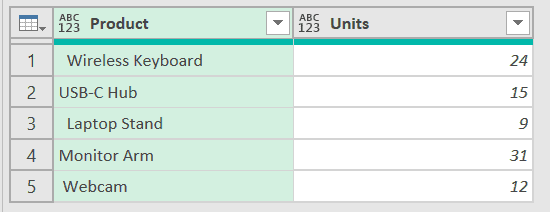
The trailing spaces are invisible in the preview, but they’re still there, and they can break a merge or a filter later.
To follow along, select any cell in the Products table and go to Data > From Table/Range. This opens the table in the Power Query Editor, where the Source step holds it (if Power Query adds a Changed Type step too, you can delete it).
Add a new step (by clicking on the fx icon next to the formula bar) and use this formula:
= Table.TransformColumns(Source,{{"Product",Text.Trim,type text}})
Result: The Product column now shows Wireless Keyboard, USB-C Hub, Laptop Stand, Monitor Arm, and Webcam, with no spaces at either end.
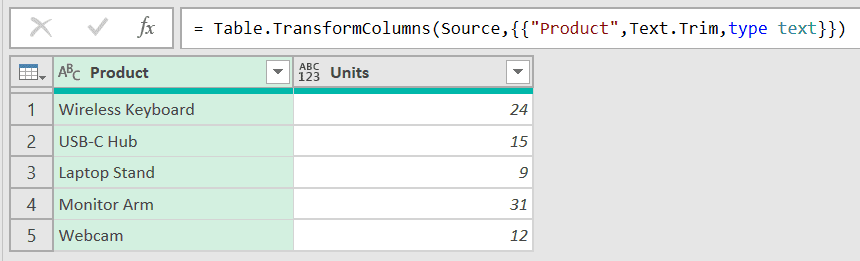
In the above formula, Table.TransformColumns runs Text.Trim on every value in the Product column and sets the column type to text. The Units column is not listed, so it stays as it is.
You don’t have to type this formula yourself. Select the column, then go to Transform > Format > Trim, and Power Query writes the same Table.TransformColumns step for you.
Example 3: Text.Trim Doesn’t Remove Extra Spaces Between Words
If you’re used to the TRIM function in Excel, this one can surprise you.
Below is a Customers table where some names have two or more spaces between the first and last name (and a few have spaces at the ends too), and I want each name with a single space in the Customer column.
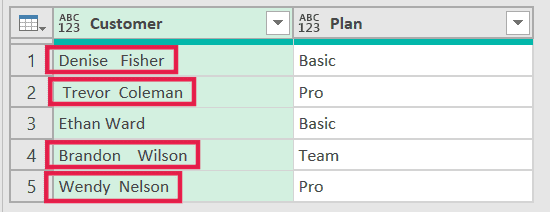
If you use Text.Trim here, “Denise Fisher” stays “Denise Fisher”, because Text.Trim only looks at the two ends of the text. The TRIM function in Excel would also collapse the spaces in the middle, but Text.Trim doesn’t do that.
To get a single space between words, add a new step (by clicking on the fx icon next to the formula bar) and use this formula:
= Table.TransformColumns(Source,{{"Customer",each Text.Combine(List.Select(Text.Split(_," "),each _ <> "")," "),type text}})
Result: The Customer column now shows Denise Fisher, Trevor Coleman, Ethan Ward, Brandon Wilson, and Wendy Nelson, each with one space between the names.

Here, each tells Power Query to run the formula on every value in the column, and _ stands for that value (one customer name). Inside List.Select, the second each _ refers to one item of the split list instead.
Text.Split breaks each name at every space, so “Denise Fisher” becomes a list with “Denise”, two empty items, and “Fisher”. List.Select keeps only the items that aren’t empty, and Text.Combine joins what’s left with a single space.
Since the empty items from the start and end are dropped too, this formula also removes the leading and trailing spaces. So you don’t need a separate Text.Trim step here.
Example 4: Remove Leading Zeros (and Why Text.Trim Gets It Wrong)
The second argument of Text.Trim lets you remove a character other than a space. A common use is cleaning up codes that were padded with zeros.
Suppose you have the code “0004500” and you want to get rid of the zeros at the start. Create a new blank query (Home > New Source > Blank Query) and use this formula:
= Text.Trim("0004500","0")
Result: 45

That’s not what we wanted. Text.Trim removes the character from both ends, so it takes off the three leading zeros and also the two trailing zeros, which were part of the actual value.
Important: When you only want to remove characters from the start, don’t use Text.Trim. Use Text.TrimStart instead, or you’ll silently lose trailing zeros like the ones in 4500 or 12300.
Here is the formula that removes the zeros from the start only:
= Text.TrimStart("0004500","0")
Result: 4500

Text.TrimStart works just like Text.Trim, except it only looks at the beginning of the text. There’s also Text.TrimEnd, which only removes characters from the end.
And if you ever need to go the other way and pad a code back to a fixed length with zeros, use Text.PadStart.
Example 5: Remove Brackets From Codes
You can give Text.Trim a list of characters, and it removes any of them from both ends.
Below is a Parts table where each code is wrapped in square brackets, and I want the code without the brackets in the Code column.
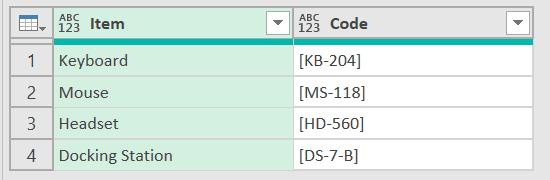
Add a new step (by clicking on the fx icon next to the formula bar) and use this formula:
= Table.TransformColumns(Source,{{"Code",each Text.Trim(_,{"[","]"}),type text}})
Result: The Code column now shows KB-204, MS-118, HD-560, and DS-7-B.
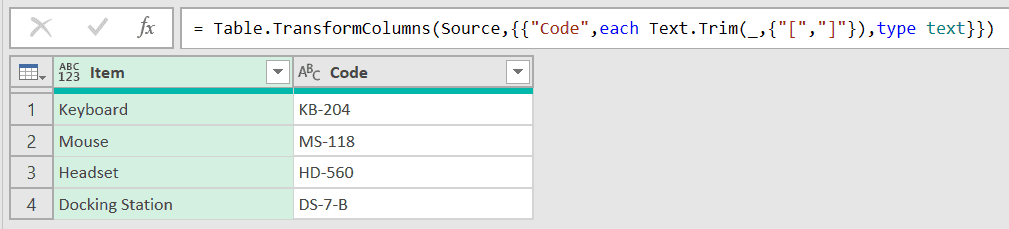
Here, {“[“,”]”} tells Text.Trim to remove opening and closing brackets from the ends. The order in the list doesn’t matter, and each end keeps getting trimmed until Power Query hits a character that’s not in the list.
In Example 2, Text.Trim was passed by name because it needed nothing else. Here it needs the list as a second argument, so it’s written as each Text.Trim(_,{"[","]"}), where _ is each code.
Since only brackets are in the list, the hyphens in “DS-7-B” are left alone. And a bracket sitting in the middle of a code would stay too, because trimming stops at the first non-bracket character on each side.
Example 6: Custom Trim Characters Replace the Default Spaces
The second argument has one catch that’s easy to miss.
Suppose you have a status value " *Pending* " with spaces outside the asterisks, and you want just the word Pending. Create a new blank query (Home > New Source > Blank Query) and use this formula:
= Text.Trim(" *Pending* ","*")
Result: *Pending* (with the spaces still around it)

Nothing got removed. Once you specify your own trim characters, Text.Trim stops removing whitespace by default, so it only looks for asterisks at the ends.
The first character it sees on each side is a space, which isn’t in the list, so it stops right there.
To fix this, add the space to the list of characters:
= Text.Trim(" *Pending* ",{"*"," "})
Result: Pending

Now Text.Trim removes both spaces and asterisks from each end, in whatever order they appear, and stops at the “P” and the “g”.
Example 7: Remove Tabs, Line Breaks, and Non-Breaking Spaces
Without the second argument, Text.Trim removes all whitespace characters, not only regular spaces. That includes tabs, line breaks, and the non-breaking spaces you often get when you copy data from a web page.
Suppose you have the word Denver with a tab before it, and a non-breaking space and a line break after it. That’s 9 characters in total, even though you only see 6 letters.
Create a new blank query (Home > New Source > Blank Query) and use this formula:
= Text.Length(Text.Trim("#(tab)Denver#(00A0)#(lf)"))
Result: 6

Here, #(tab) is a tab, #(00A0) is a non-breaking space, and #(lf) is a line break. Text.Trim removes all three, and Text.Length confirms that only the 6 letters of Denver are left.
That’s different from Excel, where the TRIM function doesn’t remove non-breaking spaces.
One character Text.Trim does not remove is the zero-width space (#(200B)). If a value still won’t match after trimming, remove it with Text.Replace by replacing “#(200B)” with an empty text “”, then trim.
Example 8: Remove Duplicates That Differ Only by Spaces
Extra spaces can also make the same value count as two different values.
Below is a Territories table with a list of cities, where “Denver” and “Denver ” look the same but one has a trailing space, and I want a clean list of unique cities in the City column.
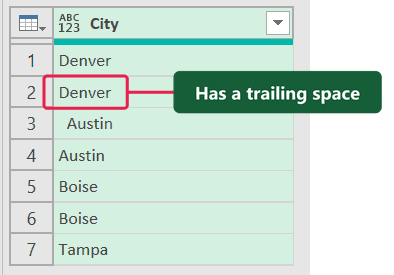
If you remove duplicates directly, Power Query keeps all 7 rows, because “Denver” and “Denver ” are not equal.
Add a new step (by clicking on the fx icon next to the formula bar) and use this formula:
= Table.Distinct(Table.TransformColumns(Source,{{"City",Text.Trim,type text}}))
Result: Denver, Austin, Boise, Tampa
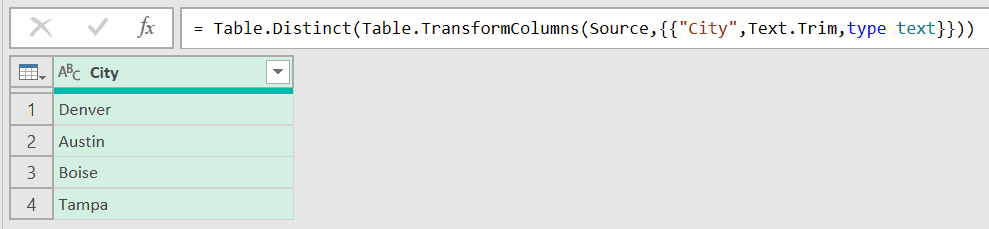
Here, Table.TransformColumns trims the City column first, so all the Denver values become exactly “Denver”. Table.Distinct then removes the duplicate rows, which leaves 4 unique cities.
The same idea applies when you merge two tables. If a key column has stray spaces in one table, the matching rows won’t join, so trim the key columns in both tables before you merge.
Example 9: Trim All Text Columns at Once
When a whole table came in messy, trimming one column at a time gets tedious.
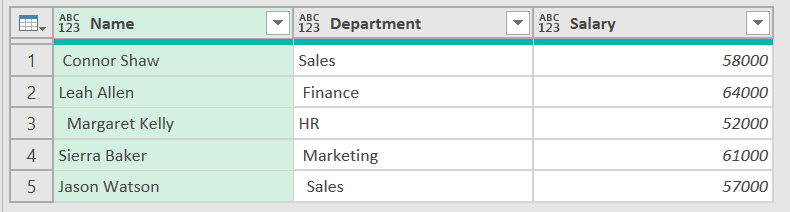
Below is an Employees table where the Name and Department columns both have extra spaces at the start or end, and the Salary column has numbers. I want to trim every text value in the table in one step.
Add a new step (by clicking on the fx icon next to the formula bar) and use this formula:
= Table.TransformColumns(Source,{},each if _ is text then Text.Trim(_) else _)
Result: The Name and Department columns are trimmed (Connor Shaw, Sales, Leah Allen, Finance, and so on), and the Salary values stay the same.
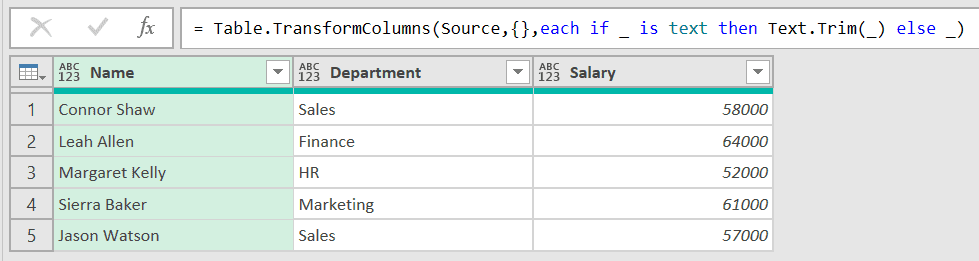
Here, the empty list {} means no column gets its own transformation. The third argument is the default transformation, so Table.TransformColumns applies it to every column in the table.
The check if _ is text is what keeps this safe. Text.Trim only accepts text, so running it on the Salary numbers would give an error in every cell.
With the check, this version trims the text values and passes everything else through unchanged.
It doesn’t set any column types, so if you need them, add a Changed Type step after this one.
Other Excel Articles You May Also Like:
- List.Distinct Function in Power Query M
- Text.BeforeDelimiter – Use Text.BeforeDelimiter in Power Query M to get text before a delimiter.
- Text.BetweenDelimiters – Use Text.BetweenDelimiters in Power Query M to extract text between delimiters.
- Text.Start – Use Text.Start in Power Query M to grab the first few characters from a text value.
- Splitter.SplitTextByDelimiter – Use Splitter.SplitTextByDelimiter in Power Query M to split text.
- Text.AfterDelimiter – Use Text.AfterDelimiter in Power Query M to get text after a delimiter.
- Text.StartsWith – Use Text.StartsWith in Power Query M to check whether text begins with a prefix.
