

The Number.ToText function converts a number into text, and it lets you decide exactly how that text looks. You can add thousands separators, fix the number of decimals, show percentages, pad with leading zeros, or format for another country.
It’s the function to reach for when a number needs to become a label, a code, or part of a sentence. In this article, I’ll cover how it works, the format codes you’ll use most, and how to format a number for another country.
Follow along with the example file
Number.ToText Function Examples.xlsx
Number.ToText Function Syntax
Number.ToText(number as nullable number, optional format as nullable text, optional culture as nullable text) as nullable text
- number – the number you want to convert to text.
- format (optional) – a text code that controls how the number looks, such as “N2”, “P1”, or “#,##0”. It accepts Microsoft’s standard numeric format codes (like “N2”) and custom format strings (like “#,##0”), and the custom ones work much like Excel’s custom number formats.
- culture (optional) – a culture code such as “en-US” or “de-DE” that controls the decimal separator, the thousands separator, and the currency symbol.
What it returns – the number as a text value. If the number is null, you get null back instead of an error.
When you leave out the culture, Power Query uses its current culture, which depends on the regional settings it runs with. So “N2” can give 1,234.50 with US settings and 1.234,50 with German settings (Example 6 shows this).
When to Use the Number.ToText Function
Use this function when you need to:
- Join a number with text, such as building a label like “24 units at $18.50”
- Show numbers with thousands separators, a fixed number of decimals, or as percentages in a text column
- Turn order numbers or IDs into fixed-length codes with leading zeros
- Format amounts with the right currency symbol and separators for different countries
- Format phone numbers or show negative numbers in parentheses
Example 1: Convert a Number to Text
Let’s start with the simplest use, with no format at all.
Suppose you have the number 1250.75 and you want it as a text value. Create a new blank query (Home > New Source > Blank Query) and use this formula:
= Number.ToText(1250.75)
Result: 1250.75
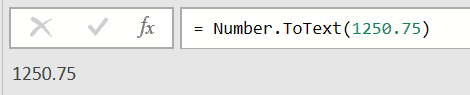
The result looks the same as the number, but it’s now text. That means you can join it with other text, while you can no longer add or sum it.
Without a format, Number.ToText gives the same result as Text.From. The real reason to use Number.ToText is the second and third arguments, which the rest of the examples cover.
In the example file, this one is a blank query, so you’ll find it in the Queries pane rather than on its own sheet.
Example 2: Add a Thousands Separator
Large numbers are much easier to read with commas.
Below is a StoreRevenue table with the revenue of four stores, and I want the revenue as text with thousands separators in a new Revenue Text column.
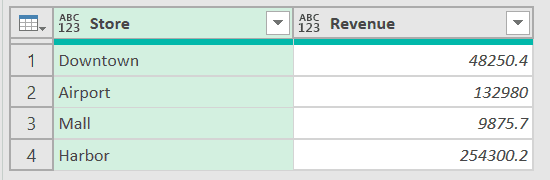
To follow along, select any cell in the table and go to Data > From Table/Range. This opens the table in the Power Query Editor, where the Source step holds it (if Power Query adds a Changed Type step too, you can delete it).
Add a new step (by clicking on the fx icon next to the formula bar) and use this formula:
= Table.AddColumn(Source,"Revenue Text",each Number.ToText([Revenue],"#,##0"),type text)
Result: The Revenue Text column shows 48,250, 132,980, 9,876, and 254,300.
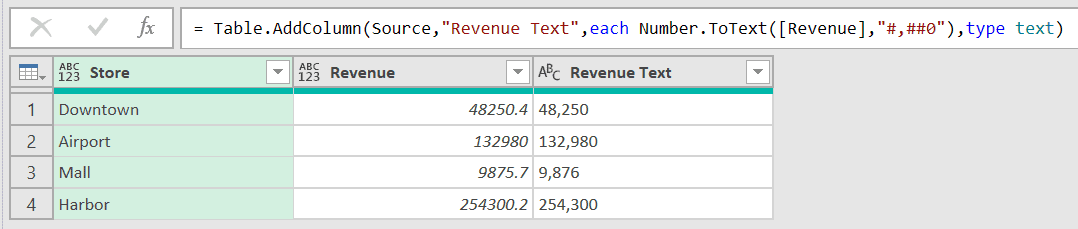
Here, Table.AddColumn adds the new column, and each runs Number.ToText on the Revenue value of every row. The format “#,##0” is the same code you’d use in Excel’s custom number format: a comma for the thousands and no decimals.
Since the format has no decimal places, the numbers get rounded. That’s why 9875.7 shows as 9,876.
The standard code “N0” gives the same result if you find it easier to remember.
If you want to keep two decimals along with the commas, use “#,##0.00” instead.
Example 3: Show a Fixed Number of Decimals
Prices and costs usually need exactly two decimals, even when the number is a whole number.
Below is a UnitCosts table with the cost of four parts, and I want each cost as text with two decimals in a new Cost Text column.
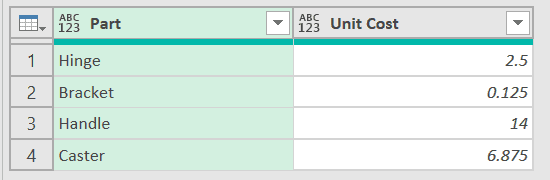
Add a new step (by clicking on the fx icon next to the formula bar) and use this formula:
= Table.AddColumn(Source,"Cost Text",each Number.ToText([Unit Cost],"F2"),type text)
Result: The Cost Text column shows 2.50, 0.13, 14.00, and 6.88.
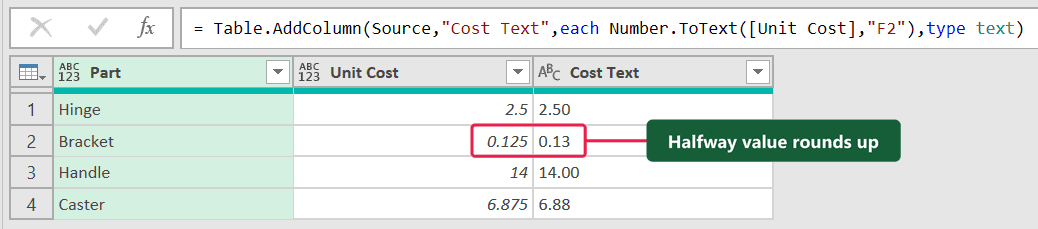
Here, “F2” means fixed-point with 2 decimals. It adds zeros where needed (2.5 becomes 2.50 and 14 becomes 14.00) and rounds where there are more decimals.
A value that sits exactly halfway, like 0.125, rounds up to 0.13. And if you also want thousands separators, use “N2”, which works the same way but adds the commas.
Example 4: Format Numbers as Percentages
Rates are often stored as decimals, like 0.854, which aren’t easy to read in a report.
Below is a TicketRates table with the share of tickets each team resolved, and I want each rate as a percentage with one decimal in a new Rate Text column.
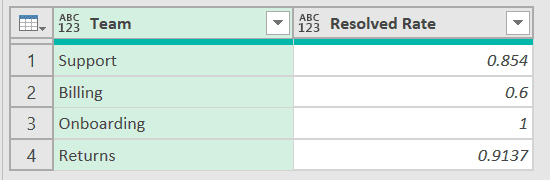
Add a new step (by clicking on the fx icon next to the formula bar) and use this formula:
= Table.AddColumn(Source,"Rate Text",each Number.ToText([Resolved Rate],"P1"),type text)
Result: The Rate Text column shows 85.4%, 60.0%, 100.0%, and 91.4%.
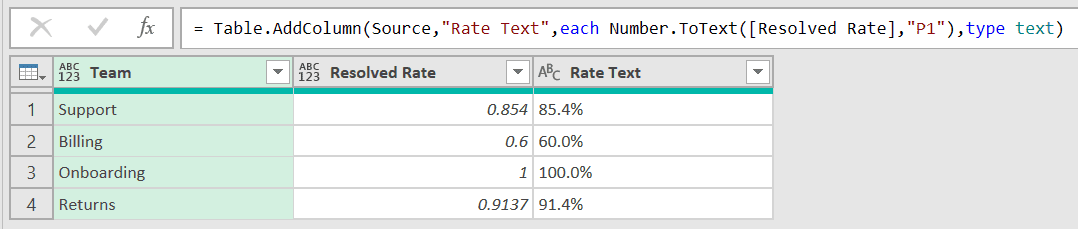
Here, “P” multiplies the number by 100 and adds the percent sign, and the 1 sets one decimal. So 0.9137 becomes 91.37, which rounds to 91.4%.
“P” takes its layout from the culture, so the sign doesn’t always sit right after the number. With the German culture (“de-DE”), the same rate comes out as 85,4 % with a space.
If you want the sign right after the number on any computer, use the custom format “0.0%” instead. It gives 85.4% here and 85,4% with the German culture.
Example 5: Add Leading Zeros to Order Numbers
Leading zeros come up all the time when you turn numbers into IDs or codes.
Below is an Orders table with order numbers of different lengths, and I want a fixed-length order ID like ORD-00042 in a new Order ID column.
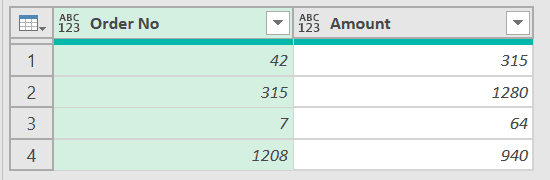
Add a new step (by clicking on the fx icon next to the formula bar) and use this formula:
= Table.AddColumn(Source,"Order ID",each "ORD-" & Number.ToText([Order No],"00000"),type text)
Result: The Order ID column shows ORD-00042, ORD-00315, ORD-00007, and ORD-01208.
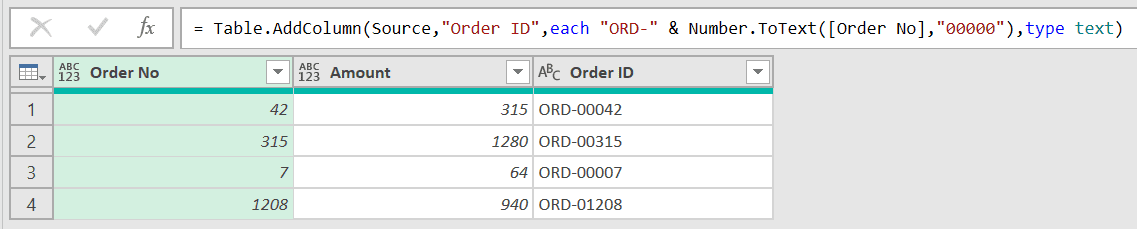
Here, each 0 in “00000” is a digit placeholder, so every number is padded with zeros to 5 digits. The & operator then joins the “ORD-” prefix to the text.
You’ll also see the standard code “D5” used for this, and it gives the same result for whole numbers.
But “D5” only accepts whole numbers, so a value like 42.5 returns the error “We expected an integer value.” The “00000” format accepts decimals too, but it rounds them to a whole number, so 42.5 becomes 00043.
If your order numbers are already stored as text, you don’t need Number.ToText at all. Use Text.PadStart to add the zeros instead.
Example 6: Same Number, Different Cultures
Now let’s use the third argument, the culture.
Below is a CultureCheck table with the same amount in three rows, each with a different culture code, and I want to see how that amount is written in each culture in a new Formatted column.
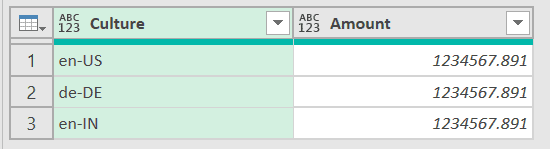
Add a new step (by clicking on the fx icon next to the formula bar) and use this formula:
= Table.AddColumn(Source,"Formatted",each Number.ToText([Amount],"N2",[Culture]),type text)
Result: The Formatted column shows 1,234,567.89 for en-US, 1.234.567,89 for de-DE, and 12,34,567.89 for en-IN.

Here, all three rows use the same format, “N2”, and the same number. Only the culture changes, and that’s what changes the separators.
The US uses a comma for thousands and a period for decimals, and Germany swaps them.
India groups digits differently. Counting from the right, the first comma comes after three digits and then after every two, which is why you get 12,34,567.89.
Important: If a query might run with different regional settings, always pass the culture. Without it, the same query can produce different text for different people.
Example 7: Format Amounts as Currency for Different Countries
The culture also decides the currency symbol and where it goes.
Below is an Invoices table with the same invoice amount for five countries, along with each country’s culture code, and I want the amount in the local currency format in a new Amount Text column.
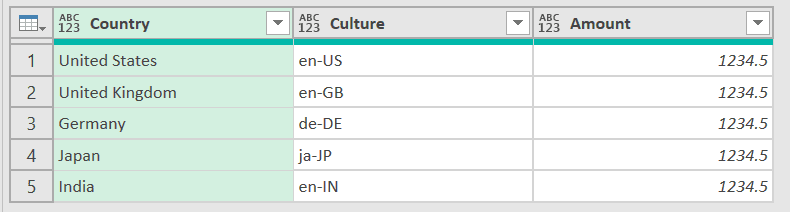
Add a new step (by clicking on the fx icon next to the formula bar) and use this formula:
= Table.AddColumn(Source,"Amount Text",each Number.ToText([Amount],"C",[Culture]),type text)
Result: The Amount Text column shows $1,234.50, £1,234.50, 1.234,50 €, ¥1,235, and ₹ 1,234.50.
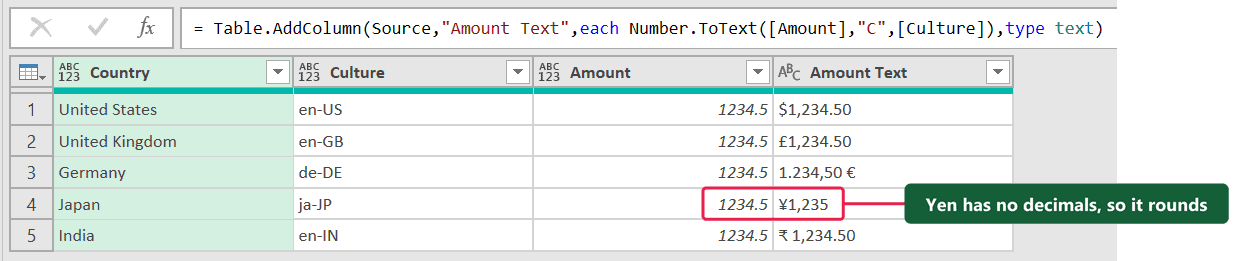
Here, “C” is the currency format, and the culture picks the symbol, its position, and the separators. It only changes how the amount looks, so 1234.5 is never converted from dollars to pounds or yen.
The euro sign goes after the amount for Germany, while the other symbols go before it.
The spacing around a symbol also comes from the culture, which is why India shows a space after the ₹ sign.
Notice that Japan shows ¥1,235 with no decimals. When you use “C” without a number after it, each culture uses its own number of decimals, and the yen has none, so 1234.5 gets rounded.
If you want a fixed number of decimals everywhere, use “C2”, which gives ¥1,234.50 for Japan. And note that “C” shows negative amounts in parentheses in the US culture, so -1234.5 becomes ($1,234.50).
Example 8: Format Phone Numbers
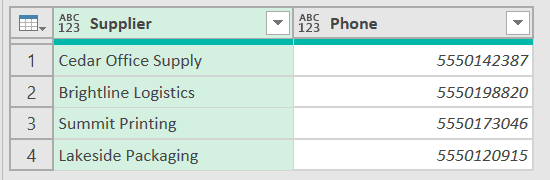
Phone numbers often come in from a system as plain 10-digit numbers, and you can turn them into the (555) 014-2387 style with a custom format.
Below is a Suppliers table with each supplier’s phone number stored as a number, and I want the phone number in the (555) 014-2387 style in a new Phone Text column.
Add a new step (by clicking on the fx icon next to the formula bar) and use this formula:
= Table.AddColumn(Source,"Phone Text",each Number.ToText([Phone],"(000) 000-0000"),type text)
Result: The Phone Text column shows (555) 014-2387, (555) 019-8820, (555) 017-3046, and (555) 012-0915.
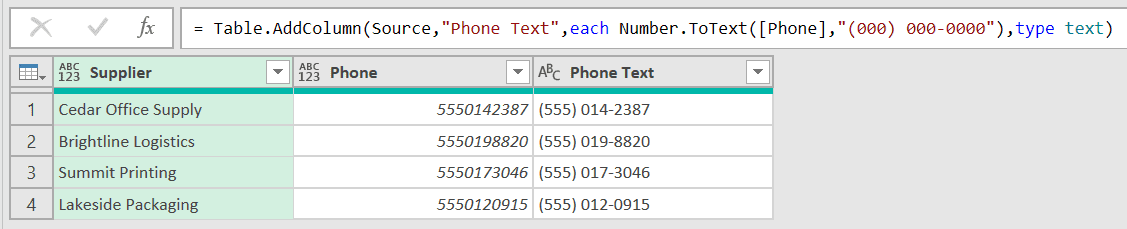
Here, each 0 is a digit placeholder, and everything else in the format (the brackets, the space, and the hyphen) is added as it is.
Example 9: Show Negative Numbers in Parentheses
Finance reports often show negative numbers in brackets instead of with a minus sign.
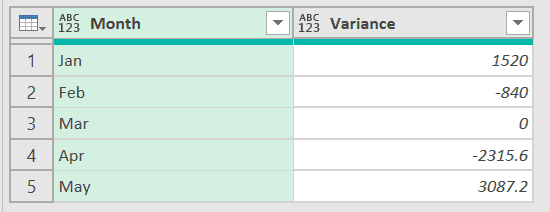
Below is a BudgetVariance table with the monthly variance against budget, and I want the variance with negatives in parentheses and zero as a dash in a new Variance Text column.
Add a new step (by clicking on the fx icon next to the formula bar) and use this formula:
= Table.AddColumn(Source,"Variance Text",each Number.ToText([Variance],"#,##0;(#,##0);-"),type text)
Result: The Variance Text column shows 1,520, (840), -, (2,316), and 3,087.
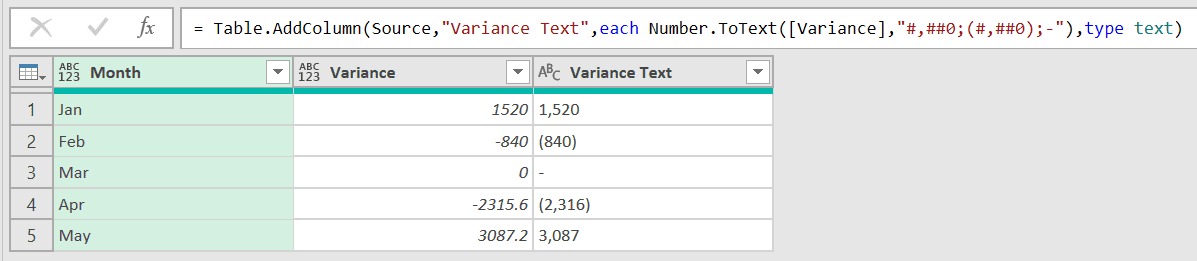
Here, the semicolons split the format into three sections, just like a custom number format in Excel. The first section is for positive numbers, the second for negative numbers, and the third for zero.
The negative section doesn’t need a minus sign, because the parentheses take its place. And since none of the sections have decimals, -2315.6 is rounded to (2,316).
Example 10: Combine Numbers With Text in a Label
If you’ve tried joining a number and some text with the & operator in Power Query, you’ve probably seen the error “We cannot apply operator & to types Number and Text.”
Below is a Restock table with the units and price of four products, and I want a label like “24 units at $18.50” in a new Label column.
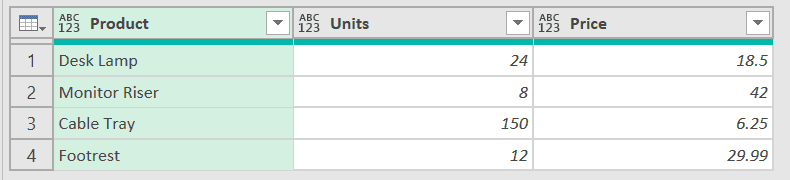
If you write [Units] & " units" here, you get that same & operator error. For this label, use Number.ToText on [Units] first so both sides are text.
Text.Combine has the same problem. Give it a number in the list and it returns “We cannot convert the value 24 to type Text.”
So convert each number to text first. Add a new step (by clicking on the fx icon next to the formula bar) and use this formula:
= Table.AddColumn(Source,"Label",each Number.ToText([Units]) & " units at " & Number.ToText([Price],"C","en-US"),type text)
Result: The Label column shows 24 units at $18.50, 8 units at $42.00, 150 units at $6.25, and 12 units at $29.99.

Here, the units are converted with no format, since they’re whole numbers. The price uses “C” with “en-US”, so it always shows a dollar sign and two decimals, no matter which computer refreshes the query.
Number.ToText only accepts numbers.
If a column holds numbers stored as text, like “1250”, it returns the error “We cannot convert the value “1250” to type Number.” So change the column type to Decimal Number first, then use Number.ToText.
Other Excel Articles You May Also Like:
- Table.TransformColumnTypes
- Number.From function
- Number.Round function
- Date.ToText – Use Date.ToText in Power Query M to convert dates to text.
- Text.Format – Use Text.Format in Power Query M to slot values into a text template.
- Table.TransformColumns – Guide to Table.TransformColumns in Power Query M.
- Date.FromText – Use Date.FromText in Power Query M to convert text into real date values.
- Text.Start – Use Text.Start in Power Query M to grab the first few characters from a text value.
