

The Text.TrimEnd function removes characters from the end of a text value and leaves the start exactly as it is. By default it removes trailing spaces, and it can also strip trailing zeros, stray commas, or the backslash at the end of a folder path.
That makes it the right pick when the start of the text matters, like indented account names or leading zeros you want to keep.
In this article, I’ll show you how Text.TrimEnd works and the cleanup jobs where trimming only the end is exactly what you need.
Follow along with the example file
Text.TrimEnd Function Examples.xlsx
Text.TrimEnd Function Syntax
Text.TrimEnd(text as nullable text, optional trim as any) as nullable text
- text – the text value you want to remove the trailing characters from.
- trim (optional) – the character to remove from the end instead of whitespace. This can be a single character (like “0”) or a list of single characters (like {“,”,” “}). Trimming stops at the first character from the end that isn’t in this list.
What it returns – the same text with the trailing characters removed. If you don’t use the second argument, it removes trailing whitespace, which includes spaces, tabs, line breaks, and non-breaking spaces.
If the input is null, Text.TrimEnd returns null instead of an error. A number does give an error (“We cannot convert the value 1250 to type Text.”), so convert numbers to text first.
The Text.TrimEnd function is part of the core Power Query M library, so it works wherever Power Query does, including Excel for Microsoft 365, 2024, 2021, 2019, and 2016 (on Windows for 2019 and 2016), and Power BI.
When to Use the Text.TrimEnd Function
Use this function when you need to:
- Remove trailing spaces while keeping leading spaces that mean something, such as indented account names
- Strip trailing zeros from decimal values stored as text
- Clean up a comma or separator left at the end of a list
- Remove the backslash at the end of a folder path before you add a file name
- Remove dot leaders or padding characters from a fixed-width report export
- Remove a suffix made of letters, like a revision letter at the end of a drawing number
Example 1: Remove Trailing Spaces Only
Let’s start with what Text.TrimEnd does when you give it just the text.
Suppose you have a report title with three spaces before it and three spaces after it, and you want to remove only the spaces at the end.
Since spaces are invisible in the result, I’ve wrapped the result in square brackets so you can see where the text starts and ends.
In Excel, go to Data > Get Data > From Other Sources > Blank Query. In the Power Query Editor that opens, type this formula in the formula bar:
= "[" & Text.TrimEnd(" Quarterly Budget ") & "]"
Result: [ Quarterly Budget] (three spaces before “Quarterly” and none after “Budget”)

Here, Text.TrimEnd removes the three spaces after “Budget” and stops at the “t”. The three spaces before “Quarterly” are still there, which is the big difference from Text.Trim (that one cleans both ends).
The & operator only joins the brackets to the result. You won’t need them in real use (they’re only there so you can see the spaces).
Example 2: Trim Trailing Spaces but Keep the Indentation
This is where trimming only the end really pays off.
Below is an Excel Table named Accounts with a small chart of accounts, where the accounts under each heading are indented with two leading spaces and every name also has extra spaces at the end.
I want to remove the trailing spaces in the Account column but keep the indentation.
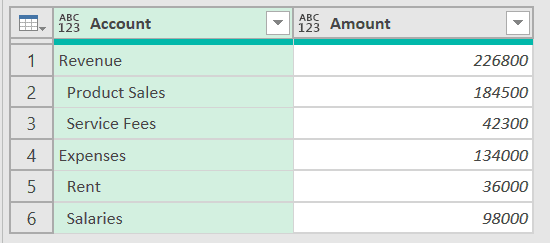
You can see the indentation, but the trailing spaces are invisible. So in this query, I’ll also count the characters in each name before and after trimming, which shows exactly what got removed.
Create a new blank query (as in Example 1), open the Advanced Editor (Home > Advanced Editor), and use this code:
let
    Source = Excel.CurrentWorkbook(){[Name="Accounts"]}[Content],
    #"Added Length Before" = Table.AddColumn(Source,"Length Before",each Text.Length([Account]),Int64.Type),
    #"Trimmed End" = Table.TransformColumns(#"Added Length Before",{{"Account",Text.TrimEnd,type text}}),
    #"Added Length After" = Table.AddColumn(#"Trimmed End","Length After",each Text.Length([Account]),Int64.Type)
in
    #"Added Length After"
Result: The Account column keeps its indentation, Length Before shows 10, 19, 15, 10, 11, and 12, and Length After shows 7, 15, 14, 8, 6, and 10.
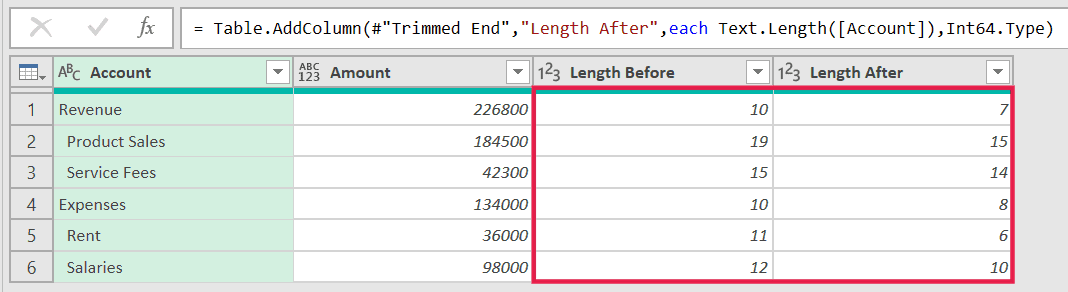
The step that does the actual work is Trimmed End. Table.TransformColumns runs Text.TrimEnd on every value in the Account column and sets its type to text.
Look at Product Sales, which went from 19 characters to 15, so the 4 spaces at the end are gone. But 15 is still 2 more than the 13 characters in “Product Sales” (counting the space between the words).
Those 2 extra characters are the leading spaces that create the indentation.
If you used Text.Trim here, the leading spaces would go too, and you’d lose the indentation that shows which accounts sit under Revenue and which sit under Expenses.
The two Length columns are only there to show you the hidden spaces. In your own query, you only need the Trimmed End step.
Example 3: Remove Trailing Zeros From a Decimal
The second argument lets you remove a character other than a space.
Suppose a system exported the value 2.75 as the text “2.750000” (it always writes six decimal places), and you want just “2.75”.
Create a new blank query (as in Example 1) and use this formula:
= Text.TrimEnd("2.750000","0")
Result: 2.75

Here, the “0” tells Text.TrimEnd to remove zeros instead of spaces. It removes the four zeros at the end and stops at the “5”.
Text.TrimEnd works on text, so this is for values stored as text. If your values sit in a column and you’re fine with real numbers, changing that column’s type to Decimal Number drops the zeros for you, because numbers don’t store trailing zeros.
Example 4: Remove Trailing Zeros in a Column Without Breaking Whole Numbers
Doing this on a whole column needs a little more care.
Below is an Excel Table named Weights with sample weights that came in as text with different numbers of decimal places, and I want to remove the trailing zeros in the Weight column.
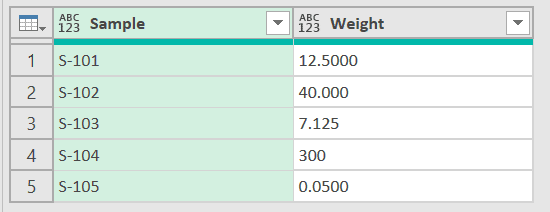
If you simply trim “0” from the end of every value in this column, two things go wrong. “40.000” becomes “40.” with the dot left at the end, and “300” becomes “3”, because the zeros in a whole number are also trailing zeros.
To follow along, select any cell in the Weights table and go to Data > From Table/Range. This opens the table in the Power Query Editor, where the Source step holds it (if Power Query adds a Changed Type step too, you can delete it).
Add a new step (by clicking on the fx icon next to the formula bar) and use this formula:
= Table.TransformColumns(Source,{{"Weight",each
        if Text.Contains(_,".")
        then Text.TrimEnd(Text.TrimEnd(_,"0"),".")
        else _,type text}})
Result: The Weight column now shows 12.5, 40, 7.125, 300, and 0.05.
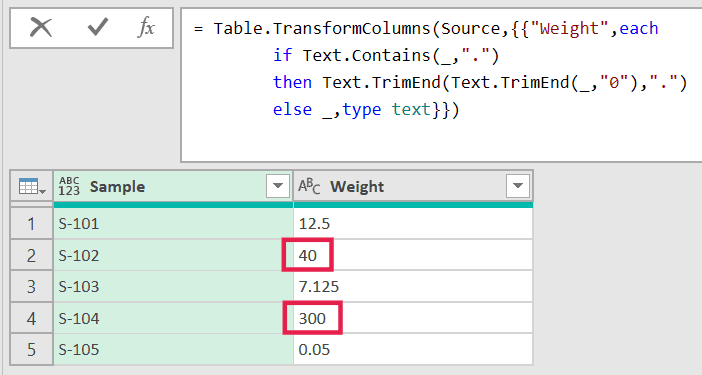
In Example 2, Text.TrimEnd was passed by name because the default trim was enough. Here it needs a second argument and an if around it, so the formula starts with each, and _ stands for the value in each row.
The if uses Text.Contains to check whether the value has a decimal point, so only values like “12.5000” get trimmed, and “300” passes through unchanged.
The inner Text.TrimEnd removes the zeros, and the outer one removes a dot if one is left at the end. That’s how “40.000” becomes “40” and not “40.”.
Also notice that “0.0500” keeps its leading zero and becomes “0.05”. Text.TrimEnd never looks at the start of the text, so it can’t touch that zero.
If the Weight column has empty (null) cells, this formula shows the error “We cannot convert the value null to type Logical.” in those cells, because the if can’t test a null. So replace or filter out the empty cells before this step.
Example 5: Remove a Trailing Comma From a List
This one shows up when lists are built by joining values with a comma.
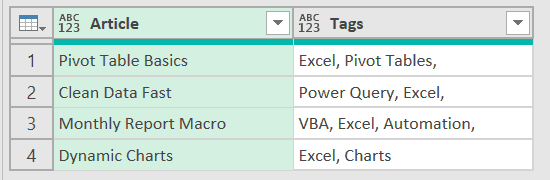
Below is an Excel Table named Posts with article titles and their tags, where some tag lists end with a stray comma (sometimes with a space after it), and I want to clean up the Tags column.
Load the table into the Power Query Editor (as in Example 4), then add a new step (by clicking on the fx icon next to the formula bar) and use this formula:
= Table.TransformColumns(Source,{{"Tags",each Text.TrimEnd(_,{","," "}),type text}})
Result: The Tags column now shows Excel, Pivot Tables / Power Query, Excel / VBA, Excel, Automation / Excel, Charts, with nothing left at the end.
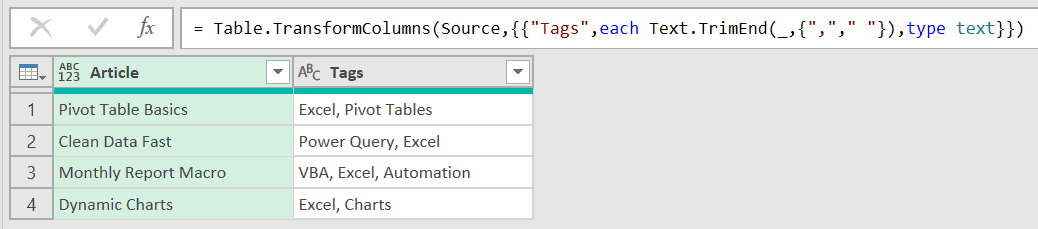
Here, the list {“,”,” “} tells Text.TrimEnd to remove both commas and spaces from the end, in whatever order they appear. “VBA, Excel, Automation, ” ends with a comma and a space, so both go, and trimming stops at the “n”.
The space has to be in the list. Once you give Text.TrimEnd your own characters, it no longer removes whitespace by default, so with only “,” a value ending in “, ” wouldn’t change at all (its last character is a space, not a comma).
The commas between the tags stay, because they’re not at the end. And “Excel, Charts” had nothing to remove, so it’s unchanged.
Follow along with the example file
Text.TrimEnd Function Examples.xlsx
Example 6: Remove a Trailing Backslash From Folder Paths
Here’s a common one when you build file paths.
Below is an Excel Table named Files with folder paths and file names, where some folder paths end with a backslash and some don’t, and I want the full file path in a new Full Path column.
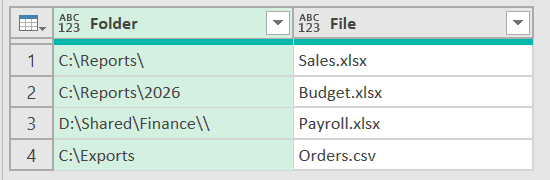
If you just join the folder, a backslash, and the file name, the folders that already end with a backslash give you a double backslash, like C:\Reports\\Sales.xlsx. And if you skip the backslash, the other folders give you C:\Reports\2026Budget.xlsx.
Load the table into the Power Query Editor (as in Example 4), then add a new step (by clicking on the fx icon next to the formula bar) and use this formula:
= Table.AddColumn(Source,"Full Path",each Text.TrimEnd([Folder],"\") & "\" & [File],type text)
Result: A new Full Path column with C:\Reports\Sales.xlsx, C:\Reports\2026\Budget.xlsx, D:\Shared\Finance\Payroll.xlsx, and C:\Exports\Orders.csv.
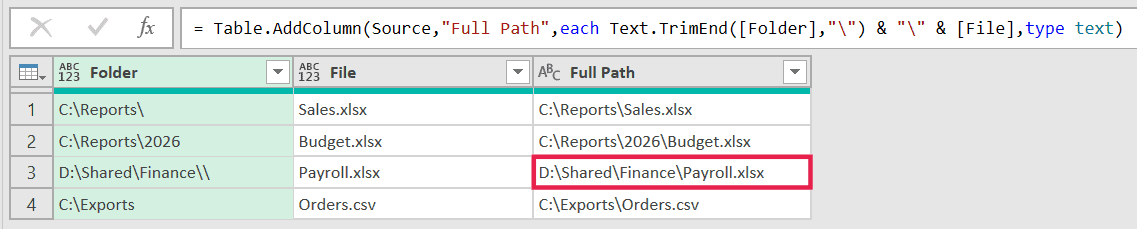
Here, Table.AddColumn adds the Full Path column. For each row, Text.TrimEnd removes any backslashes at the end of the folder path, and & "\" then adds exactly one back.
So every path gets one backslash between the folder and the file, whether the folder had zero, one, or two at the end.
Notice D:\Shared\Finance\\ had two backslashes at the end, and both were removed. Text.TrimEnd keeps going until it hits a character that isn’t a backslash.
Example 7: Remove Dot Leaders From a Report Export
Reports that were made to be printed often fill the gap after a label with dots.
Below is an Excel Table named Ledger copied from an expense report, where most item names are followed by a row of dots (called dot leaders), and I want just the item name in the Item column.
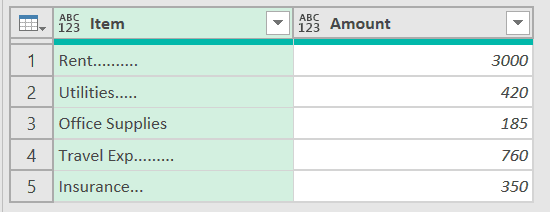
Load the table into the Power Query Editor (as in Example 4), then add a new step (by clicking on the fx icon next to the formula bar) and use this formula:
= Table.TransformColumns(Source,{{"Item",each Text.TrimEnd(_,"."),type text}})
Result: The Item column now shows Rent, Utilities, Office Supplies, Travel Exp, and Insurance.
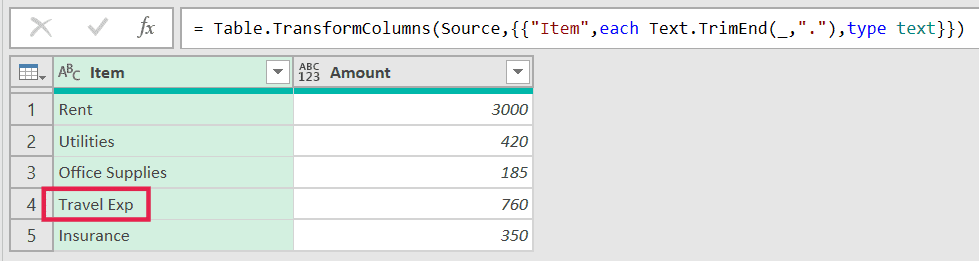
Here, Text.TrimEnd removes every dot at the end of each item, no matter how many there are. Office Supplies had no dots, so it stays as it is.
There’s one catch, though.
“Travel Exp.” was an abbreviation with its own period, and that period is gone too, because Text.TrimEnd can’t tell a padding dot from punctuation. If some of your labels end in a period that matters, fix those few values after this step.
Also, if your export has spaces after the dots, use {“.”,” “} instead of “.”. With only “.”, a value that ends in a space isn’t trimmed at all, because the custom character replaces the default whitespace.
Example 8: Remove a Revision Letter From Drawing Numbers
You can also give Text.TrimEnd a whole range of characters.
Below is an Excel Table named Drawings with drawing numbers and their status, where most drawing numbers end with a hyphen and a revision letter (like DWG-1083-C), and I want the base drawing number in a new Base Number column.
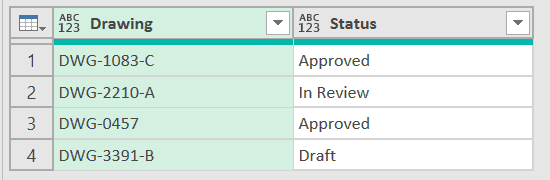
Load the table into the Power Query Editor (as in Example 4), then add a new step (by clicking on the fx icon next to the formula bar) and use this formula:
= Table.AddColumn(Source,"Base Number",each Text.TrimEnd([Drawing],{"A".."Z","-"}),type text)
Result: A new Base Number column with DWG-1083, DWG-2210, DWG-0457, and DWG-3391.
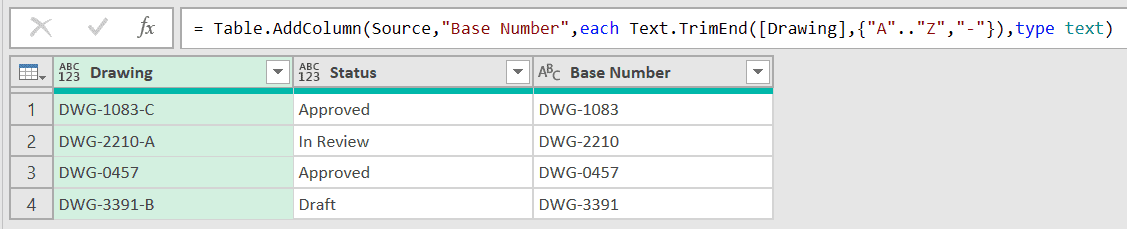
Here, {“A”..”Z”} is a list of all the uppercase letters from A to Z, so you don’t have to type all 26. Adding “-” to the same list removes the hyphen too, and trimming stops at the first digit from the end.
DWG-0457 has no revision letter, so it already ends with a digit and nothing is removed.
This works because every base number ends with a digit. If a base number itself ended with a letter (say DWG-1083X-C), that X would be removed too.
The list also has only uppercase letters. If your codes use lowercase too, add “a”..”z” inside the same list, like {"A".."Z","a".."z","-"}.
Example 9: Text.TrimEnd Removes Characters, Not Words
This one trips people up when they try to remove a word from the end.
Suppose you want to remove ” Inc” from the end of a vendor name like “Lincoln Inc”. If you try Text.TrimEnd(“Lincoln Inc”,” Inc”), you get an error that says “The value isn’t a single-character string.”, because the second argument only takes single characters.
So you might split the word into its characters. Create a new blank query (as in Example 1) and use this formula:
= Text.TrimEnd("Lincoln Inc",{" ","I","n","c"})
Result: Lincol

That’s not what we wanted.
Text.TrimEnd treats the list as a set of separate characters, not as a word. So after it removes “c”, “n”, “I”, and the space, it sees the “n” at the end of “Lincoln”.
That “n” is also in the list, so it goes too, and trimming only stops at the “l”.
To remove a whole word, check if the text ends with it, and then cut that many characters off.
Below is an Excel Table named Vendors with vendor names and payment terms, where some names end with ” Inc”, and I want to remove it in the Vendor column.
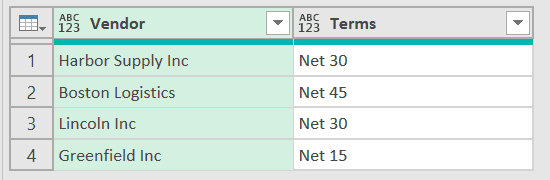
Load the table into the Power Query Editor (as in Example 4), then add a new step (by clicking on the fx icon next to the formula bar) and use this formula:
= Table.TransformColumns(Source,{{"Vendor",each
        if Text.EndsWith(_," Inc")
        then Text.Start(_,Text.Length(_)-4)
        else _,type text}})
Result: The Vendor column now shows Harbor Supply, Boston Logistics, Lincoln, and Greenfield.
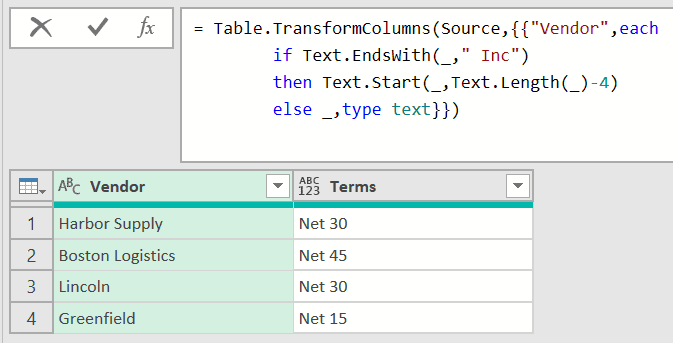
Here, Text.EndsWith checks whether the vendor name ends with ” Inc”. If it does, Text.Start keeps everything except the last 4 characters, which is the length of ” Inc” (the space plus three letters).
Boston Logistics doesn’t end with ” Inc”, so the else part returns it unchanged. And Lincoln keeps its “n” this time, because the formula removes exactly 4 characters and nothing more.
Text.EndsWith is case-sensitive and exact, so “Acme INC” or “Acme Inc.” stays as it is.
And as in Example 4, an empty (null) Vendor cell gives the error “We cannot convert the value null to type Logical.”, so deal with empty cells first.
Other Excel Articles You May Also Like:
- Text.AfterDelimiter – Use Text.AfterDelimiter in Power Query M to get text after a delimiter.
- Text.BeforeDelimiter – Use Text.BeforeDelimiter in Power Query M to get text before a delimiter.
- Text.PadStart – Use Text.PadStart in Power Query M to pad text to a fixed length by adding characters to the front.
- Text.Split – Use Text.Split in Power Query M to split text into a list.
- Text.Replace – Use Text.Replace in Power Query M to replace text in a string.
- Text.BetweenDelimiters – Use Text.BetweenDelimiters in Power Query M to extract text between delimiters.
- Splitter.SplitTextByDelimiter – Use Splitter.SplitTextByDelimiter in Power Query M to split text.
- Number.ToText – Use Number.ToText in Power Query M to format numbers as text.
