

The Text.Middle function pulls a set number of characters out of a text value, starting from any position you pick. It’s the Power Query version of the MID function in Excel.
You’d use it to grab a code from the middle of an ID, drop a fixed prefix, or read one character at a set position.
It’s also forgiving. If you ask for more characters than the text has, or start past the end, you get what’s there (or empty text) instead of an error.
In this article, I’ll show you how it works with practical examples.
Follow along with the example file
Text.Middle Function Examples.xlsx
Text.Middle Function Syntax
Text.Middle(text as nullable text, start as number, optional count as nullable number) as nullable text
- text – the text value you want to pull characters from.
- start – the position of the first character you want. Counting starts at 0, so 0 is the first character, 1 is the second, and so on.
- count (optional) – how many characters you want. If you leave it out, you get everything from the start position to the end of the text.
What it returns – the characters you asked for, as text. If the text is null, you get null back.
The start and count need to be whole numbers, 0 or more. A negative start gives you the error “The ‘start’ argument is out of range.”
A decimal start or count, like 1.5, gives you “The number is out of range of a 32 bit integer value.”
The Text.Middle function is part of the Power Query M language, so it works wherever Power Query does in Excel: Excel 365, 2024, 2021, 2019, and 2016 for Windows, and Excel for Microsoft 365 on Mac.
When to Use the Text.Middle Function
Use this function when you need to:
- Pull a code that sits at a fixed position inside an ID or product code
- Remove a fixed-length prefix and keep the rest of the text
- Get a short preview of a longer text, without errors on the short ones
- Read a single character at a set position, like the level digit in a course code
- Extract text that starts right after a marker you find with Text.PositionOf
- Pick digits out of a number column, after turning the numbers into text
Example 1: Extract Characters From the Middle of a Text
Let’s start with a simple one.
Suppose you have the order reference “ORD-2026-0451”, and you want the year from it, which is the four characters after “ORD-“.
In Excel, go to Data > Get Data > From Other Sources > Blank Query. In the Power Query Editor that opens, type this formula in the formula bar:
= Text.Middle("ORD-2026-0451",4,4)
Result: 2026

Here, the start is 4 and the count is 4. Since counting starts at 0, the O in “ORD” is position 0 and the 2 in “2026” is position 4, so Text.Middle returns four characters from there.
If you’re coming from Excel, this is the main thing to remember.
The MID function in Excel counts from 1, so the same result in Excel would be =MID("ORD-2026-0451",5,4). In Power Query, you always use one less for the start.
And when the characters you want are right at the beginning of the text, the Text.Start function does the same job with one less argument.
Example 2: Get a Code From the Middle of Product Codes
Here’s a common use. Product codes often pack several pieces of information into fixed positions.
Below is a Products table where each product code has a two-letter type, a three-letter color code, and a four-digit number (like TSBLU0412), and I want the color code in a new Color Code column.
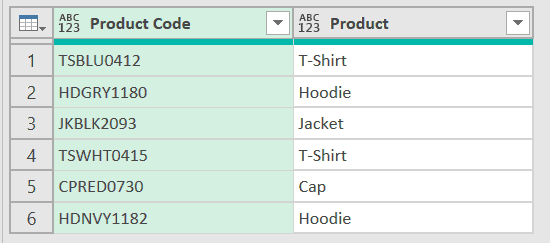
To follow along, select any cell in the Products table and go to Data > From Table/Range. This opens the table in the Power Query Editor, where the Source step holds it.
If Power Query adds a Changed Type step too, you can delete it, because the formula below works from the Source step and doesn’t need it.
Add a new step (by clicking on the fx icon next to the formula bar) and use this formula:
= Table.AddColumn(Source,"Color Code",each Text.Middle([Product Code],2,3),type text)
Result: A new Color Code column with BLU, GRY, BLK, WHT, RED, and NVY.
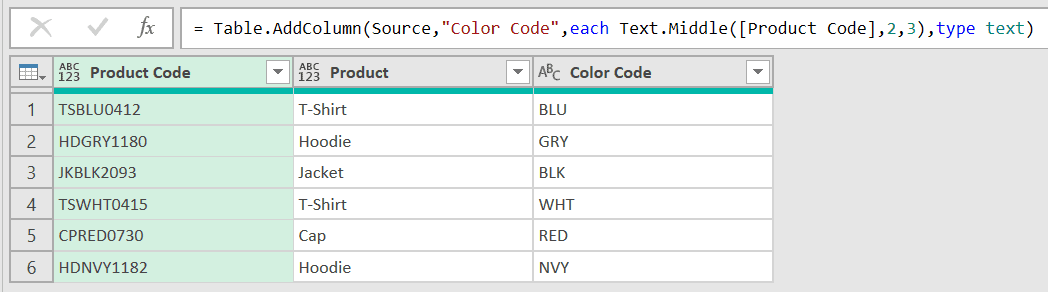
In the above formula, Table.AddColumn adds a new column called Color Code. For each row, Text.Middle starts at position 2 (the third character) and takes 3 characters.
Here, each tells Power Query to run the formula once for every row, and [Product Code] is the value in the Product Code column of that row. The last argument, type text, sets the data type of the new column to text.
Example 3: Remove a Prefix and Keep the Rest
If you leave out the count, Text.Middle gives you everything from the start position to the end. This is handy when the part you want has a different length in each row.
Below is a Badges table where every badge ID starts with “EMP” followed by a number of a different length, and I want to remove the “EMP” part from the Badge ID column.
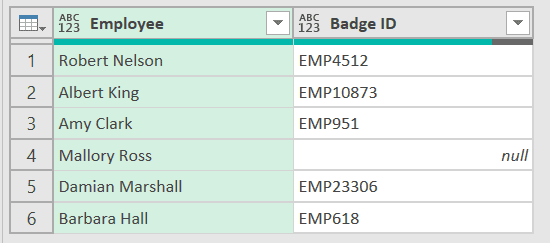
Load the Badges table into Power Query the same way as in Example 2 (Data > From Table/Range). Then add a new step (by clicking on the fx icon next to the formula bar) and use this formula:
= Table.TransformColumns(Source,{{"Badge ID",each Text.Middle(_,3),type text}})
Result: The Badge ID column now has 4512, 10873, 951, null, 23306, and 618.
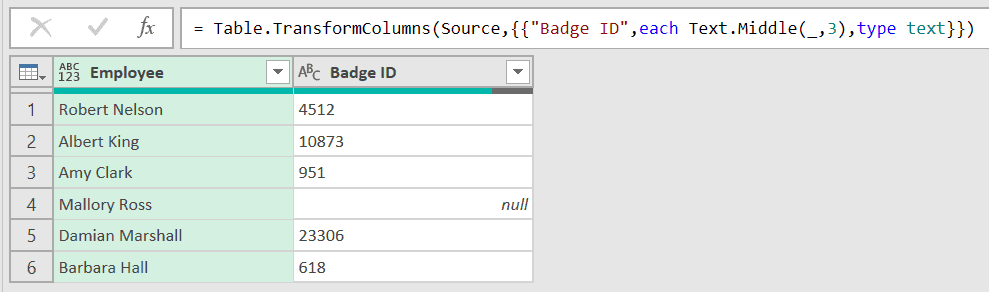
Here, Table.TransformColumns changes the values in the Badge ID column itself instead of adding a new column. The underscore (_) stands for the badge ID in each row, and Text.Middle(_,3) keeps everything from position 3 onward.
Since there’s no count, it doesn’t matter that 951 has three digits and 10873 has five. You get the whole number either way.
Mallory Ross doesn’t have a badge ID yet, so that cell is empty in Excel and comes into Power Query as null. Text.Middle returns null for it instead of an error, so you don’t need to filter out blank cells first.
Example 4: Ask for More Characters Than the Text Has
Text.Middle doesn’t mind if the count goes past the end of the text. It just returns whatever characters are left.
Below is a SystemLog table where each log entry starts with a date, and I want a short preview of the message (up to 20 characters after the date) in a new Preview column.
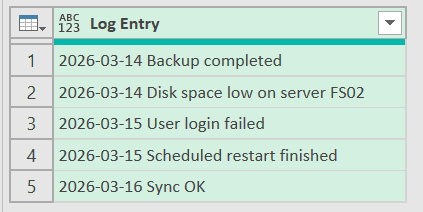
Load the SystemLog table into Power Query the same way as in Example 2 (Data > From Table/Range). Then add a new step (by clicking on the fx icon next to the formula bar) and use this formula:
= Table.AddColumn(Source,"Preview",each Text.Middle([Log Entry],11,20),type text)
Result: A new Preview column with Backup completed, Disk space low on se, User login failed, Scheduled restart fi, and Sync OK.
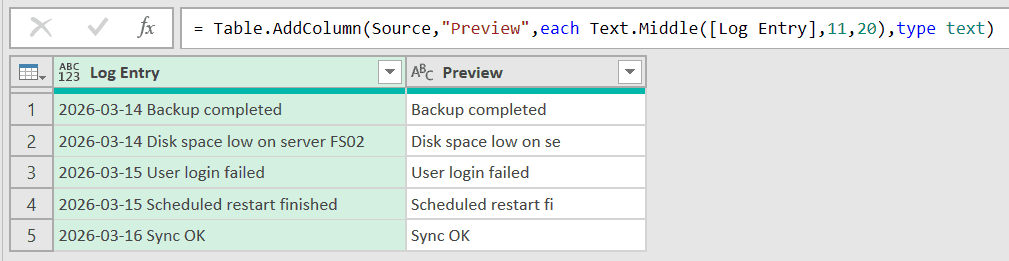
The date and the space after it take up the first 11 characters (positions 0 to 10), so the message starts at position 11. From there, Text.Middle takes up to 20 characters.
The long messages get cut at 20 characters. The short ones, like “Sync OK”, have only 7 characters left, so Text.Middle returns those 7 and moves on without an error.
Follow along with the example file
Text.Middle Function Examples.xlsx
Example 5: Start Position Past the End of the Text
This next one shows what happens when the start position is beyond the last character.
Below is a Customers table with ZIP codes, where some have the extra four digits (like 60614-2287) and some don’t (like 02134), and I want those four digits in a new Plus Four column.
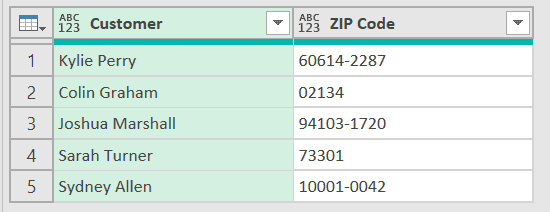
Load the Customers table into Power Query the same way as in Example 2 (Data > From Table/Range). Then add a new step (by clicking on the fx icon next to the formula bar) and use this formula:
= Table.AddColumn(Source,"Plus Four",each Text.Middle([ZIP Code],6,4),type text)
Result: A new Plus Four column with 2287, 1720, and 0042 for the long ZIP codes, and empty text for 02134 and 73301.
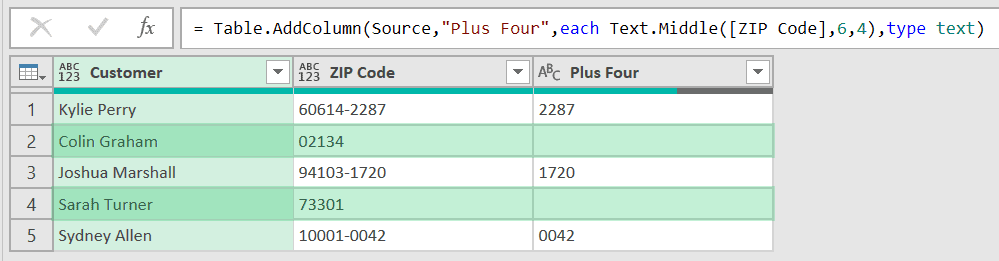
The extra digits start at position 6, right after the dash. A five-digit ZIP code like 02134 has nothing at position 6, so Text.Middle returns empty text (“”) for that row instead of an error.
Note that empty text is not the same as null. If you want to filter these rows later, check for “” rather than null.
Power Query has a similar function called Text.Range, which takes the same arguments. The difference is that Text.Range gives an error when there aren’t enough characters. Here’s the same step with Text.Range:
= Table.AddColumn(Source,"Plus Four",each Text.Range([ZIP Code],6,4),type text)
Result: 2287, 1720, and 0042 for the long ZIP codes, and Error for 02134 and 73301.
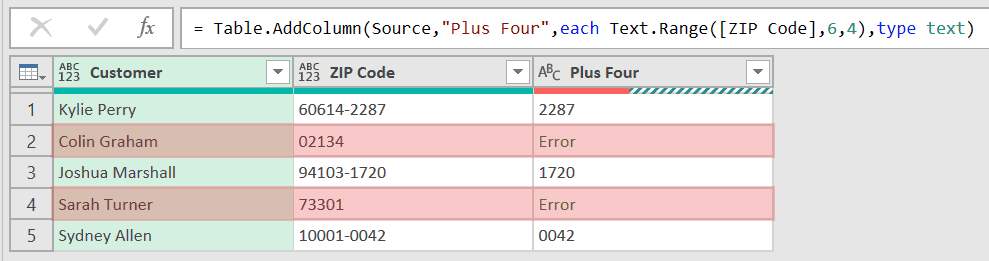
If you click on one of those Error cells, the message says “The ‘offset’ argument is out of range.” Text.Range also errors when the count runs past the end (“The ‘count’ argument is out of range.”).
Text.Middle returns whatever is there in both cases. So when your text has uneven lengths, Text.Middle is the safer choice.
Example 6: Find the Start Position With Text.PositionOf
Sometimes the part you want doesn’t sit at a fixed position. In that case, you can find where it starts and pass that number to Text.Middle.
Below is a Notes table where some notes mention a purchase order number (like PO-48213) at different places, and I want the five-digit PO number in a new PO Number column.
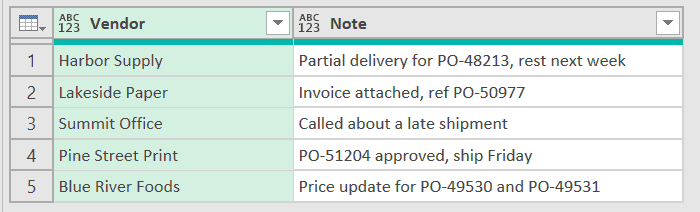
Load the Notes table into Power Query the same way as in Example 2 (Data > From Table/Range). Then add a new step (by clicking on the fx icon next to the formula bar) and use this formula:
= Table.AddColumn(Source,"PO Number",each
        let Start = Text.PositionOf([Note],"PO-")
        in if Start = -1 then null else Text.Middle([Note],Start+3,5),type text)
Result: A new PO Number column with 48213, 50977, null, 51204, and 49530.
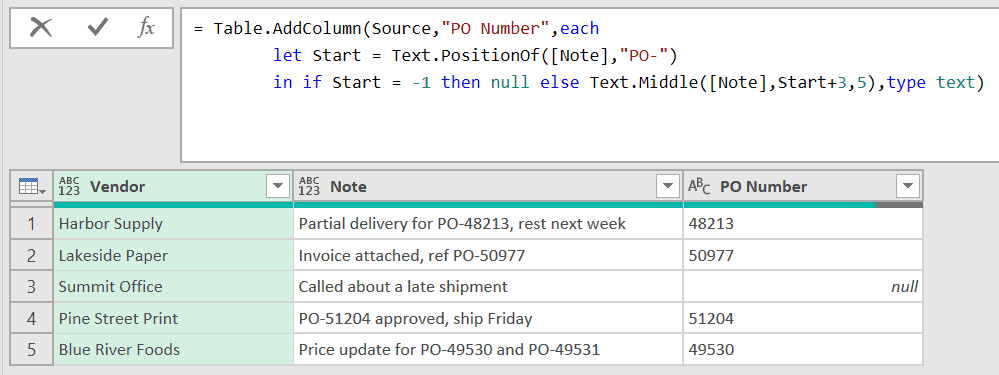
Here, the Text.PositionOf function finds where “PO-” starts in each note and stores that position as Start. The PO number begins 3 characters later (after “PO-“), so Text.Middle starts at Start+3 and takes 5 characters.
The if part handles notes with no PO number, like the one from Summit Office. Text.PositionOf returns -1 when it can’t find the text, and without this check, Text.Middle would start at position 2 (-1+3) and return “lled ” from “Called about a late shipment”.
The Blue River Foods note has two PO numbers, and you only get the first one (49530). That’s because Text.PositionOf returns the first match by default.
You could also get these PO numbers with Text.Start(Text.AfterDelimiter([Note],"PO-"),5). Here, the Text.AfterDelimiter function returns everything after “PO-” (or empty text when the note has no “PO-“), and Text.Start keeps the first 5 characters of that.
So that version doesn’t need the if check. The difference is that it returns empty text instead of null for notes that have no PO number.
Example 7: Get a Single Character at a Position
When you set the count to 1, Text.Middle returns just one character. This works well when a single character in a code carries a meaning.
Below is a Courses table where each course code has a four-letter subject, a dash, and a three-digit number, and the first digit tells you the course level, and I want that digit in a new Level column.
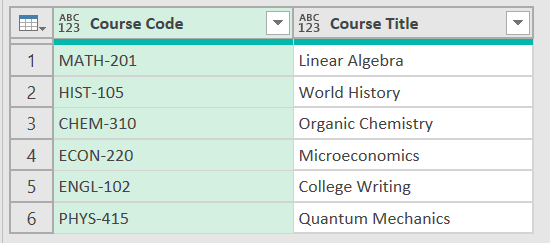
Load the Courses table into Power Query the same way as in Example 2 (Data > From Table/Range). Then add a new step (by clicking on the fx icon next to the formula bar) and use this formula:
= Table.AddColumn(Source,"Level",each Text.Middle([Course Code],5,1),type text)
Result: A new Level column with 2, 1, 3, 2, 1, and 4.
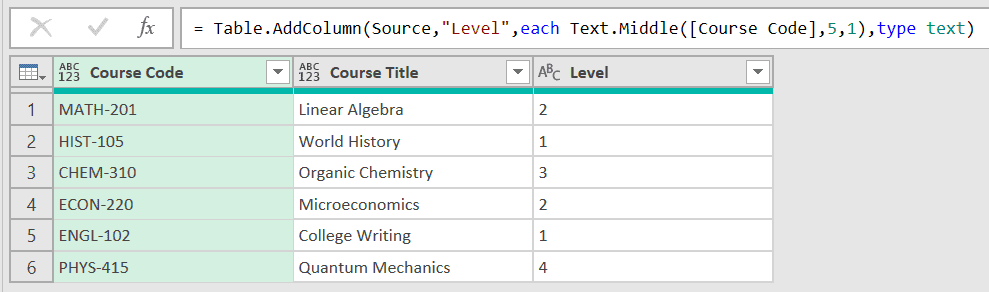
Here, position 5 is the first digit after “MATH-” (or any other four-letter subject and the dash), and the count of 1 returns just that digit. So MATH-201 is a level 2 course and PHYS-415 is a level 4 course.
Power Query also has a Text.At function that returns the character at a position. The difference is that Text.At gives an error if a code is too short, while Text.Middle returns empty text.
Example 8: Extract Digits From a Number Column
Text.Middle only works on text. If you point it at a column of numbers, every row returns an error.
Below is an Orders table where each order number is stored as a number and starts with the order date in YYMMDD form (2603140012 was placed on March 14, 2026), and I want the two-digit month in a new Month column.
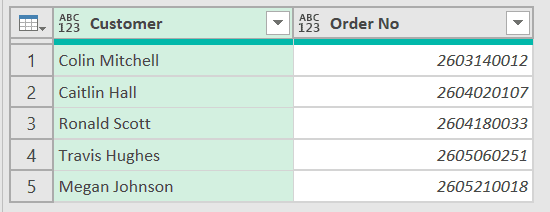
If you used Text.Middle([Order No],2,2) directly, every row would show an Error. For the first order, the message says “We cannot convert the value 2603140012 to type Text.”
So you need to turn the number into text first.
Load the Orders table into Power Query the same way as in Example 2 (Data > From Table/Range). Then add a new step (by clicking on the fx icon next to the formula bar) and use this formula:
= Table.AddColumn(Source,"Month",each Text.Middle(Text.From([Order No]),2,2),type text)
Result: A new Month column with 03, 04, 04, 05, and 05.
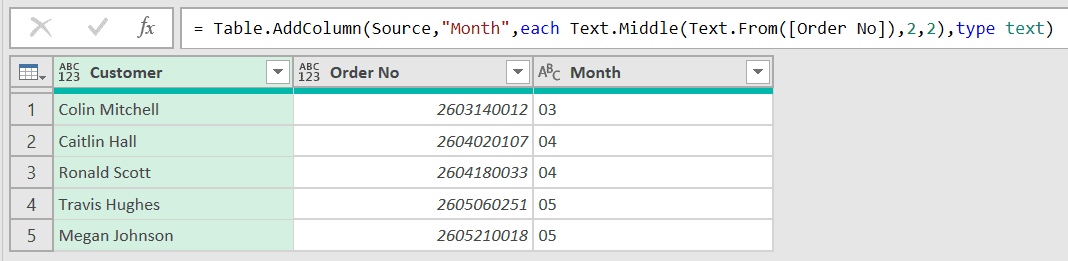
Here, the Text.From function turns each order number into text, like “2603140012”. Text.Middle then takes 2 characters starting at position 2, which gives you “03”.
The result is text, so the leading zero stays. If you want the month as a number (3 instead of 03), wrap Text.Middle in the Number.From function and change type text at the end to Int64.Type.
Other Excel Articles You May Also Like:
- Text.End function
- Text.BetweenDelimiters – Use Text.BetweenDelimiters in Power Query M to extract text between delimiters.
- Text.AfterDelimiter – Use Text.AfterDelimiter in Power Query M to get text after a delimiter.
- Text.BeforeDelimiter – Use Text.BeforeDelimiter in Power Query M to get text before a delimiter.
- Text.Length – Use Text.Length in Power Query M to count characters in text.
- Text.TrimStart – Use Text.TrimStart in Power Query M to remove leading characters.
- Text.PadStart – Use Text.PadStart in Power Query M to pad text to a fixed length by adding characters to the front.
- Text.Split – Use Text.Split in Power Query M to split text into a list.
