

The Number.From function converts a value into a number. You give it text like “1,250.50” or “15%”, a true/false value, or a date, and it gives you back a number you can use in calculations.
You’ll use it most when numbers come into Power Query as text, because Power Query won’t do math on text.
In this article, I’ll show you how Number.From works with practical examples, including percentages, European number formats, and values that can’t be converted.
Follow along with the example file
Number.From Function Examples.xlsx
Number.From Function Syntax
Number.From(value as any, optional culture as nullable text) as nullable number
- value – the value you want to convert to a number. It can be text, a number, a logical (true/false), a date, a datetime, a datetimezone, a time, or a duration.
- culture (optional) – a culture code such as “en-US” or “de-DE”. It tells Number.From which character is the decimal separator and which one separates thousands. If you leave it out, Number.From uses the regional settings Power Query runs with.
What it returns – the value as a number. If the value is null, you get null back, and if it’s already a number, you get the same number.
Text that doesn’t look like a number, such as “N/A”, gives the error “We couldn’t convert to Number.” You get the same error if you pass it a list, a record, or a table.
The Number.From function is part of the Power Query M language, so it works wherever Power Query does in Excel: Excel 365, 2024, 2021, 2019, and 2016 for Windows, and Excel for Microsoft 365 on Mac.
When to Use the Number.From Function
Use this function when you need to:
- Do math on numbers that came in as text, without changing the original column
- Read percentages like “15%” as numbers you can calculate with
- Convert amounts with currency symbols, thousands separators, or brackets for negatives
- Read numbers written in a European format, like “1.250,75”
- Fix a column that has a mix of real numbers and numbers stored as text
- Turn TRUE and FALSE into 1 and 0
- Replace values that can’t be converted with null (using try … otherwise), instead of getting errors
Example 1: Convert Text to a Number
Let’s start with a simple one.
In Excel, go to Data > Get Data > From Other Sources > Blank Query. In the Power Query Editor that opens, type this formula in the formula bar:
= Number.From("1,250.50")
Result: 1250.5

Here, Number.From reads the text “1,250.50”, drops the comma that separates the thousands, and gives you the number 1250.5. The trailing zero goes away because it doesn’t change the value.
This works because my computer uses US settings, where the dot is the decimal separator. If yours uses a comma for decimals, this formula gives an error instead of 1250.5, and Example 5 shows how to tell Number.From which format the text is in.
Example 2: Do Math on Numbers Stored as Text
This is the most common reason to use Number.From.
Below is a BakeryOrders table with the quantity and unit price of each item, where the quantities came in as text, and I want the order value in a new Total column.
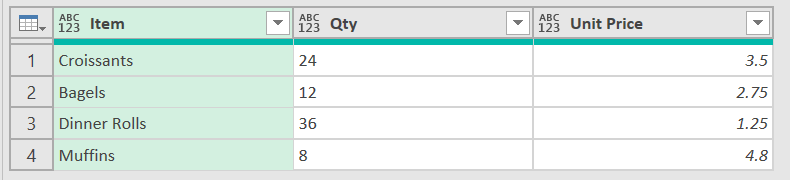
To follow along, select any cell in the BakeryOrders table and go to Data > From Table/Range. This opens the table in the Power Query Editor, where the Source step holds it.
If Power Query also adds a Changed Type step, delete it. That step may convert the Qty column for you, and the formulas in this article build on the Source step.
Now add a new step (by clicking on the fx icon next to the formula bar) and try to multiply the two columns directly, like this:
= Table.AddColumn(Source,"Total",each [Qty]*[Unit Price])
Result: Every row in the Total column shows Error.
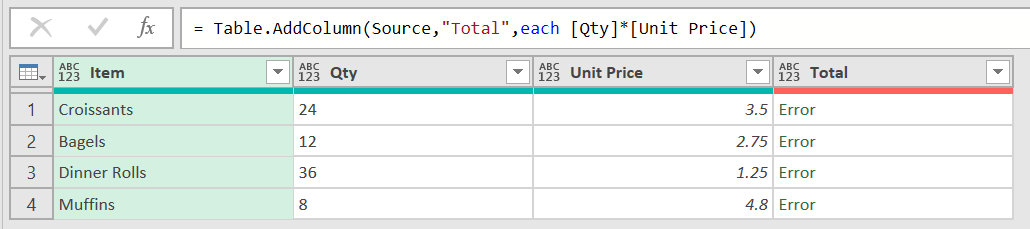
Click any Error cell and you’ll see the message “We cannot apply operator * to types Text and Number.” The Qty values look like numbers, but they’re text, and Power Query won’t multiply text by a number.
So convert the quantity to a number first. Replace the formula in the step you just added with this one:
= Table.AddColumn(Source,"Total",each Number.From([Qty])*[Unit Price],type number)
Result: A new Total column with 84, 33, 45, and 38.4.
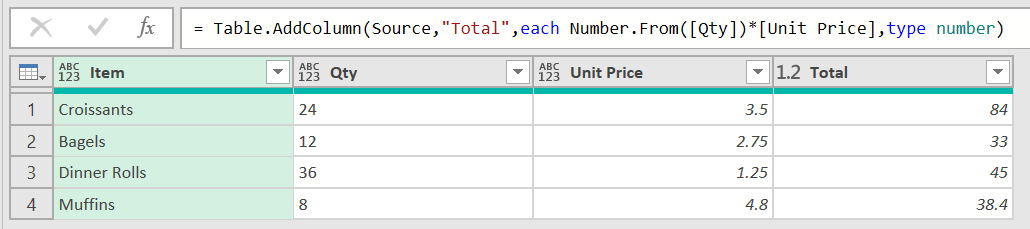
Here, the Table.AddColumn function adds the Total column, Number.From turns each Qty value into a number, and then it’s multiplied by the Unit Price. The last argument, type number, sets the data type of the new column to number.
The Qty column itself stays as text. If you want it as a number everywhere, you can change its type instead (right-click the header and choose Change Type > Decimal Number), and then multiply the columns directly.
Example 3: Use a Percentage Stored as Text
Percentages often come in as text with a % sign, and Number.From knows what to do with them.
Below is a ShopPrices table with each product’s price and its discount as text, and I want the price after the discount in a new Sale Price column.
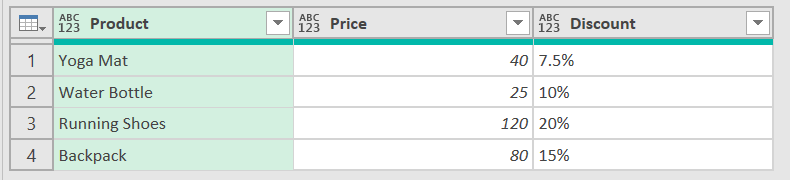
Load the ShopPrices table into Power Query the same way as in Example 2 (Data > From Table/Range). Then add a new step (by clicking on the fx icon next to the formula bar) and use this formula:
= Table.AddColumn(Source,"Sale Price",each [Price]*(1-Number.From([Discount])),type number)
Result: A new Sale Price column with 37, 22.5, 96, and 68.
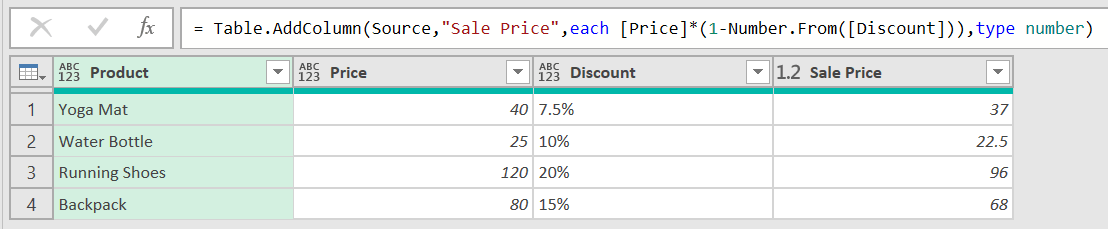
Number.From reads a percentage as the fraction it stands for, so “7.5%” becomes 0.075 and “20%” becomes 0.2. That’s why the formula subtracts it from 1 to get the share of the price you still pay.
For the Yoga Mat, that’s 40 × (1 – 0.075), which gives 37. If Number.From had read “7.5%” as 7.5, every sale price would come out negative.
Example 4: Read Amounts With Currency Symbols and Brackets
Numbers exported from accounting or banking software usually come with extra characters.
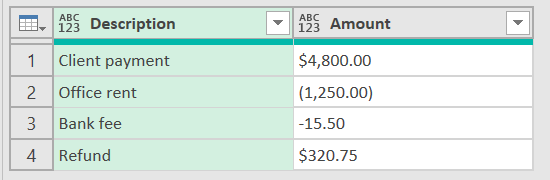
Below is a BankFeed table with each transaction and its amount as text (with dollar signs, brackets, and minus signs), and I want to label each one as Money In or Money Out in a new Direction column.
Load the BankFeed table into Power Query the same way as in Example 2. Then add a new step (by clicking on the fx icon next to the formula bar) and use this formula:
= Table.AddColumn(Source,"Direction",each if Number.From([Amount])<0 then "Money Out" else "Money In",type text)
Result: Client payment and Refund show Money In, while Office rent and Bank fee show Money Out.

Here, Number.From turns “$4,800.00” into 4800 and reads “(1,250.00)” as -1250, because brackets around an amount mean it’s negative. Then the if checks whether the number is below zero.
You couldn’t compare the text “(1,250.00)” with 0 directly. Power Query would give an error, since it can’t compare text with a number.
Example 5: Read Numbers Written in a European Format
This is where the second argument, culture, comes in. It’s a code like “en-US” (US) or “de-DE” (Germany) that tells Number.From which character is the decimal separator.
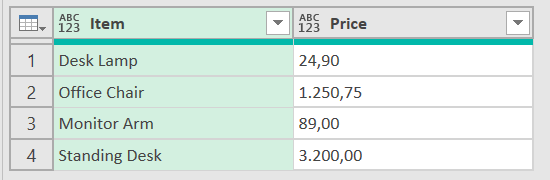
Below is a SupplierPrices table from a German supplier, where the prices use a comma for decimals and a dot for thousands, and I want each price as a number in a new Price Number column.
Load the SupplierPrices table into Power Query the same way as in Example 2. Then add a new step (by clicking on the fx icon next to the formula bar) and first try reading the prices with the US format:
= Table.AddColumn(Source,"Price Number",each Number.From([Price],"en-US"),type number)
Result: 24,90 becomes 2490, 89,00 becomes 8900, and the other two rows show Error.
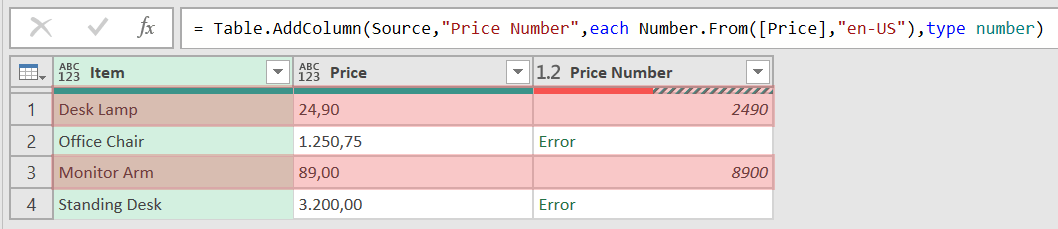
In the US format, the comma separates thousands. So “24,90” is read as 2490, which is wrong without any warning, and “1.250,75” doesn’t fit the format at all, so you get an error.
Now tell Number.From that the text is German. Replace the formula in the step you just added with this one:
= Table.AddColumn(Source,"Price Number",each Number.From([Price],"de-DE"),type number)
Result: The Price Number column now shows 24.9, 1250.75, 89, and 3200.
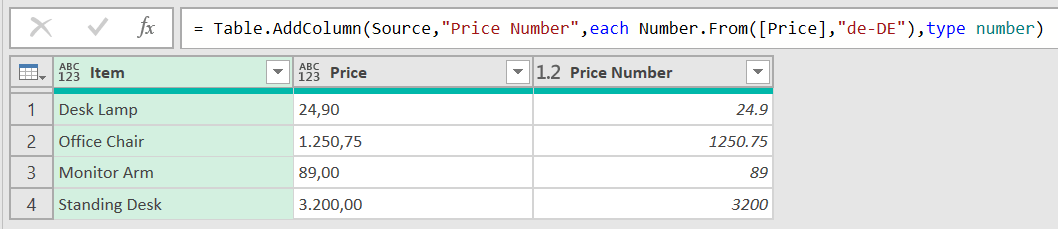
Here, “de-DE” is the culture code for German (Germany), where the comma is the decimal separator and the dot separates thousands. The same text gives the right numbers once Number.From knows which format it’s in.
If you only need to convert the whole Price column, right-click its header and choose Change Type > Using Locale, then pick Decimal Number and German (Germany). Use Number.From inside a formula, or when you want to keep the original text.
If you leave out the culture argument, Number.From uses the regional settings Power Query runs with, which come from your computer’s regional format. So the same query can give different numbers for someone with other settings.
That’s why it’s safer to pass the culture code when you know where the data came from.
Follow along with the example file
Number.From Function Examples.xlsx
Example 6: Use a Different Culture for Each Row
Sometimes one table has numbers from several countries.
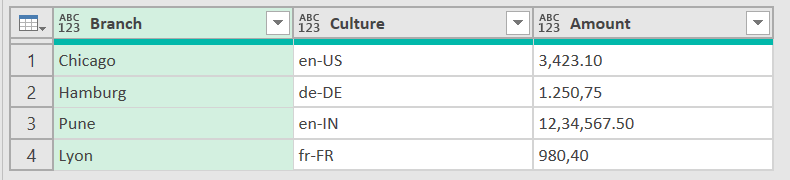
Below is a BranchClaims table with the expense claim from each branch, the culture code of that branch, and the amount written the local way, and I want every amount as a number in a new Amount Number column.
Load the BranchClaims table into Power Query the same way as in Example 2. Then add a new step (by clicking on the fx icon next to the formula bar) and use this formula:
= Table.AddColumn(Source,"Amount Number",each Number.From([Amount],[Culture]),type number)
Result: A new Amount Number column with 3423.1, 1250.75, 1234567.5, and 980.4.
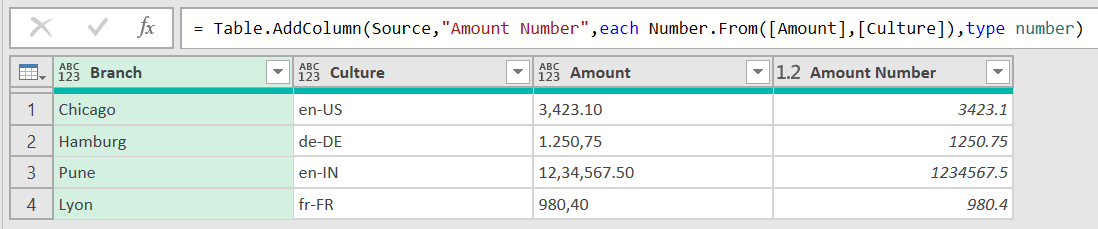
Here, Number.From gets its culture code from the Culture column of each row.
So Hamburg’s “1.250,75” is read the German way, Lyon’s “980,40” is read the French way with a decimal comma, and Pune’s “12,34,567.50” is read the Indian way, where the commas group the digits differently.
Changing the column type can only use one culture for the whole column, so a per-row culture like this needs Number.From.
Example 7: Convert a Column With Both Numbers and Text
When data is typed in by hand, some cells can end up as numbers and others as text in the same column.
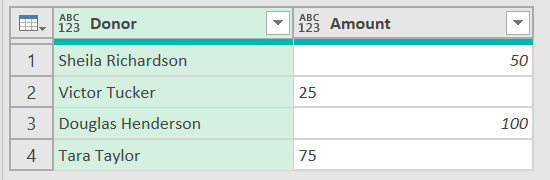
Below is a Donations table with each donor’s gift, where some amounts are numbers and some are text, and the company matches every gift, so I want the gift plus the match in a new Matched Total column.
In the Power Query preview, the amounts on the left of the column (25 and 75) are text, and the ones on the right in italics (50 and 100) are numbers.
Load the Donations table into Power Query the same way as in Example 2. Then add a new step (by clicking on the fx icon next to the formula bar) and use this formula:
= Table.AddColumn(Source,"Matched Total",each Number.From([Amount])*2,type number)
Result: A new Matched Total column with 100, 50, 200, and 150.
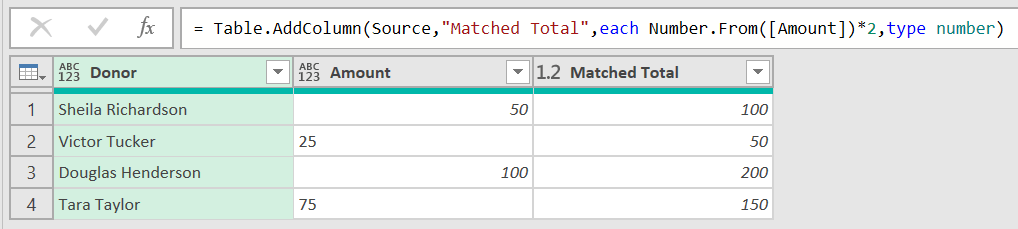
Number.From takes a value of any type. It converts the text “25” to 25 and gives back the number 50 as it is, so both kinds of cells work.
This is where it differs from the Number.FromText function, which only takes text. Number.FromText([Amount]) would give the error “We cannot convert the value 50 to type Text.” on the rows that already hold a number.
Example 8: Turn TRUE and FALSE Into 1 and 0
Number.From also converts logical values, which is handy when a yes/no column should count in a calculation.
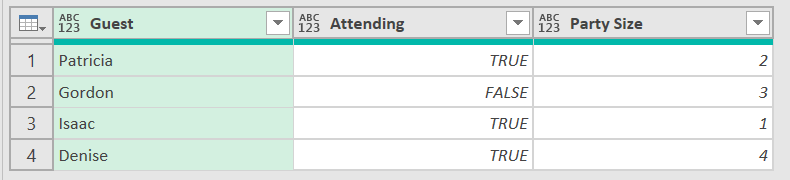
Below is a GuestList table with each guest, whether they’re attending (TRUE or FALSE), and their party size, and I want the number of seats to keep for each guest in a new Seats Needed column.
Load the GuestList table into Power Query the same way as in Example 2. Then add a new step (by clicking on the fx icon next to the formula bar) and use this formula:
= Table.AddColumn(Source,"Seats Needed",each Number.From([Attending])*[Party Size],type number)
Result: A new Seats Needed column with 2, 0, 1, and 4.

Here, Number.From turns TRUE into 1 and FALSE into 0. Multiplying by the party size keeps the seats for guests who are coming and gives 0 for Gordon, who isn’t.
You need the conversion because Power Query won’t multiply a TRUE or FALSE value by a number. An if expression like if [Attending] then [Party Size] else 0 gives the same result in a longer formula.
Example 9: See What Number.From Returns for Different Value Types
Number.From works on more than text. This example puts one value of each common type side by side, so you can see the number you get for each.
Create a new blank query, open the Advanced Editor (Home > Advanced Editor), and use this code:
let
    Source = #table({"Type","Value"},{{"Text","1,250.50"},{"Percent text","12.5%"},{"Logical",true},{"Date",#date(2026,3,9)},{"Date/Time",#datetime(2026,3,9,18,0,0)},{"Time",#time(6,0,0)},{"Duration",#duration(1,6,0,0)},{"Null",null}}),
    #"Added Number" = Table.AddColumn(Source,"As Number",each Number.From([Value]),type number)
in
    #"Added Number"
Result: The As Number column shows 1250.5, 0.125, 1, 46090, 46090.75, 0.25, 1.25, and null.
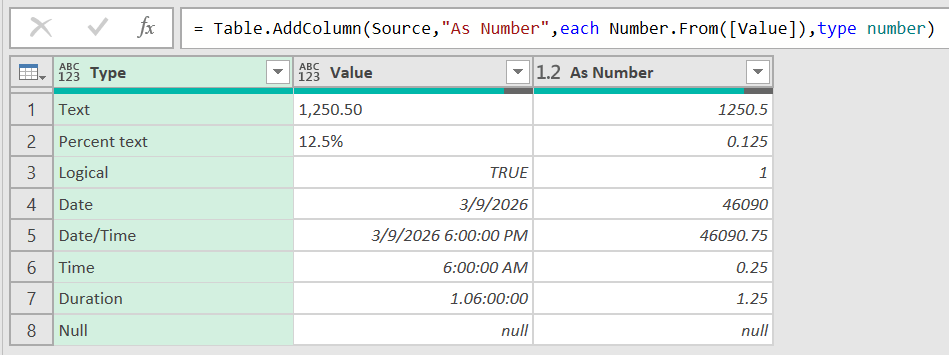
Here, the Source step builds a small table with the #table function, and the Added Number step runs Number.From on each value.
A date becomes the number of days since December 30, 1899, so March 9, 2026 is 46090. That’s the same serial number Excel uses for the date, and the 6:00 PM in the date/time adds 0.75 of a day.
To go the other way and turn 46090 back into a date, use the Date.From function.
A time becomes the part of a day it covers, so 6:00 AM is 0.25. A duration becomes a number of days, so 1 day and 6 hours is 1.25.
When you subtract one date/time from another, you get a duration. Number.From turns it into days with a fraction (3 days and 18 hours gives 3.75), while the Duration.Days function gives only the whole days (3).
With plain dates and no times, both give the same whole number of days, so either one works for a simple day count.
Example 10: Handle Values That Can’t Be Converted
Real data often has entries like “N/A” in a number column, and Number.From can’t read those.
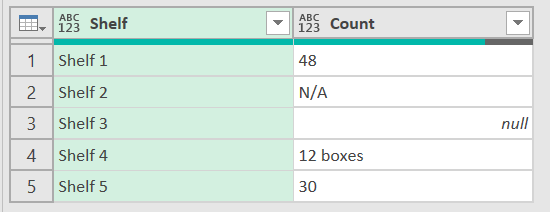
Below is a StockCount table with the count recorded for each shelf, where one count is “N/A”, one is blank, and one says “12 boxes”, and I want the counts as numbers in a new Units column.
Load the StockCount table into Power Query the same way as in Example 2. Then add a new step (by clicking on the fx icon next to the formula bar) and use this formula:
= Table.AddColumn(Source,"Units",each Number.From([Count]),type number)
Result: Shelf 1 shows 48 and Shelf 5 shows 30, Shelf 3 shows null, and Shelf 2 and Shelf 4 show Error.
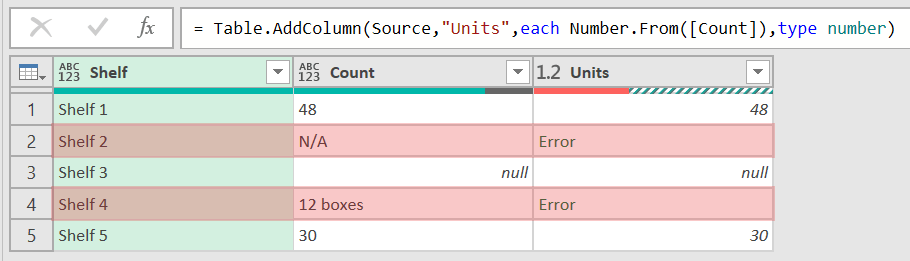
Click an Error cell and you’ll see “We couldn’t convert to Number.” Number.From only reads text that is a number, so “N/A” and “12 boxes” fail.
The blank cell comes in as null, and Number.From returns null for it.
These errors also break later steps. For example, if you sum the Units column, the sum gives the same error, so it’s better to turn them into null.
Replace the formula in the step you just added with this one:
= Table.AddColumn(Source,"Units",each try Number.From([Count]) otherwise null,type number)
Result: Shelf 1 and Shelf 5 show 48 and 30, and the other three rows show null.
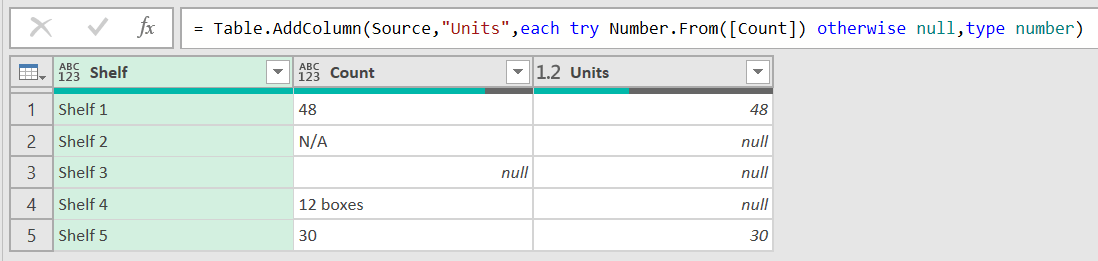
Here, try runs Number.From, and if it gives an error, otherwise returns null instead. The values that convert fine are kept as they are.
Keep in mind that try hides the problem too. The 12 in “12 boxes” is lost, and a bad entry now looks the same as a blank, so check the Count column for text like this if the numbers matter.
Null is the safer choice here, because a blank count isn’t the same as a count of zero. Put 0 after otherwise only when a missing value really means zero.
Other Excel Articles You May Also Like:
- Number.ToText
- Table.TransformColumnTypes function
- Date.FromText – Use Date.FromText in Power Query M to convert text into real date values.
- Number.Round – Use Number.Round in Power Query M to round numbers.
- Table.TransformColumns – Guide to Table.TransformColumns in Power Query M.
- Date.ToText – Use Date.ToText in Power Query M to convert dates to text.
