

The Text.Remove function deletes specific characters from a text value, wherever they appear in it. It’s handy for stripping dashes, brackets, digits, or symbols out of codes, phone numbers, and names.
In this article, I’ll show you how Text.Remove works, from removing one character to whole ranges of characters, along with the two errors you’re most likely to run into (and how to fix them).
Follow along with the example file
Text.Remove Function Examples.xlsx
Text.Remove Function Syntax
Text.Remove(text as nullable text, removeChars as any) as nullable text
- text – the text value you want to remove characters from.
- removeChars – the characters to remove. This can be a single character (like “-“) or a list of single characters (like
{"(",")","-"}). Every occurrence of each character is removed, not just the first one.
What it returns – a copy of the text with all those characters removed. Everything else stays exactly where it was.
Each item in removeChars has to be exactly one character. If you pass a longer text such as “Dr. “, Power Query shows the error “The value isn’t a single-character string.” (Example 7 shows this and the fix).
If the text is null, Text.Remove returns null. A number gives an error (“We cannot convert the value 60657 to type Text.”), so convert numbers to text first (Example 6 shows how).
The Text.Remove function is part of the core Power Query M library, so it works wherever Power Query does, including Excel 2016 or later on Windows, Excel for Microsoft 365 (Windows and Mac), and Power BI.
When to Use the Text.Remove Function
Use this function when you need to:
- Remove separators like dashes, dots, or spaces from codes and IDs
- Strip brackets, dashes, and spaces from phone numbers so only the digits are left
- Remove all the numbers (or all the letters) from a text value using a character range
- Delete symbols such as ™ and ® from product names
- Clean unwanted characters out of column headers
Example 1: Remove One Character From a Text
Let’s start with the simplest case, removing one character.
Suppose you have the invoice number INV-2026-0042, and you want to remove the dashes from it.
In Excel, go to Data > Get Data > From Other Sources > Blank Query. In the Power Query Editor that opens, type this formula in the formula bar:
= Text.Remove("INV-2026-0042","-")
Result: INV20260042

Here, the “-” tells Text.Remove which character to remove.
The invoice number has two dashes, and both are gone. Text.Remove finds the character wherever it is in the text.
Example 2: Remove Several Characters From Phone Numbers
Now let’s remove more than one character at a time.
Below is an Excel Table named Contacts with phone numbers typed in different formats, and I want just the 10 digits in the Phone column.
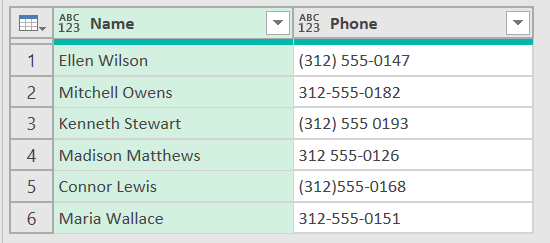
To follow along, select any cell in the Contacts table and go to Data > From Table/Range. This opens the table in the Power Query Editor, where the Source step holds it.
If Power Query adds a Changed Type step too, delete it, so the values come in exactly as they are in the Excel table.
Add a new step (by clicking on the fx icon next to the formula bar) and use this formula:
= Table.TransformColumns(Source,{{"Phone",each Text.Remove(_,{"(",")","-"," "}),type text}})
Result: The Phone column now shows 3125550147, 3125550182, 3125550193, 3125550126, 3125550168, and 3125550151.
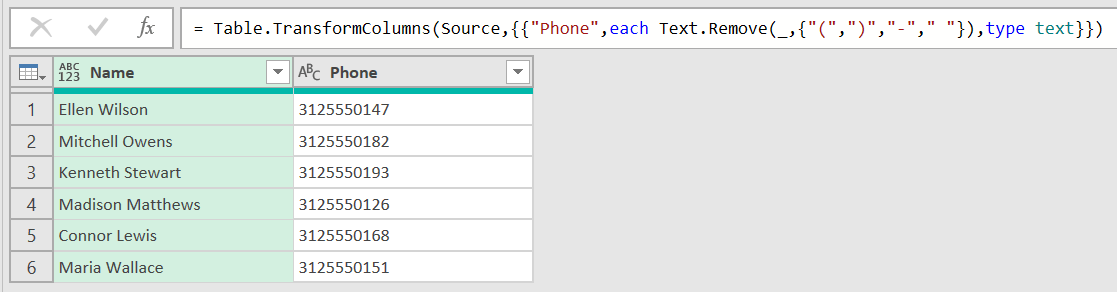
Here, Table.TransformColumns runs Text.Remove on every value in the Phone column. The _ stands for the value in each row.
The list {"(",")","-"," "} holds the four characters to remove: the opening bracket, the closing bracket, the dash, and the space. It doesn’t matter which of them a number uses or in what order, since each one is removed wherever it appears.
The space is in the list on purpose. Without it, (312) 555-0147 would become 312 5550147.
Text.Remove only removes the characters you list. If a number had a dot or a plus sign in it, those would stay, because they’re not in the list.
So when you don’t know every character that might show up, flip it around. The Text.Select function keeps only the characters you list, so you can use Text.Select(_,{"0".."9"}) in place of the Text.Remove part of the formula.
The {"0".."9"} there is a list of every digit from 0 to 9 (Example 3 covers this range shortcut). So it keeps the digits, whatever else is in the number.
The result stays as text (that’s what type text at the end does). Phone numbers are labels, not amounts, so text is the right type for them.
Example 3: Remove All the Numbers From a Text
Typing every character into a list gets tedious when you want to remove all the digits. A character range does it in one go.
Below is an Excel Table named Sales with sales by territory, where each territory is a region name followed by a two-digit number, and I want the region name on its own in a new Region column.
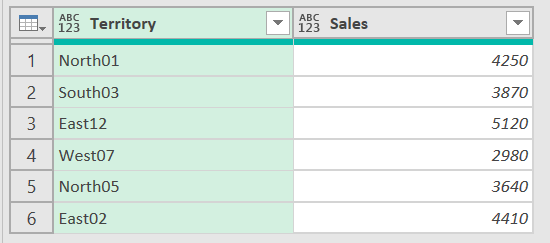
Load the table into the Power Query Editor (as in Example 2), then add a new step (by clicking on the fx icon next to the formula bar) and use this formula:
= Table.AddColumn(Source,"Region",each Text.Remove([Territory],{"0".."9"}),type text)
Result: A new Region column with North, South, East, West, North, and East.
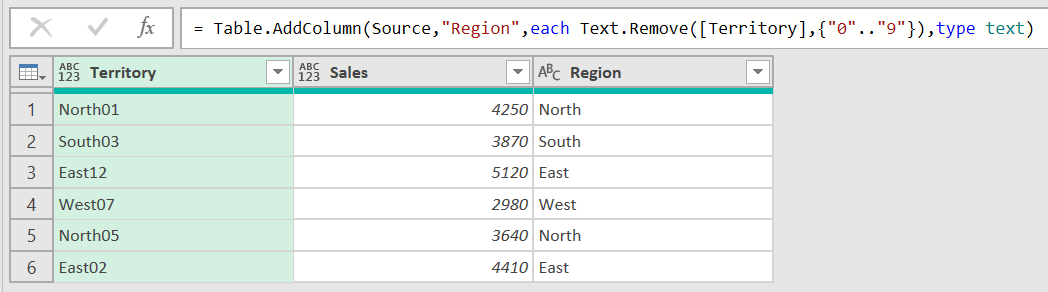
Here, {"0".."9"} is a list of every digit from 0 to 9, so you don’t have to type all ten. Text.Remove removes any of them from the Territory value, which leaves just the region name.
Table.AddColumn puts the result in a new Region column, and the original Territory column stays as it is. With the region in its own column, you can group or total the sales by region.
Ranges work for letters too. {"a".."z"} covers the lowercase letters and {"A".."Z"} the uppercase ones, but neither includes accented letters like é or ñ.
Example 4: Text.Remove Is Case-Sensitive
This next one is easy to miss, because Text.Remove treats uppercase and lowercase as different characters.
Below is an Excel Table named Extensions with phone extensions, where some start with a lowercase x and some with an uppercase X, and I want only the extension number in the Extension column.
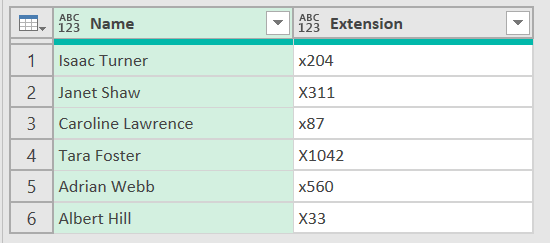
Load the table into the Power Query Editor (as in Example 2), then add a new step (by clicking on the fx icon next to the formula bar) and use this formula:
= Table.TransformColumns(Source,{{"Extension",each Text.Remove(_,"x"),type text}})
Result: The Extension column shows 204, X311, 87, X1042, 560, and X33.
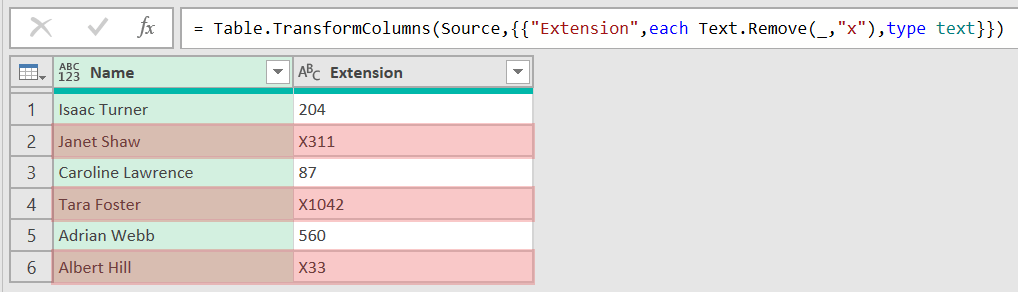
The lowercase x is gone, but the uppercase X is still there in three rows. That’s because “x” and “X” are different characters to Text.Remove, so asking it to remove “x” leaves “X” alone.
To remove both, put both in the list. Change the formula to this:
= Table.TransformColumns(Source,{{"Extension",each Text.Remove(_,{"x","X"}),type text}})
Result: The Extension column now shows 204, 311, 87, 1042, 560, and 33.
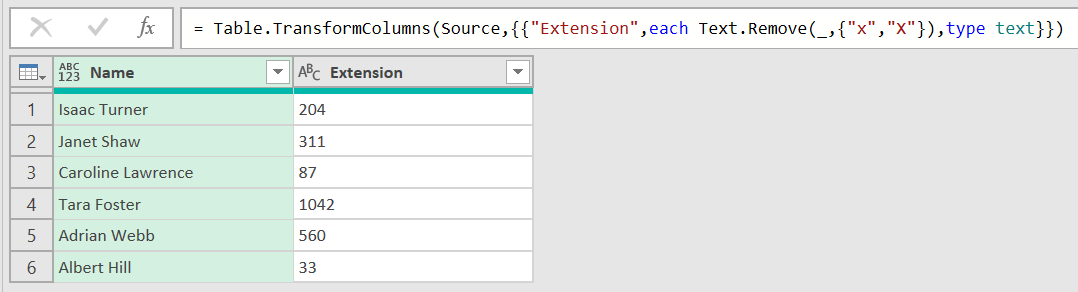
Here, the list {"x","X"} covers both cases, so every extension is left with only its digits.
The same thing applies to ranges. {"a".."z"} removes only lowercase letters, so if you want all the letters gone, use {"a".."z","A".."Z"}.
Follow along with the example file
Text.Remove Function Examples.xlsx
Example 5: Remove ™, ® and © Symbols From Product Names
Text.Remove works with any character you can type, including symbols.
Below is an Excel Table named Products with product names that carry trademark, registered, and copyright symbols, and I want the names without those symbols in the Product column.
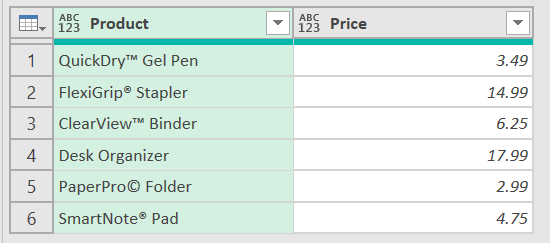
Load the table into the Power Query Editor (as in Example 2), then add a new step (by clicking on the fx icon next to the formula bar) and use this formula:
= Table.TransformColumns(Source,{{"Product",each Text.Remove(_,{"™","®","©"}),type text}})
Result: The Product column now shows QuickDry Gel Pen, FlexiGrip Stapler, ClearView Binder, Desk Organizer, PaperPro Folder, and SmartNote Pad.
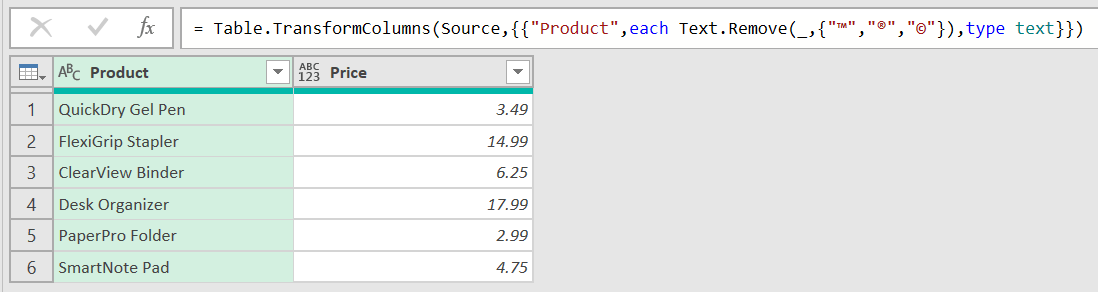
Here, the list holds the three symbols, and Text.Remove deletes each one wherever it shows up. The symbols sit right after the brand name, so the space that follows them stays and the words don’t run together.
Desk Organizer had no symbol, so it comes through unchanged. The Price column isn’t touched either, since the formula only names the Product column.
Example 6: Fix the Error When Some Values Are Numbers
Text.Remove only works on text, and that can bite you when a column mixes text and numbers.
Below is an Excel Table named Stores with store ZIP codes, where most are in the ZIP+4 format with a dash but two are plain five-digit ZIP codes, and I want to remove the dash in the ZIP Code column.
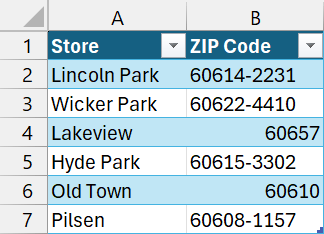
Notice that 60657 and 60610 are right-aligned in the table. Excel stored them as numbers, because they don’t have a dash, while the others are text.
Load the table into the Power Query Editor (as in Example 2), then add a new step (by clicking on the fx icon next to the formula bar) and use this formula:
= Table.TransformColumns(Source,{{"ZIP Code",each Text.Remove(_,"-"),type text}})
Result: The ZIP codes with a dash become 606142231, 606224410, 606153302, and 606081157, but the Lakeview and Old Town rows show Error.
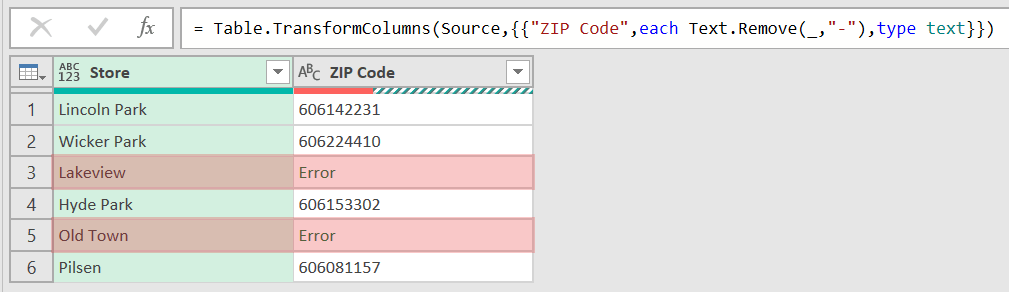
If you click the empty space in one of the Error cells (not the word Error itself), the message shows at the bottom of the preview: “We cannot convert the value 60657 to type Text.” Text.Remove can’t take a number, so those two rows fail.
To fix this, turn each value into text first with Text.From. Change the formula to this:
= Table.TransformColumns(Source,{{"ZIP Code",each Text.Remove(Text.From(_),"-"),type text}})
Result: The ZIP Code column now shows 606142231, 606224410, 60657, 606153302, 60610, and 606081157.
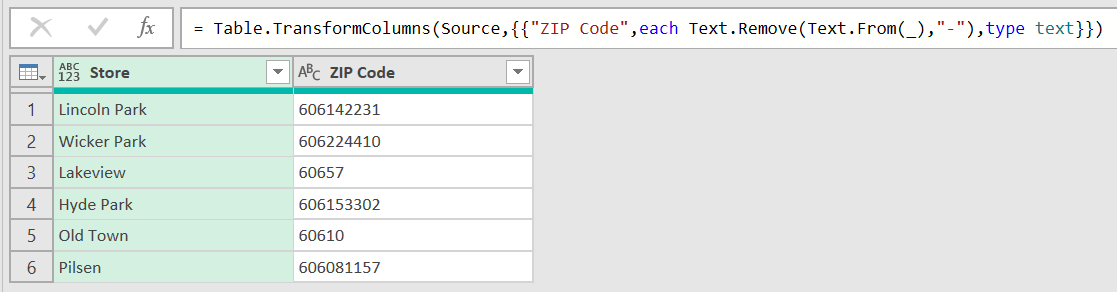
Here, Text.From converts 60657 and 60610 to the text “60657” and “60610”, and leaves the text values as they are. Text.Remove then gets text in every row, so nothing fails.
Those two ZIP codes had no dash, so they come through unchanged. A blank cell would be fine too, since Text.From and Text.Remove both return null for null.
Example 7: Text.Remove Removes Characters, Not Words
This one trips people up when they try to remove a whole word or prefix.
Below is an Excel Table named Doctors with a clinic’s doctors and their specialties, where every name starts with “Dr. “, and I want to remove that title in the Doctor column.
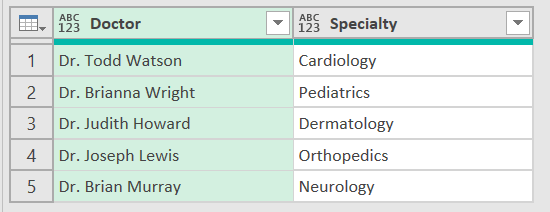
Load the table into the Power Query Editor (as in Example 2), then add a new step (by clicking on the fx icon next to the formula bar) and use this formula:
= Table.TransformColumns(Source,{{"Doctor",each Text.Remove(_,"Dr. "),type text}})
Result: Every row in the Doctor column shows Error.
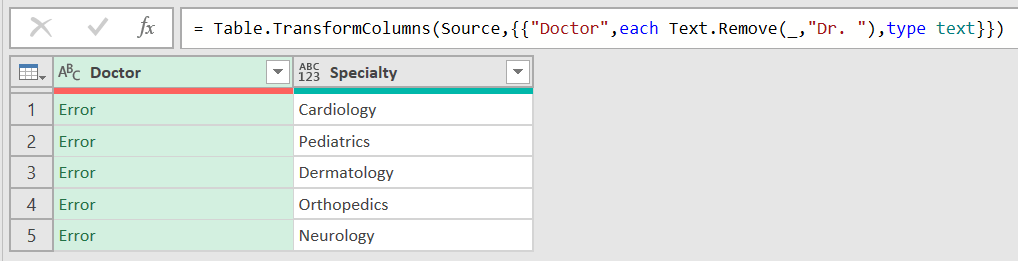
If you click the empty space in an Error cell (as in Example 6), the message at the bottom says “The value isn’t a single-character string.” Text.Remove only takes single characters, and “Dr. ” is four characters long, so it fails in every row.
Splitting it into {"D","r","."," "} gets rid of the error, but it’s not what we want either. That list removes every D, r, dot, and space anywhere in the name, so Dr. Brianna Wright would become BiannaWight.
To remove a whole word, use Text.Replace and replace it with nothing. Change the formula to this:
= Table.TransformColumns(Source,{{"Doctor",each Text.Replace(_,"Dr. ",""),type text}})
Result: The Doctor column now shows Todd Watson, Brianna Wright, Judith Howard, Joseph Lewis, and Brian Murray.
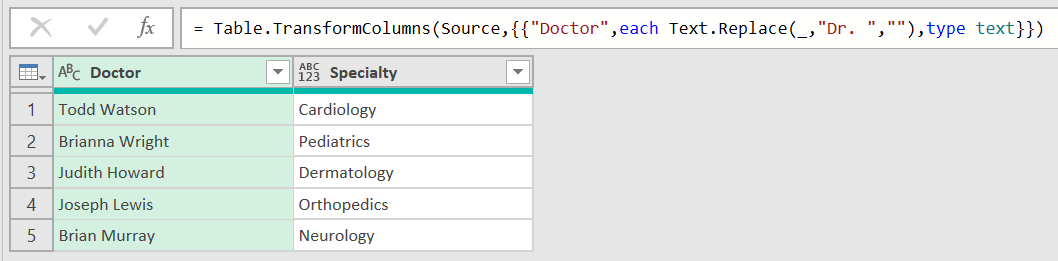
Here, Text.Replace looks for the exact text “Dr. ” and replaces it with an empty text “”, which removes it. The rest of the name, including the space between the first and last name, stays as it is.
So use Text.Remove for individual characters, and Text.Replace for a word or a group of characters.
Example 8: Remove Asterisks From Column Headers
You can also use Text.Remove on the column names of a table.
Below is an Excel Table named Registrations with event registrations exported from a form, where the required fields have an asterisk at the end of their header, and I want to remove the asterisks from the headers.
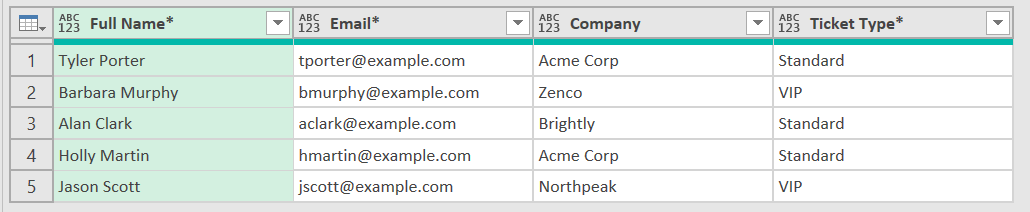
Load the table into the Power Query Editor (as in Example 2), then add a new step (by clicking on the fx icon next to the formula bar) and use this formula:
= Table.TransformColumnNames(Source,each Text.Remove(_,"*"))
Result: The column headers are now Full Name, Email, Company, and Ticket Type.
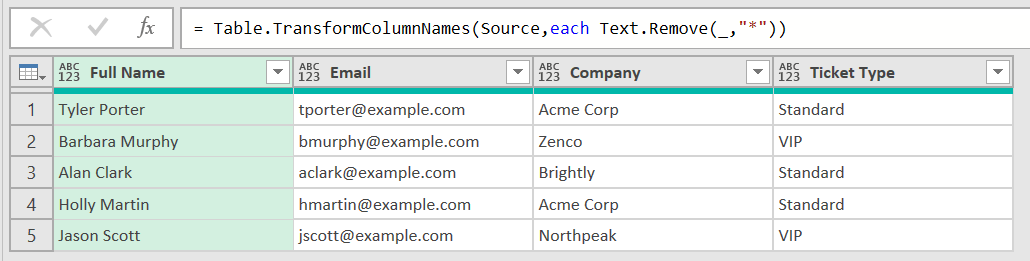
Here, Table.TransformColumnNames runs the same function on every column name. The _ stands for each header, and Text.Remove deletes the "*" from it.
Company had no asterisk, so it stays as it is.
And since the formula doesn’t name any column, it keeps working even if the form adds new required fields later. With Table.RenameColumns, you’d have to list every old and new header yourself.
Other Excel Articles You May Also Like:
- Text.Clean Function in Power Query M
- Text.TrimStart – Use Text.TrimStart in Power Query M to remove leading characters.
- Text.Trim – Use Text.Trim in Power Query M to remove spaces from both ends of text.
- Text.TrimEnd – Use Text.TrimEnd in Power Query M to remove trailing spaces or characters.
- Table.RemoveColumns – Use Table.RemoveColumns in Power Query M to delete columns.
- Text.Range – Use Text.Range in Power Query M to extract part of a text value.
- Text.Length – Use Text.Length in Power Query M to count characters in text.
- Text.End – Use Text.End in Power Query M to get the last characters of text.
