

The Text.EndsWith function checks whether a text value ends with the characters you give it. It returns TRUE if it does and FALSE if it doesn’t.
In this article, I’ll show you how to use it to flag rows, filter tables, label values, and fix the two things that trip it up most: upper and lower case, and trailing spaces.
Follow along with the example file
Text.EndsWith Function Examples.xlsx
Text.EndsWith Function Syntax
Text.EndsWith(text as nullable text, substring as text, optional comparer as nullable function) as nullable logical
- text – the text you want to check.
- substring – the ending you’re looking for, like “.pdf” or ” LLC”.
- comparer (optional) – controls how the text is compared. Use Comparer.OrdinalIgnoreCase to ignore upper and lower case.
What it returns – TRUE if the text ends with the substring, and FALSE if it doesn’t. If the text is null (an empty cell comes into Power Query as null), you get null back.
The check is case-sensitive by default, so “Report.PDF” does not end with “.pdf”. Example 2 shows this and how to fix it.
Text.EndsWith only works on text. If you give it a number, like 12300, you get the error “We cannot convert the value 12300 to type Text.”, so turn numbers into text first with the Text.From function.
The Text.EndsWith function is part of the Power Query M language, so it works wherever Power Query does in Excel: Excel 365, 2024, 2021, 2019, and 2016 for Windows, and Excel for Microsoft 365 on Mac.
When to Use the Text.EndsWith Function
Use this function when you need to:
- Flag rows by their ending, like files with a certain extension
- Keep or remove rows based on how a value ends, like email domains or test order IDs
- Label rows with an if formula, based on a suffix in a code
- Add an ending only to the values that are missing it
Example 1: Check if a Text Ends With Something
Let’s start with a simple one.
Suppose you have the file name “Q3-Budget-Final.xlsx” and you want to check whether it’s an Excel file, which means it ends with “.xlsx”.
In Excel, go to Data > Get Data > From Other Sources > Blank Query. In the Power Query Editor that opens, type this formula in the formula bar:
= Text.EndsWith("Q3-Budget-Final.xlsx",".xlsx")
Result: TRUE

Here, the file name ends with “.xlsx”, so Text.EndsWith returns TRUE. It only looks at the very end of the text, so “.xlsx” showing up anywhere else wouldn’t count.
If you need to check how a text starts instead, use the Text.StartsWith function, which works the same way from the other end.
Example 2: Flag PDF Files (and Ignore Upper and Lower Case)
Here’s a common one with file lists.
Below is an Attachments table with file names, and I want a new Is PDF column that says TRUE for every PDF file.
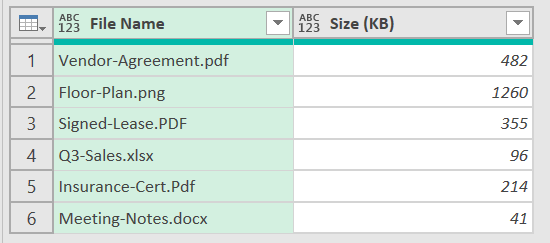
To follow along, select any cell in the Attachments table and go to Data > From Table/Range. This opens the table in the Power Query Editor, where the Source step holds it.
If Power Query also adds a Changed Type step, you can delete it, because the formula below builds on Source.
Add a new step (by clicking on the fx icon next to the formula bar) and use this formula:
= Table.AddColumn(Source,"Is PDF",each Text.EndsWith([File Name],".pdf"),type logical)
Result: A new Is PDF column with TRUE, FALSE, FALSE, FALSE, FALSE, and FALSE.
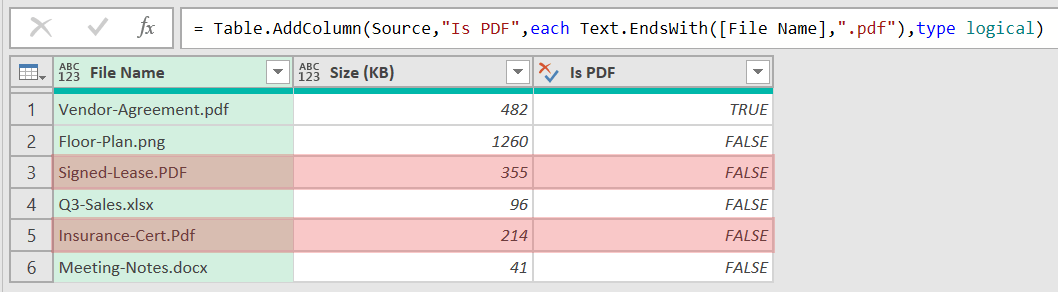
In the above formula, the Table.AddColumn function adds the Is PDF column, and Text.EndsWith checks whether each file name ends with “.pdf”. The type logical part sets the new column’s data type to logical, which holds TRUE and FALSE values.
But only Vendor-Agreement.pdf got TRUE. Signed-Lease.PDF and Insurance-Cert.Pdf are PDF files too, but their extensions use capital letters, and Text.EndsWith is case-sensitive by default.
To fix this, add Comparer.OrdinalIgnoreCase as the third argument. Use this formula instead:
= Table.AddColumn(Source,"Is PDF",each Text.EndsWith([File Name],".pdf",Comparer.OrdinalIgnoreCase),type logical)
Result: A new Is PDF column with TRUE, FALSE, TRUE, FALSE, TRUE, and FALSE.
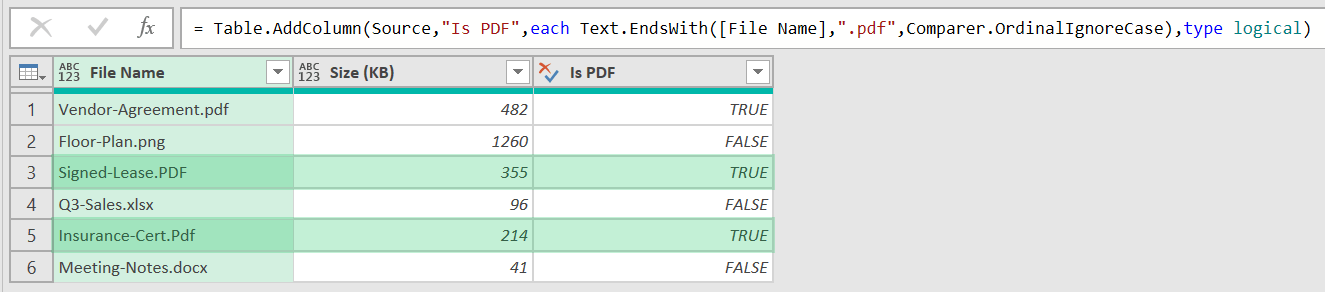
Here, Comparer.OrdinalIgnoreCase tells Text.EndsWith to ignore upper and lower case. So “.PDF” and “.Pdf” now count as “.pdf”, and all three PDF files get TRUE.
File extensions are often typed in different cases, so it’s a good habit to add the comparer whenever you check them.
Example 3: Keep Only Rows That End With a Domain
This next one is about filtering a table.
Below is a Registrations table with the people who signed up for a webinar, and I want to keep only the people whose email ends with “@crestview.com”.
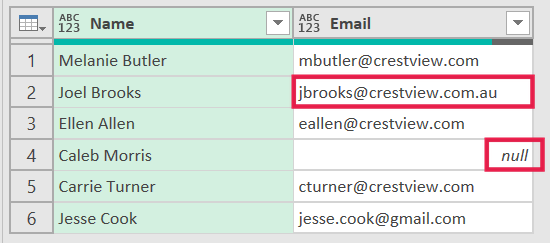
Load the Registrations table into Power Query the same way (select a cell in it and go to Data > From Table/Range). Then add a new step (by clicking on the fx icon next to the formula bar) and use this formula:
= Table.SelectRows(Source,each Text.EndsWith([Email],"@crestview.com"))
Result: Only three rows remain: Melanie Butler, Ellen Allen, and Carrie Turner.
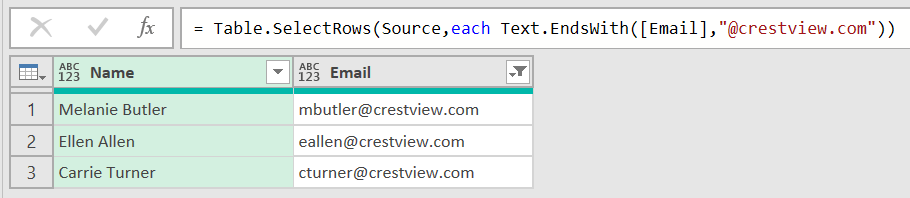
In the above formula, the Table.SelectRows function goes through the table row by row and keeps a row only when Text.EndsWith returns TRUE for it.
Joel Brooks’s email ends with “@crestview.com.au”, which is a different domain, so his row is removed. The Text.Contains function would have kept it, because it finds “@crestview.com” anywhere in the text.
Caleb Morris has no email, so that cell comes into Power Query as null. Text.EndsWith returns null for it, and Table.SelectRows drops the row without giving an error.
Example 4: Remove Rows That End With Something
You can also flip the check to remove rows instead of keeping them.
Below is an Orders table where test orders have “-TEST” at the end of the Order ID, and I want to remove those test orders.
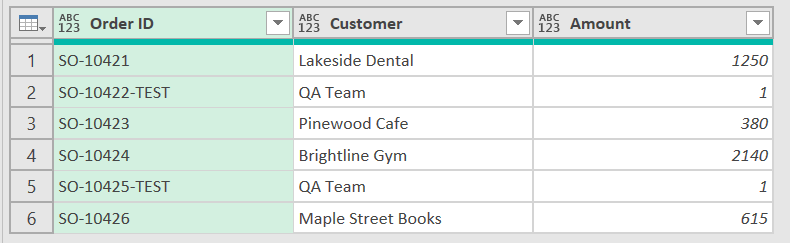
Load the Orders table into Power Query the same way (select a cell in it and go to Data > From Table/Range). Then add a new step (by clicking on the fx icon next to the formula bar) and use this formula:
= Table.SelectRows(Source,each not Text.EndsWith([Order ID],"-TEST"))
Result: The two test orders are removed, leaving SO-10421, SO-10423, SO-10424, and SO-10426.
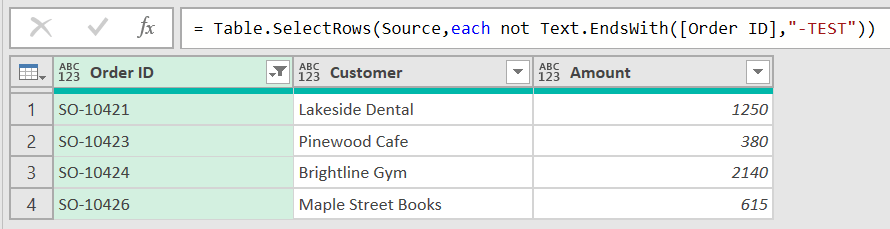
Here, the not keyword flips each result. The test orders return TRUE, which not turns into FALSE, so Table.SelectRows removes them.
Follow along with the example file
Text.EndsWith Function Examples.xlsx
Example 5: Label Rows Based on How a Code Ends
Text.EndsWith also works inside an if formula, so you can turn its result into a label.
Below is a Products table where refurbished products have “-RF” at the end of the SKU, and I want a new Condition column that says Refurbished or New.
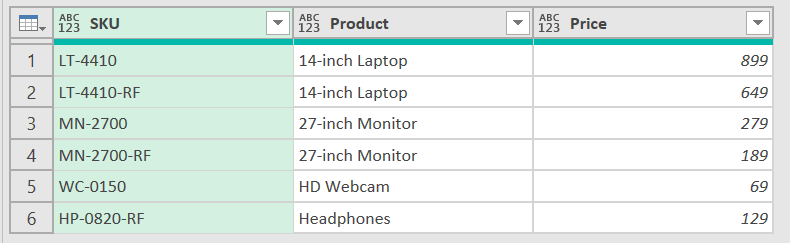
Load the Products table into Power Query the same way (select a cell in it and go to Data > From Table/Range). Then add a new step (by clicking on the fx icon next to the formula bar) and use this formula:
= Table.AddColumn(Source,"Condition",each if Text.EndsWith([SKU],"-RF") then "Refurbished" else "New",type text)
Result: A new Condition column with New, Refurbished, New, Refurbished, New, and Refurbished.
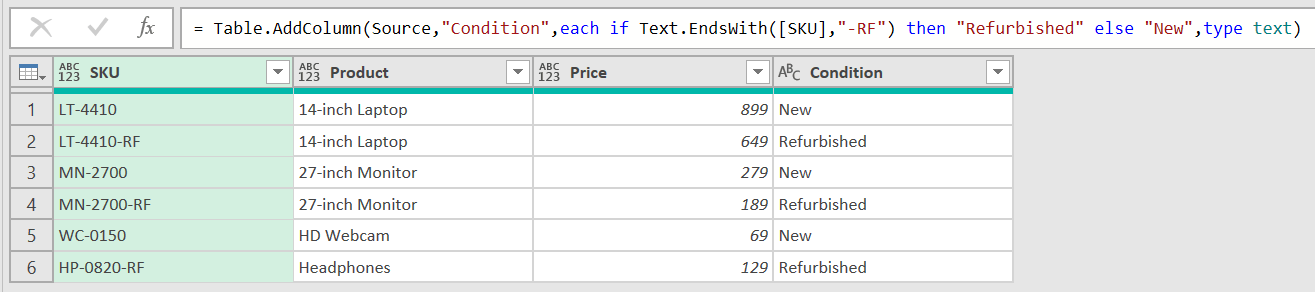
In the above formula, Text.EndsWith checks whether each SKU ends with “-RF”. When it does, the if formula returns “Refurbished”, and when it doesn’t, it returns “New”.
Example 6: Check for More Than One Ending
Sometimes more than one ending should count as a match.
Below is a Leads table with the email of each contact, and I want a new Email Type column that says Personal for Gmail and Yahoo addresses and Work for the rest.
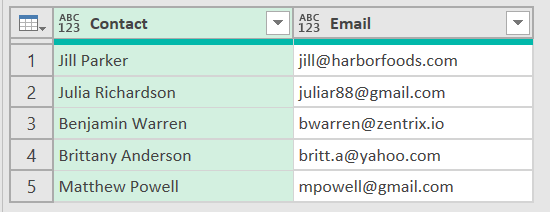
Load the Leads table into Power Query the same way (select a cell in it and go to Data > From Table/Range). Then add a new step (by clicking on the fx icon next to the formula bar) and use this formula:
= Table.AddColumn(Source,"Email Type",each if Text.EndsWith([Email],"@gmail.com") or Text.EndsWith([Email],"@yahoo.com") then "Personal" else "Work",type text)
Result: A new Email Type column with Work, Personal, Work, Personal, and Personal.
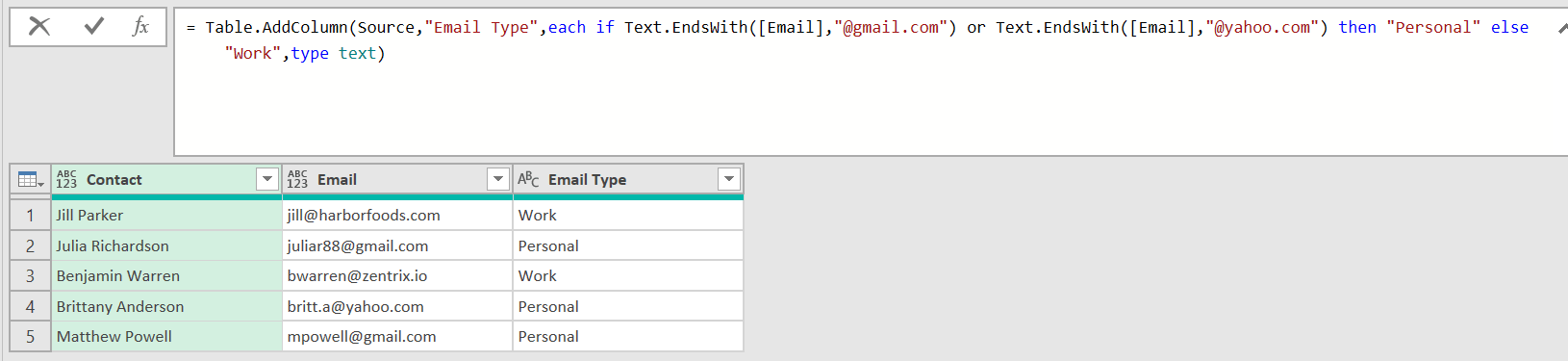
Here, each Text.EndsWith checks one ending, and the or keyword returns TRUE if either check is TRUE. So both Gmail and Yahoo addresses get Personal.
Text.EndsWith takes only one ending at a time, and giving it a list like {“@gmail.com”,”@yahoo.com”} gives an error. That’s why the formula uses two checks joined with or.
Example 7: Add a Missing Ending Only Where It’s Needed
You can also use Text.EndsWith to clean up values.
Below is a Folders table with a shared folder path for each team, and I want every path in the Folder Path column to end with a backslash.
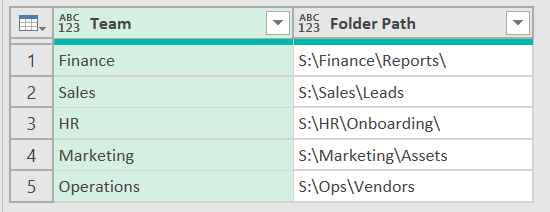
Load the Folders table into Power Query the same way (select a cell in it and go to Data > From Table/Range). Then add a new step (by clicking on the fx icon next to the formula bar) and use this formula:
= Table.TransformColumns(Source,{{"Folder Path",each if Text.EndsWith(_,"\") then _ else _&"\",type text}})
Result: Every path in the Folder Path column now ends with a backslash, like S:\Sales\Leads\.
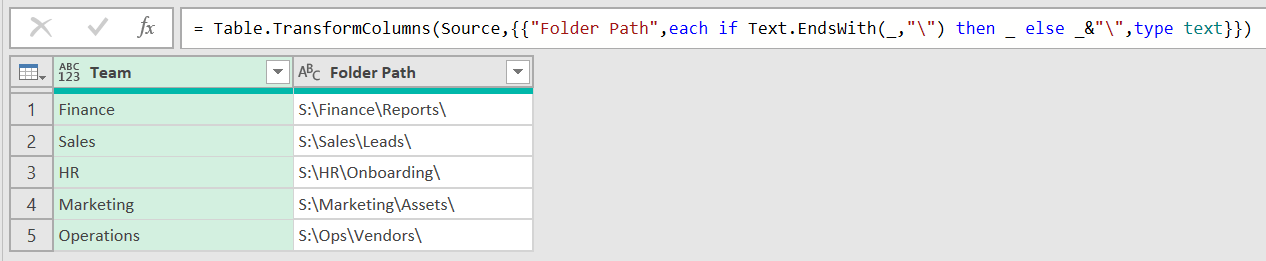
In the above formula, the Table.TransformColumns function changes the Folder Path column in place, and the underscore (_) stands for the current path.
If a path already ends with a backslash, the if formula leaves it as it is. Otherwise, the & operator adds one at the end.
Without the Text.EndsWith check, the Finance and HR paths would end up with two backslashes. Now every path has exactly one, so you can safely add a file name to the end of it later.
Example 8: Watch Out for Trailing Spaces
This last one is a problem that’s easy to miss.
Below is a Vendors table where some vendor names have extra spaces at the end that you can’t see, and I want a new Is LLC column that says TRUE for every vendor name that ends with ” LLC”.
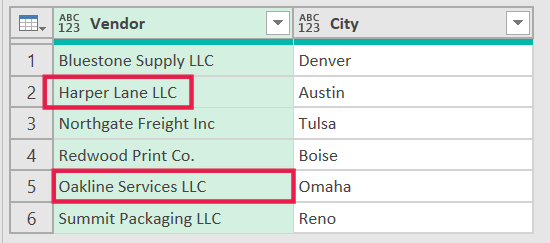
Load the Vendors table into Power Query the same way (select a cell in it and go to Data > From Table/Range). Then add a new step (by clicking on the fx icon next to the formula bar) and use this formula:
= Table.AddColumn(Source,"Is LLC",each Text.EndsWith([Vendor]," LLC"),type logical)
Result: A new Is LLC column with TRUE, FALSE, FALSE, FALSE, FALSE, and TRUE.
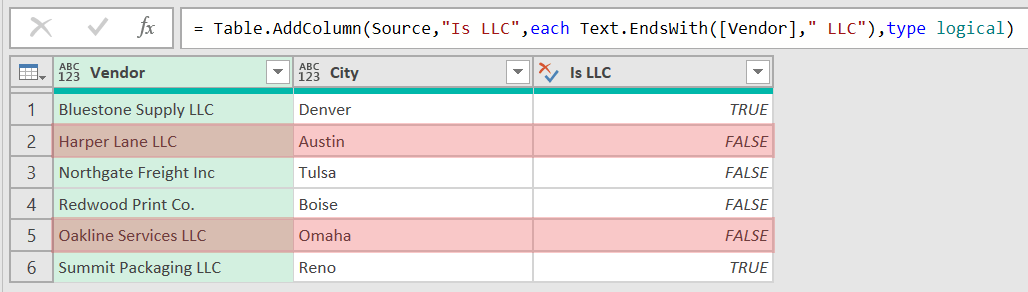
Harper Lane LLC and Oakline Services LLC got FALSE, even though both names end with LLC. That’s because their names have trailing spaces, so the real last characters are spaces, not “LLC”.
Power Query gives no error here, so wrong FALSE results like these are easy to miss.
To fix this, remove the trailing spaces with the Text.TrimEnd function before Text.EndsWith checks the ending. Use this formula instead:
= Table.AddColumn(Source,"Is LLC",each Text.EndsWith(Text.TrimEnd([Vendor])," LLC"),type logical)
Result: A new Is LLC column with TRUE, TRUE, FALSE, FALSE, TRUE, and TRUE.
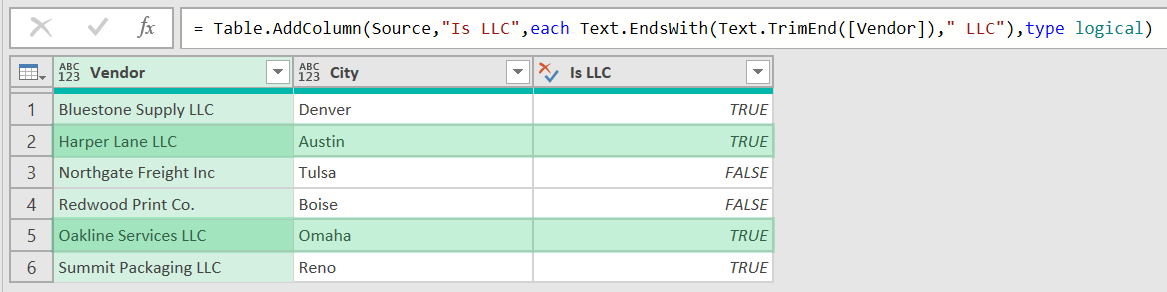
Here, Text.TrimEnd removes the spaces at the end of each vendor name first, so Text.EndsWith sees the real ending.
The trim only happens inside the check, so the Vendor column itself still has the trailing spaces. If you’ll use those names later, for example to merge with another table, trim the whole column in its own step first.
Other Excel Articles You May Also Like:
- Text.End Function in Power Query M
- Text.AfterDelimiter – Use Text.AfterDelimiter in Power Query M to get text after a delimiter.
- Text.PositionOf – Use Text.PositionOf in Power Query M to find where text appears in a string.
- Text.Length – Use Text.Length in Power Query M to count characters in text.
- Text.BeforeDelimiter – Use Text.BeforeDelimiter in Power Query M to get text before a delimiter.
- List.MatchesAny – Use List.MatchesAny in Power Query M to check if any item meets a condition.
- Text.BetweenDelimiters – Use Text.BetweenDelimiters in Power Query M to extract text between delimiters.
- List.Contains – Use List.Contains in Power Query M to check if a value exists in a list.
