

The DateTime.FromText function turns text like “2026-03-09T14:30:00” into a real date and time value. And when the text is written in an unusual way, you can tell it the exact pattern of the text and the country or language it came from.
In this article, I’ll show you how to use DateTime.FromText with practical examples, including compact log timestamps, 12-hour and 24-hour times, UTC timestamps, foreign month names, and text that can’t be converted.
Follow along with the example file
DateTime.FromText Function Examples.xlsx
DateTime.FromText Function Syntax
DateTime.FromText(text as nullable text, optional options as any) as nullable datetime
- text – the text you want to convert to a date and time, like “2026-03-09 14:30” or “09/03/2026 2:30 PM”.
- options (optional) – a record with Format (the exact pattern of the text, like “yyyyMMddHHmmss”) and Culture (a culture code like “en-US” or “en-GB” that sets the day/month order and the language of month names).
If you leave out Format, Power Query makes its best guess using the culture. If you leave out Culture, it uses the regional settings Power Query runs with.
What it returns – a datetime value. If the text is null or empty, you get null back.
If the text can’t be read, you get the error “We couldn’t parse the input provided as a DateTime value.”
The text argument has to be text. If you give it a number, like 46090.75, you get the error “We cannot convert the value 46090.75 to type Text.”
For a value that could be a number, a date, or text, use the DateTime.From function instead.
For older queries, options can also be just a culture code, like DateTime.FromText(“04/03/2026 09:15″,”en-GB”). That works the same as [Culture=”en-GB”].
The DateTime.FromText function is part of the Power Query M language. I tested every example in this article in Excel for Windows.
When to Use the DateTime.FromText Function
Use this function when you need to:
- Turn timestamps that came in as text into real date and time values
- Read day/month text the right way by telling Power Query the culture
- Convert compact log timestamps like 20260309143005 that Power Query can’t guess
- Read 12-hour times with AM/PM, or text that has extra words like “at” in it
- Keep UTC timestamps ending in Z from shifting to your local time
- Read month names written in another language, like German or French
- Handle a column that mixes two formats, or has values that aren’t dates at all
Example 1: Convert ISO Text to a Date and Time
Let’s start with the simplest case.
In Excel, go to Data > Get Data > From Other Sources > Blank Query. In the Power Query Editor that opens, type this formula in the formula bar:
= DateTime.FromText("2026-03-09T14:30:00")
Result: 3/9/2026 2:30:00 PM

This text is in the ISO format, the international standard that writes the year, then the month, then the day, with a T before the time. DateTime.FromText reads it as March 9, 2026 at 2:30 PM.
Power Query shows the result in your computer’s regional format. My computer uses US settings, so you see 3/9/2026, while a computer with UK settings shows 09/03/2026 for the same value.
The year-month-day order is safe on any computer. I tried it with UK, German, French, and Japanese culture codes, and it gave March 9 every time.
If the text has only a date, like “2026-03-09”, you get that date at 12:00:00 AM. If it has only a time, like “2:30 PM”, DateTime.FromText adds today’s date, so the result changes every day the query refreshes.
And if your text has a time in it, don’t use the Date.FromText function. It gives the error “We couldn’t parse the input provided as a Date value.” even for this same text.
Example 2: The Same Text, Two Different Dates
This example shows why the Culture option matters.
The text “04/03/2026 09:15” could be April 3 or March 4. It depends on whether the month or the day comes first, and that’s what the culture tells DateTime.FromText.
Create a new blank query and try it the US way:
= DateTime.FromText("04/03/2026 09:15",[Culture="en-US"])
Result: 4/3/2026 9:15:00 AM

With “en-US”, the first number is the month, so you get 4/3/2026 (April 3).
Now create another blank query and try the UK way:
= DateTime.FromText("04/03/2026 09:15",[Culture="en-GB"])
Result: 3/4/2026 9:15:00 AM

With “en-GB”, the first number is the day, so you get 3/4/2026 (March 4). Same text, a month apart.
If you leave out the culture, DateTime.FromText uses your regional settings. On my US computer, that gives April 3, but the same query on a UK computer gives March 4.
So pass the culture whenever you know where the data came from.
Without the right culture, text like “13/03/2026 09:15” doesn’t even convert on a US computer. There’s no 13th month, so you get the parse error.
Example 3: Convert Compact Log Timestamps
Many systems and log files write timestamps as one long number with no separators.
Below is a BackupJobs table with the time each server’s backup finished, written as year, month, day, hour, minute, and second in one string, and I want them as date and time values in column C.
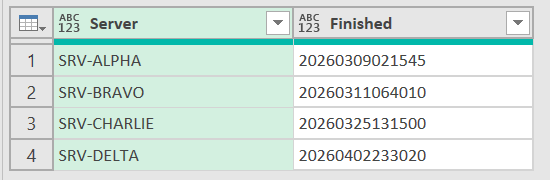
To follow along, select any cell in the BackupJobs table and go to Data > From Table/Range. This opens the table in the Power Query Editor, where the Source step holds it.
If Power Query also adds a Changed Type step, delete it. The formulas in this article build on the Source step and expect the text exactly as it is in the table.
Now add a new step (by clicking on the fx icon next to the formula bar) and use this formula:
= Table.AddColumn(Source,"Finished At",each DateTime.FromText([Finished],[Format="yyyyMMddHHmmss",Culture="en-US"]),type datetime)
Result: A new Finished At column with 3/9/2026 2:15:45 AM, 3/11/2026 6:40:10 AM, 3/25/2026 1:15:00 PM, and 4/2/2026 11:30:20 PM.

Here, the Table.AddColumn function adds the new column, and DateTime.FromText converts each text value. The last argument, type datetime, sets the new column’s data type to Date/Time.
The Format “yyyyMMddHHmmss” tells DateTime.FromText where each part sits. yyyy is the four-digit year, MM the month, dd the day, HH the hour (24-hour clock), mm the minutes, and ss the seconds.
The Culture “en-US” looks unnecessary here, since there are no month names. But a Format is read using the culture’s calendar, and when I ran this same Format with the Thai culture (“th-TH”), it gave the year 1483 instead of 2026.
So whenever you use a Format, pass a Culture too. That keeps the query giving the same result on every computer.
Without the Format, DateTime.FromText can’t tell where the year ends and the month starts, so every row gives the parse error.
Example 4: Use HH for 24-Hour Times, Not hh
The letters in a Format are case-sensitive, and one wrong case can quietly give you the wrong time.
Below is a GateEntries table with the time each employee badged in at a gate, written with dots like “2026.04.14 18.30”, and I want them as date and time values in column C.
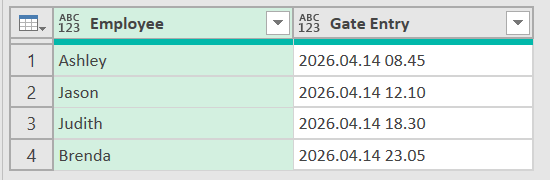
Load the GateEntries table into Power Query the same way as in Example 3. Then add a new step (by clicking on the fx icon next to the formula bar) and use this formula, with a lowercase hh for the hour:
= Table.AddColumn(Source,"Entry Time",each DateTime.FromText([Gate Entry],[Format="yyyy.MM.dd hh.mm",Culture="en-US"]),type datetime)
Result: Ashley gets 4/14/2026 8:45:00 AM, Jason gets 4/14/2026 12:10:00 AM, and Judith and Brenda show Error.

A lowercase hh means the hour on a 12-hour clock, from 1 to 12. So 18 and 23 aren’t valid hours, and those rows give the parse error.
Jason’s row is the dangerous one. He came in at 12.10 (ten past noon), but with hh and no AM/PM in the text, 12 is read as midnight, so you get 12:10 AM without any error.
Now replace the formula in the step you just added with this one, which uses an uppercase HH:
= Table.AddColumn(Source,"Entry Time",each DateTime.FromText([Gate Entry],[Format="yyyy.MM.dd HH.mm",Culture="en-US"]),type datetime)
Result: The Entry Time column now shows 4/14/2026 8:45:00 AM, 4/14/2026 12:10:00 PM, 4/14/2026 6:30:00 PM, and 4/14/2026 11:05:00 PM.

Here, HH is the hour on a 24-hour clock, from 0 to 23, which is how this gate system writes it. Every row converts, and Jason gets 12:10 PM.
The same case rule applies to the other letters. MM is the month and mm is the minutes, so a Format like “dd/mm/yyyy HH:mm” gives the parse error on text like “09/03/2026 14:30”.
Example 5: Read Text With Words and AM/PM
Sometimes a timestamp comes with extra words in it, like “12 May 2026 at 2:15 PM”.
Below is a CallbackRequests table with the time each customer asked to be called back, and I want those times as date and time values in column C.
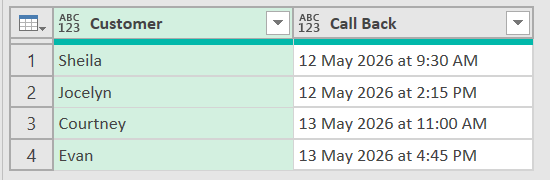
Load the CallbackRequests table into Power Query the same way as in Example 3. Then add a new step (by clicking on the fx icon next to the formula bar) and use this formula:
= Table.AddColumn(Source,"Call Back Time",each DateTime.FromText([Call Back],[Format="dd MMM yyyy 'at' h:mm tt",Culture="en-US"]),type datetime)
Result: A new Call Back Time column with 5/12/2026 9:30:00 AM, 5/12/2026 2:15:00 PM, 5/13/2026 11:00:00 AM, and 5/13/2026 4:45:00 PM.
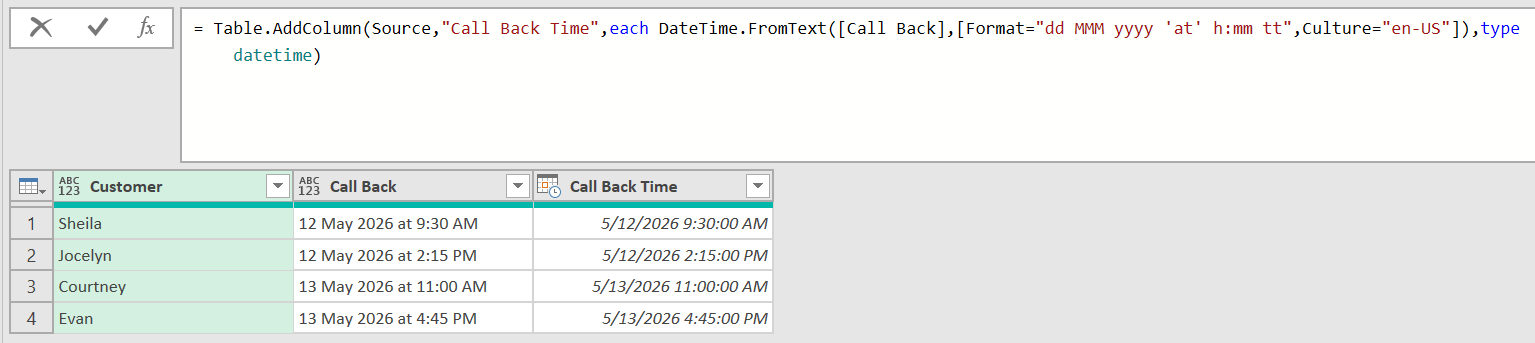
Here, the word ‘at’ sits inside single quotes in the Format. Anything in single quotes is matched as plain text, so DateTime.FromText skips over it instead of trying to read it as a date part.
MMM is the short month name (May), h is the 12-hour hour with no leading zero, and tt reads the AM or PM at the end of the text. That’s how Jocelyn’s 2:15 PM comes out as an afternoon time.
The Culture “en-US” matters too. MMM and tt read English month names and AM/PM, so passing the culture keeps the query working on a computer with other language settings.
Without the Format, the word “at” stops Power Query’s guess, and every row gives the parse error.
Follow along with the example file
DateTime.FromText Function Examples.xlsx
Example 6: Keep UTC Timestamps in UTC
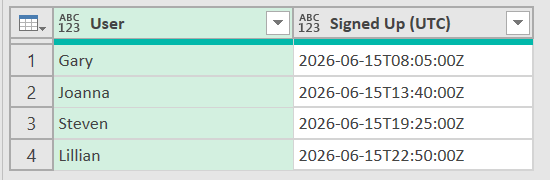
Timestamps from web apps and APIs often end in a Z, like “2026-06-15T08:05:00Z”. The Z means the time is in UTC.
Below is an AppSignups table with the UTC time each user signed up, and I want those times as date and time values in column C, still in UTC.
Load the AppSignups table into Power Query the same way as in Example 3. Then add a new step (by clicking on the fx icon next to the formula bar) and use this formula:
= Table.AddColumn(Source,"Sign-Up Time (UTC)",each DateTime.FromText([#"Signed Up (UTC)"],[Format="yyyy-MM-dd'T'HH:mm:ss'Z'",Culture="en-US"]),type datetime)
Result: A new Sign-Up Time (UTC) column with 6/15/2026 8:05:00 AM, 6/15/2026 1:40:00 PM, 6/15/2026 7:25:00 PM, and 6/15/2026 10:50:00 PM.
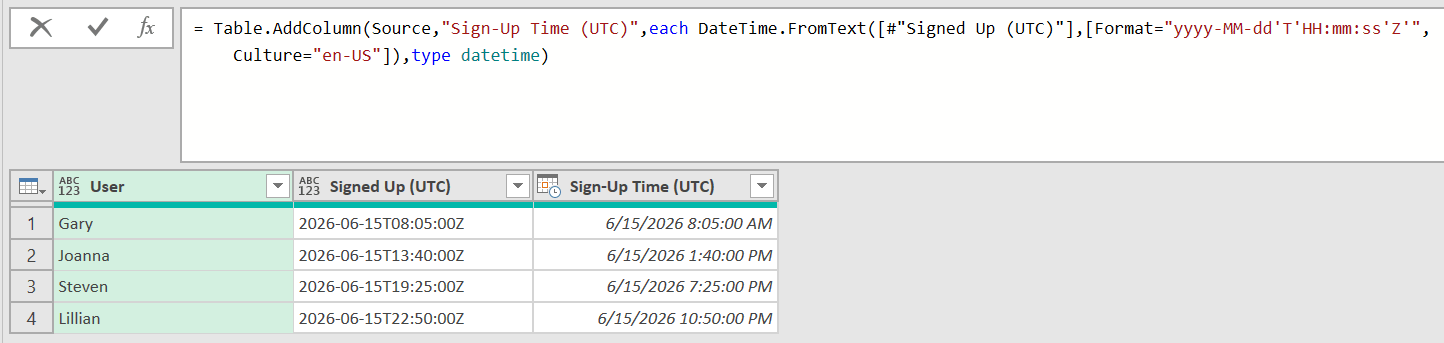
Here, the T and the Z are in single quotes, so the Format matches them as plain letters. DateTime.FromText reads the date and time as they’re written and keeps them in UTC.
The column name has brackets in it, so the formula refers to it as [#”Signed Up (UTC)”]. That’s how M handles column names with special characters.
Without the Format, DateTime.FromText works differently. It reads the Z as a time zone and converts the time to your computer’s local time.
My computer is four hours ahead of UTC, so without the Format, Gary’s 8:05 AM became 12:05 PM, and Lillian’s 10:50 PM moved to 2:50 AM the next day. On your computer, the shift depends on your time zone.
Important: This Format only matches text that ends in a Z. A timestamp with an offset instead, like 2026-06-15T08:05:00+05:30, gives the parse error, with or without the Format.
If local time is what you want, leave out the Format. But if the rest of your data is in UTC, or the file gets refreshed on computers in different time zones, the Format keeps every time the same.
Example 7: Read Month Names in Another Language
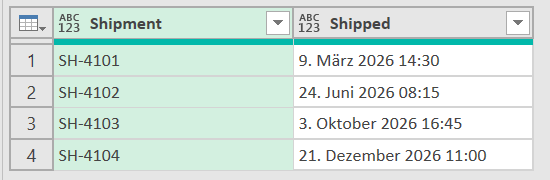
When data comes from a supplier in another country, the month names may not be in English.
Below is a SupplierShipments table from a German supplier, where the ship times use German month names like März (March) and Dezember (December), and I want them as date and time values in column C.
Load the SupplierShipments table into Power Query the same way as in Example 3. Then add a new step (by clicking on the fx icon next to the formula bar) and use this formula:
= Table.AddColumn(Source,"Shipped At",each DateTime.FromText([Shipped],[Culture="de-DE"]),type datetime)
Result: A new Shipped At column with 3/9/2026 2:30:00 PM, 6/24/2026 8:15:00 AM, 10/3/2026 4:45:00 PM, and 12/21/2026 11:00:00 AM.

Here, “de-DE” is the culture code for German (Germany). It tells DateTime.FromText to read März, Juni, Oktober, and Dezember as German month names, and to expect the day before the month.
You don’t need a Format here, because this is the normal way German dates are written. The culture alone is enough for Power Query’s guess.
Without the culture, the März row gives the parse error on my US computer, because it doesn’t know what März means. The same idea works for other languages, like “fr-FR” for “9 mars 2026 14:30”.
If you don’t need to keep the original text, there’s also a no-formula way. Right-click the Shipped column header, choose Change Type > Using Locale, then pick Date/Time and German (Germany).
Example 8: Convert a Column With Two Formats
When you combine data from two systems, one column can end up with two different timestamp formats.
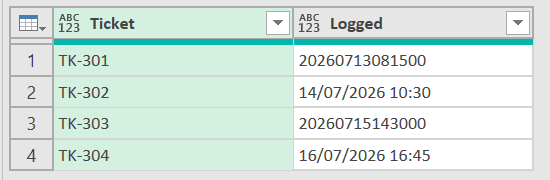
Below is a SupportTickets table where tickets from one system are logged as compact timestamps and tickets from the other are logged in the UK day/month format, and I want all of them as date and time values in column C.
Load the SupportTickets table into Power Query the same way as in Example 3. Then add a new step (by clicking on the fx icon next to the formula bar) and use this formula:
= Table.AddColumn(Source,"Logged At",each try DateTime.FromText([Logged],[Format="yyyyMMddHHmmss",Culture="en-US"]) otherwise DateTime.FromText([Logged],[Culture="en-GB"]),type datetime)
Result: A new Logged At column with 7/13/2026 8:15:00 AM, 7/14/2026 10:30:00 AM, 7/15/2026 2:30:00 PM, and 7/16/2026 4:45:00 PM.
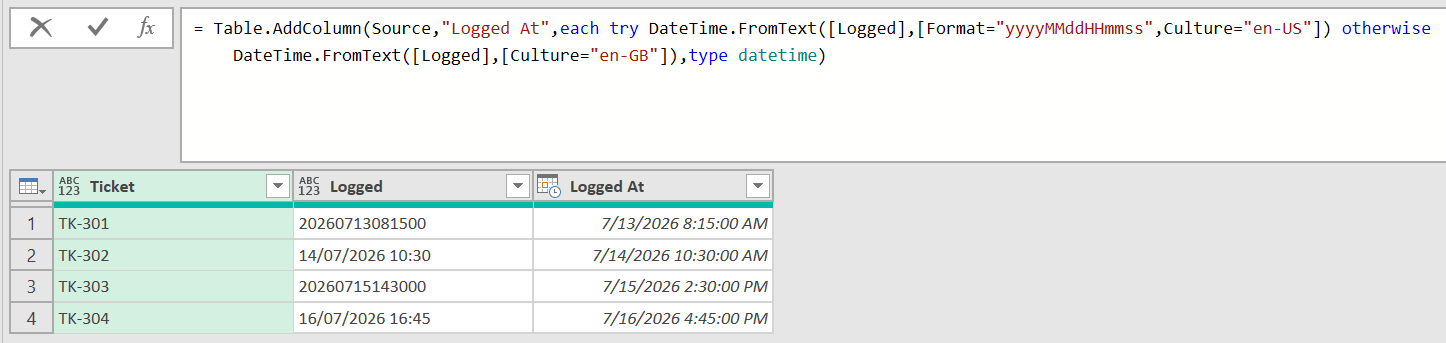
Here, try runs the first DateTime.FromText, which reads the compact format. If it gives an error, otherwise runs the second one, which reads the text the UK way.
So TK-301 and TK-303 convert with the compact Format. The UK text in TK-302 and TK-304 doesn’t match that Format, so those rows fall through to the “en-GB” version.
Put the strictest format first. A Format only matches text written exactly that way, so it won’t grab a value that belongs to the other format by mistake.
The second version has no Format, so it accepts anything Power Query can guess with the UK culture, like a date with no time. If your column could hold other shapes too, give the second version its own Format as well.
If a value matches neither format, the second DateTime.FromText still gives an error. The next example shows how to turn those into null.
Example 9: Handle Values That Can’t Be Converted
Real data often has entries like “N/A” or a typo in a date column, and DateTime.FromText can’t read those.
Below is a TrainingSignups table with the time each employee registered for a course, in the UK format, where one entry is “N/A”, one is blank, and one is the impossible date 31/02/2026, and I want the registration times in column C.
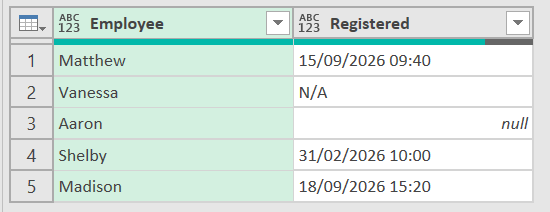
Load the TrainingSignups table into Power Query the same way as in Example 3. Then add a new step (by clicking on the fx icon next to the formula bar) and use this formula:
= Table.AddColumn(Source,"Registered At",each DateTime.FromText([Registered],[Culture="en-GB"]),type datetime)
Result: Matthew gets 9/15/2026 9:40:00 AM, Madison gets 9/18/2026 3:20:00 PM, Aaron shows null, and Vanessa and Shelby show Error.
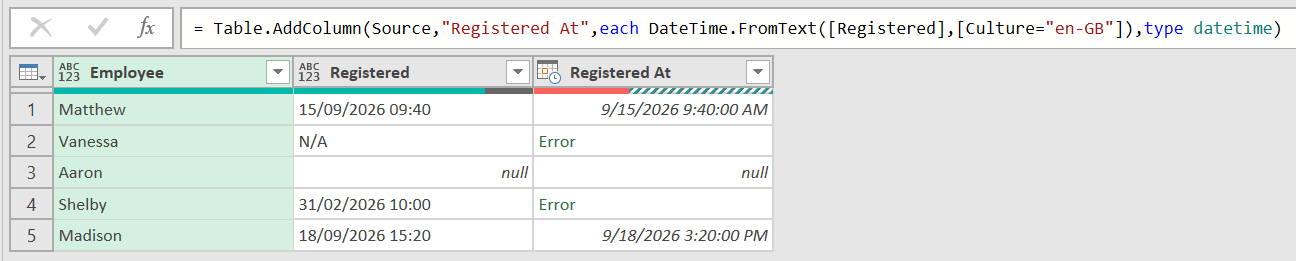
Vanessa’s “N/A” isn’t a date, and Shelby’s 31/02/2026 is a day that doesn’t exist (February has no 31st). Both give the error “We couldn’t parse the input provided as a DateTime value.”
Aaron’s blank cell comes in as null, and DateTime.FromText returns null for it without an error.
An Error cell is something you’d have to deal with in every later step. A null is easier, since it just means there’s no date, so let’s turn the errors into null.
Replace the formula in the step you just added with this one:
= Table.AddColumn(Source,"Registered At",each try DateTime.FromText([Registered],[Culture="en-GB"]) otherwise null,type datetime)
Result: Matthew and Madison keep their date and time, and the other three rows show null.

Here, try runs DateTime.FromText, and if it gives an error, otherwise returns null instead. The values that convert fine stay as they are.
Keep in mind that try hides the problem too. Shelby’s typo now looks the same as a blank, so filter the new column for null and check those rows against the Registered column.
If you’d rather not edit the formula, keep the first version and right-click the Registered At column header, choose Replace Errors, and type null. That does the same thing in a separate step.
Other Excel Articles You May Also Like:
- Date.From – Use Date.From in Power Query M to turn a datetime, serial number, or text into a clean date value.
- Date.ToText – Use Date.ToText in Power Query M to convert dates to text.
- Number.FromText – Use Number.FromText in Power Query M to convert text to numbers.
- Text.From – Use Text.From in Power Query M to convert values to text.
- Number.From – Use Number.From in Power Query M to convert values to numbers.
- Table.TransformColumnTypes – Use Table.TransformColumnTypes in Power Query M to set column data types.
- Date.Month – Use Date.Month in Power Query M to get the month number from a date.
- DateTime.LocalNow – Use DateTime.LocalNow in Power Query M to get the current date and time.
