

We all use Google as a part of our daily routine. One of its features is search suggestion, where Google acts smart and gives us a list of suggestions while we are typing.

In this tutorial, you’ll learn how to create a searchable drop-down list in Excel – i.e., a drop-down list that will show the matching items as you type.
Below is a video of this tutorial (in case you prefer watching a video over reading the text).
Searchable Drop Down list in Excel
For the purpose of this tutorial, I am using the data of Top 20 countries by GDP.
The intent is to create an excel drop down list with a search suggestion mechanism, such that it shows a drop down with the matching options as I type in the search bar.
Something as shown below:
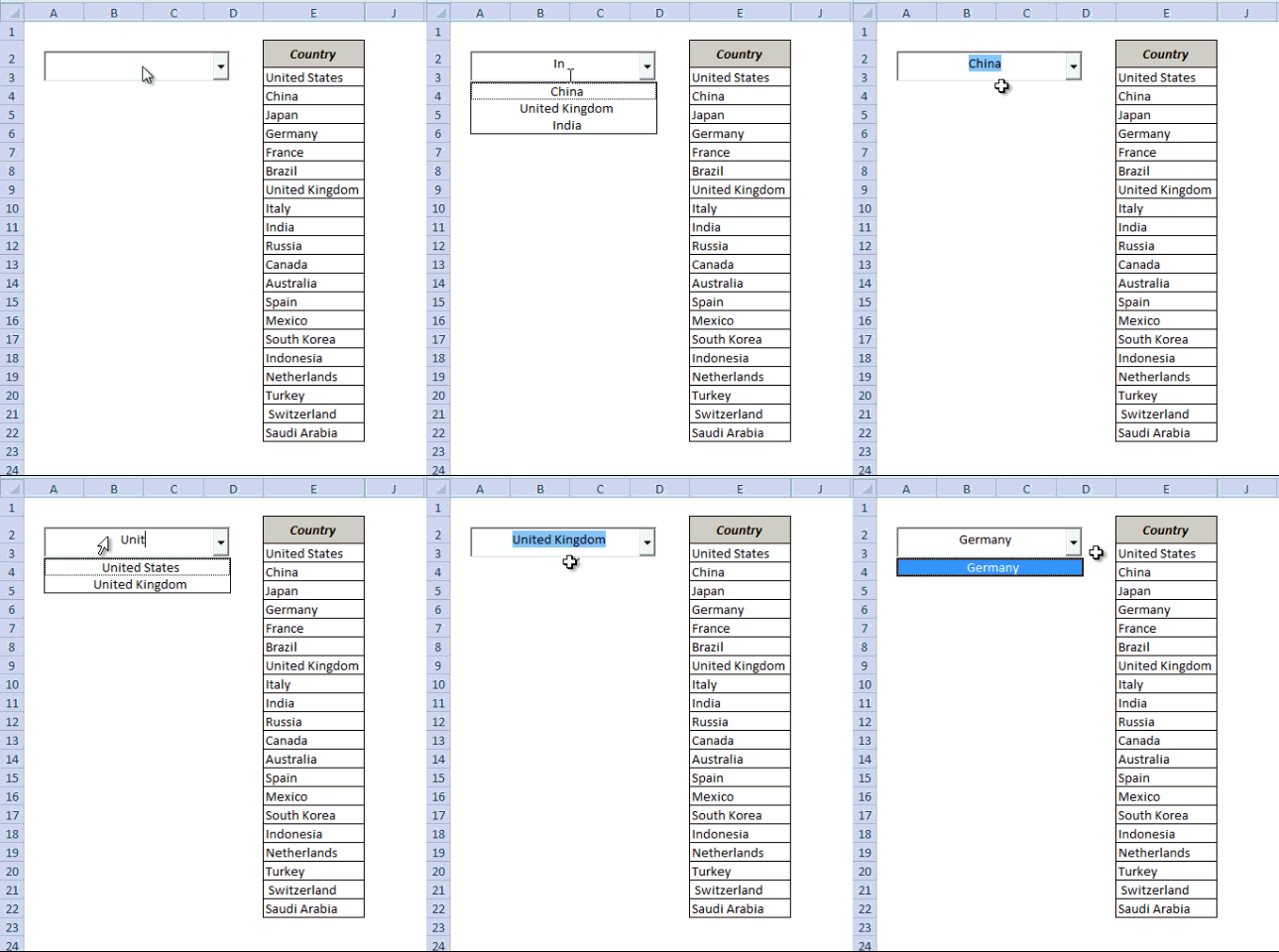
To follow along, download the example file from here

Creating the searchable drop-down list in Excel would be a three-part process:
- Configuring the search box.
- Setting the Data.
- Writing a short VBA Code to make it work.
Step 1 – Configuring the Search Box
In this first step, I will use a combo-box and configure it so that when you type in it, the text is also reflected in a cell in real time.
Here are the steps to do this:
- Go to Developer Tab –> Insert –> ActiveX Controls –> Combo Box (ActiveX Control).
- There is a possibility you may not find the developer tab in the ribbon. By default, it is hidden and needs to be enabled. Click here to know how to get the developer tab in the ribbon in Excel.
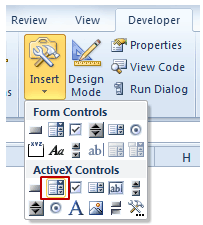
- Move your cursor to the worksheet area and click anywhere. It will insert a combo box.
- Right-click on the Combo Box and select Properties.
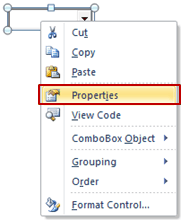
- In the properties dialogue box, make the following changes:
- AutoWordSelect: False
- LinkedCell: B3
- ListFillRange: DropDownList (we will create a named range with this name in step 2)
- MatchEntry: 2 – fmMatchEntryNone
(Cell B3 is linked to the Combo Box, which means that anything you type in the Combo Box is entered in B3)

- Go to Developer tab and click on Design Mode. This will enable you to enter text in the Combo Box. Also, since cell B3 is linked to the combo box, any text that you enter in the combo box would also be reflected in B3 in real-time.
Step 2 – Setting the Data
Now that the search box is all set, we need to get the data in place. The idea is that as soon as you type anything in the search box, it shows only those items that have that text in it.
To do this, we will use
- Three helper columns.
- One dynamic named range.
Helper Column 1
Put the following formula in cell F3 and drag it for the entire column (F3:F22)
=--ISNUMBER(IFERROR(SEARCH($B$3,E3,1),""))
This formula returns 1 when the text in the Combo Box is there in the name of the country on the left. For example, if you type UNI, then only the values for United States and United Kingdom are 1 and all the remaining values are 0.
Helper Column 2
Put the following formula in Cell G3 and drag it for the entire column (G3:G22)
=IF(F3=1,COUNTIF($F$3:F3,1),"")
This formula returns 1 for the first occurrence where Combo Box text matches the country name, 2 for the second occurrence, 3 for the third and so on. For example, if you type UNI, G3 cell will display 1 as it matches United States, and G9 will display 2 as it matches United Kingdom. The rest of the cells will be blank.
Helper Column 3
Put the following formula in cell H3 and drag it for the entire column (H3:H22)
=IFERROR(INDEX($E$3:$E$22,MATCH(ROWS($G$3:G3),$G$3:$G$22,0)),"")
This formula stacks all the matching names together without any blank cells in between them. For example, if you type UNI, this column would show 2 and 9 together, and rest all cell would be blank.
Creating the Dynamic Named Range
Now that the helper columns are in place, we need to create the dynamic named range. This named range will only refer to those values that match the text entered in the combo box. We will use this dynamic named range to show the values in the drop-down box.
Note: In step 1 we entered DropDownList in the ListFillRange option. Now we will create the named range with the same name.
Here are the steps to create it:
- Go to Formulas –> Name Manager.
- In the name-manager dialogue box click New. It will open a New Name dialogue box.
- In the Name Field enter DropDownList
- In the Refers to Field enter the formula: =$H$3:INDEX($H$3:$H$22,MAX($G$3:$G$22),1)
Step 3 – Putting the VBA Code to Work
We are almost there.
The final part is to write a short VBA code. This code makes the drop down dynamic such that it shows the matching items/names as you are typing in the search box.
To add this code to your workbook:
- Right-click on the Worksheet tab and select View Code.
- In the VBA window, Copy and Paste the following code:
Private Sub ComboBox1_Change()
ComboBox1.ListFillRange = "DropDownList"
Me.ComboBox1.DropDown
End Sub
That’s it!!
You are all set with your own Google type Search bar that shows matching items as you type in it.
For a better look and feel, you can cover cell B3 with the Combo Box and hide all the helper columns. You can now show off a little with this amazing Excel trick.
To follow along, download the file from here
What do you think? Would you be able to use this search suggestion drop-down list in your work? Let me know your thoughts by leaving a comment.
If you have enjoyed this tutorial, I am sure you would like the following Excel tutorials too:
- Dynamic Filter – Extract matching data while you type.
- Extract Data based on a Drop Down list selection.
- Creating Dependent Drop Down Lists in Excel.
- The Ultimate Guide to Using Excel VLOOKUP Function.
- How to make multiple selections in a drop-down list in Excel.
- How to Insert and Use a Checkbox in Excel.

Super Tutorial.
Two questions:
1- Now in the formules $H$3:INDEX($H$3:$H$22,MAX($G$3:$G$22),1) the range are absolute and limited to row 22. Is there a way to make 22 depend to the number of arguments in the list ($E$3:$E$(number of arguments)) ?
2- Now the DropDownList is also absolute. Is it possible to make it depend to the number of arguments?
Hope you understand my question. English is not my native language
Thanks a lot for your wonderful tutorial.
Hello Sumit, First of all thanks for the above tutorial. I used it for creating a searchable list in my excel sheet. However I have a slight problem, The dropdown list keep popping up in different worksheets of same file and even in different excel files. How can this be resolved?
Hello,
Can you please advise if possible to have below
when i select department from drop down list then person name from that department appear in another cell.
Thank you
Hi How do you create multiple copies of the same searchable dropdown box. At the moment I copy the cell but it does not operate independently of the original
now how do i used this searchable dropdown in another workbook using same data?
Hello, thanks for solution, but when we move on item, first item will chose and other disappear. We need combo box search so filter combo box.
Please help and hint to use this on a data entry worksheet with multiple choice of data based on validation list.
Thanks so much
I have the same question with Judd.
Is it possible to have two separate searchable drop down lists on the same sheet? I managed to get it to work with one but as soon as I add another, the two seem to interfere with each other…..
Kindly share with me how can I make it. Thanks.
I got below solution from the older comment. Thanks.
Private Sub ComboBox1_GotFocus()
ComboBox1.ListFillRange = “=DropDownList”
Me.ComboBox1.DropDown
End Sub
Is it possible to have two separate searchable drop down lists on the same sheet? I managed to get it to work with one but as soon as I add another, the two seem to interfere with each other…..
Amazing
Excellent tutorial ! Well done.. It was useful
But i am struggling with one thing. My Combo.text does not display the selected ite item in the list. Don’t know why
Hi Sumit, this works perfectly ! However, I would like to improve it for my needs.
My list in column F contains cell with many words, separated by a coma : “,”
Example :
F3 : house, cat, hospital, game
F4 : house, game, hospital
F5 : hospital, cat, game, house
etc.
I would like to be able to find the cell depending the names I’m typing in the B3 combobox.
Example, I type this :
house, cat
OR
cat, house
=> I must have as option in the dropdown list the F3 and F5 cells.
(the order of the names must be able to be exchanged)
Is it possible ?
If i need to use multiple Lists from Name Manager into one Single Combo Box, How we can do that? What should be the Code? Is this really possible or not, or we need multiple Combo Boxes for Different Search
Hi, Thanks for the info and spreadsheet.
This method only allows the results to be inserted into one cell.
What if this is required for data entry and each result must be in a different cell?
Awaiting your feedback
I’m looking for a way to combine selecting multiple items and allowing deleting a selection by repetitive clicking, and searchable drop down in a range. So instead of using a control box to do the search, every cell in a certain column gets to search results from multi-select drop down that refers to the same drop down list.
I tried out another tutorial about dynamic array, but failed to combine it with the multi-select code I found in your other article (the one with repetition). No matter where I put the “application.Calculate” in that code, I get the result to be, e.g. “int; business intelligence; int; business intelligence” if my search word is “int”.
Please let me know how to tweak my code.
Very nice work excellent
Hi, I used this function for a while and it worked well under Windows 7.
Now with Windows 10 this function stops working when I use the arrow-keys to choose an entry from the list. Actually the whole excel crashes.
Do you have a solution for that problem?
Hi Lorenz, I have the same problem with Excel 2013. It keeps crashing Excel. Did you get a solution or find a good alternative?
Thank you soo much for this help my friend. I was trying to do this for a long time and now I got a solution. Please keep up the good work.
The dropdown list keep popping up in different worksheets. How can this resolved?
Hi EC, Did you get s solution for this popping of dropdown list?
Thank you very much, you were very comprehensive.
Excellent, the dynamic range with Index function is the hack trick! Thanks
hi i have complete your toturial and it works fine with a combobox in an excel spredsheet.
I would like to use this in a Userform but I just can’t figure out how to do it and how to make it work.
Because i cannot choose LinkedCell and ListFilRange in a combobox that is made on a form, do you have an idea of how it can be done.
Thanks for your wonderful guide
Thank You So Much, Brother! It helped me a lot!
Can you use the same searchable drop down list to multiple cells?
I downloaded your sample file. When I type “u”, even though named range is correct, dropdown gives all the options (others are empty, but the scrolling bar is minimal)
hi there, ‘Creating a Searchable Drop Down list in Excel – Step by Step Guide’ is very useful.. thanks for that.
i want more combo boxes one after another with same functionality. you can consider that i am making a recipe and i will choose ingredients one by one in each combo box. how can i copy the whole formula.
please guide.
thanks in anticipation
In the step of Configuring the Search Box I am not able to change Listfillrange.
how i can apply this formula on entire cells of the columns (combobpx for each cell in column)
How do I write vba code for 2 independent Combo bixes on the auto search from down list?
What if my list of names is on one sheet and your code etc is on another sheet.
How will the code be updated ??
Great article, but this is for one combobox- what if I want a whole column with same combobox- that means kind of column template
Very useful thanks for this. can you please send sample sheet at dsthapa1@gmail.com
This seems like a great resolution for what i need. I’ve gone through all the steps and created all my helper columns, however, i believe I may need to change some details of the VBA code because my actual dropdown list on a separate sheet (Sheet1) while all my data in contained in my hidden sheet (Sheet2). Any idea what I may need to alter?
Thanks,
Hi, that’s great. But how can I create multiple comboboxes in same sheet using same source (Country) and with same google search function?? Thanks
hi,
can i make the same type of combo box in a user form?
Hello, and thank you for this tutorial! I am having one issue that it seems no one else had, and that is this. Every time I type in the combobox, “DropDownList1” (I placed the 1 for personal reasons, to determine among several comboboxes) disappears from the “ListFillRange” property. I’m hoping this site is still being monitored. If so, is there a solution to this?
You need to create the Dynamic Name Range FIRST. So go through all the steps till the final one. Then go back to your combo box’s properties and enter the “DropDownList1”. It will now remain there.
Thank you so much for this tutorial. Is there a way wherein I can update the details of the result in the search bar? If you search by her name, you can add new or edit information thus updating the database.
Following your instructions and this works brilliantly. I’m wondering though how i can make this only display words which follow the order of the entered text as if i have the following;
allimere
allimoor
sandall
random
if i enter the search text all i only want to see – allimere and allimoor but your example will also show sandall as it’s finding the search text “all” anywhere within the word.
Can i set this to only check at the start of a word?
thank you.
Thanks, also please suggest how to apply this on multiple worksheet.
Hi Sumit,
we have more than 90 product with different type of packing packing with each product. So can you help me to provide excel file where i can choose one product with searchable drop down menu .
and provide me your email id i ll send our product list
This is Great.. Is there anyway to enable the arrow key buttons when selecting the items on the list?
Great utility! This was exactly what i was looking for! The search behavior is perfect.
That’s quite an amazing trick.. Any way to interact with the Arrow Keyboard to select the item on the list?
I need to the following done multiple times instead of just one time how do you do that?
The final part is to write a short VBA code. This code makes the drop down dynamic such that it shows the matching items/names as you are typing in the search box.
To add this code to your workbook:
Right click on the Worksheet tab and select View Code.
In the VBA window, Copy and Paste the following code:
Private Sub ComboBox1_Change()
ComboBox1.ListFillRange = “DropDownList”
Me.ComboBox1.DropDown
End Sub
Hi Sumit!
I found the tutorial very helpful. However I am facing some issues:
1)When I type the complete string of a suggestion, I am unable to select the suggestion.
For ex: Lets say the dropdown if of countries. Now when I am typing complete string say “india” I am unable to select the single suggestion “India”.
2) Also, in some cases when I am selecting a value from dropdown, it is picking other value from the list. However the linked cell is showing correct pick.
Will be great if you could help me out
Hi, Really appreciated your tutorial.
I try to create multiple combo boxes in one page and I managed to make the helper columns work properly, I have added more dynamic named ranges and added replicate the VBA codes for each combo box.
The problem I have is that after I finished picking a suggestion from the first combo’s list and type in the 2nd box, instead of it showing a suggestion list correspond to what I just typed box 2, the first combo box “reacted” and show only the item which I previously picked.
I have to clear the first combo box entry before the 2nd combo box start working properly.
my English is not very eloquent, I hope you can understand what I meant.
Thank you very much again.
Sorted, used focus() instead of change()
HOW TO CONTROL Combo Box (ActiveX Control) WITH KEY BOARD. PLZ SUGGEST. IT’S NOT CONTROLLING THROUGH KEY BOARD.
Thank you very much for sharing, very useful for my excel database.
Cheers,
Agus