

We all use Google as a part of our daily routine. One of its features is search suggestion, where Google acts smart and gives us a list of suggestions while we are typing.

In this tutorial, you’ll learn how to create a searchable drop-down list in Excel – i.e., a drop-down list that will show the matching items as you type.
Below is a video of this tutorial (in case you prefer watching a video over reading the text).
Searchable Drop Down list in Excel
For the purpose of this tutorial, I am using the data of Top 20 countries by GDP.
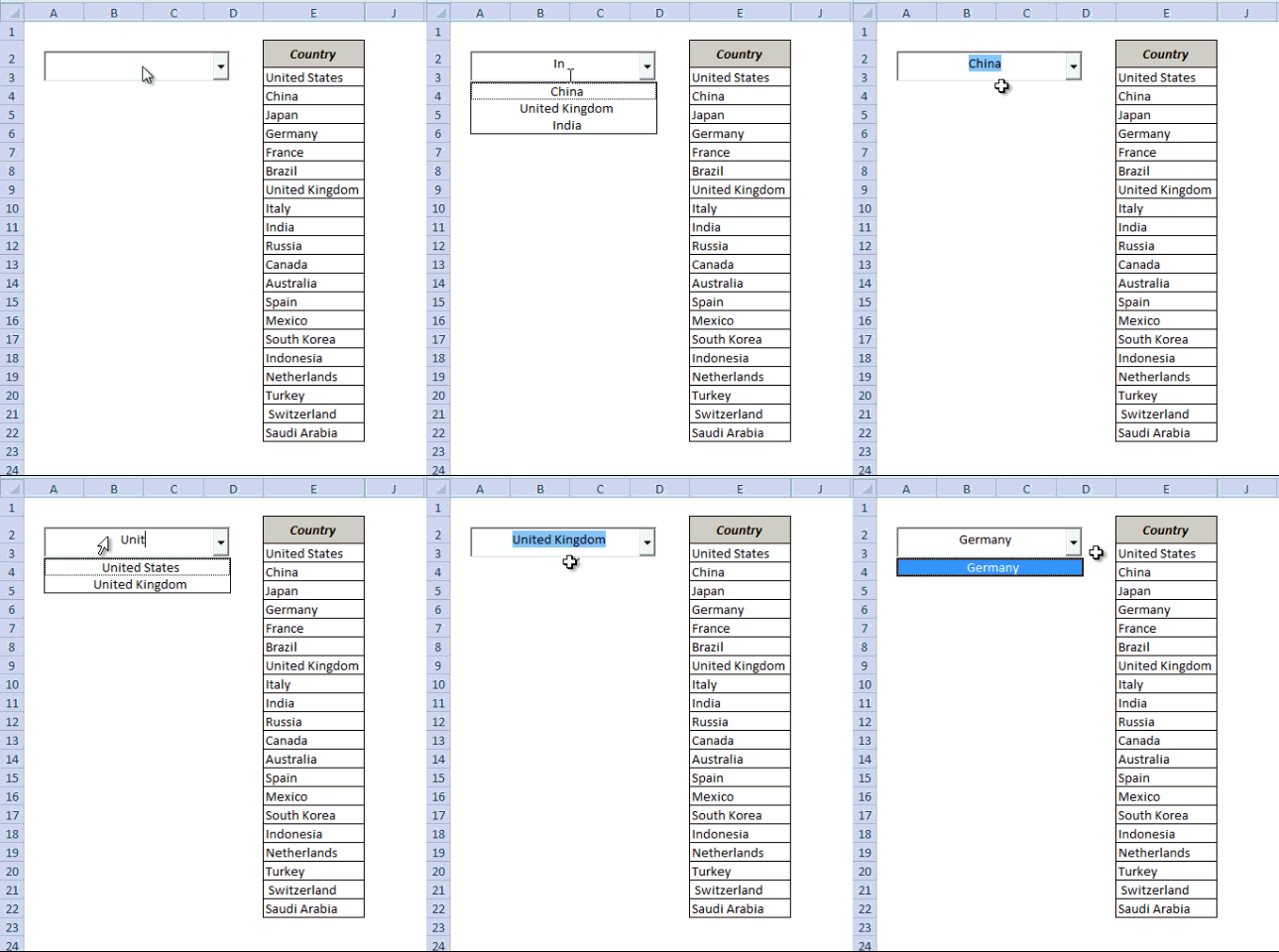
The intent is to create an excel drop down list with a search suggestion mechanism, such that it shows a drop down with the matching options as I type in the search bar.
Something as shown below:
To follow along, download the example file from here

Creating the searchable drop-down list in Excel would be a three-part process:
- Configuring the search box.
- Setting the Data.
- Writing a short VBA Code to make it work.
Step 1 – Configuring the Search Box
In this first step, I will use a combo-box and configure it so that when you type in it, the text is also reflected in a cell in real time.
Here are the steps to do this:
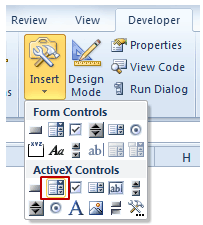
- Go to Developer Tab –> Insert –> ActiveX Controls –> Combo Box (ActiveX Control).
- There is a possibility you may not find the developer tab in the ribbon. By default, it is hidden and needs to be enabled. Click here to know how to get the developer tab in the ribbon in Excel.
- Move your cursor to the worksheet area and click anywhere. It will insert a combo box.
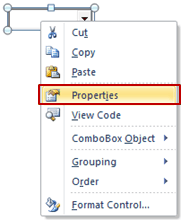
- Right-click on the Combo Box and select Properties.
- In the properties dialogue box, make the following changes:
- AutoWordSelect: False
- LinkedCell: B3
- ListFillRange: DropDownList (we will create a named range with this name in step 2)
- MatchEntry: 2 – fmMatchEntryNone
(Cell B3 is linked to the Combo Box, which means that anything you type in the Combo Box is entered in B3)

- Go to Developer tab and click on Design Mode. This will enable you to enter text in the Combo Box. Also, since cell B3 is linked to the combo box, any text that you enter in the combo box would also be reflected in B3 in real-time.
Step 2 – Setting the Data
Now that the search box is all set, we need to get the data in place. The idea is that as soon as you type anything in the search box, it shows only those items that have that text in it.
To do this, we will use
- Three helper columns.
- One dynamic named range.
Helper Column 1
Put the following formula in cell F3 and drag it for the entire column (F3:F22)
=--ISNUMBER(IFERROR(SEARCH($B$3,E3,1),""))
This formula returns 1 when the text in the Combo Box is there in the name of the country on the left. For example, if you type UNI, then only the values for United States and United Kingdom are 1 and all the remaining values are 0.
Helper Column 2
Put the following formula in Cell G3 and drag it for the entire column (G3:G22)
=IF(F3=1,COUNTIF($F$3:F3,1),"")
This formula returns 1 for the first occurrence where Combo Box text matches the country name, 2 for the second occurrence, 3 for the third and so on. For example, if you type UNI, G3 cell will display 1 as it matches United States, and G9 will display 2 as it matches United Kingdom. The rest of the cells will be blank.
Helper Column 3
Put the following formula in cell H3 and drag it for the entire column (H3:H22)
=IFERROR(INDEX($E$3:$E$22,MATCH(ROWS($G$3:G3),$G$3:$G$22,0)),"")
This formula stacks all the matching names together without any blank cells in between them. For example, if you type UNI, this column would show 2 and 9 together, and rest all cell would be blank.
Creating the Dynamic Named Range
Now that the helper columns are in place, we need to create the dynamic named range. This named range will only refer to those values that match the text entered in the combo box. We will use this dynamic named range to show the values in the drop-down box.
Note: In step 1 we entered DropDownList in the ListFillRange option. Now we will create the named range with the same name.
Here are the steps to create it:
- Go to Formulas –> Name Manager.
- In the name-manager dialogue box click New. It will open a New Name dialogue box.
- In the Name Field enter DropDownList
- In the Refers to Field enter the formula: =$H$3:INDEX($H$3:$H$22,MAX($G$3:$G$22),1)
Step 3 – Putting the VBA Code to Work
We are almost there.
The final part is to write a short VBA code. This code makes the drop down dynamic such that it shows the matching items/names as you are typing in the search box.
To add this code to your workbook:
- Right-click on the Worksheet tab and select View Code.
- In the VBA window, Copy and Paste the following code:
Private Sub ComboBox1_Change()
ComboBox1.ListFillRange = "DropDownList"
Me.ComboBox1.DropDown
End Sub
That’s it!!
You are all set with your own Google type Search bar that shows matching items as you type in it.
For a better look and feel, you can cover cell B3 with the Combo Box and hide all the helper columns. You can now show off a little with this amazing Excel trick.
To follow along, download the file from here
What do you think? Would you be able to use this search suggestion drop-down list in your work? Let me know your thoughts by leaving a comment.
If you have enjoyed this tutorial, I am sure you would like the following Excel tutorials too:
- Dynamic Filter – Extract matching data while you type.
- Extract Data based on a Drop Down list selection.
- Creating Dependent Drop Down Lists in Excel.
- The Ultimate Guide to Using Excel VLOOKUP Function.
- How to make multiple selections in a drop-down list in Excel.
- How to Insert and Use a Checkbox in Excel.

I created the active x combobox and the corresponding data columns and the dropdown with type suggestion works perfectly. My issue that I continue to run into is that when I select another cell or enter data into another cell, I am prompted to select an option from the dropdown. I have already made this selection, but everytime I do anything in this worksheet or any other worksheet in this workbook, I am prompted to select an option from the dropdown. How can I resolve this so that I am only prompted to select an option from the dropdown when I am actively using the combobox?
Thank you.
I’m having the same problem
You made my day, awesome.
Things like this make excel interesting
https://youtu.be/_LOiY2Nsuig
Right here, 2 ways to create drop down list in excel
Hello – I followed the steps and I get the search drop down to appear in the Combo Box when I start typing. However, when I try to add another search drop down, i change the Combo Box to 2, and change VBA code to ComboBox2, it is not working? how to make second search drop down box?
Hi, Anyone know how to add another drop list with suggestion in the same excel sheet with same raw data? I am able to add one search box, but how to add another one,and more? Please help
I need the same information. Hopefully, someone will respond.
Thank you for showing this. I have been searching everywhere for a drop down predictive text list for some time now. Will this work if the list is located in another worksheet?
I want to navigate in the suggestions but when I press DownKey it automatically selects the first match, without letting me keep on navigating to my target value (which is actually not the first one…). Any ideas of how can I solve this problem? For ex: I have 3 value xxxFAHxxx xxFAHxxxx and xFAHxxxxx, when I type FAH it will sort it alphabetically, but I want to navigate with up/down keys it will select the first one, taking out the possibility of scroll down to 3rd one (target). Thank you very much!!
Hi, I have to lists that I need the combo box to work for, can it be done?
Thank you for this wonderful trick. It is working exactly as I expected, however I have a question regarding an issue I am seeing when I add and remove worksheets. It seems when I remove a worksheet the combobox will display on other worksheets and even workbooks when I have more than one open. Any suggestions on how I can limit the combobox to only display on the worksheet it was created on? https://uploads.disquscdn.com/images/06cd4d5e75f8c6bcd460916da9bfd89b38b1f77e2a2be7ba6bf64c98508d834d.png https://uploads.disquscdn.com/images/20f0fd400fbee5a58613a5935ad29551222cb5835567fcb52e938ef7ed729ced.png
HI, I see that this topic is quit old, but I just discovered this as I had a need for exactly this option.
Ive tried creating a new workbook from scratch and I’ve tried downloading the example and then inserting by data in it.
In my workbook I have separate worksheets for say banks, nursing homes, and funeral homes.
There are 100-200 of each of these. IN each worksheet I wanted to use this option, BUT I can not get the vba portion of it to work.
I setup every thing and it looks fine. when I type in the combo box I can see it narrowing the search in column H
BUt in the combo box I do not get the interactive list and the option to select the sorted names it just keeps showing the entire list.
Any suggetsions?
Not work properly with similar values with numbers.
If the list is “value 1, value 2, value 3, …, value 100”, selecting from a list of “Value 2”, insert the “Value 20”.
Instead of “Value 3” – “Value 31”, etc.
How to fix?
Is It possible to have multiple drop down boxes? or have the dropdown box move down one once a name have been entered? Thank you
Hi,
Is there a way of doing this in a normal cell and not a floating one?
I want to add the result into a vlookup formula for which i need to refer to rows and columns.
Thank you,
Ben
My drop down list works pretty well but for some reason from time to time it acts kind of funky.
Image 1 shows what the ddl looks like before using it.
Image 2 shows what it looks like when i type in ten and hover my mouse over the 2nd item (1015)
Image 3 shows what it looks like when i CLICK on the 1015
— notice that it put i1015 in the ddl but 1015 (that’s correct) in the bound cell to the right
Image 4 shows the data
— (column a is the data for the ddl)
— (columns b,c,d are done to the instruction set shown at the top of this web page)
— notice it picked out the two values that have 1015 in them
— there is an i1015 about 70 rows down that is not shown n image 4
Image 5 shows what the ddl looks like …
…when i click ONLY the down arrow on the ddl
…and am careful to NOT hover over anything BUT the down arrow
— i1015 is selected
=====>> Why does it select the 2nd item from image 4?
it does not behave like this for any other selection.
See images 21,22,23,24 – it does not do that for other items.
Just type in ten then use mouse to select the item you want
1010 has 1010 and i1010 – works fine – click 1030, shows 1030 in DDL and bound col
1030 has 1030 and i1030 – works fine – click 1030, shows 1030 in DDL and bound col
1015 has 1015 and i1015 – problem – click 1015, shows i1015 in DDL and 1015 in bound col
(NewVersion of comment due to incorrect images uploaded.)
Thanks for writing this article – it was very helpful and I have performed the instructions you outline above and everything works fantastic!
During my testing I ran into a snag.
While testing it, I noticed that if I type in ONLY 1 CHARACTER and that character happens to be the first character of the first item in my list of data…. it populates my DDL with the entire first value in the data list and then only shows me other data values that match that. [see images 1 and 2]
///////
For example my first 5 values are: 1010, 1015, 1020, 1030, 1040 [see image 3]
(and there are 80 more values [for future reference… the value in cell 80 is i1010 …] ) [see image 4]
There are more values that begin with the number 1 [see image 3] but I’m just listing the first 5
See the attached images…
– When I type in a 1 into the DDL [see image 2]
— it immediately puts in the DDL 1010 with the 010 being highlighted in blue [see image 2] and
— it drops down the DDL and shows me 1010 and i1010 [see image 2 again]
— BUT as you can see from the actual data list [see images 3 and 4] there are other data values that have a 1 in them
— What I don’t want is for the DDL to be populated with the entire item it found (thus limiting the search results to what EXCEL decided put into the DDL) [image 2 is what I don’t want it to do]
— I was searching for 1 …
— but my DDL list has been filtered to all items that have 1010 in them [see image 2]
I would like the DDL field to remain empty except for what I typed into it. All I typed in was a 1 so that should be the entire search term.
Thanks for any help you can provide.
H
(NewVersion of comment due to incorrect images uploaded.)
Just figured it out:
—–Step 4: In the properties dialogue box, make the following changes:
—–4th bullet – MatchEntry: 2 – fmMatchEntryNone
Somehow missed that step.
The search function is just what i needed, what I would like to do is create a list from my searches, say in cell J1 – j15, eg, populate a list of countries selected – Japan, Brazil and so on, really hope you can help, many thanks
I would recommend the following case study about Excel Drop-Down List :
– Creating A Combobox Containing Only Unique Distinct Alphabetically Sorted Values –
Sometimes unique values need to fill the combobox and need to sort alphabetic..In this way, the processes may be easier.The cells in Column A were selected to fill combobox in this example :
For x = 2 To Cells(Rows.Count, 1).End(xlUp).Row – “1” in the code indicates Column A.
Also,data is filtered with combobox and copied to the other pages in our study.
Details and for example file :https://merkez-ihayat.blogspot.com.tr/2016/07/creating-combobox-containing-only.html
Hi Sumit, How do I get multiple suggestions to populate? so far it is only giving me 1 at a time as I type?
First off, great website. It’s very well put together and very informative.
Is there a way to speed up the queries for a large column of items? I’m setting up something that uses a 45,000 row list of items and I’ve noticed that I have to wait five or seconds for each keystroke that I enter in the ComboBox.
Thank you sir for this Idea, but I need to fill column depend on specific list with suggestions way, how we can do that please, can anyone help me
Hi, Made the drop down list but how can repeat same thing in every below rows
The drop down list is not working when combo boxes are on a user form. Is it possible to create the same drop down list in a user form?
Hi Sumit. Thanks for this great tool! I have followed your instructions and was able to create a tool with 20 different dropdown lists and comboboxes. For the VBA code, I used the one you mentioned in one of your comments:
Private Sub ComboBox1_GotFocus()
ComboBox1.ListFillRange = “=DropDownList”
Me.ComboBox1.DropDown
End Sub
However, sometimes, when I click on a combo and start writing the name of the country, the size of the box starts getting bigger and bigger the more I come back on it and click on it, or the size of the font starts getting smaller and smaller the more I come back to the same box to change what I have written. Would you have an idea why this is, and how to solve it? Is there something to add in the VBA code maybe, in order to lock the size of the box and the size of font? Thanks in advance! 🙂
I have done all of the above and also the changed to the comboBox code in the thread below and they are all working great. However when I combine these with an Advanced Search filter Via a macro it doesn’t work. any ideas?
Hi Sumit, with great thanks for your thoroughly explanation on this matter. With your help I managed it. But I do need more than one (appr. 70) of these dropdownlists with the same reference information. You cannot copy the dropdownbox and just replace the reference cell, right? Any suggestions for me?
thanks for this can we copy multible drop list to different cell with out showing the same name twice.
Hello Mohamed.. Have a look at this tutorial:http://trumpexcel.com/2014/07/multiple-drop-down-lists-in-excel/
It shows how to have multiple drop downs without repetition.
I have an array of strings I’m using to populate a combo box in a UserForm. It auto-fills your entry if you start typing from the beginning, but I want users to be able to search using any part of each string.
I can envision a sloppy way of checking each entry manually, but I know there’s a better way. The stuff I found on Google isn’t helping – some of the suggestions use functions that aren’t even listed in my object browser =/
Thanks for any help and for this awesome sub in general.
Hi Sumit, can i create multiple combo box in one worksheet? i mean, same combo box in different cells in one worksheet
Hello Juls.. I would suggest against it. To creating multiple such combo box, you’ll have to manually create and link each one of it. I would rather suggest you use drop downs
is it possible to create multiple combo box?
Hi Sumit,
Thanks for the detailed tutorial it is really helpful. Few issues while working on the drop boxes
I have created two drop boxes “ComboBox21”, “ComboBox22” and used the above macro twice
Private Sub ComboBox21_Change()
ComboBox21.ListFillRange = “DropDownList”
Me.ComboBox21.DropDown
End Sub
Private Sub ComboBox22_Change()
ComboBox22.ListFillRange = “DropDownList1”
Me.ComboBox22.DropDown
End Sub
Now the problem is if I select value on one of the search drop down box it doesnt show dropdown suggestions while entering the values in second drop box. and open up the filter of the first drop box.
Appreciate if you can provide a solution around that.
If required I can send my file for your review
Dear Sumit Bansal,
This tutorial worked fine for me.
I have one question only.
Is it also possible to make a restricted list of this?
For example the list to choose from is:
Netherlands
Belgium
Germany
What i want is when i fill in ”England” a popup screen says: This is not a chooseable country.
You know what i mean?
Waiting for an solution.
Thanks in advance.
But Cannot Select the text from list by up/down arrows.is it possible?
I am using excel 2010 btw. I can see a few other users have this same problem, was there any fix in the end?
Here is a screen shot of the combo box box reappearing as I enter data into another cell
Hi Sumait, love the functionality however I am having an issue where the drop down box reappears as the rest of my form is being filled out. Do you know why this is occurring?
Superb, was searching for long time. Can you just let me know how to add said search box in each line of excel? Eg I have Item list and people will make data entry. So row 1, row 2 row 3 and daily it will happen for thousand of row. how to replicate this Dropdown list continuosly on each row..? My email id is pragneshchoksy@gmail.com
Hi Sumait.. This is awesome.. But i would very much like to know how to do this in VBA so that i could use a userform to search.. I am trying to make a customer list (only their names no additional details required) a very simple one. Here is a dropbox link to a sample file i found on the internet. https://www.dropbox.com/s/945u0rks0yuccdz/DynamiskSearchDropDownList.xlsm?dl=0&preview=DynamiskSearchDropDownList.xlsm
I would like to edit it so that it only sorts customer names while type and adds it to list if the name doesn’t exist. Hope you can help me with this. Thank you 😀
Hi Sumit, this is very smart! Thanks a lot 🙂
Thanks Rick. Glad you liked it 🙂
hai sumith thanks for this article but my question is i want add names dynamically means first i have 10 persons name after i want add more 10 new person names and i want matins combo-box in one sheet and persons name in another sheet please help me
Hi thanks for the nice trick, however the search look for the alphabet in the whole word hence can it be modified to show the drop down only if the alphabet matched in series
Hi is there a way to have dynamic cascaded drop down created from the data table . The drop down should not include the duplicates and blanks. Its like we have table with data and we wanted to create a front end with drop down . when the item is selected from dropdown we get the aggregated number for the selected list
Hey. Great work. superb. It works. what I want more in this is. I am working on recipe costing where I have to select different ingredients to make one recipe. The dropdownlist contains all the ingredients, but how I will select separate items. eg. say X recipe has 4-5 ingredients then how do I select in each line ? pls solve this. It will save my lots of time. Thanks….
Hi Eka and @sumitbansal23:disqus
You may perform the following tutorial to achieve Filter as You Type to shortlist your Equipment Lists.
Link for tutorial is : Filter as You Type ( See Image Below )
http://chandoo.org/wp/2015/08/22/filter-as-you-type-excel/
Hope I have answered your Query !!
Regards
Pratik Parmar
Hello Pratik.. Thanks for sharing. The tutorial in this post shows how to show the items in the same drop where you are typing. The one you have shared filters the data in a separate range. Here is a non-vba way to do this kind of filtering – http://trumpexcel.com/2015/01/dynamic-excel-filter/
Thank you Sumit, for such a good example. It helps a lot when we’re short of time. Such are very useful for my ECommerce Calculations.
thanks superb bro
For people that want a dropdown menu they can navigate with their keyboard keys use this. Btw reallly good explanation author love you. Also you can link your combobox to somewhere else too with this code. It also fixes the crashes that you get using the keyboard keys.
Private sub Private Sub Combobox1_got focus()
ActiveSheet.Combobox1.ListFillRange = “DropDownList”
End Sub
‘—–
Private Sub Combobox1_change()
Dim lLoc2 As Long
lLoc2 = URUNLER.ListIndex
‘check for a valid entry
If Not lLoc2 = -1 Then Exit Sub
Range(“b3”).Value = ActiveSheet.Combobox1.Value
lLoc = ActiveSheet.Combobox1.ListIndex
‘check for a valid entry
If lLoc = -1 And ActiveSheet.Combobox1.Value Empty Then
ActiveSheet.Combobox1.ListFillRange = “DropDownList”
End If
Me.Combobox1.DropDown
End Sub
thank you very much !
Great, I have been looking for this for some time and I am really gratefull.
Dear Sumit, great tool but I cannot get the search function working. It displays the whole data range but typing in letters does not lead to anything 🙁 [using xlsm]
G’day Sumit
Firstly this is brilliant; it may be the most useful excel trick I’ve seen on the net.
I am having some trouble with it though. I’m not sure why, but when I do anything elsewhere in my spreadsheet (click a button, check a check box or just type in an empty cell and hit enter) the search suggestions drop down of their own accord.
I’m not sure what’s triggering it, although I am quite a novice at excel so I’ve probably just made some tiny foolish mistake along the way but I can’t seem to work it out.
Do you have any idea what I could have done wrong?
Regards
MattRNR
This how can using with ‘Data Validation’ drop down list
really that’s great working !!! thanks buddy. still we need to select from drop down list by clicking the mouse. can you please suggest like, just type some name and then come down by down or alt+down errow.