

The HARMEAN function in Excel calculates the harmonic mean of a set of positive numbers. It is useful for finding an overall rate when each rate covers the same amount of work, such as printing the same number of pages at different speeds.
A regular average can give the wrong overall speed because slower jobs take longer. The harmonic mean accounts for that difference and returns one result from the whole range.
In this tutorial, I’ll show you how to use the HARMEAN function with printing speeds, purchase prices, missing readings, and a condition that selects which values to include.
Follow along with the example file
HARMEAN Function Examples.xlsx
HARMEAN Function Syntax
Here is the syntax of the HARMEAN function:
=HARMEAN(number1, [number2], ...)
- number1: The first number, cell reference, or range to include. This argument is required.
- number2, …: Additional numbers, cell references, or ranges to include. These arguments are optional.
You can supply up to 255 arguments, but that does not limit you to 255 cells. A single range argument can contain more than 255 values.
If you enter numbers stored as text or logical values directly as arguments, Excel includes them in the calculation. In a referenced range, it ignores text and logical values instead, which we’ll look at in Example 3.
The HARMEAN function works in Excel for Microsoft 365, Excel 2024, 2021, 2019, and 2016, including the supported Mac versions.
When to Use the HARMEAN Function
Use this function when you need to:
- Calculate an overall speed across equal distances or equal amounts of work.
- Find the average price paid per unit when you spend the same amount on each purchase.
- Calculate a harmonic mean for one group by combining it with the FILTER function.
The condition matters. Equal distances call for a harmonic mean of speeds, while equal amounts of time call for an arithmetic mean.
Example 1: Calculate the Harmonic Mean of Printing Speeds
Below is a list of six print jobs, each containing 120 pages, and I want to calculate the overall printing speed in cell B9.
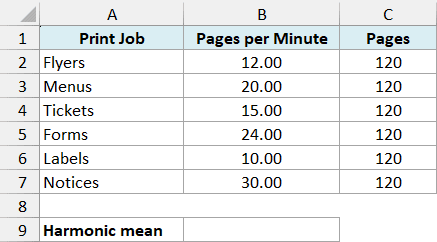
Enter the following formula in cell B9 and press Enter:
=HARMEAN(B2:B7)
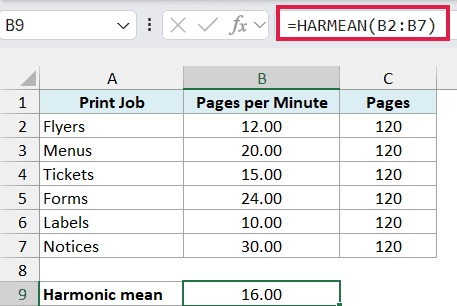
The result is 16.00 pages per minute. The HARMEAN function uses the six printing speeds in B2:B7 and returns their harmonic mean.
Here’s why this gives the overall speed: the six jobs contain 720 pages altogether, and they take 45 minutes to print. Dividing 720 pages by 45 minutes gives 16 pages per minute.
The slower jobs take more time, so they have a bigger effect on the overall rate. Using the AVERAGE function on these speeds would give 18.5 pages per minute, which overstates how quickly the full set of jobs finishes.
Important: This result represents the overall speed because every job has the same page count. If the page counts differ, calculate total pages divided by total printing time instead.
This example counts printing time only. Any setup or waiting time would also need to be included when calculating the overall speed of the entire process.
All numbers included in a HARMEAN calculation must be greater than zero. A zero or negative number produces a #NUM! error, so check the source values if you see that error.
Example 2: Find the Average Price Paid per Pound
Below are six rice purchases where the amount spent is $12 each time, and I want to calculate the average price paid per pound in cell B9.
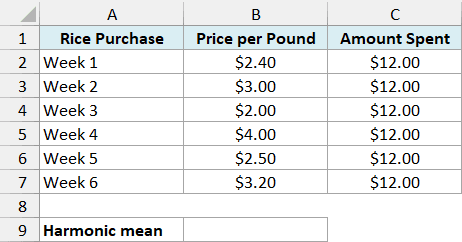
Enter the following formula in cell B9 and press Enter:
=HARMEAN(B2:B7)
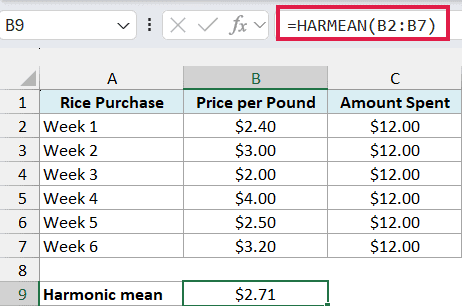
The result is $2.71 per pound, rounded to two decimal places. The HARMEAN function uses the six prices in B2:B7.
Each purchase costs the same $12, but the quantity of rice changes with the price. At $2 per pound, you buy 6 pounds; at $4 per pound, you buy only 3 pounds.
Across all six purchases, you spend $72 and buy about 26.55 pounds. Dividing the total spending by the total pounds gives approximately $2.71 per pound, matching the harmonic mean.
Important: Use this approach when the amount spent is equal for every purchase. If you spend different amounts, calculate total spending divided by total quantity purchased.
If you bought the same number of pounds each time instead, an arithmetic average of the prices would give the average price paid. Here, that average is $2.85, but it doesn’t reflect the larger quantities bought at lower prices.
Example 3: Understand Blank Cells and Text in HARMEAN
Below are six equal-distance bike segments with two missing speed readings, and I want to calculate the average speed for the recorded segments in cell B9.
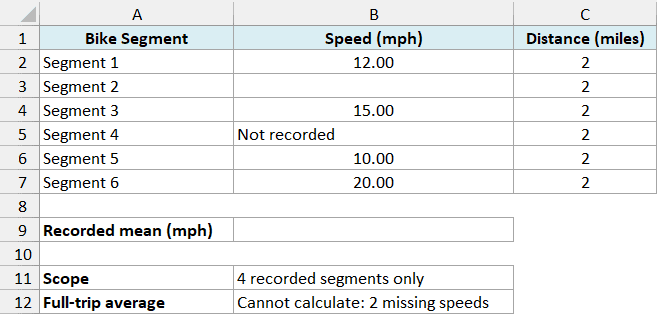
Enter the following formula in cell B9 and press Enter:
=HARMEAN(B2:B7)
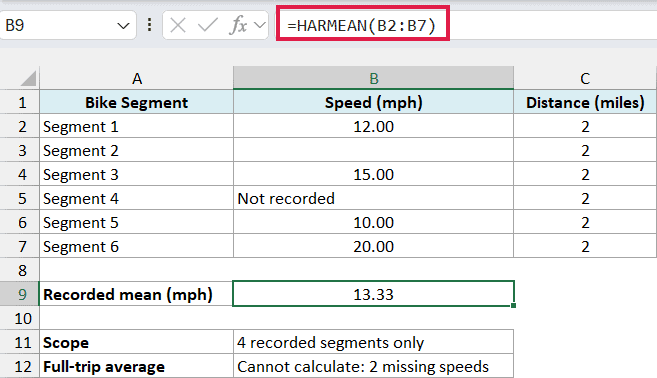
The result is 13.33 mph. The HARMEAN function ignores the blank cell B3 and the text entry in B5, so it calculates the harmonic mean of the four recorded speeds: 12, 15, 10, and 20 mph.
Important: This is the average speed for the four recorded segments, not the full trip. The two missing readings mean there isn’t enough information to calculate the average speed for all six segments.
Replacing a missing reading with zero would not solve the problem. Zero is a number, so the HARMEAN function would include it and return #NUM! instead of ignoring it.
Numbers stored as text are also skipped when they are in the referenced range. If an imported speed is being left out, convert the text to a number so it participates in the calculation.
Logical values such as TRUE and FALSE in referenced cells are ignored too. Actual error values, such as #N/A, are not ignored and cause the formula to return an error, so fix the underlying error before calculating the mean.
Example 4: Calculate a Harmonic Mean with a Condition
Below are swimming speeds for eight 25-meter pool lengths, and I want to calculate the overall speed for the stroke selected in cell B11, with the result in cell B13.
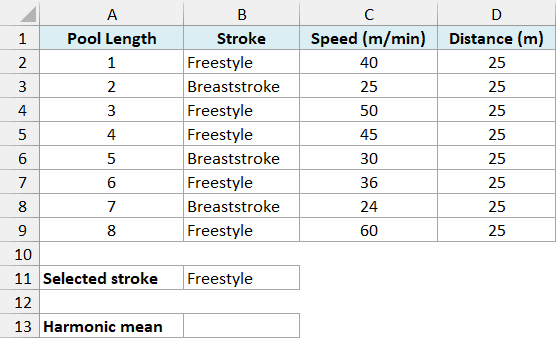
Cell B11 contains Freestyle. To include only those lengths, enter the following formula in cell B13 and press Enter:
=HARMEAN(FILTER(C2:C9,B2:B9=B11))
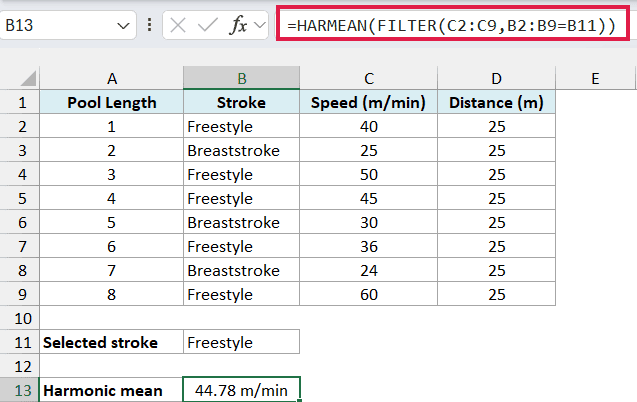
The result is 44.78 meters per minute, displayed as 44.78 m/min in the workbook.
The FILTER function checks the strokes in B2:B9 against the selection in B11. It passes the five matching speeds from C2:C9 to the HARMEAN function: 40, 50, 45, 36, and 60.
The HARMEAN function then returns one harmonic mean from those speeds. Although the FILTER function supplies an array of values, the final formula returns a single result in B13.
All the selected lengths cover the same 25-meter distance, so the harmonic mean gives their overall speed. Change B11 to Breaststroke to calculate the result for that stroke instead.
This example requires a version with the FILTER function, such as Excel for Microsoft 365, Excel 2024, or Excel 2021. In an older version, copy the speeds for the required stroke into a separate range and use the HARMEAN function on that range.
If B11 doesn’t match any stroke, the FILTER function returns #CALC! because there are no matching values. Check the spelling in B11 and choose a stroke that exists in the data.
In this tutorial, I showed you how to calculate a harmonic mean, handle missing readings, and include only the values you need. I hope you found this article helpful.
Other Excel Articles You May Also Like:
