

The NUMBERVALUE function in Excel converts text to a number, and it lets you tell Excel which character is the decimal point and which one separates the thousands.
That matters when your data comes from another country. A price like “1.249,00” uses a period for thousands and a comma for decimals, which is the opposite of the US style.
The VALUE function reads text using your computer’s regional settings, so it either fails on it or quietly reads it wrong.
In this article, I’ll show you how NUMBERVALUE works with eight examples, including European prices, percentages, trailing minus signs, and numbers with units.
Follow along with the example file
NUMBERVALUE Function Examples.xlsx
NUMBERVALUE Function Syntax
Here is the syntax of the NUMBERVALUE function:
=NUMBERVALUE(text, [decimal_separator], [group_separator])
- text – The text you want to convert to a number. This can be a cell reference, a range, or text typed in double quotes.
- decimal_separator – (Optional) The character used as the decimal point in the text, such as “,” in “49,90”.
- group_separator – (Optional) The character that separates groups of digits, such as the thousands. In “1.249,00”, that’s “.”.
If you leave out the two separators, Excel uses the ones from your computer’s regional settings. That means the same formula can give a different result on a colleague’s computer, so it’s safer to always give both.
Spaces in the text are ignored, so “3 000” becomes 3000. That’s useful for numbers that use a space between the thousands, although Example 5 shows one catch with this.
An empty cell returns 0 rather than an error, so any blank rows in your data come back as 0.
If the decimal separator shows up more than once, or a group separator appears after the decimal separator, you get a #VALUE! error.
So “1.234.567” works as 1234567 with “.” as the group separator, but it fails if you tell Excel the period is the decimal.
The NUMBERVALUE function works in Excel 2013 and later on Windows, including Microsoft 365, Excel 2024, 2021, 2019, and 2016. On a Mac, it works in Microsoft 365, Excel 2024, and Excel 2021.
When to Use the NUMBERVALUE Function
Use this function when you need to:
- Convert European-style numbers like “1.249,00” into real numbers
- Get numbers right when VALUE returns an error or a wrong result
- Read text that uses spaces or Indian-style commas between the digits
- Turn percentages stored as text, like “87,5%”, into real percentages
- Make a formula give the same result on any computer, whatever its regional settings
Let me show you a few practical examples of how to use the NUMBERVALUE function.
Example 1: Convert European Number Format With NUMBERVALUE
Let’s start with a simple example.
Below is a price list from a bike supplier in Germany, where the prices use a comma for decimals and a period for thousands, and I want to convert them into real numbers in column C.
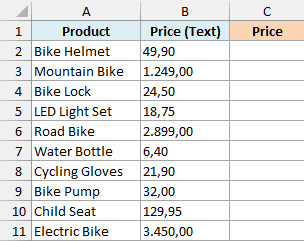
Here is the formula:
=NUMBERVALUE(B2:B11,",",".")
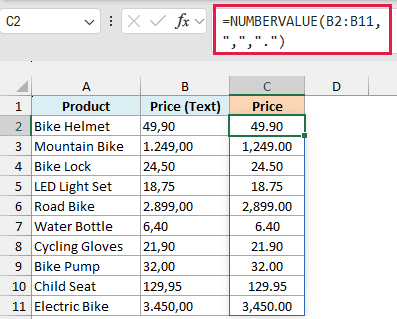
The second argument tells Excel that the comma is the decimal point, and the third says the period separates the thousands. So “1.249,00” becomes 1249, and “49,90” becomes 49.9.
Since I’ve given the whole range B2:B11, the formula converts all ten prices at once and the results spill into C2:C11. Column C also has a number format with two decimals, which is why you see 1,249.00.
Spilling a formula across a range works in Excel 365 and Excel 2021 or later, and it needs the cells below C2 to be empty (otherwise you get a #SPILL! error). This applies to every spilling formula in this article.
If you are using Excel 2019 or earlier, enter the below formula in cell C2 and then copy it down to C11:
=NUMBERVALUE(B2,",",".")
Example 2: NUMBERVALUE vs VALUE (When VALUE Gets It Wrong)
Here’s a case that shows why NUMBERVALUE is worth knowing, even if VALUE seems to work.
Below is a list of daily step counts exported from a fitness app set to German, where a period separates the thousands, and I want to convert them into real numbers in column C.
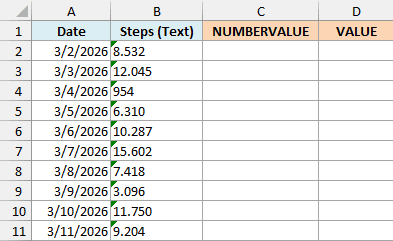
Here is the formula:
=NUMBERVALUE(B2:B11,",",".")
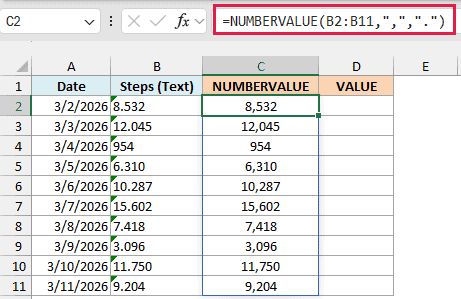
Even though none of these counts has a decimal part, I still told NUMBERVALUE that the comma is the decimal and the period is the group separator. That’s what makes “8.532” come out as 8,532 steps.
Now let’s see what the VALUE function does with the same data:
=VALUE(B2:B11)
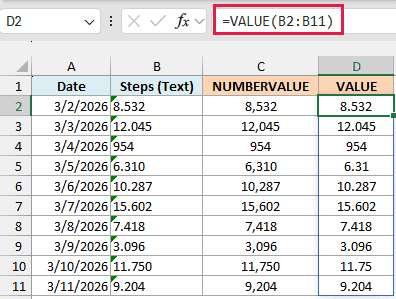
Since VALUE goes by your computer’s regional settings, a computer that uses a period as the decimal point (like most US setups) reads “8.532” as 8.532 steps, and “12.045” as 12.045.
Only 954 comes out right, because it has no period. And since there’s no error to warn you, you could add these up and never notice that the total is way off.
Example 3: Convert Indian Number Format (Lakhs and Crores)
The group separator doesn’t have to come every three digits.
Below is a list of property prices copied from an Indian real estate website, where the commas follow the Indian system (like 1,25,50,000), and I want to convert them into real numbers in column C.
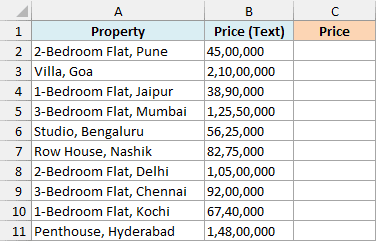
Here is the formula:
=NUMBERVALUE(B2:B11,".",",")
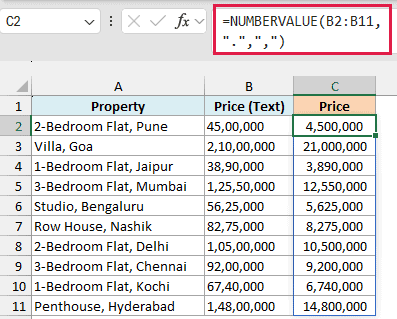
Here, the period is the decimal and the comma is the group separator, which is the US style. NUMBERVALUE ignores group separators wherever they sit before the decimal, so “1,25,50,000” becomes 12550000.
On a computer with US regional settings, VALUE returns a #VALUE! error for these prices, because the commas aren’t where it expects them.
Example 4: Convert Percentage Text to Numbers
NUMBERVALUE also understands the percent sign.
Below are exam scores exported from an online quiz tool set to French, where the scores came in as text like “87,5%”, and I want to convert them into real percentages in column C.
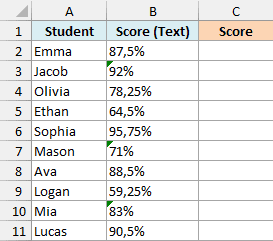
Here is the formula:
=NUMBERVALUE(B2:B11,",",".")
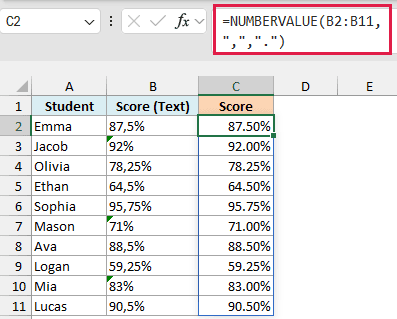
When the text ends with a percent sign, NUMBERVALUE divides the number by 100. So “87,5%” becomes 0.875, which shows as 87.50% because column C has a percentage format.
Important: Since NUMBERVALUE has already applied the percent sign, don’t divide the result by 100 again. If you do, 87.5% turns into 0.875%.
Example 5: Convert Numbers With Spaces as Thousands Separators
Now let’s look at something more interesting.
Below is a list of monthly apartment rents copied from a French rental website, where a space separates the thousands (like “1 250,00”), and I want to convert them into real numbers in column C.
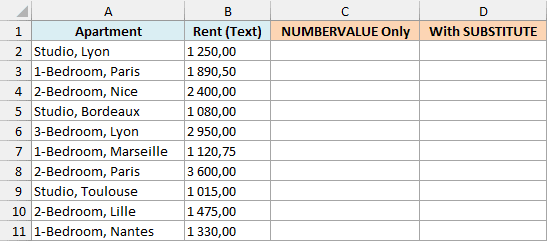
NUMBERVALUE normally ignores spaces, so you’d expect this to work:
=NUMBERVALUE(B2:B11,","," ")
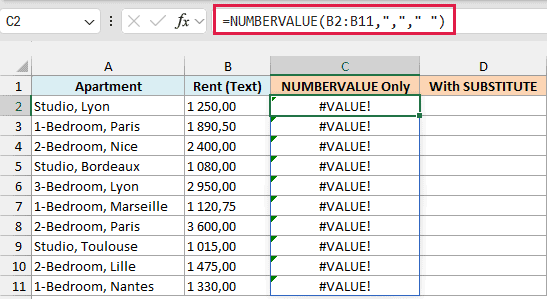
Instead, every row returns #VALUE!, because the website used a non-breaking space (CHAR(160)) between the digits, not a regular space.
A non-breaking space looks exactly like a regular one, but NUMBERVALUE doesn’t treat it as a space, so it can’t skip over it.
Pro Tip: To check which space you have, use =CODE(MID(B2,2,1)). It picks out the second character of B2 and returns 160 for a non-breaking space, while a regular space returns 32.
Here is the formula that fixes it:
=NUMBERVALUE(SUBSTITUTE(B2:B11,CHAR(160)," "),","," ")
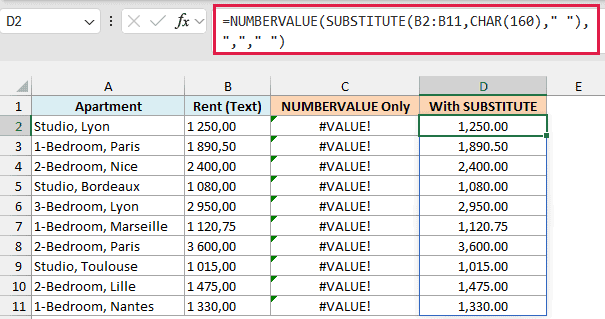
The SUBSTITUTE function first replaces every non-breaking space with a regular space. Then NUMBERVALUE reads the comma as the decimal and the space as the group separator, so “1 250,00” becomes 1250.
Some systems use a narrow no-break space instead, which has a different code. If you still get #VALUE!, replace CHAR(160) with UNICHAR(8239) in the formula.
Example 6: Get a Total From Text Amounts in One Formula
You don’t always need a column of converted numbers. Sometimes you just want the total.
Below is a list of expenses from a trip to Italy, with the amounts copied from a banking app as text in the European format, and I want the total amount spent in cell E1.
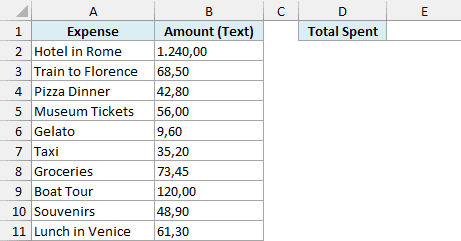
Here is the formula:
=SUM(NUMBERVALUE(B2:B11,",","."))
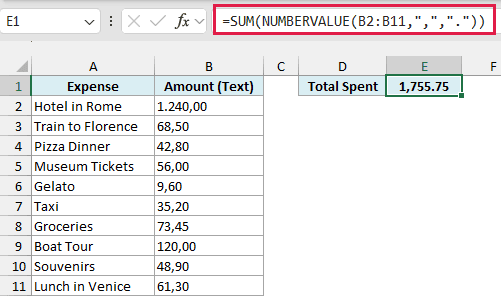
NUMBERVALUE converts all ten amounts into numbers inside the formula, and SUM adds them up. The result is 1,755.75, and you don’t need a helper column.
A plain SUM on column B would return 0, because SUM skips numbers stored as text.
In Excel 2019 or earlier, the SUM formula above returns just one amount instead of the total, unless you enter it with Control + Shift + Enter.
So in that case, enter the below SUMPRODUCT formula in cell E1 instead, which gives the total without any special keys:
=SUMPRODUCT(NUMBERVALUE(B2:B11,",","."))
Example 7: Convert Numbers With a Trailing Minus Sign
Let’s step it up with a more complex use case.
Below is a bank statement exported from an accounting system, where withdrawals have the minus sign at the end (like “1.150,00-“), and I want to convert the amounts into real numbers in column D.
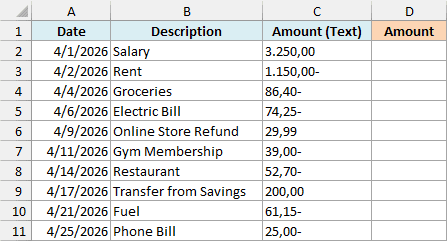
NUMBERVALUE can’t read a minus sign at the end of a number, so it returns #VALUE! for “1.150,00-“. The fix is to move the minus sign to the front before converting.
Here is the formula:
=NUMBERVALUE(IF(RIGHT(C2:C11)="-","-"&LEFT(C2:C11,LEN(C2:C11)-1),C2:C11),",",".")
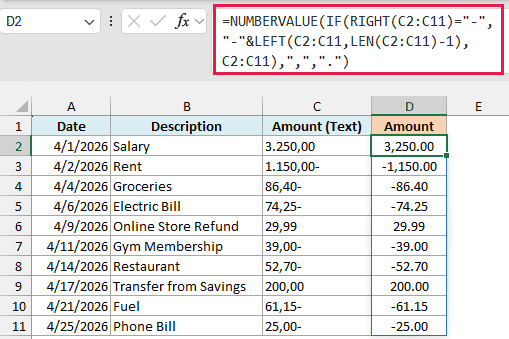
How this formula works:
- RIGHT(C2:C11)=”-“ checks whether each amount ends with a minus sign.
- “-“&LEFT(C2:C11,LEN(C2:C11)-1) drops the last character and puts a minus sign in front, so “1.150,00-” becomes “-1.150,00”.
- Amounts without a trailing minus, like “3.250,00”, pass through unchanged.
- NUMBERVALUE then converts the result using the comma as the decimal and the period as the group separator.
If your statement shows withdrawals in brackets instead, like “(1.150,00)”, you don’t need any of this. NUMBERVALUE reads that as -1150 on its own.
Example 8: Extract and Convert Numbers With Units
This last one combines NUMBERVALUE with a text function.
Below is a list of package weights from a European online store, where each weight has a comma decimal and “kg” at the end (like “2,4 kg”), and I want the weights as real numbers in column C.
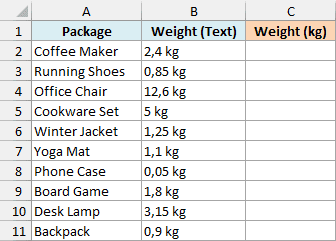
Here is the formula:
=NUMBERVALUE(TEXTBEFORE(B2:B11," "),",",".")
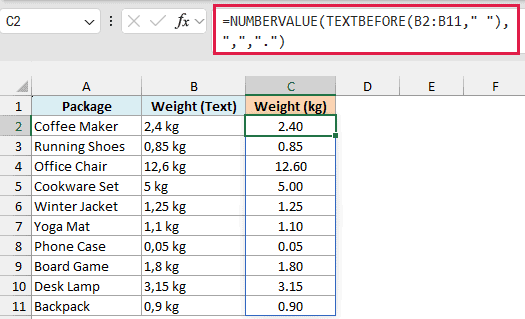
NUMBERVALUE returns #VALUE! if the text has letters in it, so you need to remove the unit before the function sees the text. TEXTBEFORE takes everything before the first space, so “2,4 kg” becomes “2,4”, and NUMBERVALUE turns that into 2.4.
Since TEXTBEFORE just looks for the space, the same formula also works for other units, like “250 g” or “1,5 L”.
TEXTBEFORE is only available in Excel 365 and Excel 2024. If you are using an older version, enter the below formula in cell C2 and then copy it down to C11:
=NUMBERVALUE(SUBSTITUTE(B2," kg",""),",",".")
So these are eight ways to use the NUMBERVALUE function in Excel.
Whenever your numbers come from another country, a website, or an export with a different number style, tell NUMBERVALUE which character is the decimal and which one groups the digits, and you’ll get the same right answer on any computer.
I hope you found this article helpful.
Other Excel Articles You May Also Like:
