

Since I have started this blog, the Excel timesheet calculator template has been one of the most requested templates.
I often get queries on how to calculate regular hours and overtime hours of employees based on the ‘In time’ and ‘Out time’.
I also couldn’t find a good Excel timesheet template online, so I decided to make one.
Click here to download the Excel Timesheet Calculator
This is a dynamic timesheet template in Excel where you can change the start date and the weekends. You can also specify hourly rates (regular/overtime).
There is a weekly, bi-weekly, and monthly timesheet template in the download file (each in a separate worksheet tab).
Also, when you print this timesheet template, it will fit perfectly on a single page.
Excel Timesheet Calculator Template
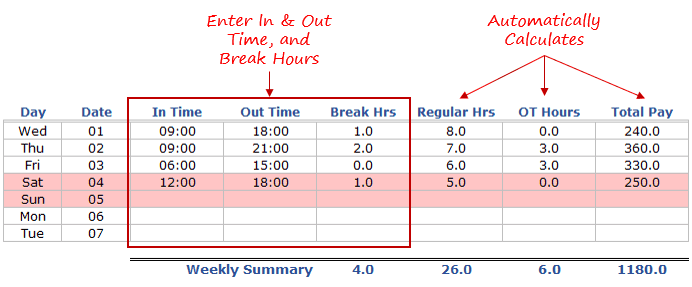
Here is a snapshot of the Weekly Excel Timesheet Template:
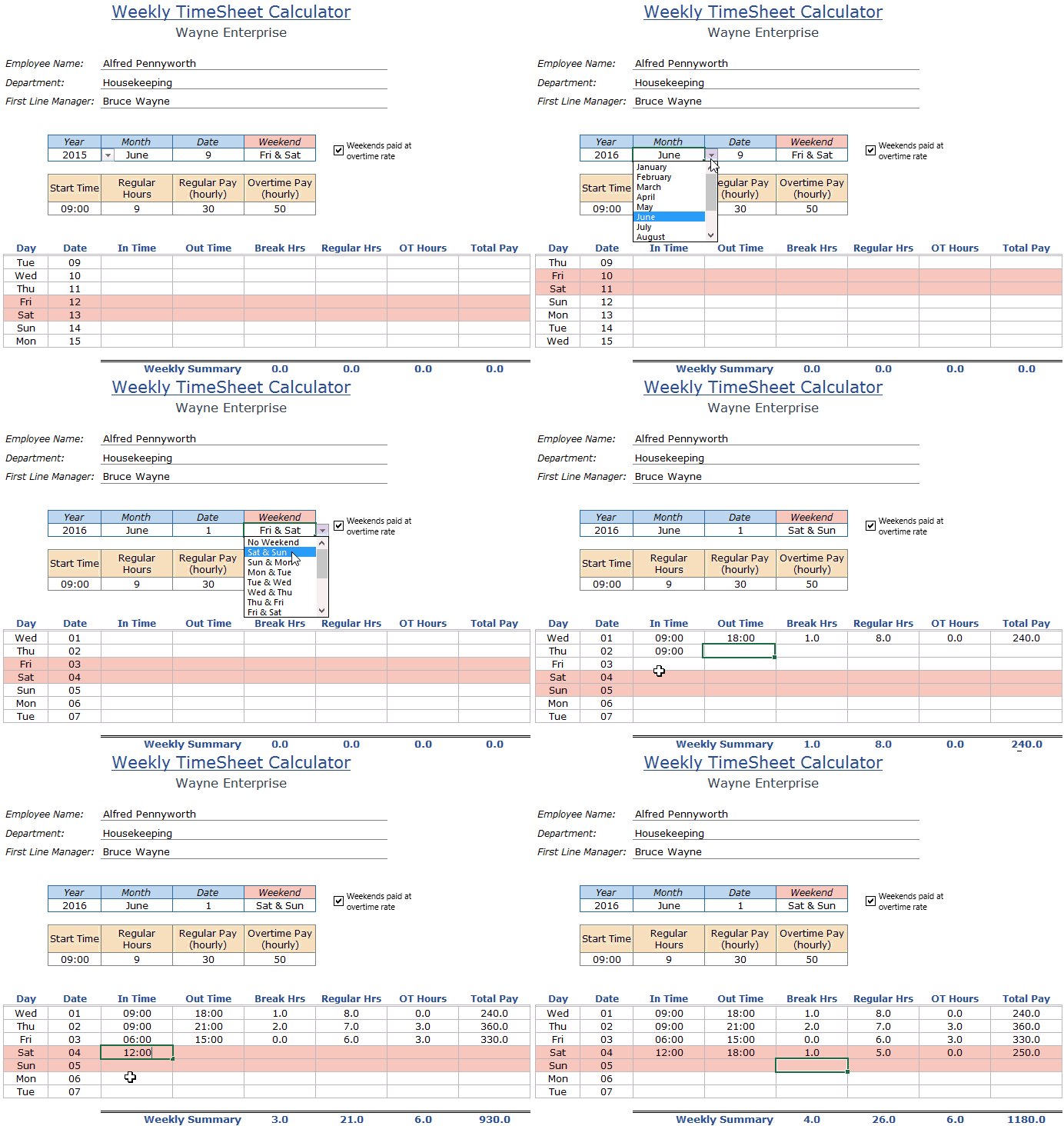
As soon as you enter the ‘In time’ and the ‘Out time’, the template automatically calculates the regular and overtime hours.
If there are any breaks (such as lunch breaks) that are not paid, you can also enter that. Based on it, it also calculates the total pay (considering there are hourly rates).
This Excel template is available in three formats – Weekly Timesheet, Bi-weekly Timesheet, and Monthly Timesheet (provided as different tabs in the download file).
How to Use this Excel Timesheet Calculator Template
Here are the steps to use this Excel Timesheet Template:
- Select the Week Start Date.
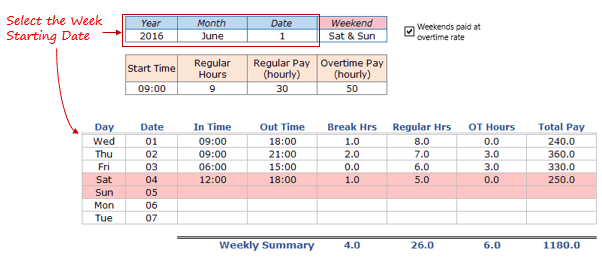
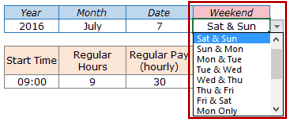
- Specify the weekend. You can select from various options in the drop-down. The options include – No Weekend, 1-day weekend (Mon, Tue…) or 2-days Weekend (Fri & Sat, Sat & Sun..). As soon as you select the weekend, those days get shaded in red on the timesheet.
- Specify the Start Time, # of Regular Hours, and Hourly Rate (Regular and Overtime). The start time should be in the hh:mm format (24-hour format). For example, 6 AM would be 06:00 and 6 PM would be 18:00.

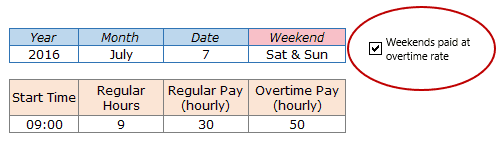
- If all the Weekend hours are to be treated as overtime, select the checkbox. If unchecked, weekend hours would also be split into regular and overtime hours.
- Enter the In and Out time for a date, and break hours (if any). This Excel timesheet has formulas that will automatically calculate the total number of Regular hours and Overtime (OT) hours.
- Note that break hours are deducted automatically from regular hours.
A couple of points to keep in mind while using this Excel Timesheet template:
- There is an inbuilt check to make sure ‘In time’ is not later than the ‘Out time’. The template would not let the user enter the time in such a case. [This has been made possible using the data validation rules].
- If the work shift of an employee or team member spans to the next day (for example, starts at 6 PM and ends at 6 AM the other day), then make sure Day 1 time is 18:00 to 24:00 and Day 2 time is 0:00 to 6:00.
- Do not change any formulas in the timesheet. Only make the entries in the ‘In time’ and ‘Out time’ columns. While deleting entries, delete it only from the ‘In time’, ‘Out Time’, and ‘Break Hours’ columns.
- I have changed the page margins to make it fit on a single sheet when printed.
What went into making this Excel Timesheet Calculator template
- Excel Formulas: A number of Excel functions such as DATE, MATCH, INT, IF, and IFERROR is used to calculate the values (such as the date from selection or regular/overtime hours) in this timesheet template.
- Excel Drop Down List: It is used to allow the user to select the month name.
- Check Box -it is used to allow the user to specify if the weekends are to be charged at the overtime rate or not.
- Named Ranges/: These are used to refer to the data in the back end (in the data tab).
- Conditional Formatting.: It is used to highlight the rows when a given date is a weekend.
Download the Excel Timesheet Calculator Template

If there is an Excel template you wish existed, let me know in the comments section.
Frequently Asked Questions (FAQs)
Since I get a lot of queries about using this timesheet template, I thought of creating this FAQ section to answer some of your queries. If you have got a question, you can ask me in the comment section, but I would request you to go through this section first.
Q: I only see the Weekly timesheet template. Where are the bimonthly and monthly templates?

Ans: All three timesheet templates I provided as separate tabs. You will find the other templates when you click on the tab for the template (tabs have been named accordingly).

Q: What if I want to track the timing of multiple employees using this timesheet template. How do I do it?

Ans: this template is made for one person per sheet. If you need to track multiple employees or team members, you need to create multiple sheets in that case.

Q: Can I have multiple sheets being recorded in the same template?

Ans: This template is made for one time-shift only - which you can specify by mentioning the start time and the number of regular hours.

Q: Can I print this timesheet template?

Ans: Yes, these timesheet templates have been made to fit a single page when printed. You can go to File and then clic on Print, or use the keyboard shortcut Control + P. This will open the Print preview page.

Q: In monthly timesheet template, when I select February 1 as the start date, why does it still show me dates from the next month?

Ans: The monthly timesheet is made to cover 31 days in total. So it will show you 31 days, starting from the date that you have specified.
You May Also find the following Excel Templates useful:
- Calendar Integrated with a To Do List
- Calculate Time in Excel (Time Difference, Hours Worked, Add/ Subtract)
- Excel To Do List (4 Templates).
- Holiday Calendar Template (US Only).
- Project Management – Employee Leave Tracker.
- Shared Expense Calculator.
- Vacation Itinerary and Packing List Template.
- Excel Calendar Template (Monthly & Yearly)
If you are looking for an online timesheet calculator, check this.

I don’t understand the function of the start time when they have a clock in and out time.
my employees have different start times every day. please help
The function of the Start time, as I see it, is that it helps determine if someone has done a No-No and entered an IN time from one day and an OUT time from the following day, as over-night shifts usually go, and that is because the over-night shifts cannot be recorded on these timesheets.
Cheers
thank you for sharing this useful sheet. but how can i introduce the (latency in) as COLUMN if a worker come late to work and i want to punish him by deducting one hour ?
Check if IN is greater than Start
hi
my job time start it 13:00 and out time is 01:30
then kese me is main entry karoun ??????
my e-mail
bakhtawarshezad812@gmail.com
can we calculate minus OT in this
This seems to be a pretty good template, and starting point. I am probably going to Modify it to have it split out into multiple projects. I am a Drafter so each project i work on has to be billed to, I can go from a single project in a week to twenty projects in a week that has to be billed to. So that is a project for myself, but if you were looking at a possible add to this template that would be useful to those that are in the same situation as I am.
ok, i give up. How do I change the company name at the top of the spreadsheet template, it just says [Company Name] and I can not figure out how to edit this.
go to cell b2
Hi Samit, My team regularly work 12+ hr days (06:00-16:00 Normal time…$25/hr…with 30min break, then the next 3hrs would be paid at 1.5 x normal rate…25 x 1.5 = $37.5…and any time after is paid a 2 x normal…25 x 2 = $50). Is there a way to have two different OT rates and therefore two different OT columns?
In answer to your question, yes, it can be done. I’m sorry I cannot provide you with the formulae needed, but you basically have the logic already worked out.
06:00 to 16:00 is only 10 hrs and you stated 12+ hr days, so
let’s say 06:00-20:00, or 14 hrs from IN to OUT.
Hourly rate (hrate) = 25
Reg Hrs = 8
Break = 0.5
OT = (OUT – IN – (8/24) – (0.5/24)) * 24 “* 24” to make OT a decimal number
if OT > 3 then OT1 = 3 and OT2 = OT – 3, so
OT1 pay = OT1 * 37.5 and OT2 pay = OT2 * 50
which in this case would be, OT = 5.5 hrs, OT1 = 3 hrs, and OT2 = 2.5 hrs
Total pay = (RH * hrate) + (OT1 * (hrate * 1.5)) + (OT2 * (hrate * 2)
Total pay = (8 * 25) + (3 * 37.50) + (2.5 * 50)
HTH… Cheers!
Hi, how do I populate 5 people filling different timesheets? I am interested in the total working hours.
Thanks
what a GREAT document!!!! my only issue is I get 45minutes break hours and the macro will not allow this, either as 0:45 or 0.75. it only allows 0.7 or 0.8hrs
Could you tell me how to allow this please?
thanks again!
Mark
If you enter 0.75 in a cell and Excel shows you 0.8 that is only due to formatting… but it will use 0.75 to calculate, as can be seen on the formula bar.
Cheers
This is excellent. The only thing is I don’t want the starting time. How do I remove it? Also I need an extra overtime column
This is great! I would love it if you had an option for different shifts to add, with the pay rate difference to enter as well.
Hi,
I am looking to do something similar but for shiftworkers. I do not need an overtime rate but need to count anti-social hours which is anything worked between 19:00 Friday and 07:00 on Monday (i.e. over the weekend) and then between 19:00 to 07:00 for the rest of the week. I am also having problems with how to get the shift finish time to be the next morning, i.e. for late/night shifts which start one day and finish the next….
Thanks
Appreciate if you could assist in adding additional 2 more in time and out time formulas. Would you mind to share the formulas please ? Thank you.
This is very helpful. In Our country we use two different overtime calculations:
Normal overtime at a rate of x1.5 and
Sundays and Public Holidays at a rate of x2.0
Can you add it to your timesheet for me to download Please.
Great work, I really liked it. Very helpful.
Thanks for commenting Garry.. Glad you found it useful!
How would you accommodate if you came in late and staying late to make up for hrs (assuming 8hr/day with 30min no paid lunch)
For ex, my start time is 8:30am and end time is 5:00pm with 30min no paid lunch. That would be 8.5hr/day in office so I get paid 8hrs of regular pay working hours. Spreadsheet works great calculating OT if I stayed late as long as I start on 8:30am sharp.
But if you came in 30 mins late at 9:00am and stayed late til 5:30pm to make up for the missed hours then the timesheet doesn’t calculate the hours correctly. It would say regular hrs are 7.5 and OT hours are .5 but it would be really just 8hrs of regular pay because you came in 30 mins late. I think the fomula calculates any hours worked outside the normal shift window is always overtime but not in this case…
I love this format so much … is that possible to do the cost price list using this format ?
Do you have a version of this with two types of overtime for example time and half and double time?
I’m looking for a formulated Excel spreadsheet that calculates anything over 8hrs but less than 10hrs is time-and a half and anything over 10hrs is double time
Hello Angela.. The template can only accommodate one level of overtime pricing. I don’t have one for tiered overtime pricing.
can you tell me . i have multiple employees .there is space for only one employee name . is there any drop down option where i can add my employee names and choose according to there
Hello Shubham.. The template is made for one employee, however, you can create multiple sheets for different employees.
HELLO …thank you very much for your excellent templates…………do you have a yearly template so we can log employees total hours worked for the weeks and 12 months and then totals at the bottom for the financial year ………….. their holidays taken…. unpaid leave taken….. public holidays high lighted …sick leave balance of same …and a separate section for the total gross wages tax ….net wages …superannuation again weeks/month and then total for year at the bottom ..etc so one template per year contains all necessary information to comply with all rules and regulations
Good Day can you please help me I love your template for the Time sheet, but what must i do if the person does not have a fixed starting time, I see that this is messing with the figures?
Please help Urgently
Very handy. We made a collection of free excel timesheets templates specifically for construction and field service companies (where work happens at many sites) using a lot of the same info you show here. The biggest difference with ours is including job and task info because these types of companies switch that up throughout the day and need the info for job costing as well as payroll. You can check them out here if you want: https://www.clockshark.com/Blog/timesheet-templates-collection/
We run a retail chain and the ovrtimes are difficult to calculate, especially for the weekends when the guys are working one weekend on and one off, to add to this we work the saturday as normal time due to closing off early on Friday, would it be too complicated to modify this for my purpose so its automated?
this great but i want of monthly not weekly
Monthly timesheet is also there is the template (3rd tab)
ty
this time calculation is superb but i want month calculation not weekly. thank you
Monthly timesheet too is in the template
Loving your work. It doesn’t quite work when you enter half hours into the regular hour box. I.E regular hours 9.5 starting at 8:15 – 17:45 with a 30 mins lunch. It keeps adding 0.5hours as overtime. Can you fix this please? Thanks
Thanks for letting me know Richard.. I have fixed the template.
Hi. Thank you for the great template.
Is it possible to have overtime hours calculated including minutes? Currently it seems hours are rounded up/down. I tried to edit the formula but couldn’t get the results I wanted.
The OT hours are not rounding up. You can multiple the OT value with 60 to get it in minutes.
What about a bi-weekly timesheet?
It’s in a different tab in the same workbook
Its awesome save lot of my time to calculate OT. Thank you 🙂
I’ve just found this on line and it almost works for my purposes but wondering how I could add in the following parameters
normal hours 07:00 – 24:00 Daily, outside these hours are double time.
Daily OT breaks down as 8 x normal, 2 x 1.5 and anything over at double time
After 38 normal hours worked in a week the next 2 are 1.5 and anything over is at double time.
Any asssistance would be greatly appreciated
Cheers
Hi I have questions about utilizing this for my company–I need to be able to change the start time and do not need the actual pay calculation. Solely for timesheet purposes. However, I am unable to get the formulas to cooperate where I need them to …
Hi Sumit, that was a great effort you put. but a quick question why every month end dates (lets say for some months 30 & 31st )appearing in next month’s starting?
Hi Sumit Bansal
Thank you so much, finally i found very good template. I’m shuba from Malaysia.
i need some changes on the template, can help me on it.
Start Time Regular Hours Regular Pay (hourly) Overtime Pay (hourly) Overtime(Sun) Overtime(PH)
7.00 8 9.50 14.25 19.00 28.50
This is my workers rate. If the day change to SUN it must automatically change to SUN OT Pay.
Start Time – 7.00
Regular Hours – 8
Regular Pay (hourly) – 9.50
Overtime Pay (hourly) – 14.25
Overtime(Sun) – 19.00
Overtime(PH) – 28.50
thanks for sharing! i have a question about the unpaid breaks column which is not taking off the time from the paid amount?
very cool. I used daily time tracker. from http://www.someka.net/product/employee-time-tracker-excel-template/
Brother, i downloaded this software. Drop down menu of Year, Month and Weekend not working
Helllo Anees.. It’s working for me. Sometimes Excel shows a warning for files downloaded from the web. If that comes up, you need to click on the yellow button for this to work properly.
Hello, I want to know how can I add (in 15:27) (out 24:15 ) every time I got error ?? help please
hi sumit bansal i have seen your earlier tutorial you are amazing bansal if i put month year name in drop down list and want all input for each employee for monthly wise in a same sheet by just drop down month and select employee … How can we do that please suggest
The monthly timesheet only shows 29 days. The drop down menu shows the correct number of days per month, but to add the data it shows only 29. If you choose a different start date other than the first of the month the 30th shows but the time data shifts.
monthly timesheet appears to only allow 29 days.
Hello there. Our regular hours is only 8 hours and the shift starts from 8:00 and ends at 5:00 pm. That’s eight (8) hours in total. But, whenever I try to change the start time from 9:00 AM to 8:AM and the regular hours to 8 hours, it can seem to calculate correctly. Say, an employee started working at 8:00 and ended at 19:00. That should be 8 regular hours and 2 overtime hours. But the template’s result shows 7 regular hours and 3 overtime hours. Can you help me with this?
You may use the below Formula for 8 hours calculation.
=IFERROR(IF(AND(D16<>“”,E16<>“”),IF(D16>$C$12+TIME($D$12,($D$12-INT($D$12))*80,0),0,IF(E16>$C$12+TIME($D$12,($D$12-INT($D$12))*80,0),MIN(TIME($D$12,($D$12-INT($D$12))*80,0),($C$12+TIME($D$12,($D$12-INT($D$12))*80,0)-D16)),MIN(IF((E16-$C$12)<0,0,(E16-$C$12)),(E16-D16))))*24,"")-F16,"")
It may Help you
Hello Web Admin, I noticed that your On-Page SEO is is missing a few factors, for one you do not use all three H tags in your post, also I notice that you are not using bold or italics properly in your SEO optimization. On-Page SEO means more now than ever since the new Google update: Panda. No longer are backlinks and simply pinging or sending out a RSS feed the key to getting Google PageRank or Alexa Rankings, You now NEED On-Page SEO. So what is good On-Page SEO?First your keyword must appear in the title.Then it must appear in the URL.You have to optimize your keyword and make sure that it has a nice keyword density of 3-5% in your article with relevant LSI (Latent Semantic Indexing). Then you should spread all H1,H2,H3 tags in your article.Your Keyword should appear in your first paragraph and in the last sentence of the page. You should have relevant usage of Bold and italics of your keyword.There should be one internal link to a page on your blog and you should have one image with an alt tag that has your keyword….wait there’s even more Now what if i told you there was a simple WordPress plugin that does all the On-Page SEO, and automatically for you? That’s right AUTOMATICALLY, just watch this 4minute video for more information at. Seo Plugin
this helped me a lot. but I’m having a problem on the highlighting cause my days are on the upper part. could help me with it? thanks by the way..
where to add employee name?
Hello Prafull.. You can add employee name at the top of the worksheet (cell D3)
is there a way to show 3 shifts? example; 7am-4pm (normal hrs), 4pm-11pm (overtime), 11pm-7am (night shift)
Hi all!
I saw some limited in this timesheet cal. If we worked some different shift in the same week in a month
How could we calculate in this template.
Best Regards
hello , congrats on the project. it is really helpfull , and very nicely done .
if i can make a proposition: this is perfect for an individual employee , but what if you have more employees and you want to have everything in one file ? it would have been nice to have one , but i imagine i can do a sheet of the weekly or mothly calculator for each employee and make a summary sheet using indirect formula.
nevertheless super job
Employees don’t usually get paid for lunch.A field for “lunch” or other break would be nice thar would subtract from the total worked for that day.
Thanks for the input William.. makes sense.. I will add this column and update the template soon
You might need two, One for clock out and one for clock in.
Oh wow! This is very helpful. Thank you.
Thanks for commenting.. Glad you found it useful 🙂
Finally – a good template. I would like to see more.
Thanks for commenting.. Glad you liked it 🙂
This is nice. I often do this manually but I can tweak this to suit my work. Thanks for sharing
Thanks for commenting Mani.. Glad you liked it 🙂
Can you pleeeeeeease help me with a excell template for my boss. He owns his own paint shop/Spray Booth. He need a template that he can jot down Paint Formulas on and retain them for future reference on future jobs. Ive asked him to help me create it and hes not interested so Im left with imagining what kind of table template i should make. I can have him fill in the blanks just need a table i guess.
please email me at streamlinepainting@att.net