

You can use VBA to select multiple items from an Excel drop-down list and keep them together in the same cell.
One of my colleagues asked me if it is possible to make multiple selections in a drop-down list in Excel.
When you create a drop-down list, you can only make one selection. If you select another item, the first one is replaced with the new selection.
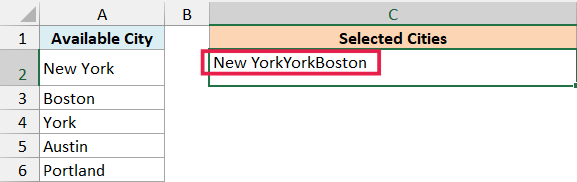
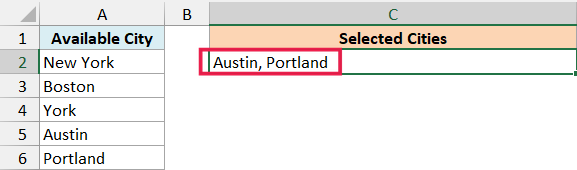
He wanted to make multiple selections from the same drop down in such a way that the selections get added to the already present value in the cell.
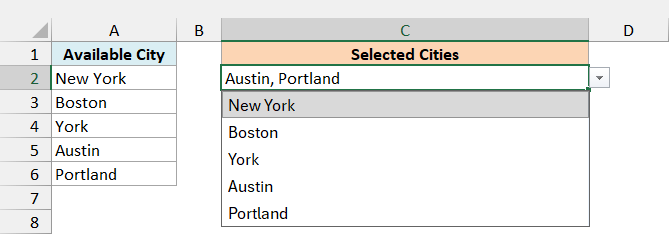
Something as shown below in the pic:
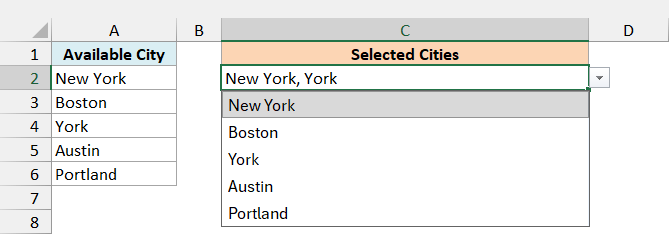
In this tutorial, I will show you how to make multiple selections in an Excel drop-down list (with repetition and without repetition).
This has been one of the most popular Excel tutorials on this site.
Follow along with the example file
Multiple Selections in Excel Drop Down List.xlsm
Watch Video – How to Select Multiple Items from an Excel Drop Down List
The video shows the original approach. Use the code below for the examples here, including the corrected check that treats New York and York as different cities.
Create the Drop-Down List
There are two parts to creating a drop-down list that allows multiple selections: creating the list and adding the VBA code to the worksheet.
Excel’s standard Data Validation list doesn’t have a setting that keeps successive choices in one cell. The VBA below adds that behavior; a formula or Office Script isn’t a direct replacement for this selection-change event.
These examples were tested in desktop Excel on Windows. Excel for the web cannot run VBA, and this workbook has not been tested on Mac.
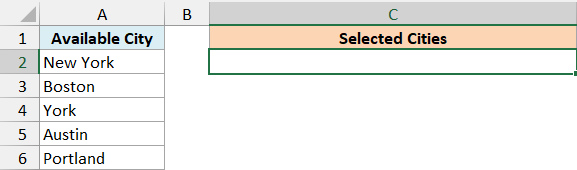
Below I have a list of cities, and I want to select several of them in cell C2.
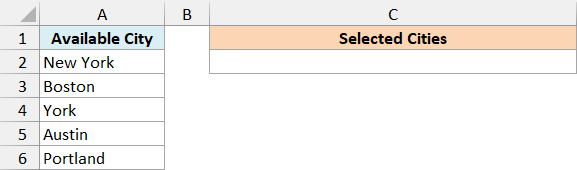
The example file already has the lists and code. If you’re building this in your own workbook, enter the five cities in A2:A6, then follow these steps:
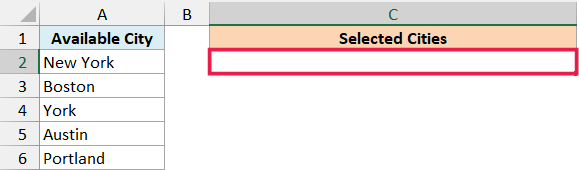
- Select cell C2, or select the range of cells where you want the drop-down lists.
- Click the Data tab.
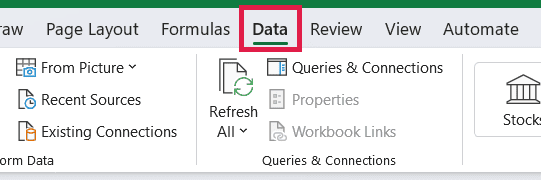
- Click Data Validation in the Data Tools group.
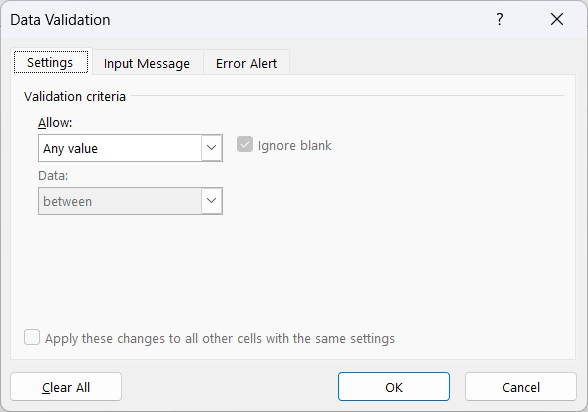
- On the Settings tab, choose List from the Allow menu.
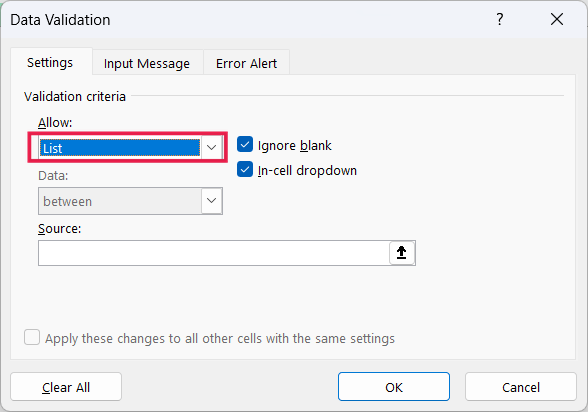
- In the Source field, enter
=$A$2:$A$6.
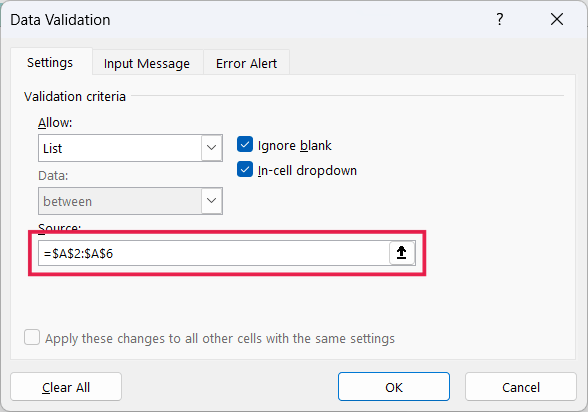
- Click OK.
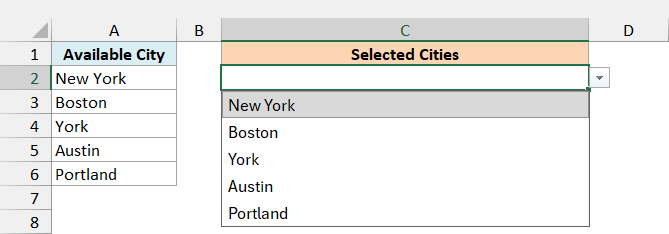
Now, cell C2 has a drop-down list showing the cities in A2:A6. At this point, choosing another city still replaces the previous one.
Select Multiple Items Without Duplicates
A lot of people have been asking about the code to select multiple items from a drop-down list without repetition.
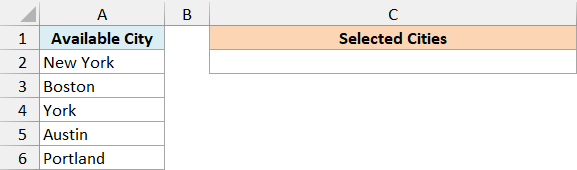
Below is the city list from the No Duplicates sheet, where the selections will go into C2.
Here is the VBA code. Copy the entire block, including the helper function at the end:
Option Explicit'Paste into the worksheet's code module, not a standard module.'Use the drop-down or type one valid choice. Bulk edits replace values.'Ordinary paste can replace validation. Use Paste Values for a single choice.'Other VBA that writes to these inputs must disable events around its writes.Private Sub Worksheet_Change(ByVal Target As Range) Const InputCells As String = "C2" Const Separator As String = ", " Const AllowRepeats As Boolean = False Dim NewValue As String, OldValue As String, Result As String Dim Entry As Variant, AlreadySelected As Boolean Dim PreviousEvents As Boolean, EventsChanged As Boolean Dim Undone As Boolean, Failure As String Dim ValidChoice As Boolean If Target.CountLarge <> 1 Then Exit Sub If Intersect(Target, Me.Range(InputCells)) Is Nothing Then Exit Sub If Not HasListValidation(Target) Then Exit Sub On Error GoTo Failed If Not IsError(Target.Value2) Then NewValue = CStr(Target.Value2) If Len(NewValue) = 0 And Not Target.HasFormula And Not IsError(Target.Value2) Then Exit Sub ValidChoice = Target.Validation.Value And Not Target.HasFormula And Not IsError(Target.Value2) PreviousEvents = Application.EnableEvents Application.EnableEvents = False EventsChanged = True Application.Undo Undone = True If IsError(Target.Value2) Or Target.HasFormula Then OldValue = "" Else OldValue = CStr(Target.Value2) End If If Not ValidChoice Then Failure = "Choose one city from the drop-down list. The previous selections have been kept." GoTo Finished End If 'The separator cannot also appear inside an individual list item. If InStr(1, NewValue, Separator, vbBinaryCompare) > 0 Then Failure = "This item contains the selection separator. Choose a separator that is absent from the list items." GoTo Finished End If If Len(OldValue) = 0 Then Result = NewValue Else If Not AllowRepeats Then For Each Entry In Split(OldValue, Separator) If StrComp(CStr(Entry), NewValue, vbTextCompare) = 0 Then AlreadySelected = True Exit For End If Next Entry End If If AlreadySelected Then Result = OldValue Else Result = OldValue & Separator & NewValue End If End If If Len(Result) > 32767 Then Failure = "The selections would exceed Excel's cell text limit. Clear this cell and start a shorter list." GoTo Finished End If Target.Value2 = ResultFinished: If EventsChanged Then Application.EnableEvents = PreviousEvents If Len(Failure) > 0 Then MsgBox Failure, vbExclamation, "Multiple selections" Exit SubFailed: Failure = "The selections could not be combined: " & Err.Description 'Undo may be unavailable for a programmatic edit. Do not undo again. On Error Resume Next If Undone Then Target.Value2 = OldValue If EventsChanged Then Application.EnableEvents = PreviousEvents On Error GoTo 0 MsgBox Failure, vbExclamation, "Multiple selections"End SubPrivate Function HasListValidation(ByVal Cell As Range) As Boolean On Error Resume Next HasListValidation = (Cell.Validation.Type = xlValidateList) On Error GoTo 0End FunctionVBA example by Sumit Bansal, https://trumpexcel.com.
This is a worksheet event: Excel runs it when you change the selection cell. Put it in that worksheet’s code window, not a standard module, and don’t press F5 to run it.
Here are the steps to add it to your workbook:
- Press Alt + F11 to open the Visual Basic Editor.
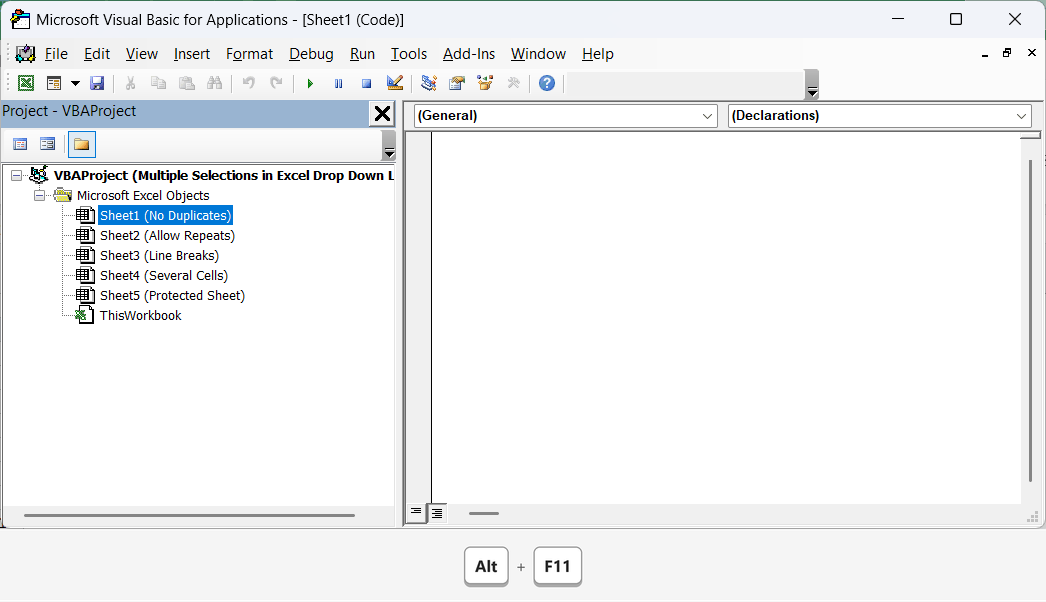
You can also open the editor from the Developer Tab by clicking Visual Basic. If the Project Explorer pane is missing, press Ctrl + R to show it.
- In Project Explorer, expand your workbook’s Microsoft Excel Objects folder.
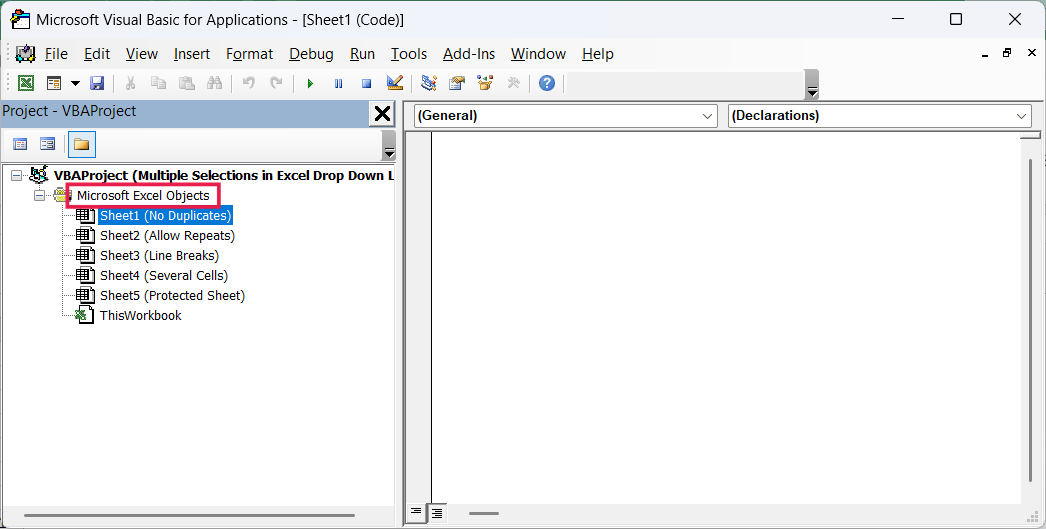
- Double-click the worksheet that contains the drop-down list.
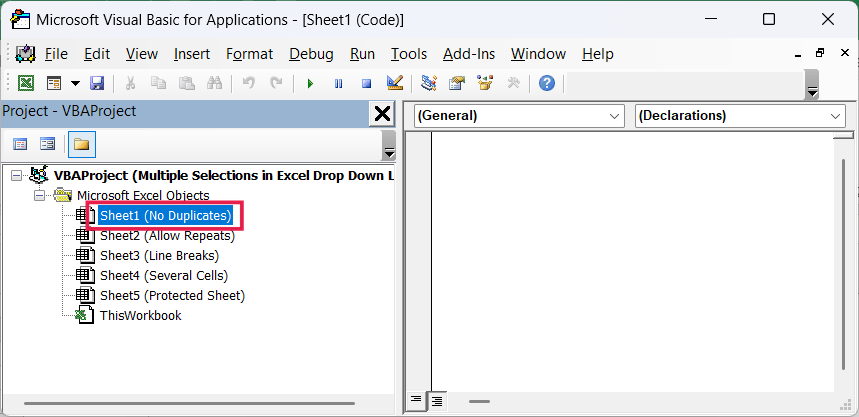
- Paste the complete code into that worksheet’s code window.
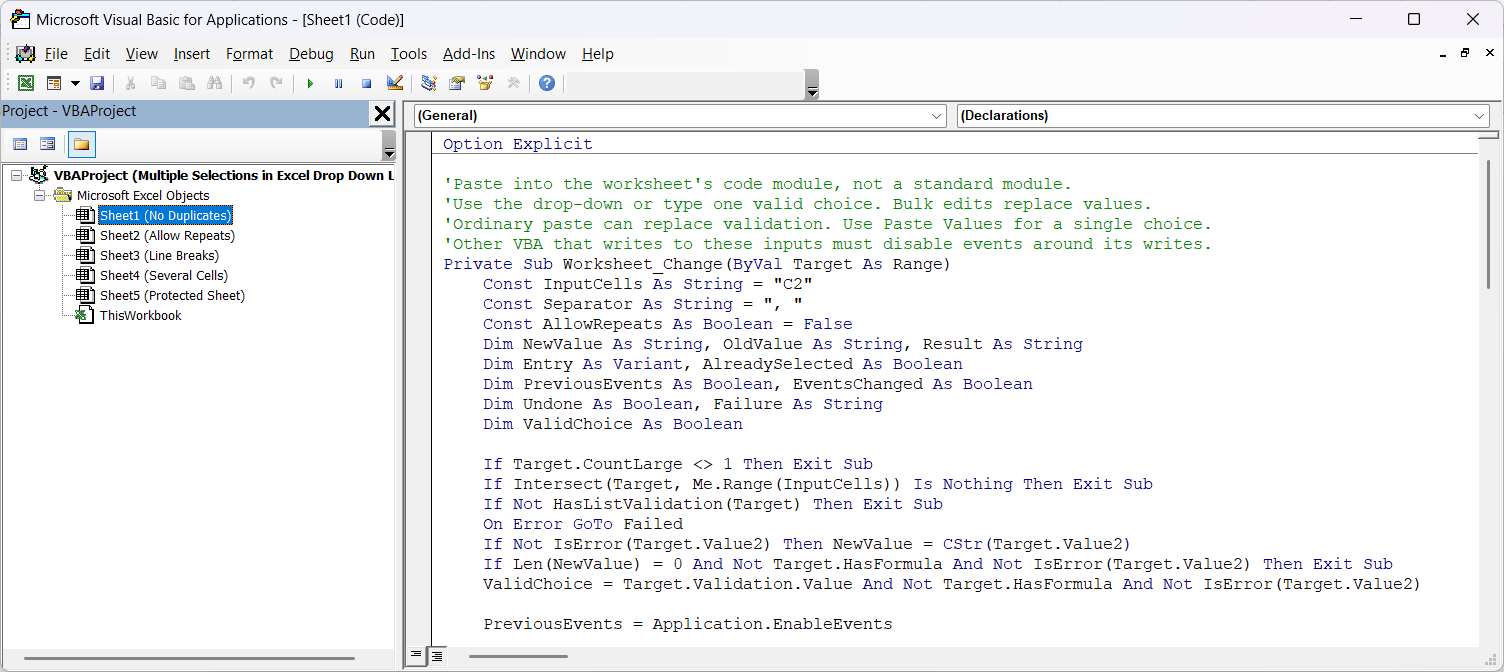
If that sheet already has a Worksheet_Change procedure, don’t paste a second one below it. The two pieces of event code need to be combined into one procedure.
- Close the Visual Basic Editor to return to Excel.
- Save the workbook as Excel Macro-Enabled Workbook (*.xlsm).
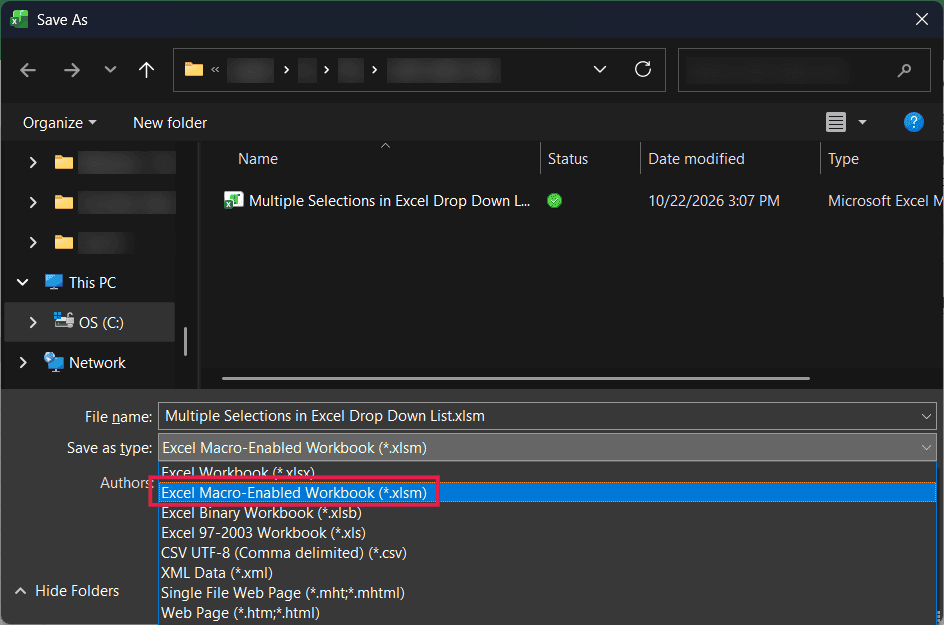
The older .xls format can also store VBA, but use .xlsm for this workbook. Saving as .xlsx removes the VBA needed for multiple selections.
When reopening the workbook, enable macros only if you trust the file. If your organization blocks macros, check with your IT team; you don’t need to enable Trust access to the VBA project object model to run this code.
To try the downloaded No Duplicates sheet, clear C2 first because it contains sample selections. Then choose New York followed by York from the drop-down.
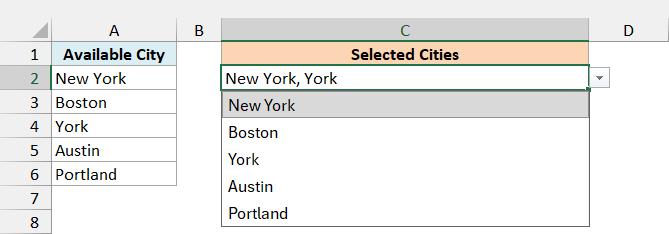
You get New York, York in C2. If you select York again, the value stays the same, because the code compares complete city names rather than looking for one name inside another.
The comparison ignores capitalization, so Boston and BOSTON count as the same choice. Selecting an existing city does not remove it; press Delete to clear the cell and choose the cities again.
The code briefly undoes the new selection to read what was in the cell before, then combines the values. It turns events off while writing the result so that its own change doesn’t trigger the same code again.
Important: This macro uses Excel’s Undo history internally, so you cannot rely on Ctrl + Z to undo its changes. Keep a copy of the workbook before making substantial changes.
Use the drop-down to add one city at a time. Typing one valid city also works, but replacing the cell with a whole comma-separated list isn’t the same as making individual selections.
Ordinary paste can replace the cell’s Data Validation rule and stop the multiple-selection behavior. Use Paste Values for a single choice; the code rejects a value outside the list while keeping your previous selections.
Changes to several cells at once are left as ordinary edits, rather than being appended. If other VBA writes to these cells, that code must disable events around its writes because programmatic changes don’t create the same Undo history as your selections.
Allow Repeated Selections
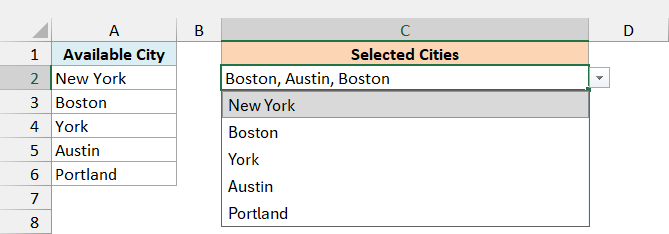
The Allow Repeats sheet has the repetition version already set up in C2. Note that if you select an item more than once, it will be entered again (repetition is allowed).
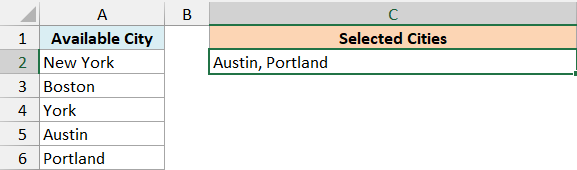
Below is the same city list, with the repeated choices kept together in C2.
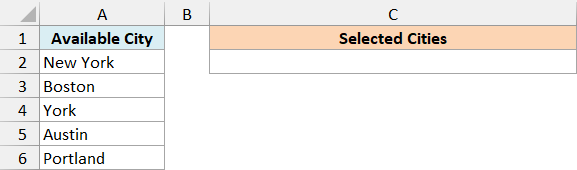
In the worksheet code, replace the AllowRepeats line with this one:
Const AllowRepeats As Boolean = TrueKeep the rest of the code, including the helper function, unchanged. Use this setting in the existing procedure rather than adding another copy of Worksheet_Change.
Clear C2 on the downloaded sheet before trying it, because the cell already contains sample selections. Then selecting Boston, Austin, and Boston again gives you Boston, Austin, Boston.
Follow along with the example file
Multiple Selections in Excel Drop Down List.xlsm
Use Multiple Selection in Other Cells
Since I get a lot of similar questions, I have created the following sections to answer some of the most asked questions about this tutorial and the VBA code.
If you have any questions, I request you to go through these sections first.
The code starts with C2 as its target. On the Several Cells sheet, C2, C3, and C4 each keep their own selections from the city list.
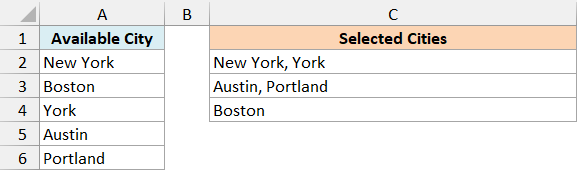
To use those three cells, replace the InputCells line near the top of the code with:
Const InputCells As String = "C2:C4"Make sure each target cell also has a List validation rule. Changing this line tells the macro where to work; it doesn’t create the drop-down lists.
You can use the following range variations in your own workbook. Replace the same InputCells line with the one you need, rather than adding all of them.
For every list-validation cell in column C:
Const InputCells As String = "C:C"For columns C and D:
Const InputCells As String = "C:D"For row 2:
Const InputCells As String = "2:2"For rows 2 and 3:
Const InputCells As String = "2:3"Cells without List validation are ignored, even if they’re inside the specified range. Each worksheet that needs this behavior must have its own event code.
These examples accumulate choices within each cell. If you want a choice used in one cell to disappear from other cells’ lists, see Creating Multiple Drop-down Lists in Excel without Repetition.
Change the Separator or Put Each Selection on a New Line
The comma examples use a comma followed by a space between choices. The Separator setting controls both how values are joined and how the no-duplicates version identifies individual choices.
To use a vertical bar followed by a space, replace that setting with:
Const Separator As String = "| "You can use a space alone with a list of single-word choices:
Const Separator As String = " "A space alone won’t work with this example’s New York entry because that city already contains a space. Choose a separator that appears in none of your list items; the code rejects a choice containing the separator.
Clear any existing selections before changing the separator. Otherwise, the old text still uses the previous separator, so the code cannot reliably split it into individual choices.
For a new line in the same cell, use the Line Breaks sheet. Below is the city list with selections displayed on separate lines in C2.
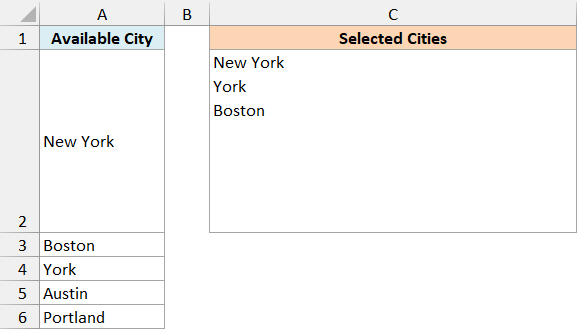
In that sheet’s code, the separator is:
Const Separator As String = vbLfvbLf supplies the line-feed character Excel uses inside a cell. The original example used vbNewLine; this version uses vbLf to insert the Excel cell line break directly.
If you’re adding this version to your own sheet, make the line breaks visible:
- Select the cell containing the selections.
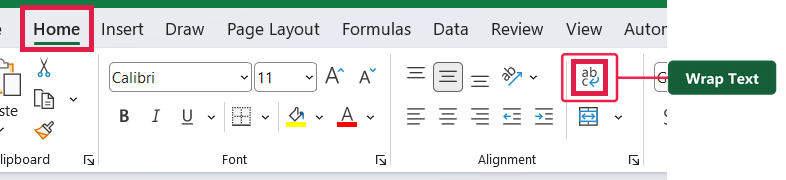
- On the Home tab, click Wrap Text.
- Increase the row height so that all the selected cities are visible.
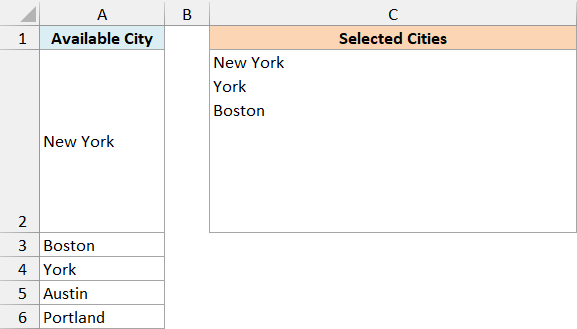
The example file reserves enough height for all five cities. Selecting New York, York, and Boston puts each city on its own line instead of separating them with commas.
Use the Drop-Down on a Protected Sheet
You can keep the city source list protected while allowing selections in C2. The Protected Sheet example does this by leaving C2 unlocked before protecting the worksheet.
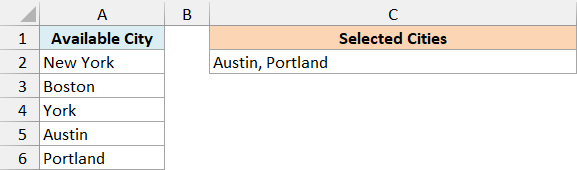
For your own worksheet, set up the drop-down and event code before applying protection. Then follow these steps:
- Select the cells that should remain editable, such as C2.
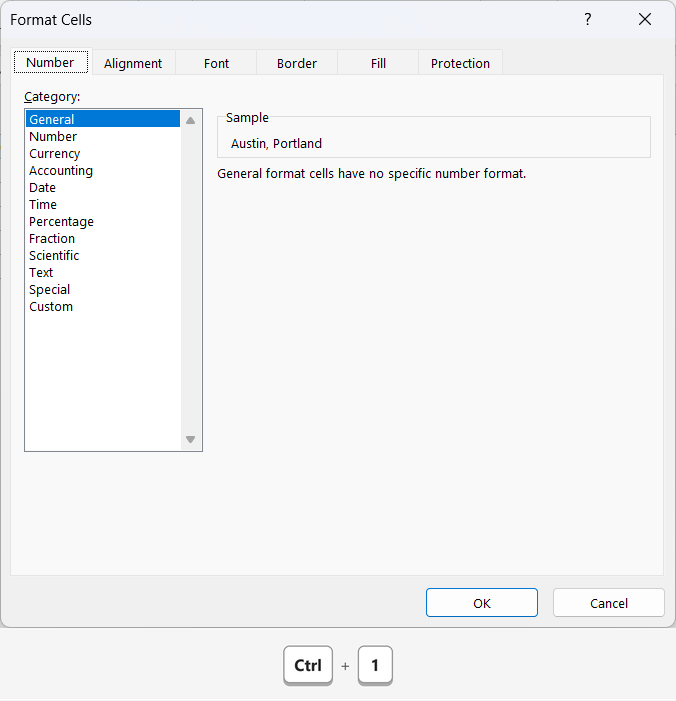
- Press Ctrl + 1 to open Format Cells.
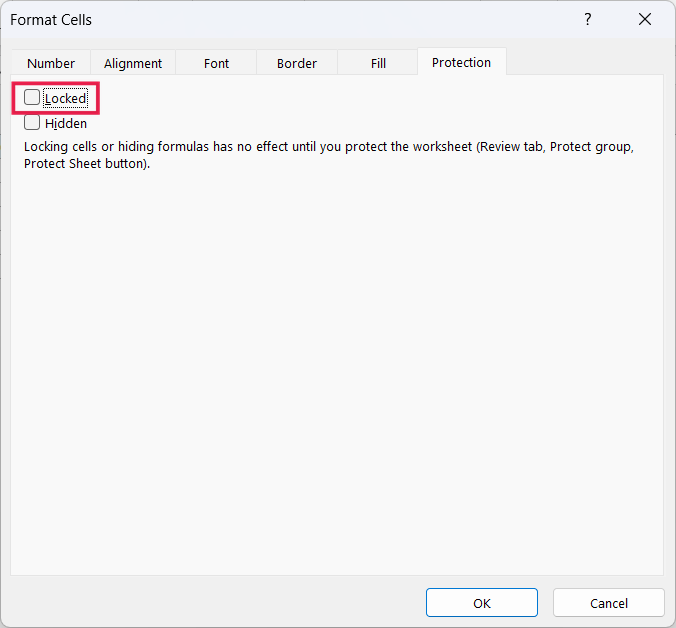
- On the Protection tab, clear the Locked checkbox.
- Click OK.
- On the Review tab, click Protect Sheet.
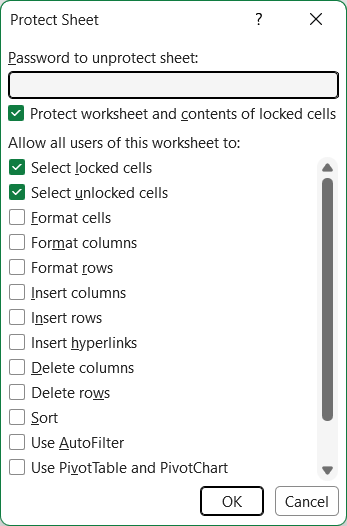
- Choose your protection settings and click OK, confirming your password if you set one.
The macro writes only to the unlocked selection cell, so this version doesn’t need Me.Protect UserInterfaceOnly:=True. The protected example was tested again after closing and reopening the workbook.
The example sheet uses demo as its demonstration password. If you need to change its source list, unprotect the sheet first; for more detail on choosing editable cells, see Lock Cells in Excel.
Follow along with the example file
Multiple Selections in Excel Drop Down List.xlsm
You can now keep several choices in one cell, with or without repeated items. Save the workbook as .xlsm so the code stays with it when you reopen it.
Other Excel Articles You May Also Like:

Great code!
If anyone would like to remove an item from the list by clicking on it again, change the following lines of code:
from Target.Value = Oldvalue & ” ” & Newvalue
to Target.Value = Trim(Oldvalue & ” ” & Newvalue)
and
from Target.Value = Oldvalue
to Target.Value = Trim(Replace(Oldvalue, Newvalue, “”))
Don’t forget to Save your workbook as “Excel macro-enabled workbook”, so you don’t lose your VBA code every time.
Thanks Jose. However, when i use this it doesn’t delete the comma so I end up with double commas. How could I adjust the code to correct this?
Please try this which takes care the coma as well.
iPos = InStr(1, Oldvalue, Newvalue)
If iPos = 0 Then
Target.Value = Trim(Oldvalue & “, ” & Newvalue)
Else:
If iPos = 1 Then
If Target.Value = Newvalue Then
Target.Value = “”
Else
Tmpvalue = Newvalue & “,”
Target.Value = Trim(Replace(Oldvalue, Tmpvalue, “”))
End If
Else
Tmpvalue = “, ” & Newvalue
Target.Value = Trim(Replace(Oldvalue, Tmpvalue, “”))
End If
End If
I got this to mostly work. It will never remove the first item I select in the list. I had to copy this code into 2 places to make it work. Do you have the whole code what would make this work all put together?
Dat / Kens , did u got a solution to avoid multiple commas? if yes, then pls do share.
Is there possibly a way to set one value from the list to be exclusive. In other words, my list has Standard, Glass, Tile, Wood. I would like the to be able to select one or more of Glass, Tile, Wood, but if I select Standard, it should prevent adding any of the other values… Or, if other values are already listed, selecting Standard should replace the text.
This is amazing! I had literally just told a colleague this would be impossible. Is there by chance a way to go back to the cell and remove one entry without getting the error message (due to the data validation; list)?
Not working for me
What is the VBA code modification to enable the drop-down in all rows and columns, not specific cells, rows or column, but the entire spreadsheet?
Thank you for your code it helped me allot with this big project I am working on. If a user accidentally selects and item and was not needed, how do they just clear that item without starting their process all over again?
Its Work only at once however after reopen the file its not working. So i follow the above given steps again still its not working. Im using Excel 2016
Hello, thanks for the above info. 🙂 Just need help on how to apply the multi drop down selection for multiple columns? I have already tried in 1 column and it works but i tried to add 1 more column and error prompts. Thanks in advance for your help. God bless. 🙂
I am also looking for an answer to this problem!
Continued scrolling through the comments, and found the answer in “Muhammad Elboreini”s post! I now realize that it is also in the FAQ, under the 2nd and 3rd questions 🙂
Can I have the count of the number of selections displayed in the cell and the selection list shall be shown upon clicking the cell. Is it possible.
Because I am working in the construction industry and for my labor allocation I will be selecting the labor names from a list. However, I want to display only the count. The names of labors selected will be displayed upon clicking the cell.
Thank You! Great Information and presentation!
Great solution to a nagging problem. Thanks!
This is really helpful. I have finally managed to activate multiple selection of items on a drop down list for more than one column.
Thanks alot.
Very useful article, thanks for sharing
Hi, i want make this method for 2 diferent cells in the same document but i its working just to one cell.
I tried use comand and/or, copy chancing the cell but doesn’t work.
I am very inexperient in VBA, can help me?
Best regards.
Thanks so much for this! How to I apply it to an entire column except the header for that column in line 1? Many thanks
When I want to remove 1 (A) value from list of say 3 values (A,B,C), its not working for me, I have to delete all the values in cell and start new selection for values.
Do we have to save the file in a macro-enabled template? If so, I saved my data and the VBA code is not functional
Hello! Thank you very much for this tutorial. But I have one question. What if the drop-down item list is placed in another different worksheet? Is it possible to synchronize this function between different worksheets of the same workbook?
Lea, press f3 under source in the data validation dialogue box to select your dropdown list from any sheet
Thanks v much .. so helpful.
How would I run this Macro with the same purpose under multiple columns with different drop downs for each column (drop downs are already setup)
2 things. 1.I tried using a range instead of cell address and it would not work. Can that be done. I even changed the Target.Address to Target.Range. 2. My drop down list has a default of “Select One”. How can that be replaced with the first selection? As it works now my selection is just added to the Defaulted ” Select One”.
Vert nice 🙂
How would one extend this to work when sharing via O365 ?
I’ve tried& it doesn’t work. Not sure if it’s a limitation from O365 or if I need additional steps.
I have copied the code correctly but i still cannot select multiple items at a time.
I did exactly as per your instructions. The only difference is the cell change based on my workbook (H2 instead of C2). The dropdown still works as a single selection. New selection replace the old.
Change
If Target.Address = “$K$2” Then
to
If Target.Column = “$K$2” Then
This worked for me to apply to a whole column, but I have not figured out how to apply to multiple columns as yet.
You can use the following to use it for multiple columns:
If Target.Column = 2 or Target.Column = 3 Then
This will make this work for column 2 and 3
Hi Sumit, Can the VBA code work for columns that are not consecutive? I can add VBA code for columns 14, 15, 16. But let’s say I have multiple selections in column 3 and another set of multiple selections in columns 14 and 15. How would the code look?
Code below does not work:
If Target.Column = 3 or Target.Column = 14 or Target.Column = 15 Then
And following question, if in sheet 1 cell A1 I has vba code with multiple selections, can the same selections be returned in sheet 2 cell B2? That way the data auto populates and does not require to input the vba code for sheet 2 and manually select the second time.
Thank you for taking the time and educating us.
I have the same doubt, I was able to do it with consecutive columns, but when they are not, it no longer works, did you find a solution?
how to make drop down list only can choose 2 items by user. Even in drop down list have many choice
I was wondering the same thing
How to remove mistakenly selected drop down? Please suggest
your issue resolved? even I want the same answer
An easy way that requires no code is to add a blank cell to your range. when you select the blank cell it clears the rest out.
How do I unselect the items from the drop down list? I have created the multi select no repetition?
I am having the same exact problem. Did you find an answer?
Hi, is it possible to add a function that unselect an item from a drop down list? I am using it to specify users of equipment, and let say we had 5 users, but now one of the users is not using equipment anymore. So I wish to remove just one user. Now i need to remove everyone and select them all over again….
Same problem
Same issue from my side, and if I also go to the cell and delete, doesn’t help because it will appear once again all the options selected previously. In my case, I just have remove all the code from VBA because it doesn’t help…It’s sad because it is a good idea, however from what it see the code doesn’t take this in consideration and anyone as provided a solution either…If someone has figure out something it would be nice to know.
The XLSM file with VB scripts when opened in other PCs the VB script doesn’t work. Why?
Incredibly helpful tutorial – thank you!
Hi Sumit,
The code was really helpful.Thank you.But if there is an option “All” in the list, how to include that so that once this option is selected,no other option can be selected.
Hi
Thank you for this quick fix, great!
How do I lock the values of a cell (data range) when I make a table of many rows?
Each new row creates a new range of data values, selection +1 for each new row.
Thx!
How can I remove a selected item in a multiple drop down list?
How do I apply this to other columns and cells within the same sheet?
Hi Peter, I have the same question…
So easy to understand and replicate in my documents. Thank you!
Can you please help with another issue I have in regards to macros and multiple section of various sheets for PDF conversion and/or printing.
Can you help?
Mike H
Can I make the multiple selection functionality work in a sheet protected with a Password?
I found this solution worked perfectly, but when I opened the workbook again the ability to make multiple selections no longer worked. I notice Rachel also commented below having the same issue. Is there a fix?
Hi Karen. I fixed this by clicking the ‘Enable Content’ button in the yellow bar when you first open up the workbook. Otherwise the macros are disabled.
In case of multiple columns, if dropdown is not there and user manually enter the data, that data also concatenating. For e.g. IF target column is C, now enter 1 and press enter, then press 2 and enter. Both digits concatenated(1, 2). How to stop this?
Thank you for sharing this!
Hello! How do you make the items are sorted alphabetical in every cell?
it doesn’t work. I went step by step few times and it does not work
Hi Sumit. This really great and helpful. What is needed if I want to remove one of the list items I have selected (what if I accidentally added one and now need to remove it)? Thank you for your help.
Hi Michael, I would like to know this also, did you find a solution?
I am too looking for a solution to remove an item from the list.
Try deleting all the selected items and then add them again.
HI!!
I need to create multiple drop-downs in all the rows. How can I do this?
Followed your video and no luck
how do you use this code for a range in a workbook containing multiple worksheets
These steps work perfectly, but when I close the file and reopen, I can no longer select multiple items. I’ve tried several fixes. Any thoughts?
This is great but what if I make a wrong selection. How do you then remove or change it?
Will this work for multiple sheets if I update in Module
Hi,
Thanks for the code,very helpful. Now how do i change this line to apply the macro from cell H4 to H50:
If Target.Address = “$H$4” Then
Thanks a lot
Found it, need to replace the line by:
If Not Intersect(Target, Range(“H4:H50”)) Is Nothing Then
Hello, I wasn’t able to get this to work when I replaced if Target.Address=”$H$4″ Then with If Not Intersect(Target, Range(“H4:H50”)) Is Nothing Then. Any suggestions?
what is the code for dependent data validation. Your code desnt works in that case. Can you please help
Hello, I’m working with Excel Online, and do not have a developer tab. Is there a way to do this on the online version?
You can add the developer tab by going to File>Options>Customize Ribbon>Check Developer tab> Click OK