

If you have a column of times or timestamps and you want to pull out just the hour from each one, the HOUR function is what you need. It reads a time value and hands you back the hour as a plain number from 0 to 23.
In Excel 365, you can also feed HOUR an entire range of times and the results spill into the cells below. In this article, I’ll show you how to use HOUR to extract hours, sort activity by time of day, and find your busiest hour.
Follow along with the example file
HOUR Function Examples.xlsx
HOUR Function Syntax
Here is the syntax of the HOUR function:
=HOUR(serial_number)
- serial_number – The time value you want the hour from. This can be a cell holding a time or timestamp, a text time in quotes like “6:45 PM”, or a decimal number where 0.5 stands for noon.
The function always returns a whole number between 0 (12:00 AM) and 23 (11:00 PM).
When to Use the HOUR Function in Excel
Use the HOUR function when you need to:
- Extract the hour from a timestamp so you can group or sort by it
- Split activity into morning, afternoon, and evening buckets
- Count how many records land in a particular hour of the day
- Build a clean hourly label for summaries and pivot tables
Let me show you a few practical examples of how this works.
Example 1: Extract the Hour from a Time
Let’s start with the most common use.
Below is a dataset of support tickets, with the ticket ID in column A and the time each one came in as a timestamp in column B.
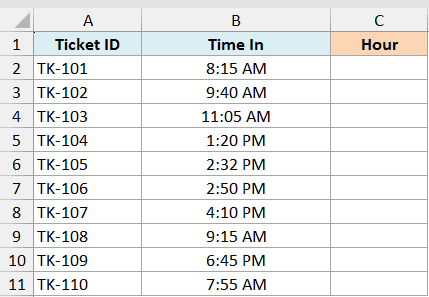
I want the hour of the day each ticket arrived, pulled out as a number, for the whole column at once.
Here is the formula:
=HOUR(B2:B11)
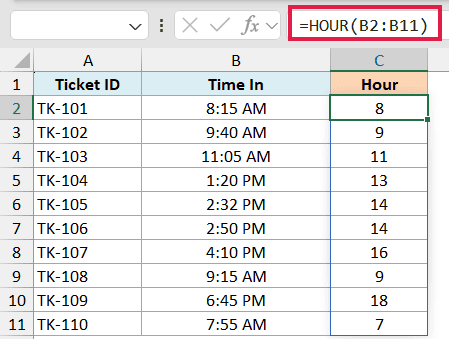
Because this is Excel 365, one formula in cell C2 reads the entire range B2:B11 and spills a result next to every ticket. A ticket logged at 8:15 AM returns 8, and one logged at 2:32 PM returns 14.
Pro Tip: On Excel 2019 or earlier there is no spill, so write =HOUR(B2) in the first cell and drag it down the column.
Example 2: Get the Hour from a Text Time Value
Here’s a scenario where the time isn’t a real Excel time yet.
Below is a small dataset where column A has an event name and column B has the time typed as plain text, such as “9:30 PM”.
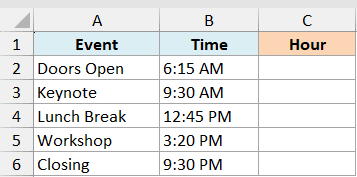
I want the hour from each of these text times, pulled out for the whole column at once.
Here is the formula:
=HOUR(B2:B6)
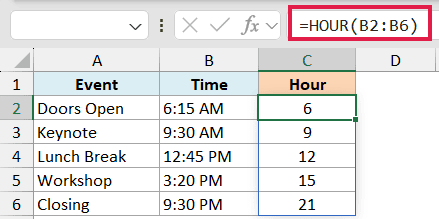
Because this is Excel 365, one formula in C2 reads the whole range B2:B6 and spills an hour next to every event. HOUR understands a text time as long as Excel recognizes its format.
A text value of 9:30 PM returns 21. You can also feed it a literal string, like =HOUR(“9:30 PM”). Text-time recognition depends on your regional settings.
Pro Tip: HOUR also accepts a decimal. Since 0.75 is three-quarters of a day, =HOUR(0.75) returns 18, which is 6:00 PM.
Example 3: Sort Times into Morning, Afternoon, and Evening
Now let’s turn the hour into something more useful than a number.
Below is a dataset of website visits, with the visitor ID in column A and the visit time in column B.
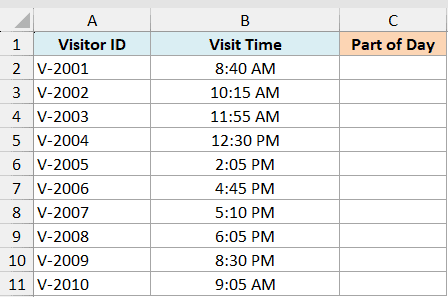
I want to label each visit as Morning, Afternoon, or Evening based on its hour.
Here is the formula:
=IFS(HOUR(B2:B11)<12,"Morning",HOUR(B2:B11)<17,"Afternoon",TRUE,"Evening")
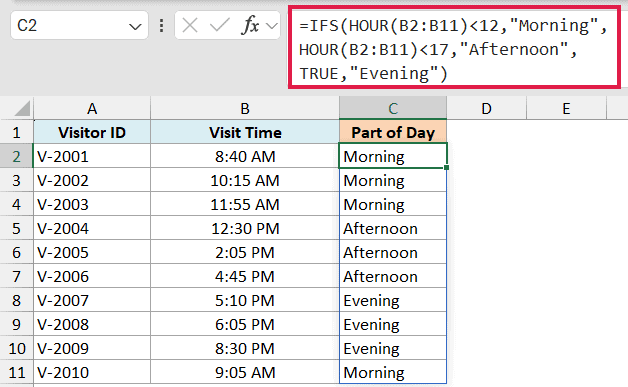
Here IFS checks the hour against each cutoff in order. Anything before 12 is Morning, before 17 (5 PM) is Afternoon, and everything else falls to Evening through the final TRUE.
The whole formula spills down the column, so a visit at 8:40 AM reads Morning and one at 6:05 PM reads Evening.
Example 4: Count How Many Entries Fall in a Specific Hour
Let’s use HOUR to answer a real question: which hour is the busiest.
Below is a dataset of store transactions, with the order ID in column A and the time of sale in column B.
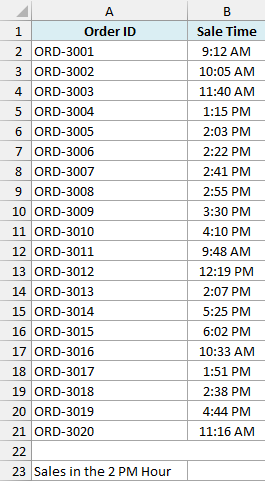
I want to count how many sales happened during the 2 PM hour (hour 14).
Here is the formula:
=SUMPRODUCT(--(HOUR(B2:B21)=14))
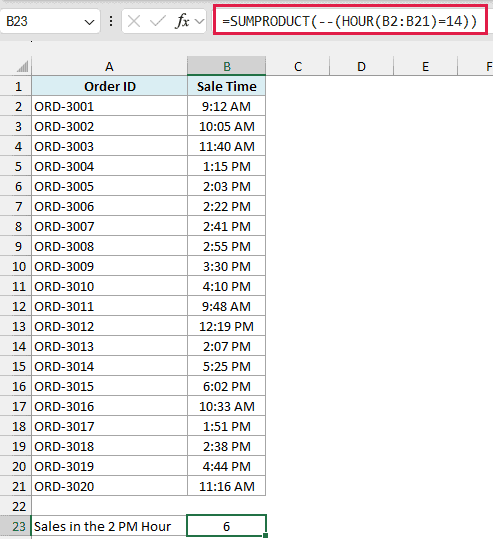
HOUR turns every timestamp into its hour, the comparison =14 gives a TRUE/FALSE for each one, and the double minus flips those into 1s and 0s. SUMPRODUCT then adds them up to give the count.
Change the 14 to any hour and you can find the count for that slot, which is a quick way to spot your busiest hour without building a pivot table.
Example 5: Round a Timestamp Down to the Start of the Hour
This one is handy when you want to group timestamps by the hour.
Below is a dataset of machine log entries, with the entry ID in column A and the full date-and-time stamp in column B.
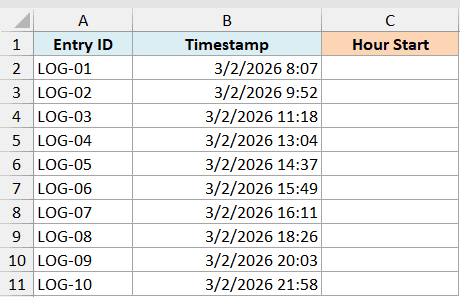
I want each timestamp rounded down to the top of its hour, so 2:37 PM becomes 2:00 PM on the same day.
Here is the formula:
=INT(B2:B11)+TIME(HOUR(B2:B11),0,0)
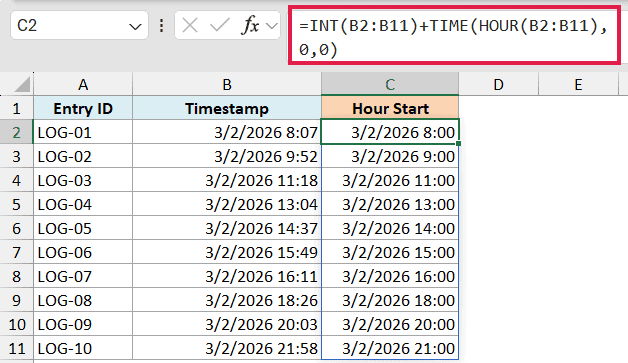
INT keeps the date part by dropping the time, and TIME(HOUR(…),0,0) rebuilds a clean time with just the hour and zero minutes and seconds. Add them and you get the timestamp snapped to the start of the hour.
Format the result cells as date-time so they show the rounded stamp. These grouped values make an easy column to summarize by hour.
Example 6: Get the Hours Part of a Time Duration
For the last one, let’s pull the hours out of a gap between two times.
Below is a dataset of tasks, with the task name in column A, the start time in column B, and the end time in column C.
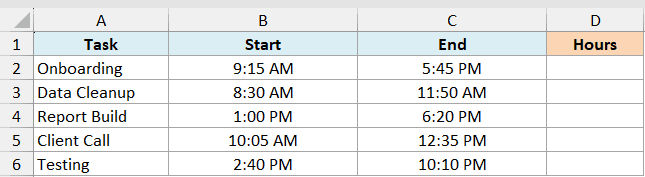
I want the number of full hours each task took.
Here is the formula:
=HOUR(C2-B2)
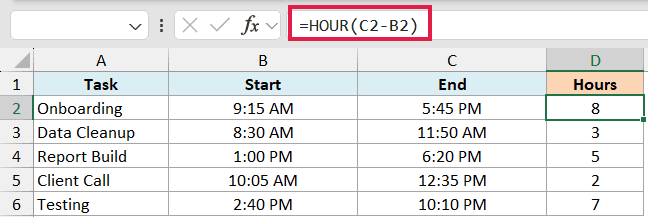
Subtracting the start from the end gives a duration, and HOUR reads the hours part of it. A task from 9:15 AM to 5:45 PM returns 8, the whole hours in that 8-hour-and-30-minute gap.
Pro Tip: HOUR wraps after 23, so a 25-hour duration returns 1. For total hours, use =(C2-B2)*24. Overnight tasks need full date-and-time values; subtracting time-only entries can give a negative result.
Tips and Common Mistakes
- A #VALUE! error means the input isn’t a valid time. This usually happens when a cell holds text that only looks like a time, often with an extra space or an odd format Excel can’t read. Clean the value first with TRIM or TIMEVALUE.
- HOUR ignores the date part. If a cell holds a full date and time, HOUR still returns only the hour, so you don’t need to strip the date out first.
- The result caps at 23. HOUR always returns 0 to 23, so it is for reading a clock time, not for measuring long durations. Use a plain subtraction times 24 when you need to convert the time to decimal hours.
- Feed it a range in Excel 365. Instead of dragging =HOUR(B2) down, write =HOUR(B2:B11) once and let it spill. On Excel 2019 or earlier, drag the single-cell version down as usual.
The HOUR function is a small tool, but it does the one job of pulling the hour out of a time cleanly. Once you have that number, you can bucket activity by time of day, count records in any hour, or round timestamps for grouping. Pair it with the MINUTE function and SECOND when you need the rest of the clock too.
Other Excel Articles You May Also Like:
