

The YEARFRAC function tells you how much of a year sits between two dates, as a decimal. So instead of just “1 year”, you get an answer like 1.46 years.
That makes it handy when part of a year matters, like prorating an annual fee, working out interest for a few months, or measuring a contract’s length.
There’s one catch. YEARFRAC is an older function that doesn’t accept a plain range of dates, so it won’t spill on its own, and I’ll show you the simple fix in the first example.
In this article, I’ll cover how the basis argument changes the result, how to get months, and why YEARFRAC isn’t the right pick for age in whole years.
Follow along with the example file
YEARFRAC Function Examples.xlsx
YEARFRAC Function Syntax
Here is the syntax of the YEARFRAC function:
=YEARFRAC(start_date, end_date, [basis])
- start_date – the date the period starts. Use a cell with a real date, or a formula that returns a date.
- end_date – the date the period ends.
- [basis] – an optional number from 0 to 4 that tells Excel how to count the days.
The order of the two dates doesn’t matter. If end_date is earlier than start_date, YEARFRAC still returns the same positive number, so you never get a negative result.
YEARFRAC also counts only whole days, so a time stored with a date (like 6:00 PM) doesn’t change the result.
If you leave out basis, Excel uses 0, which treats every month as 30 days and the year as 360 days. That can differ slightly from the real calendar, which basis 1 follows, and Example 2 compares all five options.
A basis outside 0 to 4 returns the #NUM! error, and a date that isn’t valid returns the #VALUE! error.
A blank date cell doesn’t give an error, though. YEARFRAC reads it as 0 (a date in 1900) and returns a huge number, around 126 for a 2026 date, so check for a missing date when a result looks way off.
The YEARFRAC function works in Excel 365, 2024, 2021, 2019, and 2016 on Windows, and in Excel 365, 2024, and 2021 for Mac.
When to Use the YEARFRAC Function
Use this function when you need to:
- Find the length of a lease, contract, or project in years, including the partial year
- Prorate an annual fee for someone who joins partway through the year
- Calculate simple interest for a deposit that runs for part of a year
- Convert the time between two dates into months with decimals
- See how much of the year has passed on a given date
Let me show you a few practical examples of how to use this function.
Example 1: Calculate Years Between Two Dates
Let’s start with the most common use, getting the number of years between two dates.
Below is a list of apartment leases with their start and end dates, and I want the length of each lease in years in column D.
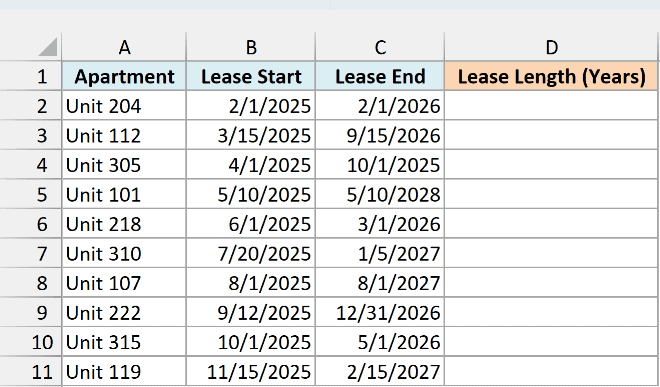
Here is the formula:
=YEARFRAC(+B2:B11,+C2:C11)
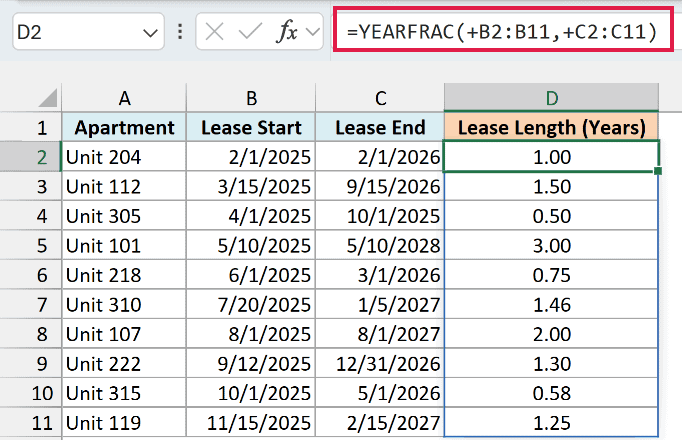
This one formula in D2 spills the lease length for all ten apartments. Unit 204 has a one-year lease, so it gets 1.00, and Unit 112’s 18-month lease gets 1.50.
Since I left out the basis argument, YEARFRAC uses the 30/360 method. That works well here because leases are counted in months, so Unit 218’s 9-month lease comes out as exactly 0.75.
I’ve formatted column D to show two decimal places. The cell still holds the full value, so Unit 310’s lease is really 1.458333 years.
Important: If you give YEARFRAC a plain range, as in =YEARFRAC(B2:B11,C2:C11), it returns the #VALUE! error instead of spilling. Keep the plus sign before each range.
YEARFRAC started life in the old Analysis ToolPak add-in, and it still expects one cell per argument. The plus sign turns the range into an array of values, which YEARFRAC can work with, and the results spill.
I’ve explained this trick in more detail in my guide on Excel functions that won’t spill.
If you are using Excel 2019 or earlier, enter the below formula in cell D2 and then copy it down the column:
=YEARFRAC(B2,C2)
The same goes for the other spilling formulas in this article. In Excel 2019 or earlier, swap each range for its first cell (B2 instead of +B2:B11), lock single input cells with dollar signs (like $F$1), and copy the formula down.
Example 2: Compare the YEARFRAC Basis Options
The basis argument can change your answer, so let’s see by how much.
Below is a contract that ran from 11/15/2023 (in B1) to 8/31/2024 (in B2), and I want the year fraction for each of the five basis values in column C.
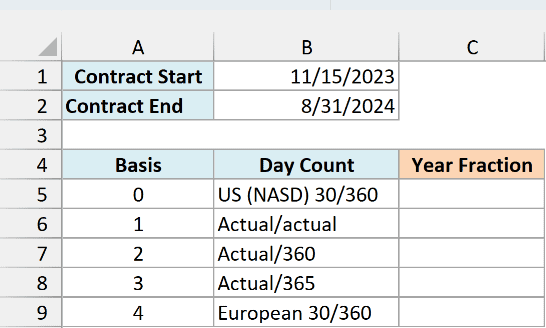
Here is the formula:
=YEARFRAC(B1,B2,+A5:A9)
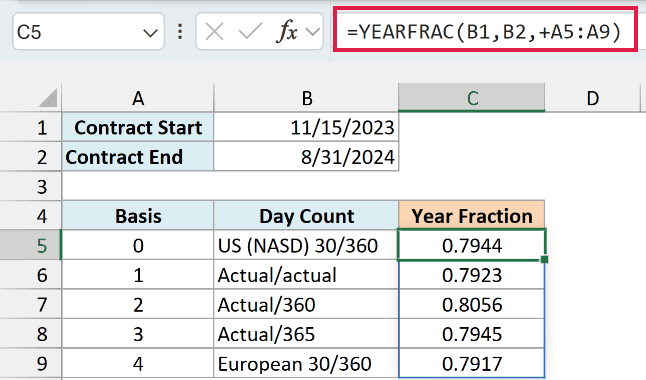
The plus sign before A5:A9 works the same way as on the dates in Example 1, so YEARFRAC returns one result for each basis value.
Same two dates, five different answers. The contract covers 290 actual days, and each basis counts and divides them in its own way:
- 0, US (NASD) 30/360 – counts every month as 30 days and divides by 360, which gives 0.7944.
- 1, Actual/actual – divides the actual 290 days by 366, because the period includes February 29, 2024. That gives 0.7923.
- 2, Actual/360 – divides 290 days by 360, which gives the highest result, 0.8056.
- 3, Actual/365 – divides 290 days by 365, which gives 0.7945.
- 4, European 30/360 – also uses 30-day months, but treats the 31st as the 30th, so it gives 0.7917.
For everyday durations, basis 1 matches the calendar most closely. Financial agreements often name a specific day count, which is why the other options exist.
Microsoft also points out that basis 0 can give a wrong result when the start date is the last day of February. If a period starts on that day, basis 1 avoids the problem because it counts the actual days.
Example 3: Calculate Months Between Two Dates With YEARFRAC
YEARFRAC gives you years, but a quick multiplication turns that into months.
Below is a list of home renovation projects with their start and end dates, and I want the duration of each project in months in column D.
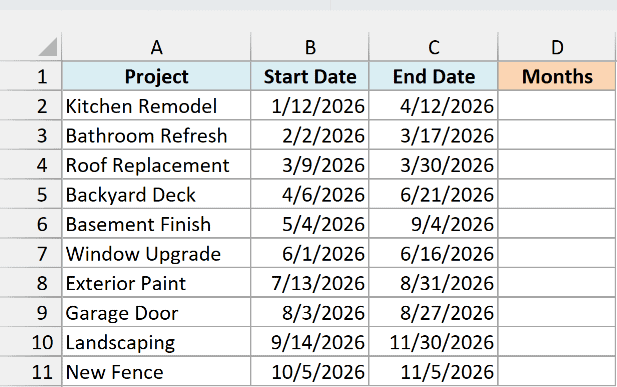
Here is the formula:
=YEARFRAC(+B2:B11,+C2:C11)*12
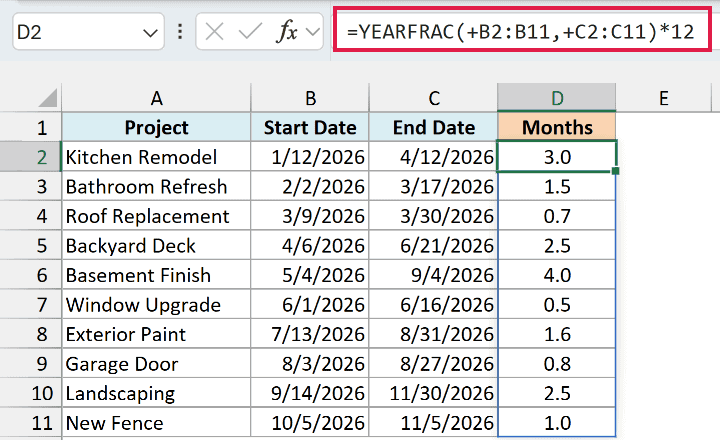
YEARFRAC returns each project’s duration in years, and multiplying by 12 converts it to months. The Kitchen Remodel ran from 1/12/2026 to 4/12/2026, so it gets 3.0 months, and the Bathroom Refresh gets 1.5.
This is where the default 30/360 basis helps. Since every month counts as 30 days, a project that runs from the 12th of one month to the 12th of another always comes out in whole months.
If you only want completed months, with no decimals, the DATEDIF function with “m” is the better choice. I’ve covered both methods in my guide on how to calculate months between two dates.
Example 4: Prorate an Annual Fee Based on the Join Date
Now let’s use YEARFRAC to split an annual amount for people who start partway through the year.
Below is a list of gym members with the date each one joined, and I want the prorated membership fee for the rest of the year in column C, based on the annual fee in F1 and the renewal date in F2.
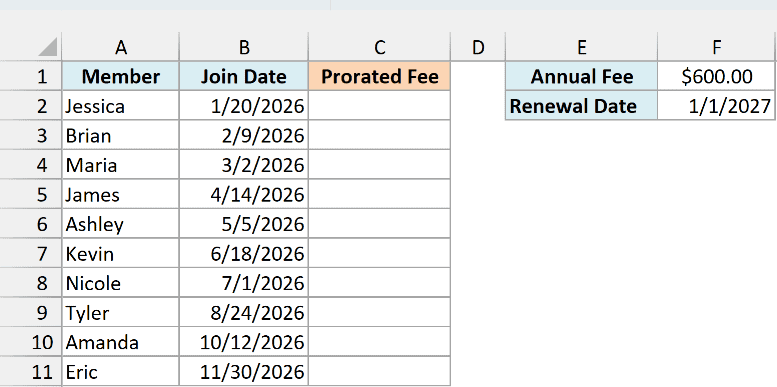
Here is the formula:
=F1*YEARFRAC(+B2:B11,F2,1)
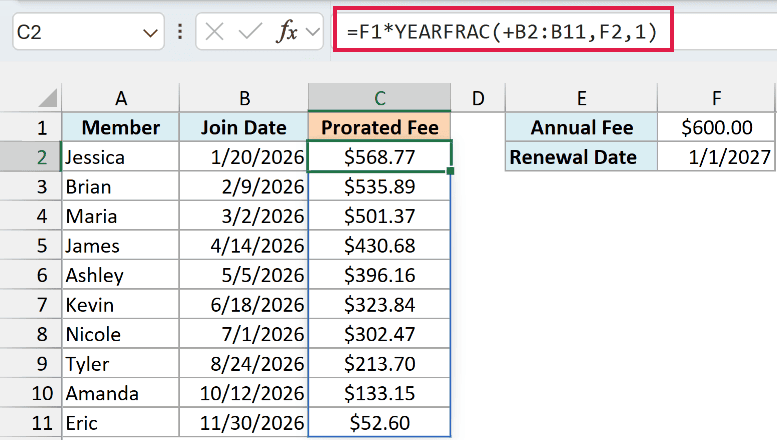
YEARFRAC works out the fraction of the year between each join date and the renewal date. Multiplying that by the $600 annual fee gives the prorated amount, so Nicole, who joined on 7/1/2026, pays $302.47 for the remaining 184 days.
I used basis 1 here because fees are charged for real calendar days. With the default basis, Nicole’s share would be exactly half the year, or $300.00.
The fee column shows two decimals, but the amounts aren’t actually rounded. If you’re billing these amounts, wrap the whole formula in the ROUND function with 2 decimal places, so each fee is exact to the cent.
Example 5: Calculate Interest for Part of a Year
Next, let’s work out the interest on deposits that are held for only part of a year.
Below is a list of savings deposits with the amount, interest rate, start date, and end date, and I want the simple interest each deposit earns in column F.
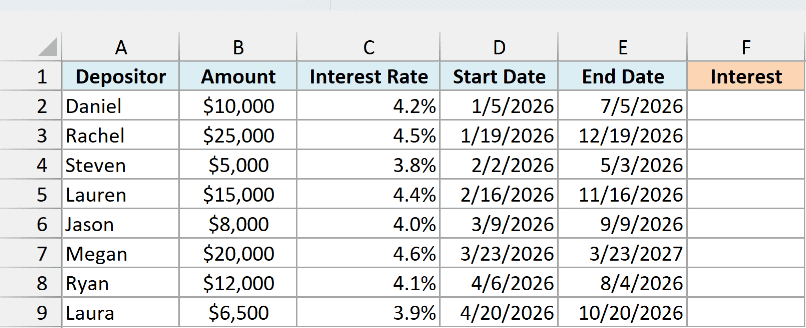
Here is the formula:
=B2:B9*C2:C9*YEARFRAC(+D2:D9,+E2:E9,3)
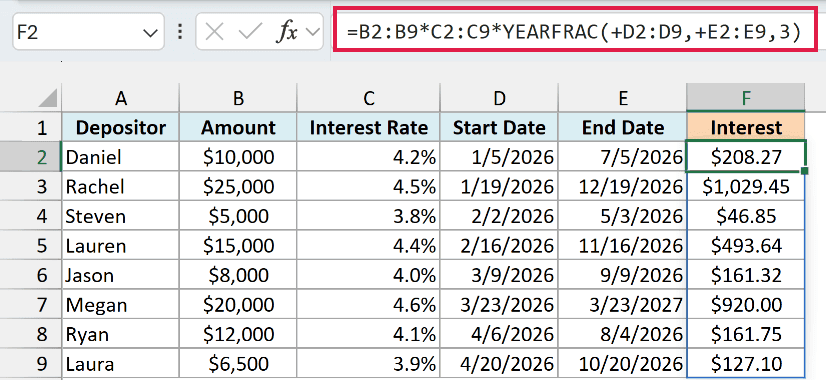
How this formula works:
YEARFRAC(+D2:D9,+E2:E9,3)gives the time each deposit was held, as a fraction of a year. Basis 3 counts the actual days and divides by 365, so a day of interest is worth the same whether or not the year is a leap year.B2:B9*C2:C9multiplies each amount by its annual rate, which is the interest for one full year. This part needs no plus sign, since plain multiplication already works with ranges.- Multiplying the two gives the interest for the actual time each deposit was held.
Daniel’s $10,000 at 4.2% for 181 days earns $208.27. Megan’s deposit was held for exactly one year, so she earns the full $920.00.
This is simple interest. If the interest compounds, the FV function is a better fit.
Example 6: Find How Much of the Year Has Passed
This next one is useful when you’re tracking progress against a yearly goal.
Below is a list of US holidays in 2026, and I want the percentage of the year that has passed by each holiday in column C.
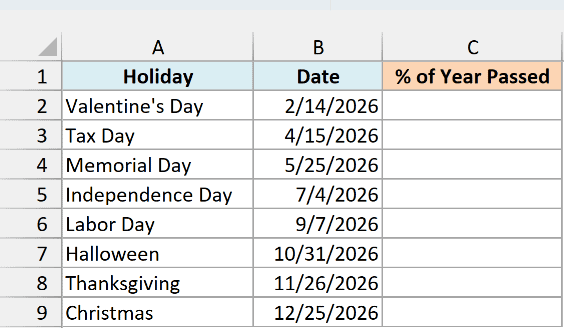
Here is the formula:
=YEARFRAC(DATE(YEAR(B2:B9),1,1),+B2:B9,1)
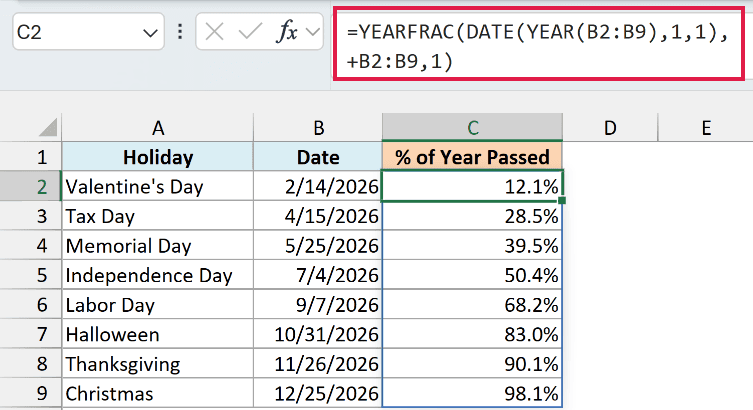
How this formula works:
DATE(YEAR(B2:B9),1,1)uses the DATE function to return January 1 of each holiday’s year, which becomes the start date.+B2:B9is the end date. It needs the plus sign, but the DATE part doesn’t, because it already returns an array of dates.- Basis 1 divides by the actual number of days in the year, so a leap year is handled correctly.
Column C is formatted as a percentage. By Independence Day, 50.4% of 2026 is already gone, and by Christmas it’s 98.1%.
If you replace both B2:B9 references with the TODAY function, the formula shows how much of the current year has passed, and the result updates every day.
Example 7: YEARFRAC vs DATEDIF for Age in Whole Years
A lot of tutorials use the INT function with YEARFRAC to calculate age in whole years. It looks right most of the time, but it can be off by a year, so let me show you where it breaks.
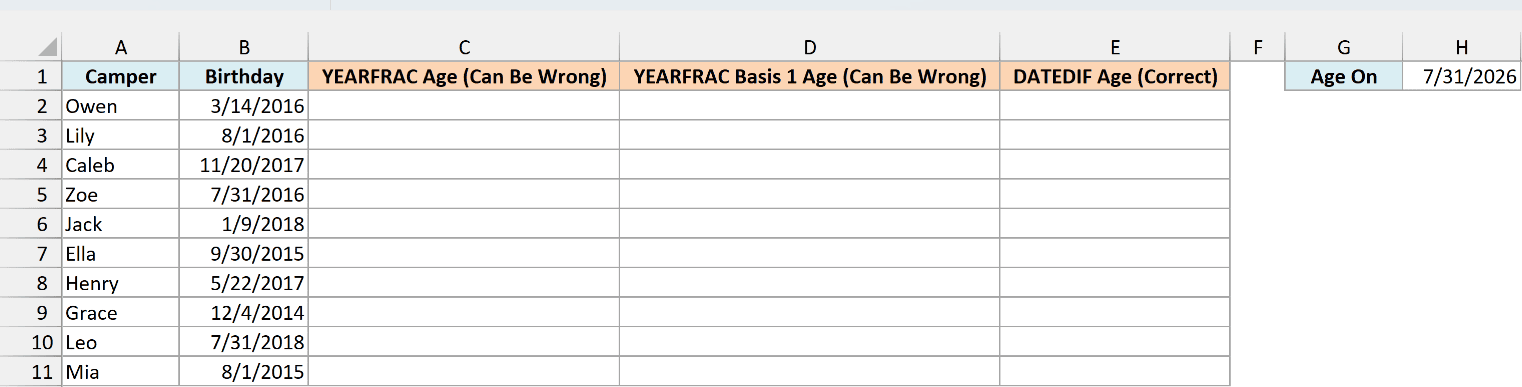
Below is a list of summer campers with their birthdays, and I want each camper’s age in whole years on the date in H1, using YEARFRAC in columns C and D and DATEDIF in column E.
Here is that formula:
=INT(YEARFRAC(+B2:B11,H1))
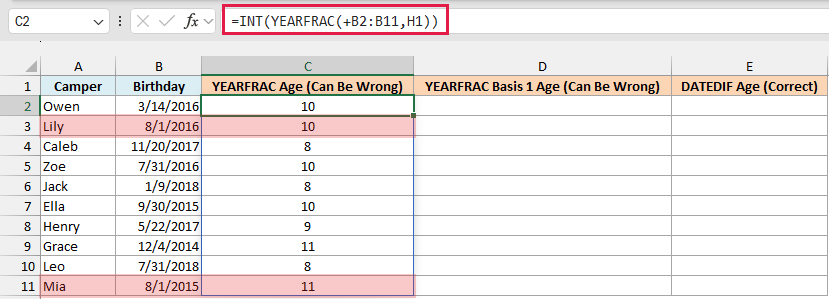
INT removes the decimal, so this looks like age in whole years. But Lily was born on 8/1/2016, so she’s still 9 on 7/31/2026, and the formula says 10.
That’s the default 30/360 basis at work, which treats 7/31 as if it were 8/1. So Lily’s birthday seems to arrive a day early, and Mia (born on 8/1/2015) has the same problem.
Here is the same formula with basis 1, which many people use for accuracy:
=INT(YEARFRAC(+B2:B11,H1,1))
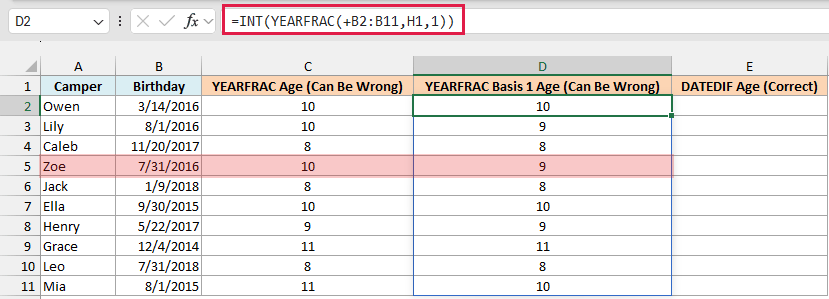
This fixes Lily and Mia, but now Zoe is wrong. She turns 10 on 7/31/2026, and the formula says 9, because basis 1 divides by an average year length and returns 9.998.
Leo, born on July 31 two years later, comes out right, though. Basis 1 averages the lengths of every calendar year the span touches, so the result shifts slightly with how many of those years are leap years.
And here is the DATEDIF formula:
=DATEDIF(B2:B11,H1,"y")
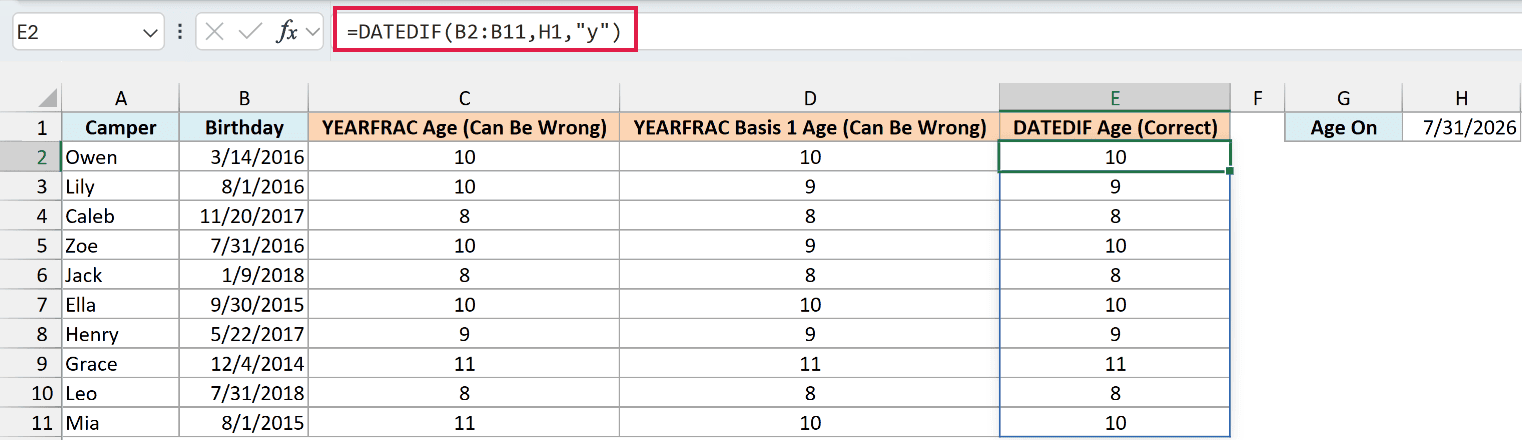
The DATEDIF function counts completed years, so it gets Lily (9), Mia (10), and Zoe (10) right. It also accepts the ranges directly, without the plus sign.
Important: INT with YEARFRAC can be off by one year around a birthday, whichever basis you use. For age or years of service in whole years, use DATEDIF with “y”, and keep YEARFRAC for durations with decimals.
So these are seven practical ways to use the YEARFRAC function in Excel, from lease lengths and basis options to months, prorated fees, interest, and year progress. Just remember the plus sign before a range of dates, and use DATEDIF when you need whole years.
I hope you found this article helpful.
Other Excel Articles You May Also Like:
