

The POWER function raises a number to a power. So =POWER(5,2) gives you 25, which is 5 multiplied by itself, and =POWER(2,3) gives you 8.
It does the same math as the caret (^) operator, just written as a function. That makes it handy for things like squaring numbers, finding a cube root, or working out a growth rate.
In this tutorial, I’ll show you how POWER works with whole numbers, fractions, zero, and negative exponents, plus a couple of growth formulas you can use right away.
Follow along with the example file
POWER Function Examples.xlsx
POWER Function Syntax
Here is the syntax of the POWER function:
=POWER(number, power)
- number – The base number you want to raise. It can be a value, a cell reference, a range, or a calculation.
- power – The exponent you want to raise the base to. It can be a whole number, a fraction, a decimal, zero, or a negative number.
Both arguments are required. If either one is text that isn’t a number (like “abc”), POWER returns a #VALUE! error, but a number stored as text, such as “3”, still works.
A negative base works fine with whole-number powers, so =POWER(-2,3) returns -8. With a fractional power, Excel usually returns #NUM!, for example =POWER(-8,0.5), because a negative number has no real square root.
Odd roots are the exception. =POWER(-8,1/3) returns -2, since -2 x -2 x -2 is -8.
A base of 0 needs a positive power. =POWER(0,-1) returns #DIV/0! (it means 1 divided by 0), and =POWER(0,0) returns #NUM!.
The POWER function works in all Excel versions, including Microsoft 365, Excel 2024, 2021, 2019, 2016, and Excel for Mac.
When to Use the POWER Function
Use this function when you need to:
- Square or cube numbers, like turning a side length into an area
- Work out how many combinations a code or password can have
- Find a cube root, square root, or any other root
- Calculate the average yearly growth rate between a start and an end value
- Project a value that grows by the same percentage every period
Let me show you a few practical examples of how to use POWER in Excel.
Example 1: Square Numbers With the POWER Function
Let’s start with a simple example.
Below is a list of square garden beds with the length of each side in feet, and I want to get the area of each bed in column C.
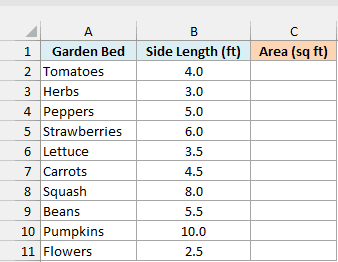
Here is the formula:
=POWER(B2:B11,2)
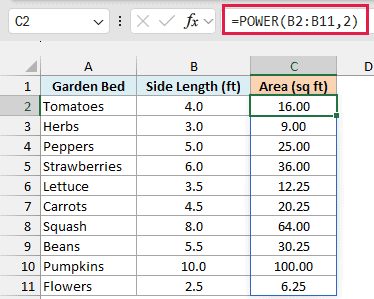
The 2 in the formula squares each side length, which is the same as multiplying it by itself. So the tomato bed with 4-foot sides has an area of 16 square feet.
Since I gave POWER the whole range B2:B11, it returns one result for every bed and spills them down column C. You enter it only once, in C2.
Spilling a range like this needs Excel 365 or Excel 2021 and later. If you are using Excel 2019 or earlier, enter the below formula in cell C2 and then copy it down the range:
=POWER(B2,2)
The same single-cell approach works for every spilling formula in this article.
You can get the exact same result with the caret operator, =B2:B11^2. POWER and ^ always return the same answer, so use whichever one reads better to you (I’ve covered more ways to square a number in Excel in a separate tutorial).
Important: If you switch to the caret, watch out for a minus sign in front of a number, because Excel applies the minus before the power. So =-3^2 returns 9, not -9, and you need =-POWER(3,2) to get -9.
Example 2: Use Exponents From Cells (Count Possible Codes)
Now let’s take both the base and the exponent from the sheet.
Below is a list of lock codes and passwords with the characters available for each spot and the code length, and I want to calculate how many different codes are possible in column D.
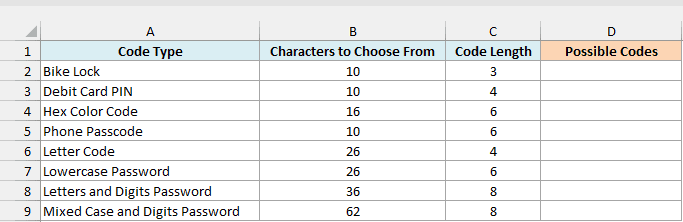
Here is the formula:
=POWER(B2:B9,C2:C9)
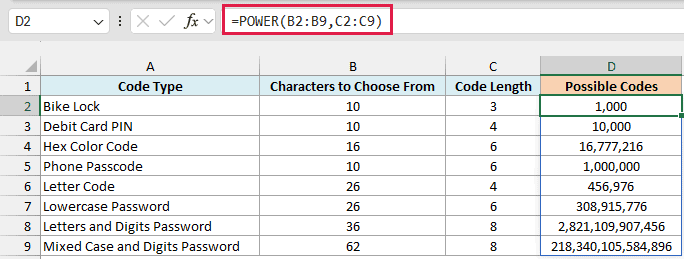
When both arguments are ranges, POWER pairs them up row by row. A bike lock has 10 digits to choose from and 3 spots, so it has 10 to the power of 3, or 1,000 possible codes.
Look at how fast the numbers climb as the code gets longer or the character set gets bigger. An 8-character password with uppercase letters, lowercase letters, and digits (62 characters) has 218,340,105,584,896 possible combinations.
The biggest result POWER can give you is about 1.8E+308, which is the largest number Excel can store. Anything bigger, like =POWER(10,309), returns a #NUM! error.
Example 3: Find the Cube Root in Excel With POWER
POWER also works with fractional exponents, which is how you get roots in Excel.
Below is a list of cube-shaped boxes with the volume of each box in cubic inches, and I want to find the length of each side in column C.
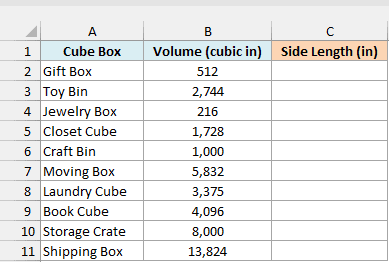
Here is the formula:
=POWER(B2:B11,1/3)
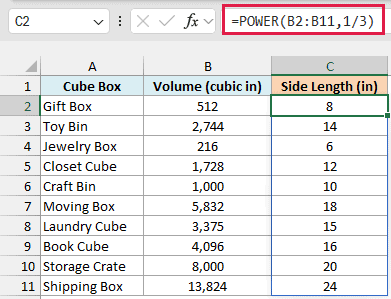
Raising a number to the power of 1/3 gives you its cube root. The gift box has a volume of 512 cubic inches, so each side is 8 inches (because 8 x 8 x 8 is 512).
The same idea works for any root. Use 1/2 for a square root, 1/4 for a fourth root, and so on.
Excel has the SQRT function for square roots, but there’s no built-in cube root function, so POWER is the easiest way to get one. I’ve covered square roots in more detail in my guide on how to calculate square root in Excel.
Important: If you use the caret for roots, put the fraction in parentheses, like =B2^(1/3). Without them, =B2^1/3 raises B2 to the power of 1 and then divides by 3, so you get 170.67 for the gift box instead of 8.
Example 4: Zero and Negative Exponents in Excel
Here’s what happens when the exponent is zero or negative.
Below is a list of place values with the exponent of 10 that each one stands for, and I want to get the value of each place in column C.
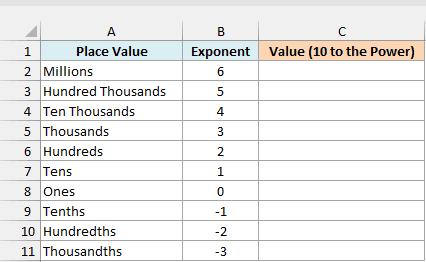
Here is the formula:
=POWER(10,B2:B11)
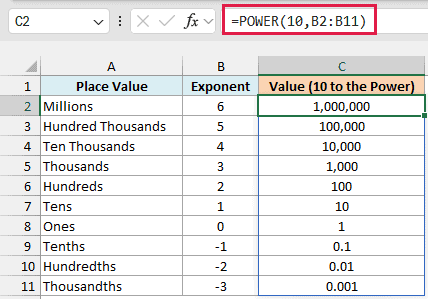
This time the base is a fixed number (10) and the exponents come from the range. A positive exponent multiplies 10 by itself that many times, so an exponent of 3 gives 1,000.
Any number other than 0 raised to the power of 0 returns 1, which is why the Ones row shows 1.
A negative exponent divides instead of multiplying. 10 to the power of -2 is 1 divided by 10 squared, which is 0.01.
This is the same math behind scientific notation in Excel, where a number like 1.5E-03 means 1.5 times 10 to the power of -3.
Example 5: CAGR Formula in Excel Using POWER
Now let’s use POWER to calculate the compound annual growth rate (CAGR), which is the average yearly growth between a start value and an end value.
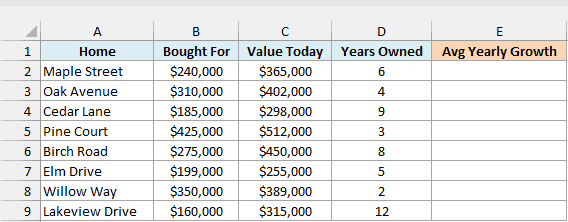
Below is a list of homes with the price each one was bought for, what it’s worth today, and how many years it has been owned, and I want to calculate the average yearly growth in its value in column E.
Here is the formula:
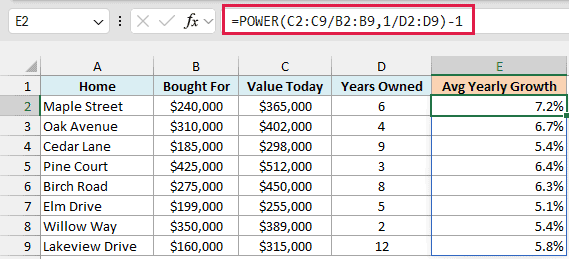
=POWER(C2:C9/B2:B9,1/D2:D9)-1
How this formula works:
- C2:C9/B2:B9 divides each home’s value today by its price, which gives the total growth. Maple Street went from $240,000 to $365,000, so this gives about 1.52 (the value grew 52% in total).
- POWER(…,1/D2:D9) takes the root that matches the number of years. For Maple Street that’s the 6th root of 1.52, which is about 1.072.
- -1 subtracts the 1 that stands for the original value, which leaves only the growth, 0.072 (or 7.2%).
So Maple Street grew 7.2% a year on average. Each year’s 7.2% is added on top of the already-grown value, which is why you can’t just divide the 52% by 6 (that would give you about 8.7%).
If your results show up as decimals like 0.072, select column E and apply the Percent Style format from the Home tab.
I’ve explained more ways to calculate CAGR in Excel in a separate guide.
Pro Tip: Excel’s RRI function gives the same answer in one step. =RRI(D2:D9,B2:B9,C2:C9) takes the number of years, the start value, and the end value, and returns the same yearly growth rates.
Example 6: Project Growth Over Time (Weekly Running Plan)
Let’s step it up and use POWER to build a whole plan from two settings.
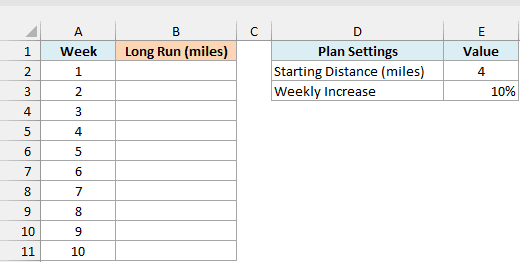
Below is a 10-week running plan with the starting distance and the weekly increase in a small settings table, and I want to calculate the long-run distance for each week in column B.
Here is the formula:
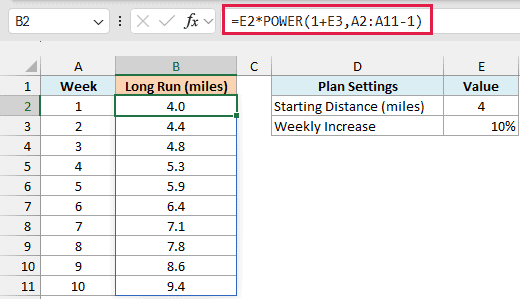
=E2*POWER(1+E3,A2:A11-1)
How this formula works:
- 1+E3 turns the 10% weekly increase into a growth factor of 1.1.
- A2:A11-1 turns the week numbers into exponents from 0 to 9. Week 1 gets an exponent of 0, so it stays at the starting distance.
- POWER(1+E3,A2:A11-1) raises 1.1 to each of those exponents, and multiplying by E2 applies them to the starting distance of 4 miles.
So week 2 is 4 x 1.1, or 4.4 miles, and week 10 is 4 x 1.1 to the power of 9, which is about 9.4 miles.
The 10% is taken on the previous week’s distance each time, so the weekly jump keeps growing, from 0.4 miles in week 2 to almost 0.9 miles in week 10.
Since the formula points to E2 and E3, you can change the starting distance or the weekly increase and the whole plan updates.
The same math is behind compound interest in Excel, where your money grows by a fixed rate every period.
So these are some practical ways to use the POWER function in Excel, from squaring numbers and finding roots to working out growth rates and projections.
I hope you found this Excel tutorial useful.
Other Excel Articles You May Also Like:
