

The CEILING.MATH function rounds a number up to the next whole number, or up to the next multiple of any number you pick, like 5 or 0.5. It’s the newer version of the CEILING function, with an extra setting for how negative numbers get rounded.
You’ll find it useful whenever rounding down would leave you short, like buying paint by the can or booking enough buses for a school trip.
In this tutorial, I’ll show you how CEILING.MATH works, what it does with negative numbers, and a few practical ways to use it.
Follow along with the example file
CEILING.MATH Function Examples.xlsx
CEILING.MATH Function Syntax
Here is the syntax of the CEILING.MATH function:
=CEILING.MATH(number, [significance], [mode])
- number – The number you want to round up. This can be a value, a cell reference, a range, or a calculation.
- significance – (Optional) The multiple you want to round up to, such as 5 or 0.5. If you leave it out, Excel uses 1. Its sign doesn’t matter, so -5 works the same as 5.
- mode – (Optional) Decides which way negative numbers are rounded. If you leave it out, Excel uses 0.
When you leave out significance, CEILING.MATH rounds up to the next whole number. So =CEILING.MATH(6.3) returns 7, and a number that’s already whole, like 6, stays as it is.
The mode argument only changes negative numbers. With 0 (or no mode at all), negative numbers are rounded toward zero, so =CEILING.MATH(-6.7) returns -6.
With any other number, like 1, they’re rounded away from zero, so =CEILING.MATH(-6.7,1,1) returns -7.
The CEILING.MATH function was added in Excel 2013, so it works in Excel 2013 and later, including Microsoft 365, Excel 2024, 2021, 2019, 2016, Excel for Mac (2016 and later), and Excel for the web.
When to Use the CEILING.MATH Function
Use this function when you need to:
- Round a number up to the next whole number, like gallons of paint to full cans
- Round amounts up to a multiple such as 5, 10, or 0.5
- Work out how many buses, boxes, or packs you need for a group
- Control whether negative numbers round toward zero or away from it
- Turn dates into quarters, or split a list into groups of a fixed size
Let me show you a few practical examples of how to use CEILING.MATH in Excel.
Example 1: Round Up to the Next Whole Number
Let’s start with a simple example.
Below is a list of rooms with the gallons of paint each one needs, and I want the number of one-gallon cans to buy in column C.
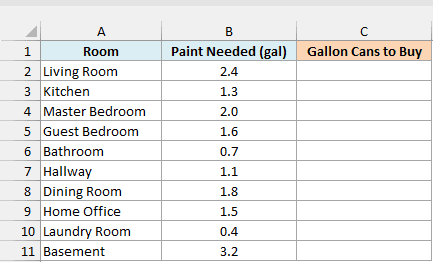
Here is the formula:
=CEILING.MATH(B2:B11)
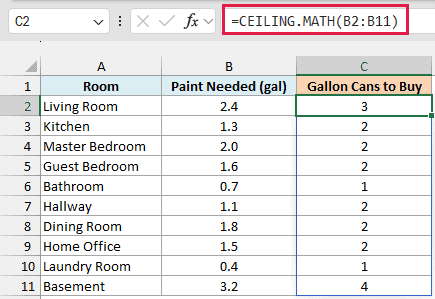
Since there’s no significance, CEILING.MATH rounds every amount up to the next whole number. The Living Room needs 2.4 gallons, so you buy 3 cans, and the Bathroom’s 0.7 gallons still means 1 can.
The Master Bedroom needs exactly 2.0 gallons, and it stays at 2. CEILING.MATH only rounds up when there’s something left over.
You enter this formula once in cell C2, and in Excel 365 and Excel 2021 or later it spills the results all the way down to C11.
If you are using Excel 2019 or earlier, enter the below formula in cell C2 and then copy it down the range:
=CEILING.MATH(B2)
Example 2: Round Up to the Nearest Multiple of 5
Now let’s give CEILING.MATH a multiple to round up to.
Below is the bill for a group dinner with each friend’s share, and I want each share rounded up to the next $5 in column C, so it’s easy to pay in cash.
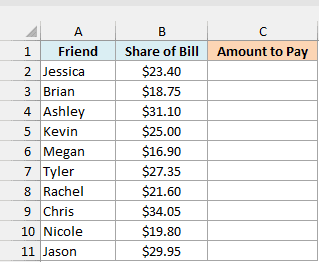
Here is the formula:
=CEILING.MATH(B2:B11,5)
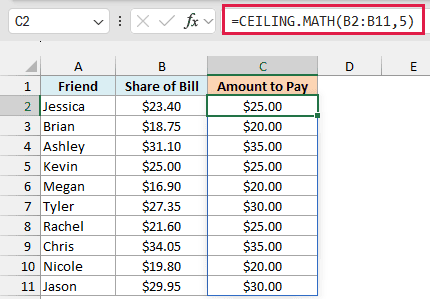
The 5 in the formula is the significance, so every share goes up to the next multiple of 5. Jessica’s $23.40 becomes $25.00, and Chris’s $34.05 becomes $35.00, even though he’s only five cents over $34.
Kevin’s share is exactly $25.00, which is already a multiple of 5, so it doesn’t change.
The significance can be any positive number, including a decimal. Use 10 to round up to the next $10, or 0.5 to round up to the next 50 cents.
If you are using Excel 2019 or earlier, enter the below formula in cell C2 and then copy it down the range:
=CEILING.MATH(B2,5)
Example 3: CEILING.MATH With Negative Numbers (Mode Argument)
Negative numbers are where CEILING.MATH needs a closer look, so let’s see what it does with them.
Below is a list of flex-time balances (extra hours are positive, hours short are negative), and I want each balance rounded to half-hour blocks in column C.
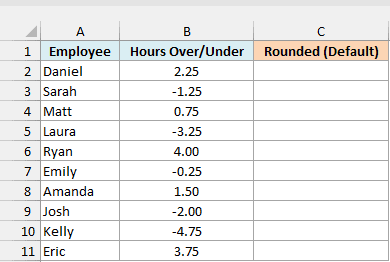
Here is the formula:
=CEILING.MATH(B2:B11,0.5)
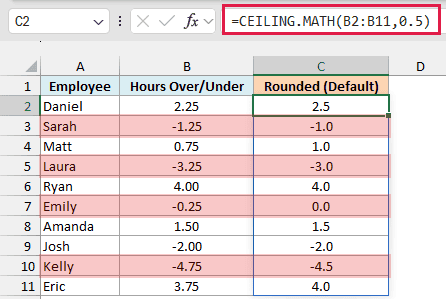
The positive balances go up to the next half hour, so Daniel’s 2.25 hours becomes 2.5. But the shortfalls shrink toward zero, because rounding a negative number “up” means moving it toward zero.
Sarah is 1.25 hours short, and that becomes -1.0. Emily is 15 minutes short, and her balance becomes 0, as if she owes nothing.
If the rule is that every started half hour counts in full, the shortfalls need to round away from zero instead. That’s what the mode argument does.
Here is the formula with the mode set to 1, with the results in column D:
=CEILING.MATH(B2:B11,0.5,1)
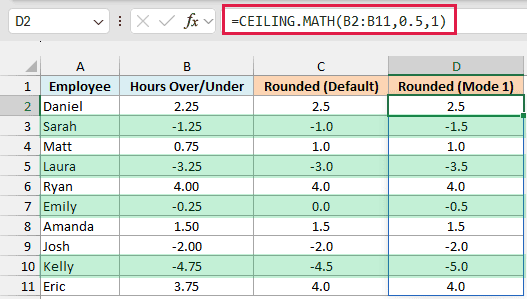
Now Sarah’s -1.25 becomes -1.5, Emily’s -0.25 becomes -0.5, and Kelly’s -4.75 becomes -5.0. Josh’s -2.00 is already a multiple of 0.5, so it stays at -2.0.
The positive balances are the same in both columns, because mode never changes positive numbers. Any number other than 0 works as the mode, so TRUE or -1 give you the same result as 1.
With the older CEILING function, you’d push the shortfalls away from zero by using -0.5 as the significance. But a positive balance with a negative significance returns a #NUM! error, so one CEILING formula can’t handle this whole column.
CEILING.MATH does it in one formula, because the mode argument handles the direction for you.
If you are using Excel 2019 or earlier, enter the below formula in cell C2 for the default version and then copy it down the range:
=CEILING.MATH(B2,0.5)
For the mode 1 version, enter the below formula in cell D2 and copy it down the same way:
=CEILING.MATH(B2,0.5,1)
Example 4: Find How Many Buses You Need
This next one uses CEILING.MATH to work out how many of something you need, which comes up all the time.
Below is a list of grades going on a school trip with the number of students in each, and I want the number of buses each grade needs in column C, based on the seats per bus in cell F1.
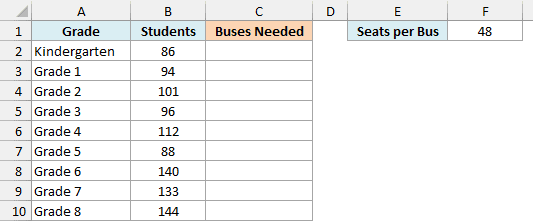
Here is the formula:
=CEILING.MATH(B2:B10/F1)
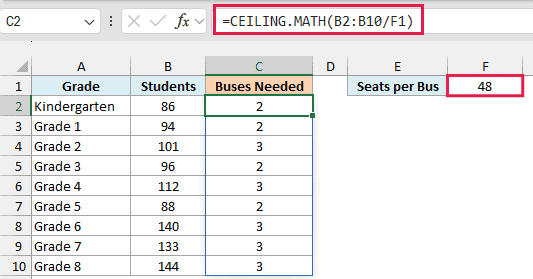
The formula divides each grade’s students by the 48 seats in F1, and CEILING.MATH rounds the answer up to a whole bus. Grade 2 has 101 students, which is 2.1 buses, so it needs 3, because the extra 5 students still need a ride.
Grade 3 has exactly 96 students, which fills 2 buses with no one left over, so it gets 2.
Since the seats per bus sit in F1, you can change that one cell (say, to 52 for bigger buses) and all the results update. If F1 is ever empty, you’ll get a #DIV/0! error, because the formula can’t divide by zero.
If you are using Excel 2019 or earlier, enter the below formula in cell C2 and then copy it down the range:
=CEILING.MATH(B2/$F$1)
The dollar signs lock the reference to F1, so every row keeps dividing by the same seats per bus when you copy the formula down.
Example 5: Get the Quarter From a Date
CEILING.MATH also works well with dates, once you pull the month number out of the date.
Below is a list of hotel bookings with their check-in dates, and I want the quarter of each booking (Q1 to Q4) in column C.
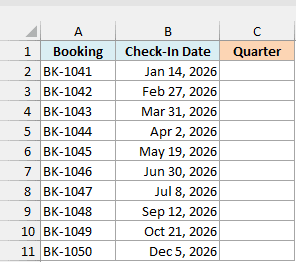
Here is the formula:
="Q"&CEILING.MATH(MONTH(B2:B11)/3)
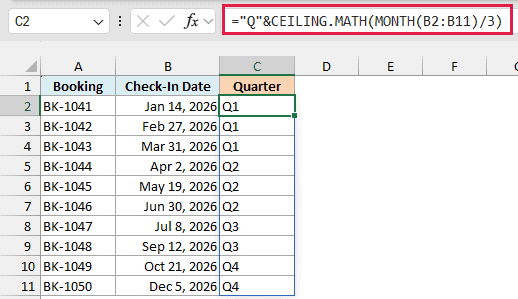
How this formula works:
- The MONTH function gets the month number from each date, from 1 for January to 12 for December.
- Dividing by 3 turns months 1 to 3 into numbers from 0.33 to 1, months 4 to 6 into 1.33 to 2, and so on.
- CEILING.MATH rounds each of those up to the next whole number, which gives you 1, 2, 3, or 4.
"Q"&adds the letter Q in front, so 2 shows up as Q2.
So BK-1043 (March 31) gets Q1, because 3 divided by 3 is exactly 1. Two days later, BK-1044 (April 2) gets Q2, because 4 divided by 3 is 1.33, which rounds up to 2.
The results are text values like “Q1”. If you want to use the quarter in a calculation, leave out the "Q"& part so you get plain numbers.
If you are using Excel 2019 or earlier, enter the below formula in cell C2 and then copy it down the range:
="Q"&CEILING.MATH(MONTH(B2)/3)
There are a few other ways to do this too, which I cover in how to calculate the quarter from a date in Excel.
Example 6: Split a List Into Teams With SEQUENCE
Let’s finish with a fun one that combines CEILING.MATH with the SEQUENCE function.
Below is a list of players for a trivia night in the order they signed up, and I want to put them into teams of 4 in column B, using the team size in cell E1.
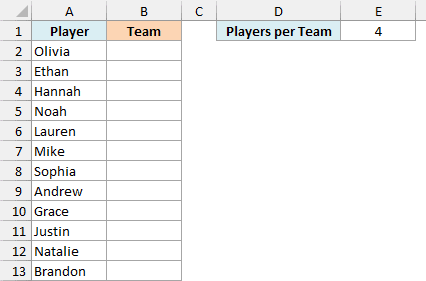
Here is the formula:
=CEILING.MATH(SEQUENCE(ROWS(A2:A13))/E1)
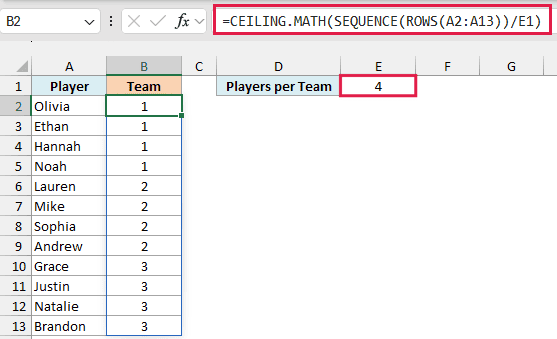
How this formula works:
- ROWS(A2:A13) counts the players, which is 12.
- The SEQUENCE function turns that into the numbers 1 to 12, one for each player.
- Dividing by the 4 in E1 gives 0.25, 0.5, 0.75, 1, then 1.25, and so on up to 3.
- CEILING.MATH rounds those up, so the first four players get 1, the next four get 2, and the last four get 3.
Change E1 to 3 and you get four teams of three instead. If 12 doesn’t divide evenly by the team size, the last team just ends up smaller.
SEQUENCE is only available in Excel 365 and Excel 2021 or later. If you are using Excel 2019 or earlier, enter the below formula in cell B2 and then copy it down the range:
=CEILING.MATH(ROWS($A$2:A2)/$E$1)
Here, ROWS($A$2:A2) counts 1 in the first row, 2 in the next, and so on as you copy it down, so it does the same job as SEQUENCE.
Both formulas keep players in sign-up order, so if you want random teams, try the random team generator instead.
So these are six ways to use the CEILING.MATH function in Excel. It always rounds up, either to the next whole number or to a multiple you choose, and the mode argument decides what “up” means for negative numbers.
If you want to round to a set number of decimal places instead of a multiple, the ROUNDUP function is the better fit. And if you need a number rounded down, CEILING.MATH has a matching FLOOR.MATH function.
Other Excel Articles You May Also Like:
