

The DCOUNTA function counts the non-empty cells in a column, but only for the rows that meet the conditions you set. It counts anything that sits in a cell, so it works well when the column you’re checking holds text, like names or notes.
Like the other database functions in Excel, DCOUNTA reads its conditions from a small criteria range on the sheet. So you can change what you’re counting by editing a cell, without touching the formula.
In this article, I’ll show you how DCOUNTA works with one condition, how it differs from DCOUNT, and how to count blank cells, use OR conditions, wildcards, and formula-based conditions.
Follow along with the example file
DCOUNTA Function Examples.xlsx
DCOUNTA Function Syntax
Here is the syntax of the DCOUNTA function:
=DCOUNTA(database, [field], criteria)
- database – The range that holds your data, including the header row at the top.
- field – (Optional) The column whose non-empty cells you want to count. You can type its header in double quotes (like “Meal Choice”), give its position in the database (like 3), or point to the cell that has the header.
- criteria – The range that holds your conditions. Its top row has one or more headers from your data, and the cells below them hold the conditions.
In the field column, a cell counts as long as it isn’t empty. That means text, numbers, dates, TRUE or FALSE, and even error values all get counted.
If you leave out the field, DCOUNTA counts every record that matches your criteria instead (Example 2 shows how).
The DCOUNTA function works in all Excel versions, including Microsoft 365, 2024, 2021, 2019, 2016, Mac, and Excel for the web.
When to Use the DCOUNTA Function
Use this function when you need to:
- Count the rows that have something filled in a column, like a name or a choice, but only for records that meet a condition
- Count entries in a column that mixes numbers and text, such as test scores with “Absent” in some cells
- Count the records where a column is still empty, like attendees who haven’t checked in yet
- Count rows that match one set of conditions or another, with the conditions kept in cells you can change
- Count using wildcards or a formula-based condition, such as only weekend dates
Let me show you a few practical examples of how to use DCOUNTA.
Example 1: Count Text Entries With One Condition
Let’s start with a simple example.
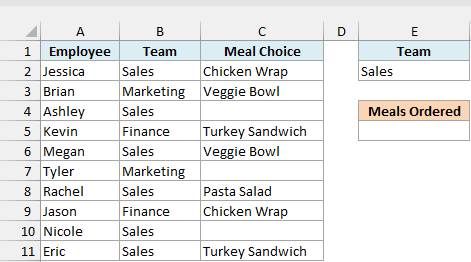
Below is a team lunch order list with each employee’s team and meal choice, and I want to count how many people on the Sales team have picked a meal, with the result in E5.
Here is the formula:
=DCOUNTA(A1:C11,"Meal Choice",E1:E2)
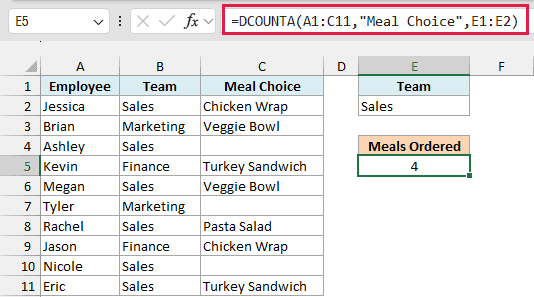
In the above formula, A1:C11 is the whole table including the headers, “Meal Choice” is the column to count, and E1:E2 is the criteria range. The criteria range is just the Team header in E1, with Sales typed below it in E2.
There are six people on the Sales team, but Ashley and Nicole haven’t picked a meal yet. Their blank cells are skipped, just like the COUNTA function skips them, so the result is 4.
Notice that the meal choices are text. The DCOUNT function would return 0 here because it only counts numbers, and Example 3 puts the two side by side.
Important: The header in your criteria range has to match the column header in your data. If E1 said Teams instead of Team, DCOUNTA would return 0 without any error, which is easy to miss.
A misspelled field name, on the other hand, gives you an error. If you write “Meal Choices” in the formula, DCOUNTA can’t find that column and returns #VALUE!.
Example 2: Count All Matching Records (Leave Out the Field)
Now let’s see what happens when you leave out the field argument.
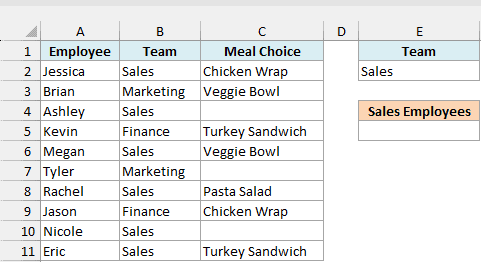
Below is the same lunch order list, and this time I want to count everyone on the Sales team, whether or not they’ve picked a meal, with the result in E5.
Here is the formula:
=DCOUNTA(A1:C11,,E1:E2)
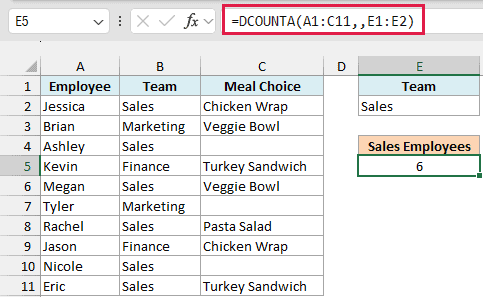
Notice the two commas back to back. That empty spot is where the field argument would go, and leaving it empty tells DCOUNTA to count every record that matches the criteria.
Since no column is being checked for blanks anymore, Ashley and Nicole are counted too, and the result is 6 instead of 4.
Pro Tip: If you turn this list into an Excel Table named LunchOrders, use LunchOrders[#All] as the database so new rows get counted. Keep the [#All] part, because without it the headers are left out (you’d get 0 here, or #VALUE! with a field).
Example 3: DCOUNTA vs DCOUNT on a Column With Text and Numbers
Now let’s look at a column that mixes numbers and text.
Below is a list of math test results for two sections, where some students have Absent or Excused instead of a score, and I want to count the Section B entries with DCOUNTA in E5 and with DCOUNT in F5.
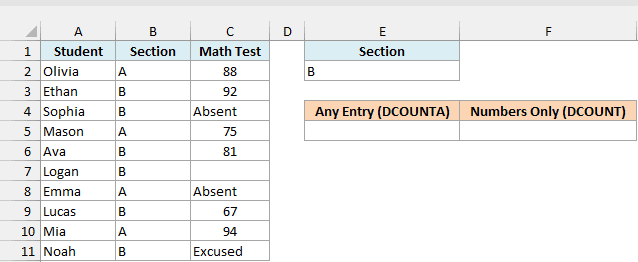
Here is the DCOUNTA formula:
=DCOUNTA(A1:C11,"Math Test",E1:E2)
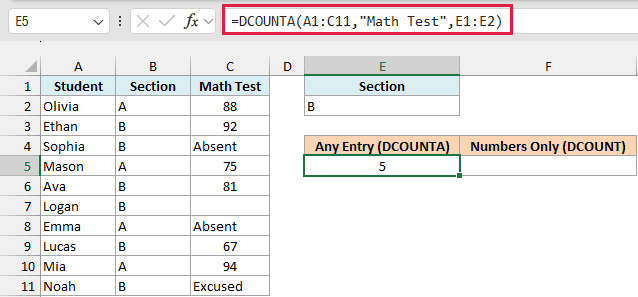
Section B has six students. Logan’s cell is empty, so DCOUNTA counts the other five, including Sophia’s Absent and Noah’s Excused.
Here is the DCOUNT formula for comparison:
=DCOUNT(A1:C11,"Math Test",E1:E2)
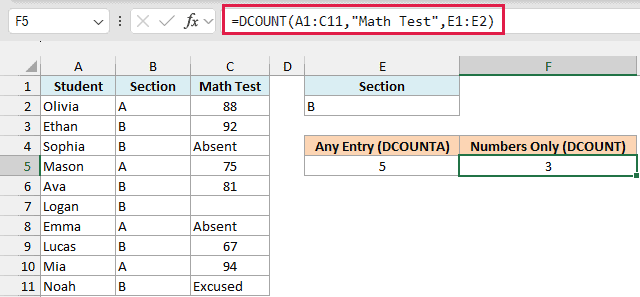
DCOUNT returns 3, because it only counts the actual scores (92, 81, and 67) and skips the text entries.
So use DCOUNTA when you want to know how many entries have been recorded, and DCOUNT when you only want the cells that hold a number. It’s the same difference as COUNT vs COUNTA, just with conditions added.
Example 4: Count Blank Cells With DCOUNTA
Now let’s flip it around and count the empty cells instead.
Below is a conference check-in list with each attendee’s pass type and check-in time, and I want to count the attendees who haven’t checked in yet, with the result in E5.
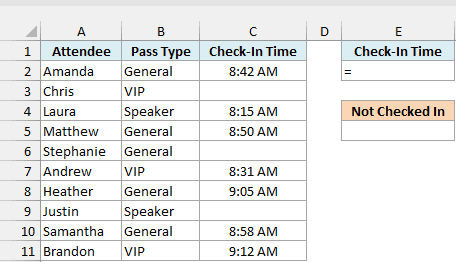
Here is the formula:
=DCOUNTA(A1:C11,,E1:E2)
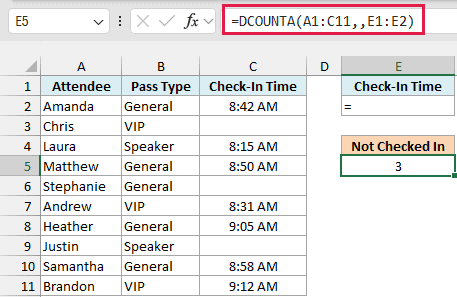
The trick is in the criteria cell. E2 holds the formula ="=", which shows a single = sign, and that condition matches only the rows where Check-In Time is empty.
You need the formula because typing = on its own makes Excel start a formula. Another way is to type ‘= with an apostrophe in front.
The field is left out because the condition already picks the empty rows, and we only want to count them.
Chris, Stephanie, and Justin have no check-in time, so the result is 3.
To count the opposite, the attendees who have checked in, put <> in E2 instead. It means “not empty”, and the result would be 7.
If you only need the number of empty cells in a column, with no condition at all, the COUNTBLANK function is quicker.
Important: The = condition only matches cells that are truly empty. A cell with a formula that returns an empty string (“”) looks blank, but DCOUNTA treats it as filled, so it won’t be counted here.
Example 5: DCOUNTA With Multiple Criteria (AND and OR)
Let’s step it up with conditions on more than one column.
Below is a list of home repair jobs with each job type, quote, and the person assigned, and I want to count the Plumbing or Electrical jobs quoted over $200 that already have someone assigned, with the result in F6.
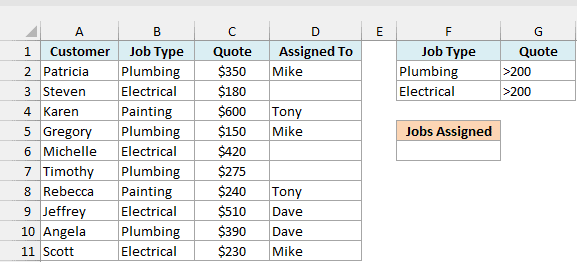
Here is the formula:
=DCOUNTA(A1:D11,"Assigned To",F1:G3)
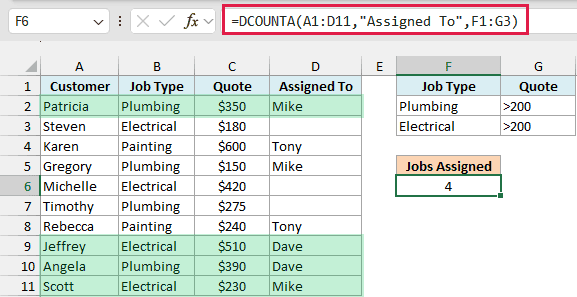
The criteria range F1:G3 has two rows of conditions. Conditions on the same row must all be true (AND), and each new row is another option (OR).
So a job matches if it’s Plumbing with a quote over 200, or Electrical with a quote over 200. Six jobs pass that check.
Then the field takes over. Timothy’s and Michelle’s jobs have nobody in the Assigned To column, so they’re skipped and the result is 4.
Important: Don’t leave a blank row inside the criteria range. If the range were F1:G4 with row 4 empty, every job would pass the criteria, so DCOUNTA would count all 7 jobs that have someone assigned.
Example 6: Use Wildcards in DCOUNTA Criteria
Here’s one that uses part of a text value as the condition.
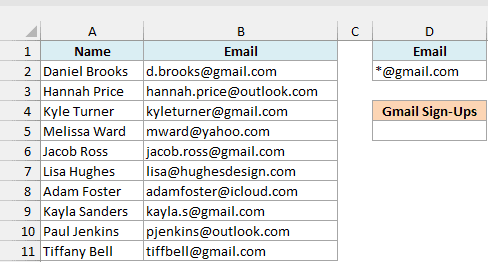
Below is a list of webinar sign-ups with each person’s name and email address, and I want to count how many signed up with a Gmail address, with the result in D5.
Here is the formula:
=DCOUNTA(A1:B11,,D1:D2)
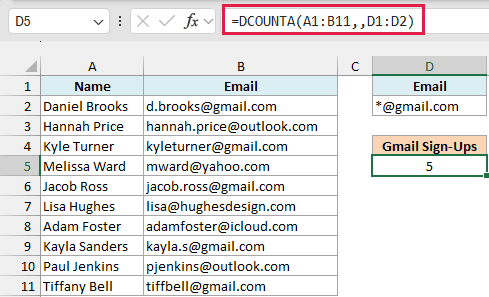
The criteria cell D2 has *@gmail.com. The asterisk is a wildcard character that stands for any number of characters, so this matches every email address that has @gmail.com after the name.
Five of the addresses are Gmail ones, so the result is 5. The match ignores case, so an address typed as KAYLA.S@GMAIL.COM would be counted too.
Even without wildcards, a text condition in DCOUNTA works like “begins with”. For example, Kyle under a Name header would count Kyle Turner, so use ="=Kyle" when you want only cells that say exactly Kyle.
Example 7: Use a Formula as the DCOUNTA Criteria
Finally, let’s use a formula as the condition.
Below is a package delivery log with the delivery date, courier, and who signed for each package, and I want to count the weekend deliveries that someone signed for, with the result in E5.
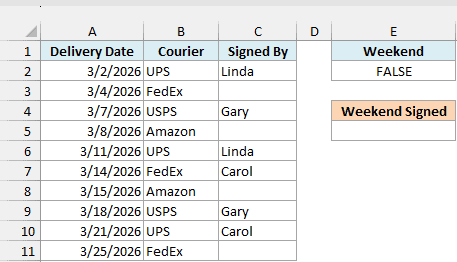
Here is the formula:
=DCOUNTA(A1:C11,"Signed By",E1:E2)
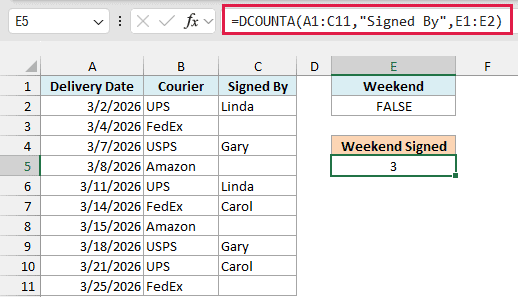
The criteria cell E2 holds =WEEKDAY(A2,2)>5. With 2 as its second argument, the WEEKDAY function numbers the days from Monday (1) to Sunday (7), so anything above 5 is a Saturday or Sunday.
E2 shows FALSE because it only checks the first date, 3/2/2026, which is a Monday. DCOUNTA runs the same check for every row, moving A2 down to A3, A4, and so on.
Five deliveries fall on a weekend, but two of them have nothing in Signed By. So the result is 3.
Make sure the formula points to the first data row, which is A2 here. If it pointed to A3 instead, each check would look at the next row down, and you’d get 4 instead of 3.
Important: The header above a formula condition must not match any header in your data. If E1 said Delivery Date, DCOUNTA would return 0, so use a new label like Weekend (or leave it empty).
So these are seven practical ways to use DCOUNTA in Excel, from a simple one-condition count to blank cells, OR conditions, wildcards, and formula criteria.
If you’d rather keep the conditions inside the formula itself, the COUNTIFS function can do the same kind of counting. I hope you found this article helpful.
Other Excel Articles You May Also Like:
