

The XNPV function in Excel calculates the net present value of cash flows that happen on specific dates. You give it a discount rate, the amounts, and the date of each one.
It then tells you what all that money is worth on the first date in the list. Instead of assuming every gap between payments is one full period, it counts the actual days.
That makes it the function to use when money doesn’t move on a neat yearly schedule. In this tutorial, I’ll show you how XNPV works, why it gives a different answer than NPV, and a few practical ways to use it.
Follow along with the example file
XNPV Function Examples.xlsx
XNPV Function Syntax
Here is the syntax of the XNPV function:
=XNPV(rate, values, dates)
- rate – the annual discount rate, such as 8%. This is usually the return you could get on the same money somewhere else.
- values – the cash flows. Money you pay out is a negative number, and money you receive is a positive number.
- dates – the date of each cash flow, in the same order as the values.
XNPV treats the first date in your list as day zero and values everything as of that date. The first amount isn’t discounted at all, so an investment made on that date goes inside the formula with the other cash flows.
That’s different from the NPV function, where a day-one investment has to stay outside the function (you’ll see this in Example 2).
For every later cash flow, XNPV counts the actual days since the first date and divides by a 365-day year. So a payment that comes 73 days later is discounted for 0.2 of a year.
The other dates can be in any order, but none of them can be earlier than the first date. If one is, or if the values and dates ranges have a different number of cells, XNPV returns a #NUM! error.
The same error shows up when a date is stored as text. So if you see it, check that every date is a real date (you can convert text to dates if it isn’t).
The rate is always an annual rate, even when your cash flows are only weeks apart. Enter it as 8% or 0.08, because if you type 8, XNPV reads it as 800% and gives you a wrong answer without any error.
The rate also has to be more than zero. A rate of 0%, a negative rate, or an empty rate cell gives a #NUM! error.
The XNPV function works in Excel 365, 2024, 2021, 2019, 2016, and older versions, on both Windows and Mac.
When to Use the XNPV Function
Use this function when you need to:
- Check whether an investment or a side business pays off when the money comes back on irregular dates
- Find what a set of future payments, such as installments, is worth today
- Compare payment plans that spread the same purchase over different dates
- See how much an investment’s value changes with the discount rate you pick
Let me show you a few practical examples of how to use the XNPV function.
Example 1: Calculate NPV With Specific Dates Using XNPV
Let’s start with a simple example.
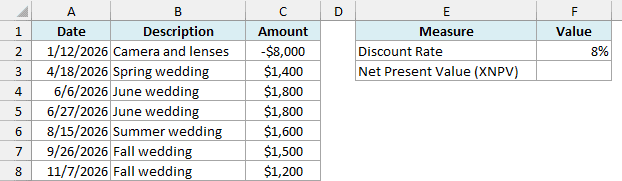
Below is the cost of a camera kit for a wedding photography side business, along with the payments from the weddings booked over the year, and I want to get the net present value at an 8% discount rate in cell F3.
Here is the formula:
=XNPV(F2,C2:C8,A2:A8)
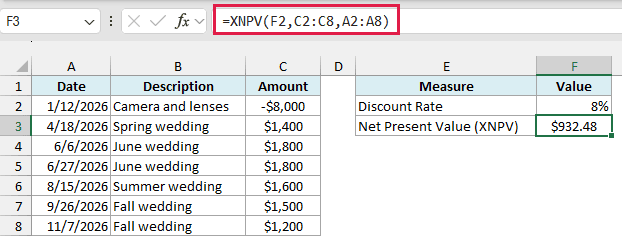
In the above formula, F2 has the 8% discount rate, C2:C8 has the cash flows, and A2:A8 has their dates. The camera kit is a negative number because that money went out, and each wedding payment is positive because it came in.
The weddings brought in $9,300, which is $1,300 more than the $8,000 kit cost. After XNPV discounts each payment back to 1/12/2026, the net value is $932.48.
A positive result means the business earned more than 8% a year on the money. A negative result would mean you’d have done better putting the $8,000 somewhere that pays 8%.
Important: If a row has a date but no amount, enter 0 in the amount cell instead of leaving it blank. A blank cell in the values range makes XNPV return an error instead of a result.
Example 2: XNPV vs NPV (Why the Dates Change the Answer)
Now let’s see why you should use XNPV instead of NPV when your cash flows don’t come at regular intervals.
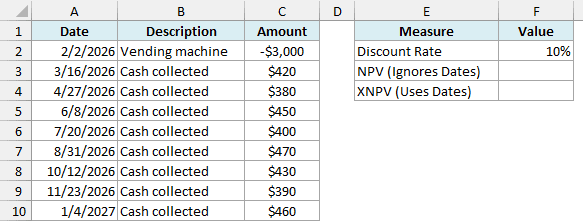
Below are the cash flows of a vending machine, with its cost and the cash collected from it every few weeks, and I want to compare the NPV and XNPV results at a 10% discount rate in column F.
Here is the NPV formula:
=C2+NPV(F2,C3:C10)
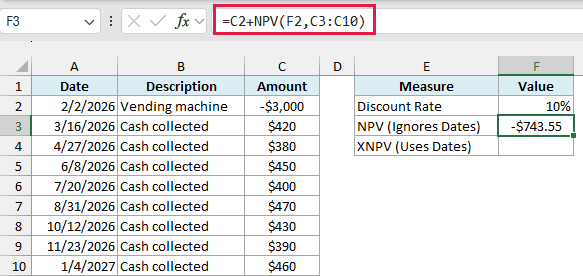
The cost in C2 stays outside the NPV function because it was paid on day one. NPV discounts every value you give it, so putting the cost inside would treat it as paid a full year later.
NPV also has no dates argument. It assumes each collection comes one full year after the previous one, so it treats these eight collections as if they were spread over eight years.
That’s why it returns -$743.55, which says the vending machine loses money.
Here is the XNPV formula:
=XNPV(F2,C2:C10,A2:A10)
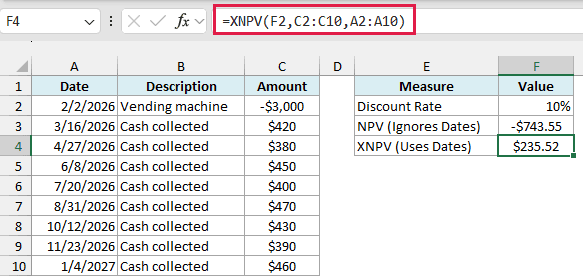
This gives $235.52. XNPV uses the actual dates, so it sees that all the money came back in about 11 months, and that turns the loss into a profit.
If your cash flows really are evenly spaced (every year, or every month with a monthly rate), the NPV function works fine. I’ve covered it in detail in the NPV function tutorial.
Example 3: Find What Future Payments Are Worth Today
Here’s another practical scenario, where there’s no investment at all, just money you’re going to receive.
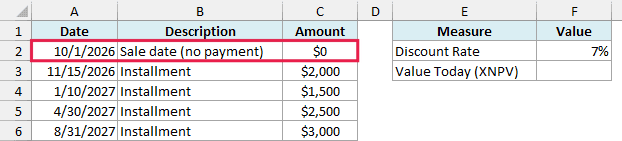
Below is the payment schedule for a car sold to a neighbor who is paying for it in four installments, and I want to find what those payments are worth on the sale date in cell F3.
Here is the formula:
=XNPV(F2,C2:C6,A2:A6)
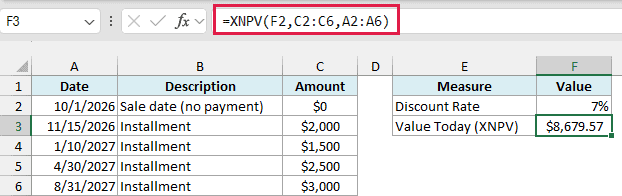
The result is $8,679.57. So $9,000 spread over the next 11 months is worth about $320 less than $9,000 paid in full on the sale date, at a 7% discount rate.
The first row is the key here. It has the sale date of 10/1/2026 with an amount of $0, and its only job is to tell XNPV which date to value the payments on.
Without that row, XNPV would treat the first installment on 11/15/2026 as day zero. It would return $8,752.27, which is the value on the wrong date.
Also notice that every amount here is positive. XNPV doesn’t need a mix of negative and positive values (it works with all-positive or all-negative amounts), so you can use it to value any set of payments.
Example 4: Compare Two Payment Plans With XNPV and FILTER
Let’s step it up with an example where XNPV works together with a dynamic array function.
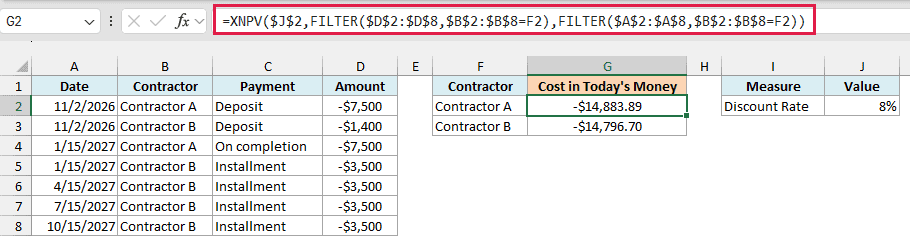
Below are the payment schedules from two contractors who quoted for the same kitchen remodel, kept in one log sorted by date, and I want the cost of each plan in today’s money in column G.

Here is the formula for cell G2, which you then copy down to G3:
=XNPV($J$2,FILTER($D$2:$D$8,$B$2:$B$8=F2),FILTER($A$2:$A$8,$B$2:$B$8=F2))
How this formula works:
- FILTER($D$2:$D$8,$B$2:$B$8=F2) picks out the payment amounts that belong to Contractor A, the name in F2.
- FILTER($A$2:$A$8,$B$2:$B$8=F2) picks out the matching payment dates, row for row.
- XNPV discounts those payments at the 8% rate in J2, which gives -$14,883.89 for Contractor A.
When you copy the formula down, F2 becomes F3, and you get -$14,796.70 for Contractor B.
Contractor B charges $15,400 in total, which is $400 more than Contractor A. But in today’s money, that plan costs about $87 less, because most of its payments happen months later.
Both results are negative because they’re payments you make, so the plan with the smaller negative number is the cheaper one.
This comparison is fair because both plans start on 11/2/2026, so XNPV values both of them on that date. If one plan started later, you’d add a $0 row for it on the common start date, the same way as in Example 3.
The FILTER function needs Excel 365 or Excel 2021 and later.
If you are using Excel 2019 or earlier, sort the log by Contractor and then by Date, so Contractor A’s payments sit in rows 2 and 3, and enter the below formula in cell G2:
=XNPV($J$2,D2:D3,A2:A3)
Then enter the below formula in cell G3 for Contractor B, whose payments are now in rows 4 to 8:
=XNPV($J$2,D4:D8,A4:A8)
Example 5: Calculate XNPV at Several Discount Rates
Now let’s look at what to do when you’re not sure which discount rate to use.
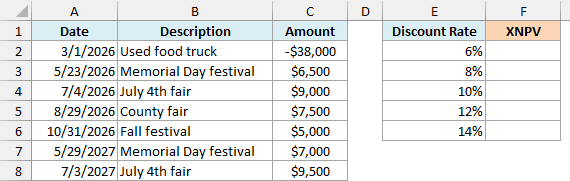
Below are the cash flows of a used food truck, with its cost and the money it made at festivals over two summers, and I want the XNPV at each discount rate from 6% to 14% in column F.
Here is the formula:
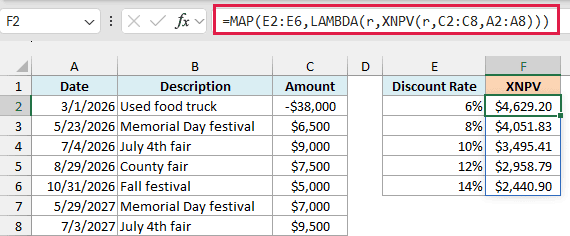
=MAP(E2:E6,LAMBDA(r,XNPV(r,C2:C8,A2:A8)))
How this formula works:
- MAP goes through the rates in E2:E6 one at a time.
- LAMBDA hands each rate to XNPV as r, and XNPV calculates the value of the cash flows in C2:C8 on the dates in A2:A8.
- MAP returns the five results together, and they spill into F2:F6.
The food truck is worth $4,629.20 at 6% and $2,440.90 at 14%. So it stays profitable across the whole range, which means the decision doesn’t depend on picking the exact rate.
Important: XNPV can’t take a range of rates. A formula like =XNPV(E2:E6,C2:C8,A2:A8) returns a #VALUE! error instead of spilling, even though the NPV function spills fine with a range of rates.
The MAP function is only available in Excel 365 and Excel 2024.
If you are using an older version, enter the below formula in cell F2 and then copy it down to F6:
=XNPV(E2,$C$2:$C$8,$A$2:$A$8)
Example 6: Use XNPV and XIRR Together
Let’s finish with how XNPV fits together with the XIRR function, which gives you the return instead of the value.
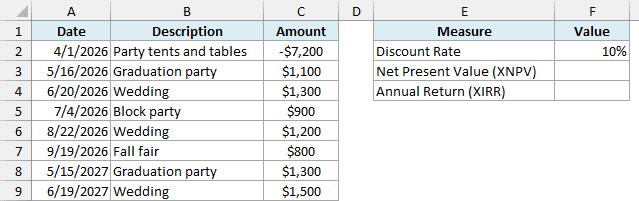
Below are the cash flows of a party tent rental business, with the cost of the tents and tables and the money earned from events, and I want the XNPV at 10% in cell F3 and the annual return in cell F4.
Here is the XNPV formula:
=XNPV(F2,C2:C9,A2:A9)
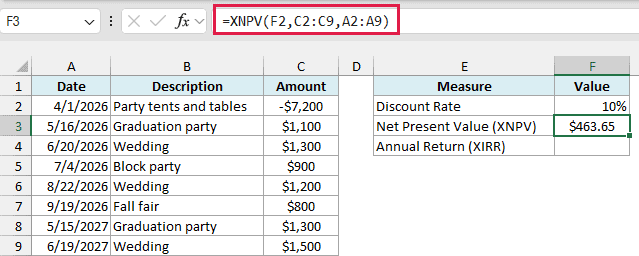
This gives $463.65, so at a 10% discount rate, the rental business is worth more than the $7,200 it cost.
Here is the XIRR formula:
=XIRR(C2:C9,A2:A9)
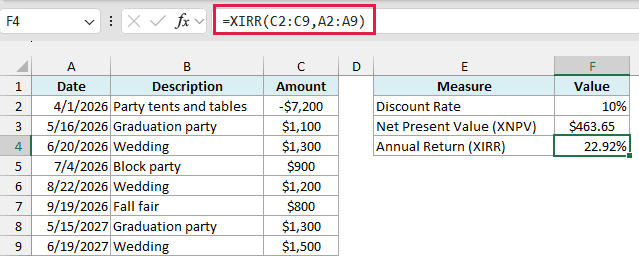
This gives 22.92%, which is the annual return the business actually earned. XIRR finds the one discount rate at which XNPV on the same cash flows comes out to zero.
That’s why the two results always agree. If XIRR is higher than your discount rate (22.92% vs 10% here), XNPV is positive, and if XIRR is lower, XNPV is negative.
So these are some practical examples of using the XNPV function in Excel, starting with a simple side business and building up to comparing payment plans and testing a range of discount rates.
I also showed you why XNPV and NPV give different answers on the same cash flows, and how XNPV and XIRR fit together. I hope you found this tutorial useful!
Other Excel Articles You May Also Like:
