

The UNICODE function returns the number that the Unicode standard gives to the first character in a cell. Every character has one, so the letter A is 65, the check mark is 10003, and even the 😀 emoji has its own number (128512).
So when you need the exact number for a symbol, or you want to know which character is really sitting in a cell, UNICODE is the function to use. It also handles characters that the older CODE function can’t read.
In this article, I’ll show you how UNICODE works with seven examples, going from plain letters and symbols to emoji, look-alike dashes, and city names in other scripts.
Follow along with the example file
UNICODE Function Examples.xlsx
UNICODE Function Syntax
UNICODE takes just one argument:
=UNICODE(text)
- text – The character (or text) whose Unicode number you want. It can be text in double quotes, a cell reference, or a range of cells.
UNICODE only looks at the first character and ignores the rest. So =UNICODE("Excel") returns 69, the same as =UNICODE("E").
If the text is empty (a blank cell or “”), UNICODE returns the #VALUE! error, because there is no first character to read.
Numbers are read as text, so =UNICODE(2026) returns 50, the code for the digit 2. A date works the same way, so you get the code of the first digit of its serial number, not the first character you see in the cell.
The UNICODE function works in Excel 2013 and later versions, including Microsoft 365, Excel 2024, 2021, 2019, 2016, and Excel for Mac.
When to Use the UNICODE Function
Use this function when you need to:
- Find the Unicode number of a symbol or emoji, so you can insert it again with the UNICHAR function
- Get a character’s code point in the U+ format used in character charts
- See how a list of items starts, such as with a bullet or a check mark
- Spot look-alike characters, such as an en dash typed where a hyphen should be
- Work out which alphabet (script) a piece of text is written in
Now let me show you seven practical examples of UNICODE in action.
Example 1: Get the Unicode Number of a Character in Excel
Let’s start with a simple example.
Below is a list of letters and keyboard symbols, and I want the Unicode number of each one in column B.
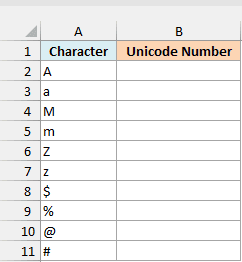
Here is the formula:
=UNICODE(A2:A11)
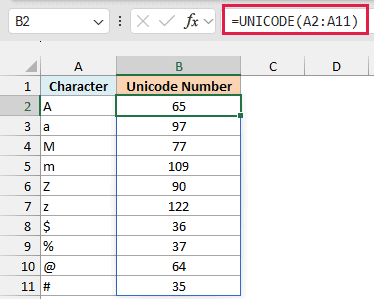
I gave UNICODE the whole range A2:A11, so the one formula in B2 returns a number for every character, and the results spill down to B11.
Notice that capital and small letters get different numbers. Capital A to Z are 65 to 90, and small a to z are 97 to 122, so A returns 65 while a returns 97.
Keyboard symbols have their own codes too, so the dollar sign returns 36 and the @ sign returns 64.
Spilling results like this needs Excel 2021 or Microsoft 365. If you are using Excel 2019 or earlier, enter the below formula in cell B2 and then copy it down the range:
=UNICODE(A2)
Examples 2 to 6 also use spilling formulas, and the older-version fix is the same for each of them. Refer to the first cell of the range instead of the whole range, and then copy the formula down.
Important: If you point UNICODE at a longer range to leave room for new entries, such as A2:A20, the empty rows show #VALUE!. Use =IF(A2:A20="","",UNICODE(A2:A20)) to keep them blank instead.
Example 2: UNICODE Only Reads the First Character
Now let’s see what happens when a cell has more than one character.
Below is a to-do list copied from a notes app, where some items start with a symbol like a bullet or a check mark, and I want the code of the first character of each item in column B.
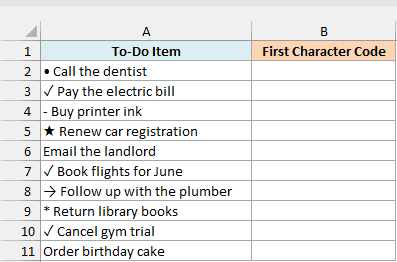
Here is the formula:
=UNICODE(A2:A11)
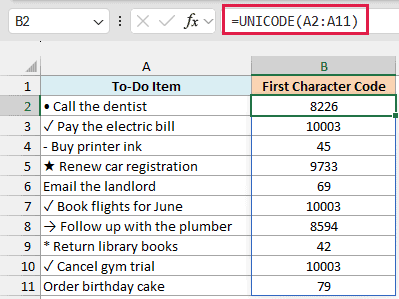
This gives you a quick way to see how each line starts. “✓ Pay the electric bill” returns 10003, the code for the check mark, and the rest of the text is ignored.
The three items that start with a check mark all return 10003, the bullet returns 8226, the star returns 9733, and the arrow returns 8594. An item that starts with a plain letter, like “Email the landlord”, gets that letter’s code (69 for E).
If a line starts with a space, UNICODE returns 32 (the code for a space) instead of the symbol after it. Wrapping the range in the TRIM function, as in =UNICODE(TRIM(A2:A11)), skips those leading spaces.
Example 3: Find the Unicode Character Code of a Symbol
Here’s a practical one for anyone who works with symbols in Excel.
Below is a list of symbols that often show up in reports, with their names, and I want the Unicode number of each symbol in column C.
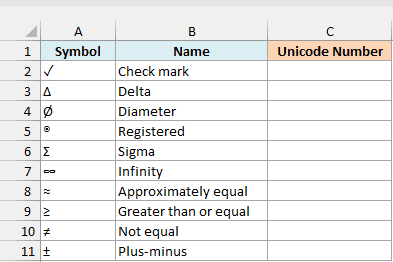
Here is the formula:
=UNICODE(A2:A11)
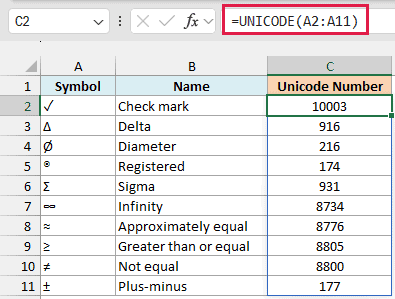
Now you have the number for each symbol. The check mark is 10003, delta is 916, and the not-equal sign is 8800.
You can use these numbers to get the symbol back with the UNICHAR function. For example, =UNICHAR(10003) returns ✓, so you can insert a check mark with a formula instead of copying and pasting the symbol.
Example 4: Get the U+ Code Point of an Emoji
Unicode charts and websites usually list a character by its hexadecimal code point, which starts with U+, such as U+1F600 for the 😀 emoji.
Below is a list of emoji reactions from a feedback form with what each one means, and I want the U+ code point of each emoji in column C.
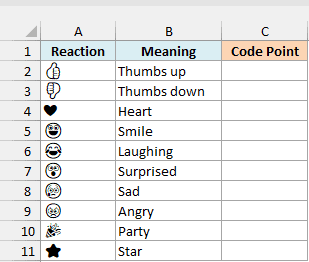
Here is the formula:
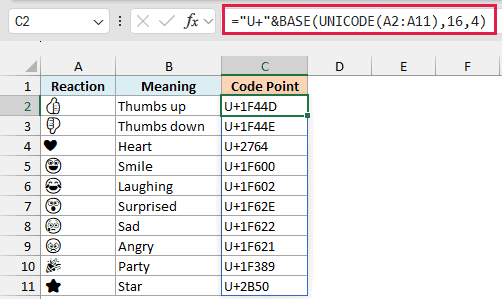
="U+"&BASE(UNICODE(A2:A11),16,4)
How this formula works:
- UNICODE(A2:A11) returns the regular (decimal) number of each emoji, such as 128077 for the thumbs up.
- BASE(…,16,4) converts that number to hexadecimal (base 16) and gives it at least 4 digits, so a short code gets leading zeros.
- “U+”& adds the U+ in front, so 1F44D becomes U+1F44D.
The heart and the star have 4-digit codes (U+2764 and U+2B50), while the other emoji need 5 digits.
Desktop Excel shows emoji in black and white, which is why they look like outlines in the screenshot.
Important: You may see this done with the DEC2HEX function, but =DEC2HEX(UNICODE(A2),4) returns #NUM! for any emoji whose code needs 5 hex digits, such as the thumbs up. BASE treats the 4 as a minimum, so it works for every character.
Example 5: UNICODE vs CODE (Which One to Use)
If you’ve used the CODE function before, you might wonder why you need UNICODE at all. This example shows the difference.
Below is a list of currency symbols, and I want the UNICODE code of each symbol in column C, and then I’ll compare it with what CODE returns.
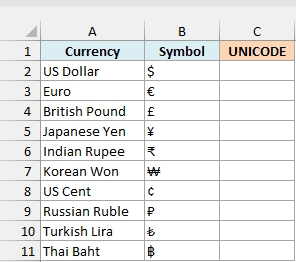
Here is the UNICODE formula:
=UNICODE(B2:B11)
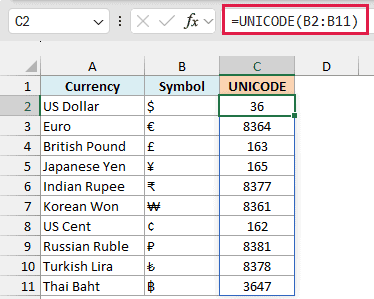
UNICODE returns a different number for every symbol, such as 8364 for the euro and 8377 for the Indian rupee.
And here is the CODE formula for comparison:
=CODE(B2:B11)
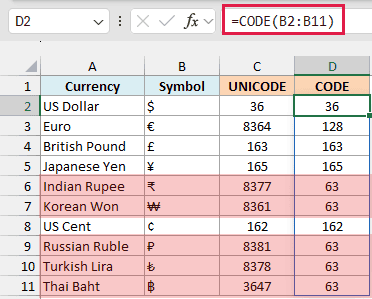
CODE gets the dollar, pound, yen, and cent right, but it returns 63 for the rupee, won, ruble, lira, and baht. 63 is the code for a question mark, which is CODE’s way of saying it doesn’t know the character.
That happens because CODE uses your computer’s older character set, which is ANSI on Windows (codes up to 255, as shown here) and the Mac character set on a Mac. UNICODE uses the full Unicode standard, so it has a number for every character.
Even the euro is different. CODE returns 128, its spot in the Windows character set, while UNICODE returns 8364, its real Unicode number.
So match each number with its partner function. A UNICODE number goes with UNICHAR, and a CODE number goes with CHAR, because =UNICHAR(128) does not give you the euro sign.
Example 6: Find Look-Alike Dashes With UNICODE
This next one solves a problem that’s really hard to spot by eye.
Below is a list of phone numbers collected from different sources, where some of the dashes look normal but aren’t the regular hyphen, and I want the code of the dash in each number in column B.
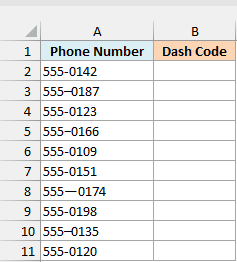
Here is the formula:
=UNICODE(MID(A2:A11,4,1))
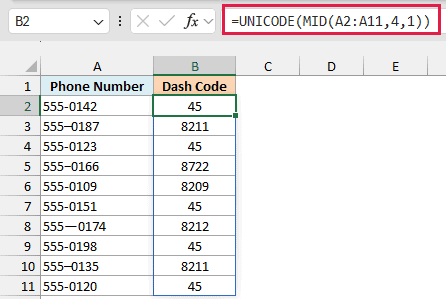
Here, the MID function part, MID(A2:A11,4,1), pulls out the 4th character of each phone number, which is the dash. UNICODE then returns its code.
The regular hyphen on your keyboard is 45. Everything else is a look-alike: 8211 is an en dash, 8212 is an em dash, 8722 is a minus sign, and 8209 is a non-breaking hyphen.
These usually sneak in when you copy text from Word, a web page, or an email. They look fine, but a formula that looks for “-“, such as one using the FIND function, won’t match them.
Pro Tip: To swap a look-alike for a regular hyphen, use SUBSTITUTE with UNICHAR. For example, =SUBSTITUTE(A3,UNICHAR(8211),"-") replaces the en dash in A3 and returns 555-0187.
Example 7: Find Which Script a Text Is Written In
Let’s end with a more advanced example that combines UNICODE with the XLOOKUP function.
Below is a list of cities with their names in the local language, and I want to know which writing system (script) each local name uses in column C. The table in E1:F10 lists the code where each script starts.
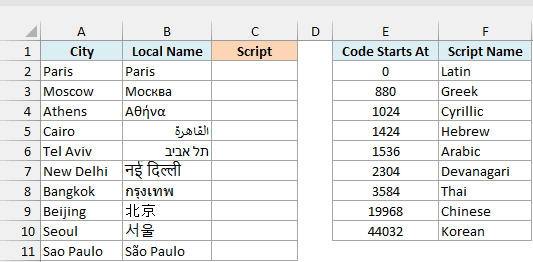
Here is the formula:
=XLOOKUP(UNICODE(B2:B11),E2:E10,F2:F10,,-1)
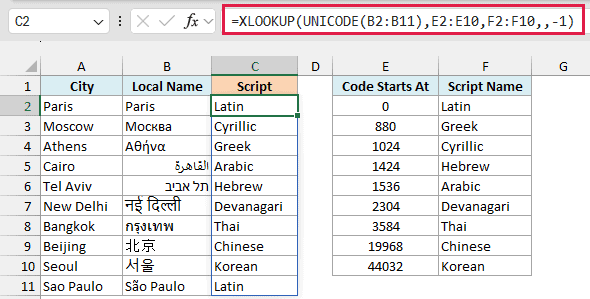
How this formula works:
- UNICODE(B2:B11) gets the code of the first character of each local name. For example, Москва (Moscow) starts with М, which is 1052.
- E2:E10 lists where each script’s block starts. Unicode keeps the characters of each script together in one block, so the Cyrillic block starts at 1024 and the Arabic block starts at 1536.
- XLOOKUP looks for each code in E2:E10. The -1 at the end tells it to return the next smaller value when there’s no exact match, so 1052 matches 1024 and returns Cyrillic.
The table only covers the scripts listed in it. A name in any other script gets the label of the block just before it, so add a row (where the script starts and its name) for each extra script you need.
XLOOKUP needs Excel 2021 or Microsoft 365. If you are using Excel 2019 or earlier, enter the below formula in cell C2 and then copy it down the range:
=LOOKUP(UNICODE(B2),$E$2:$E$10,$F$2:$F$10)
This works because the codes in column E are sorted from smallest to largest, which the LOOKUP function needs.
So these are some practical ways to use the UNICODE function in Excel. Reach for it when CODE returns 63, when two characters look the same but don’t match, or when you need a symbol’s number to use with UNICHAR.
I hope you found this article helpful.
Other Excel Articles You May Also Like:
