

The NORM.S.INV function in Excel gives you the z-score for a probability on the standard normal curve (the bell curve with an average of 0 and a standard deviation of 1).
You give it a probability like 95%, and it tells you how many standard deviations from the average that point sits.
It’s the function behind a lot of everyday statistics work in Excel. You’ll use it to turn a percentile into a z-score, find the 1.96 for a 95% confidence level, and work out a survey’s margin of error or sample size.
In this article, I’ll show you how the NORM.S.INV function works, with five practical examples.
Follow along with the example file
NORM.S.INV Function Examples.xlsx
NORM.S.INV Function Syntax
Here is the syntax of the NORM.S.INV function:
=NORM.S.INV(probability)
- probability – The cumulative probability you want the z-score for, which is the share of the bell curve that sits to the left of the z-score you get back.
This one argument is all the function needs.
The probability has to be more than 0 and less than 1. If you give it 0, 1, or anything outside that range, you get a #NUM! error, and if you give it text, you get a #VALUE! error.
The NORM.S.INV function works in Excel 2010 and later versions, including 365, 2024, 2021, 2019, 2016, and Mac.
When to Use the NORM.S.INV Function
Use this function when you need to:
- Convert a percentile into a z-score
- Find the z critical value for a confidence level (like 1.96 for 95%)
- Calculate the margin of error for a survey result
- Work out how many people you need to survey
- Calculate how much safety stock to keep for a target service level
Let me show you a few practical examples of how to use the NORM.S.INV function in Excel.
Example 1: Convert Percentiles to Z-Scores
Let’s start with a simple example.
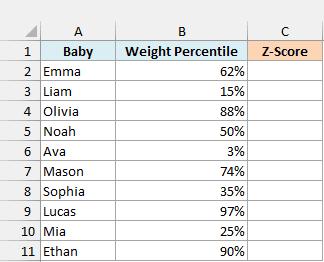
Below I have the weight percentiles of ten babies from their last check-up, and I want to convert each percentile into a z-score in column C.
Here is the formula:
=NORM.S.INV(B2:B11)
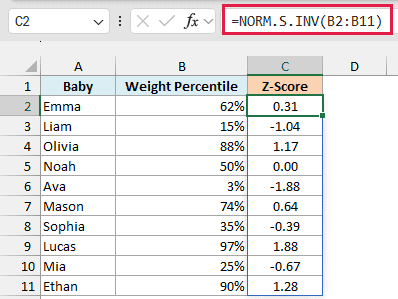
I’ve given the function the whole range B2:B11, so it returns a z-score for every baby, and the results spill down into C2:C11 from this one formula.
A z-score tells you how far a value is from the average, measured in standard deviations. Olivia, at the 88th percentile, has a z-score of 1.17, so her weight is a little over one standard deviation above average.
Noah, at exactly the 50th percentile, gets 0.00 because he’s right at the average. Babies below the 50th percentile, like Liam at 15% (-1.04) and Ava at 3% (-1.88), get negative z-scores because they’re below average.
If you are using Excel 2019 or earlier, enter the below formula in cell C2 and then copy it down the range:
=NORM.S.INV(B2)
Example 2: Find the Z Critical Value for a Confidence Level
This next one is something you’ll need for almost any confidence interval or hypothesis test.
A z critical value is the cutoff that leaves a set share of the bell curve outside it. It’s one-tailed when all of that share sits in one tail, and two-tailed when it’s split between both tails.
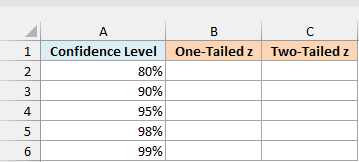
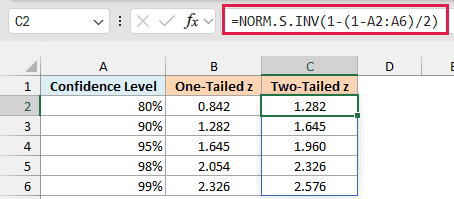
Below I have a list of common confidence levels, and I want the one-tailed z critical value for each in column B and the two-tailed z critical value in column C.
Here is the formula for the one-tailed critical values:
=NORM.S.INV(A2:A6)
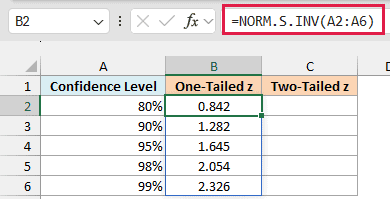
Because the value is one-tailed, the confidence level itself is the probability I need, and at 95% the formula returns 1.645.
Now here is the formula for the two-tailed critical values:
=NORM.S.INV(1-(1-A2:A6)/2)
How this formula works:
1-A2:A6gives the share of the curve left outside the confidence level. At 95%, that’s 5%./2splits that 5% equally between the two tails, so each tail gets 2.5%.1-...gives the area to the left of the upper cutoff, which is 97.5%, and NORM.S.INV turns that into 1.960.
This is where the familiar 1.96 for a 95% confidence interval comes from. The same formula gives you 2.576 for 99%, and 1.645 for 90%.
That 1.645 matches the one-tailed value at 95%, because both leave exactly 5% in the upper tail.
Important: Don’t use NORM.S.INV(0.95) for a two-sided 95% confidence interval. It returns the one-tailed 1.645 instead of 1.96, so your interval comes out too narrow.
If you are using Excel 2019 or earlier, enter the below formula in cell B2 and then copy it down the range:
=NORM.S.INV(A2)
And enter the below formula in cell C2 and copy it down the range:
=NORM.S.INV(1-(1-A2)/2)
Example 3: Calculate the Margin of Error for a Survey
Now let’s use the critical value inside a bigger formula, which is how it usually shows up in real work.
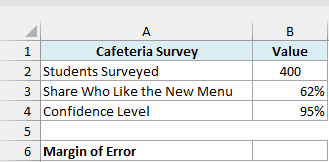
Below I have the result of a school cafeteria survey where 62% of the 400 students surveyed like the new menu, and I want the margin of error at a 95% confidence level in cell B6.
Here is the formula:
=NORM.S.INV(1-(1-B4)/2)*SQRT(B3*(1-B3)/B2)
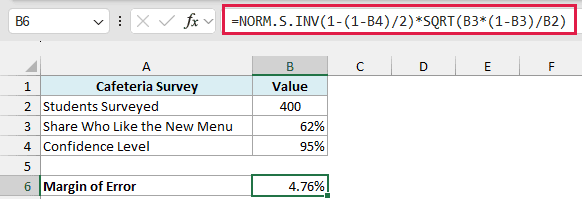
The formula returns 4.76%. So you can say that 62% of students like the new menu, give or take 4.76%, which puts the real share somewhere between about 57% and 67%.
How this formula works:
NORM.S.INV(1-(1-B4)/2)gives the two-tailed z critical value for the 95% confidence level in B4, which is 1.96 (the same formula from Example 2).SQRT(B3*(1-B3)/B2)calculates the standard error, which tells you how much a 62% result from 400 students can bounce around.- Multiplying the two gives the margin of error.
Since the confidence level comes from cell B4, you can change it to 90% or 99% and the margin of error updates on its own.
Example 4: Work Out the Sample Size for a Survey
Let’s flip the last example around and work out how many people you need to survey before you send it out.
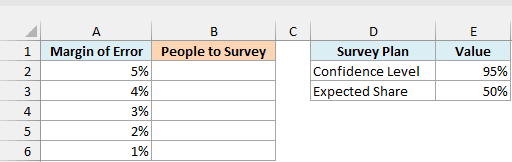
Below I have a list of margins of error I might be happy with, and I want the number of people to survey for each one in column B, using the confidence level in E2 and the expected share in E3.
Here is the formula:
=ROUNDUP(NORM.S.INV(1-(1-E2)/2)^2*E3*(1-E3)/A2:A6^2,0)
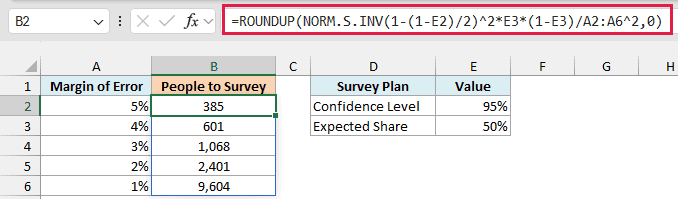
To get a margin of error of 5%, you need to survey 385 people. For 3%, that goes up to 1,068, and for 1%, you need 9,604.
How this formula works:
NORM.S.INV(1-(1-E2)/2)^2gives the squared z critical value for the 95% confidence level in E2 (1.96 squared is about 3.84).E3*(1-E3)uses the expected share in E3. I’ve used 50% because it gives the largest sample size, so it’s the safe choice when you have no idea what the result will be./A2:A6^2divides by each squared margin of error, and the results spill into B2:B6.- The ROUNDUP function rounds each result up to a whole person.
Rounding up matters here. The exact number for a 5% margin is 384.15, and surveying only 384 people would give you a margin slightly wider than 5%, so you’d miss your target.
You can also see that halving the margin of error from 2% to 1% makes the sample four times bigger (2,401 to 9,604). That’s because the margin of error is squared in the formula.
If you are using Excel 2019 or earlier, enter the below formula in cell B2 and then copy it down the range:
=ROUNDUP(NORM.S.INV(1-(1-$E$2)/2)^2*$E$3*(1-$E$3)/A2^2,0)
Example 5: Calculate Safety Stock with NORM.S.INV
Let’s step it up with a practical business use case. Safety stock is the extra stock a store keeps on hand so it doesn’t run out while it waits for the next delivery.
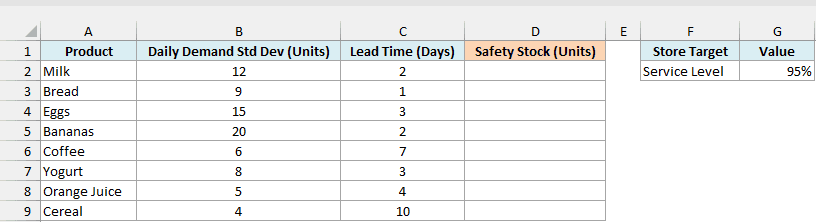
Below I have a list of products in a corner store with how much their daily demand varies and how many days a new delivery takes, and I want the safety stock for each product in column D, for the 95% service level in G2.
Here is the formula:
=ROUNDUP(NORM.S.INV(G2)*B2:B9*SQRT(C2:C9),0)
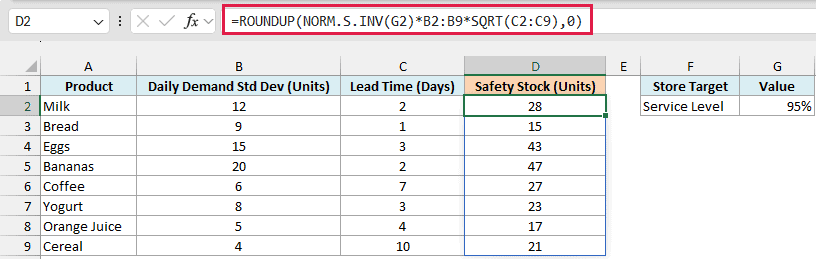
The results spill into D2:D9. So the store should keep 28 extra units of milk, 15 of bread, and 47 of bananas.
How this formula works:
NORM.S.INV(G2)turns the 95% service level (the store wants enough stock 95% of the time) into a z-score of 1.645. It’s a one-tailed value, because the store only worries about running out, not about having too much.B2:B9*SQRT(C2:C9)multiplies each product’s daily demand standard deviation by the square root of its lead time. This gives the demand variation over the whole time you wait for a delivery.- The ROUNDUP function rounds each result up to a whole unit.
Products with long lead times need more safety stock even when their daily demand barely changes. Cereal varies by only 4 units a day, but with a 10-day lead time it needs 21 units, more than bread’s 15.
Pro Tip: Change the service level in G2 to see what higher protection costs. At 99%, the z-score jumps from 1.645 to 2.326, and every product’s safety stock goes up by about 40%.
If you are using Excel 2019 or earlier, enter the below formula in cell D2 and then copy it down the range:
=ROUNDUP(NORM.S.INV($G$2)*B2*SQRT(C2),0)
So these are five ways you can use the NORM.S.INV function in Excel, from turning percentiles into z-scores to planning surveys and safety stock.
NORM.S.INV only works with the standard normal curve. If your data has its own average and standard deviation and you want the actual value at a percentile, use the NORM.INV function instead.
To go the other way, from a z-score back to a probability, the NORM.S.DIST function does the job.
If you only need the margin of error for a survey, the CONFIDENCE.NORM function can also return it, but you have to give it the standard deviation yourself.
Excel 2007 and earlier have the older NORMSINV function, which takes the same single argument.
Other Excel Articles You May Also Like:
