

The SKEW function in Excel tells you how lopsided your data is. It returns a single number that shows whether your values are spread evenly around the average, or whether a few unusually high or low values are stretching the data out on one side.
This is useful when you want to know if the average is a fair summary of your numbers.
A positive result means the long tail is on the high side, and a negative result means it’s on the low side. A result close to 0 means the data is roughly symmetric.
In this article, I’ll show you how to use SKEW with eight practical examples, from a basic calculation to getting the skewness for several columns at once.
Follow along with the example file
SKEW Function Examples.xlsx
SKEW Function Syntax
Here is the syntax of the SKEW function:
=SKEW(number1, [number2], ...)
- number1 – The first number, cell reference, or range you want the skewness of. This one is required.
- number2, … – Optional extra numbers, references, or ranges. You can use up to 255 arguments in total.
Most of the time, you’ll give SKEW one range. If your numbers sit in separate ranges, add each one as its own argument, and SKEW treats all of them as one set of data.
SKEW needs at least three numbers. With fewer than three, or when every value is the same (so the standard deviation is zero), it returns the #DIV/0! error.
In a range, SKEW skips empty cells, text, and TRUE/FALSE values, but it does count zeros. Values you type straight into the formula work differently, so =SKEW(2,5,TRUE,9) counts TRUE as 1.
The SKEW function works in all Excel versions, including Excel for Microsoft 365, 2024, 2021, 2019, 2016, Mac, and Excel on the web.
When to Use the SKEW Function
Use this function when you need to:
- Check whether a few extreme values are pulling a set of numbers to one side
- Decide whether the average or the median gives a fairer picture of your data
- Compare the shape of several lists of numbers, like orders from different channels
- Find the skewness for one group in a larger dataset
Let me show you a few practical examples of how to use the SKEW function.
Example 1: Calculate Skewness in Excel
Let’s start with a simple example.
Below are the wait times for 12 orders at a coffee shop drive-thru, and I want to find the skewness of these wait times in cell E2.
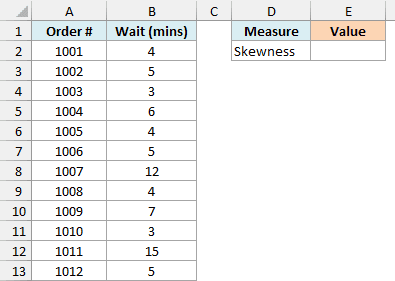
Here is the formula:
=SKEW(B2:B13)
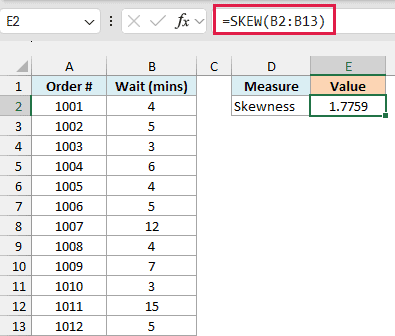
This returns 1.7759, which is a positive skew.
Most orders here take 3 to 7 minutes, but two orders took 12 and 15 minutes. Those two long waits create a tail on the high side, and that’s what the positive number is telling you.
The further the result is from 0, the more lopsided the data. A value of 1.7759 is quite strong, so those two slow orders really do stretch this list out.
Example 2: Negative Skewness (Left-Skewed Data)
Now let’s look at the opposite case.
A food truck got the below ratings (out of 10) from 12 customers, and I want to find how skewed these ratings are in cell E2.
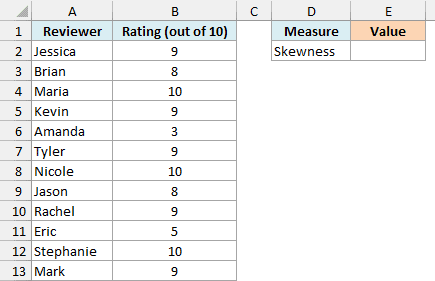
Here is the formula:
=SKEW(B2:B13)
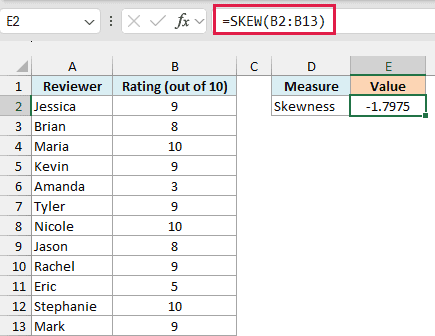
This returns -1.7975, which is a negative skew.
Most customers gave the food truck an 8, 9, or 10, but two people gave it a 3 and a 5. Those low ratings create a tail on the low side, so the result is negative.
Ratings, exam scores on an easy test, and similar data that bunch up near the top of a scale often look like this. The values can’t go much higher than the maximum, so any unusual ones tend to be on the low side.
Example 3: Use SKEW to Choose Between Average and Median
This next one is where SKEW really helps with a decision.
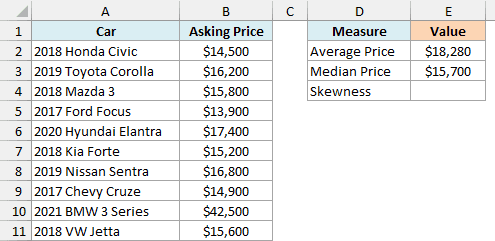
Below are the asking prices of 10 used cars, with the average and median price already calculated in E2 and E3, and I want to find the skewness of these prices in cell E4.
Here is the formula:
=SKEW(B2:B11)
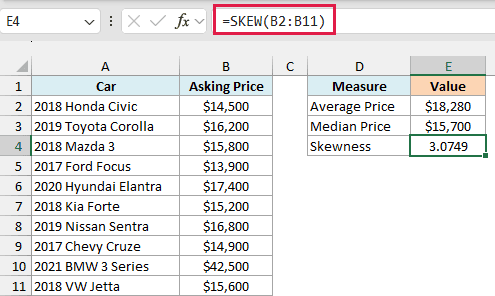
This returns 3.0749, which is a strong positive skew.
Nine of these cars are priced between $13,900 and $17,400, and then there’s a BMW at $42,500. That one car pulls the average up to $18,280, while the median stays at $15,700.
So if someone asked what a typical used car costs here, the average would overstate it. When SKEW shows a strong skew like this, the median is usually the better number to report.
Example 4: Find the Skewness of Several Columns in One Formula
So far, each formula has worked on one list. If you’re on Microsoft 365 or Excel 2024, you can get the skewness for several columns with a single formula.
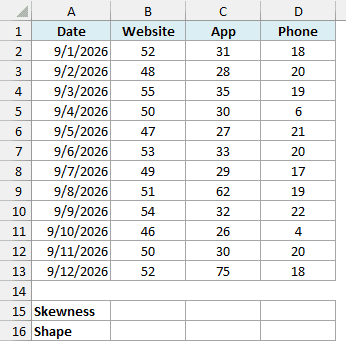
Here are the daily orders a small business got from its website, app, and phone line over 12 days, and I want the skewness of each channel in row 15.
Here is the formula:
=BYCOL(B2:D13,SKEW)
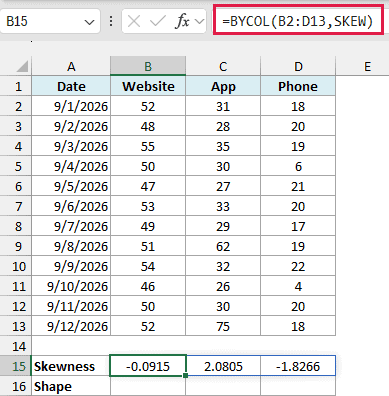
This returns -0.0915 for the website, 2.0805 for the app, and -1.8266 for the phone line, all from the formula in B15.
The BYCOL function runs SKEW on each column of B2:D13 separately and spills one result per column. Passing just the name SKEW (with no brackets) tells BYCOL which function to use on each column.
If your copy of Excel doesn’t accept the bare function name, use this longer version instead, which does the same thing:
=BYCOL(B2:D13,LAMBDA(col,SKEW(col)))
Numbers alone can be hard to read, so let’s add a label that says what each result means. I want the shape of each channel’s data in row 16.
Here is the formula:
=IF(ABS(B15#)<0.5,"Roughly symmetric",IF(B15#>0,"Right-skewed","Left-skewed"))
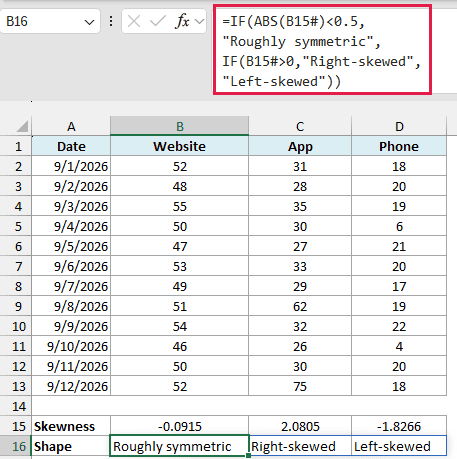
This shows Roughly symmetric for the website, Right-skewed for the app, and Left-skewed for the phone line.
B15# refers to the whole spilled range from the BYCOL formula, so this formula also spills across. A common rule of thumb treats skewness between -0.5 and 0.5 as roughly symmetric, which is the cutoff used here.
The labels match the data. The app had two very busy days (62 and 75 orders), the phone line had two very slow days (6 and 4 orders), and the website stayed steady all along.
The BYCOL function isn’t available in Excel 2021 or earlier, where it shows a #NAME? error. If you are using one of those versions, enter the below formula in cell B15 and then copy it to C15 and D15:
=SKEW(B2:B13)
Since B15 no longer holds a spilling formula, the label formula can’t use B15#. Enter the below formula in cell B16 instead and copy it to C16 and D16:
=IF(ABS(B15)<0.5,"Roughly symmetric",IF(B15>0,"Right-skewed","Left-skewed"))
Example 5: Calculate Skewness for One Group with FILTER
Let’s step it up with a more realistic use case.
Below are 15 taxi fares from three cities, and I want the skewness of the fares for the city entered in cell F2 (Seattle) in cell F3.
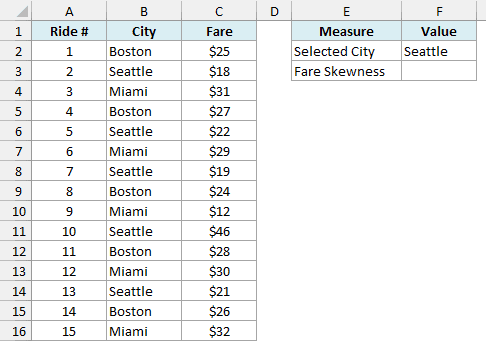
Here is the formula:
=SKEW(FILTER(C2:C16,B2:B16=F2))
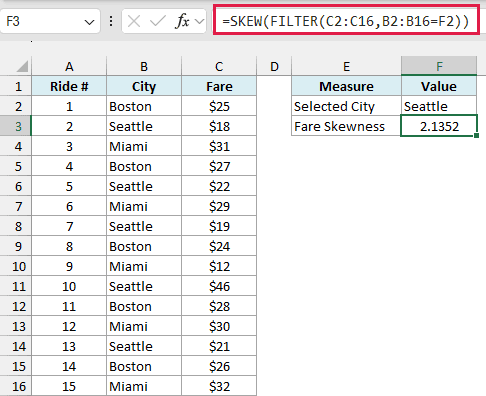
This returns 2.1352 for Seattle.
The FILTER function pulls out only the fares where the city in column B matches F2, which gives the five Seattle fares (18, 22, 19, 46, and 21).
SKEW then works on just those five numbers, and the $46 ride is what makes the result positive.
Since F2 is a cell reference, you can type Boston or Miami in it and the result updates on its own. Each city here has five rides, but your own data may have groups with only one or two values.
Important: If the city you pick has fewer than three fares, SKEW returns the #DIV/0! error. If the city isn’t in the list at all, FILTER returns nothing and you get the #CALC! error.
The FILTER function works in Excel 2021 and Microsoft 365. If you are using Excel 2019 or earlier, enter the below formula in cell F3 and press Control + Shift + Enter instead of just Enter:
=SKEW(IF(B2:B16=F2,C2:C16,""))
Example 6: Calculate Skewness When the Data Has Errors
Real data is rarely clean, so let’s see what SKEW does with blanks, text, and errors.
Below is a sleep log with the hours slept each night, which includes a blank night, a night marked Travel, and a #N/A error, and I want the skewness of the hours in column E.
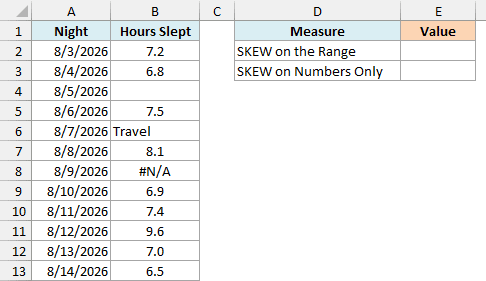
Here is the formula that uses the range directly:
=SKEW(B2:B13)
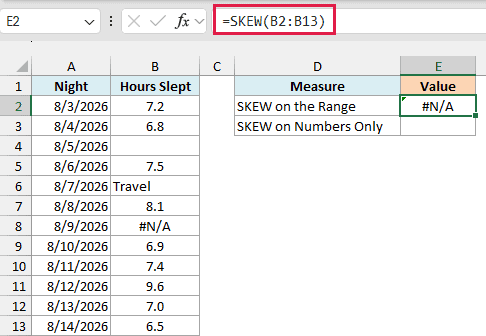
This returns #N/A. SKEW is happy to skip the blank cell and the Travel text, but a single error value anywhere in the range breaks the whole result.
To fix this, you can give SKEW only the cells that hold numbers.
Here is the formula:
=SKEW(FILTER(B2:B13,ISNUMBER(B2:B13)))
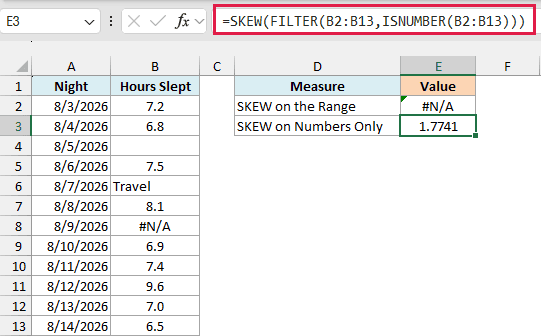
This returns 1.7741.
The ISNUMBER function returns TRUE only for the cells that contain a number, and FILTER keeps just those. So the blank, the text, and the error are all left out, and SKEW works on the nine nights that have real sleep hours.
Important: Don’t use =SKEW(IFERROR(B2:B13,"")) as a shortcut here. IFERROR turns the blank cell into a 0, so SKEW counts a night of zero sleep and returns -2.3869, which is wrong.
If you are using Excel 2019 or earlier, enter the below formula in cell E3 and press Control + Shift + Enter:
=SKEW(IF(ISNUMBER(B2:B13),B2:B13,""))
Example 7: SKEW vs SKEW.P (Sample vs Population)
Excel has two skewness functions, and this example shows how they differ.
Here are the years that each of the 10 employees in a small office has been with the company, and I want to calculate the skewness with both SKEW and SKEW.P in column E.
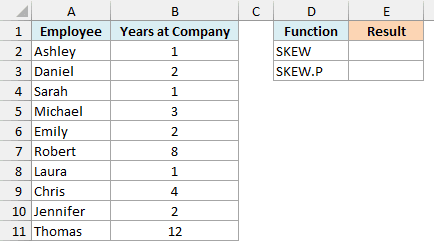
Here is the SKEW formula:
=SKEW(B2:B11)
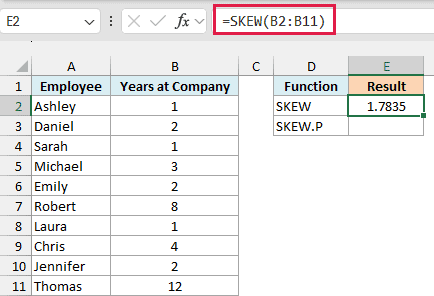
This returns 1.7835.
SKEW.P was added in Excel 2013, so it isn’t available in older versions. Here is the SKEW.P formula:
=SKEW.P(B2:B11)
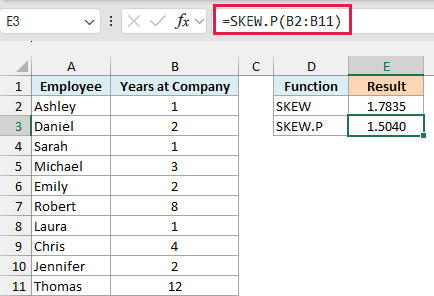
This returns 1.5040.
SKEW treats your data as a sample from a bigger group and adjusts the result to estimate the skewness of that group. SKEW.P treats your data as the entire group, so it skips that adjustment.
Since this list covers every employee in the office, SKEW.P is the right one here. If these 10 people were a random pick from a large company, you’d use SKEW instead.
The gap between the two shrinks as you add more data, so with hundreds of values, SKEW and SKEW.P give almost the same number.
Example 8: The Skewness Formula Behind SKEW
If you’re curious about the math behind SKEW, this example rebuilds it by hand.
Below are the tips a server got from 10 tables, and I want to calculate the skewness with a manual formula in E2 and compare it with SKEW in E3.
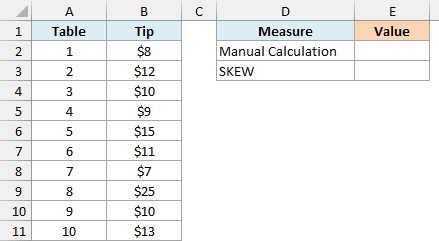
Here is the manual formula (it uses the LET function, which needs Excel 2021 or later):
=LET(x,B2:B11,n,COUNT(x),m,AVERAGE(x),s,STDEV.S(x),n/((n-1)*(n-2))*SUM(((x-m)/s)^3))
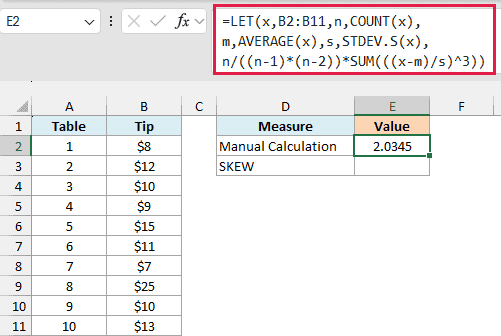
This returns 2.0345.
How this formula works:
- x, n, m, and s are names the LET function gives to the tips, the count, the average, and the sample standard deviation, so the formula is easier to read.
- (x-m)/s works out how many standard deviations each tip is from the average.
- ^3 cubes those distances. Cubing keeps the sign, so tips above the average push the total up and tips below it pull it down, with far-off tips counting much more.
- n/((n-1)*(n-2)) is the sample adjustment that SKEW applies. SKEW.P uses a population-based version of this math instead.
And here is the SKEW formula on the same tips:
=SKEW(B2:B11)
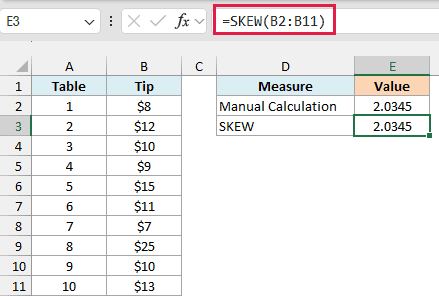
This also returns 2.0345, so the two match.
The $25 tip from table 8 is far above the $12 average, and cubing its distance is why it has such a big effect on the result.
In your own work, just use SKEW. The manual formula is only here to show what happens behind the scenes.
So these are eight examples of how you can use the SKEW function in Excel to see how lopsided a set of numbers is, from a single list to several columns at once.
I hope you found this article helpful.
Other Excel Articles You May Also Like:
