

The EFFECT function in Excel converts a stated annual interest rate into the effective annual rate, which is the rate you actually earn or pay once compounding is counted.
That matters because a bank can quote 4.50% on a savings account while the interest compounds every month, so you end up earning a little more than 4.50% over the year. EFFECT tells you exactly how much more.
In this article, I’ll show you how to use EFFECT with six examples, from a single savings account to comparing loan offers and checking the real cost of a monthly payment plan.
Follow along with the example file
EFFECT Function Examples.xlsx
EFFECT Function Syntax
Here is the syntax of the EFFECT function:
=EFFECT(nominal_rate, npery)
- nominal_rate – the stated annual interest rate, the number a bank or lender quotes you.
- npery – the number of times the interest compounds in a year. Use 12 for monthly, 4 for quarterly, 2 for semi-annually, and 365 for daily.
Both arguments are required.
If npery has decimals, EFFECT drops them without warning. So a periods cell that holds 12.9 gives the same result as 12, which is worth checking if your periods come from another calculation.
A nominal_rate of 0 or less, or an npery below 1, returns the #NUM! error. A blank rate cell counts as 0, so it gives the same error, while text such as “monthly” in either argument returns the #VALUE! error.
The EFFECT function works in Excel 365, 2024, 2021, 2019, and 2016 on Windows, and in Excel 365, 2024, and 2021 for Mac.
When to Use the EFFECT Function
Use this function when you need to:
- Find the real yearly return on a savings account, CD, or money market account
- Compare savings or loan offers that compound at different frequencies
- See how much a credit card APR really costs once interest compounds
- Work out the interest, in dollars, that a deposit earns in a year
- Find the true annual cost of a loan or payment plan
Let me show you a few practical examples of how to use this function.
Example 1: Calculate the Effective Interest Rate on a Savings Account
Let’s start with a simple example.
Below I have a savings account that pays a stated rate of 4.50%, compounded monthly, and I want its effective annual rate in cell B5.
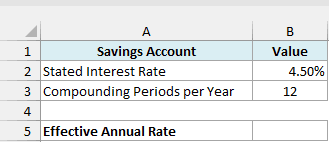
Here is the formula:
=EFFECT(B2,B3)
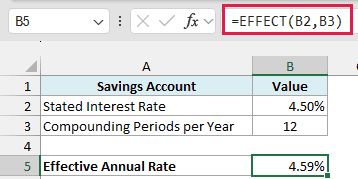
This returns 4.59%. So the account quotes 4.50%, but because the interest is added every month and then earns interest of its own, you really earn 4.59% over the year.
In the back end, EFFECT divides the rate by the number of periods, compounds it for that many periods, and takes away 1. Here that is (1 + 4.50%/12)^12 – 1, which is the same 4.59%.
This is the same idea behind compound interest. If you want to see how it grows money over several years, check out my guide on how to calculate compound interest in Excel.
Important: Make sure the rate goes in as 4.5% or 0.045, not as 4.5. If you type 4.5 in B2, EFFECT doesn’t show an error, it returns a huge and completely wrong number.
Example 2: See How Compounding Frequency Changes the Effective Rate
Now let’s keep one rate fixed and see what happens as the compounding gets more frequent.
Below I have a credit card with a 24% APR (in E2) and a list of compounding frequencies, and I want the effective rate for each frequency in column C.
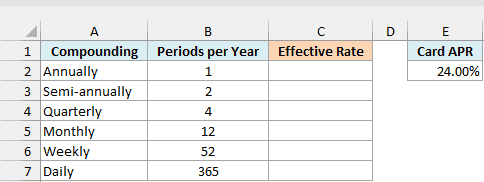
Here is the formula:
=EFFECT(E2,+B2:B7)
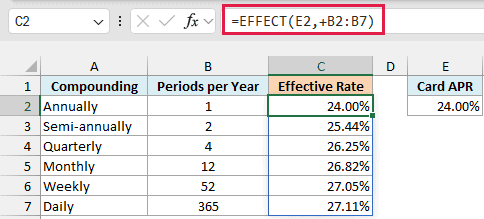
This one formula in C2 spills the effective rate for all six frequencies. The plus sign before B2:B7 is what makes that work.
EFFECT started life in the old Analysis ToolPak add-in, and it still expects one value per argument. The plus sign turns the range into an array of values, which EFFECT can work with, and the results spill.
Important: If you give EFFECT a plain range, as in =EFFECT(E2,B2:B7), it returns the #VALUE! error instead of spilling. Keep the plus sign before every range you pass to EFFECT.
I’ve explained this trick in more detail in my guide on Excel functions that won’t spill.
Now look at the results. With annual compounding, the 24% stays 24.00%, but with daily compounding it grows to 27.11%.
Notice how the jumps get smaller as you go down the list. Going from annual to semi-annual adds 1.44 percentage points, while going from weekly to daily adds only about 0.06.
If you are using Excel 2019 or earlier, enter the below formula in cell C2 and then copy it down to C7:
=EFFECT($E$2,B2)
The dollar signs keep the APR locked to E2 as you copy the formula down, while B2 moves to the next row each time.
Example 3: Compare CD Offers Using Their Effective Rate (APY)
Here’s a scenario where EFFECT helps you pick the better deal.
Below I have CD offers from eight banks, each with its own rate and compounding frequency, and I want the effective rate of each offer in column D. For a deposit, this effective rate is what US banks call the APY (annual percentage yield).
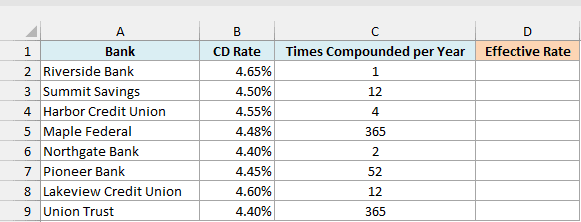
Here is the formula:
=EFFECT(+B2:B9,+C2:C9)
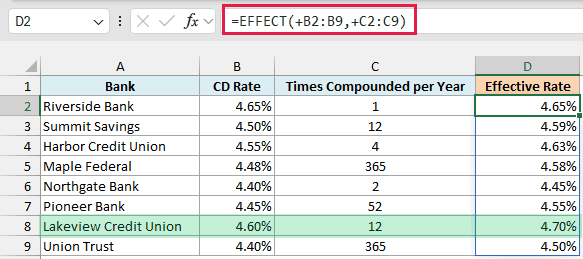
This formula spills the effective rate for all eight banks. Riverside Bank has the highest stated rate at 4.65%, but it compounds only once a year, so its effective rate stays at 4.65%.
Lakeview Credit Union quotes a lower 4.60%, but it compounds monthly, which brings its effective rate to 4.70%. That makes it the best offer on the list, even though its stated rate isn’t the highest.
The same thing shows up at the bottom of the list. Northgate Bank and Union Trust both quote 4.40%, but Union Trust compounds daily and ends up at 4.50%, while Northgate Bank compounds twice a year and gets 4.45%.
If you are using Excel 2019 or earlier, enter the below formula in cell D2 and then copy it down to D9:
=EFFECT(B2,C2)
Example 4: Get the Compounding Periods From Text With XLOOKUP
In real data, compounding is often written as a word like “Monthly” rather than a number, so let’s handle that.
Below I have personal loan offers with their interest rate and how often the interest compounds, and I want the effective rate of each loan in column D. The small table in F1:G6 matches each word to its number of periods.
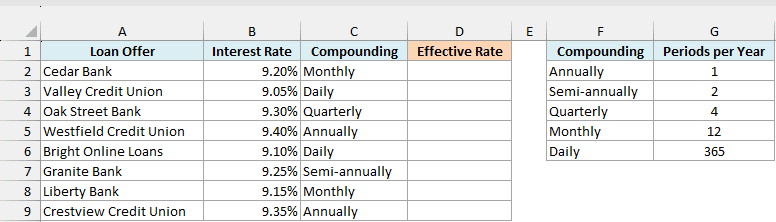
Here is the formula:
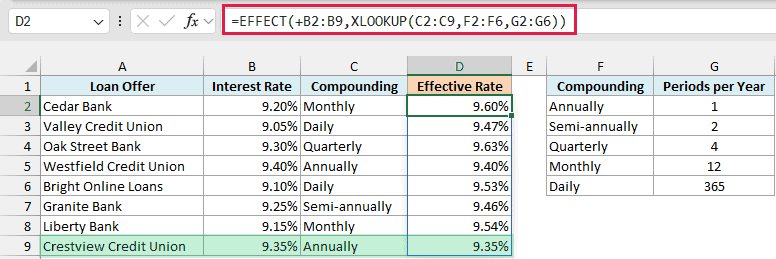
=EFFECT(+B2:B9,XLOOKUP(C2:C9,F2:F6,G2:G6))
How this formula works:
- XLOOKUP(C2:C9,F2:F6,G2:G6) looks up each word in column C in the table in F2:F6 and returns its number of periods from G2:G6. “Monthly” becomes 12, “Daily” becomes 365, and so on.
- +B2:B9 passes the eight interest rates as an array, for the same reason as in Example 2.
- EFFECT then combines each rate with its periods and spills one effective rate per loan.
The XLOOKUP part doesn’t need a plus sign, because XLOOKUP already hands EFFECT a list of numbers rather than a range.
The lookup table makes the sheet easy to maintain. If you add a new frequency such as “Weekly”, you add one row to the table and extend the ranges in the formula.
With loans, a lower effective rate is better. Valley Credit Union has the lowest stated rate at 9.05%, but its daily compounding pushes the effective rate to 9.47%.
Crestview Credit Union quotes 9.35%, and because it compounds only once a year, 9.35% is also what you pay. That makes it the cheapest loan here.
If you are using Excel 2019 or earlier, which doesn’t have the XLOOKUP function, enter the below formula in cell D2 and then copy it down to D9:
=EFFECT(B2,VLOOKUP(C2,$F$2:$G$6,2,FALSE))
Example 5: Calculate the Interest a Deposit Earns in a Year
The effective rate also makes it easy to work out the interest in dollars.
Below I have $20,000 in a money market account that pays 4.10% compounded daily, and I want the interest it earns in one year in cell B6.
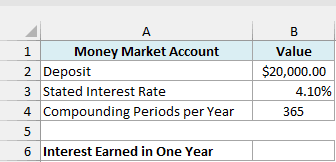
Here is the formula:
=B2*EFFECT(B3,B4)
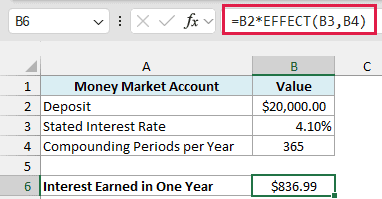
This returns $836.99. EFFECT gives the effective annual rate for 4.10% compounded daily, and multiplying it by the $20,000 deposit turns that rate into dollars.
If you multiplied $20,000 by the stated 4.10% instead, you’d get $820. The extra $16.99 is the interest earned on interest during the year.
This works for one full year with no deposits or withdrawals. For a longer period, or with regular deposits, the FV function is a better fit.
Example 6: Find the Effective Rate of a Monthly Payment Plan
For the last example, let’s combine EFFECT with another financial function.
Below I have a furniture store payment plan where a $2,400 purchase is paid off in 12 monthly payments of $215, and I want the effective annual rate of the plan in cell B6.
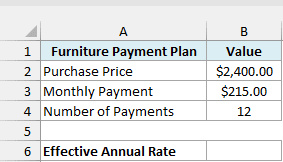
Here is the formula:
=EFFECT(RATE(B4,-B3,B2)*12,12)
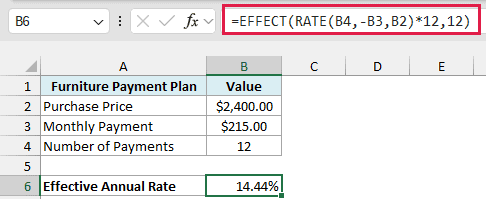
This returns 14.44%, which is what the payment plan really costs you per year.
How this formula works:
RATE(B4,-B3,B2)finds the monthly interest rate hidden in the plan, using the 12 payments, the $215 payment (negative, because you pay it), and the $2,400 price.*12turns that monthly rate into a nominal annual rate of about 13.57%, which is how such a plan would usually be quoted.EFFECT(...,12)then compounds that nominal rate monthly, which gives the effective rate of 14.44%.
Both 12s in the formula are the number of payments per year, not the total number of payments. They stay 12 for any monthly plan, even a 24-month or 36-month one, and only B4 changes.
If you want to learn more about finding the rate from payments, see my guide on the RATE function.
So these are six ways to use the EFFECT function in Excel, with savings, credit card, loan, and payment plan data.
Whenever two offers compound at different frequencies, compare their effective rates, not their stated rates. If you ever need to go the other way, the NOMINAL function turns an effective rate back into a stated rate.
I hope you found this tutorial helpful.
Other Excel Articles You May Also Like:
