

The COVARIANCE.P function in Excel tells you how two sets of numbers move together. A positive result means they tend to rise together, and a negative one means one falls as the other rises.
The “P” stands for population. You use it when you have every record in the group you care about, like all the apartments in a building or every month of a year, and not just a sample picked from a bigger group.
In this article, I’ll show you how to use the COVARIANCE.P function with five practical examples, including how it compares with COVARIANCE.S and how to build a covariance matrix with one formula.
Follow along with the example file
COVARIANCE.P Function Examples.xlsx
COVARIANCE.P Function Syntax
Here is the syntax of the COVARIANCE.P function:
=COVARIANCE.P(array1, array2)
- array1 – The first set of numbers. This is usually a range of cells, but it can also be an array of numbers.
- array2 – The second set of numbers. It needs to have the same number of cells as array1.
Both arguments are required. Excel pairs the two sets by position, so the first value in array1 goes with the first value in array2, the second with the second, and so on.
The order of the two arguments doesn’t matter, so swapping array1 and array2 gives you exactly the same result.
If the two ranges have a different number of cells, the formula returns the #N/A error. This happens even when the extra cell is blank, because Excel compares the size of the ranges and not how many numbers they hold.
If there are no numbers to pair up at all (for example, both ranges are empty or hold only text), you get the #DIV/0! error.
The COVARIANCE.P function works in Excel 2010 and later versions, including Excel 365, 2024, 2021, 2019, 2016, Excel for Mac, and Excel for the web.
When to Use the COVARIANCE.P Function
Use this function when you need to:
- Check whether two sets of numbers tend to rise and fall together
- Spot an opposite relationship, such as rentals dropping in months with more rain
- Measure how two things vary together when your data covers the whole group, not a sample
- Build a covariance matrix that compares several columns at once
Let me show you a few practical examples of how to use the COVARIANCE.P function in Excel.
Example 1: Calculate Population Covariance in Excel
Let’s start with a simple example.
Below I have the size and the monthly rent of all ten apartments in a small building, and I want to find the covariance between size and rent in cell F2.
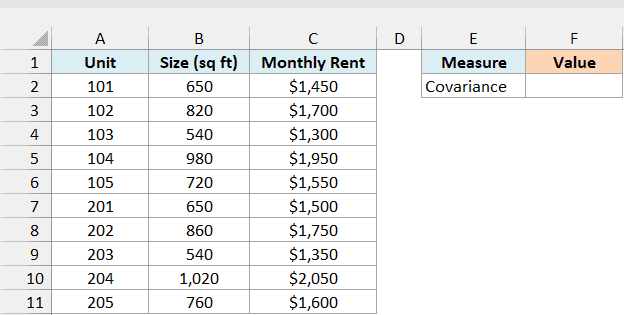
Here is the formula:
=COVARIANCE.P(B2:B11,C2:C11)
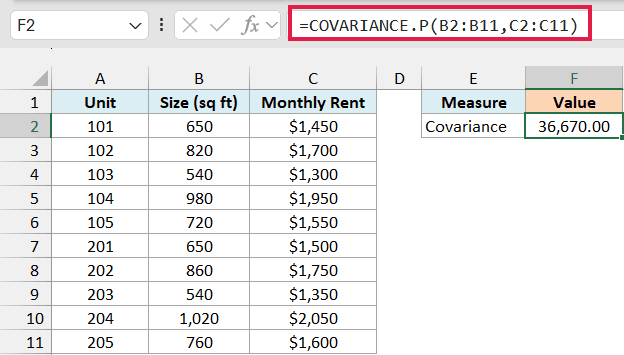
This gives 36,670.00.
The result is positive, which means size and rent move in the same direction. The bigger apartments in this building generally rent for more, and the smaller ones for less.
Note that the sign is the useful part of the result. The 36,670.00 is measured in square feet times dollars, so its size depends on the units of your data and doesn’t tell you how strong the relationship is.
In the back end, COVARIANCE.P finds how far each apartment’s size and rent are from their averages. It multiplies those two distances for each apartment, adds them all up, and divides the total by the number of apartments (10 here).
When you want to know how strong the relationship is, use the CORREL function. For this data, =CORREL(B2:B11,C2:C11) returns 0.99, which is a very strong positive relationship on a scale from -1 to 1.
Example 2: Negative Covariance (and What Happens With Text)
Here’s another practical scenario.
Below I have the rainy days and bikes rented for every month of 2025 at a bike rental shop, and I want the covariance between the two in cell F2. The shop was closed in February, so that month has no rental number.
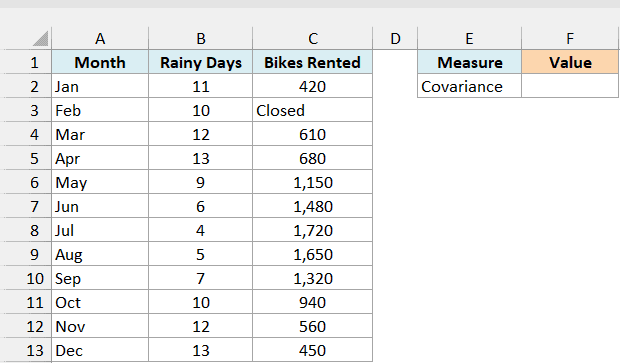
Here is the formula:
=COVARIANCE.P(B2:B13,C2:C13)
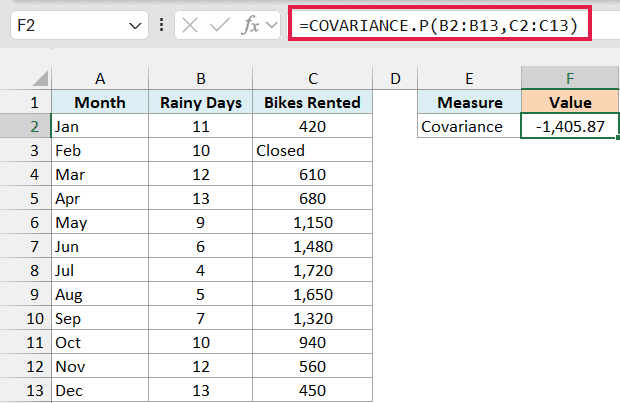
This returns -1,405.87.
A negative covariance means the two columns move in opposite directions. In the months with more rainy days, the shop rented out fewer bikes, and in the drier months, rentals went up.
February has the text “Closed” instead of a number, so COVARIANCE.P ignores that cell (it would ignore a blank cell or a TRUE/FALSE value the same way).
And since that cell has no partner, February’s rainy days are left out too, so the result is based on the other 11 months.
That’s what you want here, because a rainy-day count without a matching rental number can’t be paired with anything. So for a month with no data, leave the cell blank or put a text note like “Closed” in it.
Important: Don’t type 0 for a month with no data. A zero is a real number, so COVARIANCE.P includes it, and putting 0 in C3 changes the result from -1,405.87 to -1,344.17.
Example 3: COVARIANCE.P vs COVARIANCE.S
Excel has two current covariance functions, COVARIANCE.P and COVARIANCE.S, and the one you pick changes the number you get.
Below I have the years of experience and the number of tickets resolved per day for every member of a ten-person support team, and I want both the population and the sample covariance in column F.
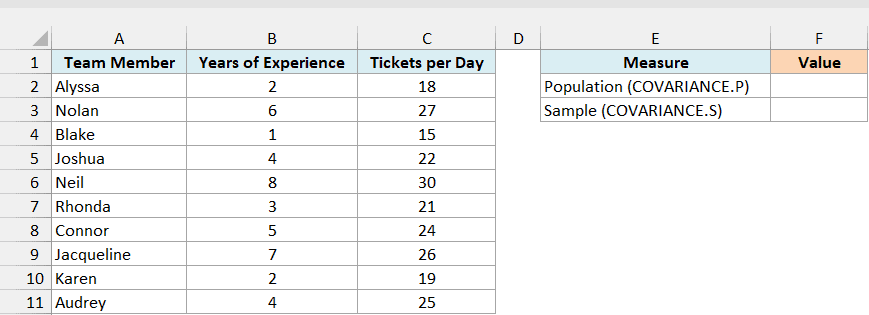
Here is the COVARIANCE.P formula for the population covariance:
=COVARIANCE.P(B2:B11,C2:C11)
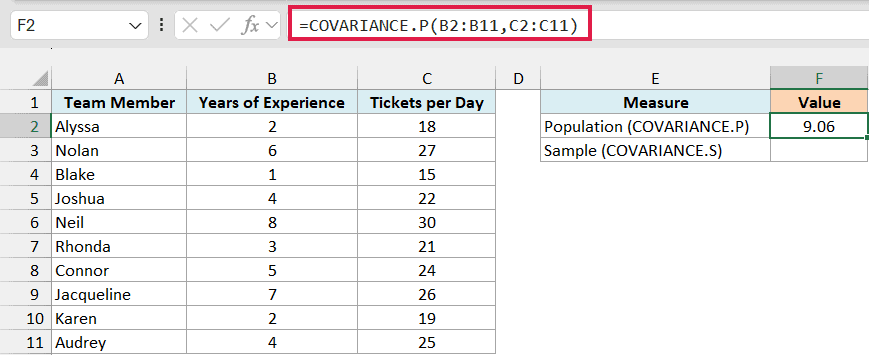
This gives 9.06.
And here is the COVARIANCE.S formula for the sample covariance:
=COVARIANCE.S(B2:B11,C2:C11)
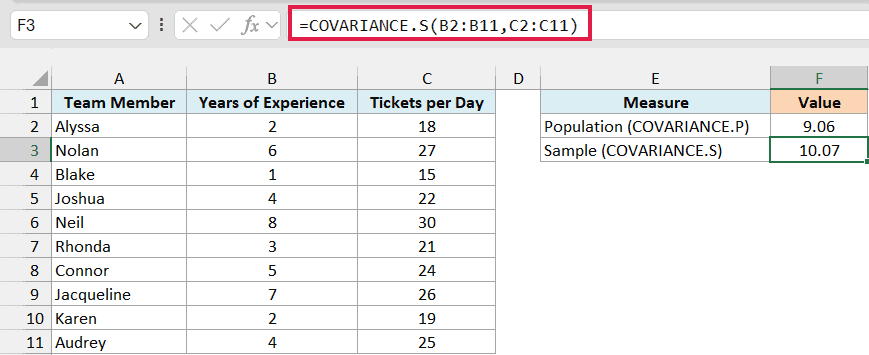
This gives 10.07.
Both functions do the same math until the very last step. COVARIANCE.P divides by the number of pairs (10), while COVARIANCE.S divides by the number of pairs minus one (9), which is why the sample result is a little further from zero.
Here, the ten people are the whole team, and you’re not using them to guess about a bigger group, so COVARIANCE.P is the right choice.
If these ten people had been picked from a company with hundreds of support agents, you would use COVARIANCE.S instead. I’ve covered that version in detail in this guide on the COVARIANCE.S function.
You may also see the older COVAR function in workbooks made before Excel 2010. COVAR returns the population covariance too (the same 9.06 on this data), so you can replace it with COVARIANCE.P without changing any numbers.
Example 4: Covariance for Each Group With One Formula
Now let’s look at a more advanced use case.
Below I have the distance and delivery time of every order a store delivered on one day, across three delivery zones, and I want the covariance between distance and delivery time for each zone in column G.
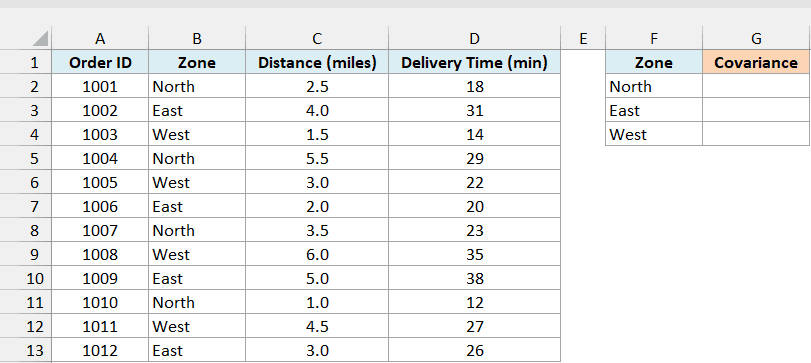
Here is the formula:
=MAP(F2:F4,LAMBDA(z,COVARIANCE.P(FILTER(C2:C13,B2:B13=z),FILTER(D2:D13,B2:B13=z))))
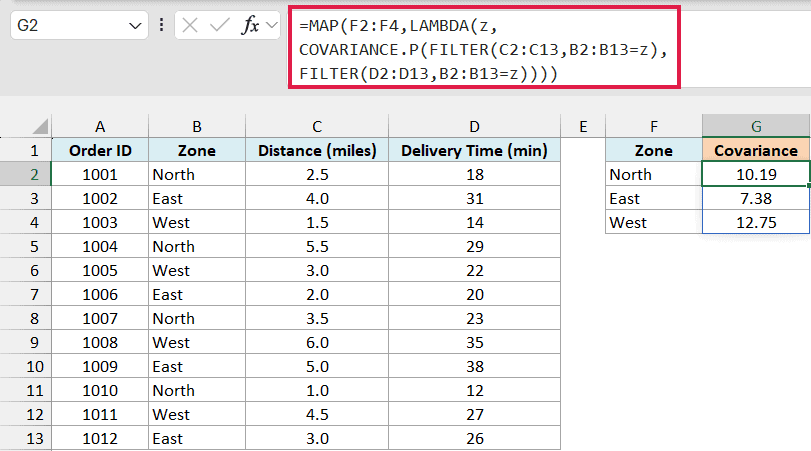
This one formula spills three results into G2:G4, 10.19 for North, 7.38 for East, and 12.75 for West.
How this formula works:
MAP(F2:F4,LAMBDA(z,...))goes through the zone names in F2:F4 one at a time, and z holds the current zone.FILTER(C2:C13,B2:B13=z)returns the distances for only the orders in that zone. For North, that’s 2.5, 5.5, 3.5, and 1.0.FILTER(D2:D13,B2:B13=z)uses the same condition to return the delivery times for those same orders, which is 18, 29, 23, and 12 for North. Since both use the same condition, the distances and times stay lined up.- COVARIANCE.P then pairs these up and returns the covariance for that zone, and MAP puts each zone’s result in its own cell.
All three results are positive, so in every zone, longer trips took more time.
If a zone in column F doesn’t appear in the order list (say, a typo like “Nrth”), FILTER finds nothing and that cell shows the #CALC! error.
And if a zone has only one order, you get 0 instead of an error, because there’s nothing for that single order to vary against.
This formula needs Excel 365, because that’s where the MAP function is available. If you are using Excel 2021, enter the below formula in cell G2 and then copy it down to G4:
=COVARIANCE.P(FILTER($C$2:$C$13,$B$2:$B$13=F2),FILTER($D$2:$D$13,$B$2:$B$13=F2))
Example 5: Create a Covariance Matrix With One Formula
Let’s step it up with a more complex use case.
Below I have the number of fiction, kids, and cookbook titles a bookstore sold in every month of 2025, and I want the covariance between every pair of categories as a matrix that starts in cell G2.
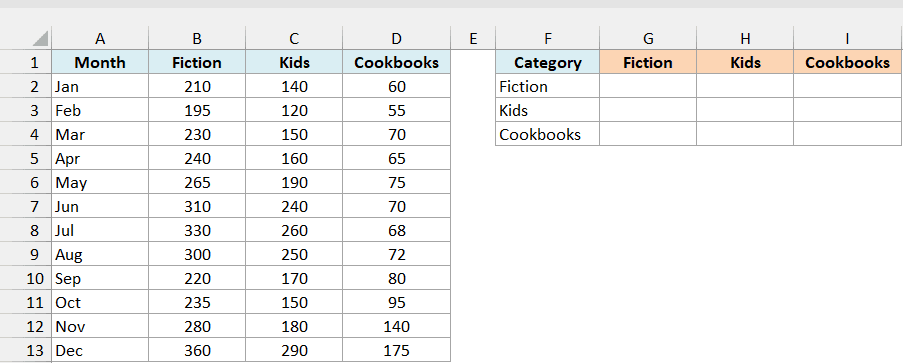
Here is the formula:
=MAKEARRAY(3,3,LAMBDA(r,c,COVARIANCE.P(CHOOSECOLS(B2:D13,r),CHOOSECOLS(B2:D13,c))))
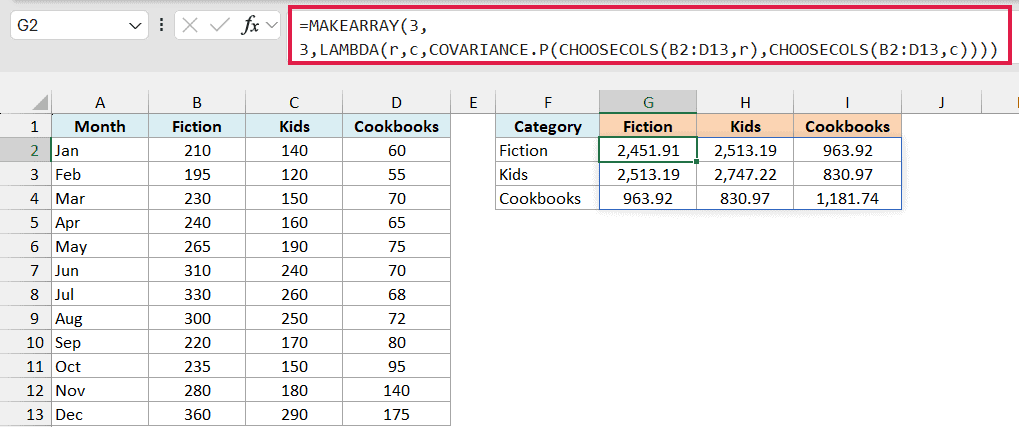
This single formula spills a 3 by 3 grid of covariances into G2:I4.
How this formula works:
MAKEARRAY(3,3,...)builds a grid with 3 rows and 3 columns, and runs the LAMBDA once for every cell. r is the row number of that cell and c is its column number.CHOOSECOLS(B2:D13,r)picks the r-th category column, andCHOOSECOLS(B2:D13,c)picks the c-th one.- COVARIANCE.P returns the covariance of those two columns, so the cell in row 1, column 2 holds the covariance of Fiction and Kids.
The numbers on the diagonal (G2, H3, and I4) are each category compared with itself, which is just its population variance. For example, G2 shows 2,451.91, the same value you get with =VAR.P(B2:B13).
The rest of the grid compares two different categories, and it’s a mirror image across the diagonal, because the order of the two arrays doesn’t change the covariance.
All of these values are positive, so all three categories tend to sell more in the same months. Fiction and Kids have the largest covariance of any two categories (2,513.19), since both of them peak in the summer and in December.
If you’ve used the Covariance tool in the Analysis ToolPak, it works out COVARIANCE.P for each pair of columns, so its numbers will match this matrix.
To add a fourth category, change both 3s in the formula to 4 and extend the range to B2:E13.
This formula needs Excel 365, because that’s where MAKEARRAY and CHOOSECOLS are available. If you are using Excel 2021 or earlier, enter the below formula in cell G2, copy it across to I2, and then copy those three cells down to row 4:
=COVARIANCE.P(INDEX($B$2:$D$13,0,ROWS($G$2:G2)),INDEX($B$2:$D$13,0,COLUMNS($G$2:G2)))
So these are five ways you can use the COVARIANCE.P function in Excel. Just remember to use COVARIANCE.P when your data covers the whole group, and COVARIANCE.S when it’s a sample.
I hope you found this Excel tutorial useful.
Other Excel Articles You May Also Like:
