

The COT function in Excel returns the cotangent of an angle, which is 1 divided by the tangent of that angle. You’ll mostly need it in trigonometry work, or when you know an angle and a height and want a horizontal distance.
The thing to watch is that COT reads every angle as radians. So if you type an angle in degrees straight into it, you get a wrong answer with no error to warn you.
Below, I’ll show you how COT works with radians and degrees, how to use it to work out a shadow length, and how to handle angles where the cotangent doesn’t exist.
Follow along with the example file
COT Function Examples.xlsx
COT Function Syntax
Here is the syntax of the COT function:
=COT(number)
- number is the angle, in radians, for which you want the cotangent. This argument is required. You can type the angle directly or refer to a cell that holds it.
COT always treats the number as radians. If your angles are in degrees, you need to convert them first, which I cover in Example 2.
An angle of 0 returns a #DIV/0! error, because its cotangent doesn’t exist. A reference to an empty cell gives the same error, since Excel treats the empty cell as 0.
Text that isn’t a number returns #VALUE!. A number of 134,217,728 (2 to the power 27) or more, positive or negative, returns #NUM!.
The COT function works in Excel 2013 and later, including Microsoft 365 and current Mac versions. The formulas in this tutorial that fill several cells at once need Microsoft 365, Excel 2024, or Excel 2021.
When to Use the COT Function
Use this function when you need to:
- Get the cotangent of angles in a math or trigonometry worksheet.
- Calculate cotangents for angles you have in degrees, after converting them to radians.
- Work out a horizontal distance from a height and an angle, such as the length of a shadow.
Let me show you a few practical examples of how to use COT.
Example 1: Find the Cotangent of Angles in Radians
Let’s start with a simple example.
Below is a list of angles in radians, and I want to get the cotangent of each angle in column B.
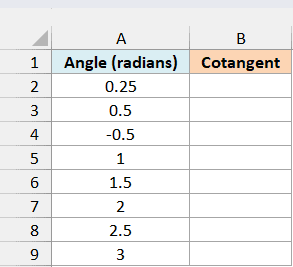
Here is the formula:
=COT(A2:A9)
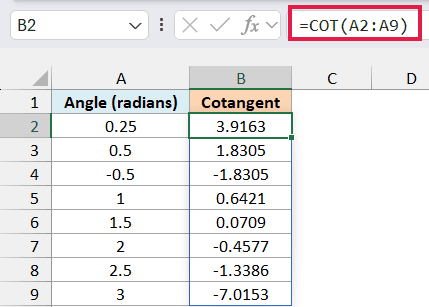
COT calculates the cotangent of every angle in A2:A9, and the results spill down from B2. You enter the formula once and Excel fills in the rest.
For 0.25 radians, the result is 3.9163. As the angle gets closer to about 1.5708 radians (half of pi, which is 90 degrees), the cotangent shrinks toward zero.
Past that point, the cotangent turns negative. That’s why 2, 2.5, and 3 radians all return negative results.
Now look at 0.5 and -0.5. A negative angle gives the same cotangent with the opposite sign, so -0.5 returns -1.8305.
The cells below B2 need to be empty before you enter the formula. If anything is in the way, Excel shows a #SPILL! error instead of the results.
If you’re using Excel 2013, 2016, or 2019, enter the below formula in cell B2 and then copy it down to B9:
=COT(A2)
Example 2: Use COT With Angles in Degrees
Most of the time, your angles will be in degrees rather than radians.
Below is a list of common angles in degrees, and I want to get the cotangent of each one in column B.
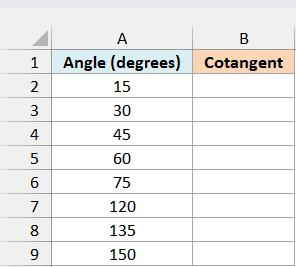
Here is the formula:
=COT(RADIANS(A2:A9))
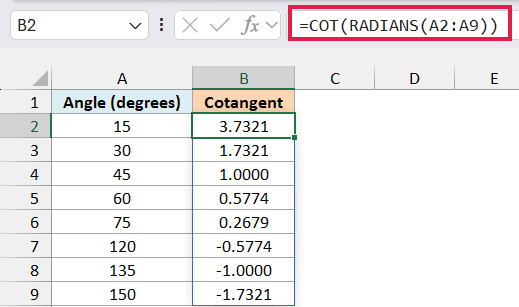
The RADIANS function converts each angle from degrees to radians, and COT then returns the cotangent. For example, 45 degrees gives 1.0000, and 30 degrees gives 1.7321.
Angles above 90 degrees, such as 120, 135, and 150, return negative cotangents. This matches what we saw with radians in Example 1.
Important: If you give COT an angle in degrees without converting it, you get a wrong result and no error. =COT(30) returns -0.1561 because Excel reads 30 as 30 radians, while =COT(RADIANS(30)) returns 1.7321.
You can also multiply the angles by PI()/180 instead of using the RADIANS function, as in =COT(A2:A9*PI()/180). Both give the same results, but the RADIANS function makes it clearer what the formula is doing.
If you’re using Excel 2013, 2016, or 2019, enter the below formula in cell B2 and then copy it down to B9:
=COT(RADIANS(A2))
Example 3: Calculate a Shadow Length From the Sun’s Angle
Now let’s use COT for something practical.
Below are the sun’s angles above the horizon at different times of the day, with a pole height of 6 meters in cell E2, and I want the length of the pole’s shadow in column C.
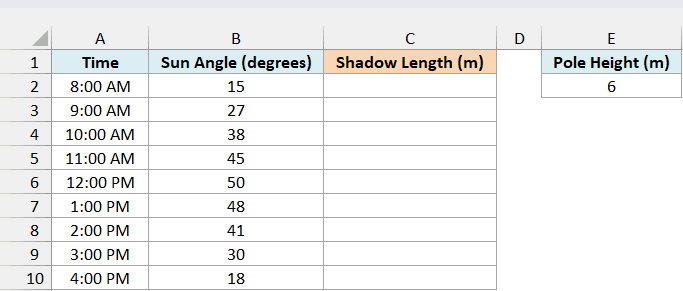
The pole, its shadow, and the sun’s rays form a right triangle. In a right triangle, the cotangent of an angle is the side next to it divided by the side opposite it.
Here, the shadow is the side next to the sun’s angle and the pole is the side opposite it. So the shadow length is the pole height times the cotangent of the sun’s angle.
Here is the formula:
=E2*COT(RADIANS(B2:B10))
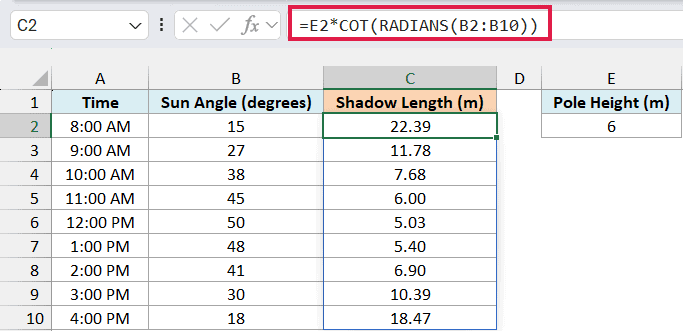
The RADIANS function converts each sun angle to radians, and COT returns its cotangent. Multiplying that cotangent by the pole height in E2 gives the shadow length in meters.
At 8:00 AM, the sun is only 15 degrees up, so the shadow is 22.39 meters long. At 11:00 AM, the sun is at 45 degrees and the shadow is 6.00 meters, the same as the pole, because the cotangent of 45 degrees is 1.
Since the pole height sits in its own cell, you can change the value in E2 and all nine shadow lengths update.
If you’re using Excel 2013, 2016, or 2019, enter the below formula in cell C2 and then copy it down to C10:
=$E$2*COT(RADIANS(B2))
The dollar signs keep the reference to E2 fixed as you copy the formula down.
Example 4: Handle Angles Where COT Is Undefined
The cotangent doesn’t exist for some angles, and Excel doesn’t always tell you when you hit one.
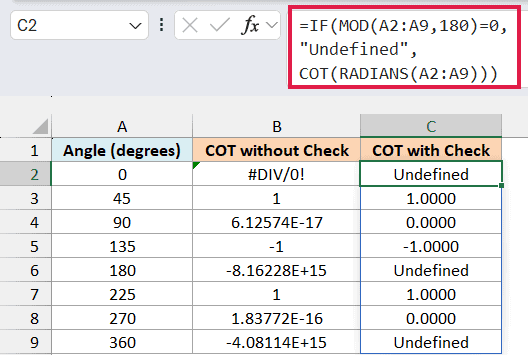
Below is a list of angles from 0 to 360 degrees, and I want to compare the plain COT result in column B with a version in column C that marks the undefined angles.
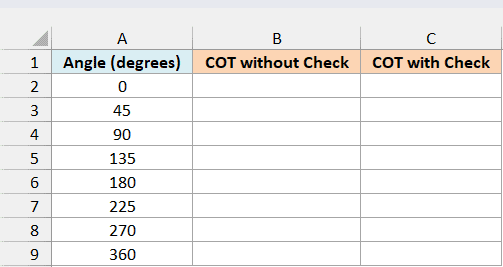
Here is the formula for column B:
=COT(RADIANS(A2:A9))
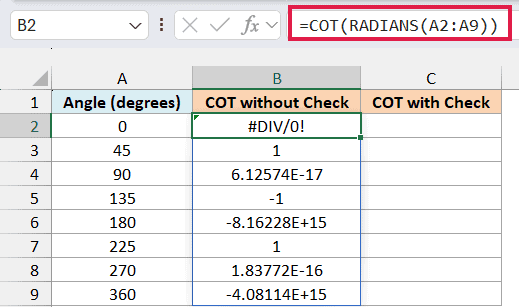
The cotangent is undefined at 0, 180, and 360 degrees. Cotangent is cosine divided by sine, and the sine of these angles is zero.
But only 0 degrees returns a #DIV/0! error. At 180 and 360 degrees, you get huge numbers such as -8.16228E+15 instead.
This happens because Excel can’t store pi exactly, so RADIANS(180) is a tiny bit off and its sine isn’t quite zero. COT then divides by a very small number rather than by zero.
The same thing shows up at 90 and 270 degrees, where the cotangent should be exactly 0. Instead, you get tiny numbers like 6.12574E-17.
To catch all three undefined angles, check the angle itself rather than the result. Here is the formula for column C:
=IF(MOD(A2:A9,180)=0,"Undefined",COT(RADIANS(A2:A9)))
How this formula works:
- The MOD function part, MOD(A2:A9,180), returns the remainder when each angle is divided by 180. It’s 0 for 0, 180, and 360 degrees, which are exactly the angles where the cotangent is undefined.
- The IF function returns the text “Undefined” for those angles.
- For every other angle, it returns COT(RADIANS(A2:A9)), the same result as column B.
Now 0, 180, and 360 degrees all show Undefined, and the other angles keep their cotangents.
Important: Wrapping COT in the IFERROR function doesn’t fix this. It only catches the #DIV/0! at 0 degrees, so the huge numbers at 180 and 360 degrees still come through as if they were real results.
Column C shows 0.0000 for 90 and 270 degrees, but that’s the number format hiding the tiny values. If you need an exact zero, for example to check whether a result equals 0, wrap the COT part in the ROUND function, as in ROUND(COT(RADIANS(A2:A9)),10).
If you’re using Excel 2013, 2016, or 2019, enter the below formula in cell C2 and then copy it down to C9:
=IF(MOD(A2,180)=0,"Undefined",COT(RADIANS(A2)))
In this tutorial, I showed you how to use the COT function with angles in radians and degrees, and how to use it to find a shadow length. I also covered how to deal with angles where the cotangent doesn’t exist.
If you need to go the other way, from a cotangent back to an angle, use the ACOT function. I hope you found this tutorial helpful.
Other Excel Articles You May Also Like:
