

The GAMMALN.PRECISE function in Excel returns the natural log of the gamma function for a number. So it gives you LN(GAMMA(x)), and for a whole number n, that’s the natural log of the factorial of n-1.
The log comes in handy because gamma values and factorials get too big for Excel really fast. Their logs stay small, so you can keep doing math with them.
Below, I’ll walk you through five examples, including the inputs GAMMALN.PRECISE rejects and a couple of places where the regular formulas run out of room.
Follow along with the example file
GAMMALN.PRECISE Function Examples.xlsx
GAMMALN.PRECISE Function Syntax
Here is the syntax of the GAMMALN.PRECISE function:
=GAMMALN.PRECISE(x)
- x – The number you want the natural log of the gamma function for. It must be greater than 0, and it can be a number, a cell reference, or a range of cells.
If you give GAMMALN.PRECISE a range instead of a single cell, it returns one result for each cell in that range.
The results spill into the cells next to the formula in the same shape as the range (down for a column, across for a row). Spilling needs Excel for Microsoft 365 or Excel 2021 and later.
The GAMMALN.PRECISE function works in Excel 2010 and later versions, including Excel for Microsoft 365 (Windows and Mac), 2024, 2021, 2019, and 2016.
When to Use the GAMMALN.PRECISE Function
Use this function when you need to:
- Get the natural log of a factorial, even for numbers where the FACT function returns an error
- Work with counts that are too big for Excel to store, by adding and subtracting logs instead of multiplying and dividing
- Calculate the Beta function, or other statistics formulas that have the gamma function in them
Let me show you a few practical examples of how to use the GAMMALN.PRECISE function.
Example 1: Calculate GAMMALN.PRECISE for a List of Numbers
Let’s start with a simple example.
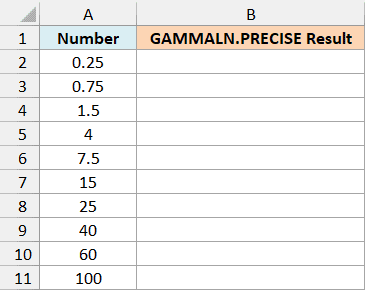
Below I have a list of numbers in column A, and I want to get the GAMMALN.PRECISE value of each one in column B.
Here is the formula:
=GAMMALN.PRECISE(A2:A11)
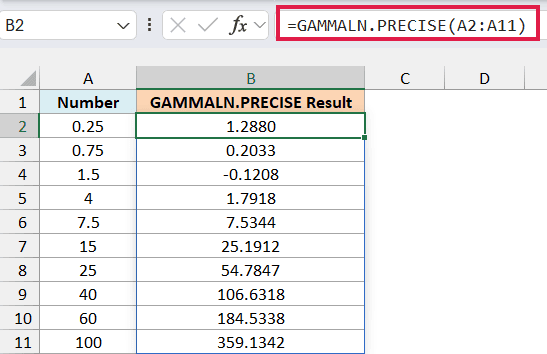
You only need to enter the formula in cell B2, and the results spill down into B2:B11.
For 4, it returns 1.7918. That’s the natural log of 6, because GAMMA(4) is 6 (the factorial of 3).
The result for 1.5 is negative (-0.1208). This happens because the gamma value of any number between 1 and 2 is less than 1, and the log of a number below 1 is always negative.
At the other end, 100 returns 359.1342. GAMMA(100) is already a number with 156 digits, while its log is only about 359.
If you are using Excel 2019 or earlier, enter the below formula in cell B2 and then copy it down the range:
=GAMMALN.PRECISE(A2)
The same idea works for Examples 2, 3, and 5 in this article. Point the formula at the first cell instead of the whole range, and copy it down.
Excel also has an older GAMMALN function that does the same job.
Microsoft doesn’t document any difference between the two. In Excel for Microsoft 365, both returned the same result for every number tested, so either one works.
Example 2: Get the Natural Log of a Factorial in Excel
Now let’s use GAMMALN.PRECISE to get the log of a factorial.
Here, n! (n factorial) means n x (n-1) x … x 1, which is the number of different orders n runners can finish a race in.
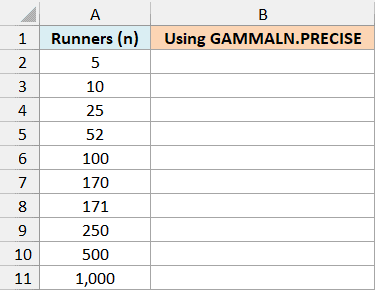
Below I have race sizes (the number of runners, n), and I want the natural log of n! in column B.
Here is the formula:
=GAMMALN.PRECISE(A2:A11+1)
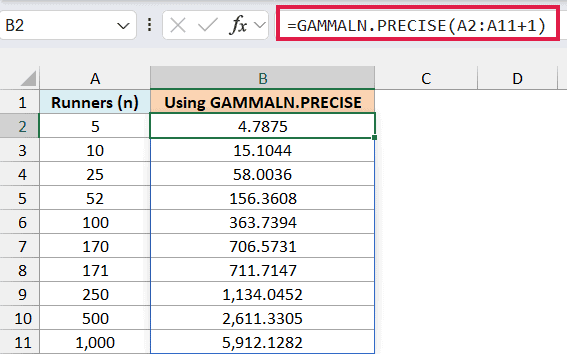
The +1 is there because GAMMALN.PRECISE(n) gives the log of the factorial of n-1. So to get the log of n!, you give it n+1.
For 5 runners, it returns 4.7875, which is the natural log of 120 (5 x 4 x 3 x 2 x 1). For 1,000 runners, it returns 5,912.1282.
Important: Don’t forget the +1. Without it, =GAMMALN.PRECISE(A2:A11) returns 3.1781 for 5 runners, which is the log of 24 (the factorial of 4) instead of 120.
You can also get the log of a factorial by putting FACT inside the LN function, so let’s try that in column C for comparison.
Here is the formula:
=LN(FACT(A2:A11))
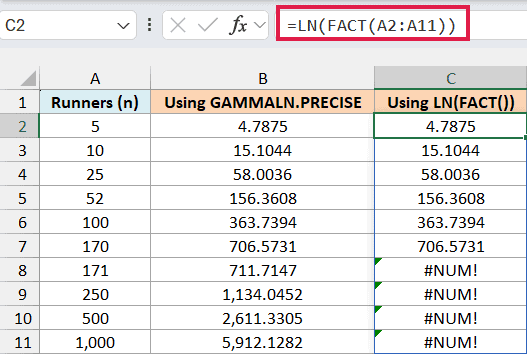
Both columns match up to 170 runners. From 171 on, LN(FACT()) returns the #NUM! error, while GAMMALN.PRECISE keeps going.
This happens because the factorial of 171 is bigger than the largest number Excel can store (about 1.8E+308). FACT fails before LN gets a chance to shrink it, while GAMMALN.PRECISE works out the log directly, so it never hits that limit.
For 170 or fewer, you could turn a result back into the factorial with the EXP function, but the FACT function is simpler there. Past 170, the factorial itself won’t fit in a cell, so you keep working with the log that GAMMALN.PRECISE returns.
Example 3: Why GAMMALN.PRECISE Returns #NUM! or #VALUE!
Let’s look at the inputs GAMMALN.PRECISE can’t handle.
Below I have a mix of inputs with a note on what each one is, and I want to see what GAMMALN.PRECISE returns for each one in column C.
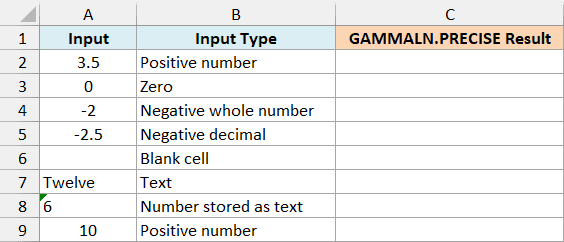
Here is the formula:
=GAMMALN.PRECISE(A2:A9)
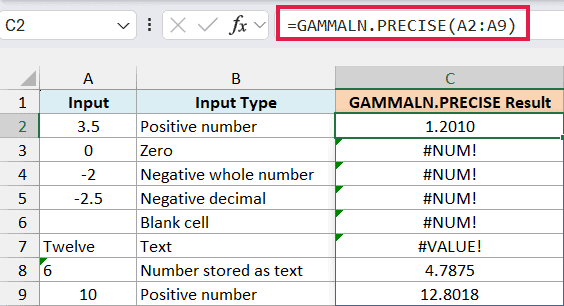
Zero and the negative numbers (0, -2, and -2.5) return the #NUM! error, because GAMMALN.PRECISE only works with numbers greater than 0.
That includes negative decimals like -2.5, even though the GAMMA function returns a value for them (-0.9453 for -2.5). So keep this in mind if you switch a formula from GAMMA to GAMMALN.PRECISE.
A blank cell is treated as 0, so it returns the #NUM! error too. The text “Twelve” returns the #VALUE! error, because GAMMALN.PRECISE needs a number to work with.
The number 6 stored as text works fine, though, and returns 4.7875. Excel converts a number stored as text into a real number before it does the calculation.
Example 4: Count Huge Combinations That COMBIN Can’t Handle
This next one is where GAMMALN.PRECISE is most useful, when a count is too big for Excel to store.
Below I have customer list sizes and sample sizes, and I want the number of different samples you could pick from each list in column C.
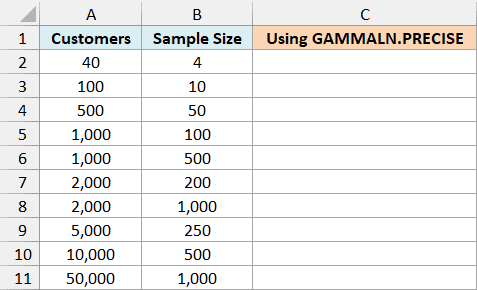
Here is the formula:
=LET(n,A2:A11,k,B2:B11,L,(GAMMALN.PRECISE(n+1)-GAMMALN.PRECISE(k+1)-GAMMALN.PRECISE(n-k+1))/LN(10),TEXT(10^MOD(L,1),"0.00")&"E+"&TEXT(INT(L),"00"))
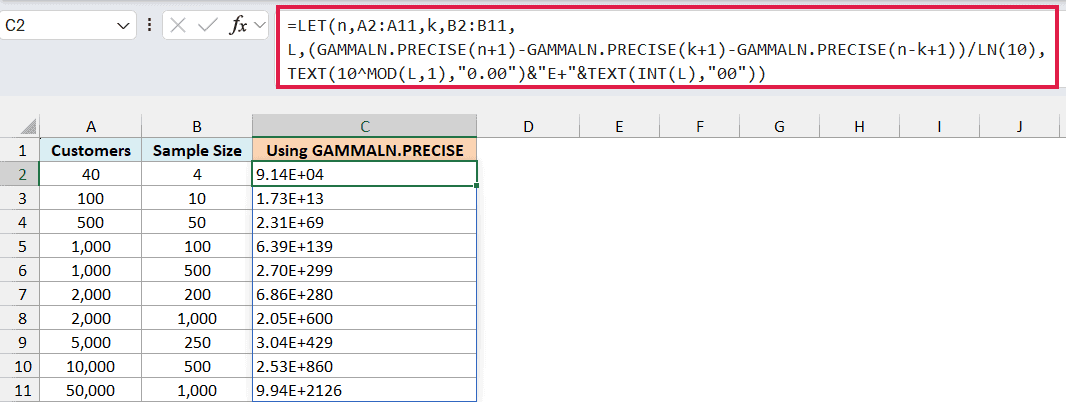
The formula shows each count in scientific notation. So 9.14E+04 means 9.14 x 10^4 (about 91,400), and 2.53E+860 is a number with 861 digits.
How this formula works:
- LET(n,A2:A11,k,B2:B11, …) gives the ranges short names, so n is the customer list size and k is the sample size.
- GAMMALN.PRECISE(n+1)-GAMMALN.PRECISE(k+1)-GAMMALN.PRECISE(n-k+1) is the log of n! / (k! x (n-k)!), which is how you count combinations. Subtracting logs does the same job as dividing the numbers, but the logs never get too big.
- /LN(10) turns the natural log into a base-10 log, which tells you the power of 10. The LET function stores this as L.
- INT(L) is the whole part of L, and it becomes the exponent after “E+”.
- 10^MOD(L,1) turns the decimal part of L into the leading number (like 9.14), and the TEXT function rounds it to two decimals.
The result is text, not a number, so you can’t use it in other calculations. If you need to keep working with the count, use the log value (L) instead.
The LET function needs Excel for Microsoft 365 or Excel 2021 and later.
Now let’s check these against the COMBIN function in column D.
Here is the formula:
=COMBIN(A2:A11,B2:B11)
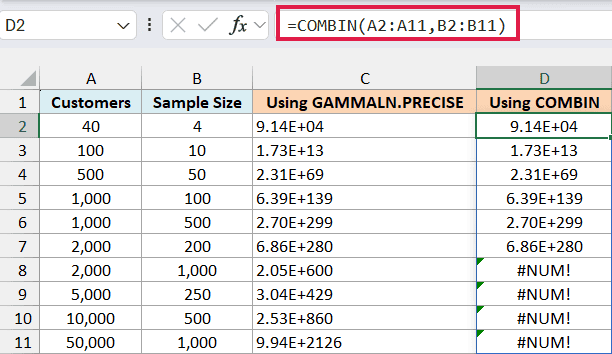
For the first six rows, both columns match. For the last four, COMBIN returns the #NUM! error, because those counts are bigger than about 1.8E+308, the largest number Excel can store.
Example 5: Calculate the Beta Function in Excel
Let’s end with the Beta function, which shows up a lot in statistics. Excel doesn’t have a function for it (the BETA.DIST and BETA.INV functions work with the beta distribution, not the Beta function itself), but you can build one with GAMMALN.PRECISE.
Below I have pairs of positive numbers (a and b), and I want the Beta function of each pair in column C.
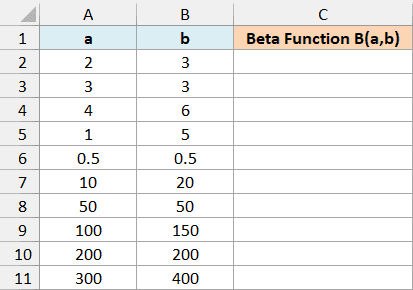
Here is the formula:
=EXP(GAMMALN.PRECISE(A2:A11)+GAMMALN.PRECISE(B2:B11)-GAMMALN.PRECISE(A2:A11+B2:B11))
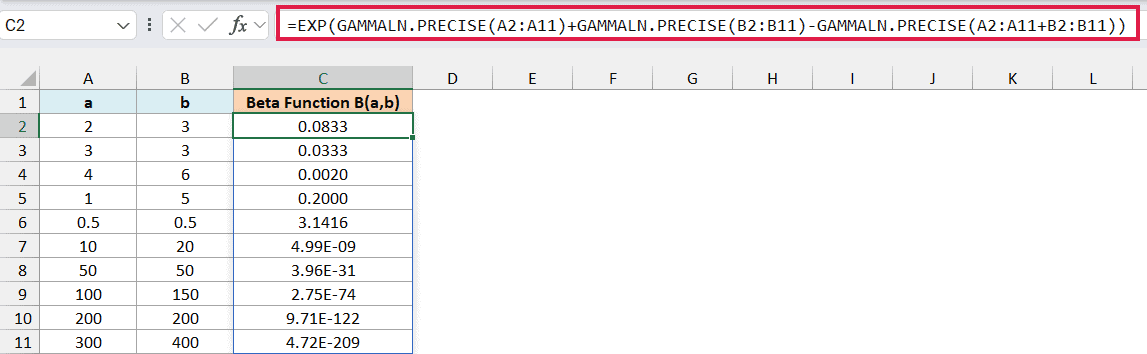
The Beta function is GAMMA(a) x GAMMA(b) / GAMMA(a+b). This formula does the same thing with logs (it adds the first two and subtracts the third), and then EXP turns the answer back into a regular number.
You can check a couple of the results yourself. B(2,3) returns 0.0833, which is 1/12, and B(0.5,0.5) returns 3.1416, which is pi.
You could also write it with GAMMA directly, but that version returns the #NUM! error once a+b goes past about 171, because GAMMA gets too big. With GAMMALN.PRECISE, even the pair 300 and 400 works and returns 4.72E-209.
So these are five examples of how you can use the GAMMALN.PRECISE function in Excel, from a basic list of numbers to log factorials, huge combinations, and the Beta function.
I hope you found this article helpful.
Other Excel Articles You May Also Like:
