

The PRICEDISC function in Excel calculates the price per $100 of face value for a discounted security. You give it the purchase and maturity dates, the discount rate, and the amount repaid at maturity.
A discounted security is bought for less than the amount you receive when it matures. PRICEDISC helps turn a quoted annual discount rate into a price you can use, then scale up to the amount you’re buying.
In this tutorial, I’ll show you four examples, including how the day-count method affects the price and how to compare several discount rates with one formula.
Follow along with the example file
PRICEDISC Function Examples.xlsx
PRICEDISC Function Syntax
Here is the syntax of the PRICEDISC function:
=PRICEDISC(settlement,maturity,discount,redemption,[basis])
- settlement – Required. The date the purchase settles, when the security transfers to the buyer. This may differ from its original issue date.
- maturity – Required. The date the security matures and the redemption amount becomes payable.
- discount – Required. The annual discount rate, entered as a percentage such as 4.6%, or its decimal equivalent, 0.046.
- redemption – Required. The amount repaid at maturity per $100 of face value. Enter 100 when the security repays its face value.
- [basis] – Optional. The convention used to count days and the length of a year. If you leave it out, Excel uses 0.
For basis, use 0 for US (NASD) 30/360, 1 for Actual/actual, 2 for Actual/360, 3 for Actual/365, or 4 for European 30/360.
The two 30/360 options use adjusted day counts, while the Actual options count calendar days.
The discount argument is an annual rate applied to the redemption amount. It isn’t the percentage return on the money you pay, so don’t substitute an investment yield for a quoted discount rate.
PRICEDISC works in Excel 365, 2024, 2021, 2019, 2016, and Excel for Mac. The spilling comparisons below need dynamic-array Excel; each also includes a formula for Excel 2019 or earlier.
When to Use the PRICEDISC Function
Use this function when you need to:
- Convert a discount-rate quote into a price per $100 of face value.
- Calculate the purchase cost for a particular face amount.
- Check how the specified day-count convention changes the price.
- Compare several discount-rate scenarios for the same security.
Let’s start with one price, then build up to the comparisons.
Example 1: Calculate a Discounted Security’s Price
Let’s work through a single bill first.
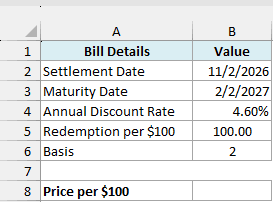
Below are a bill’s settlement date, maturity date, and discount terms, and I want its price per $100 in cell B8.
Enter this formula in cell B8:
=PRICEDISC(B2,B3,B4,B5,B6)
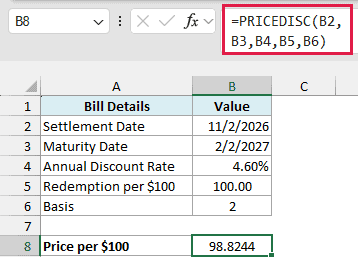
The formula returns 98.8244, displayed to four decimal places. That means a price of about $98.82 for each $100 of face value, with $100 repaid at maturity.
Here, settlement is November 2, 2026, and maturity is February 2, 2027. Basis 2 counts the actual 92 days between those dates and uses a 360-day year.
The discount is therefore 100 × 4.6% × 92 ÷ 360, or about 1.1756 per $100. Subtracting that from 100 gives the price in B8.
Important: Enter the discount rate as 4.6% or 0.046, not 4.6. Entering 4.6 means 460%, so the formula calculates a very different price.
The workbook uses real Excel dates. If a date was imported as text and Excel can’t interpret it, PRICEDISC returns #VALUE!; you can build a real date from separate year, month, and day values with the DATE function.
If settlement is on or after maturity, PRICEDISC returns #NUM!. A zero or negative discount rate, or a redemption amount of zero or less, also gives #NUM!, so check those inputs before changing the formula.
Example 2: Find the Total Purchase Cost
A quote per $100 is useful, but you may be buying a much larger amount.
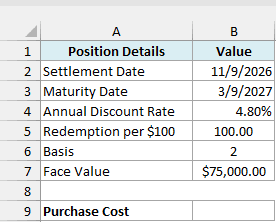
Below are the terms for a $75,000 face-value purchase, and I want the purchase cost in cell B9.
Enter this formula in cell B9:
=PRICEDISC(B2,B3,B4,B5,B6)*B7/100
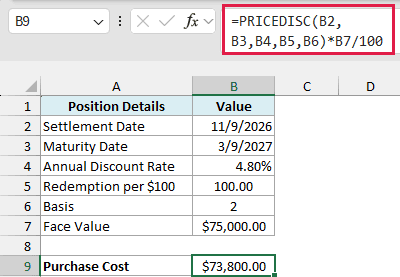
The result is $73,800.00. For these dates and a 4.8% discount rate, PRICEDISC calculates a quote of 98.40 per $100.
Multiplying by B7/100 scales that quote to the face value you’re buying. Here, $75,000 contains 750 units of $100, so the purchase cost is 98.40 × 750.
Notice that the redemption input stays at 100. The $75,000 face amount belongs in the scaling step, because PRICEDISC’s redemption argument and result both use the same per-$100 units.
This calculation excludes any fees or other transaction charges. The Currency format displays the result in dollars without changing the formula’s underlying value.
Example 3: Compare Day-Count Conventions
The same dates and discount rate can produce slightly different prices when you change how days are counted.
Below are the five day-count conventions for the bill from Example 1, and I want their prices in column C.
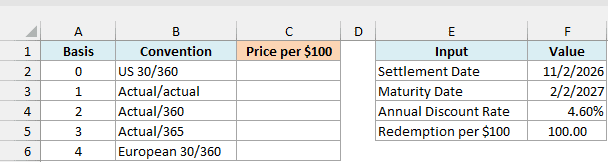
In dynamic-array Excel, enter this formula in cell C2:
=PRICEDISC(F2,F3,F4,F5,+A2:A6)
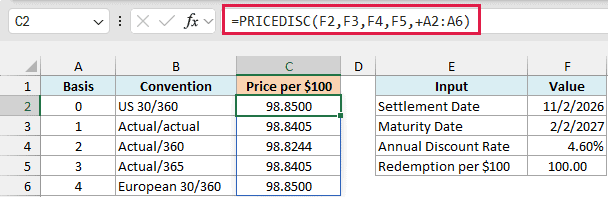
The formula keeps the bill inputs in F2:F5 fixed and tests each basis number in A2:A6. It spills the five prices into C2:C6, so you only enter it once.
The + before A2:A6 matters here. It converts the range reference into an array of values that PRICEDISC can calculate with; passing the range directly gives #VALUE! in the tested desktop Excel version.
Basis 0 and 4 return 98.8500, because both count this period as 90 days on a 360-day year. They happen to agree for these dates, but their month-end adjustment rules aren’t identical.
Basis 2 returns 98.8244, using 92 actual days and a 360-day year. Basis 1 and 3 return 98.8405 here, because the actual days use a 365-day year for this period.
Important: Use the basis specified in the security’s terms. Leaving this argument out selects US 30/360, which gives a different price from Actual/360 in this example.
Use whole-number basis codes from 0 through 4. Excel truncates the decimal part, so 2.9 is treated as 2; a code outside the allowed range returns #NUM!.
If you are using Excel 2019 or earlier, enter the below formula in cell C2 and copy it down through C6:
=PRICEDISC($F$2,$F$3,$F$4,$F$5,A2)
The dollar signs hold the bill inputs in place while the basis reference changes on each row. If the spilling version shows #SPILL!, clear any existing entries in its destination cells.
Example 4: Compare Discount-Rate Scenarios
Now let’s hold the dates and basis steady and change only the discount rate.
Below are five possible discount rates for a bill maturing on May 17, 2027, and I want the corresponding prices in column B.
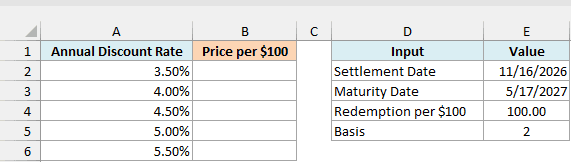
In dynamic-array Excel, enter this formula in cell B2:
=PRICEDISC(E2,E3,+A2:A6,E4,E5)
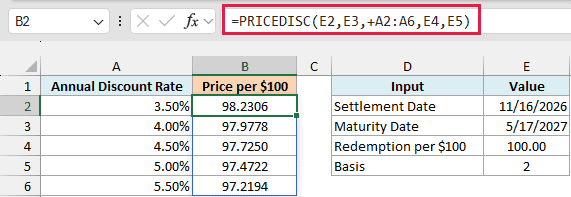
The five prices spill into B2:B6. As in the previous example, the + converts the rate range into values that PRICEDISC can process together.
At a 3.5% discount rate, the price is 98.2306 per $100. At 5.5%, it falls to 97.2194 because a larger discount is subtracted from the same redemption amount over the same 182-day period.
If you are using Excel 2019 or earlier, enter the below formula in cell B2 and copy it down through B6:
=PRICEDISC($E$2,$E$3,A2,$E$4,$E$5)
The dollar signs keep the settlement date, maturity date, redemption amount, and basis fixed. Only the discount-rate reference changes as you copy down.
These examples show how PRICEDISC turns a discount-rate quote into a price, scales it to a purchase amount, and compares different inputs. For a bond that pays regular coupons and is priced from a yield, use the PRICE function instead.
Other Excel Articles You May Also Like:
