

The STDEVA function calculates the standard deviation of a sample, including text and TRUE/FALSE values stored in cells. Standard deviation tells you how spread out the values are around their average.
STDEVA counts TRUE as 1, and FALSE and text as 0 when you give it cell references. That’s useful when those values really mean 1 and 0, but it can change your answer if the text means “not recorded.”
Let me show you how this works, including the difference between a blank cell and one that only looks blank.
Follow along with the example file
STDEVA Function Examples.xlsx
STDEVA Function Syntax
Here is the syntax of the STDEVA function:
=STDEVA(value1, [value2], ...)
- value1 is the first value, cell reference, range, or array to include. This argument is required.
- value2, … are optional additional values, references, ranges, or arrays. You can supply up to 255 arguments in total.
One range can contain your whole sample, so you don’t need a separate argument for every cell. Additional arguments let you include values from separate locations, as you’ll see in Example 4.
Values typed directly into the argument list behave differently from cell references. A quoted numeric value can be read as a number, while a word such as “None” typed directly into the formula causes a #VALUE! error.
The STDEVA function works in Excel for Microsoft 365, Excel 2024, 2021, 2019, and 2016, including their Mac versions. The FILTER example below requires Excel 2021 or later, or Microsoft 365.
When to Use the STDEVA Function
Use this function when you need to:
- Calculate sample standard deviation from actual TRUE/FALSE values stored in cells.
- Include text entries that deliberately represent zero observations.
- Check why an existing STDEVA formula gives a different answer when cells contain text or appear blank.
Let’s start with numbers, then look at the values that make STDEVA different.
Example 1: Calculate Sample Standard Deviation
Below are burn times for six candles sampled from a larger batch, and I want their sample standard deviation in cell B10.
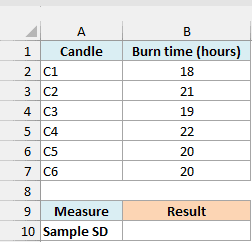
On the 1 Burn Times sheet, enter this formula in cell B10:
=STDEVA(B2:B7)
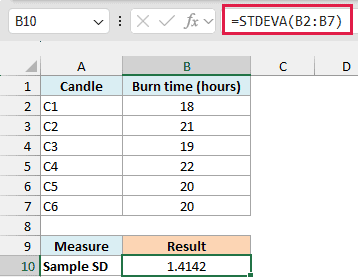
The result is 1.4142 hours, displayed to four decimal places. STDEVA uses all six burn times and returns one number for the whole sample.
The candles average 20 hours, and the standard deviation describes how much their burn times vary around that average. It uses the same unit as the measurements, so the result here is in hours.
STDEVA uses the sample calculation, which divides the sum of squared differences from the mean by one less than the number of observations before taking the square root. Here, that divisor is 5.
If these six candles were the entire group you wanted to describe, you would need a population calculation instead. The STDEVPA function is the population counterpart of STDEVA; the standard deviation guide explains the sample-versus-population choice.
For an ordinary numeric sample like this one, the STDEV.S function is usually the better choice because it ignores text in referenced cells. This first example establishes the calculation before we include text and logical values.
STDEVA needs at least two counted observations, or it returns #DIV/0!. An error in a referenced cell also passes through to the result, so correct the source error before interpreting the calculation.
Example 2: Include TRUE and FALSE Values
Now let’s use data that isn’t stored as numbers.
Below are eight backup-test results, and I want the sample standard deviation of their completion outcomes in cell B12.
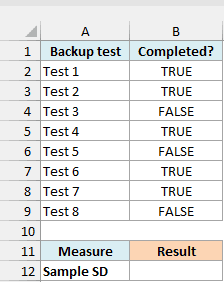
On the 2 Backup Checks sheet, enter this formula in cell B12:
=STDEVA(B2:B9)
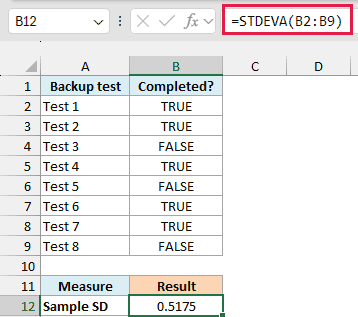
The result is 0.5175. STDEVA treats the five TRUE values as five 1s and the three FALSE values as three 0s.
This is the standard deviation of the 1/0 outcomes, not the percentage of backups that completed. When all outcomes are the same, their standard deviation is zero; a mix of completed and failed tests has some variation.
Make sure the cells contain actual logical values. Text that spells “TRUE” is still text, so STDEVA counts it as zero when it reads the cell.
Example 3: Count Text as Zero
Text needs a little more care because Excel doesn’t know what a word means in your data.
Below are sprout counts from six seed trays, where “None” means zero sprouts, and I want to compare two sample standard deviations in column B.
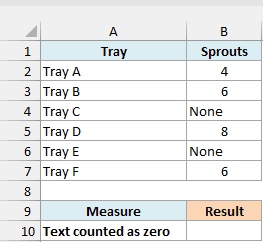
On the 3 Seed Trays sheet, enter this formula in cell B10:
=STDEVA(B2:B7)
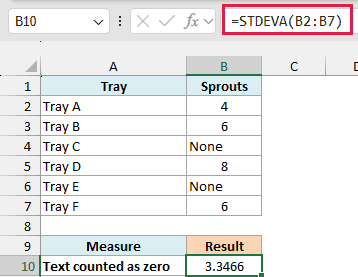
The result is 3.3466 sprouts. STDEVA includes six observations: 4, 6, 0, 8, 0, and 6.
To see what happens when the text entries are ignored, enter this comparison formula in cell B11:
=STDEV.S(B2:B7)
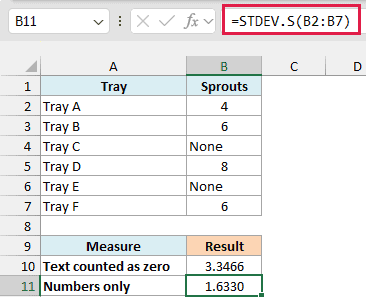
The result is 1.6330 sprouts. The STDEV.S function uses only 4, 6, 8, and 6, so it calculates the spread of a different, smaller sample.
The older STDEV function also ignores text in references. The difference here comes from which observations are included, not from rounding.
Important: STDEVA treats every text cell as zero, including “Unknown” or a number stored as text. Use it only when that interpretation is intended; otherwise, correct the data or choose the calculation that matches the observations you actually have.
For a new sprout-count sheet, entering a numeric 0 would make the data clearer. This example shows how STDEVA handles an existing sheet that uses a word for zero.
Example 4: Distinguish Blank and Empty Text
Two cells can look empty and still affect the answer differently.
Below are pause lengths from audio clips with two blank-looking entries, and I want to compare their effect on sample standard deviation in column B.
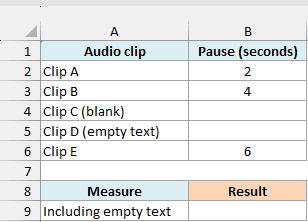
On the 4 Blank Looking Cells sheet, B4 is genuinely empty, while B5 contains ="", a formula that returns empty text. The row labels identify which is which.
Enter this formula in cell B9:
=STDEVA(B2:B6)
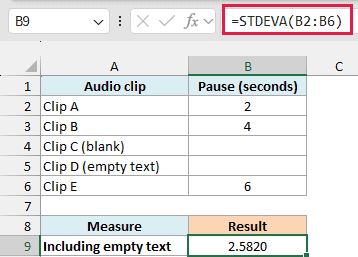
The result is 2.5820 seconds. STDEVA skips the genuinely blank B4, but counts the empty text in B5 as zero, so it uses 2, 4, 0, and 6.
For a controlled comparison, leave out B5 by entering this formula in cell B10:
=STDEVA(B2:B4,B6)
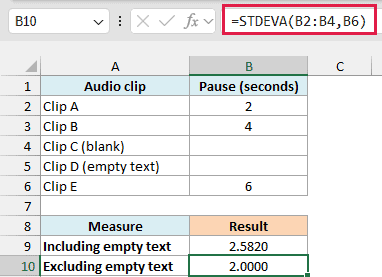
The result is 2.0000 seconds. The first argument still contains the real blank in B4, which STDEVA ignores, and the second argument adds the value in B6.
This uses separate references to isolate one known cell, not to clean a large dataset. If formulas return empty text for missing measurements, decide whether those measurements should be excluded before choosing a standard-deviation function.
Example 5: Calculate for One Group
You can also select one group’s observations before calculating their spread.
Below are door-check results for two building wings, and I want the sample standard deviation of the North wing’s pass/fail outcomes in cell B12.
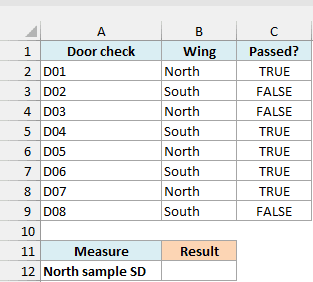
This example uses the FILTER function, so you’ll need Excel 2021, Excel 2024, or Microsoft 365.
On the 5 Filtered Checks sheet, enter this formula in cell B12:
=STDEVA(--FILTER(C2:C9,B2:B9="North"))
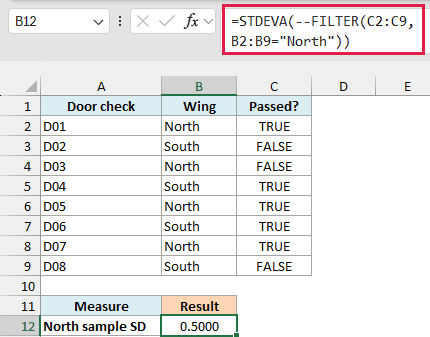
The result is 0.5000, the sample standard deviation of the four North-wing outcomes after converting them to 1, 0, 1, and 1.
How this formula works:
B2:B9="North"identifies the rows for the North wing.FILTER(C2:C9,B2:B9="North")returns the TRUE/FALSE outcomes from those rows as an array of values.- The two minus signs (
--) convert TRUE to 1 and FALSE to 0. - STDEVA calculates one sample standard deviation from those numbers, so the final formula does not spill into other cells.
Important: STDEVA includes logical values in cell references, but ignores logical values in an array returned by another function. The double minus converts this filtered array to numbers before STDEVA uses it.
After that conversion, the STDEV.S function would give the same result. STDEVA stays in this example to show why its behavior with a returned array differs from its behavior with the cell range in Example 2.
If no rows match, the FILTER function returns #CALC! in this formula. If only one row matches, STDEVA returns #DIV/0! because one observation isn’t enough for a sample standard deviation.
In this article, I showed you how STDEVA handles numbers, text, logical values, and blank-looking cells. I also covered how to calculate the spread of one group’s outcomes with the FILTER function.
I hope you found this article helpful.
Other Excel Articles You May Also Like:
