

The BINOM.INV function in Excel finds a cutoff for the number of times an event occurs, based on a probability you choose. For example, it can find a count that the outcome will stay at or below at least 95% of the time.
You supply the number of attempts and the chance of the event happening on each attempt. BINOM.INV returns a whole-number count, so it’s useful for planning capacity or allowances when the outcome can vary.
In this tutorial, I’ll show you four examples, including how to check what the returned number means.
Follow along with the example file
BINOM.INV Function Examples.xlsx
BINOM.INV Function Syntax
Here is the syntax of the BINOM.INV function:
=BINOM.INV(trials,probability_s,alpha)
- trials: Required. The fixed number of independent attempts, each with two possible outcomes. Enter a nonnegative whole number. Excel drops any decimal part, so 20.9 is treated as 20.
- probability_s: Required. The probability of the event you’re counting on each attempt. It must be greater than 0 and less than 1, such as 70% or 0.7.
- alpha: Required. The cumulative probability you want to reach. It must also be greater than 0 and less than 1. A value of 95% asks for the smallest count where the probability of that many successes or fewer is at least 95%.
The word “success” in probability_s means the outcome you’re counting. It could be a customer collecting a rental, a seed sprouting, or a book being returned, even when that outcome isn’t desirable.
Keep the two probabilities separate. probability_s describes one attempt, while alpha describes the total count across all the attempts.
A negative trial count, or a probability or alpha of 0, 1, or outside that interval, returns #NUM!. For a percentage, enter 95% or 0.95, not 95.
BINOM.INV is available in Excel 365, 2024, 2021, 2019, and 2016. The spilling examples below need dynamic-array Excel, such as Excel 365, 2024, or 2021.
When to Use the BINOM.INV Function
Use BINOM.INV when you know the number of attempts and the probability of an event, and need to:
- Choose enough capacity to cover a target proportion of possible outcomes.
- Set a return allowance for a fixed number of sales.
- Find a lower bound that the outcome should meet with a chosen probability.
The model needs independent attempts with the same event probability. There must be two outcomes per attempt, such as collected or not collected, and the number of attempts must be fixed.
Let me show you how that works in a worksheet.
Example 1: Plan Bikes for Rental Pickups
Let’s start with a capacity estimate.
Below are six possible reservation totals for a bike rental shop, and we want enough bikes to cover at least 95% of pickup outcomes in column D.
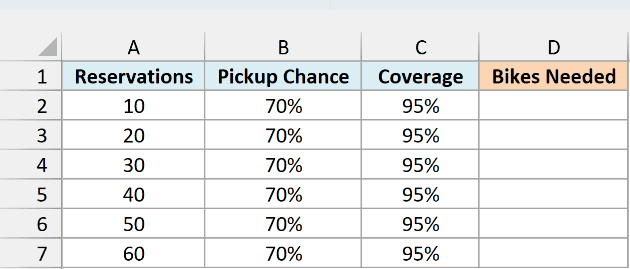
Assume each reservation has a 70% chance of being collected, independently of the other reservations. On the Rental Demand sheet, enter this formula in cell D2:
=BINOM.INV(A2:A7,B2:B7,C2:C7)
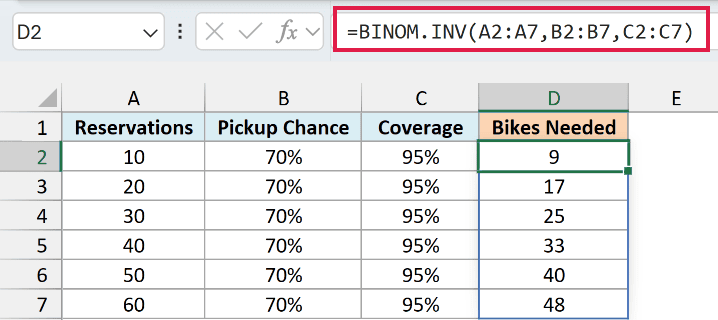
The formula uses each reservation count in column A, its pickup chance in column B, and the coverage target in column C. The six results spill into D2:D7 automatically.
For 20 reservations, it returns 17 bikes. Under this model, the probability that 17 or fewer customers collect a bike is at least 95%, so 17 is the smallest stock level that meets the target.
The result is neither the number of reservations you should accept nor the average number of pickups. The trial count is already fixed at 20; BINOM.INV finds a cutoff within those 20 possible pickups.
Important: These are model-based planning numbers. If bad weather makes many customers cancel together, pickups aren’t independent, and this binomial model may underestimate how much demand varies.
If Excel shows a #SPILL! error, something is blocking the output cells. Clear the contents blocking D3:D7, leaving the formula in D2.
If you’re using Excel 2016 or 2019, enter the following formula in D2 and copy it down through D7:
=BINOM.INV(A2,B2,C2)
You can use that same single-row alternative on the next two sheets, which have the same column layout.
Example 2: Compare Return Allowances
Now let’s keep the number of trials fixed and change the coverage target.
Below are six coverage targets for 40 book sales with a 15% return chance per book, and we want the corresponding return allowance in column D.
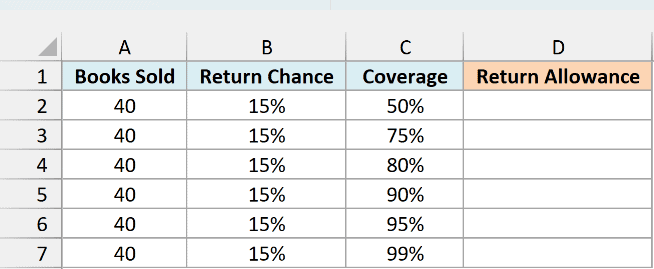
On the Return Allowance sheet, enter this formula in D2:
=BINOM.INV(A2:A7,B2:B7,C2:C7)
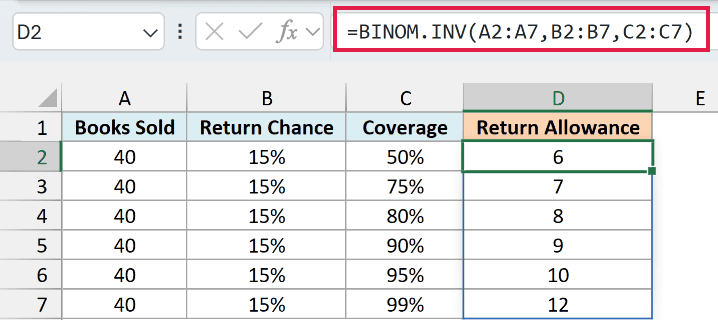
The results are 6, 7, 8, 9, 10, and 12. At 95% coverage, the allowance is 10 returns; increasing the target to 99% raises it to 12.
Here, a returned book counts as a “success” because returns are the event being counted. The return probability stays at 15% in every row, while alpha increases from 50% to 99%.
Choosing 99% doesn’t make customers more likely to return books. It asks for a larger allowance so the total number of returns stays within it more often, assuming independent returns with a fixed 15% probability.
If an input contains a word such as “unknown” instead of a number, BINOM.INV returns #VALUE!. Replace it with the relevant numeric input before interpreting the allowance.
Example 3: Find a Seedling Lower Bound
Sometimes you want a count you’re likely to reach, rather than a count you’re unlikely to exceed.
Below are six planting quantities with an 80% sprout chance per seed, and we want a 90% lower bound for the number of seedlings in column D.
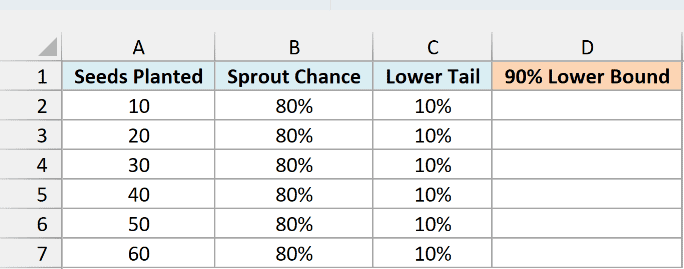
The Lower Tail column contains 10%, which is 100% minus the desired 90% probability. On the Seedling Lower Bound sheet, enter this formula in D2:
=BINOM.INV(A2:A7,B2:B7,C2:C7)
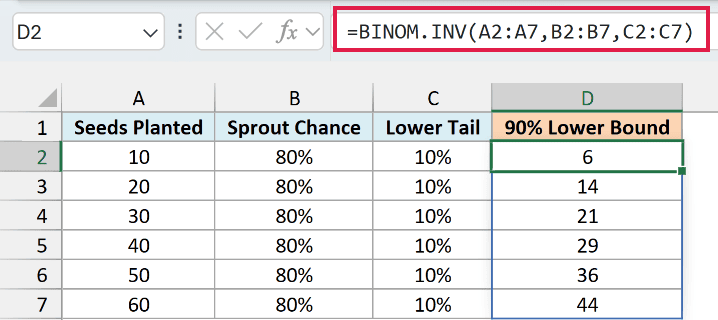
For 20 seeds, the formula returns 14. Under the model, the probability of getting at least 14 seedlings is greater than 90%.
BINOM.INV chooses the first count where the cumulative probability reaches 10%. That means the probability of getting fewer than that count is below 10%, leaving more than 90% for that count or above.
This is why the formula uses 10% for a lower bound. Using 90% would answer a different question: a count that the number of seedlings stays at or below at least 90% of the time.
Important: The lower bound isn’t a guaranteed minimum. Fewer seedlings can still occur, and the calculation assumes independent sprouting with an 80% chance for every seed.
Example 4: Check the BINOM.INV Cutoff
Let’s check why 20 reservations gave us a cutoff of 17 bikes.
Below are the rental assumptions again, and we want the bike cutoff in B5 and its cumulative probability checks in column B.
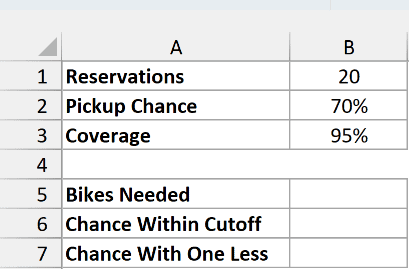
On the Check the Cutoff sheet, enter this formula in B5:
=BINOM.INV(B1,B2,B3)
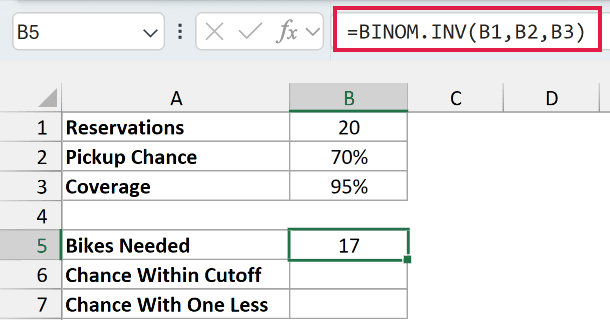
It returns 17. This example uses a single-cell formula because we’re checking one reservation total.
The BINOM.DIST function lets us work in the other direction: start with a count and calculate its probability. Enter the following formula in B6 to find the chance of 17 or fewer pickups:
=BINOM.DIST(B5,B1,B2,TRUE)
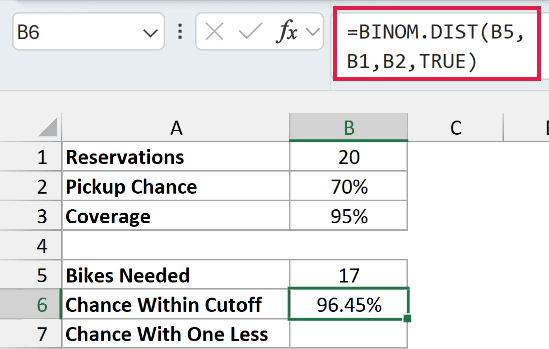
The result is approximately 96.45%. The final argument, TRUE, asks for the cumulative probability, which includes every count from zero through 17.
To check whether one fewer bike would meet the target, enter this formula in B7:
=BINOM.DIST(B5-1,B1,B2,TRUE)
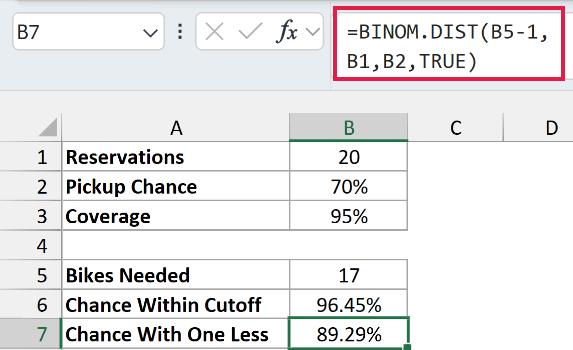
For 16 or fewer pickups, the probability is only 89.29%. Since 16 misses the 95% target and 17 exceeds it, 17 is the smallest qualifying count.
You don’t get exactly 95% because the count moves in whole numbers. In this example, the cumulative probability jumps from 89.29% to 96.45% between 16 and 17.
If you change the inputs and B5 becomes zero, don’t use the one-less check. Zero is already the smallest possible count; the probability of a negative count is zero, and asking BINOM.DIST to evaluate -1 returns #NUM!.
These examples show how BINOM.INV turns a probability target into a count. Keep the meaning of alpha clear, then check the cutoff with BINOM.DIST when you need to explain the result to someone else.
Other Excel Articles You May Also Like:
