

The Z.TEST function in Excel returns the right-tailed p-value for a sample mean compared with a hypothesized population mean. You can use it to check whether a sample gives evidence that the average is higher than a specified benchmark.
The direction matters here. Z.TEST gives the right tail, so a test for a lower average or a difference in either direction needs a small adjustment.
In this tutorial, I’ll show you how to calculate each of these p-values, what happens when you leave out the standard deviation, and how to test a selected group of rows.
Follow along with the example file
Z.TEST Function Examples.xlsx
Z.TEST Function Syntax
Here is the syntax of the Z.TEST function:
=Z.TEST(array,x,[sigma])
- array: The sample measurements you want to test. Supply a range or an array of observations, rather than just their average.
- x: The hypothesized population mean, or benchmark average, you want to test against. This is a number, not a significance level such as 0.05.
- sigma: The known population standard deviation. This argument is optional, and it uses the same units as the measurements.
When you supply sigma, Excel uses that value to calculate the p-value. When you omit it, Excel estimates the standard deviation from the sample itself, but still uses the normal distribution for the calculation.
Z.TEST works in Excel 365, 2024, 2021, 2019, and 2016, including the corresponding Mac versions. The FILTER example below requires Excel 365, 2024, or 2021.
When to Use the Z.TEST Function
Use this function when you need to:
- Compare a sample’s average with a stated population mean when the population standard deviation is known.
- Calculate a one-sided p-value for an increase or a decrease.
- Calculate a two-sided p-value for a change in either direction.
- Test a selected group’s measurements against a benchmark.
The examples use small teaching samples. For the known-sigma tests, assume the observations form independent random samples from approximately normal populations, with population standard deviations known from reliable past data.
Choose the test direction and significance level before looking at the results. Z.TEST compares one sample with a benchmark; it doesn’t accept two samples for a comparison of their means.
Let me show you how this works in the example file.
Example 1: Calculate a Right-Tailed Z Test
Let’s start with the function on its own.
Below are the weights of ten coffee bags, and I want to test whether the average exceeds 250 grams, with the p-value in cell E4.
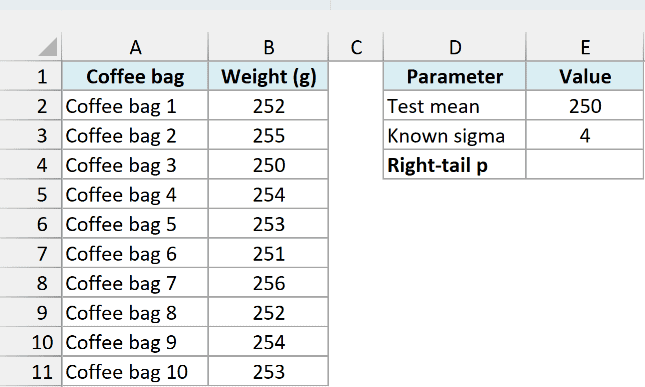
The population standard deviation is known to be 4 grams, entered in E3. Enter this formula in E4:
=Z.TEST(B2:B11,E2,E3)
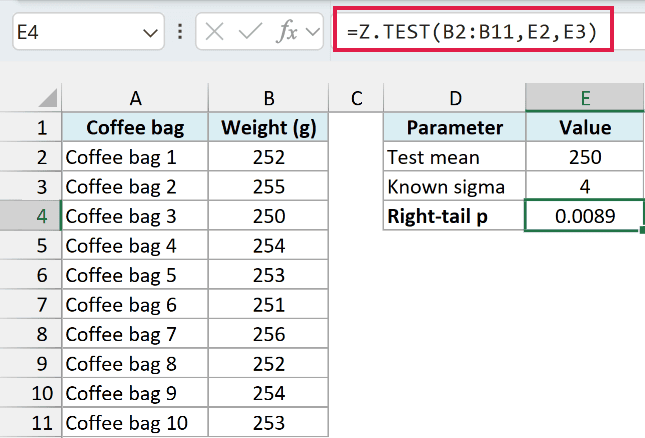
The formula returns 0.0089, rounded to four decimal places. The sample average is 253 grams, compared with the benchmark of 250 in E2.
If the population mean were 250 grams, the chance of a sample mean of 253 grams or higher would be about 0.89%, under the stated assumptions. That’s the right-tail probability Z.TEST calculates.
Suppose you chose a significance level of 0.05 before checking the sample. Since 0.0089 is below 0.05, you would reject the 250-gram null hypothesis in favor of a higher population mean.
The p-value doesn’t tell you the probability that the null hypothesis is true. It describes the sample result assuming that hypothesis is true.
Z.TEST returns one p-value for the whole sample range. It doesn’t return a separate result for each bag.
The known standard deviation must be positive; entering 0 for sigma produces #NUM!. A nonnumeric x or sigma produces #VALUE!, so keep these inputs as numbers.
An empty sample returns #N/A. With fewer than two numeric observations, Excel returns #DIV/0!, so a single measurement isn’t enough for this function.
Example 2: Test Whether an Average Is Lower
Now let’s test a decrease instead.
Below are ten checkout waiting times, and I want to test whether the average is below ten minutes, with the left-tail p-value in E4.
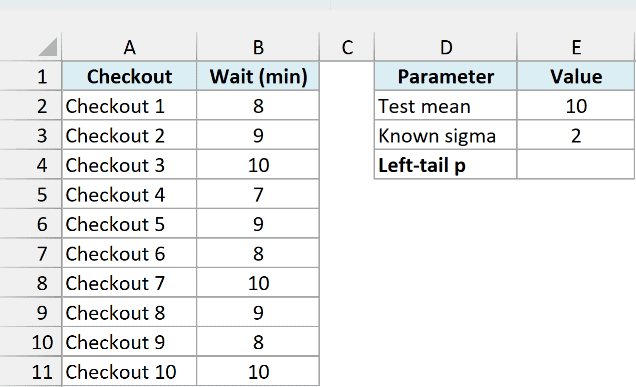
The benchmark is 10 in E2, and the known population standard deviation is 2 minutes in E3. Enter this formula in E4:
=1-Z.TEST(B2:B11,E2,E3)
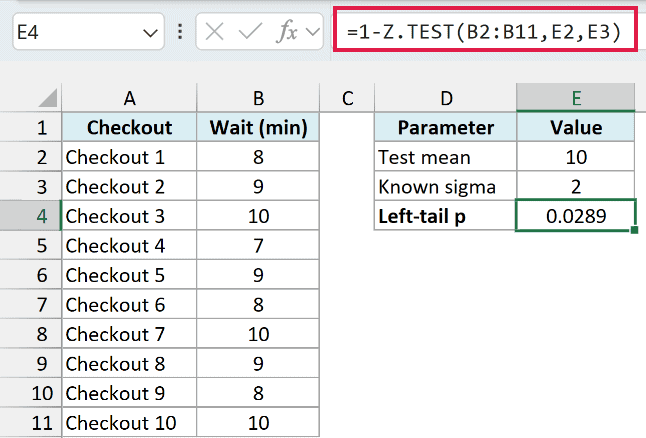
The result is 0.0289. The sample average is 8.8 minutes, so this gives the probability of a sample mean of 8.8 minutes or lower if the true mean were ten minutes.
Z.TEST alone returns about 0.9711 here because it always calculates the right tail. Subtracting it from 1 gives the left tail, which matches the lower-average question we chose.
At a preselected 0.05 significance level, the result gives evidence that the population’s average wait is below ten minutes. Don’t switch to the left tail just because the sample happened to be lower.
For extremely small left-tail probabilities, subtracting from 1 can lose precision or round the result to zero. Calculating that tail directly with the NORM.S.DIST function avoids that subtraction.
Example 3: Calculate a Two-Tailed P-Value
Sometimes either direction would count as a change.
Below are the measured volumes of ten bottles, and I want to test for a mean different from 500 milliliters, with the two-tailed p-value in E4.
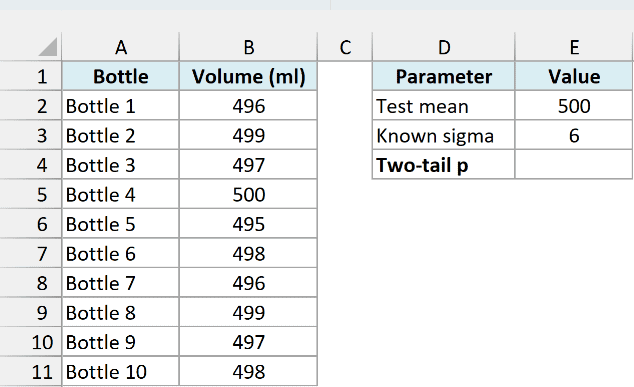
The known population standard deviation is 6 milliliters in E3. Enter this formula in E4:
=2*MIN(Z.TEST(B2:B11,E2,E3),1-Z.TEST(B2:B11,E2,E3))
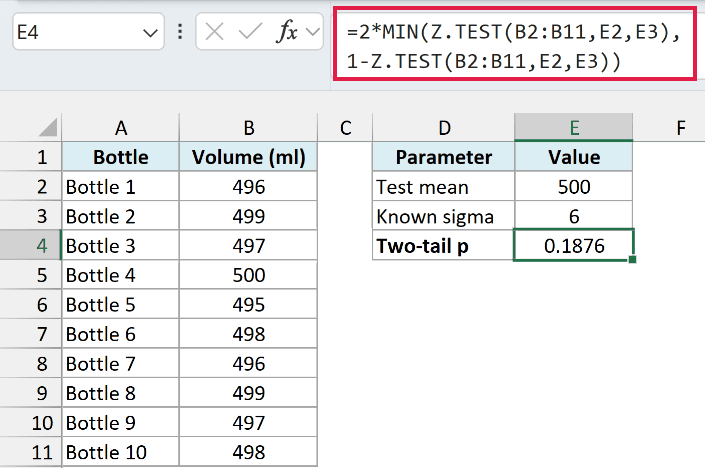
The result is 0.1876. Although the sample average is 497.5 milliliters, this p-value is above a preselected 0.05 significance level, so the sample doesn’t provide enough evidence to reject a mean of 500 milliliters.
How this formula works:
Z.TEST(B2:B11,E2,E3)calculates the right-tail probability.1-Z.TEST(B2:B11,E2,E3)calculates the left-tail probability.- The MIN function takes the smaller tail, and multiplying it by 2 includes an equally extreme departure in the opposite direction.
Z.TEST appears twice so the formula can compare both tails without needing the LET function. Repeating the calculation has little practical cost for this ten-row sample.
Important: Don’t just double the right-tail result. When the sample average is below the benchmark, that tail exceeds 0.5, so doubling it can give an invalid probability greater than 1.
As with the left-tail example, the subtraction can lose precision for extreme results. The formula works well for these sample values, but a direct normal-distribution calculation is preferable when you need an exceptionally small p-value accurately.
Failing to reject the benchmark doesn’t prove the population mean equals it. It means this test didn’t find enough evidence of a difference at the chosen cutoff.
Follow along with the example file
Z.TEST Function Examples.xlsx
Example 4: Leave Out the Sigma Argument
Let’s check what the optional argument changes.
Below are ten trip times, and I want to demonstrate Z.TEST without a supplied population standard deviation, using a 30-minute benchmark and a result in E4.
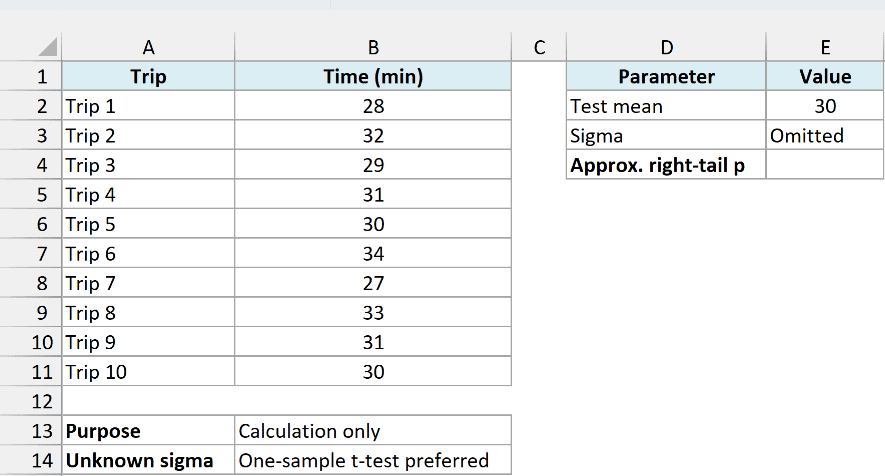
Enter this formula in E4:
=Z.TEST(B2:B11,E2)
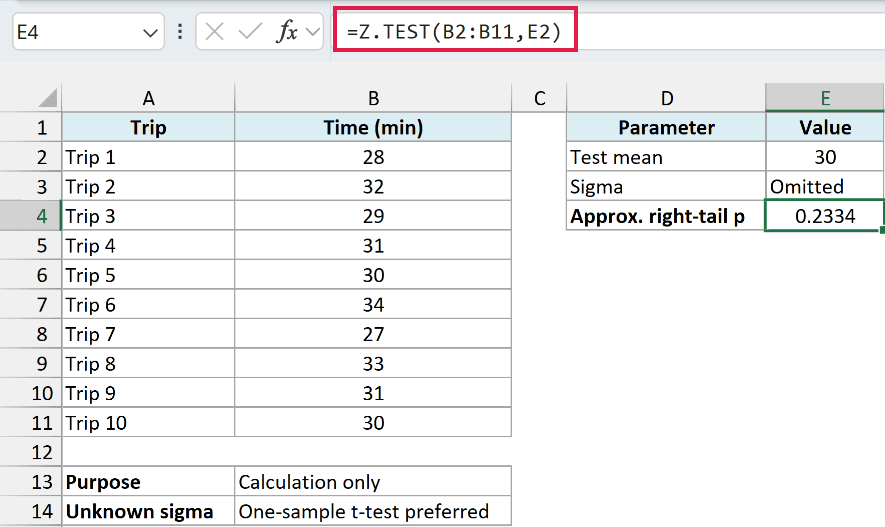
The result is 0.2334. Excel uses the sample average of 30.5 minutes and the sample standard deviation of about 2.1731 minutes because the formula has no third argument.
This is the sample standard deviation, calculated using the STDEV.S method. It isn’t a known population standard deviation, and Excel still compares the standardized result with the normal distribution.
Important: This example demonstrates the calculation only. With ten observations and unknown population sigma, a one-sample t-test is generally the appropriate test; leaving sigma out of Z.TEST doesn’t turn it into a t-test.
If all the sample measurements are identical, their sample standard deviation is zero and this omitted-sigma formula returns #DIV/0!. Check that the data contains genuine variation before using it.
Older workbooks may use the ZTEST function, the compatibility predecessor to Z.TEST. Use Z.TEST for new work unless you specifically need compatibility with Excel versions before 2010.
Example 5: Run Z.TEST on a Selected Group
Finally, let’s select the sample inside the formula.
Below are parcel weights from two stores, and I want to test whether Store A’s average exceeds 500 grams, with its p-value in F5.
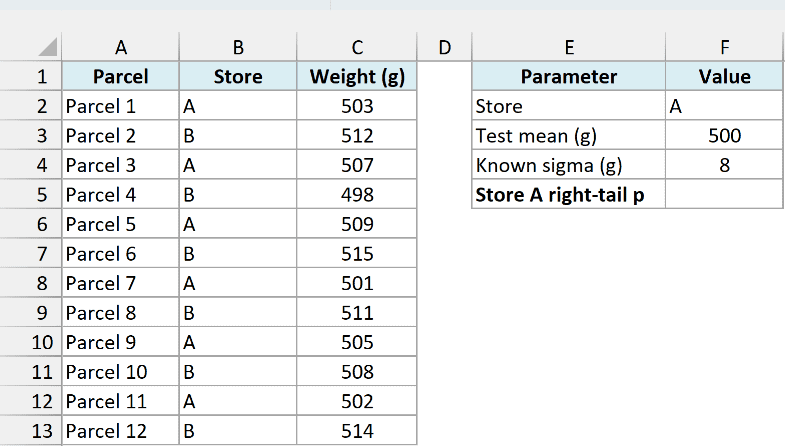
Store A is selected in F2, the benchmark is in F3, and its known population standard deviation of 8 grams is in F4. Enter this formula in F5:
=Z.TEST(FILTER(C2:C13,B2:B13=F2),F3,F4)
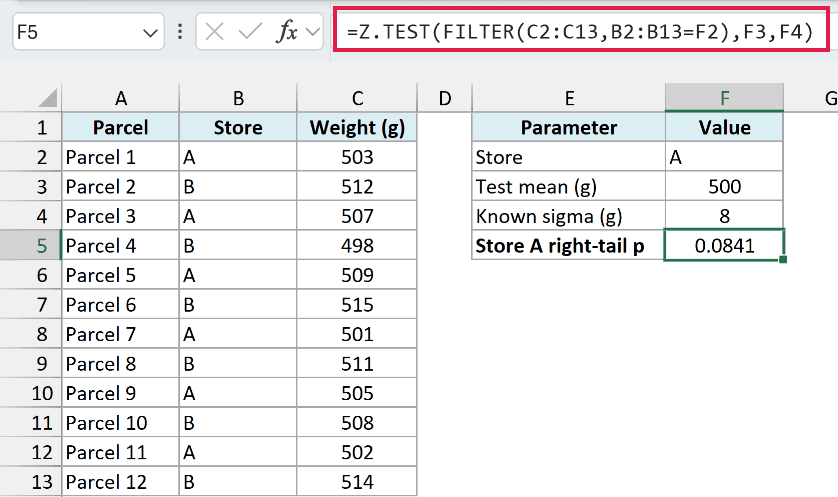
The result is 0.0841 for the six Store A parcels, whose sample average is 504.5 grams. At a preselected 0.05 significance level, that isn’t enough evidence to conclude the population mean exceeds 500 grams.
How this formula works:
- The FILTER function keeps weights from C2:C13 where the store in B2:B13 matches F2.
- Z.TEST uses those selected weights as its sample, the benchmark in F3, and the known standard deviation in F4.
- Although FILTER produces an array internally, Z.TEST reduces it to one p-value in F5.
This example needs Excel 365, 2024, or 2021 because it uses FILTER. In older Excel, copy the chosen store’s numeric weights into a separate range and use that range as the sample for Z.TEST.
If F2 contains a store that doesn’t exist in the table, FILTER returns #CALC!, so the whole formula fails. Correct the store criterion rather than replacing the error with a p-value of zero, which would imply strong evidence.
If you change the store, also check that F4 contains the known population standard deviation for that store. The same random-sampling and normal-population assumptions apply to this selected sample, which has only six observations.
So these are the main ways to use Z.TEST in Excel, from a plain right-tail test to a selected sample. I hope you found this tutorial helpful.
Other Excel Articles You May Also Like:
