

The CHISQ.DIST function in Excel returns the left-tailed chi-square distribution. Give it a chi-square value and it tells you how much of the chi-square curve sits to the left of that value, or how tall the curve is at that point.
Most chi-square tests care about the right tail, which is the p-value. But some questions are about the left tail, like whether results match expectations suspiciously well or whether something has become more consistent, and that’s where CHISQ.DIST comes in.
In this article, I’ll show you how the CHISQ.DIST function works, with five examples that go from simple probabilities to a real left-tailed test.
Follow along with the example file
CHISQ.DIST Function Examples.xlsx
CHISQ.DIST Function Syntax
Here is the syntax of the CHISQ.DIST function (all three arguments are required):
=CHISQ.DIST(x, deg_freedom, cumulative)
- x – The chi-square value you want to evaluate, which is usually the statistic a chi-square test gives you. It can’t be negative.
- deg_freedom – The degrees of freedom, which is a whole number of 1 or more. It comes from how the test is set up (for example, the number of categories minus 1).
- cumulative – TRUE to get the cumulative probability, or FALSE to get the probability density.
The chi-square curve shows how often each statistic turns up when only chance is at work. With TRUE, you get the area under that curve to the left of x.
That area is the probability that chance alone gives a chi-square value of x or lower. So it’s always between 0 and 1, and it grows as x grows.
With FALSE, you get the height of the curve at x. This density value is not a probability on its own, and it’s mostly useful when you want to draw or study the shape of the curve.
If x is 0, the cumulative result is exactly 0, because no part of the curve sits to the left of 0. A negative x returns the #NUM! error.
If deg_freedom has decimals, Excel drops them before calculating. So 3.7 degrees of freedom gives the same result as 3, and anything that drops below 1 (like 0.5) returns the #NUM! error.
If any argument is text that can’t be read as a number, you get the #VALUE! error.
The CHISQ.DIST function works in Excel 2010 and later versions, including Excel 365, 2024, 2021, 2019, 2016, Excel for Mac, and Excel for the web.
When to Use the CHISQ.DIST Function
Use this function when you need to:
- Find the probability that a chi-square value is at or below a certain number
- Draw or study the shape of the chi-square curve
- Work out the chance that a chi-square value lands between two numbers
- Spot results that match the expected counts suspiciously well
- Test whether a process has become more consistent than before
Let me show you a few practical examples of how to use the CHISQ.DIST function in Excel.
Example 1: Find the Cumulative Probability of Chi-Square Values
Let’s start with a simple example.
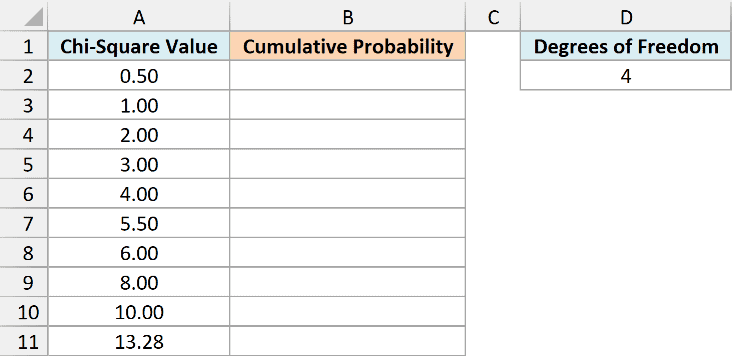
Below I have ten chi-square values, all with 4 degrees of freedom (in D2), and I want the cumulative probability for each one in column B.
Here is the formula:
=CHISQ.DIST(A2:A11,D2,TRUE)
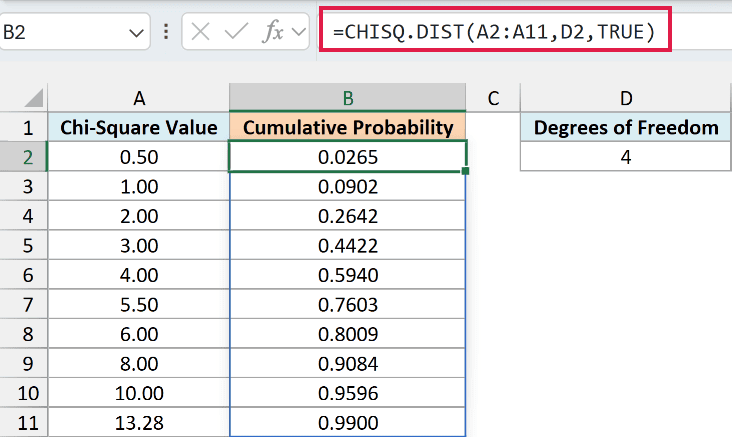
I’ve given the function the whole range of values (A2:A11), so this one formula returns a result for every row, and the results spill down into B2:B11.
Since all of them use the degrees of freedom in D2, you can change that one cell to update the whole column.
Because the last argument is TRUE, each result is the share of chi-square values (with 4 degrees of freedom) that come out at or below that number. For example, 2.00 gives 0.2642, so about 26% of chi-square values are 2 or smaller.
At the other end, 13.28 gives 0.9900. So 99% of chi-square values fall below 13.28, and only 1% go higher.
Important: In the usual chi-square test, where a large statistic is the interesting result, this left-tail value is not the p-value. That p-value is the right tail (the area above your statistic), so 0.9900 here means a p-value of 0.01.
For the right tail, use the CHISQ.DIST.RT function, which calculates that area directly.
If you are using Excel 2019 or earlier, enter the below formula in cell B2 and then copy it down the range (the $ signs keep it pointing at D2):
=CHISQ.DIST(A2,$D$2,TRUE)
Example 2: Probability Density vs Cumulative Distribution
Now let’s see what changes when you switch the last argument from TRUE to FALSE.
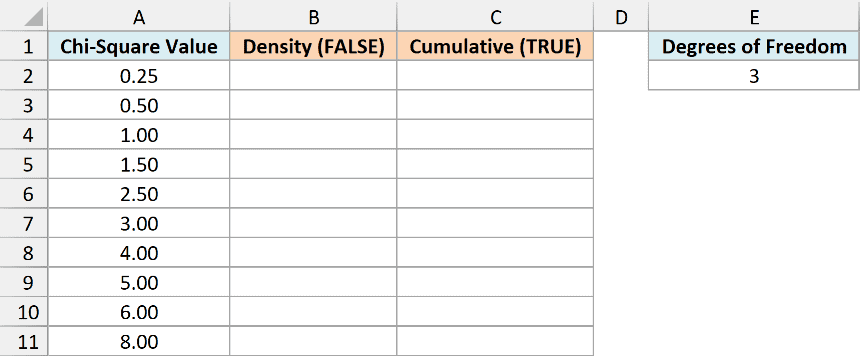
Below I have chi-square values from 0.25 to 8, with 3 degrees of freedom in E2, and I want the probability density in column B and the cumulative probability in column C.
Here is the formula for the probability density:
=CHISQ.DIST(A2:A11,E2,FALSE)
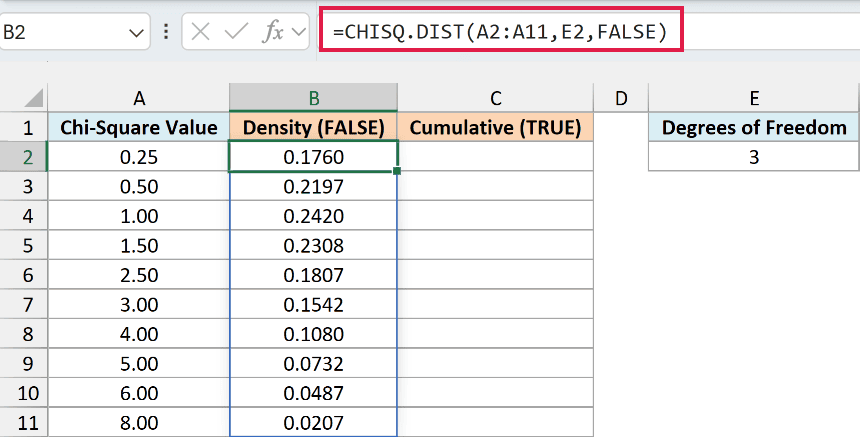
With FALSE, the function returns the height of the chi-square curve at each value. The heights rise to 0.2420 at 1.00 and then keep falling, because with 3 or more degrees of freedom, the curve peaks at the degrees of freedom minus 2.
A density value is not a probability, so it isn’t capped at 1. For example, =CHISQ.DIST(0.1,1,FALSE) returns 1.2000, because the curve with 1 degree of freedom shoots up near 0.
That same steep start means =CHISQ.DIST(0,1,FALSE) returns the #NUM! error. So if you’re building a table to chart the curve with 1 degree of freedom, start from a small value like 0.05 instead of 0.
If you are using Excel 2019 or earlier, enter the below formula in cell B2 and then copy it down the range (the $ signs keep it pointing at E2):
=CHISQ.DIST(A2,$E$2,FALSE)
Here is the formula for the cumulative probability:
=CHISQ.DIST(A2:A11,E2,TRUE)
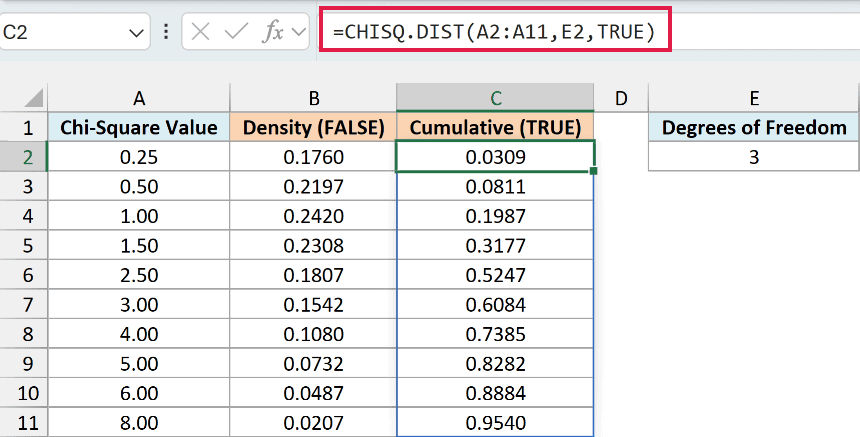
With TRUE, the results only ever go up, from 0.0309 at 0.25 to 0.9540 at 8.00. Each one is the area under the density curve from 0 up to that value.
You can see how the two columns connect. The cumulative values climb fastest where the density is highest, around 1 to 1.50.
The gaps between the values in column A aren’t equal, so compare the climb against the size of each step. The half step from 1.00 to 1.50 adds 0.1190, while the full step from 4.00 to 5.00 adds only 0.0897.
If you are using Excel 2019 or earlier, enter the below formula in cell C2 and then copy it down the range:
=CHISQ.DIST(A2,$E$2,TRUE)
Example 3: Probability That a Chi-Square Value Falls Between Two Numbers
Here’s a practical use of the cumulative version.
Below I have ranges of chi-square values (from the number in column A to the number in column B), with 6 degrees of freedom in E2, and I want the probability that a value falls within each range in column C.
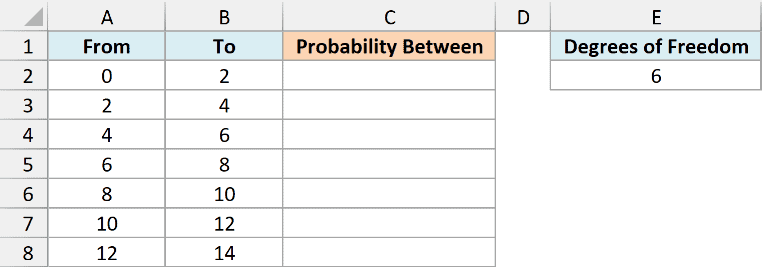
Here is the formula:
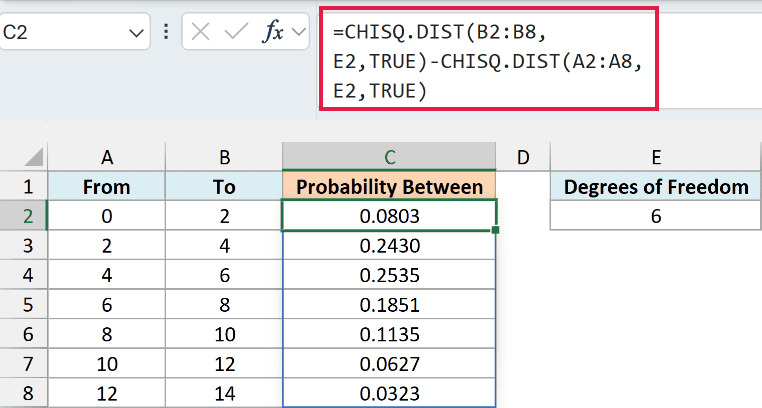
=CHISQ.DIST(B2:B8,E2,TRUE)-CHISQ.DIST(A2:A8,E2,TRUE)
How this formula works:
- CHISQ.DIST(B2:B8,E2,TRUE) gives the area to the left of each upper limit.
- CHISQ.DIST(A2:A8,E2,TRUE) gives the area to the left of each lower limit.
- Subtracting the second from the first leaves only the area between the two limits, which is the probability of landing in that range.
With 6 degrees of freedom, the most likely range is 4 to 6, with a probability of 0.2535. The chance drops off quickly after that, down to 0.0323 for the range 12 to 14.
Add up all seven probabilities and you get 0.9704. That’s the chance of a value between 0 and 14, which means only about 3% of chi-square values with 6 degrees of freedom go above 14.
If you are using Excel 2019 or earlier, enter the below formula in cell C2 and then copy it down the range:
=CHISQ.DIST(B2,$E$2,TRUE)-CHISQ.DIST(A2,$E$2,TRUE)
Example 4: Flag Results That Look Too Perfect
Now let’s look at a case where the left tail is exactly what you need.
In a chi-square goodness of fit test, the statistic measures how far the counts you got are from the counts you expected. A big statistic means the counts are far off, and a very small one means they’re almost exactly what you expected.
Real random results rarely land that close. So when a statistic is unusually small, it’s fair to ask whether someone tidied up the numbers or made them up.
Below I have the chi-square statistic each student got after spinning a five-color spinner 250 times for homework (4 degrees of freedom in F2), and I want the left-tail probability in column C and a check for results that look too perfect in column D.
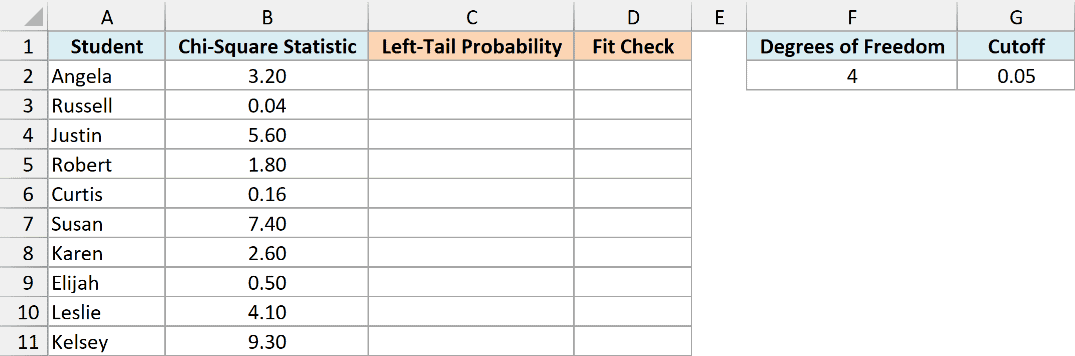
Here is the formula for the left-tail probability:
=CHISQ.DIST(B2:B11,F2,TRUE)
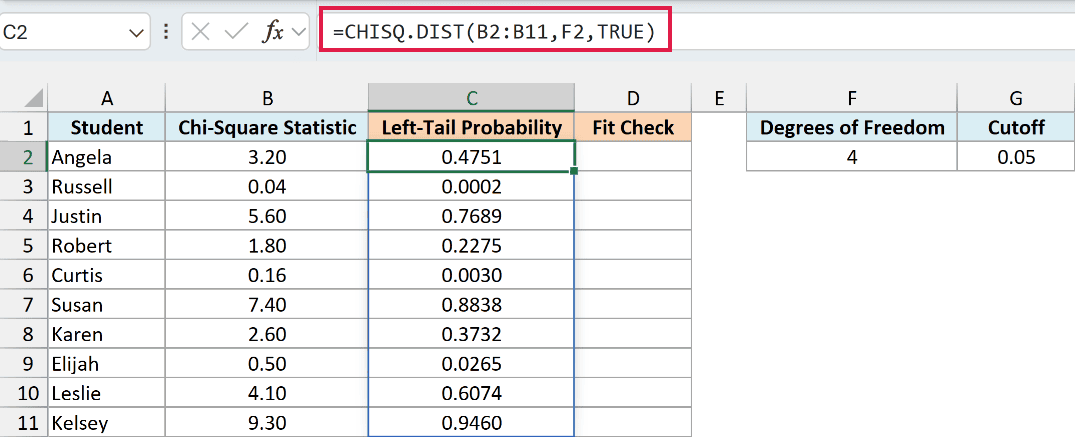
Each result is the chance that 250 honest spins give a statistic this small or smaller. The degrees of freedom are 4 because the spinner has five colors, and this goodness of fit test uses the number of categories minus 1.
Russell’s statistic of 0.04 gives 0.0002. In other words, only about 2 in 10,000 honest attempts would match the expected 50 spins per color that closely.
If you are using Excel 2019 or earlier, enter the below formula in cell C2 and then copy it down the range:
=CHISQ.DIST(B2,$F$2,TRUE)
Here is the formula that flags the suspicious ones:
=IF(C2:C11<G2,"Too perfect","Looks normal")
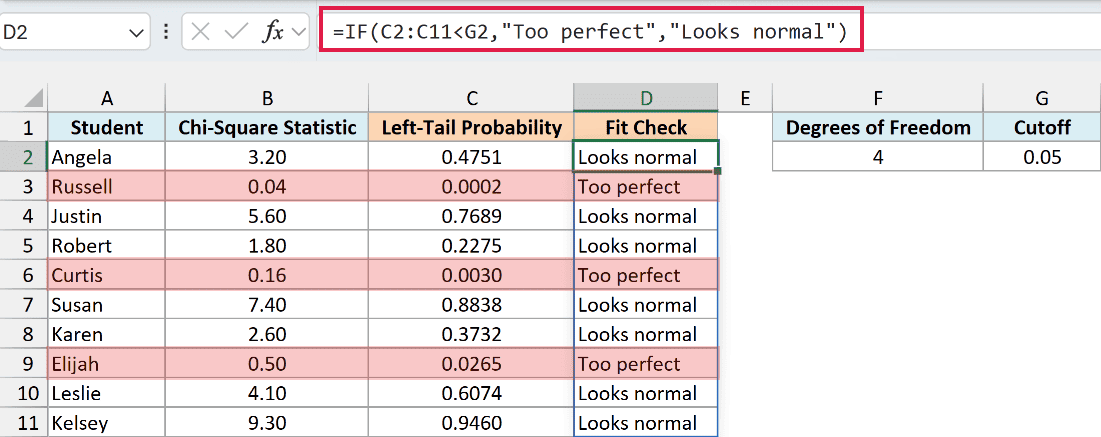
The IF function compares each probability with the cutoff of 0.05 in G2. Russell, Curtis, and Elijah fall below it, so they get “Too perfect”, and everyone else gets “Looks normal”.
A flag isn’t proof that anyone faked their results. With a 0.05 cutoff, about 1 in 20 honest students will get flagged by chance, so treat it as a reason to take a closer look.
If you are using Excel 2019 or earlier, enter the below formula in cell D2 and then copy it down the range:
=IF(C2<$G$2,"Too perfect","Looks normal")
Kelsey is on the other end, with 0.9460. Her statistic of 9.30 is bigger than about 95% of honest results, so her counts are far from the expected 50 per color.
Whether that’s far enough to call the spinner unfair is a right-tail question, which the CHISQ.DIST.RT function answers. It gives about 0.054 for Kelsey, which is just above the 0.05 cutoff.
Example 5: Test Whether Results Have Become More Consistent
Let’s step it up with a test where the left tail answers the real question.
A pizza shop switched to a new delivery route, hoping to make delivery times more predictable. On the old route, the standard deviation of delivery times was 5 minutes.
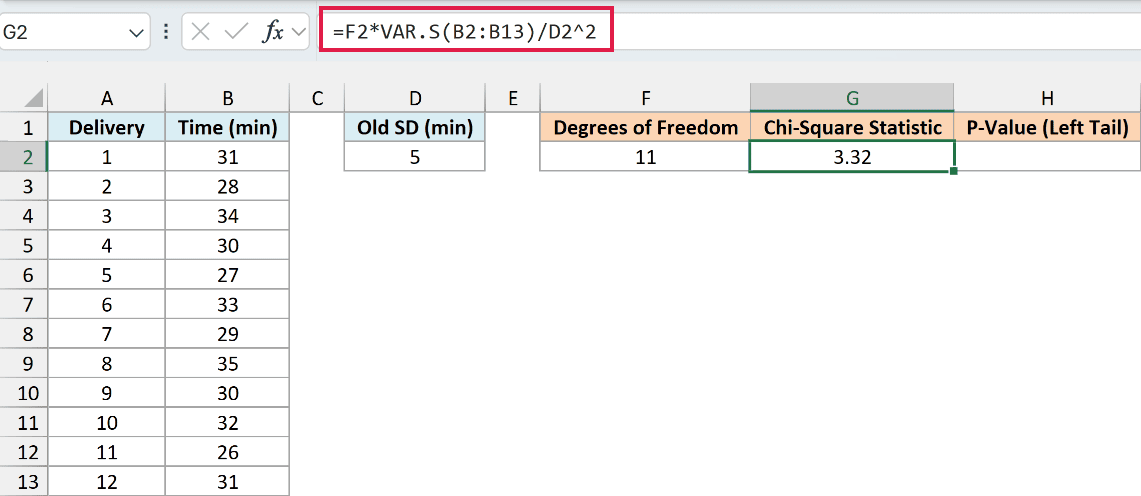
Below I have the delivery times for 12 orders on the new route, with the old standard deviation in D2, and I want the degrees of freedom in F2, the chi-square statistic in G2, and the p-value in H2.
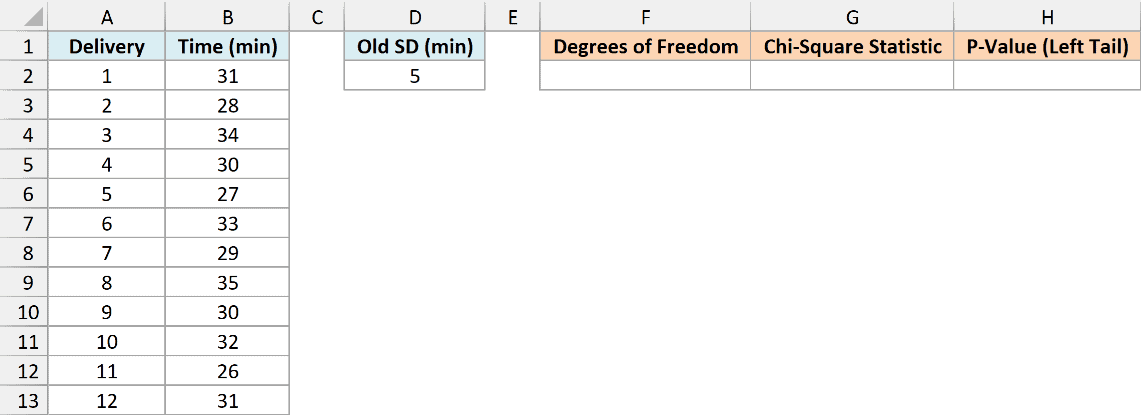
First, here is the formula for the degrees of freedom:
=COUNT(B2:B13)-1
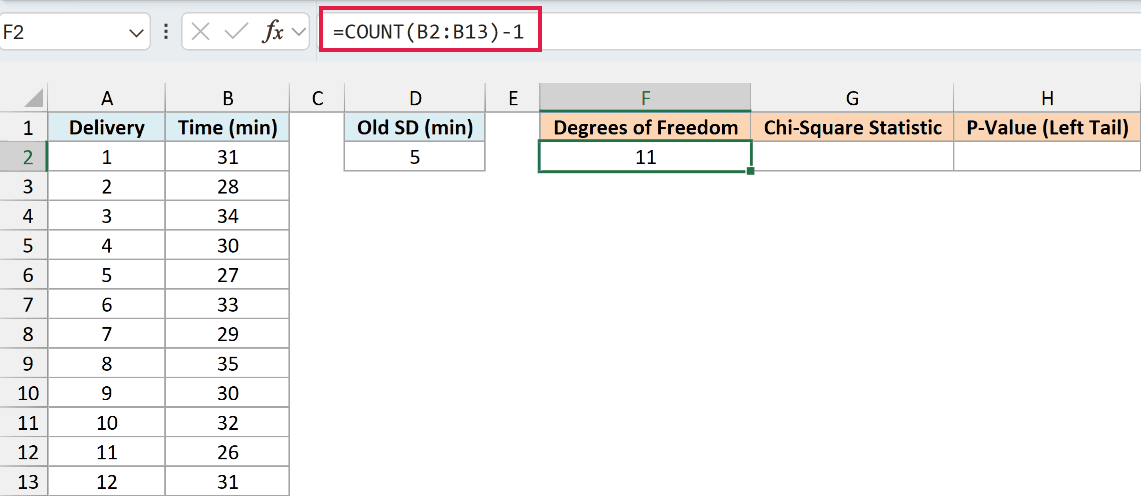
A variance test uses the number of values minus 1 as its degrees of freedom. COUNT(B2:B13) counts the 12 delivery times, so F2 shows 11.
Next, here is the formula for the chi-square statistic:
=F2*VAR.S(B2:B13)/D2^2
How this formula works:
- VAR.S(B2:B13) gives the variance of the 12 delivery times (about 7.55), which is the standard deviation squared.
- D2^2 turns the old standard deviation into the old variance (5 squared, which is 25).
- Dividing the two and multiplying by the 11 in F2 gives the chi-square statistic for a variance test, which is 3.32 here.
Now here is the formula that turns the statistic into a p-value:
=CHISQ.DIST(G2,F2,TRUE)
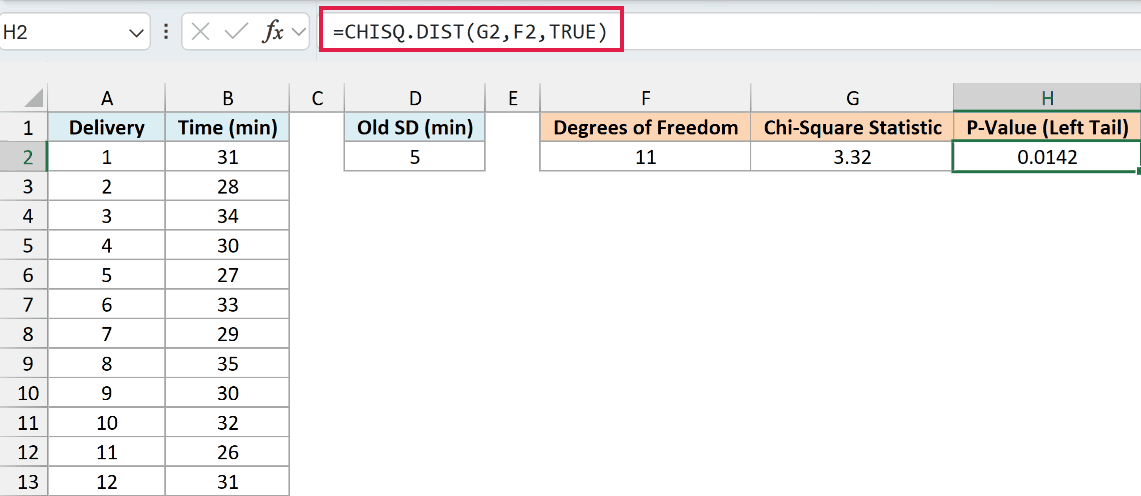
We use the left tail here because the question is whether the spread went down. Less spread means a smaller statistic, so here a small statistic is the interesting result.
That’s why, in this test, the left-tail area is the p-value. It’s the chance of getting a statistic this small if nothing had changed.
The result is 0.0142, which is below 0.05. If the new route had made no difference, there’d be only about a 1.4% chance of times this tightly grouped, so this is strong evidence that the new route is more consistent.
The new route’s times have a standard deviation of about 2.75 minutes, compared with 5 minutes on the old route.
This test assumes the delivery times follow a roughly bell-shaped (normal) pattern. If the times are heavily skewed or include a few extreme delays, the 0.0142 can be misleading.
If the question were the opposite (has the spread gone up?), you’d use the right tail with the CHISQ.DIST.RT function instead.
So that’s how you can use the CHISQ.DIST function in Excel to get left-tail probabilities, compare density and cumulative values, and run tests where a small statistic is the interesting result.
If you need the reverse, the chi-square value for a given left-tail probability, the CHISQ.INV function does that.
I hope you found this article helpful.
Other Excel Articles You May Also Like:
