

The SEARCHB function finds where one piece of text starts inside another and returns that position, counted in bytes. It works like the SEARCH function, so it ignores uppercase and lowercase and lets you use wildcards.
Most characters count as 1 byte, while a Japanese, Chinese, or Korean character can count as 2. SEARCHB only counts them that way when one of those languages is your default editing language.
On any other setup, including the English Excel I used for this tutorial, SEARCHB returns exactly what the SEARCH function returns.
Microsoft now lists SEARCHB as deprecated, so SEARCH is the safer pick for new work. It still works, though, and you may run into it in older workbooks.
In this article, I’ll show you how SEARCHB works, what it really returns on Japanese text, and how to work out byte positions on any Excel.
Follow along with the example file
SEARCHB Function Examples.xlsx
SEARCHB Function Syntax
Here is the syntax of the SEARCHB function:
=SEARCHB(find_text, within_text, [start_num])
- find_text is the text you want to find. It can be a single character, a word, or a reference to a cell that has the text.
- within_text is the text you want to search in, usually a cell or a range of cells.
- [start_num] is optional. It’s the position where SEARCHB starts looking, and if you leave it out, the search starts at position 1.
When you use start_num, SEARCHB only skips the part of the text before that position. The number it returns is still counted from the first character of the text, not from where the search started.
The start_num value has to be at least 1, and it can’t be larger than the length of the text. A 0, or a number past the end of the text, gives you a #VALUE! error.
If SEARCHB can’t find find_text anywhere in within_text, it also returns a #VALUE! error.
In find_text, a question mark matches any single character and an asterisk matches any run of characters. To look for an actual question mark or asterisk, put a tilde in front of it, like ~? or ~*.
The SEARCHB function works in Excel 365, 2024, 2021, 2019, and 2016. The range formulas in this article spill their results, which needs Excel 365, 2024, or 2021.
When to Use the SEARCHB Function
Use the SEARCHB function when you need to:
- Find the position of a character or a word inside a text string
- Find text without worrying about uppercase and lowercase, or find a pattern with wildcards
- Get a position in bytes to feed into the LEFTB, MIDB, or RIGHTB functions on a Japanese, Chinese, or Korean setup
- Keep an older workbook that already uses SEARCHB working
Let me show you a few practical examples of how to use the SEARCHB function.
Example 1: Find the Position of a Character with SEARCHB
Let’s start with a simple example.
Below is a list of gym class labels with the class name, a colon, and then the day and time, and I want to get the position of the colon in column B.
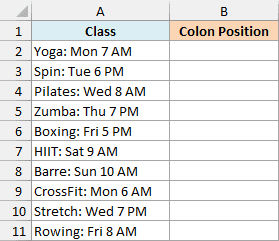
Here is the formula:
=SEARCHB(":",A2:A11)
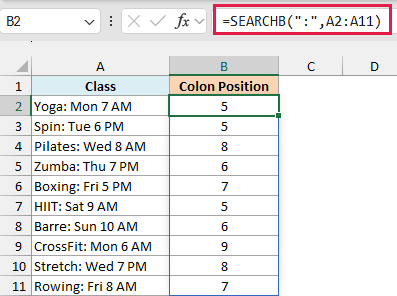
SEARCHB looks for the colon in each label and returns where it sits. In “Pilates: Wed 8 AM”, the colon is the 8th character, so the result is 8.
On English text like this, every character counts as one byte, so the byte position and the character position are the same number.
Since I gave SEARCHB the whole range A2:A11, the formula spills the results down to B11. You only enter it once, in cell B2.
If you are using Excel 2019 or earlier, enter the below formula in cell B2 and then copy it down the range:
=SEARCHB(":",A2)
The same works for the other spilling formulas in this article. Change the range to its first cell, enter the formula in the first result cell, and copy it down.
Example 2: Find the Second Slash with start_num
Now let’s use the optional third argument.
Below is a list of file paths with the folders separated by slashes, and I want to get the position of the second slash in column B.
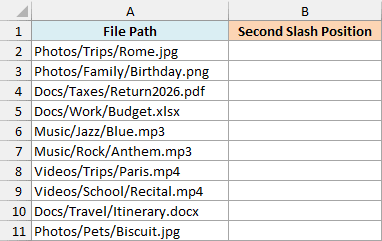
Here is the formula:
=SEARCHB("/",A2:A11,SEARCHB("/",A2:A11)+1)
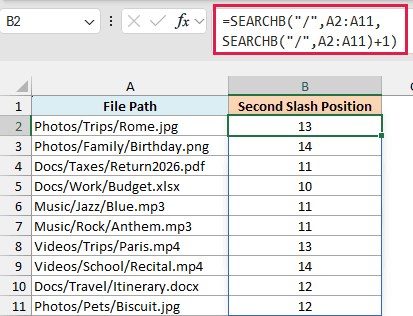
How this formula works:
SEARCHB("/",A2:A11)finds the first slash in each path. For Photos/Trips/Rome.jpg, that’s position 7.- Adding 1 to it gives 8, so the outer SEARCHB starts looking right after the first slash.
- The outer SEARCHB then finds the next slash, which is at position 13 in Photos/Trips/Rome.jpg.
Notice that the result is 13 and not 6, which is where the second slash would be if you counted from position 8.
SEARCHB always counts the position from the start of the path, even when the search starts later.
This works because every path here has two slashes. If a path had only one, the outer SEARCHB wouldn’t find a second slash and would return a #VALUE! error for that row.
Example 3: Ignore Case and Use Wildcards
Here’s another practical scenario.
Below is a list of customer comments on a clothing order, and I want to get the position where the word color or colour shows up in column B.
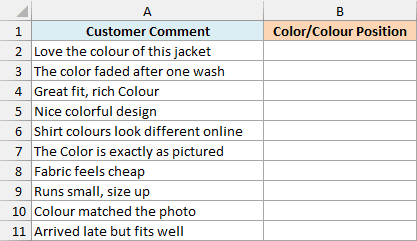
Here is the formula:
=SEARCHB("colo*r",A2:A11)
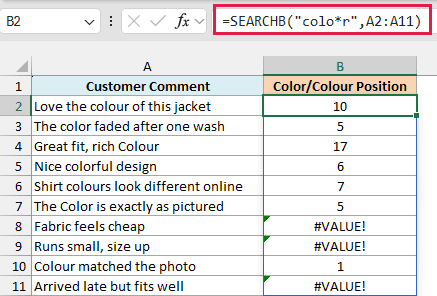
The asterisk is a wildcard that stands for any run of characters, including none. So colo*r matches color, where the asterisk matches nothing, and colour, where it matches the u.
SEARCHB also ignores uppercase and lowercase, unlike the FIND function. That’s why “Colour” in “Great fit, rich Colour” and “Color” in “The Color is exactly as pictured” are found too.
A comment that never mentions the word, like “Fabric feels cheap”, returns a #VALUE! error. That’s just SEARCHB telling you it found nothing, and you can hide it by wrapping the formula in the IFERROR function.
I used the asterisk on purpose. A question mark in colo?r needs exactly one character between the o and the r, so it would find colour but miss color.
Keep in mind that an asterisk can match across words, so colo*r would also match something like “colonial rug”.
Example 4: SEARCHB vs SEARCH on Japanese Text
Now let’s look at the kind of text SEARCHB was built for.
Below is a lunch menu with each dish written in Japanese, followed by its English name, and I want to get the position of the space between them in column B.
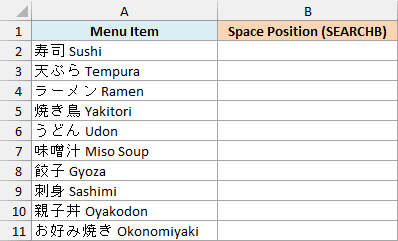
Here is the formula:
=SEARCHB(" ",A2:A11)
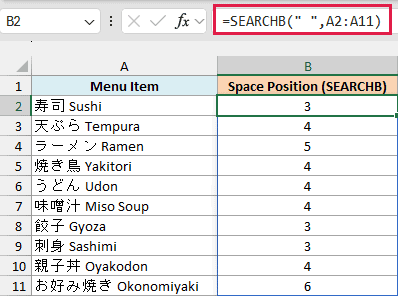
On my Excel, SEARCHB returns 3 for 寿司 Sushi. It counts 寿 and 司 as one byte each, so the space lands in position 3.
Now here is the SEARCH function on the same menu, in column C:
=SEARCH(" ",A2:A11)
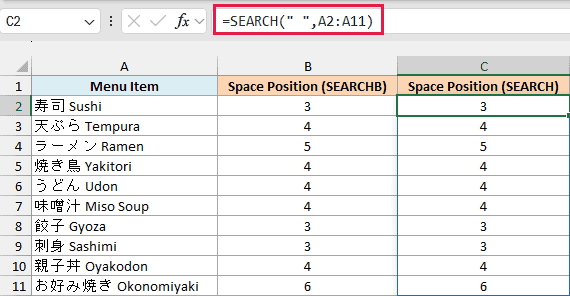
SEARCH returns exactly the same numbers. On this setup, SEARCHB and SEARCH behave the same way, even on Japanese text.
That’s because SEARCHB only counts a double-byte character as 2 when Japanese, Chinese, or Korean is enabled for editing and set as the default language in Office. My Excel uses English as its default editing language, so SEARCHB counts every character as 1.
According to Microsoft’s documentation, with Japanese as the default, 寿 and 司 would count as 2 bytes each. SEARCHB would then put the space at position 5, while SEARCH would still return 3.
I haven’t shown that here because my Excel isn’t set up that way.
Important: The same SEARCHB formula can return different numbers on a computer whose default editing language is Japanese, Chinese, or Korean. If you share the file, use the SEARCH function instead, because it always counts each character as 1.
Example 5: Calculate Byte Positions on Any Excel
Since SEARCHB won’t show the double-byte result on an English setup, let me show you how to calculate it yourself.
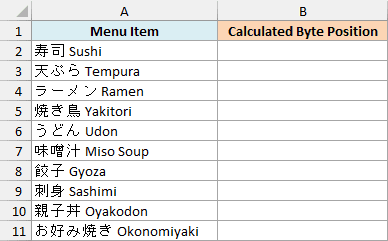
Below is the same lunch menu, and I want to calculate the byte position of the space in column B, which is the number SEARCHB would give with Japanese as the default language.
Here is the formula:
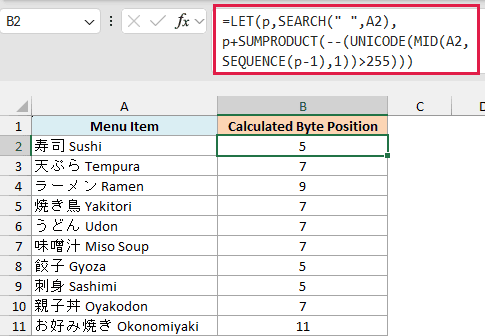
=LET(p,SEARCH(" ",A2),p+SUMPRODUCT(--(UNICODE(MID(A2,SEQUENCE(p-1),1))>255)))
How this formula works:
SEARCH(" ",A2)finds the space, and LET stores that position as p. For 寿司 Sushi, p is 3.SEQUENCE(p-1)creates the numbers 1 to 2, one for each character before the space, and MID pulls out those characters.- UNICODE gives each character’s code number. A single byte only holds codes up to 255, so a Japanese character, which has a bigger code, needs two bytes.
>255turns each code into TRUE or FALSE, and the double minus turns those into 1 and 0. SUMPRODUCT adds them up, which gives 2.- Adding that 2 to p gives 5. Every Japanese character before the space adds one extra byte, so the space sits at byte 5.
This is not SEARCHB output. It’s a calculation of what a double-byte setup returns, based on the counting rule in Microsoft’s documentation.
I checked all ten results by counting the bytes of each menu item in the Shift-JIS Japanese encoding, and they match. I haven’t run SEARCHB itself on an Excel that has Japanese as the default language.
Because the number of characters to check changes in every row, I kept this as a per-row formula. Enter it in cell B2 and copy it down the range.
The formula treats every character above code 255 as double-byte. That’s right for the kanji, hiragana, and full-width katakana in this menu, but half-width katakana take only one byte, so it would overcount them.
If the space is the first character, p-1 is 0 and SEQUENCE returns a #CALC! error, so the formula needs at least one character before the space.
LET and SEQUENCE need Excel 365, 2024, or 2021.
So that’s how the SEARCHB function works. On most setups it returns the same result as SEARCH, and its byte counting only kicks in when Japanese, Chinese, or Korean is the default editing language.
If you do use it, pair it with the LEFTB, MIDB, and RIGHTB functions so the positions always line up. I hope you found this tutorial useful.
Other Excel Articles You May Also Like:
