

The T.DIST function in Excel returns the left-tailed Student’s t-distribution. In plain terms, it tells you how likely a result is to land at or below a certain point on the t curve, or how tall the curve is at that point.
The t-distribution is what you use when you only have a small sample to work with. It’s behind the t-tests that tell you whether a sample average really differs from a target.
In this article, I’ll show you how the T.DIST function works, with five examples that go from simple probabilities to a real test on a small sample.
Follow along with the example file
T.DIST Function Examples.xlsx
T.DIST Function Syntax
Here is the syntax of the T.DIST function (all three arguments are required):
=T.DIST(x, deg_freedom, cumulative)
- x – The t-value you want to evaluate. A t-value (also called a t-statistic) is a score showing how far a sample average sits from a target, and it can be negative, zero, or positive.
- deg_freedom – The degrees of freedom, which is a whole number of 1 or more. It’s roughly how much information your sample holds, and for a test on one sample it’s the sample size minus 1 (10 values give 9).
- cumulative – TRUE to get the cumulative probability, or FALSE to get the probability density.
The t curve is a bell shape centered on 0, and its thin outer ends are called the tails.
With TRUE, you get the area under the curve to the left of x, which is the left tail. That’s the probability of getting a t-value of x or lower, so it’s always between 0 and 1.
Because the curve is symmetric around 0, a t-value of 0 always gives exactly 0.5, whatever the degrees of freedom.
With FALSE, you get the height of the curve at x. That density value isn’t a probability on its own, and it’s mostly useful for studying or drawing the shape of the curve.
If you type a number instead of TRUE or FALSE, Excel treats 0 as FALSE and any other number as TRUE.
If deg_freedom has decimals, Excel drops them before calculating, so 1.9 gives the same result as 1.
A deg_freedom below 1 (like 0.9) returns the #NUM! error.
If any argument is text that can’t be read as a number, you get the #VALUE! error.
The T.DIST function works in Excel 2010 and later versions, including Excel 365, 2024, 2021, 2019, 2016, Excel for Mac, and Excel for the web.
When to Use the T.DIST Function
Use this function when you need to:
- Find the probability that a t-value is at or below a certain number
- Work out the chance that a t-value lands between two numbers
- Study or draw the shape of the t curve for a given sample size
- Test whether the average of a small sample is below a target or claim
- Check many small samples against the same benchmark
Let me show you a few practical examples of how to use the T.DIST function in Excel.
Example 1: Find the Left-Tail Probability of t-Values
Let’s start with a simple example.
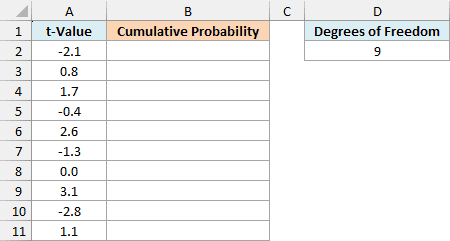
Below I have ten t-values, with 9 degrees of freedom in D2, and I want the probability of getting each t-value or lower in column B.
Here is the formula:
=T.DIST(A2:A11,D2,TRUE)
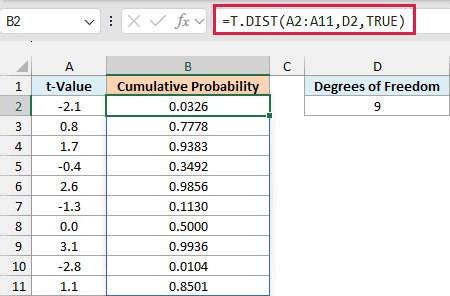
I’ve given the function the whole range of t-values (A2:A11), so this one formula returns a result for every row, and the results spill down into B2:B11.
All of them use the degrees of freedom in D2, so you can change that one cell and the whole column updates.
Because the last argument is TRUE, each result is the share of t-values (with 9 degrees of freedom) that come out at or below that number. For example, -2.1 gives 0.0326, so only about 3% of t-values are that low or lower.
At the other end, 3.1 gives 0.9936, so about 99% of t-values are at or below 3.1.
Important: The T.DIST function always measures the area on the left. For the area on the right, subtract the result from 1 (2.6 gives 0.0144 on the right, not 0.9856), or use the T.DIST.RT function.
Excel 2019 and earlier can’t spill a formula like this, so if you are using one of those versions, enter the below formula in cell B2 and then copy it down the range (the $ signs keep it pointing at D2):
=T.DIST(A2,$D$2,TRUE)
The same goes for the spilling formulas in Examples 3 and 5. In Excel 2019 or earlier, write them for a single row and copy them down.
Example 2: Compare the t Curve at Different Degrees of Freedom
Now let’s see what you get when you switch the last argument to FALSE.
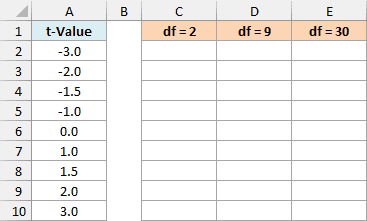
Below I have t-values from -3 to 3, and I want to compare the height of the t curve for 2, 9, and 30 degrees of freedom, which sit across the top.
Here is the formula:
=T.DIST(A2:A10,C1:E1,FALSE)
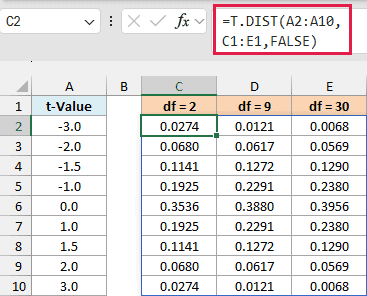
Here, the t-values run down column A and the degrees of freedom run across row 1 (C1:E1). Excel pairs every t-value with every degrees-of-freedom value, so one formula fills the whole grid of 9 rows and 3 columns.
With FALSE, each result is the height of the curve. At a t-value of 0, the curve is tallest, and the height goes from 0.3536 with 2 degrees of freedom to 0.3956 with 30.
The difference is bigger at the edges. At -3, the curve with 2 degrees of freedom is 0.0274 high, which is about four times the 0.0068 for 30 degrees of freedom.
So with fewer degrees of freedom (a smaller sample), the curve is flatter in the middle and has fatter tails, which means more of the area sits out at the edges.
That’s why an extreme t-value is less surprising when the sample is small.
If you are using Excel 2019 or earlier, enter the below formula in cell C2 and then copy it across and down the grid (the $ signs lock the t-values to column A and the degrees of freedom to row 1):
=T.DIST($A2,C$1,FALSE)
As the degrees of freedom grow, the curve gets closer and closer to the bell curve that the NORM.DIST function works with.
Example 3: Find the Probability Between Two t-Values
Here’s another practical scenario.
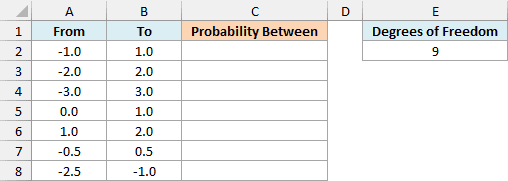
Below I have pairs of t-values (a From value and a To value), with 9 degrees of freedom in E2, and I want the probability that a t-value lands between each pair in column C.
Here is the formula:
=T.DIST(B2:B8,E2,TRUE)-T.DIST(A2:A8,E2,TRUE)
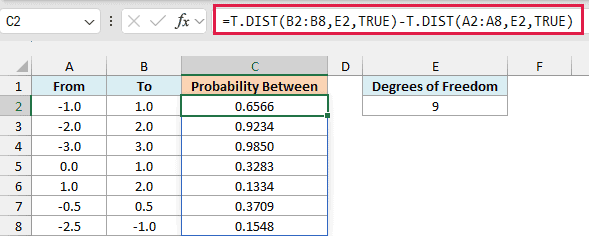
The first part gives the area to the left of the To value (column B), and the second part gives the area to the left of the From value (column A). Subtracting one from the other leaves the area between them.
For example, -1 to 1 gives 0.6566, so about 66% of t-values (with 9 degrees of freedom) fall within 1 of zero. Widen it to -2 to 2 and you get 0.9234, and -3 to 3 gives 0.9850.
The last pair, -2.5 to -1, works the same way even though both values are negative, and it gives 0.1548.
Important: Keep the smaller value in the From column (A). If you swap the two, the subtraction gives a negative number, which can’t be a probability.
Example 4: Test Whether a Sample Average Is Below a Target
Let’s step it up with a real-life scenario.
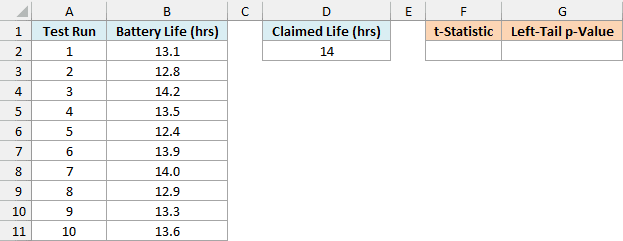
Below I have the battery life from 10 test runs of a phone, and the maker claims it lasts 14 hours (in D2). I want to know whether it really lasts fewer hours, with the t-statistic in F2 and the p-value in G2.
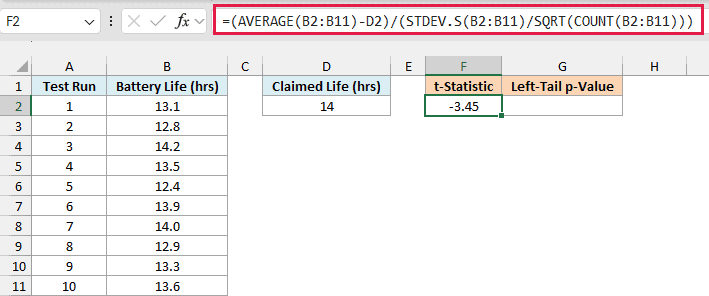
First, we need the t-statistic, which tells us how far the sample average is from the claim:
=(AVERAGE(B2:B11)-D2)/(STDEV.S(B2:B11)/SQRT(COUNT(B2:B11)))
How this formula works:
- AVERAGE(B2:B11)-D2 is the gap between the average of the test runs (13.37 hours) and the claim, which is -0.63.
- STDEV.S(B2:B11)/SQRT(COUNT(B2:B11)) is the standard error, which tells you how much a 10-run average typically wobbles (about 0.18 hours).
- Dividing the gap by the standard error gives the t-statistic of -3.45.
The negative sign means the sample average is below the claim. This t-statistic is the same kind of t-value you gave T.DIST in the earlier examples.
The p-value tells us how likely a sample average this low would be if the claim were true. A p-value below 0.05 is the usual sign that the claim doesn’t hold up, so here is the formula that turns the t-statistic into one:
=T.DIST(F2,COUNT(B2:B11)-1,TRUE)
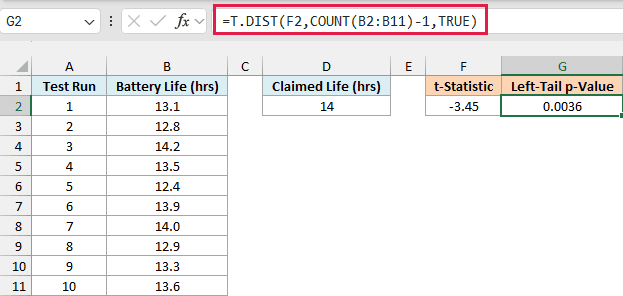
COUNT(B2:B11)-1 gives the 9 degrees of freedom, and we use the left tail because the question is whether the phone lasts less than the claim. A low average gives a very negative t-statistic, and that sits in the left tail.
The result is 0.0036, which is below the 0.05 cutoff. If the phone really lasted 14 hours, only about 0.4% of 10-run averages would come out this low or lower, so the evidence says it runs shorter than claimed.
This test assumes the runs are independent and roughly bell-shaped in their spread. With only 10 runs, one extreme result can move the answer a lot.
If the question were whether the average is above a target, you’d use the right tail instead, which is 1 minus this result or the T.DIST.RT function. For more on reading the result, see this guide to calculating the p-value in Excel.
Example 5: Check Many Groups at Once with Different Sample Sizes
Here’s one last scenario.
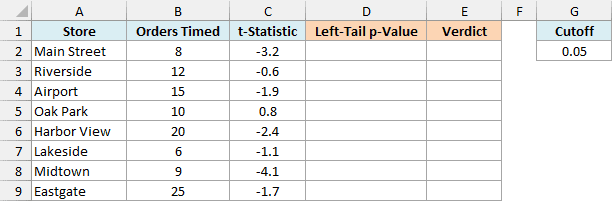
Below I have eight stores, with the number of orders timed and a t-statistic comparing each store’s average pickup time with the 15 minutes promised. I want the left-tail p-value in column D and a verdict in column E, using the cutoff in G2.
Here is the formula for the p-values:
=T.DIST(C2:C9,B2:B9-1,TRUE)
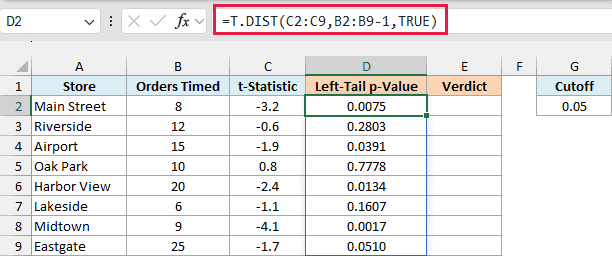
Both the x argument and the degrees of freedom are ranges here. B2:B9-1 turns each store’s order count into its own degrees of freedom, so every store is judged on its own sample size.
A negative t-statistic means the store’s average is below the promise, so a small left-tail p-value points to faster pickups. Main Street (8 orders, t of -3.2) gets 0.0075.
Now let’s turn those into a verdict with the IF function:
=IF(D2:D9<G2,"Faster than promised","No clear difference")
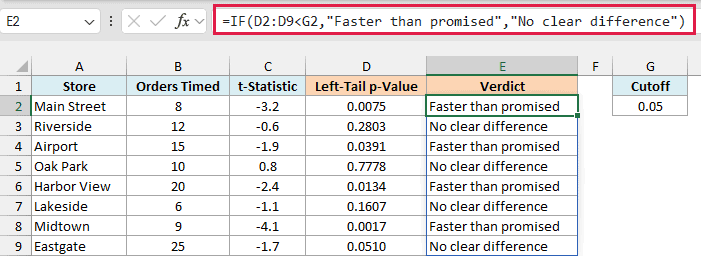
Any store with a p-value below the cutoff in G2 gets “Faster than promised”, and the rest get “No clear difference”. That flags four stores: Main Street, Airport, Harbor View, and Midtown.
Look at Eastgate and Airport. Eastgate’s t-statistic of -1.7 gives 0.0510, just over the 0.05 cutoff, while Airport’s -1.9 gives 0.0391, just under it.
So a fixed cutoff can flip the verdict for stores with nearly the same result, which is worth remembering when a p-value lands close to 0.05.
Oak Park’s t-statistic is positive, so its average is above the promised time. This test only looks for faster pickups, so it gets “No clear difference” with a p-value of 0.7778.
So that’s how you can use the T.DIST function in Excel to get left-tail probabilities, see the shape of the t curve, and test small samples against a target.
If you need the reverse, the t-value for a given probability, the T.INV function does that.
I hope you found this article helpful.
Other Excel Articles You May Also Like:
