

The Text.Upper function converts all the letters in a text value to uppercase. It’s the Power Query version of the UPPER function in Excel.
You’d use it to clean up product codes, state abbreviations, and other IDs that were typed in mixed case, so they all follow one standard. In this article, I’ll show you how it works with practical examples.
Follow along with the example file
Text.Upper Function Examples.xlsx
Text.Upper Function Syntax
Text.Upper(text as nullable text, optional culture as nullable text) as nullable text
- text – the text value you want to convert to uppercase.
- culture (optional) – a culture code such as “en-US” or “tr-TR” that tells Power Query which language’s uppercase rules to follow. You can usually leave it out. It matters only for a few languages, like Turkish (see Example 9).
What it returns – the same text with every lowercase letter changed to uppercase. Digits, spaces, and symbols inside the text (like the 2041 and the hyphen in “dl-2041”) stay as they are.
If the text is null, you get null back. If the value itself is a number or a date instead of text, you get an error, because Text.Upper only accepts text (Example 8 shows the fix).
The Text.Upper function is part of the Power Query M language, so it works in Power Query in Excel and in Power BI.
When to Use the Text.Upper Function
Use this function when you need to:
- Make product codes, SKUs, or other IDs follow one consistent case
- Standardize state and country codes like tx and Ca to TX and CA
- Build codes from parts of other columns, like MAR-104 from Marketing and 104
- Change all the column headers of a table to uppercase
- Check whether a value is already typed in capitals
- Capitalize only the first letter of a sentence
Example 1: Convert a Text Value to Uppercase
Let’s start with a simple one.
Suppose you have the text “Express Delivery – north zone” and you want it all in capitals.
In Excel, go to Data > Get Data > From Other Sources > Blank Query. In the Power Query Editor that opens, type this formula in the formula bar:
= Text.Upper("Express Delivery - north zone")
Result: EXPRESS DELIVERY – NORTH ZONE

Here, Text.Upper changes every lowercase letter to a capital, whether the word started with a capital (Express) or not (north). The spaces and the hyphen stay exactly where they were.
Example 2: Convert a Column of Product Codes to Uppercase
This is the use you’ll probably need most often.
Below is a Products table with the name and SKU of each product, where the SKUs were typed with all kinds of capitalization, and I want every SKU in the SKU column in uppercase.
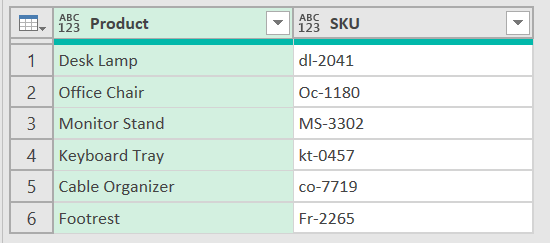
To follow along, select any cell in the Products table and go to Data > From Table/Range. This opens the table in the Power Query Editor, where the Source step holds it.
If Power Query adds a Changed Type step too, you can delete it, because the formula below works from the Source step and doesn’t need it.
Add a new step (by clicking on the fx icon next to the formula bar) and use this formula:
= Table.TransformColumns(Source,{{"SKU",Text.Upper,type text}})
Result: Every SKU in the SKU column is now in uppercase, like DL-2041, OC-1180, and KT-0457.
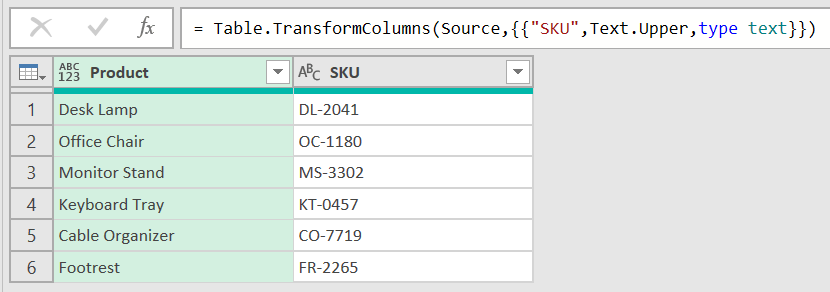
Here, Table.TransformColumns changes the values in the SKU column itself, instead of adding a new column. The last part, type text, keeps the column’s data type as text.
Notice that Text.Upper is written without brackets or arguments here. You’re handing the whole function to Table.TransformColumns, and it runs Text.Upper on every SKU in the column.
You can also do this without typing a formula. Select the SKU column and go to Transform > Format > UPPERCASE, and Power Query adds a step with the same Text.Upper code.
Example 3: Convert Multiple Columns to Uppercase
You don’t need a separate step for each column you want to change.
Below is a Customers table with each customer’s city, state, and country, where the state and country codes were typed in mixed case, and I want both the State and the Country columns in uppercase.
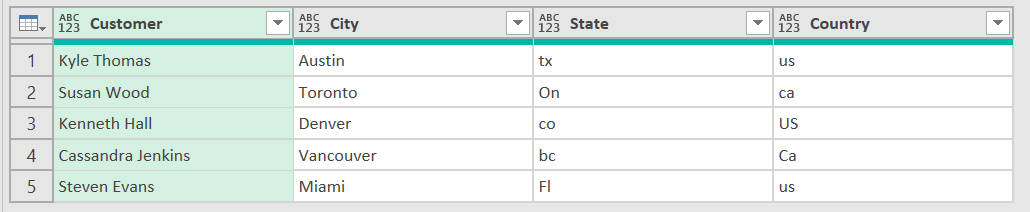
Load the Customers table into Power Query the same way as in Example 2 (Data > From Table/Range). Then add a new step (by clicking on the fx icon next to the formula bar) and use this formula:
= Table.TransformColumns(Source,{{"State",Text.Upper,type text},{"Country",Text.Upper,type text}})
Result: The State column now has TX, ON, CO, BC, and FL, and the Country column has US, CA, US, CA, and US.
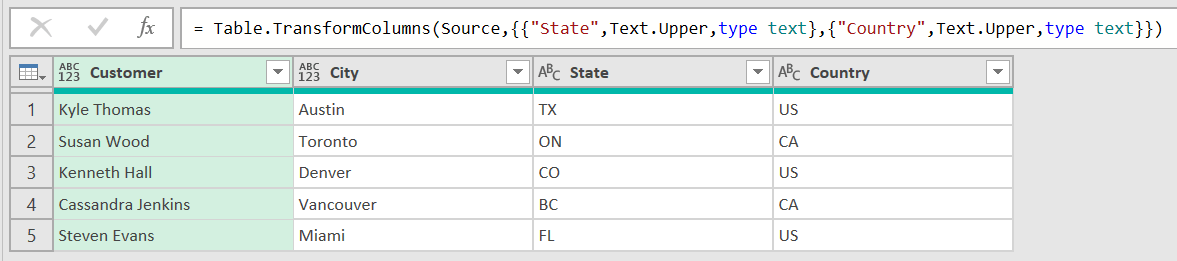
Here, Table.TransformColumns gets a list with one set of curly brackets for each column. Each set has the column name, the function to run on it, and the data type.
The Customer and City columns aren’t in the list, so they keep their normal capitalization. That matters here, because you want TX in capitals but not AUSTIN.
Example 4: Build an Employee Code From Two Columns
Text.Upper is often one part of a bigger formula. Here, it works together with the Text.Start function.
Below is an Employees table with each employee’s department and ID number, and I want a code like MAR-104 for each employee in a new Code column.
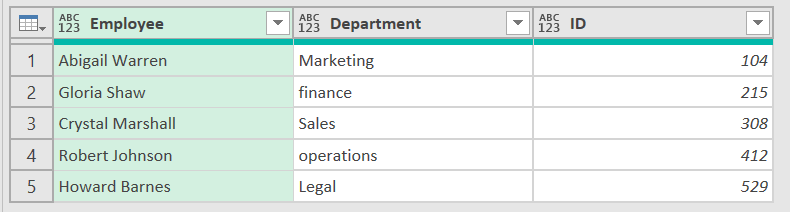
Load the Employees table into Power Query the same way as in Example 2 (Data > From Table/Range). Then add a new step (by clicking on the fx icon next to the formula bar) and use this formula:
= Table.AddColumn(Source,"Code",each Text.Upper(Text.Start([Department],3))&"-"&Text.From([ID]),type text)
Result: A new Code column with MAR-104, FIN-215, SAL-308, OPE-412, and LEG-529.
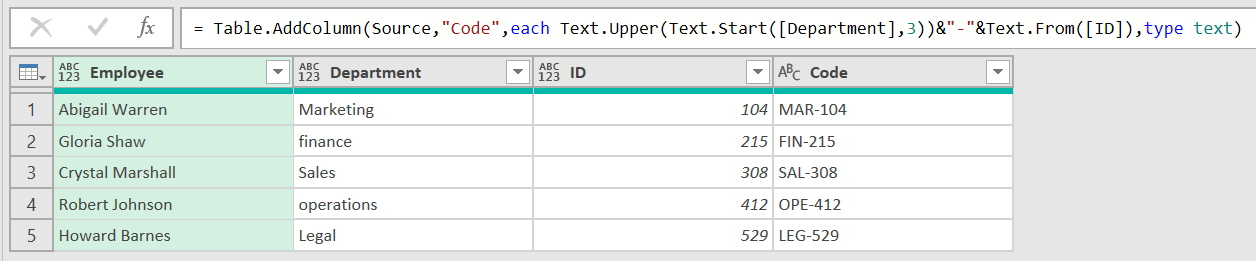
In the above formula, Table.AddColumn adds a new column called Code. For each row, Text.Start takes the first three letters of the department, and Text.Upper turns them into capitals.
The department names were typed in different ways (Marketing, finance, operations), but every code still starts with three capitals. That’s why Text.Upper goes around Text.Start.
The ID is a number, so Text.From turns it into text first. Then the & operator joins the letters, a hyphen, and the ID into one code.
Example 5: Convert All Column Headers to Uppercase
Sometimes it’s the column names you want in uppercase, not the values. Some databases and older systems expect field names in capitals.
Below is an Inventory table with headers in mixed case (item code and qty on hand are all lowercase), and I want every column header in uppercase.

Load the Inventory table into Power Query the same way as in Example 2 (Data > From Table/Range). Then add a new step (by clicking on the fx icon next to the formula bar) and use this formula:
= Table.TransformColumnNames(Source,Text.Upper)
Result: The headers are now ITEM CODE, DESCRIPTION, QTY ON HAND, and REORDER LEVEL. The data in the rows doesn’t change.
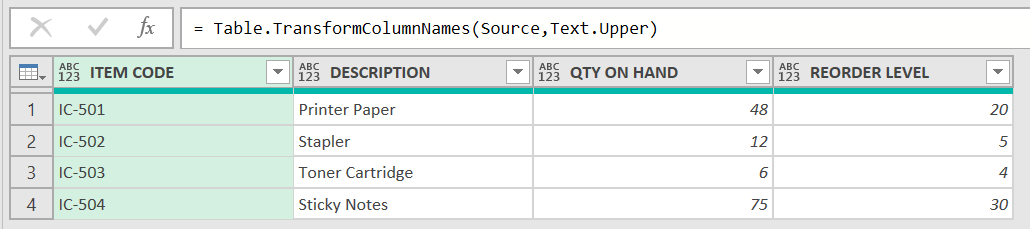
Here, the Table.TransformColumnNames function runs Text.Upper on every column name of the table. Just like in Example 2, Text.Upper is passed without brackets, so it gets applied to each header one by one.
This works no matter how many columns the table has, and it still works if a new column shows up in the data later.
Follow along with the example file
Text.Upper Function Examples.xlsx
Example 6: Check Whether Text Is Already in Uppercase
Sometimes you don’t want to change the values. You only want to find the ones that weren’t typed in capitals, so you can fix them at the source.
Below is a Coupons table with coupon codes and the campaign each one belongs to, where the codes should all be in capitals, and I want an Is Uppercase column that shows which codes follow that rule.
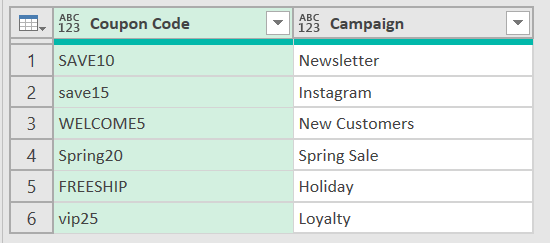
Load the Coupons table into Power Query the same way as in Example 2 (Data > From Table/Range). Then add a new step (by clicking on the fx icon next to the formula bar) and use this formula:
= Table.AddColumn(Source,"Is Uppercase",each [Coupon Code]=Text.Upper([Coupon Code]),type logical)
Result: The Is Uppercase column says TRUE for SAVE10, WELCOME5, and FREESHIP, and FALSE for save15, Spring20, and vip25.
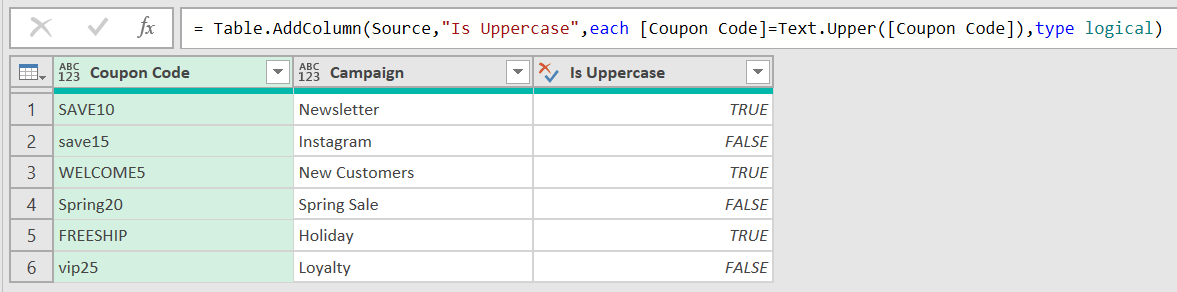
Here, the formula compares each coupon code with its own uppercase version. If the code is already in capitals, Text.Upper doesn’t change it, so the two sides match and you get TRUE.
This works because the = check in Power Query is case-sensitive. So “save15” and “SAVE15” count as different, and any code with a lowercase letter gets FALSE.
Strictly, TRUE means “has no lowercase letters”. So a code with no letters at all would also show TRUE, because Text.Upper has nothing to change in it.
You can now filter the Is Uppercase column to FALSE and send that list to whoever set up the coupons.
Example 7: Capitalize Only the First Letter
Text.Upper changes every letter. But what if you only want the first letter in capitals, like a normal sentence?
Below is a Reviews table with short customer comments typed in every possible case, and I want each comment in sentence case (first letter capital, the rest lowercase) in a new Sentence Case column.
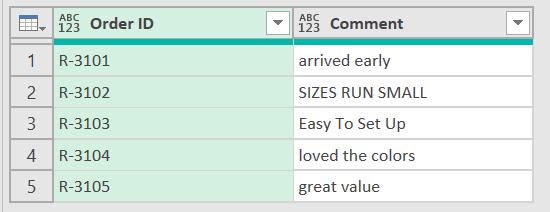
Load the Reviews table into Power Query the same way as in Example 2 (Data > From Table/Range). Then add a new step (by clicking on the fx icon next to the formula bar) and use this formula:
= Table.AddColumn(Source,"Sentence Case",each Text.Upper(Text.Start([Comment],1))&Text.Lower(Text.Middle([Comment],1)),type text)
Result: A new Sentence Case column with Arrived early, Sizes run small, Easy to set up, Loved the colors, and Great value.

Here, Text.Start takes the first character of the comment, and Text.Upper turns it into a capital. Then Text.Middle takes everything from the second character onward, and Text.Lower turns that part into lowercase.
The & operator joins the two parts back together. So “SIZES RUN SMALL” becomes “Sizes run small”, and “Easy To Set Up” becomes “Easy to set up”.
Power Query also has a Text.Proper function, but it capitalizes the first letter of every word (Easy To Set Up). For a sentence, the formula above is what you want.
Just keep in mind that it lowercases everything after the first letter. So a name or an acronym in the middle of a comment (like USB) would lose its capitals too.
Example 8: Convert a Column That Has Numbers
Text.Upper only works on text. If a cell holds a number, you get an error for that row.
Below is a Gates table with the departure gate of each flight, where some gates are codes like a12 and some are plain numbers like 7, and I want every gate in uppercase in the Gate column.
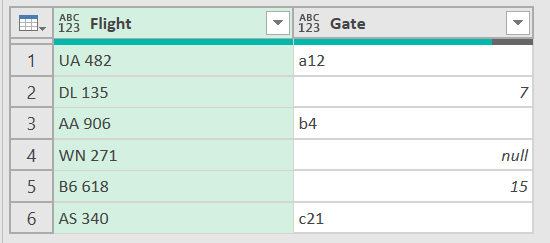
Load the Gates table into Power Query the same way as in Example 2 (Data > From Table/Range). First, let’s see what happens if you use Text.Upper directly, with the same formula as in Example 2:
= Table.TransformColumns(Source,{{"Gate",Text.Upper,type text}})
Result: The codes become A12, B4, and C21, but the rows with 7 and 15 show Error. The WN 271 row, which has no gate, shows null.
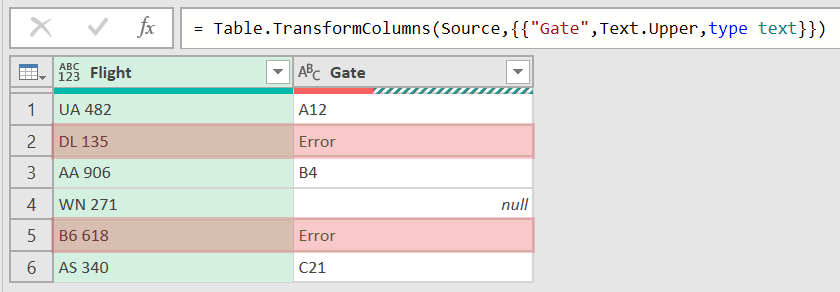
The numbers in Excel come into Power Query as numbers, not text. When Text.Upper gets 7, it fails with the message “We cannot convert the value 7 to type Text.”
So you need to turn each value into text first. Use this formula instead of the one above:
= Table.TransformColumns(Source,{{"Gate",each Text.Upper(Text.From(_)),type text}})
Result: The Gate column now has A12, 7, B4, null, 15, and C21, with no errors.
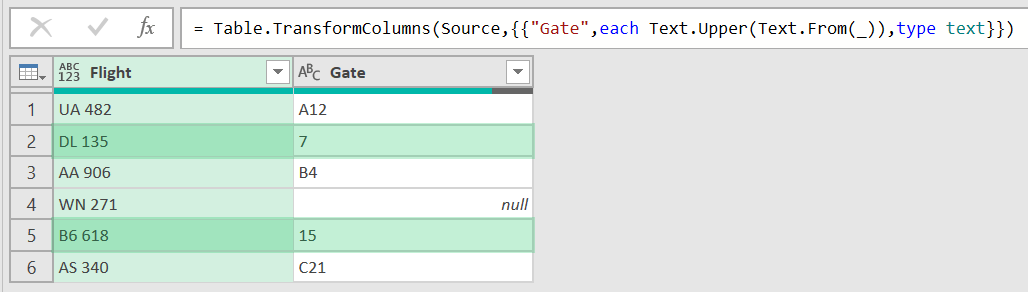
Here, the underscore (_) stands for the gate value in each row. The Text.From function turns 7 into the text “7”, and Text.Upper then has text to work with.
The WN 271 cell is empty on purpose, and it comes into Power Query as null. Both Text.From and Text.Upper return null for it, so the blank stays blank instead of turning into an error.
You could also change the Gate column’s type to Text first (right-click the header > Change Type > Text) and then add the first formula from this example.
In that case, replace Source in the formula with the name of the new Change Type step (usually #”Changed Type”). Otherwise the formula skips the change, and the errors come back.
In the example file, both versions are there as the Example 8 – Number Error and Example 8 – Fix With Text From queries, and both read the same Gates table.
Example 9: Use the Culture Argument for Turkish Text
Most of the time, you can leave out the culture argument. But a few languages have their own uppercase rules, and Turkish is the classic example.
Turkish has two different letter i’s. The dotted i becomes a dotted capital İ, and the dotless ı becomes a plain capital I.
Below is a TurkishTerms table with a few Turkish words in lowercase and their English meaning, and I want each word in uppercase using English rules in an en-US column and Turkish rules in a tr-TR column.
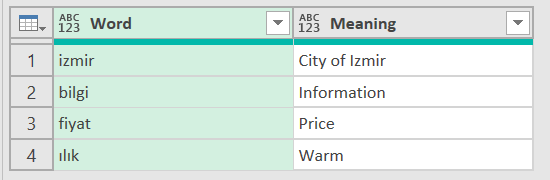
Load the TurkishTerms table into Power Query the same way as in Example 2 (Data > From Table/Range). Then go to Home > Advanced Editor, replace the code with the following, and click Done:
let
    Source = Excel.CurrentWorkbook(){[Name="TurkishTerms"]}[Content],
    #"Added en-US" = Table.AddColumn(Source,"en-US",each Text.Upper([Word],"en-US"),type text),
    #"Added tr-TR" = Table.AddColumn(#"Added en-US","tr-TR",each Text.Upper([Word],"tr-TR"),type text)
in
    #"Added tr-TR"
Result: The en-US column has IZMIR, BILGI, FIYAT, and ILIK. The tr-TR column has İZMİR, BİLGİ, FİYAT, and ILIK.
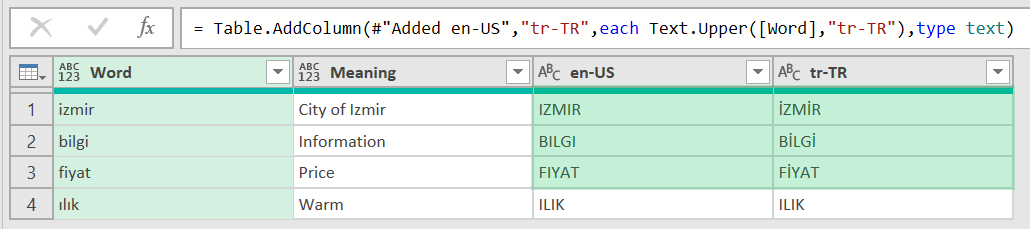
Here, the Added en-US step uppercases each word with English rules, and the Added tr-TR step does the same with Turkish rules.
With English rules, every i becomes a plain I, so izmir turns into IZMIR, which is misspelled in Turkish. With “tr-TR”, the same word correctly becomes İZMİR.
ılık (warm) gives ILIK in both columns, because the dotless ı becomes a plain I either way.
When I left out the culture argument on my English setup, an i became a plain I. So if you work with Turkish text, pass “tr-TR” so the result is spelled correctly.
The culture has to be one Power Query knows, or you get the error “The specified culture is not supported.”
Other Excel Articles You May Also Like:
- Text.Replace – Use Text.Replace in Power Query M to replace text in a string.
- Table.ReplaceValue – Use Table.ReplaceValue in Power Query M to find a value and swap it for another.
- Text.Remove – Use Text.Remove in Power Query M to strip characters from text.
- Text.StartsWith – Use Text.StartsWith in Power Query M to check whether text begins with a prefix.
- Text.Contains – Guide to Text.Contains in Power Query M.
- Table.PromoteHeaders Function in Power Query M
