

I got a call from a friend who wanted to combine multiple Excel files into one Excel workbook. He had a lot of files in a folder and he wanted to get all the worksheets from all the workbooks into one single workbook.
While this can be done manually, it would be time-consuming and error-prone.
However, a simple VBA code can do this in a few seconds.
Combine Multiple Excel Files into One File
Here is the code that can combine multiple Excel workbooks in a specified folder into a single Excel workbook:
Sub ConslidateWorkbooks()
'Created by Sumit Bansal from https://trumpexcel.com
Dim FolderPath As String
Dim Filename As String
Dim Sheet As Worksheet
Application.ScreenUpdating = False
FolderPath = Environ("userprofile") & "DesktopTest"
Filename = Dir(FolderPath & "*.xls*")
Do While Filename <> ""
 Workbooks.Open Filename:=FolderPath & Filename, ReadOnly:=True
 For Each Sheet In ActiveWorkbook.Sheets
 Sheet.Copy After:=ThisWorkbook.Sheets(1)
 Next Sheet
 Workbooks(Filename).Close
 Filename = Dir()
Loop
Application.ScreenUpdating = True
End Sub
How to Use this Code?
Here are the steps to use this code:
- Put all the Excel files that you want to combine into a folder. For the purpose of this tutorial, I have created a folder named Test and have six files in it (4 Excel workbooks and 1 Power Point and Word each).

- Open a new Excel workbook.
- Press ALT + F11 (or go to Developer –> Code –> Visual Basic). This will open the Visual Basic Editor.
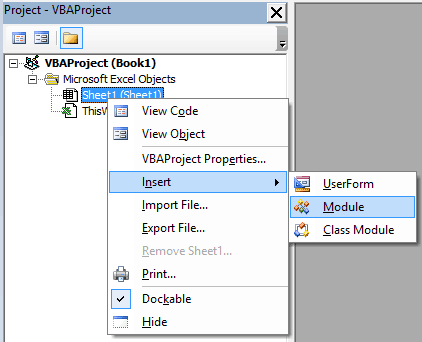
- In the VB Editor, in the Project Editor, right-click on any of the objects for the workbook and go to Insert –> Module. This will insert a module for the workbook.
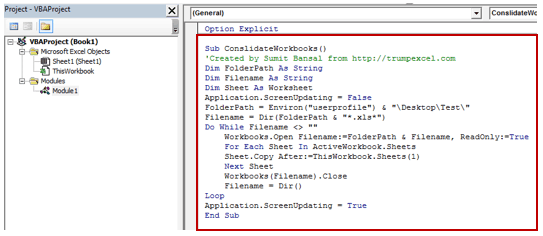
- Double click on the module. It will open the code window on the right.
- Copy and paste the above code into the code window.
- In the code, you need to change the following line of code:
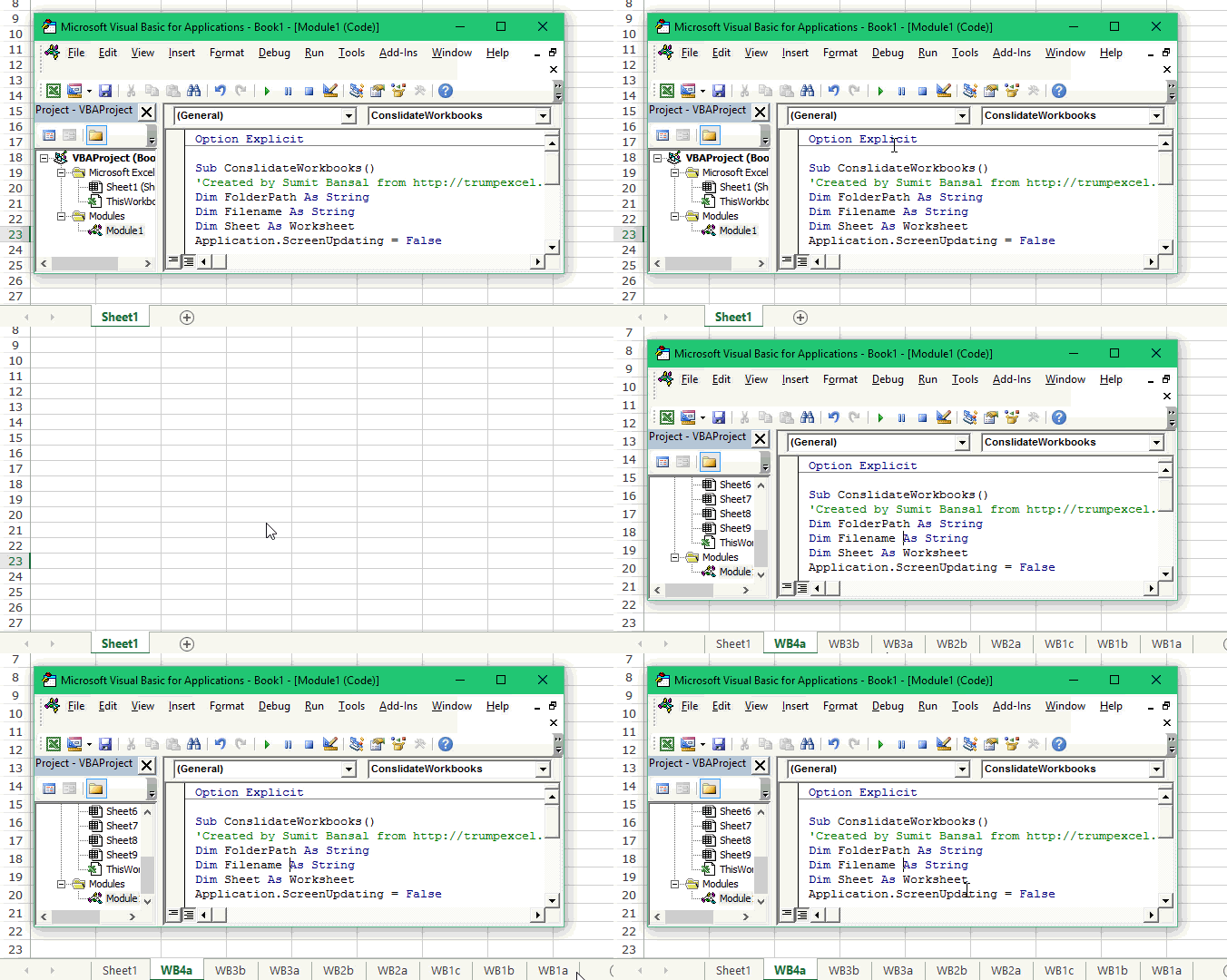
FolderPath = Environ("userprofile") & "DesktopTest"In this line, change the part in double quotes (highlighted in orange) with the location of the folder in which you have the files that you want to combine. In the code used above, the folder is on the Desktop. In case you have it in some other location, specify that path here. - Place the cursor anywhere in the code and click on the green play button in the Toolbar options (or press the F5 key).

This will run the code and all the worksheets from all the Excel files in the folder would get consolidated into a single workbook.
How this Code Works?
- The code uses the DIR function to get the file names from the specified folder.
- The following line assigns the first excel file name to the variable ‘Filename’. Filename = Dir(FolderPath & “*.xls*”)
- Then the Do While loop is used to check whether all the files have been covered.
- Within the ‘Do While’ loop, ‘For Each’ loop is used to copy all the worksheets to the workbook in which we are running the code.
- At the end of the Do Loop, following line of code is used: Filename = Dir(). It assigns the next Excel file name to the Filename variable and the loop starts again.
- When all the files are covered, DIR function returns an empty string, which is when the loop ends.
Here is an explanation of the DIR function in the MSDN library:
Dir returns the first file name that matches pathname. To get any additional file names that match pathname, call Dir again with no arguments. When no more file names match, Dir returns a zero-length string (“”).
Have you ever tried something of this sort using VBA? Do share what you did and we all can learn from it.
You May Also Like the Following Excel Tutorials:

Brilliant thanks!
Highly frustrating – simply can’t get the damn thing to work….
I had this problem as well but fixed it as follows,
1. Save the document as .xlxm
2. Make sure you have a “/” at the end of your directory path
sorry .xlsm
The code works but the filepath string requires all of the “” in the complete file path. For example: C:UsersUser1DesktopExcelfiles*.xls*. This best way to solve this is:
When you modify the FolderPath = Environ(“userprofile”) & “DesktopTest” make sure you include the pre and post forward slashes “” to the folder path containing the excel sheets to be imported.
When you are debugging right click on the Folderpath and Filename variable and set them to the Watchlist with the Break when value changes box checked. When you run the program you can verify those two variables are updating correctly.
Thanks so much, worked perfectly.
Not working,It is showing debugg at Filename = Dir(FolderPath & “*.xlsx*”).
Can you please provide a fix
For this code to work some of you will likely need more than the suggested file path of:
FolderPath = Environ(“userprofile”) & “DesktopTest”
Environ(“userprofile”) will only provide the first part of a filepath. In my case it was: C:UsersWF. There were several subfolders “along the path” before getting to the folder I used for the files to be combined. Use this example as the path to the correct folder:
folderpath = “C:UsersWFDocumentsFolder1Folder2Folder3FolderWithFiles
For a convenient way to get the correct path use this code to place the path on a worksheet. Then copy/paste into the sub procedure.
Sub Path_FileName()
Dim strPath As String
strPath = ActiveWorkbook.FullName
ActiveCell.Value = strPath
End Sub
Make this adjustment if you need to. This is some very useful code.
I was getting error 52 as well.
“DESKTOP TEST” = LOCATION OF FILE
I changed this string of code (moved the parenthesis) from the below and it worked:
CHANGED FROM
FolderPath = Environ(“userprofile”) & “DesktopTest”
CHANGED TO
FolderPath = Environ(“userprofile” & “DesktopTest”)
Big thank you!! I had found various other versions of this code but this is the first one that worked for my version of Excel. Needed to combine over 30 spreadsheets and it saved me lots of time!
I am getting error 52 when I run the code.
Thanks alot. It was very helpful. I am a options trader needed it to backtest the things. So thanks again. Let me know how can I give it back to you.
Many thanks for this! Forty spreadsheets … into one without copy/pasting each sheet. Phew.
how can i add in the header in the active worksheet before I run this code? or i can do it at the same time?
I have followed the instructions carefully but i get an error of Bad filename 52
Great code and works! One thing though that may be tripping people up. The string Filename also is part of the Workbooks.Open Filename:= command. Anyone having issues with the Filename variable should try attempting to rename the string to something else to avoid issues. Least what I had to do for this to properly work for me.
I am having filename issues
fabulous!!! works amazing
Filename = Dir(FolderPath & “*.xls*”)
Sorry not working for me, gives me error on file dir.
Cant combine multiple files…no error shown,can we send you the sample files-please share your email id
Worked for me. Thank you so Much! saved me much time for a work project. Thank you so much for uploading