

We all use Google as a part of our daily routine. One of its features is search suggestion, where Google acts smart and gives us a list of suggestions while we are typing.

In this tutorial, you’ll learn how to create a searchable drop-down list in Excel – i.e., a drop-down list that will show the matching items as you type.
Below is a video of this tutorial (in case you prefer watching a video over reading the text).
Searchable Drop Down list in Excel
For the purpose of this tutorial, I am using the data of Top 20 countries by GDP.
The intent is to create an excel drop down list with a search suggestion mechanism, such that it shows a drop down with the matching options as I type in the search bar.
Something as shown below:
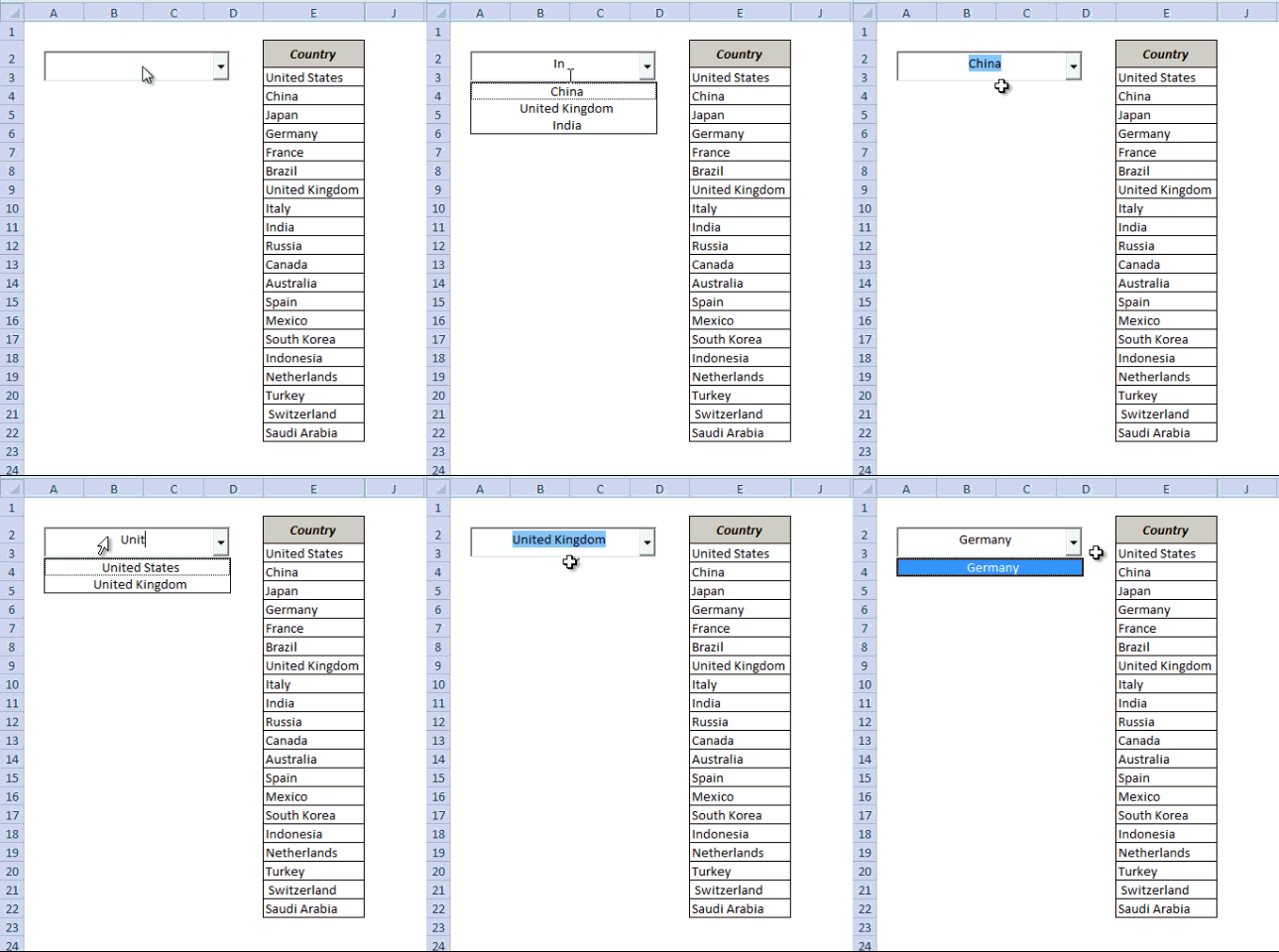
To follow along, download the example file from here

Creating the searchable drop-down list in Excel would be a three-part process:
- Configuring the search box.
- Setting the Data.
- Writing a short VBA Code to make it work.
Step 1 – Configuring the Search Box
In this first step, I will use a combo-box and configure it so that when you type in it, the text is also reflected in a cell in real time.
Here are the steps to do this:
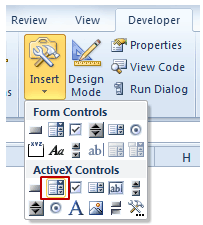
- Go to Developer Tab –> Insert –> ActiveX Controls –> Combo Box (ActiveX Control).
- There is a possibility you may not find the developer tab in the ribbon. By default, it is hidden and needs to be enabled. Click here to know how to get the developer tab in the ribbon in Excel.
- Move your cursor to the worksheet area and click anywhere. It will insert a combo box.
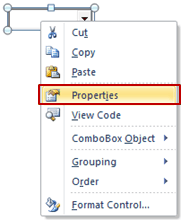
- Right-click on the Combo Box and select Properties.
- In the properties dialogue box, make the following changes:
- AutoWordSelect: False
- LinkedCell: B3
- ListFillRange: DropDownList (we will create a named range with this name in step 2)
- MatchEntry: 2 – fmMatchEntryNone
(Cell B3 is linked to the Combo Box, which means that anything you type in the Combo Box is entered in B3)

- Go to Developer tab and click on Design Mode. This will enable you to enter text in the Combo Box. Also, since cell B3 is linked to the combo box, any text that you enter in the combo box would also be reflected in B3 in real-time.
Step 2 – Setting the Data
Now that the search box is all set, we need to get the data in place. The idea is that as soon as you type anything in the search box, it shows only those items that have that text in it.
To do this, we will use
- Three helper columns.
- One dynamic named range.
Helper Column 1
Put the following formula in cell F3 and drag it for the entire column (F3:F22)
=--ISNUMBER(IFERROR(SEARCH($B$3,E3,1),""))
This formula returns 1 when the text in the Combo Box is there in the name of the country on the left. For example, if you type UNI, then only the values for United States and United Kingdom are 1 and all the remaining values are 0.
Helper Column 2
Put the following formula in Cell G3 and drag it for the entire column (G3:G22)
=IF(F3=1,COUNTIF($F$3:F3,1),"")
This formula returns 1 for the first occurrence where Combo Box text matches the country name, 2 for the second occurrence, 3 for the third and so on. For example, if you type UNI, G3 cell will display 1 as it matches United States, and G9 will display 2 as it matches United Kingdom. The rest of the cells will be blank.
Helper Column 3
Put the following formula in cell H3 and drag it for the entire column (H3:H22)
=IFERROR(INDEX($E$3:$E$22,MATCH(ROWS($G$3:G3),$G$3:$G$22,0)),"")
This formula stacks all the matching names together without any blank cells in between them. For example, if you type UNI, this column would show 2 and 9 together, and rest all cell would be blank.
Creating the Dynamic Named Range
Now that the helper columns are in place, we need to create the dynamic named range. This named range will only refer to those values that match the text entered in the combo box. We will use this dynamic named range to show the values in the drop-down box.
Note: In step 1 we entered DropDownList in the ListFillRange option. Now we will create the named range with the same name.
Here are the steps to create it:
- Go to Formulas –> Name Manager.
- In the name-manager dialogue box click New. It will open a New Name dialogue box.
- In the Name Field enter DropDownList
- In the Refers to Field enter the formula: =$H$3:INDEX($H$3:$H$22,MAX($G$3:$G$22),1)
Step 3 – Putting the VBA Code to Work
We are almost there.
The final part is to write a short VBA code. This code makes the drop down dynamic such that it shows the matching items/names as you are typing in the search box.
To add this code to your workbook:
- Right-click on the Worksheet tab and select View Code.
- In the VBA window, Copy and Paste the following code:
Private Sub ComboBox1_Change()
ComboBox1.ListFillRange = "DropDownList"
Me.ComboBox1.DropDown
End Sub
That’s it!!
You are all set with your own Google type Search bar that shows matching items as you type in it.
For a better look and feel, you can cover cell B3 with the Combo Box and hide all the helper columns. You can now show off a little with this amazing Excel trick.
To follow along, download the file from here
What do you think? Would you be able to use this search suggestion drop-down list in your work? Let me know your thoughts by leaving a comment.
If you have enjoyed this tutorial, I am sure you would like the following Excel tutorials too:
- Dynamic Filter – Extract matching data while you type.
- Extract Data based on a Drop Down list selection.
- Creating Dependent Drop Down Lists in Excel.
- The Ultimate Guide to Using Excel VLOOKUP Function.
- How to make multiple selections in a drop-down list in Excel.
- How to Insert and Use a Checkbox in Excel.

Thank you very much from Romania, too!!! 🙂
Hello Ionita.. Welcome to TrumpExcel and thanks for commenting.. Glad you liked it 🙂
Hi Sumit,
Great tool you have there, I have it set up and working now!
However, I am using this for a list containing quite a few duplicates, which I would like to remove from the drop down list suggestions.
Would you have a solution for this? I tried some VBA coding, but I can’t seem to combine it with your method.
Any help would be greatly appreciated!
Thank you
Hello.. Welcome to Trump Excel and thanks for commenting. You can first remove duplicates and then use this method.
Dear Sumit, absolutely great stuff!!
my query is, how should I get it in a VBA userform combo box?
Hello Sameer.. Welcome to Trump Excel and thanks for commenting. I will soon be coming up with the code to get this done for userform.. will share with you
Hello there,
This article is amazing. I am facing a problem when trying to scroll the mouse on the list of suggestions. The whole Sheet moves and the combobox stays on the correct cell, therefore the suggestions roll down the sheet and it’s terrible.
Any ideas how to fix it?
Hello – I have meticulously followed your procedure and replicated it almost to the keystroke. Here is the error I am encountering:
Run-time error ‘-2147417848 (80010108)’:
Method ‘ListFillRange’ of object ‘IMdcCombo’ failed
It appears to be a VBA issue, but I duplicated your VBA code flawlessly. I’ve attached a screen shot for your reference.
Please help me with this.. I have a lot of time invested in its outcome.
Thank you!
Great work!! I want to clear the search field by pushing a button and tried to record a macro. Did not work. Do you have an idea about how to solve this?
Thanks for such a handy trick!..
Is it possible to automatically change the range within the formula’s name manager if the list is getting longer or shorter?
Yes it can be done. You will just have to create the named ranges and use it instead of cell references.
Thanks Sumit for this great info .. is there a way that when I have the suggested list I can move through it with the keyboard arrows instead of the mouse ?
Hi Khaled..Welcome to Trump Excel.. Glad you liked the post.. unfortunately the arrow key would not let you select a country from a list that is shown. However, if you have the country you want to select at the top of the shown list, you can use the down arrow key to select it (so that you don’t have to type the full name)
Thanks Sumit for your fast reply .. as I cannot use arrow keys to select, is there any way to keep the drop down list open as long as the cell is active? it will close only when I pick another cell somewhere else
Nice trick Sumit. Can this be applied to a user form
Hi Anil.. Glad you liked it 🙂 I have not tried this trick in userform, but I believe it may be a bit more complicated in that case. Sometime soon I will give it a shot and post and update on it
Hey Sumit,
Great tutorial! I have a slight problem I hope you can help. My combo search box only shows 1 data even tho there should be more more.
My look-up table is in columns and not in rows like yours. You mentioned in your video (around 12:30) that since the array only has 1 column, there is no need to add the column number. Could this be the problem? If so, where or how do I add the column numbers?
Here’s my formula:
=$C$2:INDEX($C$2:$KF$2;COUNTIF($C$2:$KF$2;”?*”))
Your help is much appreciated.
Hi Bansal,
Great to see your trick here..
if I have many cell to get this search suggestion from dropdownlist, can we do it?
usually I use dropdown list with Data Validation (list), and now i’ll try to improve with auto completion, can we do that? many thanks
Hi Edmon, Glad you liked it 🙂
This can be done with multiple drop downs but it becomes cumbersome. If you have more than a couple of drop downs, I suggest sticking to data validation drop down (as they are easy to replicate)
Hi Sumit Bansal,
I have followed all ur istructions. But when I type in the combobox the 1st letter A then nothing appears in the list. When i type in letter B then all the letters of names that starts with A appears but no B.
Have I missed something ??
Hi Sumit,
This is great and amazing technique.
I do need some help. Will I be able to send you the file and see if you can fix it for me? Please.
Hi Sumit, I have been able to follow your instruction successfully but i have couple questions. first if i typed a word for example united then two sample will display, is it possible to use the scroll down/up button to select which one i wanted to select, and second question is how do i copy the selected option into a particular cell. Thank you
Superb piece of work.
I have now used this in designing an invoice report. I have a prob;em though, whenever I run another macro on within the file the private sub runs and gives me a box with the contents of the Combo Box in it ‘floating’ about. How can I stop the private sub running when I run other macros (The same thing happens whenever I edit anything in the file).
Thanks you.
wonderful
Hi Sumit! I want to use the same Combo Box with this type of search suggestion in a user form. But there is no option of List Fill Range available. Hence I am unable to get search suggestions on a user form. Is there a solution to it?
Love the work here. Problem I need help with. Within the same workbook, I have created 2 different combo boxes that are referencing two different data lists…if ComboBox1 has a selected value, ComboBox2 will not work. ComboBox2 will only start working if I clear ComboBox1. I made sure to change the appropriate names in the VBA code, the “fill range” names are different as well. I have noticed that when I click on either ComboBox the formula bar displays =Embed(“Forms.ComboBox.1″,””) for both Combobox1 and ComboBox2. I tried messing with this formula, but i get an error when doing so. Any help would be great.
Amazing tip!!
Suggestion for small improvement: In step 5, change =–ISNUMBER(IFERROR(SEARCH($B$3,E3,1),””))
to =–ISNUMBER(IFERROR(SEARCH($B$3,LEFT(E3,LEN($B$3)),1),””)) and then copy the formula down.
This makes the search always start at the left of each country name, so typing U into the combo box now just brings up United States and United Kingdom, and not Russia, Australia, etc.
Thank you very much for this tutorial. I have gotten everything working, however, when I start typing in the search box with the drop down list showing (single clicking on the search box), it always crashes my Excel file. Alternatively, when I type in the search box after double clicking (this removes the drop down list showing) it does not crash. Have any ideas of why this might be happening?
Thank you!!! very useful 😉 great job, you’re amazing
Hi Sumeet, Thanks for this Very good Trick 🙂 .. this is too slow with the list i have it has over 15000 items, any suggestions
Thanks & Regards,
Shardul
Hi Shardul,, Since there are a lot of rows of data, this is bound to become a bit slow. Also depends on your systems configuration. Here are some tips that can help improve speed in general – http://trumpexcel.com/2014/04/suffering-from-slow-excel-spreadsheets/
Hope this helps!
thanks summit ji,
but arrow keys are not working in the list
please help
Hi Dinesh.. Unfortunately, the arrow keys doesn’t work in this case. It is better to either use mouse, or type manually
Hi Dinesh and Sumit.
Sumit is right that the arrow keys generally don’t work as they do with a standard combobox.
However if, by typing sufficient letters, the country you require is at the top of the combobox list then pressing UP arrow auto-completes it and selects it. So to select “India” I only have to type “In” and then press the up-arrow.
Thought you might like to know!
Hi, Thank you for your trick. I download your file but I can’t make it work in Excel 2007, is there any limitations?
Thank for this code, I am trying to do exactly the for combo box in an excel UserForm. As am a novice and am really struggling to do this, have you an Excel UserForm example of this code.
This is a great technique, but it is not really convenient for me to use combo boxes. I am working on a bill of Lading and for the products I would like to create that kind of drop down list. I would like to do it without combo boxes. Is it possible to have the same google like search suggestions and yet use just a drop down box in a normal cell? Also I need that for several product lines. I would really appreciate if you could help me out.
Hi Sumit, its amazing
but I can’t use this for my purpose,
I have a dropdown list, it is used for accounting. my list contains our services. these services varies with customer.
how can i use this in my worksheet.
This is really awesome 🙂
I am working on a Vessel Crew program and by finding the crew under last name is now working with this cool function. Although they are not related I have here 3 men with same last name, How can I add a second combobox giving me the opportunity to select the correct person?
Thanks inadvance
Glad you find this useful. If I understand correctly, you want another drop down that display the full name (or first name) when you have selected the last name. To do this, as you stack up last names, you can also stack up full names (or first names) and then use it as a source of your drop down list.
Hope this helps!
Thanks Sumit 🙂
Can I use the same Combo box for 2 columns?
Not sure if we fully understand each other but to be sure 🙂
I have one table with 40 Columns and 1000+ Rows and I can search key ID like Birthday or Employee number, (This information is not allays available to end user by default)
With your help I can also find persons by Last name in Combo Box by looking at “Last Name” (column J) but when i need to find a person that has same Last name as another person i would like to be able to select the correct first name in the same combo box or a different one
FYI This search is not on the same Sheet as table but on a separate “Form Sheet”
Great trick…Some questions.
1. I would to get the full list any time I trigger the dropdown unless the user has started typing in a value – even if a value was previously selected. How do I change the ListFillRange to accomplish this (assume I change the Named Range) ?
2. I would like the list to automatically dropdown when the user starts typing in a value in the textbox portion of the combobox.
3. I would like to display additional column(s) in the dropdown for display purposes only to provide more info about the item to the user. How do I modify the DropDownList named Range to include additional columns?
4. Is there anyway, I can speed this up. I have a large range of data that gets evaluated when the user manually types in a value.
Thanks
Steve
How could i make multiple combo boxes in one worksheet(but same filter)? i tryed multiple things and nothing works-.-
Hi Gregor.. This technique is good enough if you wish to create a couple of these search combo box in a worksheet.. If you wish to create many, I suggest a data validation drop would be the best way to go
Yes, Sumit Bansal is right. I also try and follow Sumit Bansal’s instruction to make 2 combo boxes in one worksheet, for 2 filter columns (exam: first name and last name). So, you will have one more Helper column 3 (one for first name and one for last name). Formulas are the same, just differ the range. For example :
=IFERROR(INDEX($B$68:$B$81,MATCH(ROWS($G$68:G68),$G$68:$G$81,0)),””) (first name – set 1 row to display)
=IFERROR(INDEX($C$68:$C$81,MATCH(ROWS($G$68:G68),$G$68:$G$81,0)),””) (last name)
And then, there are two drop lists (drop1,drop2) to engage to combobox 1 and combobox2, and ListFillRange:
drop1=$H$68:INDEX($H$68:$H$81,MAX($G$68:$G$81),1) (first name)
drop2=$I$68:INDEX($I$68:$I$81,MAX($G$68:$G$81),1) (last name)
Last thing, VBA is also the same for each of combobox.
I can do follow him. You too 😀
thanks u so much boss…
Thanks Ravi.. Glad you liked it 🙂
I got a problem, I used your method, works great for one combo box, but when I insert a second one, that`s when problems arise. Whenever I try to write in the second combo box, the drop down menu of the first combo box drops down showing the very same name I had selected for the first combo box. Hope all of this makes sence. Anything I am doing wrong ?
Hi Nick. if you are using multiple combo-box, use this vba code instead:
Private Sub ComboBox1_GotFocus()
ComboBox1.ListFillRange = “=DropDownList”
Me.ComboBox1.DropDown
End Sub
I hope this works for you!!
I’m having the same issue and can’t figure out what’s going wrong with it…
Tried the new code but same issue.
I am also having this issue. Adding the GotFocus part did not work for me either.
Well That doesn’t work for me too
This is perfect! Its a fairly simply solution to an aggravating issue with data validation drop downs. One issue though, how would I change the VBA code to account for multiple drop-downs on a single sheet? I keep running into an issue where I have 2 separate instances of the code you provided, each one unique for the combobox it pertains to, but when I start to type in the first box the second one is the one that pulls up the “suggestions” in the drop down list. This renders the first combo box useless since I cant ever get the list to offer suggestions as it always reverts down to the next box. I have double checked that my names are correct in the code and that there isnt any cross over, but I cant get it to work. Would you have any suggestions for having multiple combo-boxes one sheet?
Thanks.
-Joe
Hi Joe, If you are using multiple combo-box, try this vba code instead:
Private Sub ComboBox1_GotFocus()
ComboBox1.ListFillRange = “=DropDownList”
Me.ComboBox1.DropDown
End Sub
Hope this works for you.
Hee, Lovin it! Only one thing, The combobox is showing te dropdown after every random action in Excel. Is there a trick to only show the suggestions when i click on the combobox??
I am also encountering this, the combo box shows all the time in another sheets or another excel file…how do I prevent this?
Someone a solution? 🙂
Hi Erwin.. Try this VBA code instead:
Private Sub ComboBox1_GotFocus()
ComboBox1.ListFillRange = “=DropDownList”
Me.ComboBox1.DropDown
End Sub
Hope this works!!
It Works! Thanks a lot!!
Thank you ! It works. But I have another trouble.
I don;t know why but when I click on combo Box –> type text (exam: An ) –> chose 1 item in the list ( Exam: An Binh hosp)–> press Enter –> LinkedCell (C3) is ok (=An Binh hosp) but Combo Box.value is blank (properties and appearance on screen) –> click the arrow of combo box, choose “An Binh hosp” again –> Combo box appears “An Binh hosp” in it.
Did I miss something when following your instruction ?
Here my file:
https://onedrive.live.com/redir?page=view&resid=79FB6F76781A1D6A!195&authkey=!AFNZEOKhnwEb6ds
Please help me take a look and give me solution.
Thank you in advance.
I’ve got the same problem. Thanks to your solutions, it works!
Hi Sumit, I have listened to your great tutorial many times and followed all the directions. Everything works well except for the search suggestion. I don’t get a drop down list. When I return to the properties of the combo box I notice that I am unable to save “DropDownList” in the ListFillRange. Can you help? Thank you!
I love this – worked for me – when i followed your instructions! THANK YOU!
BUT- the only difference is when i used to use regular Data Validation list- it was easy to copy that drop down into an entire column. How can i do that with this Active X control Drop down? Because i want to use it for at least a thousand student records… need to line up with the other student data.
Hey Missy.. Glad you liked it!! If you have hundreds or thousands of records, that this would be very time consuming, as the combo box has to be inserted manually. You can try Data Validation drop down list (although it may not be searchable), it is easy to execute
Love the search as you type combo box, how can I make the ranges dynamic? I would love to just keep adding data to the end of the country list not have to recreate the formulas and named ranges every time.
Thanks
Thanks Bob.. Glad you like it!
Here is how you can make named range dynamic – http://trumpexcel.com/2014/01/formula-hack-16-create-dynamic-named-ranges/
Or even better, use excel table feature – http://trumpexcel.com/2014/03/excel-table-the-hidden-treasure-in-excel/
Hope this helps!!
Hi Sumit!
You save me with my problem…you are so good in excel and learned so much on your website.
I hope to learn more from you!
Thanks so much for this amazing website.
Is there a way to communicate directly to you…really want to learn more 🙂
Thank you.
Janice Nunez.
Hi Janice.. Glad you found this useful 🙂
You can reach out to me at sumitbansal23@gmail.com
Hi Sumit,
Thanks. I have just send you an email.
I hope you will have spare time to read it and would really need some help.
Thanks so much.
Hi Summit,
I tried adding up another combo box in the same sheet, hoping of the same result from another source, but ListFillRange doesn’t allow me to save what I have typed in.
Any idea?
Thanks.
Sumit: trick 20 is awesome! Thank you so much for sharing this! Any suggestion as to how I could arrange for a column that the values in the column get entered through the Data Validation list thing with a combo-box with the search capabilities you explained?
Hi. I have tried this method and it does work, however every time I enter a letter it gives me an error that there are not enough resources to display properly. I am unsure why this is happening. Thanks for your help
Hi Arielle.. This happened with me once, and changing the zoom of the worksheet made it go away. Try once with 100% zoom (hope it works for you too)
I have been looking for this type of functionality for some time now. Now is it possible to have a range of cells in the same column with type of functionality. The example only has the one combobox that links to B3. Could this work for cells from say B3:B10? If you have a solution for this, could you e-mail me a sample at jstriker@oh.rr.com
I’d like to have this solution as well
yes , how do we do this ?
hi, I create one Worksheet contain Master Data in A_Master sheet and in another sheet i have to select master from drop down list. i use your Tip#20, its work perfect but when i try to select any master by pressing down arrow, Excel stop working and start recovery!!!! i don’t know what’s wrong. i down load your given file from here and try same things, as soon as i press down arrow key excel stop working in your file too. please give me any solutions for that.
Hi Dhiren.. Seems to be working fine on my system. Can you try once without the macro.. May work for you
I am having the same issue with the arrow keys. Everything works great, but if I hit the down arrow, excel crashes. I commented out the lines in the macro and it didn’t crash, but when I use the macro it crashes.
Mine is also crashing with arrow keys. I’m using Excel 2016 please help. Thanks
Hi, had the same issue, and i cant find a solution, but there is a workaround, which is to disable the arrow keys when user activates the combo box. arrow key use will be restored once outside the combo box.
Private Sub ComboBox1_KeyDown(ByVal KeyCode As _
MSForms.ReturnInteger, ByVal Shift As Integer)
‘Disable Up&Down-arrow key – causing problems in ComboBox selections
If KeyCode = vbKeyDown Then KeyCode = vbNull
If KeyCode = vbKeyUp Then KeyCode = vbNull
End Sub
source: https://www.reddit.com/r/excel/comments/3zkz8f/a_way_to_disable_arrow_keys_in_a_combobox/
It works well. Thank you!
Hey Bansal, thats an awesome one. Im searching for this type of Drop
list, but this is only a one time search, for example consider a
invoice(a table), where we have to enter ‘n’ number items, can you
please give a solution for that? (OR) can we use the same tool without
combobox? Im preparing a sales estimate for my firm, can you please give
a solution for multi search tool. contact me on sumanthvzm@yahoo.co.in
or 9966939396
Thanks in advance
Hey Sumanth.. Not sure if I understand you correctly.. Have a look at this – http://trumpexcel.com/2013/07/extract-data-based-on-a-drop-down-list-selection-in-excel/
with reference to the above query… i have seen the link you have provided. That is not the solution. Eg. I am making a list or records and I want it to auto suggest the location from a list of locations, but how do you replicate a combo box for each line separately? pls email me sad00007@gmail.com
Hi Saajidh.. I am not sure I understand your query.. Can you upload sample data and mention what you wish to do
let me show with data..
Date
Invoice no.
Telephone
Name
Address
Pcs
16-03-14
55544596
Mohamed Al Marri
Muaither
1
23-03-14
66633221
Khalid Ibrahim
Al Aziziya
1
24-03-14
66553898
Mohamed Ali
Dafna
1
I want the “Address” field to come from a search box and the list in infinite…
You can upload the file on dropbox and share the link here. Would be easy to understand when I have the data in Excel
https://www.dropbox.com/s/vz2dmjcbe8a9bf2/sample.xlsx
pls see file…
Great work, I like it. but I’m just curious how could I make it work if I want it to show me more columns of the same item. Let’s say If I search for United States so it will show me “United States” but in addition will also show me … I don’t know “number of people” – “latitud” – etc etc etc . Hope you can understand me. Thank you 🙂
Hey.. Have a look at this.. http://trumpexcel.com/2013/07/extract-data-based-on-a-drop-down-list-selection-in-excel/
Hello – I followed the steps but I can’t get the search drop down to appear in the Combo Box when I start typing. What am I missing?
Hi Alia – I have created a video tutorial that might be helpful (at the end of the blog). Alternatively, you can also use the excel sheet download, and change the data and ranges accordingly. Hope this works!!
how can i do That in VBA
Hello Jesus Miranda – I am sure there is a way to do this in VBA, but I haven’t gone that way yet. I try to stay away from VBA if the stuff can be done without it in Excel. But to your point, it can definitely be tried.
Hi Jesus Miranda.. I am sure there is a way to do this all using VBA, but I have explored that much. Will definitely share when I come up with the VBA method
Any update on a VBA method?
I have 4 columns that one dropdown needs to handle (one at a time) and the columns needs to be filtered as it dont contrain unique data + length of list can change
To know how to do in VBA check last post in this….https://groups.google.com/d/msg/excel-macros/UFqFSDz4ufM/0NfYRBmZRDQJ
Dear Vabz, it is very useful to us, but how to set different form boxes in different columns.
To know how to do in VBA check last post in this…….https://groups.google.com/d/msg/excel-macros/UFqFSDz4ufM/0NfYRBmZRDQJ
Thank you very much from indonesia for this amazing trick =)
Thanks Eka 🙂
Everytime I return to the Control Box, the text entered and the dropdown below it get smaller and smaller. Advice on how I can stop that from happening? (I set the Properties of the Control Box to a specific font and size but that did not help.)
Hi Truman.. It seems to be working fine on my system. Let me check it on other systems if this happens, What version of excel are you using?
It is good trick man.
Its really good .. Thanks for sharing