

The IMAGE function puts a picture from the web right inside a cell. You give it the web address of an image file, and the picture becomes the value of that cell.
That’s different from a picture you insert from the Insert tab, which floats on top of the grid. A picture returned by IMAGE lives in the cell, so it moves with the cell and can be used inside other formulas.
In this article, I’ll show you how the IMAGE function works and walk you through seven practical examples, including picture lookups and QR codes.
Follow along with the example file
IMAGE Function Examples.xlsx
IMAGE Function Syntax
Here is the syntax of the IMAGE function:
=IMAGE(source, [alt_text], [sizing], [height], [width])
- source – the web address (URL) of the image file you want to show. It must start with https.
- alt_text – optional. A short description of the picture, which screen readers read out.
- sizing – optional. A number from 0 to 3 that decides how the picture fits in the cell. If you leave it out, Excel uses 0.
- height – optional. A custom height in pixels, used only when sizing is 3.
- width – optional. A custom width in pixels, used only when sizing is 3.
The source has to be the address of the image file itself, not the address of the web page the picture sits on.
Excel can show BMP, JPG, GIF, TIFF, PNG, ICO, and WEBP files (WEBP doesn’t show in Excel for the web or on Android).
The IMAGE function works in Excel for Microsoft 365 (Windows, Mac, and the web), Excel 2024, and the Excel apps for iPhone and Android. It is not available in Excel 2021 or earlier versions.
When to Use the IMAGE Function
Use this function when you need to:
- Show a picture next to each item in a list, like products, team members, or menu items
- Show a status icon, like a check mark or a cross, based on a value in the row
- Show the right picture when someone picks an item from a drop-down list
- Turn a list of links or text into QR codes
- Bring pictures along when you filter or look up data with a formula
Let me show you a few practical examples of how to use this function.
Example 1: Insert Pictures in Cells From a List of URLs
Let’s start with the most common use of the IMAGE function.
Below is a fruit stand price list with an image URL for each fruit, and I want to show each fruit’s picture in column D.
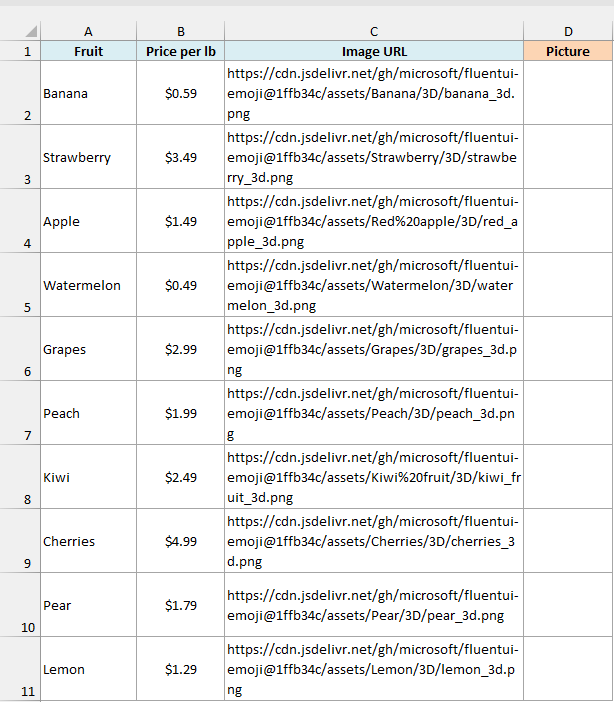
Here is the formula:
=IMAGE(C2:C11)
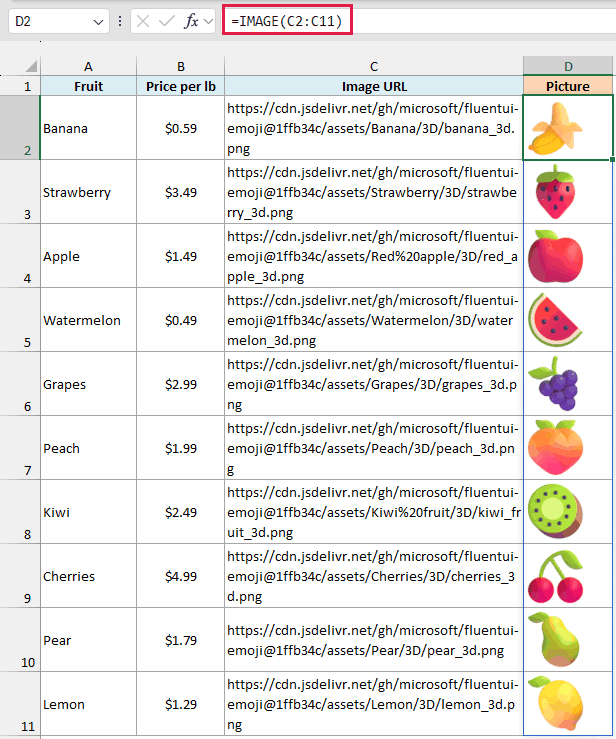
Since I gave IMAGE the whole range C2:C11, it returns one picture for each URL, and the pictures spill down into D2:D11. You enter the formula only in D2.
With the default sizing, each picture is fitted inside its cell, so the size of the cell decides how big the picture looks. I made the rows in this sheet taller than usual, so if your pictures look tiny, increase the row height.
To get the link for a picture you find online, right-click the picture in your browser and copy the image address. That gives you the address of the image file itself.
Important: If the link starts with http instead of https, IMAGE shows #BLOCKED!. If the link is broken or there’s no internet connection, it shows #CONNECT!.
#BLOCKED! can also show up with a correct https link, for example in a workbook you got from someone else. That happens when Excel’s security settings stop it from loading images from the web.
In that case, check the security settings for linked data types in Excel’s Trust Center, and only allow them for files you trust.
Example 2: Add Alt Text to Your Pictures
Now let’s use the second argument of the IMAGE function.
Below is a sports gear rental list with an image URL for each item, and I want to show the pictures in column D with each item’s name as its alt text.
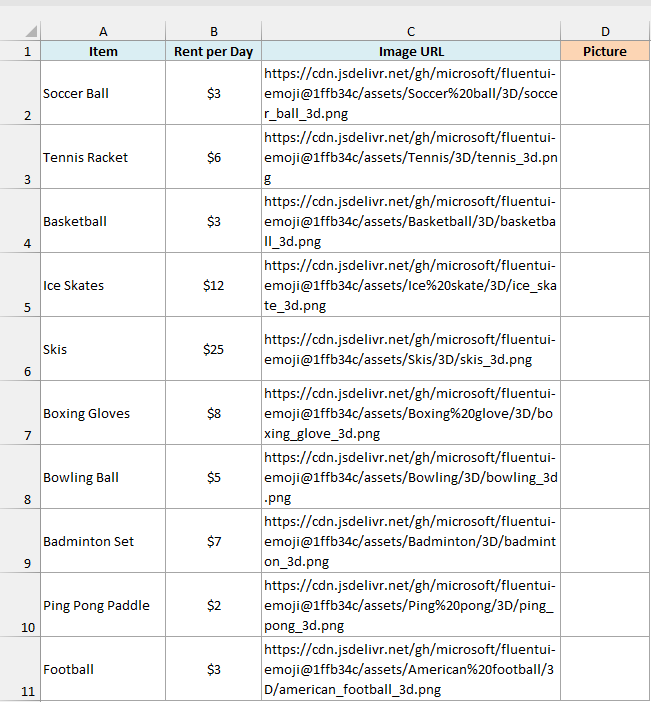
Here is the formula:
=IMAGE(C2:C11,A2:A11)
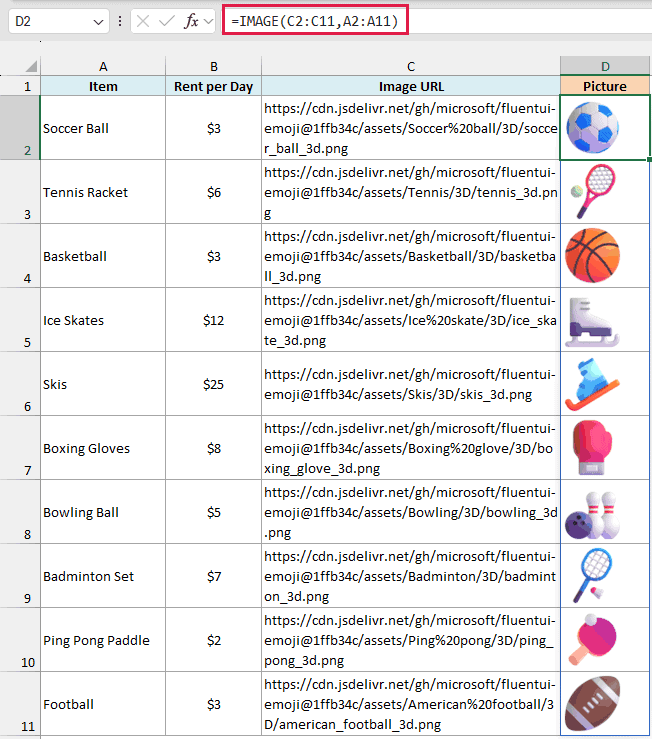
The pictures look the same as they would without the second argument. The difference is that each one now carries a description, which screen readers read out, so anyone who can’t see the picture still knows what it shows.
Because A2:A11 has the same number of rows as C2:C11, Excel pairs them up row by row. The first URL gets “Soccer Ball” as its alt text, the second gets “Tennis Racket”, and so on.
Example 3: Control the Picture Size With the Sizing Argument
The third argument decides how the picture fits in its cell, and each of its four options gives a different result.
Below I have the image URL of a teddy bear in F2, and I want to show the picture in column C with each of the four sizing options.
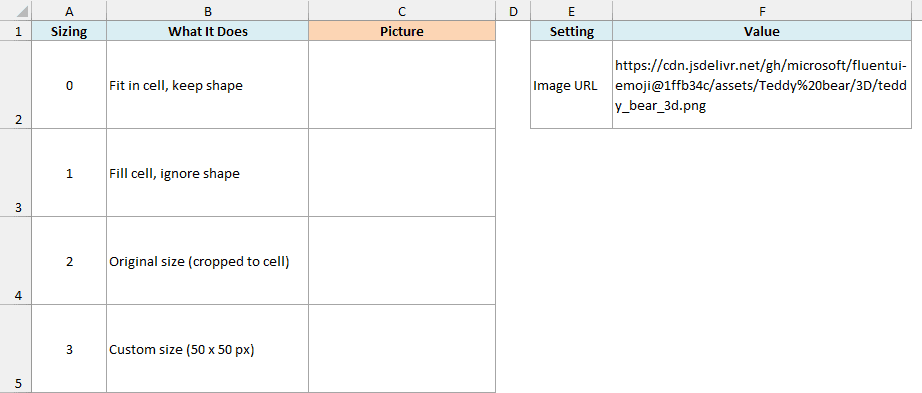
Here is the formula with sizing 0:
=IMAGE(F2,"Teddy bear",0)
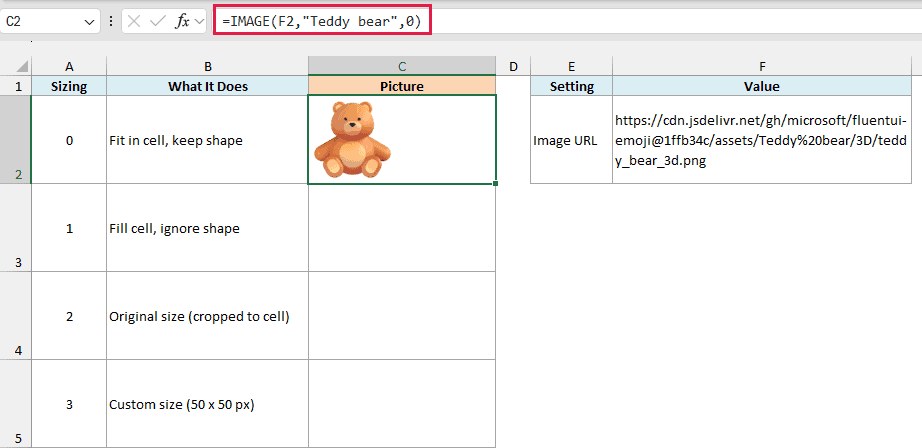
Sizing 0 fits the picture inside the cell and keeps its shape. This is the default you saw in Example 1, so leaving the third argument out gives the same result.
Here is the formula with sizing 1:
=IMAGE(F2,"Teddy bear",1)
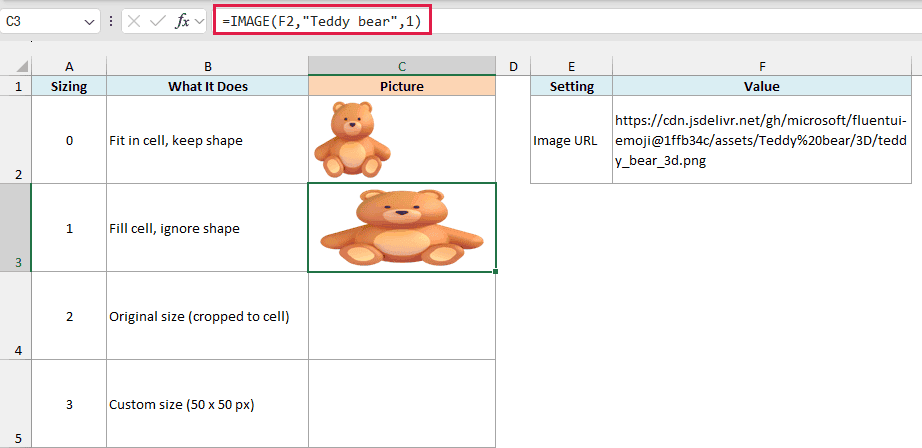
Sizing 1 stretches the picture to fill the whole cell. It ignores the picture’s shape, so in a wide cell like this one, the teddy bear gets stretched sideways.
Here is the formula with sizing 2:
=IMAGE(F2,"Teddy bear",2)
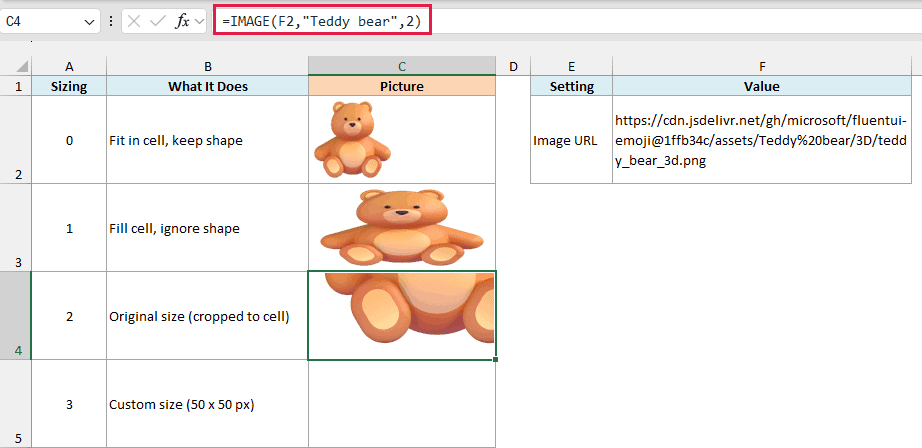
Sizing 2 shows the picture at its original size, which here is 256 x 256 pixels. That’s bigger than the cell, so Excel shows only the part of the picture that fits and crops the rest.
Here is the formula with sizing 3:
=IMAGE(F2,"Teddy bear",3,50,50)
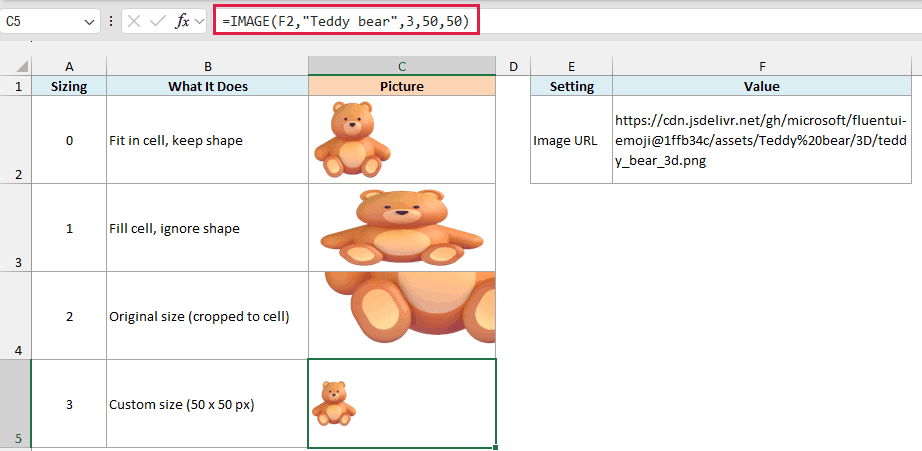
Sizing 3 lets you set your own size, with the height and width in pixels as the fourth and fifth arguments. If you give only the height or only the width, Excel keeps the picture’s shape.
Here, both are 50, so the bear is drawn at 50 x 50 pixels.
Important: The height and width arguments work only with sizing 3. If you give a height or width with sizing 0, 1, or 2, the formula returns a #VALUE! error.
Example 4: Show Status Icons With IMAGE and IF
Here’s a practical use where a whole column of pictures comes from just two icon URLs.
Below is a list of monthly bills with Yes or No in the Paid? column, and I want to show a check mark or a cross for each bill in column D, using the icon URLs in G2 and G3.
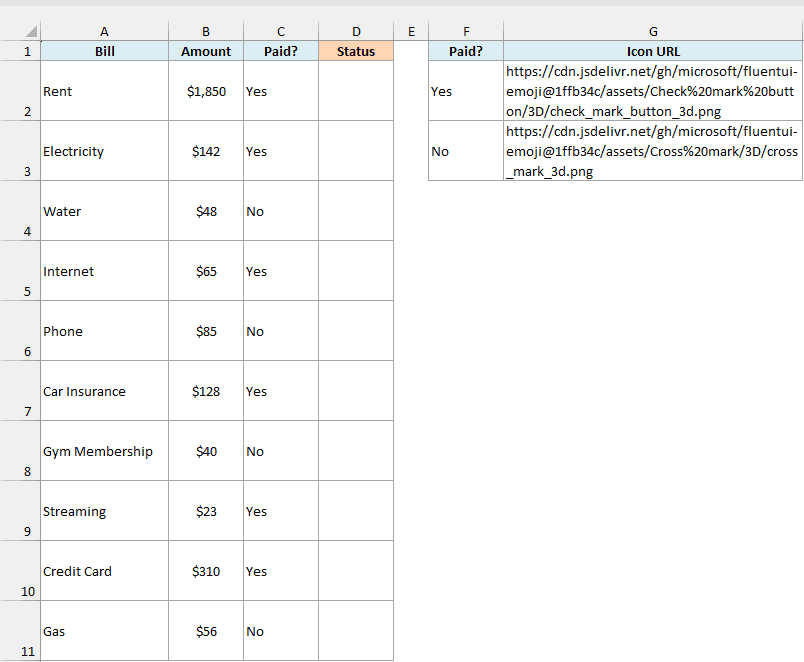
Here is the formula:
=IMAGE(IF(C2:C11="Yes",G2,G3))
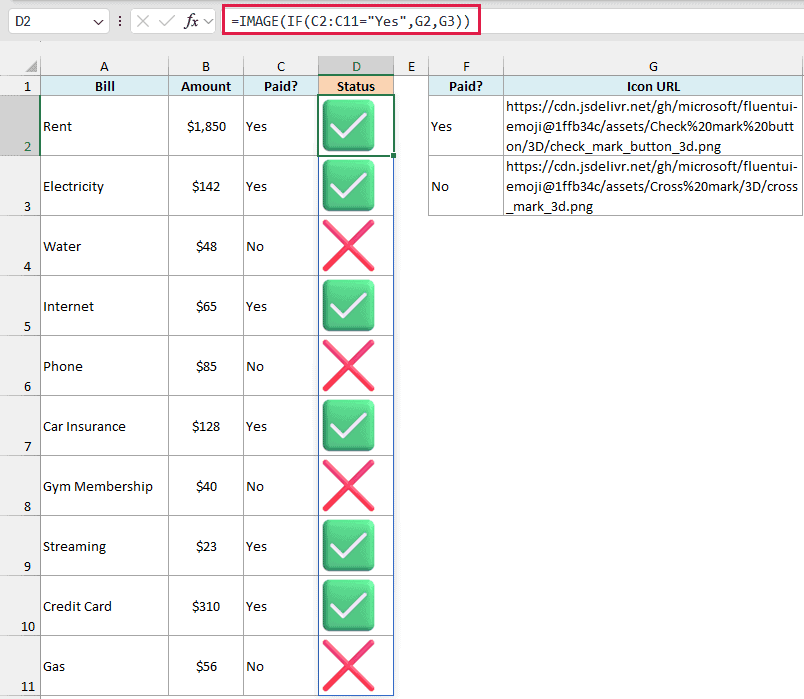
The IF function checks each value in C2:C11. When it’s Yes, IF returns the check mark URL from G2, and for anything else (including a blank cell) it returns the cross URL from G3.
IMAGE then turns each URL into a picture, and the results spill down column D.
Since the icons come from cells, you can swap the URL in G2 or G3 to change every icon at once.
Example 5: Picture Lookup With IMAGE and XLOOKUP
This next one is a picture lookup, where the picture changes based on what you pick.
Below is a pet adoption list with an image URL for each pet, and I want to pick a pet from the drop-down in F2 and show its picture in G2.
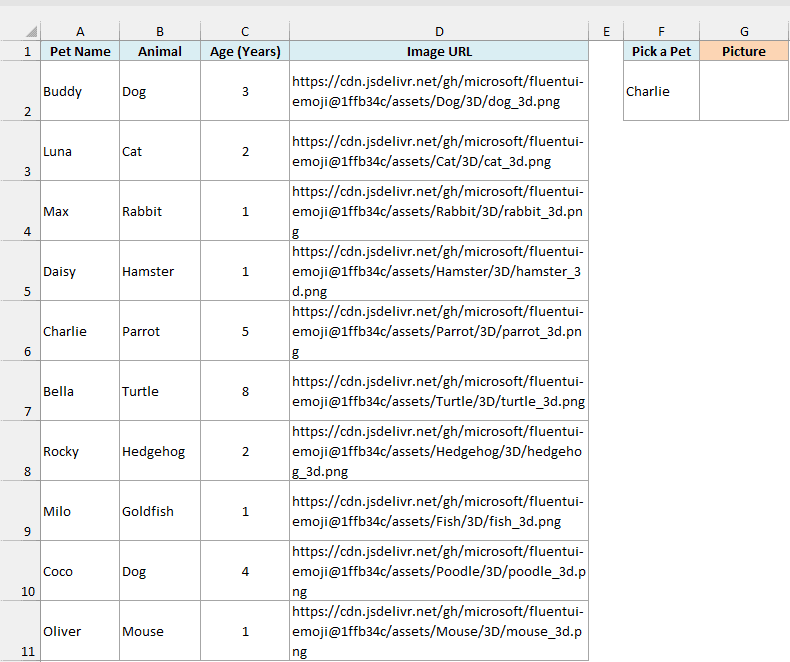
Here is the formula:
=IMAGE(XLOOKUP(F2,A2:A11,D2:D11),F2)
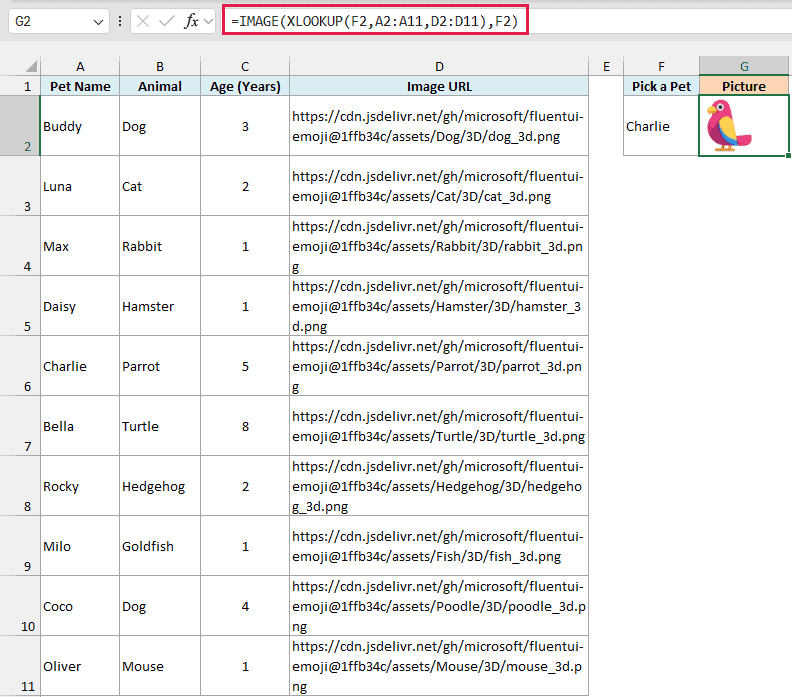
The XLOOKUP function looks for the pet name in F2 (Charlie) in A2:A11 and returns the matching URL from D2:D11. IMAGE shows that picture, and the pet’s name in F2 becomes the alt text.
Now pick a different pet in F2, say Luna, and the picture updates right away.
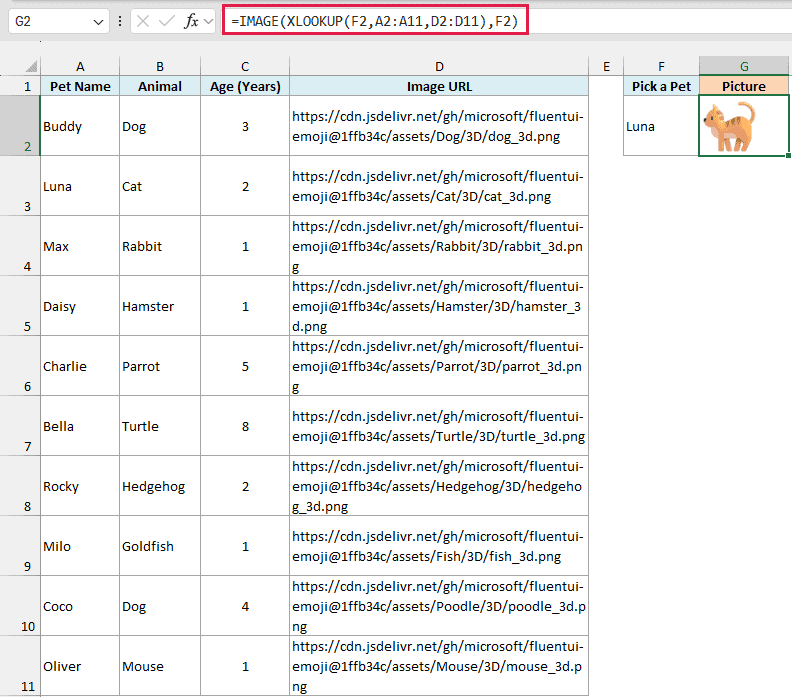
The drop-down in F2 is a regular data validation list that uses A2:A11 as its source. If you haven’t made one before, here is how to create a drop down list in Excel.
The drop-down also protects the formula. If someone typed a name that isn’t in the list, XLOOKUP would return #N/A, and G2 would show that error instead of a picture.
Example 6: Create QR Codes With the IMAGE Function
The IMAGE function can show any picture a website creates on the fly, and QR codes are a handy example.
Below is a workshop handout with a list of tutorial links, and I want a QR code for each link in column C.
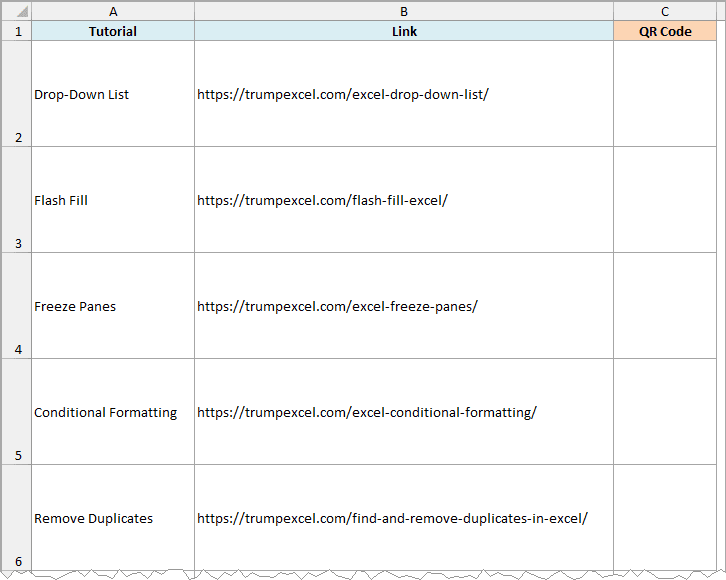
Here is the formula:
=IMAGE("https://api.qrserver.com/v1/create-qr-code/?size=150x150&data="&B2:B9,A2:A9)
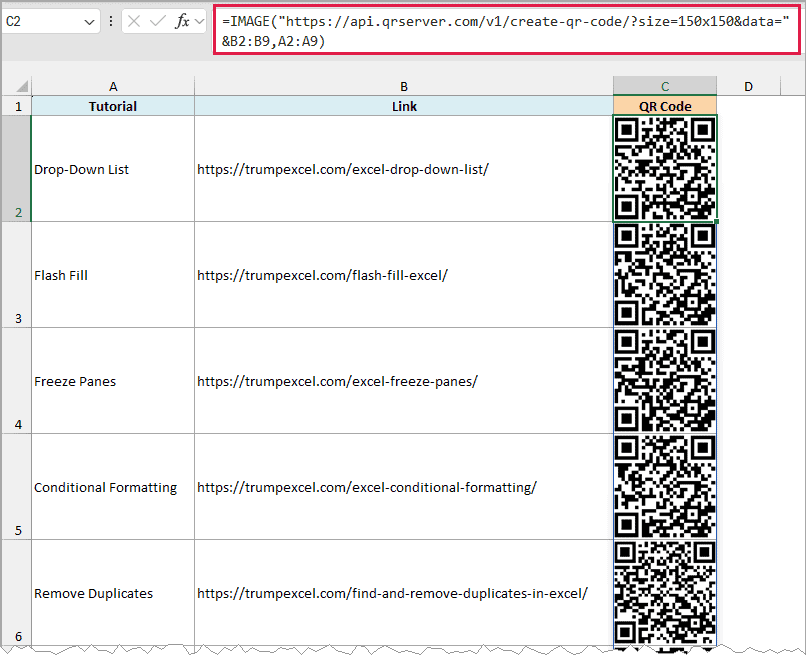
How this formula works:
- The text in double quotes is the address of a free QR code service (api.qrserver.com). The size=150×150 part asks for a 150 x 150 pixel code.
- The & joins each link in B2:B9 to the end of that address, so you get one address per link, each asking for the QR code of that link.
- IMAGE fetches each QR code and shows it in its cell, and A2:A9 gives each code the tutorial name as its alt text.
These links have no spaces or characters like & or #, so they can be joined as they are.
If your text has those characters, wrap it in the ENCODEURL function, which encodes them so they can be used in a web address. Note that ENCODEURL doesn’t work in Excel for the web or Excel for Mac.
The codes come from a third-party website, so you need an internet connection, and the codes stop loading if that service ever goes down or changes. I’ve covered more ways to do this in my guide on how to create QR codes in Excel.
Pro Tip: To keep the pictures without depending on the links, copy the cells and paste them as values. The pictures stay in the cells, but they no longer change when the link changes.
Example 7: Filter a List and Keep the Pictures (IMAGE With FILTER)
Let’s step it up with a formula that returns a filtered list with pictures.
Below is a snack bar menu with an image URL for each item, and I want to pick a category in cell F2 and get the matching items with their price and picture in columns H to J.
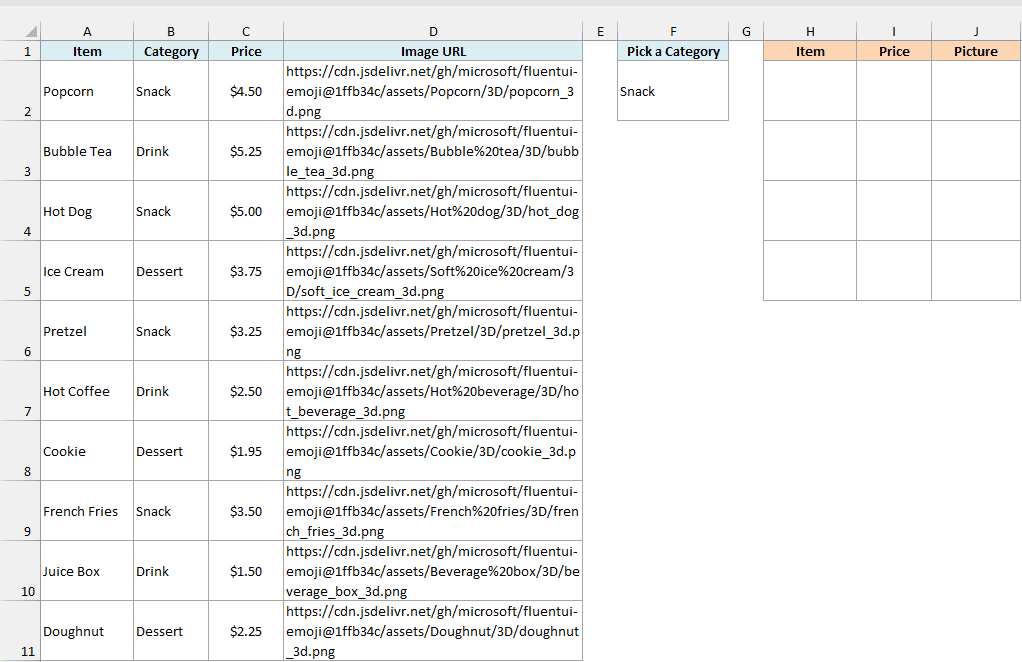
Here is the formula:
=FILTER(HSTACK(A2:A11,C2:C11,IMAGE(D2:D11,A2:A11)),B2:B11=F2)
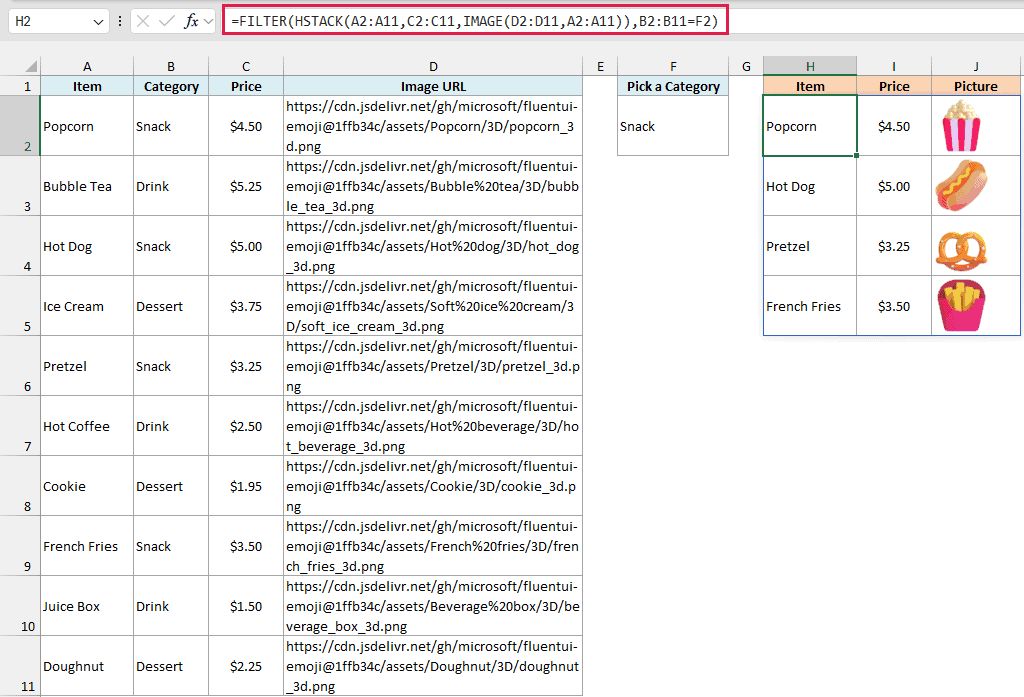
How this formula works:
- IMAGE(D2:D11,A2:A11) creates a picture for every item on the menu, with the item name as its alt text.
- The HSTACK function places the item names, the prices, and those pictures side by side as one three-column table.
- The FILTER function keeps only the rows where the category in B2:B11 matches the one in F2 (Snack), and the result spills into H2:J5.
This works because a picture returned by IMAGE is a value, just like a number or a piece of text. So FILTER can pass it along, and it lands in the result with its item.
If a category has no matching items, FILTER returns a #CALC! error. The drop-down in F2 only offers the three categories in the list, so that can’t happen here.
So this is how you can use the IMAGE function in Excel to show pictures in cells, control their size, and combine them with functions like IF, XLOOKUP, and FILTER.
Since the pictures live in the cells, they move with your data instead of floating on top of it. I hope you found this tutorial helpful.
Other Excel Articles You May Also Like:
