

The XOR function checks two conditions and returns TRUE when exactly one of them is TRUE. If both are TRUE, or neither is, you get FALSE.
That makes it useful for “one or the other” checks, like spotting a value that changed between two months, or a record where exactly one of two fields is filled in. With three or more conditions, it works a bit differently, and I’ll cover that too.
Also, when you give XOR whole ranges, it returns a single TRUE or FALSE, not one result per row. Example 4 shows how to get a result for each row.
Follow along with the example file
XOR Function Examples.xlsx
XOR Function Syntax
Here is the syntax of the XOR function:
=XOR(logical1,[logical2],...)
- logical1 – the first condition you want to check. It can be a test like
B2>=60, a TRUE/FALSE value, a cell, or a range of cells. - [logical2], … – more conditions to check. These are optional, and you can use up to 254 conditions in total.
XOR counts how many of your conditions are TRUE. If that count is odd, it returns TRUE, and if it’s even (including zero), it returns FALSE.
With two conditions, that means you get TRUE only when exactly one of them is TRUE.
Numbers also work as conditions. A 0 counts as FALSE and any other number counts as TRUE, so =XOR(1,0) returns TRUE.
When you point XOR at a range, text and empty cells in it are skipped. But if the range has no TRUE/FALSE values or numbers at all, XOR has nothing to check and returns the #VALUE! error.
The XOR function works in Excel 2013 and later versions, including Excel 365, 2024, 2021, 2019, 2016, and Excel for Mac.
When to Use the XOR Function
Use this function when you need to:
- Check whether a TRUE/FALSE value changed between two periods
- Flag records where exactly one of two fields is filled in
- Flag rows where only one of two scores meets a target
- Filter a list down to the items that meet only one of two conditions
Let me show you a few practical examples of how to use the XOR function.
Example 1: Use XOR to Check If Something Changed
Let’s start with a simple example.
Below is a list of customers with TRUE/FALSE values showing whether each one was subscribed in January and in February, and I want to find out whose subscription status changed in column D.
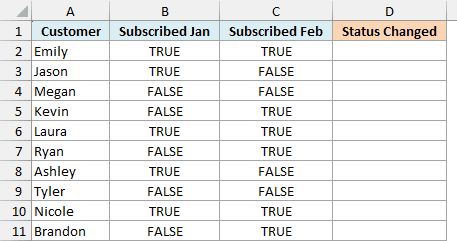
Here is the formula that I entered in cell D2 and then copied down to D11:
=XOR(B2,C2)
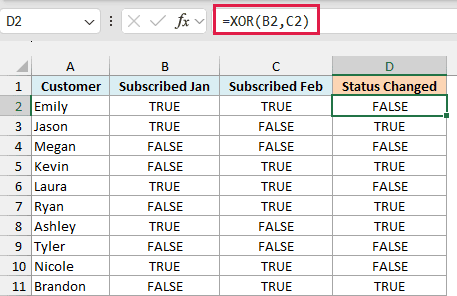
When one month is TRUE and the other is FALSE, the status changed and XOR returns TRUE. That’s the case for Jason, Kevin, Ryan, Ashley, and Brandon.
When both months have the same value, XOR returns FALSE. Emily was subscribed in both months and Megan in neither, so both of them get FALSE.
This is where XOR differs from the OR function. OR returns TRUE when at least one condition is TRUE, so it would also return TRUE for Emily, even though nothing changed for her.
Example 2: Use XOR With IF to Flag Data Entry Errors
XOR also works well for catching mistakes in data where only one of two cells should be filled in.
Below is a simple expense log where each entry should have an amount in either the Money In or the Money Out column (but not both), and I want to check every entry in column E.
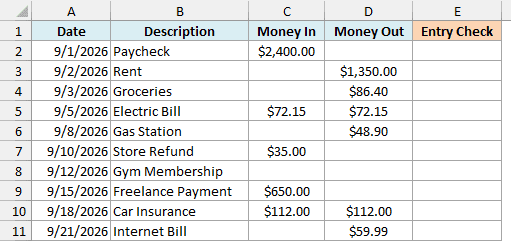
Here is the formula that I entered in cell E2 and then copied down to E11:
=IF(XOR(C2<>"",D2<>""),"OK","Check")
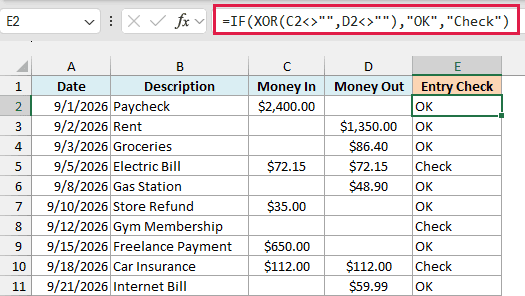
How this formula works:
C2<>""checks whether the Money In cell is not empty, andD2<>""does the same for Money Out. Each one returns TRUE or FALSE.- XOR returns TRUE only when exactly one of these two cells has something in it.
- The IF function then shows “OK” when XOR returns TRUE and “Check” when it returns FALSE.
Three entries get flagged. The Electric Bill and Car Insurance entries have the amount typed in both columns, and the Gym Membership entry has no amount at all.
Using IF here makes the result easier to read than a column of TRUE and FALSE values. You can change “OK” and “Check” to any text you like.
Example 3: XOR With Three or More Conditions (Odd Count Rule)
This next one shows a common mistake people make when they use XOR with more than two conditions.
Below is a list of students and the electives they signed up for (TRUE means they picked it), and every student is supposed to pick exactly one of Art, Music, and Drama. I want to check this in column E.
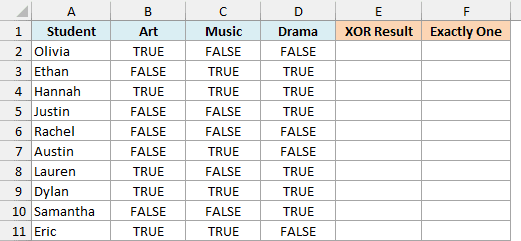
Here is the XOR formula that I entered in cell E2 and then copied down to E11:
=XOR(B2:D2)
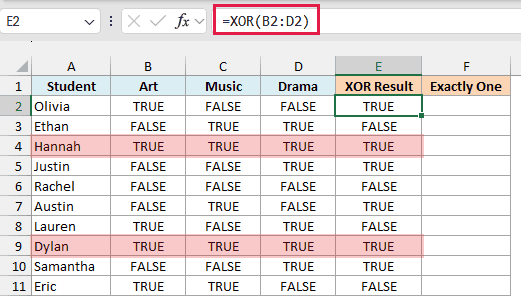
Here, I’ve given XOR the range B2:D2, so it checks all three electives for the student in that row. It works fine for most students.
But look at Hannah and Dylan. Both of them picked all three electives, and XOR still returns TRUE.
That’s because XOR returns TRUE when an odd number of conditions are TRUE. Three is an odd number, so three picks pass the check just like one pick does.
Important: XOR means “exactly one is TRUE” only when you have two conditions. With three or more conditions, count the TRUE values instead, as shown below.
Here is the formula that I entered in cell F2 and then copied down to F11:
=COUNTIF(B2:D2,TRUE)=1
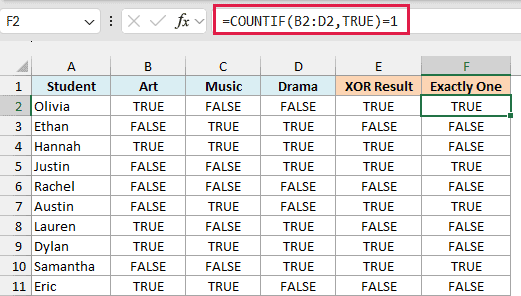
The COUNTIF function counts how many cells in B2:D2 are TRUE, and =1 checks whether that count is exactly one. Now Hannah and Dylan get FALSE, and only Olivia, Justin, Austin, and Samantha get TRUE.
Example 4: Get an XOR Result for Every Row in One Formula
So far, I’ve used one formula per row and copied it down. Now let’s see how to get the results for the whole list with a single formula.
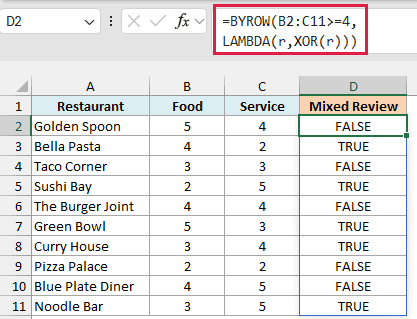
Below is a list of restaurants with a Food rating and a Service rating out of 5, and I want to flag the mixed reviews in column D (where only one of the two ratings is 4 or more).
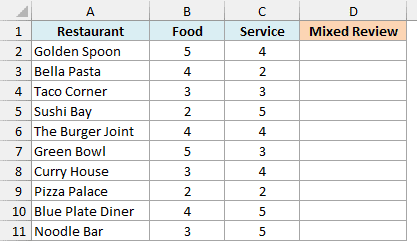
You might expect =XOR(B2:B11>=4,C2:C11>=4) to give you one result for each restaurant, but it doesn’t.
Important: When you give XOR whole ranges, it combines all the values (20 here) into one TRUE or FALSE for the entire table, not one result per row.
To get a result for each restaurant, you need to run XOR on one row at a time, and that’s what the BYROW function does. Here is the formula that I entered in cell D2:
=BYROW(B2:C11>=4,LAMBDA(r,XOR(r)))
How this formula works:
B2:C11>=4checks every rating in both columns and gives a block of TRUE/FALSE values, two for each restaurant.- BYROW takes this block one row at a time and passes each row to the LAMBDA function as
r. XOR(r)checks that row’s two values, so each restaurant gets its own TRUE or FALSE.
The results spill down to D11. Bella Pasta, Sushi Bay, Green Bowl, Curry House, and Noodle Bar get TRUE, because only one of their two ratings is 4 or more.
The BYROW function is only available in Excel 365 and Excel 2024. If you are using an older version, enter the below formula in cell D2 and then copy it down to D11:
=XOR(B2>=4,C2>=4)
Example 5: Filter Items That Meet Only One Condition
Now let’s use the same per-row XOR check to pull out a list of items, instead of just flagging them.
Below is the stock count of some home products at two stores, Downtown and Uptown, and I want to get the products that are in stock at only one of the two stores, starting in cell E2.
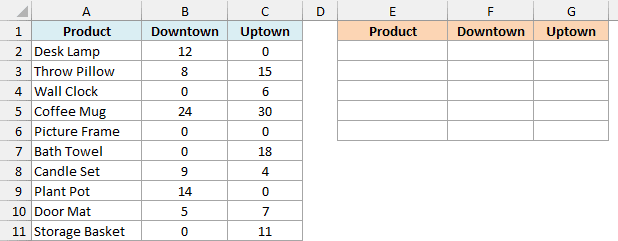
Here is the formula:
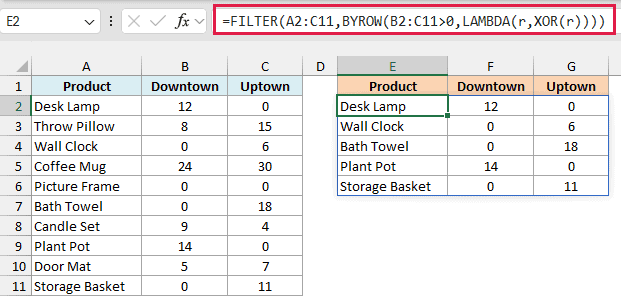
=FILTER(A2:C11,BYROW(B2:C11>0,LAMBDA(r,XOR(r))))
How this formula works:
BYROW(B2:C11>0,LAMBDA(r,XOR(r)))works just like in the previous example. It returns TRUE for each product that has stock at only one store.- The FILTER function then returns every row from A2:C11 where that check is TRUE.
The result is a list of five products: Desk Lamp, Wall Clock, Bath Towel, Plant Pot, and Storage Basket. Picture Frame has no stock at either store, so XOR returns FALSE for it and it’s left out.
Excel 2021 has the FILTER function but not BYROW, so this formula won’t work there. If you are using Excel 2021, enter the below formula in cell E2 instead:
=FILTER(A2:C11,(B2:B11>0)<>(C2:C11>0))
When you have exactly two conditions, comparing their TRUE/FALSE results with not-equal-to (<>) gives the same answer as XOR. So this version returns the same five products without needing BYROW.
So these are a few examples of how you can use the XOR function in Excel.
I hope you found this article helpful.
Other Excel Articles You May Also Like:
