

Excel has some really amazing functions, but it doesn’t have a function that can sum cell values based on the cell color.
For example, I have the dataset as shown below, and I want to get the sum of all orange and green color cells.
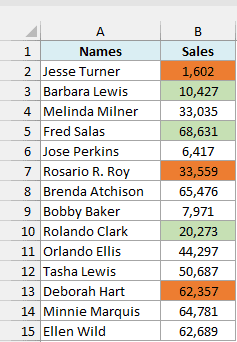
Unfortunately, there is no in-built function to do this.
But never say never!
In this tutorial, I will show you four simple techniques you can use to sum by color in Excel.
To sum highlighted cells, you can use a filter with SUBTOTAL, Find for a quick total without a formula, the SumByColor VBA function, or GET.CELL with SUMIF.
Follow along with the example file
Sum by Color in Excel.xlsm
Sum Cells by Color Using Filter and SUBTOTAL
Let’s start with the easiest one.
Below I have employee names and sales numbers, and I want the total of the green and orange Sales cells in B17.
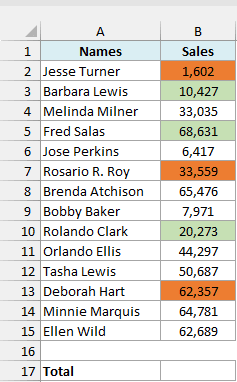
While there is no in-built function in Excel to sum values based on cell color, there is a simple workaround. You can filter cells based on their color.
For this method, enter the below formula in cell B17 (or any cell in the same column below the colored cells dataset).
=SUBTOTAL(9,B2:B15)
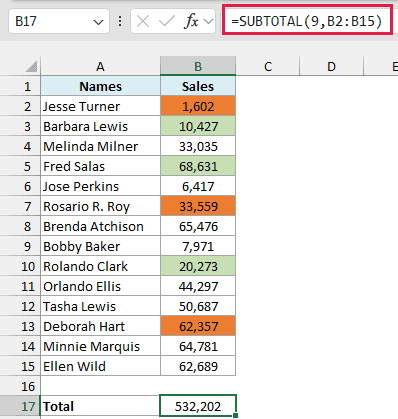
With no filter applied, B17 shows 532,202, the total of all 14 sales values.
In the above SUBTOTAL formula, 9 tells the function to sum the range given as the second argument, B2:B15.
But why not just use the SUM formula instead?
SUBTOTAL ignores rows hidden by a filter, so it adds only the visible cells. SUM still includes the filtered-out rows.
So once you have the SUBTOTAL formula, follow the below steps to get the sum based on cell color. Start by selecting any cell in the dataset.
- Click the Data tab, then click Filter in the Sort & Filter group. Filter arrows appear in the headers.

- In the Sales header cell, click the filter arrow.
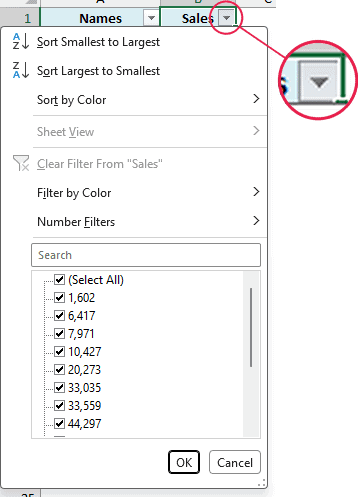
- Go to Filter by Color, then click the green color under Filter by Cell Color.
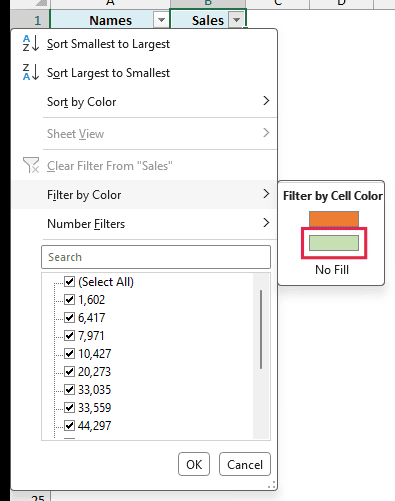
As soon as you do this, the subtotal result changes. B17 now shows 99,331, the sum of only the visible green cells.
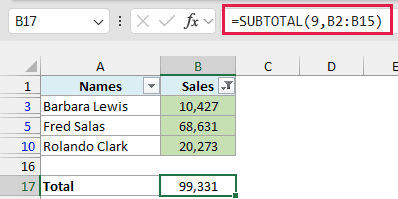
Similarly, if you filter by orange instead of green, SUBTOTAL adjusts and gives you 97,518, the sum of the orange cells.
Filter by Color also lists colors from conditional formatting, so this method works for those too.
The SUBTOTAL function with 9 ignores filtered-out rows, but still includes rows you hide by hand (right-click > Hide).
If you want to leave those rows out too, use 109 instead of 9.
Pro Tip: On Windows, the Keyboard shortcut for a filter is Ctrl+Shift+L (hold Ctrl and Shift, then press L). On Mac, use Cmd+Shift+F (Ctrl+Shift+L also works).
Also read: SUM Based on Partial Text Match in Excel (SUMIF)
Sum Colored Cells Without a Formula (Find and Status Bar)
If you just want to see the total once, you can use Find and the status bar. You don’t need a formula or a filter.
Below I have employee names and sales numbers, and I want to see the total of the green Sales cells in the status bar.
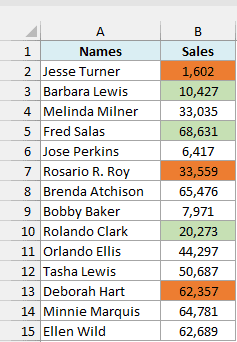
Here are the steps to get that total on Windows:
- Press Ctrl+F to open Find and Replace, then click Options. You can also open Find from Home > Find & Select > Find.
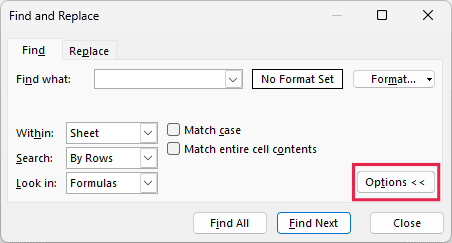
- Click the small arrow on the Format button and select “Choose Format From Cell”.
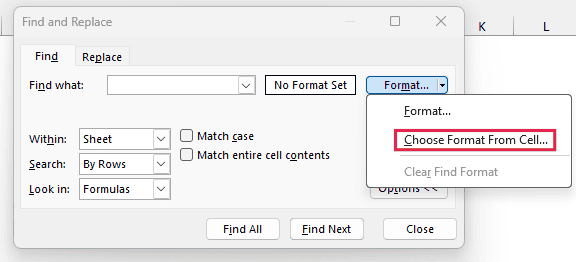
- Click any green cell, such as B3. The Preview box next to the Format button now shows the green fill.
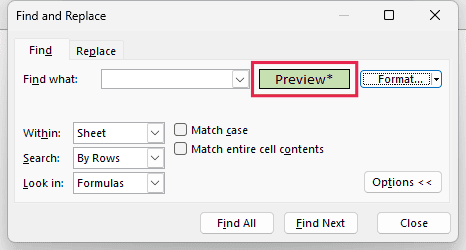
Picking the color also selects the cell you clicked, which is why you select the range next.
- Select B2:B15. The dialog stays open while you do this.
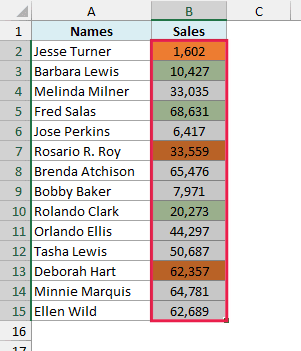
When more than one cell is selected, Find searches only that selection. This keeps colored cells elsewhere on the sheet out of the total.
- Click Find All. The list at the bottom shows the three green cells.
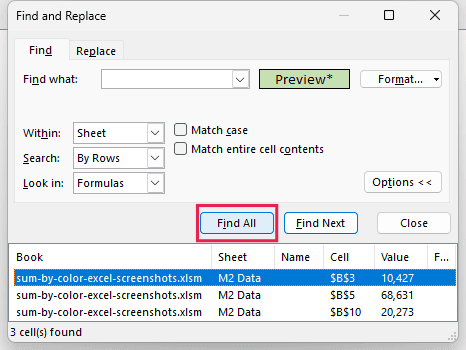
- Press Ctrl+A. This selects all the found cells in the worksheet.
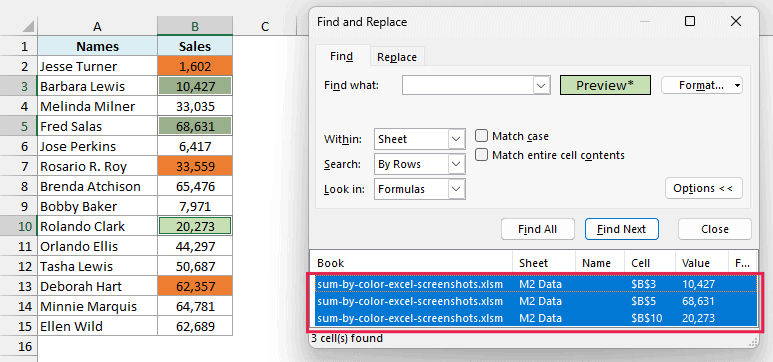
- Click Close. The status bar at the bottom of Excel shows Sum: 99,331.
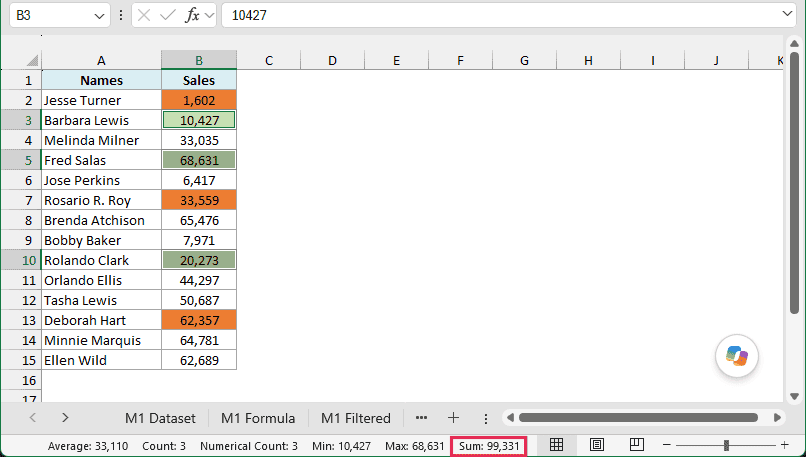
If the status bar doesn’t show Sum, right-click the status bar and check Sum.
This gives you a quick total to read, rather than a result stored in a cell. When the data changes, repeat the steps to get the new total.
If you want a count instead of a sum, see how to count colored cells in Excel.
Follow along with the example file
Sum by Color in Excel.xlsm
Sum Cells by Color Using VBA (SumByColor)
If you want to use a worksheet formula, you can create your own formula to do this using VBA.
With VBA, you can create a custom function that you can keep in the back end, and then use it like any other regular function in the worksheet.
Below is the VBA code that will create that custom function that allows you to sum by color in Excel.
'Code created by Sumit Bansal from https://trumpexcel.com/
'This VBA code creates a function that sums cells based on their fill color
Function SumByColor(SumRange As Range, SumColor As Range) As Double
    Dim rCell As Range
    Dim TotalSum As Double
    Application.Volatile
    For Each rCell In SumRange
        If rCell.Interior.Color = SumColor.Interior.Color Then
            If IsNumeric(rCell.Value) And Not IsEmpty(rCell.Value) Then
                TotalSum = TotalSum + rCell.Value
            End If
        End If
    Next rCell
    SumByColor = TotalSum
End FunctionThe code checks each cell’s exact fill color using Interior.Color. If it matches the color cell, the function adds its numeric value to the total.
It skips text and empty cells, and it adds decimals correctly. For example, 100.75 stays 100.75 rather than being rounded to a whole number.
To use this VBA custom function, you will first have to copy this code and paste it in the back end in the VB editor.
Once done, you’ll be able to use this function in the worksheet.
Below are the steps to add this code to the VB editor.
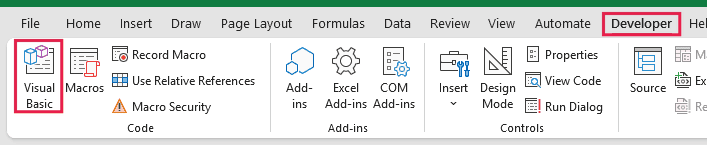
- Click the Developer tab, then click Visual Basic (or press Alt+F11). If the Developer tab isn’t visible, click here to learn how to get it.
- Click Insert, then Module. This inserts a new module in the Project Explorer.

The Project Explorer is the pane on the left that shows the workbook’s objects. If you don’t see it, click View, then Project Explorer.
- Copy the above VBA code and paste it in the newly inserted module’s code window.
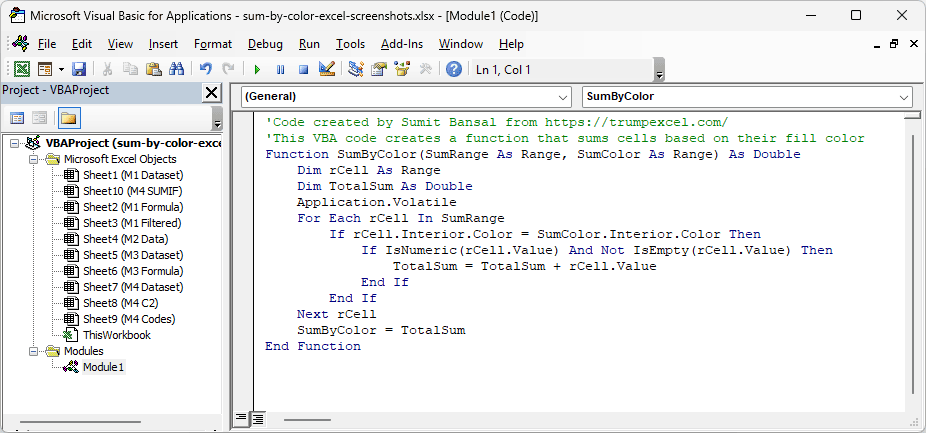
- Close the VB Editor.
Now that you have the code in the back end in Excel, you will be able to use the function that we created (SumByColor) in the worksheet.
For this function to work, I will need a cell in the worksheet that contains the same color for which I want to get the sum.
Below I have employee names and sales numbers, and I want separate totals for the green and orange Sales cells in column E.
I’ll use the green fill in D2 and the orange fill in D3 as color samples for the formulas.
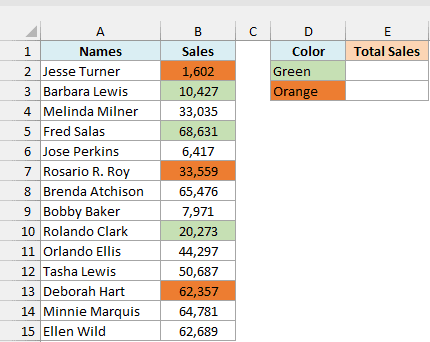
Now I can use the below formula in E2, then copy it to E3:
=SumByColor($B$2:$B$15,D2)
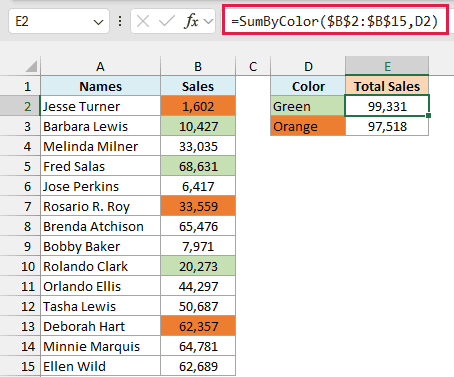
E2 returns 99,331 for green, and E3 returns 97,518 for orange.
The above formula takes two arguments:
- The range of cells that have the color that I want to add, here B2:B15.
- Reference to any cell that contains the color, here D2. The function uses that fill color as the condition for adding values.
The dollar signs keep B2:B15 fixed when you copy the formula. The color reference changes from D2 to D3 to get the orange total.
Changing a sales value updates the result automatically, but changing a cell’s fill color doesn’t make Excel recalculate.
After applying, changing, or removing a fill, press F9 to update the total. The Application.Volatile line in the code lets F9 update the result.
Since we have used VBA code in the workbook, it needs to be saved as a macro-enabled workbook (with the .xlsm extension).
VBA doesn’t run in Excel for the web. You can’t create, run, or edit VBA macros there.
SumByColor reads the fill you applied yourself, and so does the GET.CELL method below. Neither sees colors from conditional formatting.
If your colors come from a conditional formatting rule, sum with that rule’s condition using SUMIFS instead.
Pro Tip: If you sum by color often, keep the code in your Personal Macro Workbook so it’s available in every workbook.
A function stored there must be called with the file name in front, for example:
=PERSONAL.XLSB!SumByColor($B$2:$B$15,D2)
Also read: Filter By Color in Excel
Sum Cells by Color Using GET.CELL and SUMIF
The final method I want to show you uses a hidden Excel function (that not many people know about).
This method uses the GET.CELL function, which can get us the color index value of colored cells.
And once we have the color index value of each cell, we can then use a simple SUMIF formula to only get the sum of cells with a specific color in it.
It’s not as elegant as the VBA custom function I covered earlier, but if you don’t want to use VBA, then this could be the way to go for you.
GET.CELL is an old Macro 4 (Excel 4.0) function kept for compatibility, but you won’t find many details about it (as it’s rarely used).
It doesn’t work as a regular worksheet formula. You need to use it inside a named range.
Below I have employee names and sales numbers, and I want separate totals for the green and orange Sales cells in column F.
I’ll use column C for the color codes and the fills in E2 (green) and E3 (orange) as color samples for the totals.
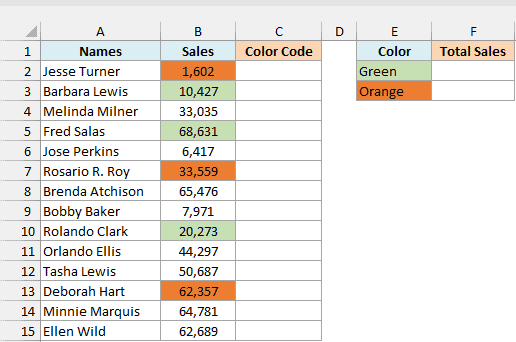
Important: Microsoft 365 blocks Excel 4.0 macros by default. Codes show #BLOCKED!, but the SUMIF function returns 532,202, the total of all rows, instead of an error.
To enable them, go to File > Options > Trust Center > Trust Center Settings > Macro Settings.
Check “Enable Excel 4.0 macros when VBA macros are enabled”, then click Enable Content when you open the file.
For this technique to work, we first need to create a named range that will use GET.CELL to give the color index of a colored cell.
Part 1: Create the CellColor named range
- Select cell C2, then go to the Formulas tab and click Name Manager in the Defined Names group.
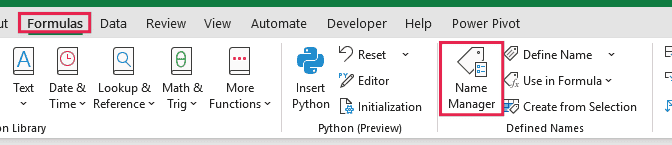
Selecting C2 first matters. The reference in the name is relative to the cell that’s selected when you create it.
- In the Name Manager dialog box, click New.
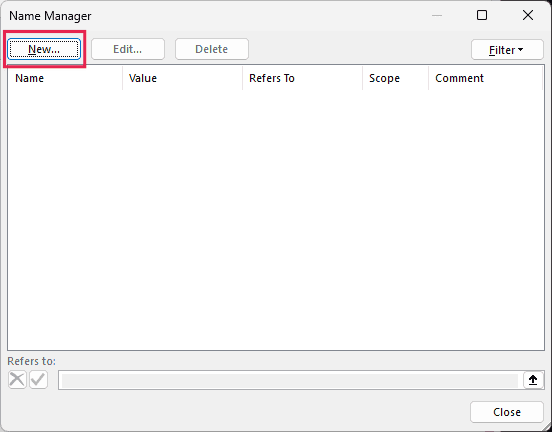
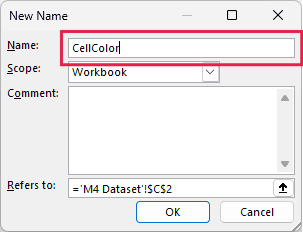
- In the New Name dialog box, enter CellColor in the Name field.
Here is the formula for the Refers to field:
=GET.CELL(38,B2)
- In the Refers to field, enter the formula above.
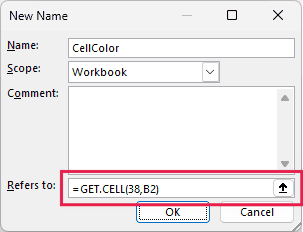
- Click OK, then close the Name Manager.
The above steps have created a named range that we can now use in the workbook.
GET.CELL takes two arguments. The first is a number that tells the function what information we need. The second, B2, is the cell reference.
In this case, 38 as the first argument gives us the color index value of the referred cell. Other numbers return other information.
Because C2 was selected, B2 means “the cell to the left of wherever you use the name”. So CellColor always returns the color of the cell on its left.
Part 2: Get the color codes
Now the second part is to get the color index values of all the colors in column B. In C2, enter the following formula:
=CellColor
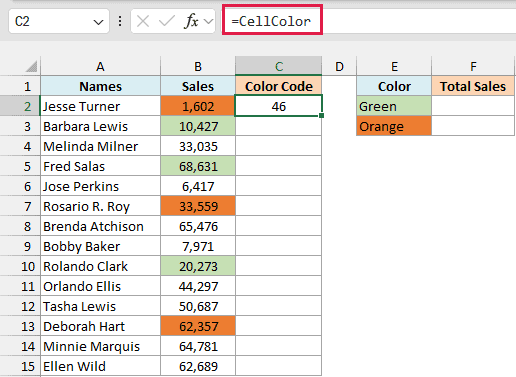
Copy C2 down to C15 using the fill handle, or copy and paste it into those cells.
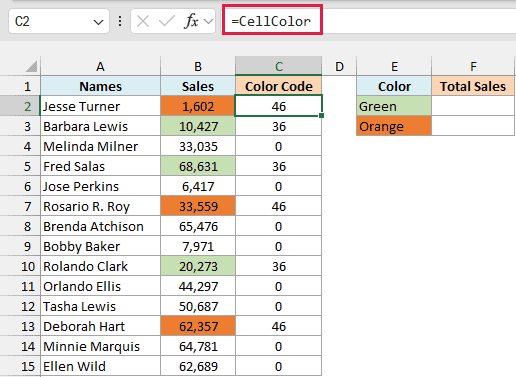
The above steps give you a value that represents the color index of the cell in column B (the cell on the left).
Here, the codes are 36 for green, 46 for orange, and 0 for cells with no fill. Cells with the same color get the same number.
You can use CellColor in any row, as long as the colored cell is right next to it on the left.
GET.CELL with 38 returns the nearest of Excel’s 56 basic palette colors. Two similar custom colors can get the same number and get added together.
If that happens, use more distinct colors or the VBA method, which matches the exact fill color.
Part 3: Sum the cells with each color
Now that we have a number for each color, we can use this to get the sum of cells based on their color.
E2 and E3 already have the green and orange fills to match. In F2, enter the following formula, then copy it to F3:
=SUMIF($C$2:$C$15,CellColor,$B$2:$B$15)
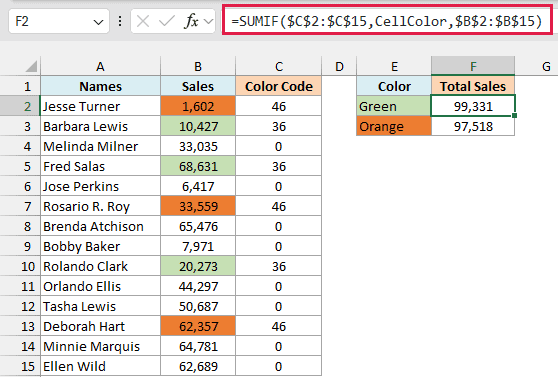
F2 returns 99,331 for green, and F3 returns 97,518 for orange.
In F2, CellColor reads the color of E2, the cell to its left. It returns 36 for green.
The SUMIF formula adds the Sales values in B2:B15 whose code in C2:C15 is 36.
When you copy it to F3, CellColor reads E3 instead and returns 46 for orange. The dollar signs keep the code and sales ranges fixed.
While this is a slightly longer way to sum cells by color (compared with SUBTOTAL or VBA), it gets the work done, and you only need to do this setup once.
Changing a cell’s color doesn’t update the codes or the total. Press Ctrl+Alt+F9 to recalculate everything after changing or removing a fill.
Plain F9, or pressing F2 then Enter on the SUMIF cell, doesn’t refresh the color codes.
If you save the file as .xlsx, the GET.CELL name breaks and returns #NAME?. Save it as a macro-enabled workbook (.xlsm) to keep the name working.
So these are four methods you can use to sum by color in Excel. While SUBTOTAL is quite easy and straightforward, I personally like the VBA method better.
I hope you found this tutorial useful!
Other Excel tutorials you may also like:
- Count Characters in a Cell (or Range of Cells) Using Formulas in Excel
- How to Count Colored Cells in Excel
- How to Sort By Color in Excel (in less than 10 seconds)
- How to Apply Formula to Entire Column in Excel
- How to Sum Only Positive or Negative Numbers in Excel (Easy Formula)
- How to SUM values between two dates (using SUMIFS formula)
- How to Combine Duplicate Rows and Sum the Values in Excel
- How to Sum Across Multiple Sheets in Excel? (3D SUM Formula)
- 3D References in Excel
- Best Shortcuts to Fill Color in Excel (Basic & Advanced)

Goodness, I have been screwing around with this for way too long. One short video and you solved my quest. Thank you so much!!
Glad the video helped 🙂
Thank you for this useful summary. BTW, if you use get.cell, it requires saving the file as xlsm.
How do I sum if I have coloured the parallel Column, like Having the numbers in the K column and colour in the J column, and I want the sum of the column K if the J column cell is green or any other colour.
Thank You