

If you want to count the numbers that fall between two given numbers in Excel, it can easily be done using the COUNTIFS function (or COUNTIF and SUM if you’re on an older version).
For example, if you’re analyzing the sales data of your sales reps, you may want to know how many of them have sales between $100K and $500K.
The only thing you need to decide is whether you want to count the values that are exactly equal to these two numbers.
In this tutorial, I will show you a couple of different methods to count between two numbers, and how to include or exclude the boundary values.
Follow along with the example file
Count Between Two Numbers Excel.xlsx
COUNTIFS Formula to Count Between Two Numbers
The easiest way to count between two numbers is by using the COUNTIFS function, as it allows you to check the same range against both the lower and the upper limit in one formula.
Let me show you how it works.
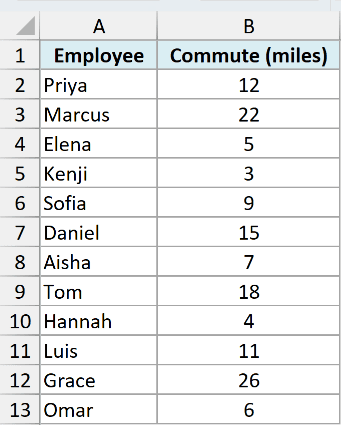
Below I have a data set where I have employee names in column A and their commute distance (in miles) in column B, and I want to know the number of employees whose commute is more than 5 miles but less than 15 miles.
Below is the COUNTIFS formula that will do this:
=COUNTIFS(B2:B13,">5",B2:B13,"<15")
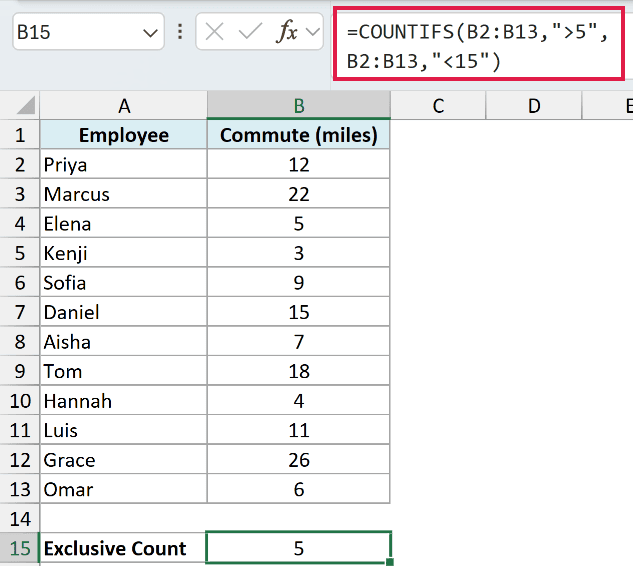
The formula gives us 5 in cell B15, as there are five employees (Priya, Sofia, Aisha, Luis, and Omar) whose commute is more than 5 and less than 15 miles.
The syntax of the COUNTIFS function is COUNTIFS(criteria_range1,criteria1,[criteria_range2,criteria2]...).
In our formula, the COUNTIFS function takes four arguments:
criteria_range1– This is the range that has the numbers (B2:B13)criteria1– This is the first criterion (">5"), which checks that the commute is more than 5 milescriteria_range2– This is again the same range that has the numberscriteria2– This is the second criterion ("<15"), which checks that the commute is less than 15 miles
COUNTIFS only counts a cell when it satisfies both these conditions.
Note that in the above formula, we have excluded the cells that have the values 5 and 15. In case you want these to be counted as well, you can use the below formula:
=COUNTIFS(B2:B13,">=5",B2:B13,"<=15")
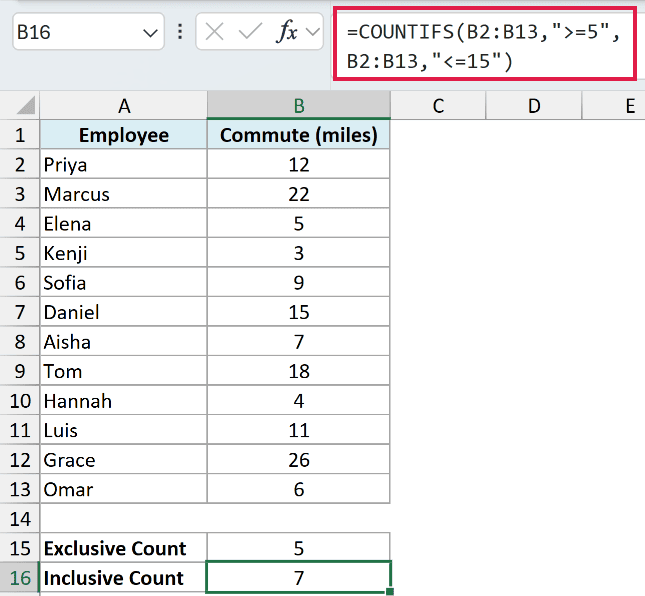
This gives us 7 in cell B16. The count goes up by two because Elena’s commute is exactly 5 miles and Daniel’s commute is exactly 15 miles, and both of these now get counted.
Here is a quick reference of the operators you can use, depending on whether you want the limits to be counted or not:
| Limits to Count | Lower Operator | Upper Operator |
|---|---|---|
| Both limits included | >= | <= |
| Both limits excluded | > | < |
| Lower limit included only | >= | < |
| Upper limit included only | > | <= |
Important: Make sure that your criteria are always in double quotes (as in “>=5”). Also, in case you want the lower and upper limits to be counted, use “>=” for the lower limit and “<=” for the upper limit.
The COUNTIFS function is available in Excel 2007 and later versions.
In case you’re using an older version of Excel that does not have the COUNTIFS function, or you need to share your file with someone who’s working on an older version, you can use the COUNTIF or SUM method covered later in this article.
The same formula also works for dates. You can see how in the Count Dates Between Two Dates example in the COUNTIFS function article.
Also read: Check IF a Date is Between Two Given Dates in Excel
Using Cell References for the Lower and Upper Limits
In most cases, you would not want to type the numbers directly into the formula. It’s better to have the lower and upper limits in cells, so you can change them anytime and the count updates automatically.
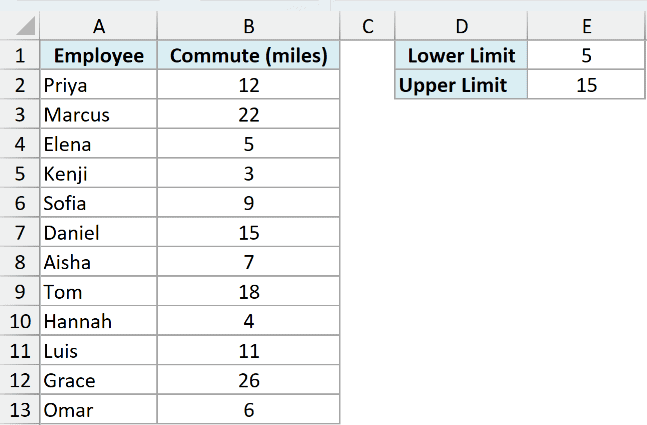
Below I have the same data set, and I have entered the lower limit (5) in cell E1 and the upper limit (15) in cell E2.
Here is the formula that will count the employees whose commute is between these two limits (including the limits):
=COUNTIFS(B2:B13,">="&E1,B2:B13,"<="&E2)
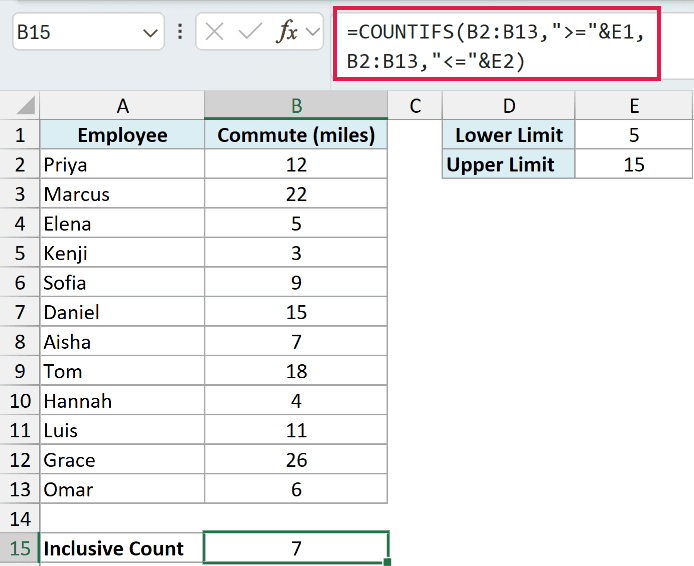
The formula gives us 7 in cell B15.
Note that the comparison operator still needs to be in double quotes, and we have used the ampersand (&) to join it with the cell reference. So ">="&E1 becomes ">=5" when Excel calculates the formula.
Now, if you change the values in E1 or E2, the formula will automatically give you the updated count.
COUNTIF Formula to Count Between Two Numbers
In case you do not have COUNTIFS, you can get the same result by using two COUNTIF formulas.
Below I have the same data set where I have the employee names in column A and the commute distance in column B, and I want to find out the number of employees whose commute is more than 5 miles and less than 15 miles.
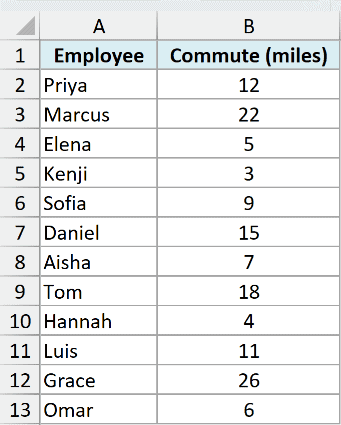
Here is the COUNTIF formula that will give us the result:
=COUNTIF(B2:B13,">5")-COUNTIF(B2:B13,">=15")
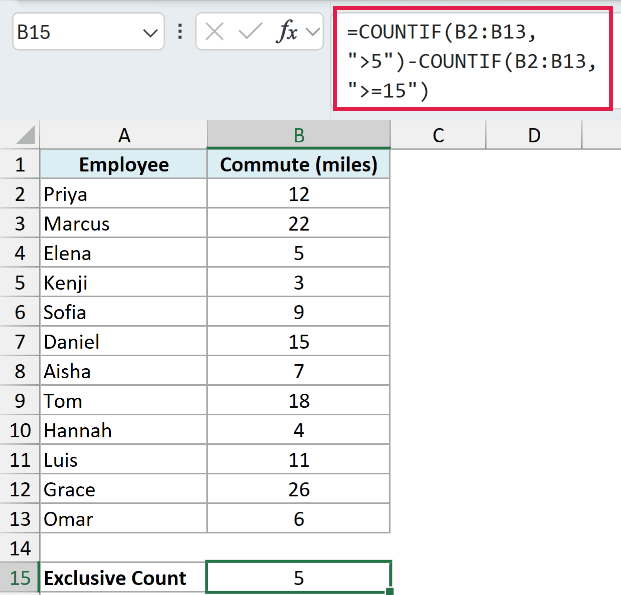
The above formula gives us 5 in cell B15, and it uses two COUNTIF functions:
- The first COUNTIF function gives us the count of all the cells where the commute is more than 5 miles (which is 9). These would also include the cells where the commute is 15 miles or more
- The second COUNTIF function gives us the count of only those cells where the commute is 15 miles or more (which is 4)
Subtracting the value we get from the second COUNTIF from the value that we get from the first COUNTIF gives us the right result (9 – 4 = 5).
Note that I have used ">=15" in the second COUNTIF (and not ">15"). This is because we also want to remove the value 15 from the count. If you use ">15", Daniel’s 15-mile commute would still get counted.
And in case you want to include both the limits, you can use ">=5" in the first COUNTIF and ">15" in the second one.
Also read: SUM Values Between Two Dates (using SUMIFS formula)
SUM Formula to Count Between Two Numbers
While in most cases, you’re better off using the COUNTIFS or the COUNTIF function, let me show you another smart way to use a simple SUM formula to count between two numbers.
Below I have the same data set where I want to calculate the number of employees whose commute is more than 5 miles and less than 15 miles.
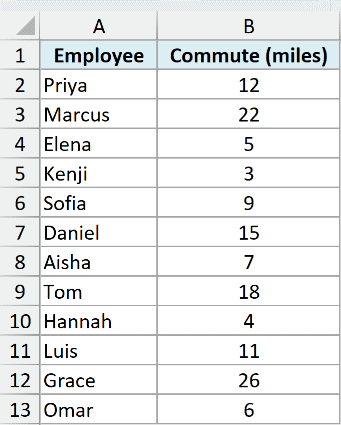
Here is the SUM formula that will do this for us:
=SUM((B2:B13>5)-(B2:B13>=15))
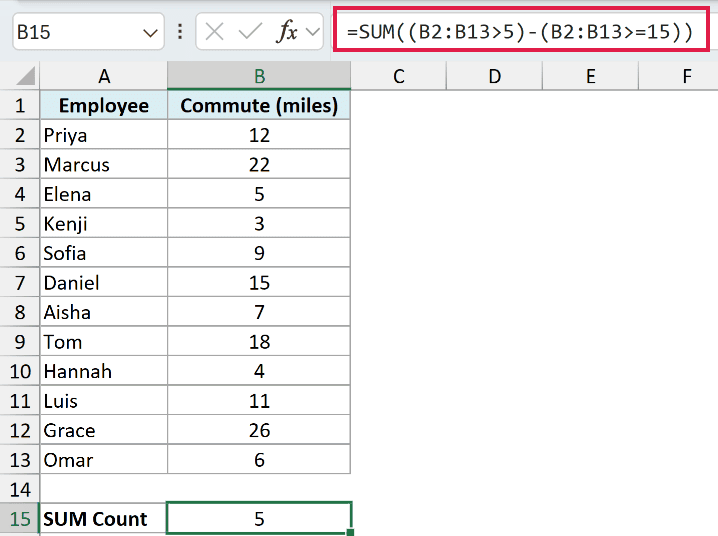
This gives us 5 in cell B15.
The above formula uses (B2:B13>5) to get an array of TRUE and FALSE, where we get a TRUE in case the commute is more than 5 miles, and a FALSE in case it’s 5 miles or less.
Similarly, (B2:B13>=15) gives us a TRUE for every commute that is 15 miles or more.
In the back end, Excel considers TRUE as 1 and FALSE as 0.
So when we subtract the second array from the first one, we get 1 only when the commute is more than 5 and less than 15 miles. For all the other cells, we get 0 (1 minus 1, or 0 minus 0).
This array is then wrapped within the SUM function that simply adds all the 1s and gives us the result.
Important: In Excel 365 and Excel 2021 (or later), you can simply press Enter, as these versions have dynamic arrays. In case you’re using an older version of Excel, you need to use Control + Shift + Enter instead of Enter (i.e., hold the Control and the Shift key and then press the Enter key).
If you want a formula that works in every version of Excel without needing Control + Shift + Enter, you can use the SUMPRODUCT function instead:
=SUMPRODUCT((B2:B13>5)*(B2:B13<15))
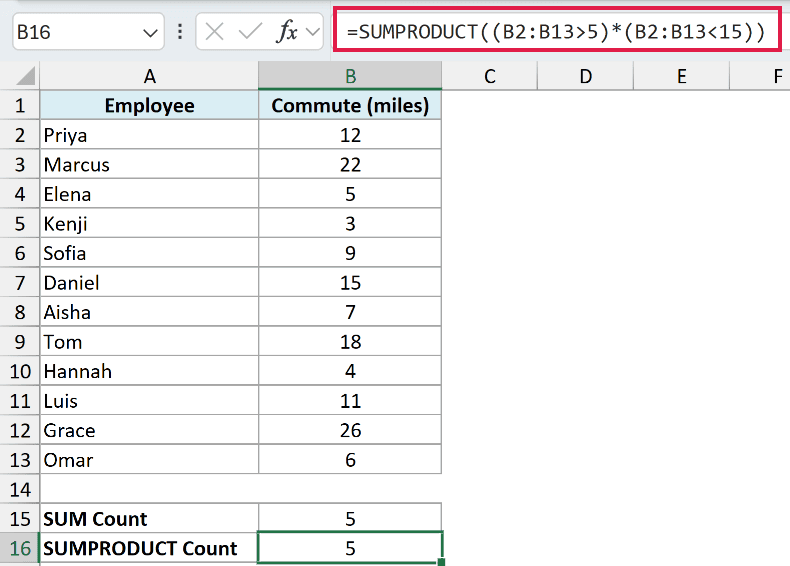
This also gives us 5 in cell B16. Here, multiplying the two arrays works like an AND condition, so we get 1 only when the commute is more than 5 and also less than 15 miles.
So these are some simple formulas that you can use to count between two numbers in Excel.
The easiest way would be to use the COUNTIFS function. But in case you do not have it, or you don’t want to use it because of compatibility reasons, you can also use the COUNTIF or the SUM (or SUMPRODUCT) method.
I hope you found this Excel tutorial useful.
Other Excel articles you may also like:
- Calculate the Number of Months Between Two Dates in Excel
- Count Unique Values in Excel Using COUNTIF Function
- Count Cells Less than a Value in Excel (COUNTIF Less Than)
- How to Use Multiple Criteria in Excel COUNTIF and COUNTIFS Function
- How to Count Cells that Contain Text Strings
- How to Count Filtered Rows in Excel?
- AND Function in Excel (5 Examples)
- SUMIFS Function in Excel (7 Examples)
