

The IF function is one of the most useful functions in Excel. You give it a condition to check, and it gives you one result when that condition is met and a different result when it isn’t.
Simple idea, and you end up using it everywhere.
But a single IF can only check one condition at a time. In real work, that’s often not enough. You may want to flag an order when it’s overdue, or when it’s marked as high priority. Any one of those should be enough to raise the flag.
When you’re dealing with multiple conditions like this, you can use the OR function inside IF. OR does the checking, IF decides what to show, and the formula reacts the moment any one of your conditions turns true.
In this article, I’ll show you how to use IF with OR, starting with how OR works on its own and then building it into a full formula.
How the OR Function Works
Before we combine it with IF, let’s look at what the OR function does on its own.
OR returns TRUE if at least one of the conditions you give it is true. It only returns FALSE when every single condition is false.
Below I have a list of orders, with the order status in column B, the priority in column C, and how many days each order has been open in column D. I want to check which orders are either overdue or marked as high priority.
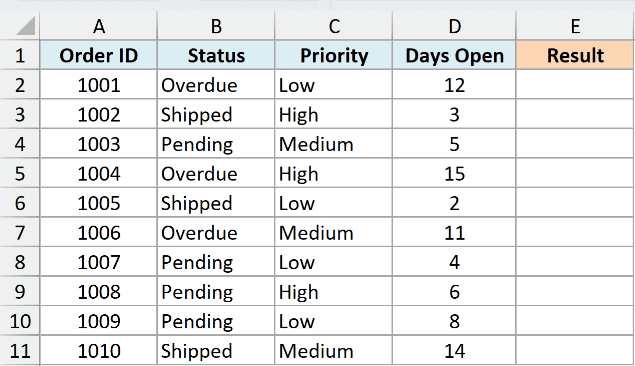
Here is the formula:
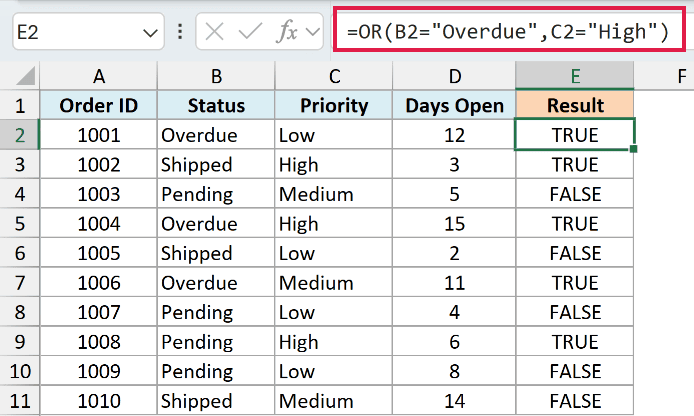
=OR(B2="Overdue",C2="High")
How does this formula work?
The OR function is checking two conditions. B2="Overdue" checks the status, and C2="High" checks the priority.
If either one is true, OR returns TRUE. Order 1001 is overdue, so it returns TRUE even though its priority is Low. Order 1002 returns TRUE too, because its priority is High even though it has shipped.
Just like AND, the OR function can take up to 255 conditions, and only one of them needs to be true.
Example 1 – Combining IF with OR to Flag Rows
The OR function on its own only returns TRUE or FALSE. Usually you want a clearer label, like “Flag” for orders that need attention.
So you put the OR test inside the IF function. IF shows one result when the OR test is true and another when it is false.
Using the same dataset, I want to show “Flag” whenever an order is overdue or marked high priority. Everything else should show “OK”.
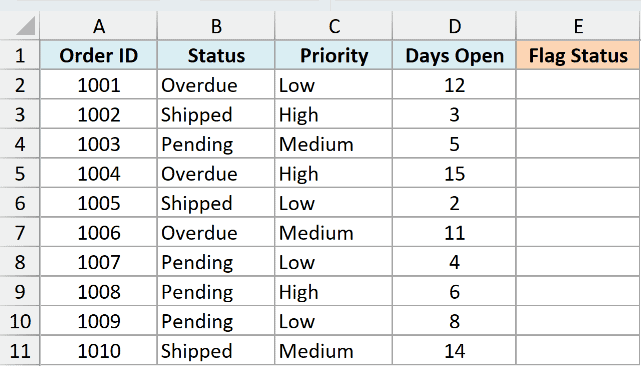
Here is the formula:
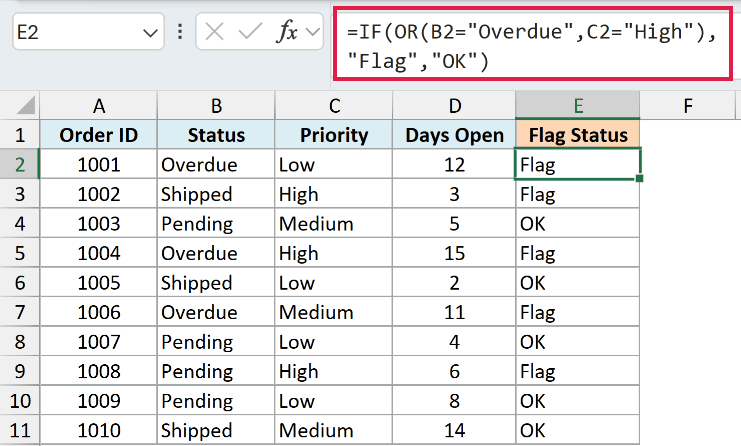
=IF(OR(B2="Overdue",C2="High"),"Flag","OK")
How does this formula work?
OR(B2="Overdue",C2="High") is the logical test. It is true when the order is overdue, when it is high priority, or when both are true.
When the test is true, IF returns “Flag”. When it is false, IF returns “OK”. So orders 1001, 1002, 1004, 1006, and 1008 all get flagged, while a pending, low priority order like 1009 stays “OK”.
I entered this in cell E2 and copied it down for each row.
I keep it per row here because the OR function collapses a whole range into a single TRUE or FALSE, so it can’t return a separate answer for every row on its own.
If you are on Excel 365, Excel 2021 or a later version, and want one formula that fills the whole column at once, you can add the two conditions together instead of using OR:
=IF((B2:B11="Overdue")+(C2:C11="High"),"Flag","OK")
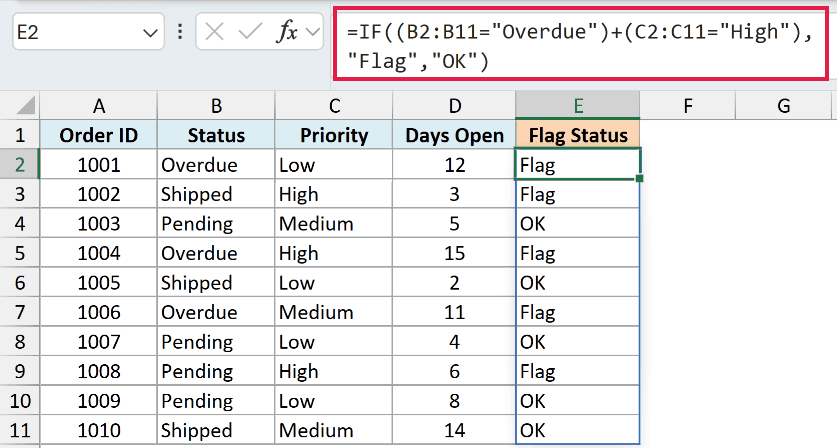
Adding the two TRUE/FALSE arrays gives a number that is 1 or 2 when at least one condition is true, and 0 when none are.
IF reads any number other than 0 as TRUE, so you get the same flags, and this single formula spills down the column automatically.
Example 2 – Using IF with OR for More Than Two Conditions
OR is not limited to two conditions, so you can keep adding more inside the same formula. Let’s widen the rule a little.
Using the same list of orders, I now want to flag an order if it is overdue, if it is high priority, or if it has been open for more than 10 days. Any one of these should be enough to flag it.
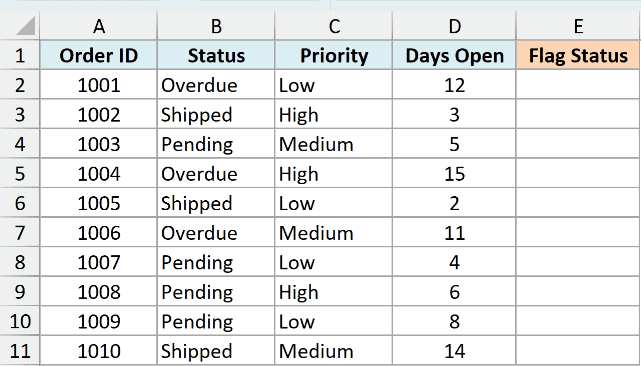
Here is the formula:
=IF(OR(B2="Overdue",C2="High",D2>10),"Flag","OK")
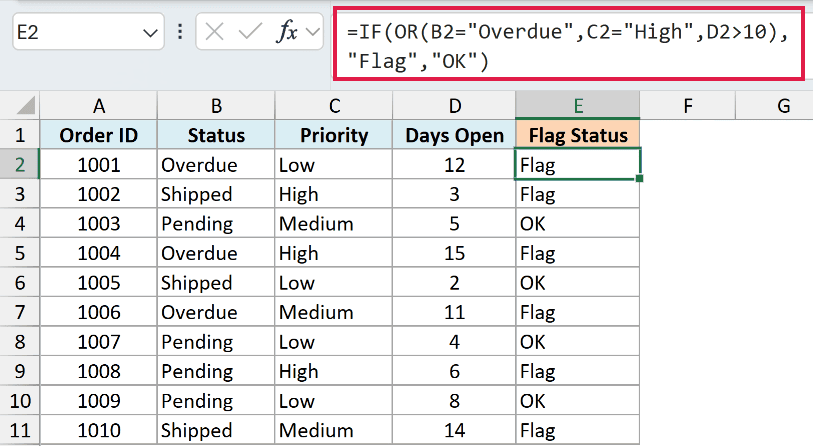
How does this formula work?
I have added a third condition, D2>10, inside the OR function. Now an order gets flagged if any one of the three conditions is true.
Order 1010 is a good example. It has shipped and its priority is Medium, so the first two conditions are false. But it has been open for 14 days, so the third condition is true and the order still gets flagged.
Pro Tip: You can mix AND and OR inside a single IF. For example, =IF(OR(C2=”High”,AND(B2=”Overdue”,D2>10)),”Flag”,”OK”) flags an order when it is high priority, or when it is both overdue and open more than 10 days.
IF with OR vs. IF with AND
It is easy to mix up OR and AND, so it helps to see them side by side on the same data.
OR flags a row when any one condition is true. AND only returns a result when every condition is true at the same time. To see the difference, here is what the flag rule looks like with AND instead of OR.
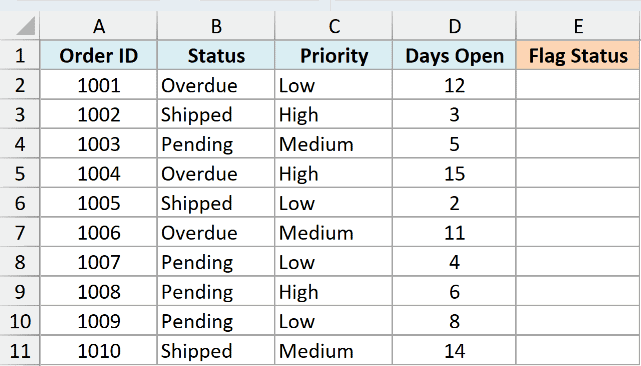
Here is the formula:
=IF(AND(B2="Overdue",C2="High"),"Flag","OK")
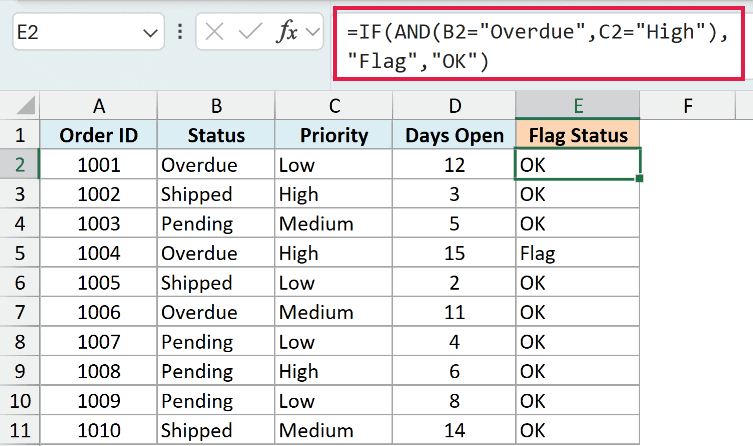
How does this formula work?
With AND, an order is only flagged when it is overdue and high priority at the same time. In this dataset only order 1004 meets both conditions, so it is the only one flagged.
Compare that to the OR version earlier, which flagged five orders. So reach for OR when any single condition should trigger the result, and AND when they all have to be true.
Things to Keep in Mind
- OR only needs one condition to be true. It returns FALSE only when every condition is false. If you instead need all conditions to be true at once, use the AND function.
- Text conditions go in double quotes, like “Overdue”, but numbers do not. Write D2>10, not D2>”10″.
- OR is not case sensitive. “Overdue”, “OVERDUE”, and “overdue” all count as a match.
- You can nest OR and AND inside the same IF to build more detailed rules, like flagging a row when it is high priority or when it is both overdue and old.
- The spilling version that adds the conditions together needs Excel 365, Excel 2021 or a later version, or Excel for the web. On older versions, use the per-row IF with OR formula and copy it down the column.
In this article, I showed you how to combine the IF function with OR so a formula reacts as soon as any one of your conditions is true, and how that differs from using AND.
I hope you found this article helpful.
Other Excel Articles You May Also Like:
